Table of Contents
This practical guide explains how to use the let function: excel trick to reduce formula. Follow the steps in order, review the requirements first, and use the troubleshooting notes when a setting or option does not work as expected.
What is the LET function?
LET is a function in Excel that allows you to add variables to formulas to make them more manageable and efficient.
Think of variables as labeled containers that store different values, such as numbers or text. They make values easier to reuse and manipulate, especially if they are the result of intermediate calculations. That's because you can refer to them by the name of their corresponding container instead of directly.
Here is the syntax of the LET function:
=LET(variable_name_1, value_to_assign_1, [variable_name2, assigned_value2, .], final_calculIn the syntax, variable_name_1 is the name or label of the variable you want to use. For example, if you need to store the weight of something, you just call it weight. The value_to_assign_1 parameter is the value you want to assign to variable_name_1.
You can also create additional variables and assign names to them, which is where the optional arguments [variable_name2, assigned_value2,.] come in. And final_calculation is the formula that uses the named variables to produce the result.
LET is one of those Excel functions that can save you a lot of work in the long run. However, it requires anyone looking at an Excel spreadsheet to have a grasp of the concept of variables, in addition to how functions work. However, it is worth learning, as we will see in the example in the next section.
How the LET function makes formulas easier to read
The best use case for the LET function is to reduce the complexity of a formula by using some intermediate calculations. Let's look at the sample data below that shows the price, quantity, and discount percentage of an item.
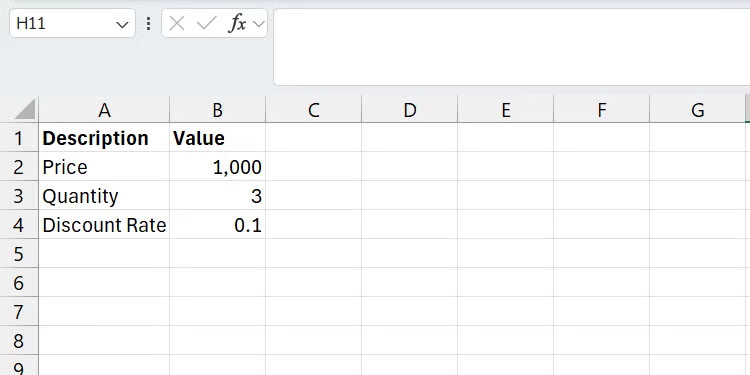
We will use basic math in Excel to calculate the total cost of the product after calculating all the factors. The syntax of the calculation is as follows:
total_cost = subtotal - (subtotal * discount_rate)Let's analyze what's going on here:
- First, we need to calculate the subtotal , which is the price (A2) multiplied by the quantity (A3).
- Second, we need to know the discount amount, i.e. subtotal multiplied by the discount rate (A4).
- Finally, we calculate the total cost by subtracting the discount amount from the subtotal.
The formula would look like this in Excel if we hardcode the values:
=(1000 * 3) - ((1000 * 3) * 0.1)There are a few issues here that make this formula complicated. The most prominent issue is that the subtotal calculation (1000 * 3) is repeated twice, making the formula hard to read. This is also bad for performance, because Excel repeats the calculation instead of just reusing the result.
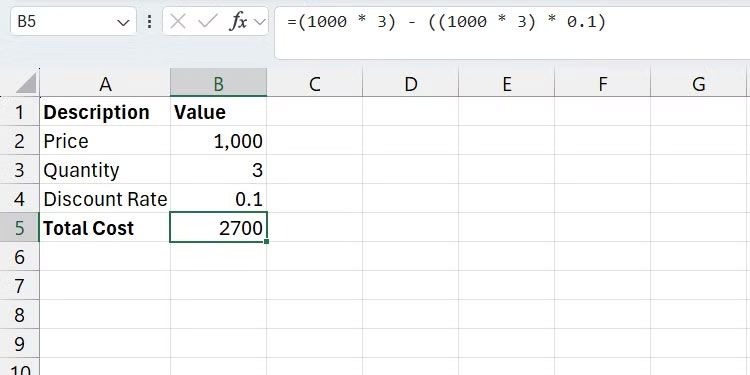
Imagine if we repeated that calculation multiple times in the formula. That means if we change any element in that calculation, we have to change it everywhere it is repeated. That is a tedious and error-prone process.
Also, it's hard to know what the individual numbers mean. For example, when calculating a subtotal, does 1000 represent the quantity or the price of the item? There's no clarity on what those numbers mean.
Reading the formula isn't much easier either if we use cell references, as in the example below:
=(B2 * B3) - ((B2 * B3) * 4)When we use the LET function, the formula becomes easier to read because we build the formula gradually, removing complexity step by step. Here is an example to illustrate (the article will put everything on a separate line to make the example easier to follow):
=LET( price, B2, quantity, B3, discount_rate, 4, subtotal, price * quantity, discount_amount, subtotal * discount_rate, subtotal - discount_amount )Here, the values in cells A2, A3 , and A4 become easier to understand as price , quantity , and discount_rate respectively. Now, we just need to use those named variables to calculate the subtotal and discount amount. As you can see, each value is assigned to a variable once, either by referring to a cell or storing the result of an intermediate calculation, and then reused throughout the process.

Plus, it's easy for others to follow along as you calculate your total costs. And if we change the values in the variables (for example, using a different cell reference or adding another variable to intermediate calculations), we don't have to edit the formula in multiple places.
Rules to keep in mind when naming variables
Before using the LET function with your formulas, you should learn some rules and best practices when naming variables.
Please note the following:
- Make sure the names describe the values you will assign to them.
- Names can contain letters and numbers.
- Do not use names that Excel has reserved (for example, SUM, MAX, or IF).
- You can't use spaces when naming variables, so if you want to separate words, either wrap them together (e.g. discountAmount) or use underscores (e.g. discount_amount).
- Use the same naming convention consistently throughout - avoid combining both capitalization and underscores.
- Do not use special characters other than underscores.
Functions like LET make your formulas easier to read, which is great for collaboration. Plus, if you revisit your formulas months later, it's much easier to remember what they do if you have descriptive names. This is a very useful function that greatly reduces complexity by simplifying the way you interact with formulas, even as they become more verbose.
FAQ
What is the LET function?
LET is a function in Excel that allows you to add variables to formulas to make them more manageable and efficient.
How the LET function makes formulas easier to read?
The best use case for the LET function is to reduce the complexity of a formula by using some intermediate calculations. Let's look at the sample data below that shows the price, quantity, and discount percentage of an item.
What should you know about rules to keep in mind when naming variables?
Before using the LET function with your formulas, you should learn some rules and best practices when naming variables.
Related Articles
 Difference Between Function and Formula in Excel5 minutes read
 How to Use the REDUCE Function in Excel: Step-by-Step Guide8 minutes read
 MS Excel 2003 - Lesson 5: Excel Formulas and Functions7 minutes read
 SUBTOTAL Function: Formula and How to Use the SUBTOTAL Function in Excel11 minutes read
 How to use the VALUE function in Excel - A function to4 minutes read
 How to Use Formula Suggestions in Excel on the Web6 minutes read
Reader Comments 0
Sign in with email or Google to join the discussion.