Table of Contents
ChatGPT for Slack is OpenAI's latest move to combine AI with group chat, deployed as both a dedicated app and a connector.
Slack has become the digital hub for modern teams, but its constant stream of messages can be overwhelming. ChatGPT for Slack aims to fix that by bringing OpenAI's assistant directly into your workspace to help summarize topics, compose messages, and make sense of unnecessary information. It's not just a new integration, but a glimpse into the future of work communication.
What exactly is ChatGPT for Slack?
ChatGPT for Slack is OpenAI's latest move to combine AI with group chat, deployed as both a dedicated app and a connector.
It adds a sidebar to Slack for one-on-one AI chats, allowing you to ask questions, brainstorm ideas, or compose messages without switching tabs. Or you can connect an optional Slack connector and ChatGPT will access the context of your workspace, allowing for deeper, more relevant responses.
This integration turns Slack into more than just a chat tool. It helps turn ongoing discussions into useful knowledge. It also hints at how collaboration tools are changing. They're starting to interpret information rather than just store it.
For teams already using OpenAI products, this adds a layer of consistent AI support across applications, but any benefits depend on how much data the team is willing to share with a system outside of your control.
If you're curious about what Slack is doing with AI, check out Slack Workspace's new AI features.
Install ChatGPT for Slack and use it
Installing ChatGPT for Slack is simple, but you'll need a paid plan: Slack Pro or higher, along with ChatGPT Plus, Pro, Business, or Enterprise. Start by finding ChatGPT in Slack's App Directory, installing it, and authenticating with your OpenAI account.

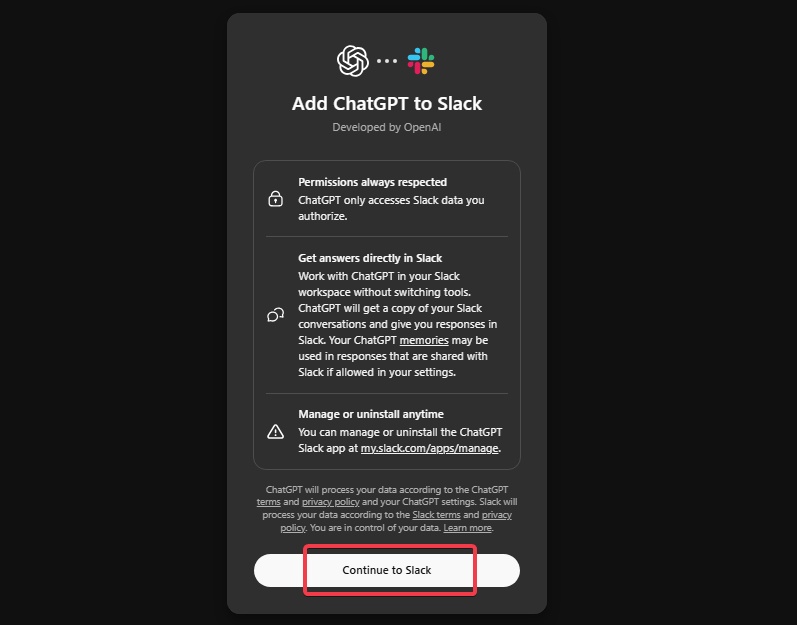
Then, in the ChatGPT settings, connect your Slack workspace under Connectors. You will be prompted to add ChatGPT to Slack, then click Continue to Slack to proceed . Your administrator may need to approve for Enterprise setups.
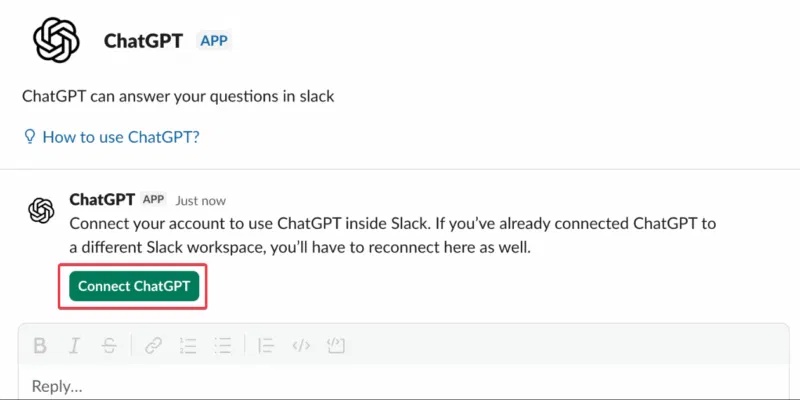
Before using the app, you also need to connect the app to your ChatGPT account from Slack.
Once integrated, you can mention "@ChatGPT" in any chat or use simple slash commands like "/chatgpt brief the engineering team with action items" to condense discussions.

Note : With ChatGPT for Slack, you can only reference channels by entering them as plain text.
The business plan unlocks more advanced options like smarter search and broader summaries, but even free users will notice less noise and faster responses.
It's important to set limits early. Limit ChatGPT to non-sensitive channels and determine where it can summarize or interact.
How ChatGPT for Slack Changes Your Daily Workflow
The change was noticeable right away. For remote workers, it meant faster brainstorming. Marketers could brainstorm campaign ideas mid-stream, and developers could edit code without leaving Slack.
In Salesforce channels, you can gather insights or analyze conversations through Agentforce. Easily get smoother reporting, like summarizing weekly technical conversations into actionable summaries.
It's not all hype; it helps reduce email fatigue and boost collaboration, especially in fast-paced sales or development teams. You can even combine it with productivity bots on Slack for added efficiency.
That said, this integration isn't perfect. If your team is dealing with complex, nuanced discussions, AI summaries can lose tone or context, potentially missing important details that humans can pick up on.
It's great for quick wins, but relying on it too much can undermine your ability to think critically in the long run. For busy professionals juggling multiple channels, however, Slack's AI feature can be a real stress reliever, but it requires human oversight.
FAQ
How do you use ChatGPT for slack: step-by-step guide?
In practical terms, ChatGPT for Slack is OpenAI's latest move to combine AI with group chat, deployed as both a dedicated app and a connector.
What should you check before getting started?
Review the requirements, compatible device or software version, and any warnings described in the guide before making changes.
What should you do if the steps do not work?
Repeat the steps in order, confirm that your app or system is up to date, and review the troubleshooting details provided above.
Related Articles
 Useful Tips for Mastering Slack19 minutes read
 What Is Slack? Instructions on How to Use Slack9 minutes read
 Ways to Slack Activities with Your Favorite Services13 minutes read
 How to Set Up a Slack Account: Step-by-Step Guide4 minutes read
 How Will Slack Change in 2023?6 minutes read
 13 Great Integration for Slack Application You Should Not Ignore9 minutes read
Reader Comments 0
Sign in with email or Google to join the discussion.