Table of Contents
Upgrading to a new SSD usually comes down to two things: Either it takes hours to reinstall Windows and all your programs, or clone your existing drive and it's done in 30 minutes.
Upgrading to a new SSD usually comes down to two things: Either reinstalling Windows and all your programs, which takes hours, or cloning your existing drive and can be done in 30 minutes. If you've been putting off upgrading because a fresh install sounds like too much work, cloning is a much better option.
Drive cloning copies everything directly to the new SSD, including your operating system, downloaded programs, files, and settings. Once done, you can swap out your failing hard drive and boot up as if nothing had changed, except everything would run faster. So you don't have to reinstall software, hunt for license keys, or spend a weekend rebuilding your system.
- 7 reasons to upgrade to an SSD
Everything you need to know before you start cloning
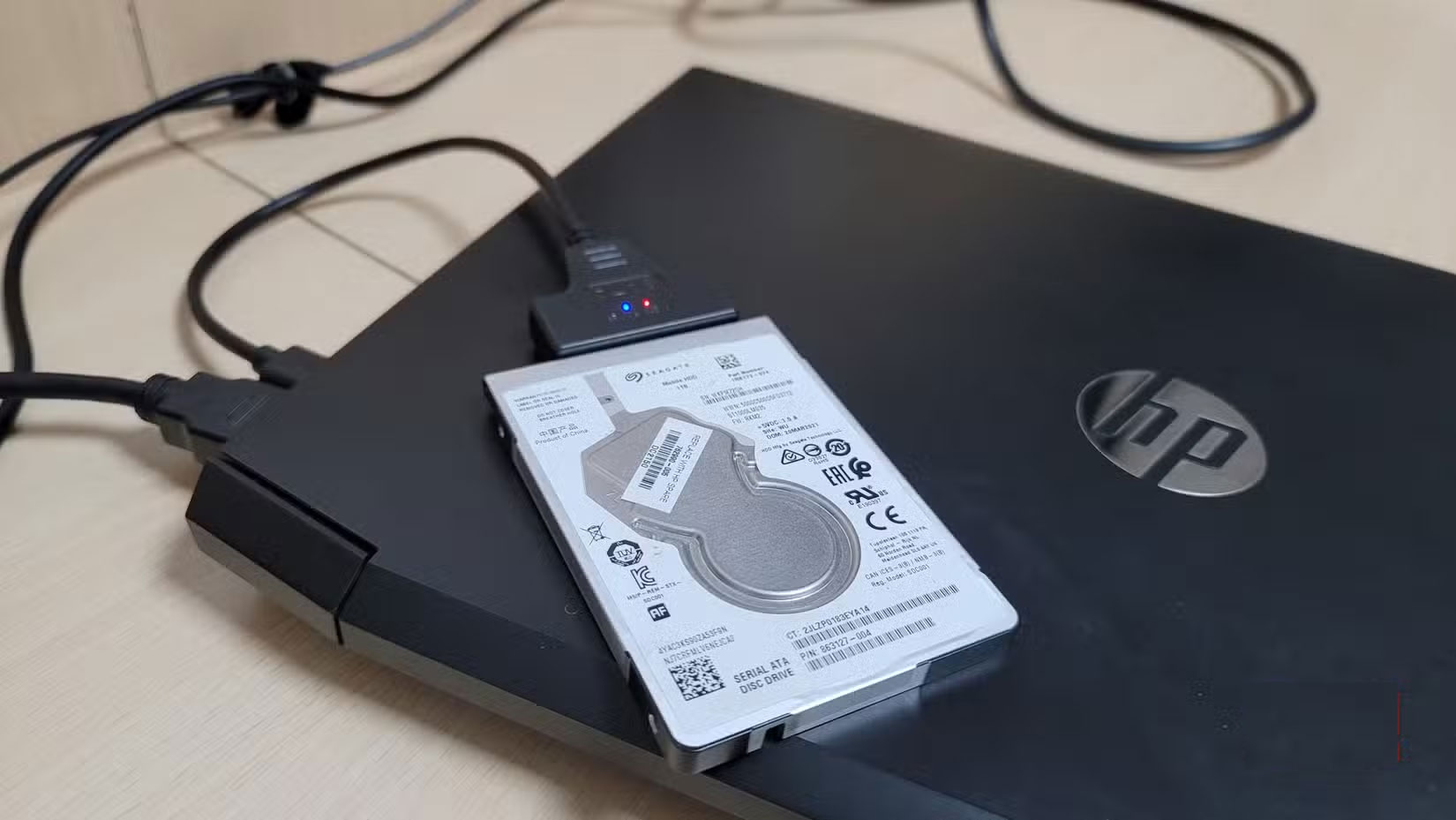
Before you start cloning, make sure you have the right setup. The process is simple, but getting these basic steps wrong can be time consuming.
You'll need Macrium Reflect X Home for the cloning software. It used to be free, but now costs $49.99/year. The good news is that it offers a 30-day trial, extendable for 7 days, which is enough time for a single clone.
Your source drive must be the primary drive you are currently booting from if you are using Windows. Macrium Reflect X Home cannot create a bootable clone from a secondary drive because it needs access to the active boot partition and system files. If you are trying to clone a drive that is not your primary Windows installation, this will not work.
Connect your new SSD via a SATA cable or USB to SATA adapter. Internal connections are faster; however, USB 3.0 adapters work well for a one-time clone, but the process takes longer.
Tip : It is recommended to back up important files before cloning. Although the process is reliable, hardware failures can occur during any drive operation.
Heavy disk activity can slow down the process or cause errors, so avoid downloading files, editing videos, or running multiple programs that write to the drive frequently. Also, close your backup software, temporarily disable real-time virus scanning, and try to avoid using your computer for other tasks while the cloning process is in progress.
How to clone hard drive
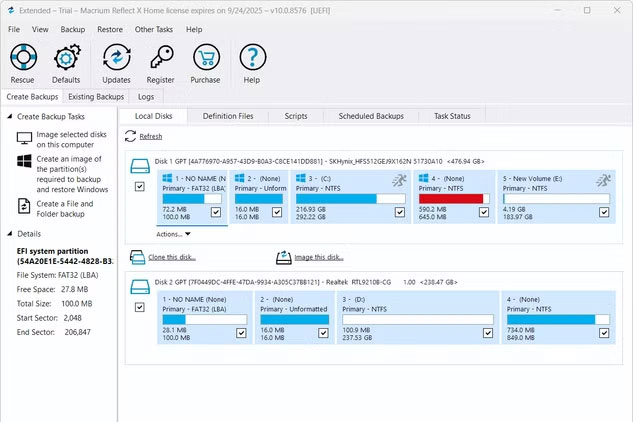
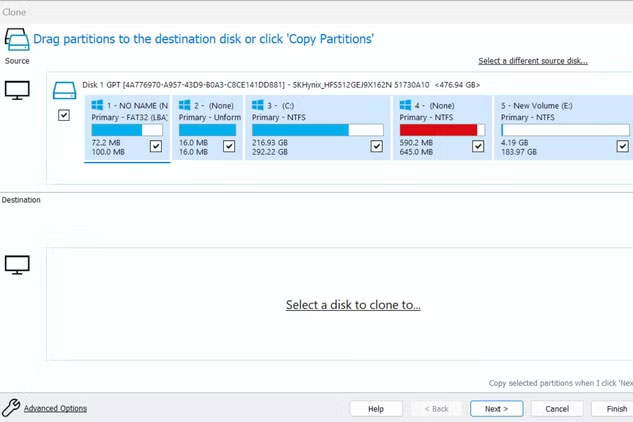
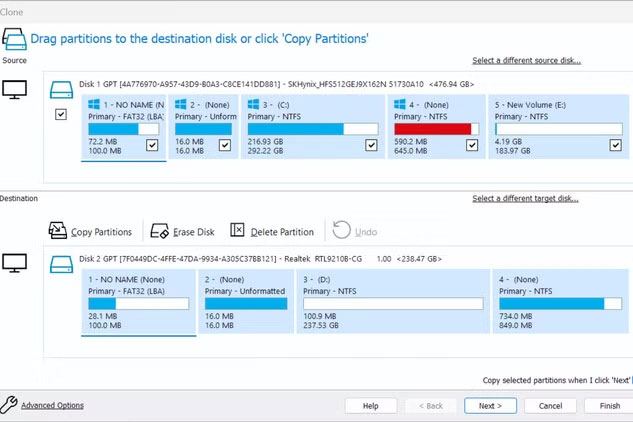
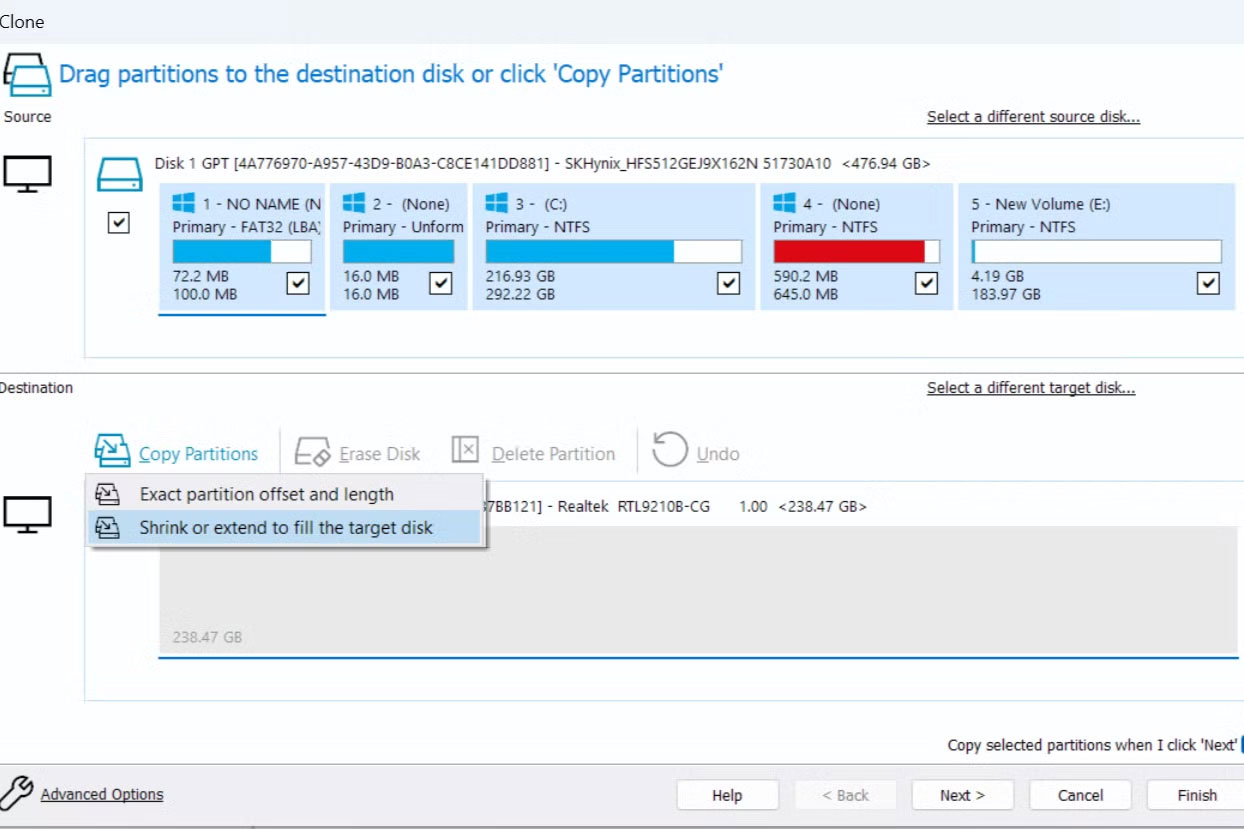
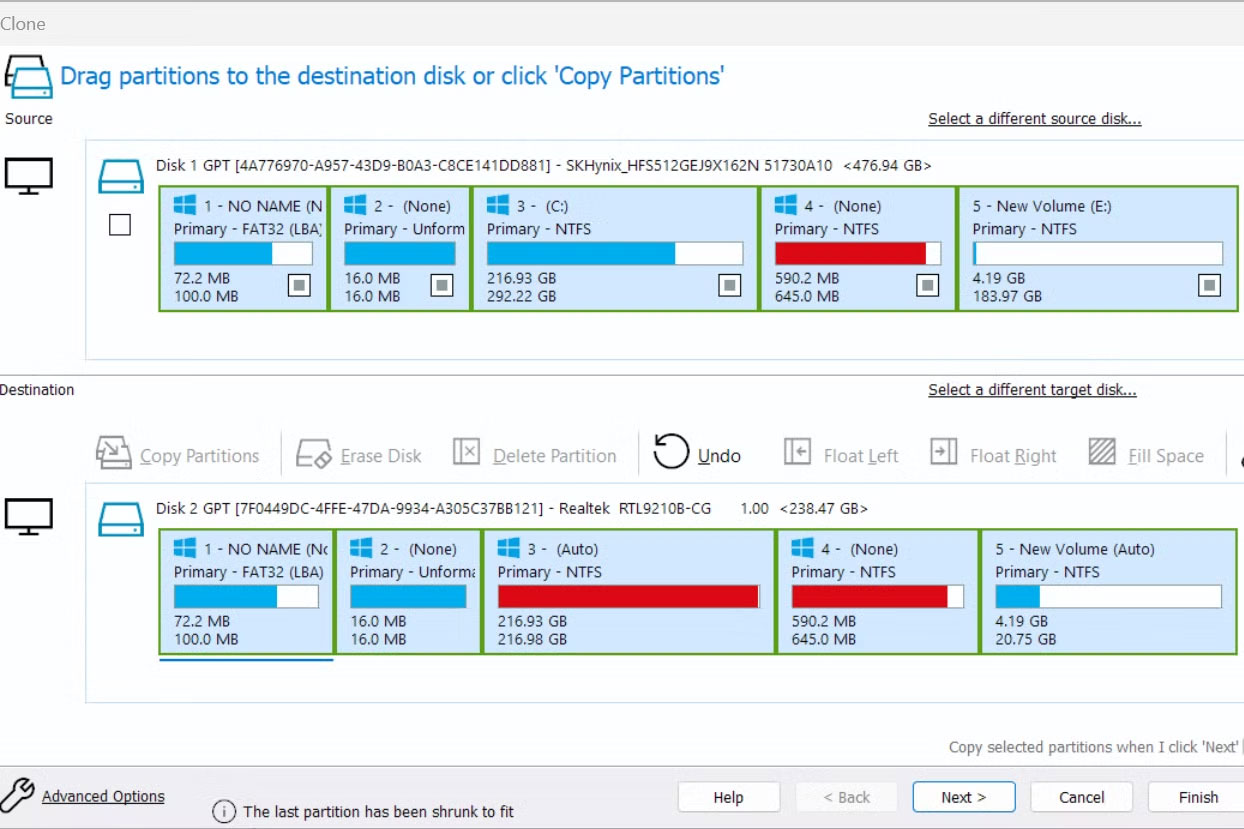
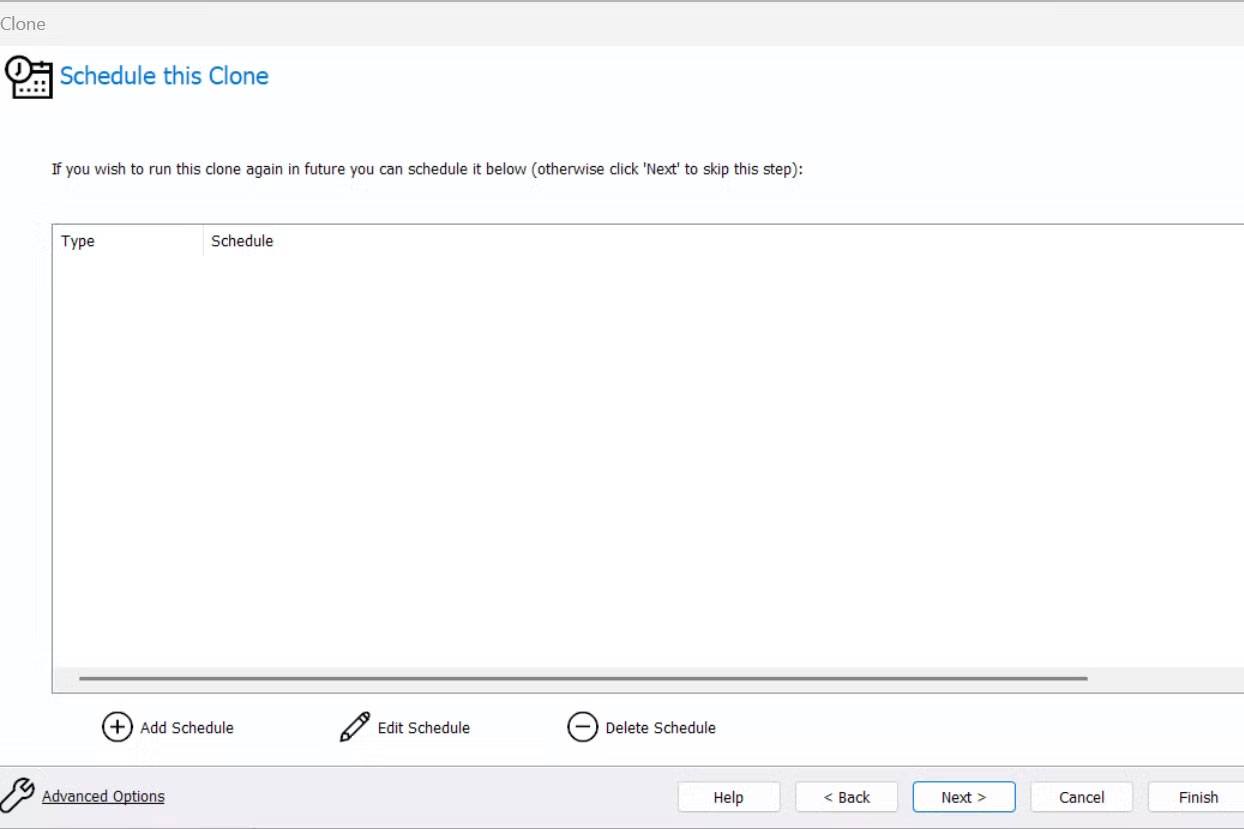
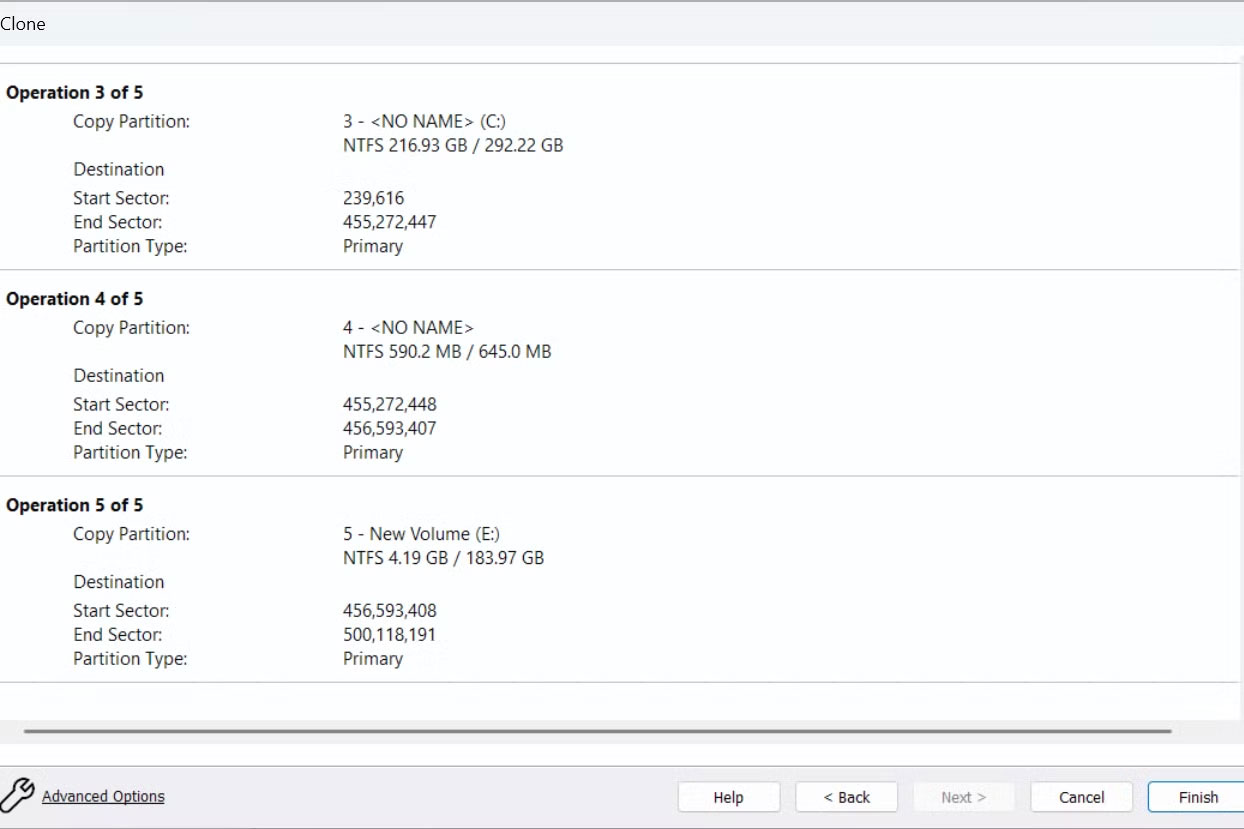
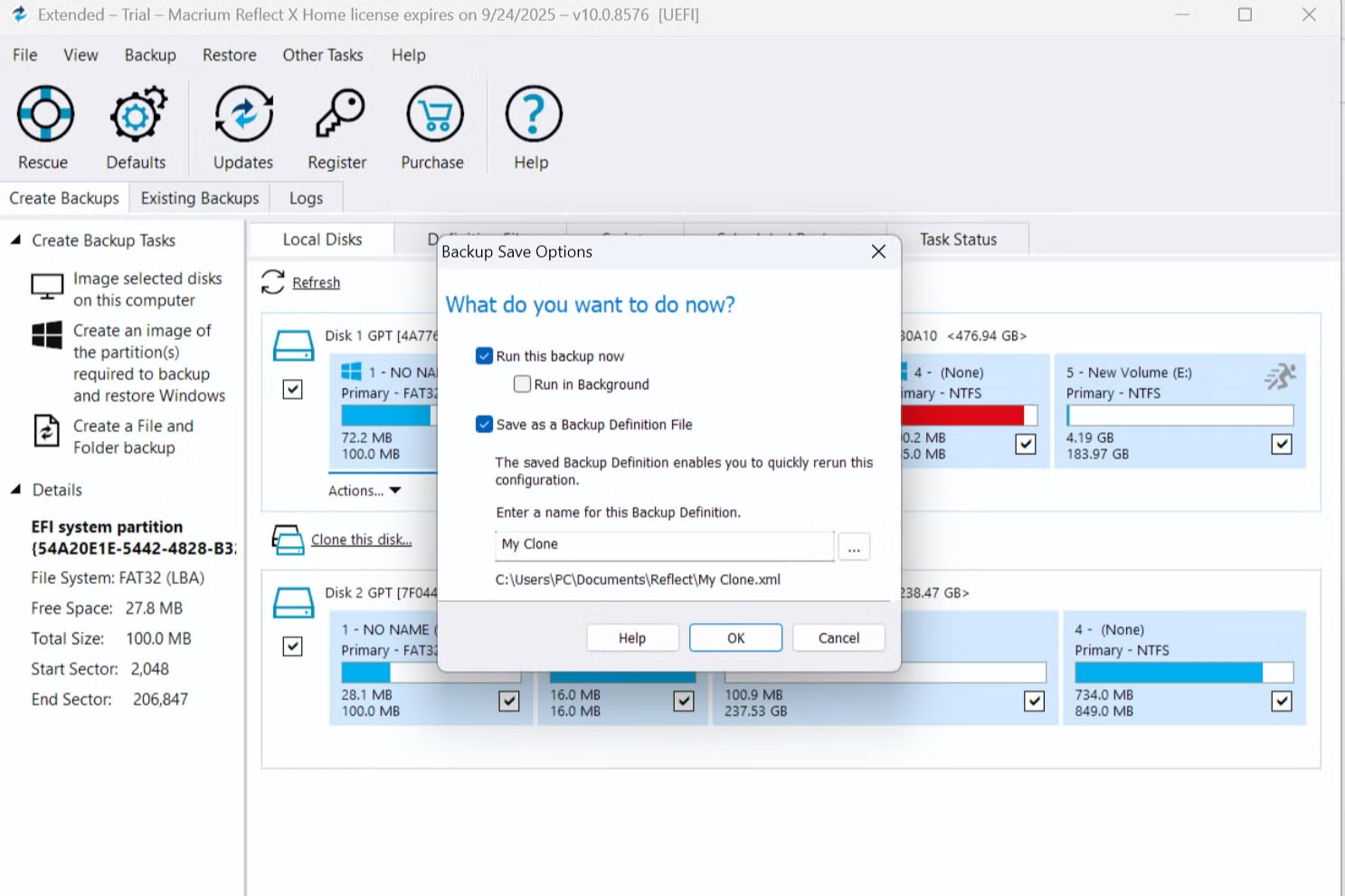
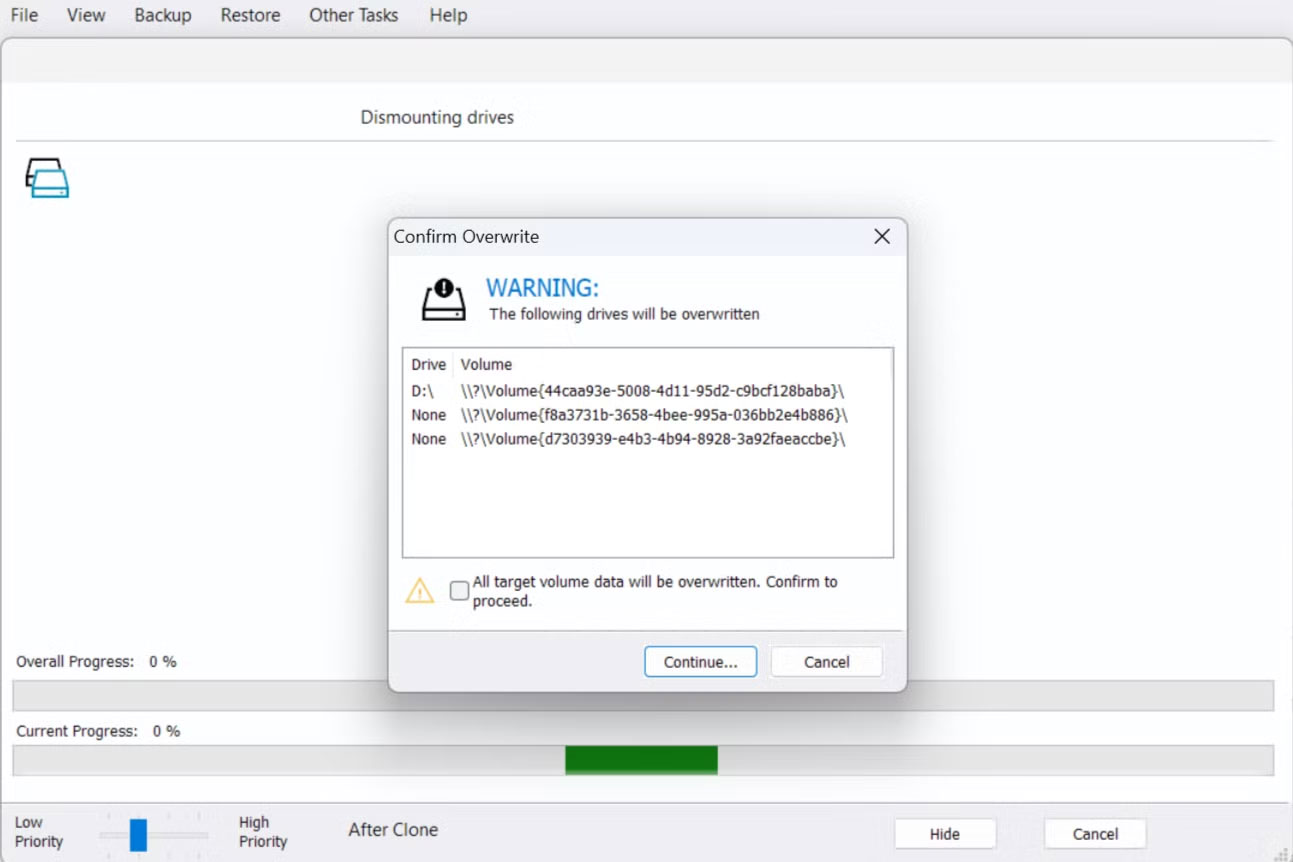
Once you've got everything hooked up, the actual cloning process is a breeze, as Macrium Reflect X Home will handle the heavy lifting – you just need to point it in the right direction.
Open Macrium Reflect X Home and you'll see your drives listed in the main window. Your current system drive will show the Windows logo and the C: partition, along with any recovery partitions.
Here is the step-by-step process:
- Click Clone this disk Below your source drive.
- Select the destination SSD from the drive list.
- If the destination drive has partitions you don't need, you can delete them by clicking Erase Disk .
- Click Copy partitions To map your source partitions to the destination drive.
- Select Shrink or extend to fill the target disk If your new SSD is larger or smaller.
- Click Next And keep the default settings.
- It also gives you the option to backup your data.
- Click Finish > OK To start cloning.
The "shrink or extend" option is important. Without this option, you will have unallocated space equal to the size difference between the drives and you will need to manage drive partitions. It is better to let Macrium Reflect X Home automatically extend or shrink your primary partition.
For example, I cloned a 512GB drive containing about 220GB of data to a 256GB NVMe SSD; it took about 30 minutes. However, the cloning speed depends largely on the hardware you use. The process happens without any intervention - just let it run and come back when it's done.
Once the clone is complete, shut down your system, remove the old drive, connect the new SSD to the same SATA port, and reboot. Windows should boot normally with all your programs and files exactly as they were.
See also:
- Best SSD for Windows PC
FAQ
What should you know about upgrade to SSD without reinstalling or losing files?
In practical terms, upgrading to a new SSD usually comes down to two things: Either it takes hours to reinstall Windows and all your programs, or clone your existing drive and it's done in 30 minutes.
Why does upgrade to SSD without reinstalling or losing files matter?
The article highlights that drive cloning copies everything directly to the new SSD , including your operating system, downloaded programs, files, and settings.
What is the main takeaway?
The main takeaway is that 7 reasons to upgrade to an SSD Everything you need to know before you start cloning Before you start cloning, make sure you have the right setup.
Related Articles
 Converting Windows from HDD to SSD Without Reinstalling the Computer Explained8 minutes read
 How to Switch Operating System from HDD to SSD Without4 minutes read
 Reinstalling the Edge Browser in Windows 10 Does Not Cause Data4 minutes read
 How to Upgrade Windows 11 Without Losing Data Quickly5 minutes read
 Does Reinstalling Windows Lose Data: What to Know8 minutes read
 How to Create Ghost Files and Extract Ghost Files with Norton Ghost5 minutes read
Reader Comments 0
Sign in with email or Google to join the discussion.