Table of Contents
Learn how to properly switch chrome to safari on a mac with clear steps, practical tips, and troubleshooting guidance for a reliable result.
Import data from Chrome to Safari
Safari also has several built-in import tools that allow you to transfer bookmarks, saved passwords, and browsing history from Google Chrome to Safari.
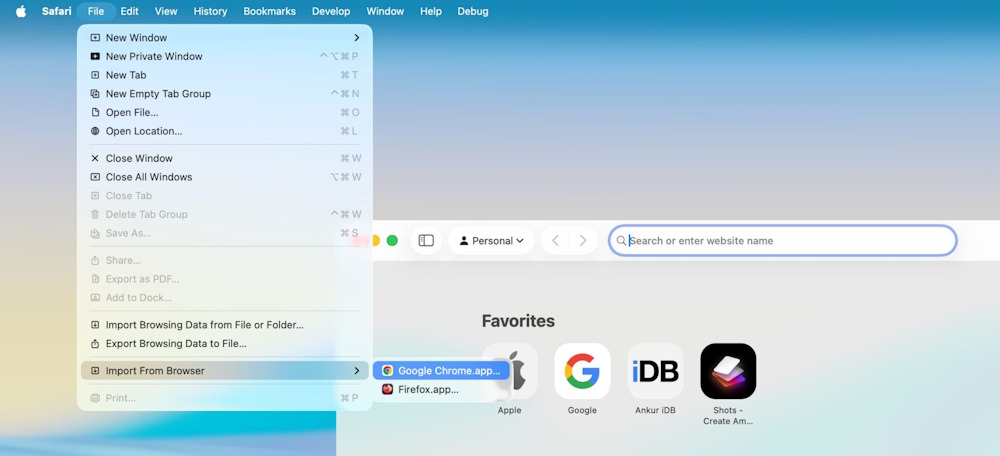
Open Safari, then click File > Import from Browser > Google Chrome . Select what you want to transfer and click Import.
Log in to all your personal accounts
After importing your Chrome data into Safari, visit frequently used websites such as Google and log in to your account.
Install extensions for Safari
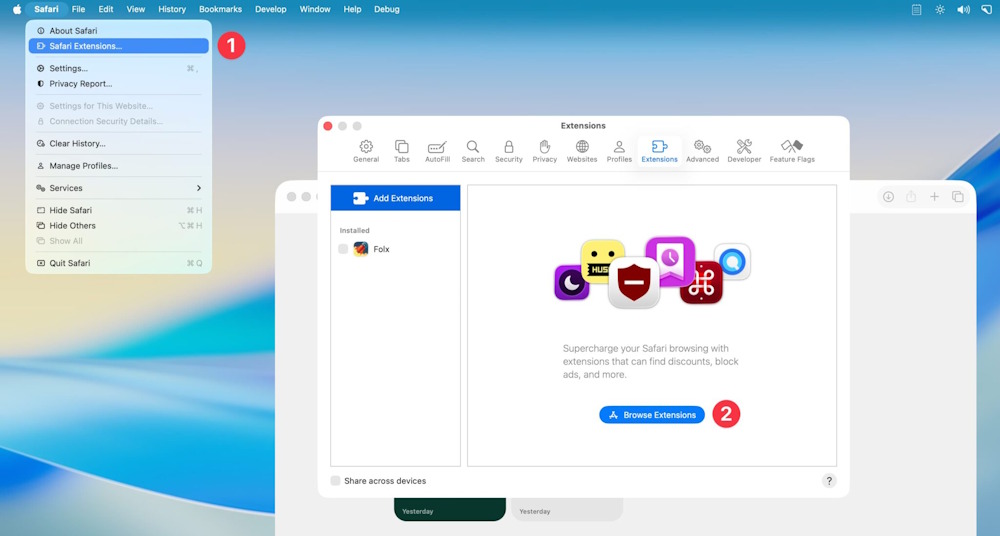
Several extensions in Safari can provide significant support for your work. You can access them by going to Safari > Safari Extensions > Browse Extensions .
Set Safari as your default web browser
Go to System Settings > Desktop & Dock > Default web browser and then click on Safari to select it as the default browser for your Mac.
Enable iCloud sync for Safari
Like Google Chrome, Safari can sync data to ensure a consistent experience across all your devices. Simply use the same Apple account on all devices, then go to iCloud settings on each device and check if Safari is enabled.
Change the settings in Safari
In addition to the major changes mentioned above, you can also check out some Safari settings below.
Open Safari, tap View, and then turn on Show Status Bar. Apple's browser will now display the full URL in the bottom left corner of the screen when you hover your mouse over a link.

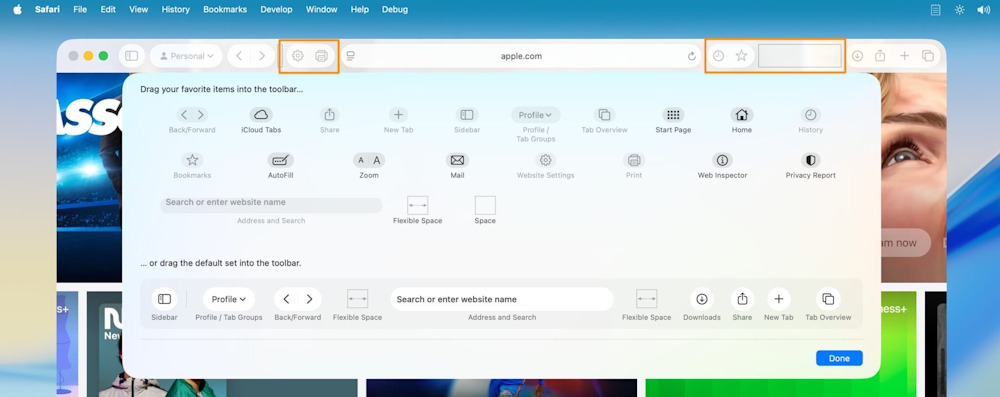
Next, click View > Customize Toolbar to add important buttons next to the address bar for quick access.
Final Thoughts
Use this guide as a practical checklist for how to properly switch chrome to safari on a mac. Work through the steps in order, verify each result, and adjust the options to match your needs.
FAQ
What do you need before following this How to Properly Switch Chrome to Safari on a Mac guide?
Review the required tools, accounts, settings, or materials mentioned in the article. Learn how to properly switch chrome to safari on a mac with clear steps, practical tips, and troubleshooting guidance for a reliable result.
What are the main steps for how to properly switch chrome to safari on a mac?
Follow the sections in order, especially Import data from Chrome to Safari, Log in to all your personal accounts, Install extensions for Safari. Complete each step before continuing and verify the result as you go.
What should you do if the process does not work as expected?
Recheck the prerequisites, update the relevant app or service, review the settings, and repeat the step that caused the issue. Use any troubleshooting notes included in the guide.
Related Articles
 Why Use Chrome Instead of Safari on iPhone?6 minutes read
 Tips for Importing Passwords and Bookmarks from Safari to Chrome Extremely Quickly3 minutes read
 9 Reasons You Should Use Safari Instead of Chrome on Mac9 minutes read
 Disable Search Suggestions on Chrome and Safari Browsers4 minutes read
 How to Fix 5 Safari Bugs on iPhone8 minutes read
 How to Fix Safari's Status Is Slow6 minutes read
Reader Comments 0
Sign in with email or Google to join the discussion.