Table of Contents
Explore tips for smoother safari browsing at 120hz, including the key concepts, practical examples, important considerations, and useful guidance.
How to enable 120Hz browsing mode on Safari
Step 1
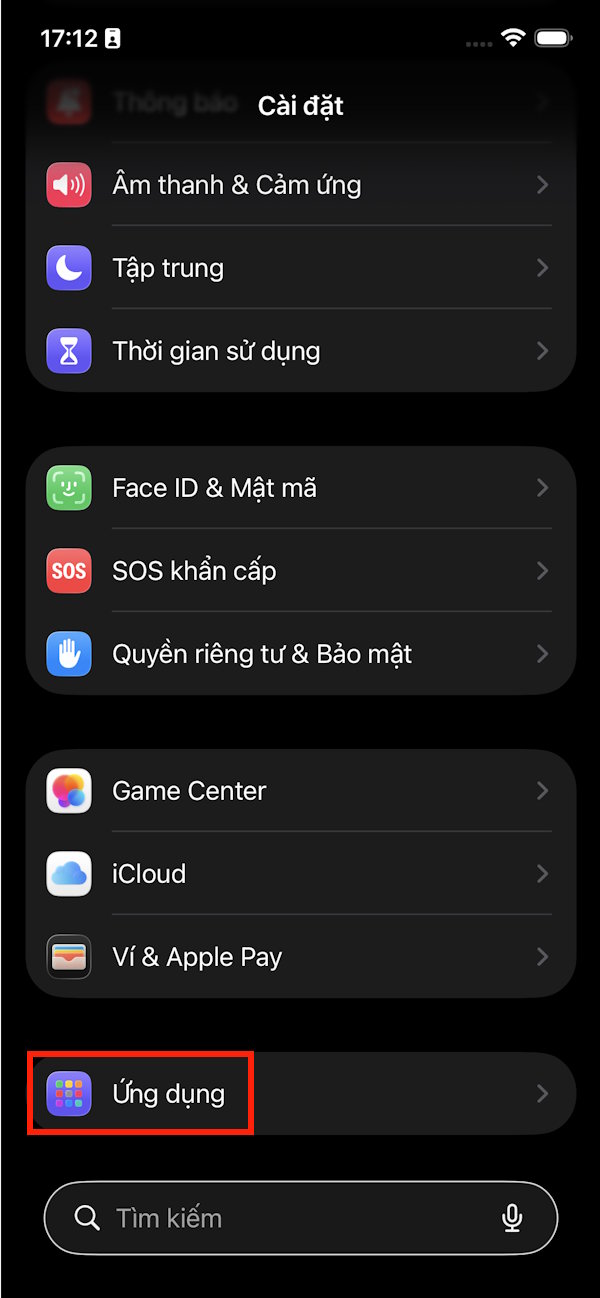
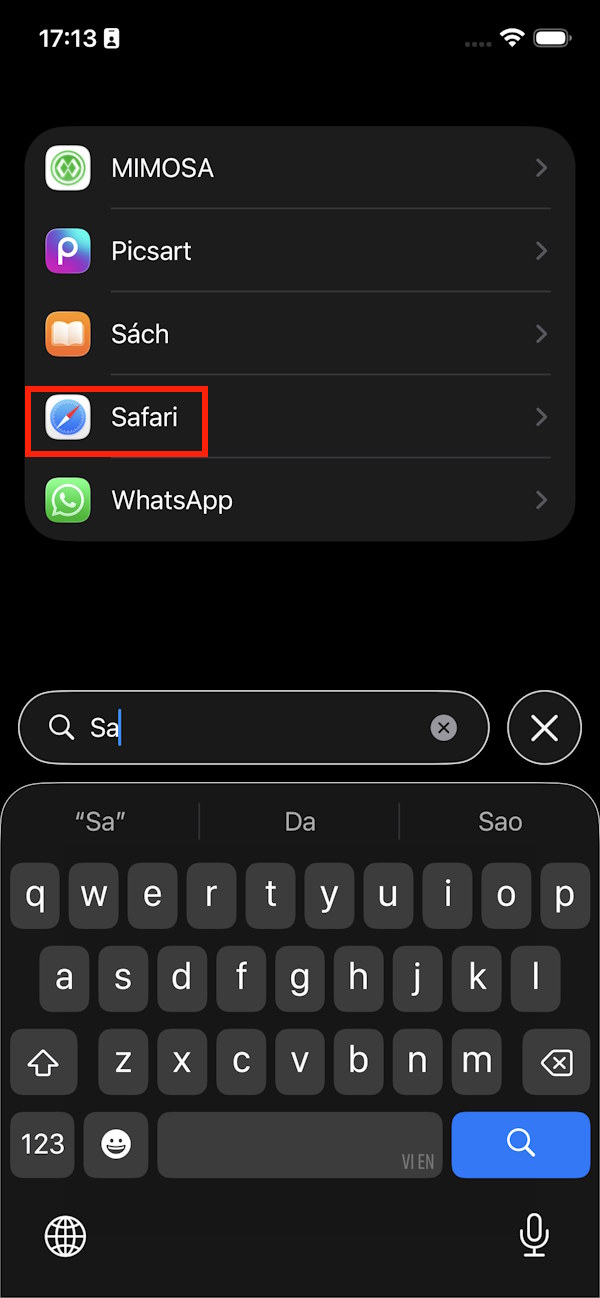
Go to Settings on your iPhone, then tap on Apps at the bottom of the screen. On the next screen, select the Safari app .
Step 2
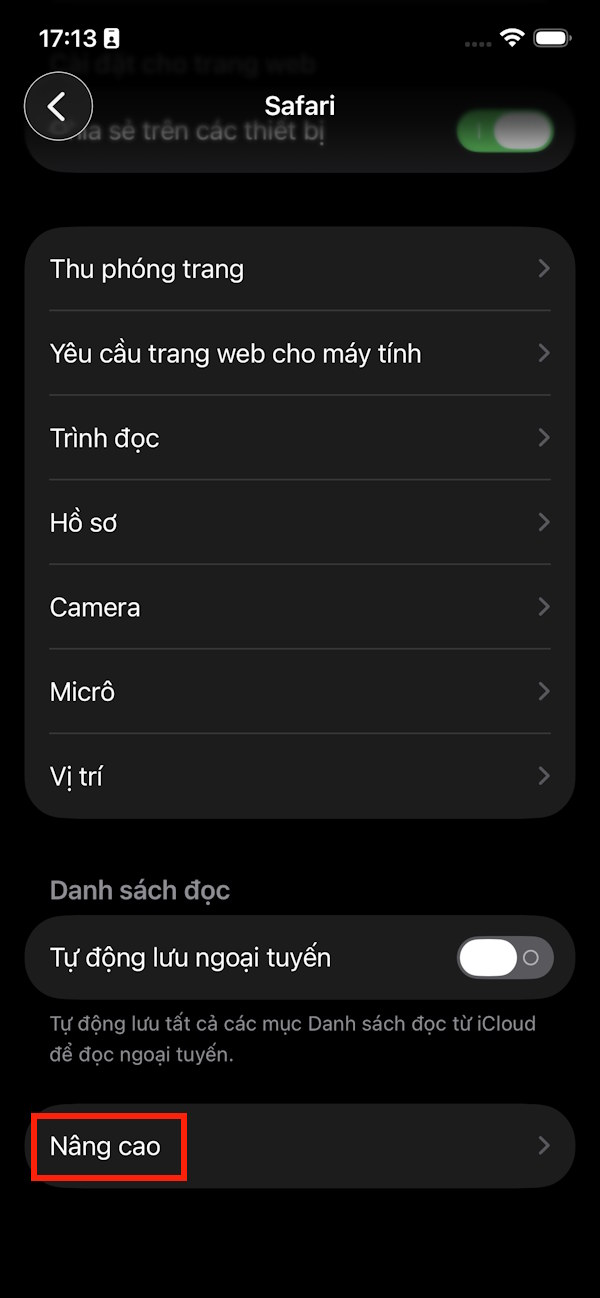
In the Safari settings interface, scroll down and tap on Advanced .
Step 3
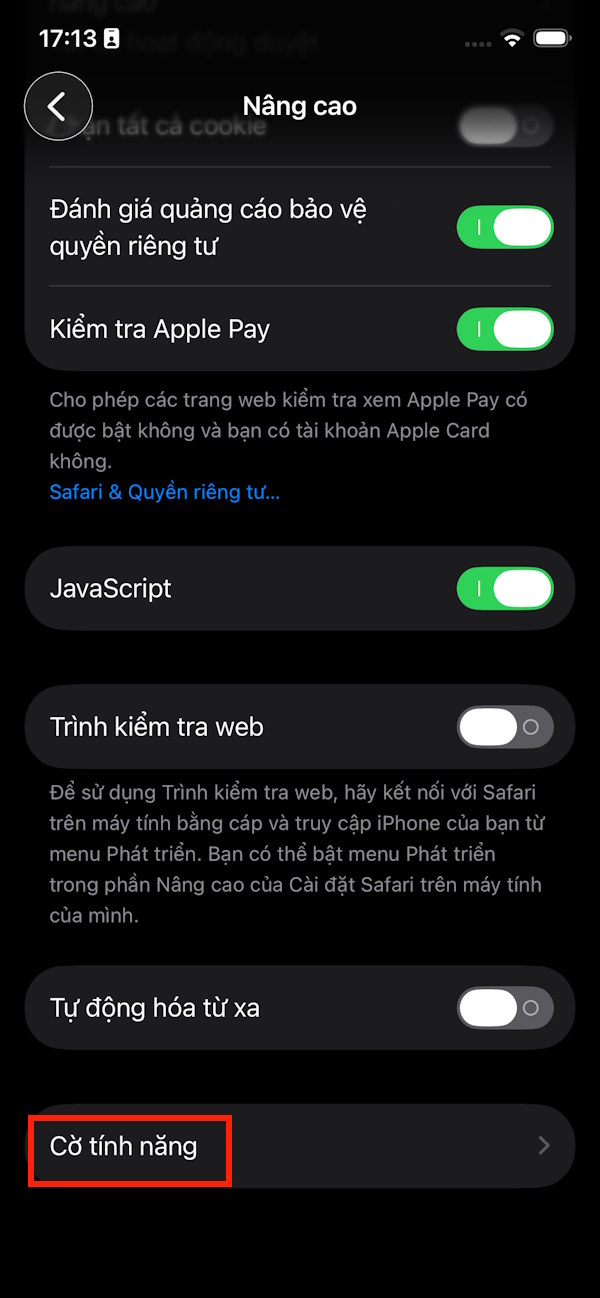
Next, scroll down to the bottom of the new interface and select Feature Flags to change them .
Step 4
The 120Hz option is located in Safari's Feature Flags , a developer menu that doesn't require any special mode to access on an iPhone or iPad.
Let's turn off Prefer Page Rendering Updates near 60fps and restart Safari .
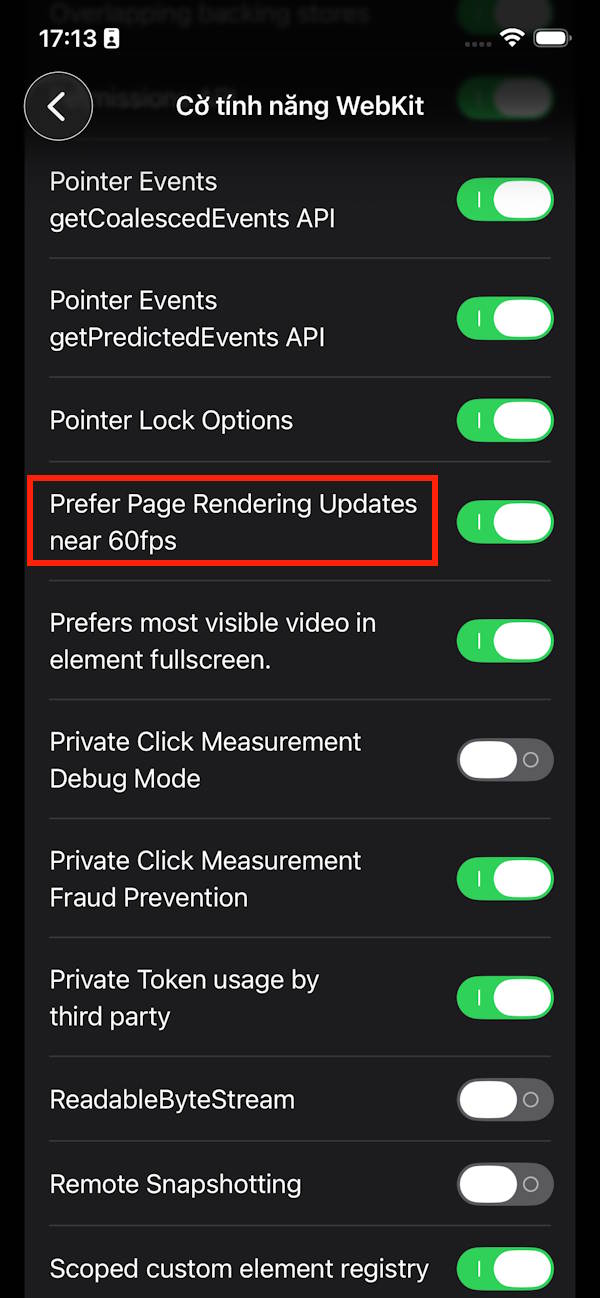
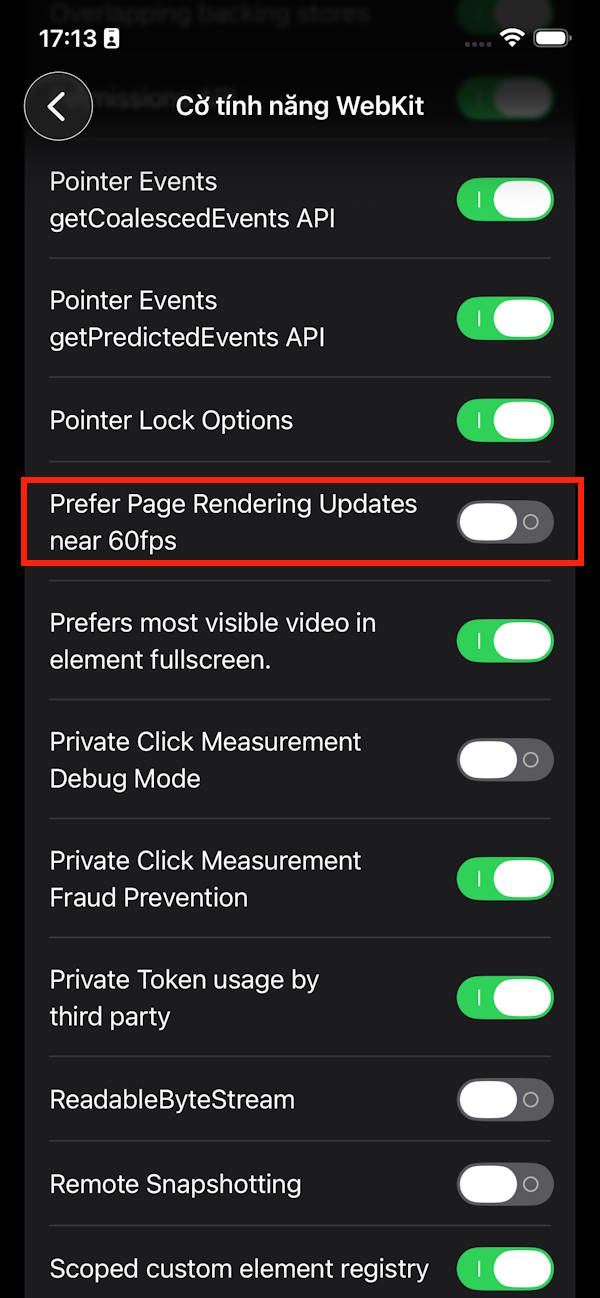
When this option is turned off, Safari will display pages at up to 120Hz on ProMotion-enabled devices, including iPhone 13 Pro and later models, and iPad Pro models with ProMotion.
Enable 120Hz browsing mode in Safari on Mac
Step 1
Open Safari, then click Safari in the menu bar and select Settings .
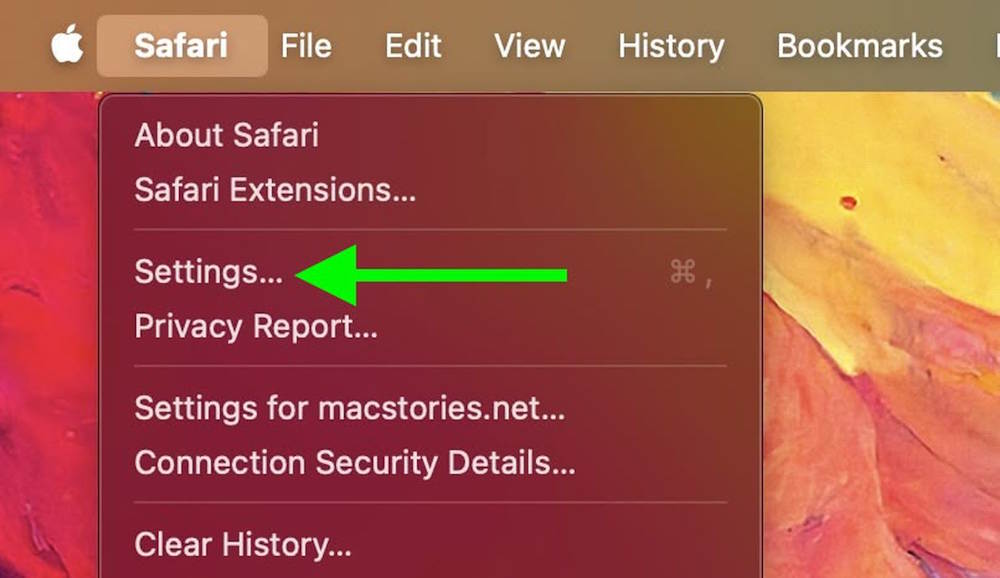
Step 2
In the new interface, click on the Advanced tab , then check the box for Show features for web developers at the bottom of the interface.
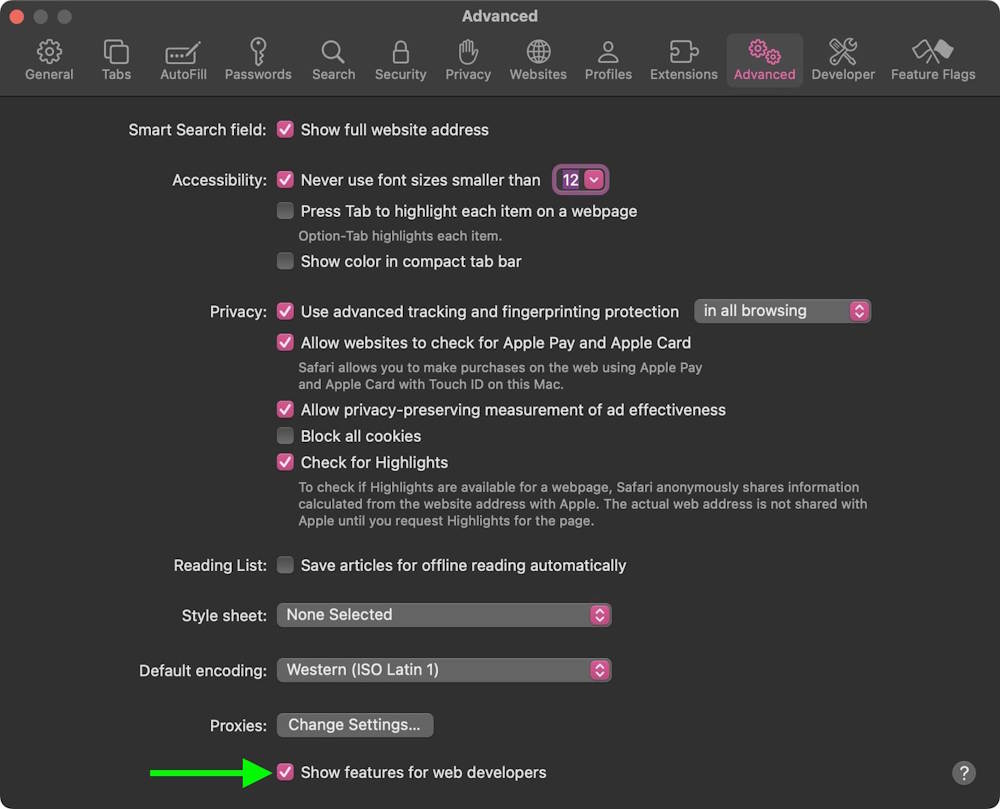
Step 3
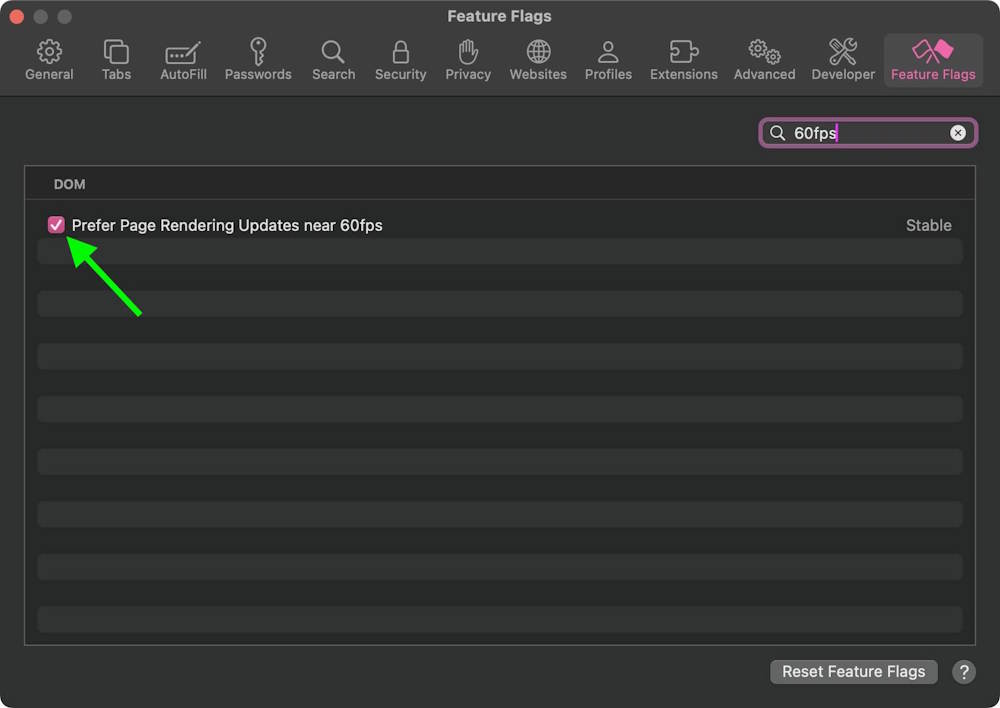
Click on the Feature Flags tab , then search for the keyword 60fps and uncheck " Prefer Page Rendering Updates near 60fps" .
This feature works on all Macs with ProMotion displays, including the 14-inch and 16-inch MacBook Pro models.
Final Thoughts
Understanding tips for smoother safari browsing at 120hz makes it easier to evaluate the information and apply the most relevant recommendations. Focus on the key points above and verify details that may change over time.
FAQ
What is tips for smoother safari browsing at 120hz?
Explore tips for smoother safari browsing at 120hz, including the key concepts, practical examples, important considerations, and useful guidance.
What key points does this article cover?
The article focuses on How to enable 120Hz browsing mode on Safari, Step 1, Step 2, with practical explanations and examples.
How can you use this information in practice?
Use the explanations to compare options, verify important details, and make a more informed decision. Apply the recommendations that best match your goals and situation.
Related Articles
 How to Speed up Web Browsing, Block Out Virtual Money on Safari5 minutes read
 8 Safari Web Browsing Tips on iPhone, iPad8 minutes read
 How to Fix Safari's Status Is Slow6 minutes read
 How to Delete Browsing History on Safari: Step-by-Step Guide6 minutes read
 How to Change Safari Private Browsing Search Engine: Complete Guide4 minutes read
 Custom Ways on Safari Increase the Browser Experience: Safari Tips8 minutes read
Reader Comments 0
Sign in with email or Google to join the discussion.