Table of Contents
Windows Defender automatically deletes potentially harmful files to prevent damage to your computer. Sometimes it may delete files that you know are safe for your system.
Windows Defender automatically deletes potentially harmful files to prevent damage to your computer. However, it can sometimes delete files that you know are safe for your system. If this happens, you can recover files that have been deleted by Windows Defender in a few ways below.
Recover files deleted by Windows Defender in Settings
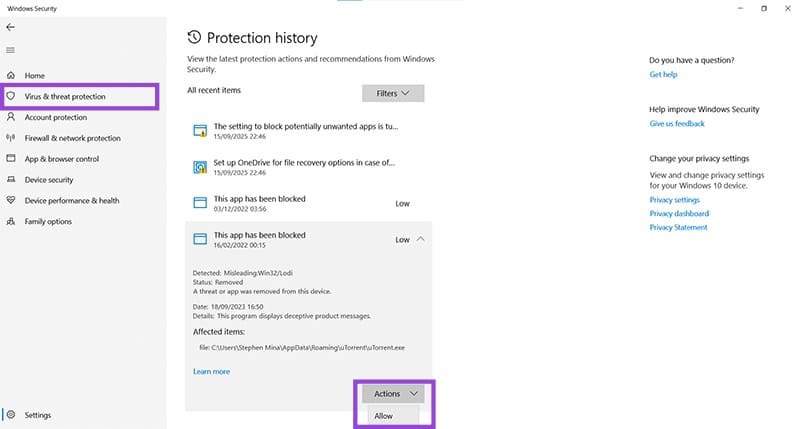
Go to Settings , tap Virus & threat protection , then Select Protection History . This is where all quarantined files and blocked apps are stored.
Click on the file you want to recover And Select Action , Then select Allow To retrieve the deleted file.
To do this you need administrator rights.
Restore previous version in Explorer
A more indirect way to recover a file is to use a previous version of the file in Windows Explorer called File History. This method also works for lost, corrupted, or overwritten files. You should turn on File History before you can recover a file.
Step 1:
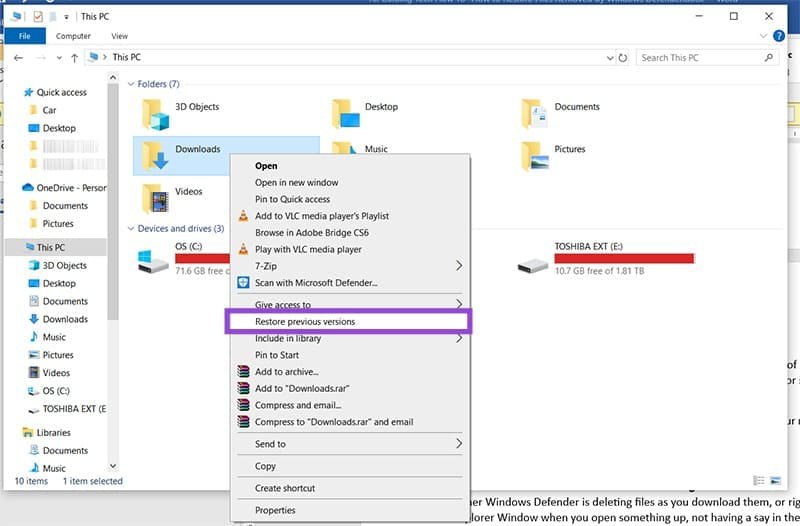
Open any Windows Explorer window, Right-click on the folder containing the deleted file And click Restore previous versions In the displayed list.
Step 2:
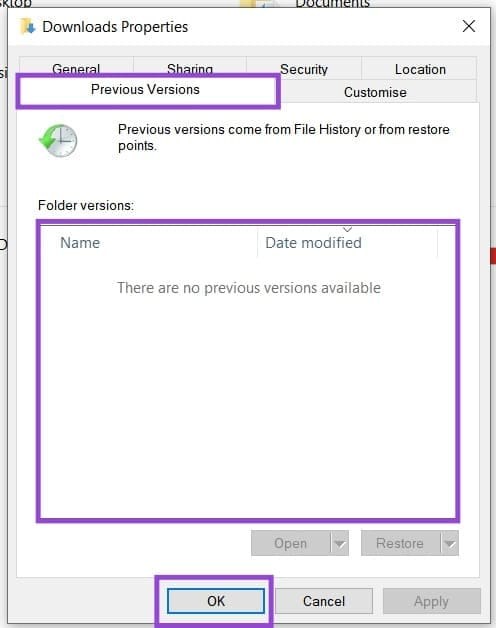
A window appears, you select the previous version of the folder if available with the date before the file was deleted. File History will restore the file before it was deleted.
You can simplify prevent Windows Defender from deleting your files in the first place by adding exclusions to a file or folder. Follow the instructions below to add files that are safe to delete before Windows Defender deletes them.
- How to add exceptions in Windows Defender
FAQ
How do you recover files deleted by Windows defender: step-by-step guide?
In practical terms, Windows Defender automatically deletes potentially harmful files to prevent damage to your computer. Sometimes it may delete files that you know are safe for your system.
What should you check before getting started?
Review the requirements, compatible device or software version, and any warnings described in the guide before making changes.
What should you do if the steps do not work?
Repeat the steps in order, confirm that your app or system is up to date, and review the troubleshooting details provided above.
Related Articles
 How to Recover Files Deleted by Microsoft Defender Quickly and Simply: Practical6 minutes read
 How to Restore Files Quarantined by Windows Defender: Step-by-Step Guide4 minutes read
 How to Recover Deleted Files on Linux8 minutes read
 How to Use Foremost to Recover Deleted Files in Linux5 minutes read
 How to Recover Deleted Data or Secure Format11 minutes read
 How to Recover Accidentally Deleted Files in Os X7 minutes read
Reader Comments 0
Sign in with email or Google to join the discussion.