Table of Contents
This practical guide explains how to indent the first line in word - adjust the first line margin. Follow the steps in order, review the requirements first, and use the troubleshooting notes when a setting or option does not work as expected.
This can affect the position of the text lines below. So how to align the margin for the first line to indent correctly when editing a Word document? The following article will guide readers on how to indent the first line in Word.
- Word 2016 Complete Guide (Part 6): Using Indents and Tabs
- How to center cells in a table on Word
- 3 Ways to Insert Text Outside the Page Margin in Word
- How to create a cover page border in Word
Method 1: Indent the first line using Paragraph
Step 1:
The user places the mouse cursor at the position where they want to indent, then selects the Home tab and selects the Paragraph Settings icon .

Step 2:
Display the Paragraph interface. In the Indents and Spacing tab, we select First line in Special . In the By section , enter the indentation distance. The Preview section below lets you preview how the first line and the lines below will be spaced. Click OK to apply the new margin to the first line.

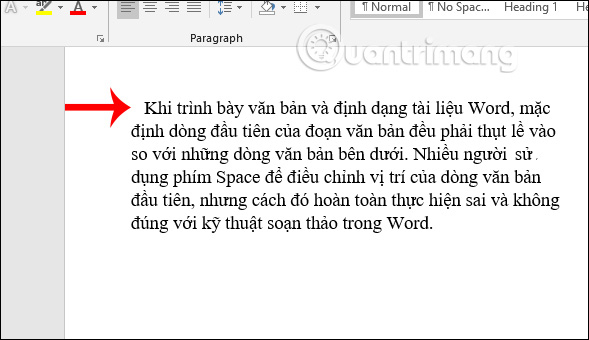
The first line result has been indented as shown below.
Method 2: Indent the first line using the Tabs key
Step 1:
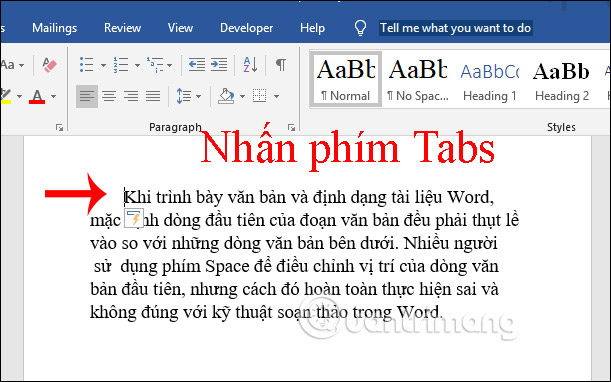
This method is very simple, we also place the mouse cursor at the first position of the text line we want to indent and then press the Tabs key . The distance for 1 tab press is longer than when you enter the size directly.
Step 2:
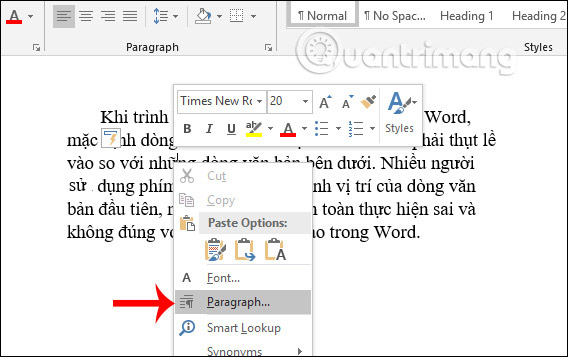
If the indent position is not as you intended, right-select the Word interface and select Paragraph from the displayed list.
Step 3:
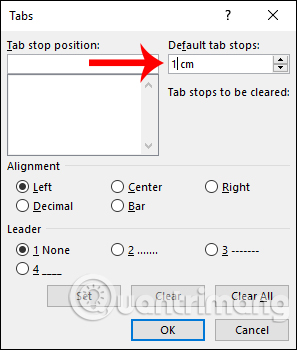
A new interface appears, select the Tabs button below.
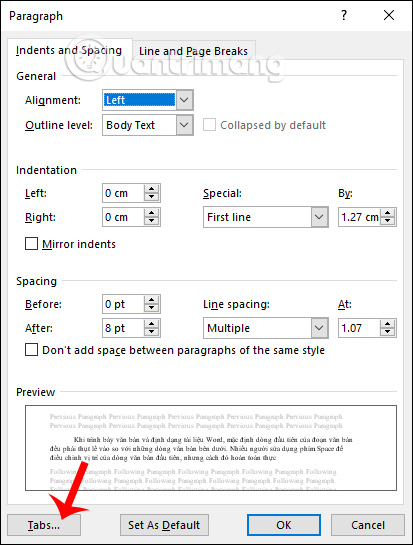
In the tab dialog box, we select Default tab stops , then select the distance for each Tabs key press and click OK.
Then we do it again and the Tabs key will give the correct spacing we set.
Method 3: Indent using the margin ruler
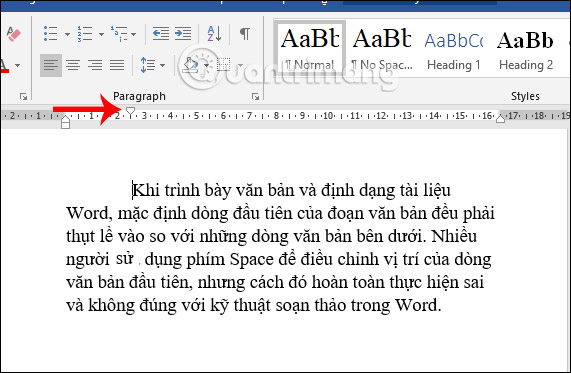
We place the mouse at the position of the first line we want to indent, then select the top icon of the ruler bar as shown below, then drag to the position you want.
If your Word document does not show the ruler, follow the article How to display the Ruler in Micorosoft Word. The result is that the first line of text will move according to the position where we adjust the ruler.
So we have 3 ways to adjust the position of the first line, indent the first line for Word documents. All 3 ways are very easy to do and can be adjusted to the indent size you want.
Good luck!
FAQ
What should you know about method 1: Indent the first line using Paragraph?
The user places the mouse cursor at the position where they want to indent, then selects the Home tab and selects the Paragraph Settings icon.
What should you know about method 2: Indent the first line using the Tabs key?
This method is very simple, we also place the mouse cursor at the first position of the text line we want to indent and then press the Tabs key. The distance for 1 tab press is longer than when you enter the size directly.
What should you know about method 3: Indent using the margin ruler?
We place the mouse at the position of the first line we want to indent, then select the top icon of the ruler bar as shown below, then drag to the position you want.
Related Articles
 Word Format: How to Indent the First Line in Word4 minutes read
 How to Indent Words in Word - Indent the First Line of Paragraphs in Word3 minutes read
 How to Do a Hanging Indent4 minutes read
 Paragraph: How to Indent in Word3 minutes read
 How to Adjust Line Spacing in Word 2016, 2019, 2010, 2007, and 20139 minutes read
 How to Indent the Line in Excel3 minutes read
Reader Comments 0
Sign in with email or Google to join the discussion.