Table of Contents
Admittedly, despite using Microsoft Edge for a long time, many people have never really paid attention to its Workspaces feature.
Admittedly, despite having used Microsoft Edge for a long time, I never really paid attention to its Workspaces feature. It's been around for a few years now, and I always thought it was just another way to group tabs. But I was completely wrong. Now that I've actually tried Edge's Workspaces, it's completely changed the way I browse, work, and collaborate online.
The browser is no longer a mess of tabs and windows. Everything has its place. Every project, every topic, and even individual browsing activity has its own neatly organized environment. And honestly, many people regret not clicking that little icon sooner.
What exactly are Edge Workspaces?
Think of it as virtual desktops… for tabs!
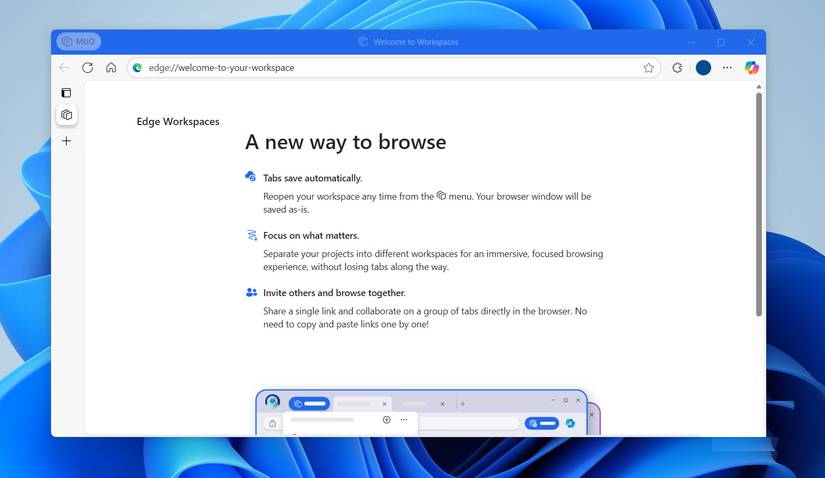
Edge Workspaces are like self-contained browser environments built around a specific project, theme, or task. Each workspace has its own set of tabs, favorites, and browsing sessions, neatly organized in one place. It's a bit like the browser version of Virtual Desktops on Windows.
This way, you don't have to juggle dozens of unrelated tabs in one chaotic window. Instead, you can create separate workspaces for everything you're working on. One space might be for work, another for personal browsing, and another for research or hobbies. Each workspace keeps its tabs separate, so you don't mix up your spreadsheet with your shopping cart or your work email with your YouTube playlist.
When you open a workspace, Edge automatically restores everything exactly as you left it—every tab, every page, every session. It's the best way to pick up right where you left off. Best of all, you can even share workspace windows with others. This lets you view web pages in real time, making collaboration incredibly seamless.
How Workspaces changes the way you browse and work
The Change You Didn't Know You Needed
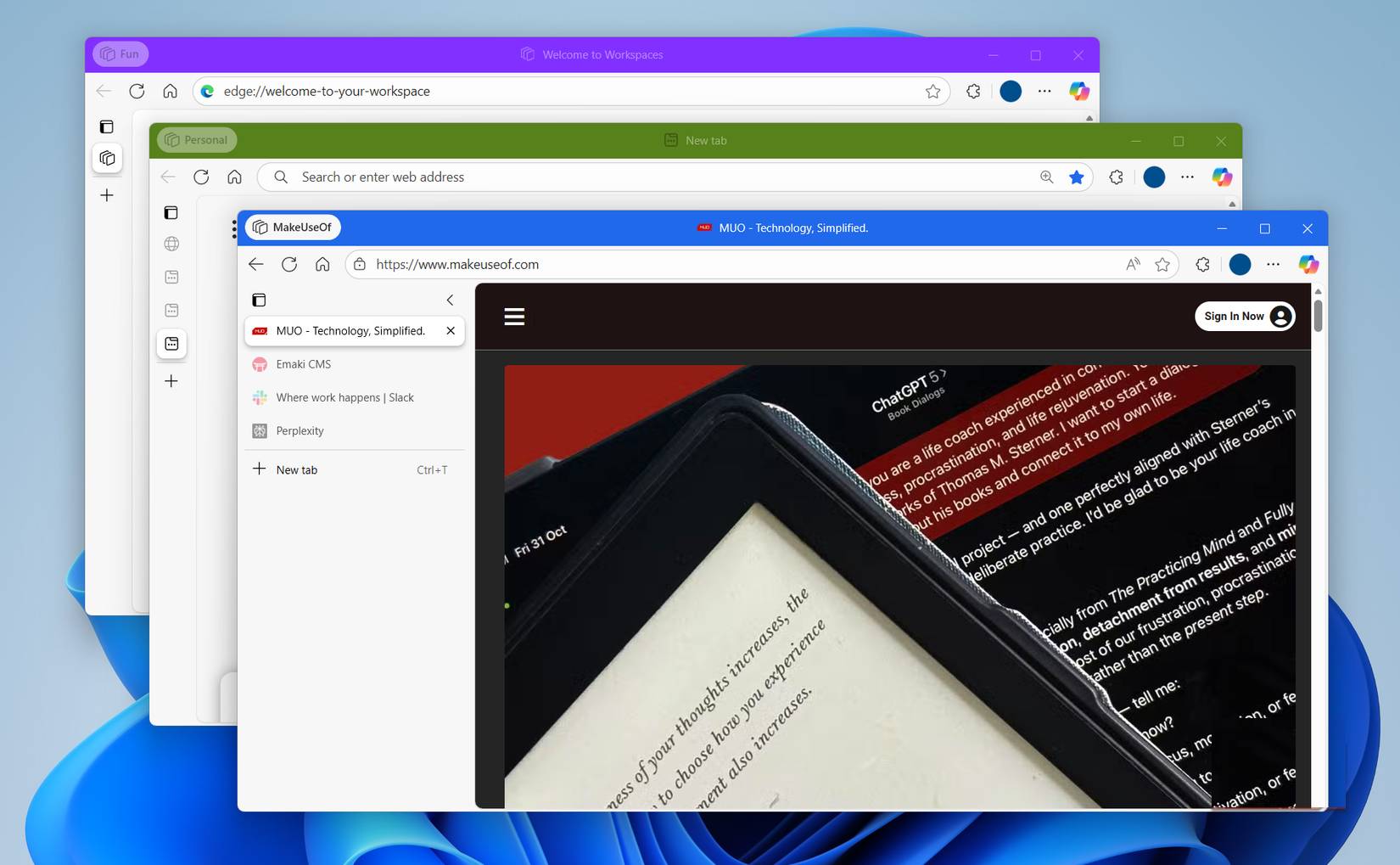
Many people have been using Microsoft Edge for years, but before Workspaces, their browser felt like a warzone—dozens of tabs scattered across multiple windows. They wasted precious time searching for a tab they knew they had open somewhere, or trying to group and reorder them, only to find the chaos.
Workspaces have completely changed that. Now, browsing the web has structure and purpose. You have a workspace for each major project, a space for personal browsing, and another space just for research and studying. When you're in the "Work" workspace, you only see what's relevant, so there's no social media or random distractions. Switching to the "Personal" workspace feels like a complete change of scenery, almost like stepping into a different room where there's no work.
The best part is that everything is seamless. You can close your workspace, shut down your computer, and when you come back, everything will be just as it was. Every tab, every page is restored perfectly.
Creating a workspace is easy
Setup in seconds
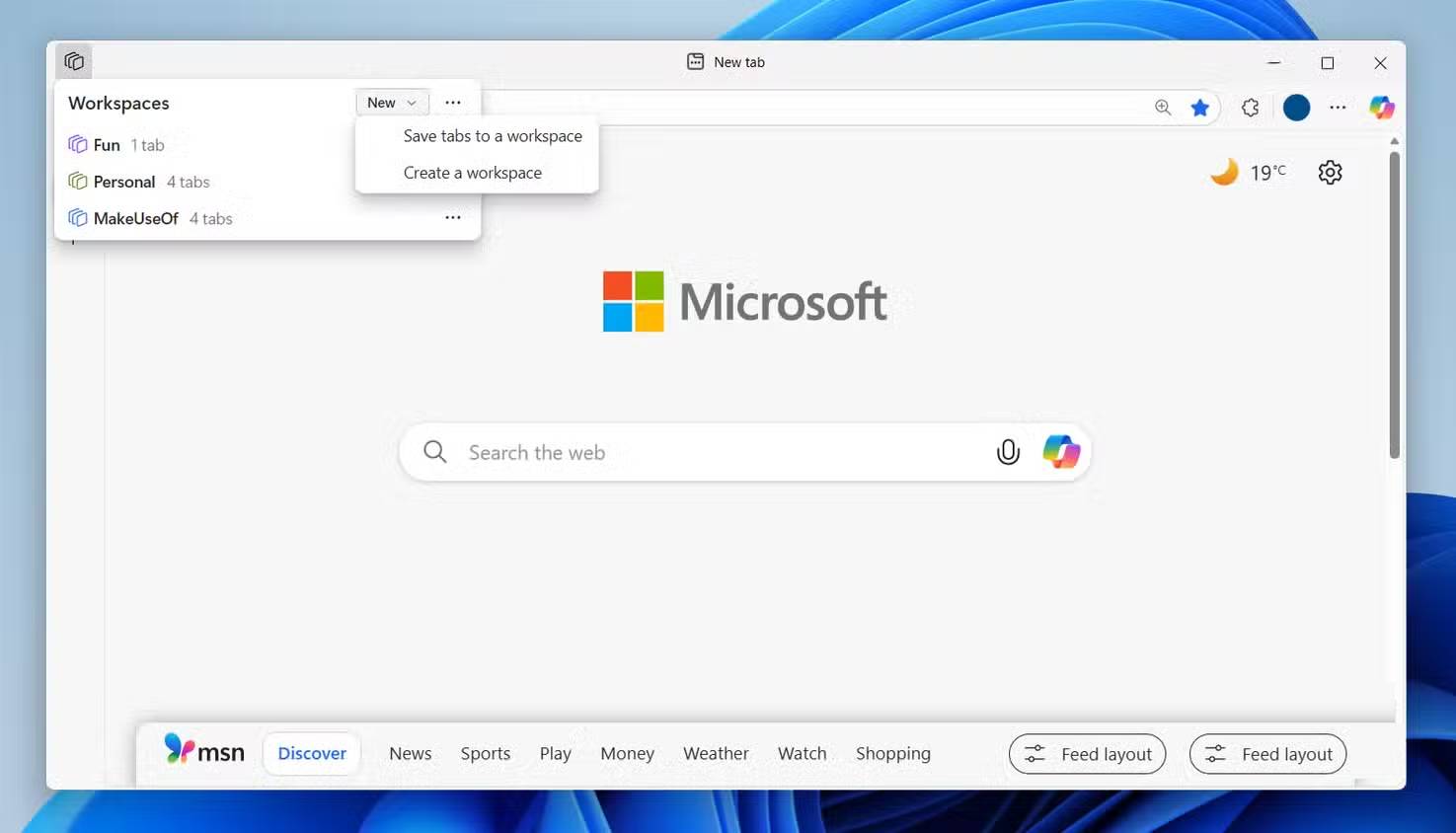
Edge Workspaces are pretty easy to set up. All you have to do is click the Workspaces Icon in the upper-left corner of Edge, click New , and select Create new workspace Or Save tabs to workspace . Then, name your workspace, choose a color to highlight it, and you're done. Your new workspace will open in a separate browser window, and you can start adding tabs.
You can create as many workspaces as you like, and switching between them is easy. Click the Workspaces Icon again, select the tab you want, and Edge will take you there.
Each workspace is independent, so you still get all the powerful tab management features Edge has to offer. You can group tabs, use vertical tabs, or even move tabs between devices. And if you want to move a tab from one workspace to another, just right-click it and select Move tabs to > [Workspace Name] .
Before using Workspaces, many people thought they had their tabs organized, but in reality, they were messing around with dozens of unrelated windows and constantly missing important pages. Workspaces fixes that. If you use Edge and haven't tried Workspaces, I highly recommend you give it a try.
FAQ
What should you know about improve productivity with Microsoft Edge workspaces?
In practical terms, admittedly, despite using Microsoft Edge for a long time, many people have never really paid attention to its Workspaces feature.
Why does improve productivity with Microsoft Edge workspaces matter?
The article highlights that edge Workspaces are like self-contained browser environments built around a specific project, theme, or task.
What is the main takeaway?
The main takeaway is that how Workspaces changes the way you browse and work The Change You Didn't Know You Needed Many people have been using Microsoft Edge for years, but before Workspaces, their browser felt like a warzone—dozens of tabs.
Related Articles
 How to Make Microsoft Edge Distract-Free, Without Any Add-ons7 minutes read
 How to Improve Music Playback Quality on Microsoft Edge3 minutes read
 5 New Features of Microsoft Edge6 minutes read
 Improve Productivity with These 7 Built-in Windows 10 Features!7 minutes read
 Why Shouldn't You Trust Microsoft Edge's VPN: Key Reasons Explained7 minutes read
 6 Cool Microsoft Edge Features You Shouldn't Miss: Practical Guide6 minutes read
Reader Comments 0
Sign in with email or Google to join the discussion.