Table of Contents
Workspaces in PowerToys can launch and position any application exactly where you want it with just one click.
Many people work with the same set of apps every day. On the main screen, they like to keep things neat, with Obsidian on one side as a text editor and a web browser on the other. The secondary screen handles the rest, including File Explorer, LocalSend, the LLM tool, and another browser, each taking up a quarter of the screen.
The obvious problem with this setup is that you have to reinstall it every time. Every time you restart your computer —which happens quite often—you have to manually open and rearrange all these apps. Workspaces in PowerToys solves that. It can launch and position every app exactly where you want it with a single click. It's easy, it's awesome, and it's definitely one of the best PowerToys features that Microsoft should offer by default in Windows 11.
Create workspaces
Set it up once, use it forever
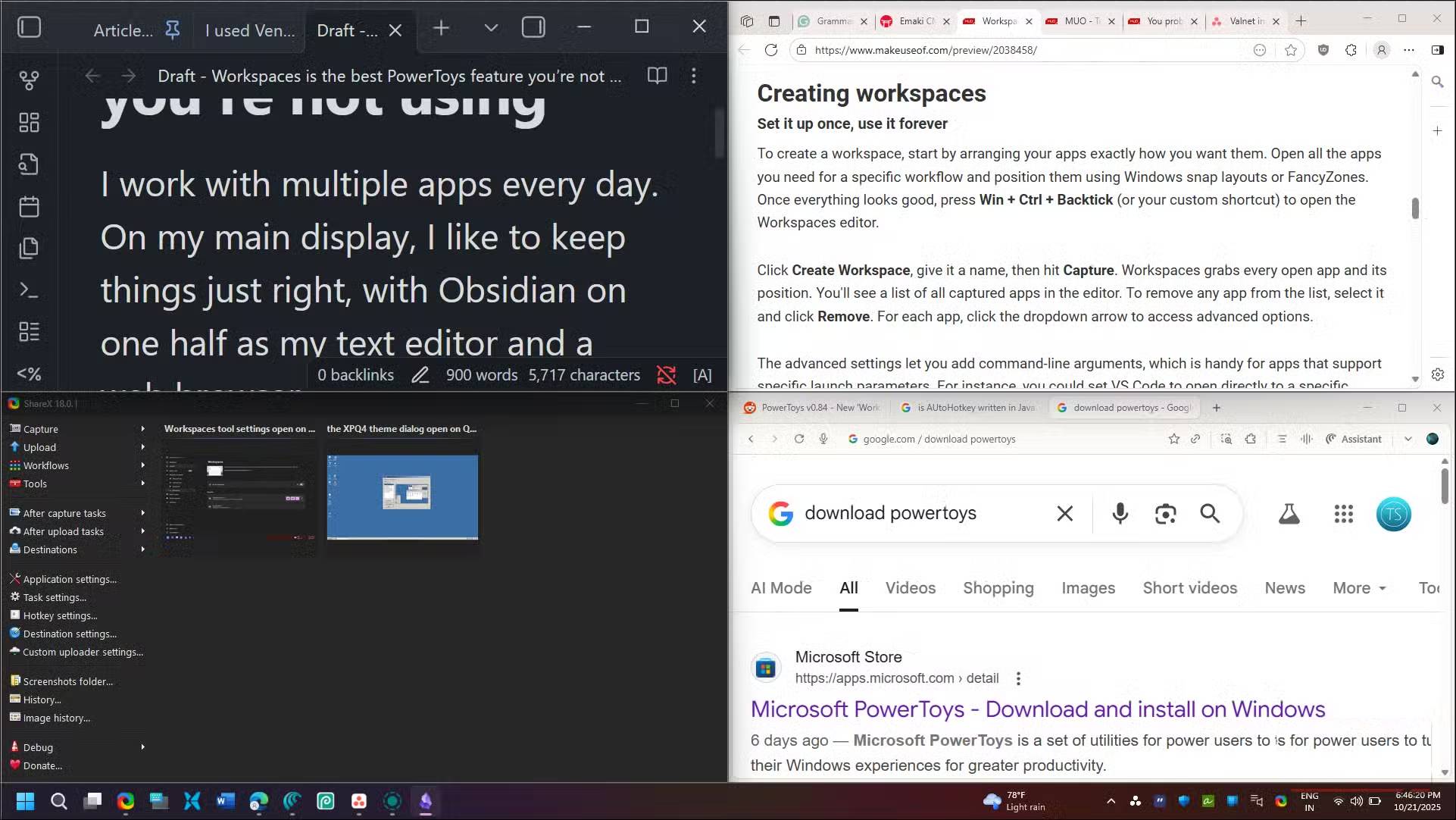
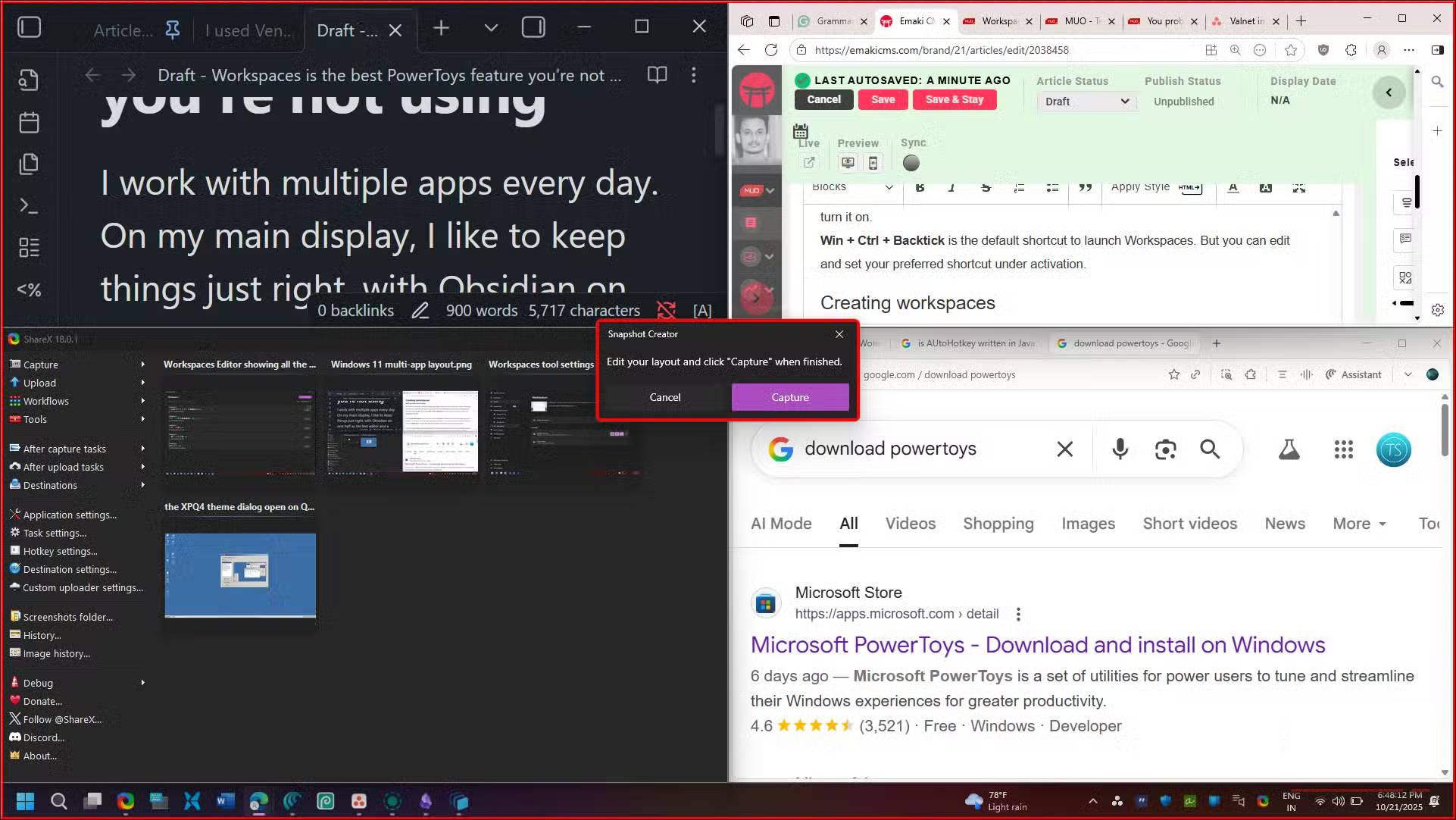
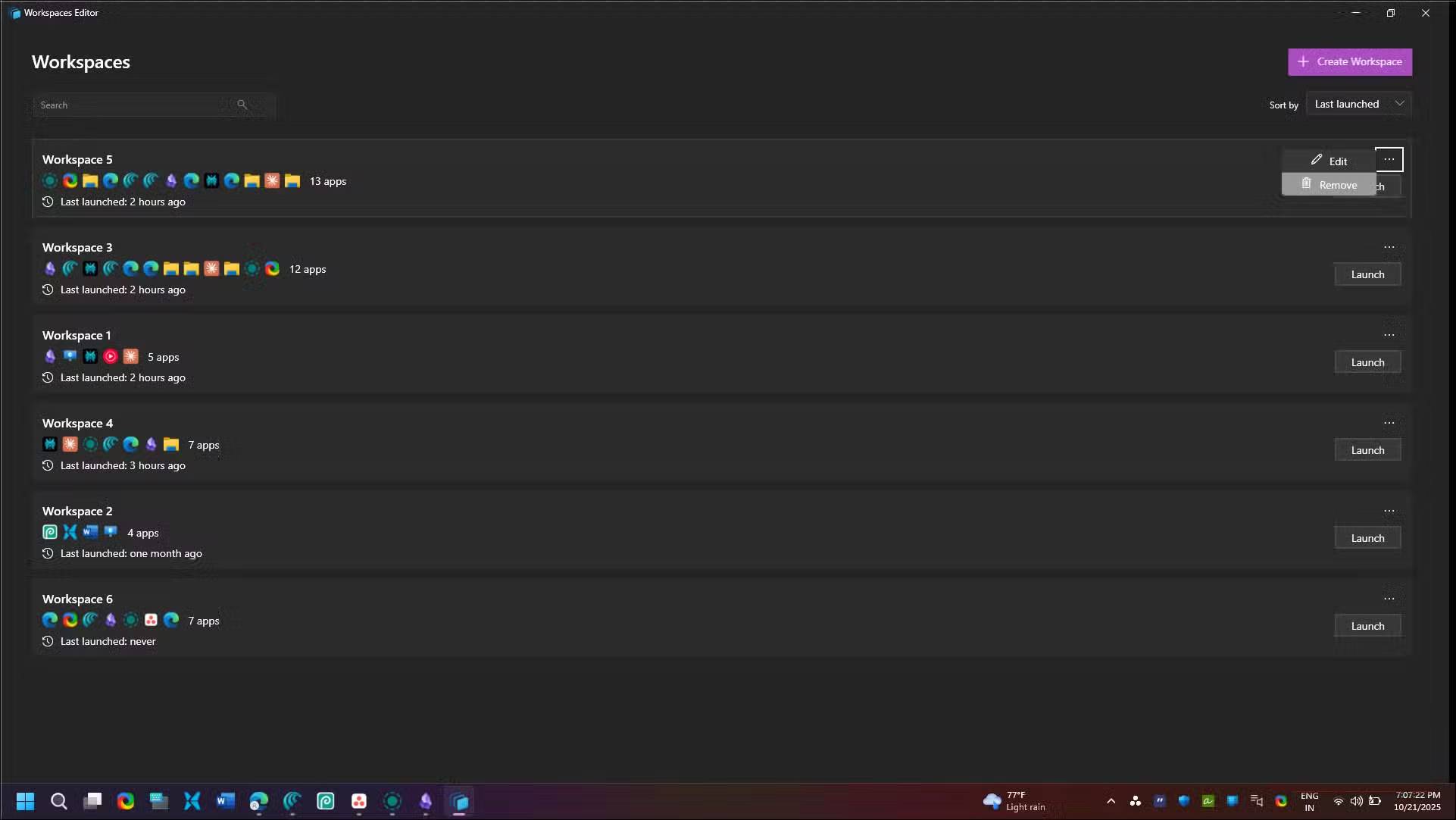
To create a workspace, start by arranging your apps the way you want them. Open all the apps you need for a particular workflow and position them using Windows snap layouts or FancyZones. Once everything is in place, press Win + Ctrl + Backtick (or your custom keyboard shortcut) to open the Workspaces editor.
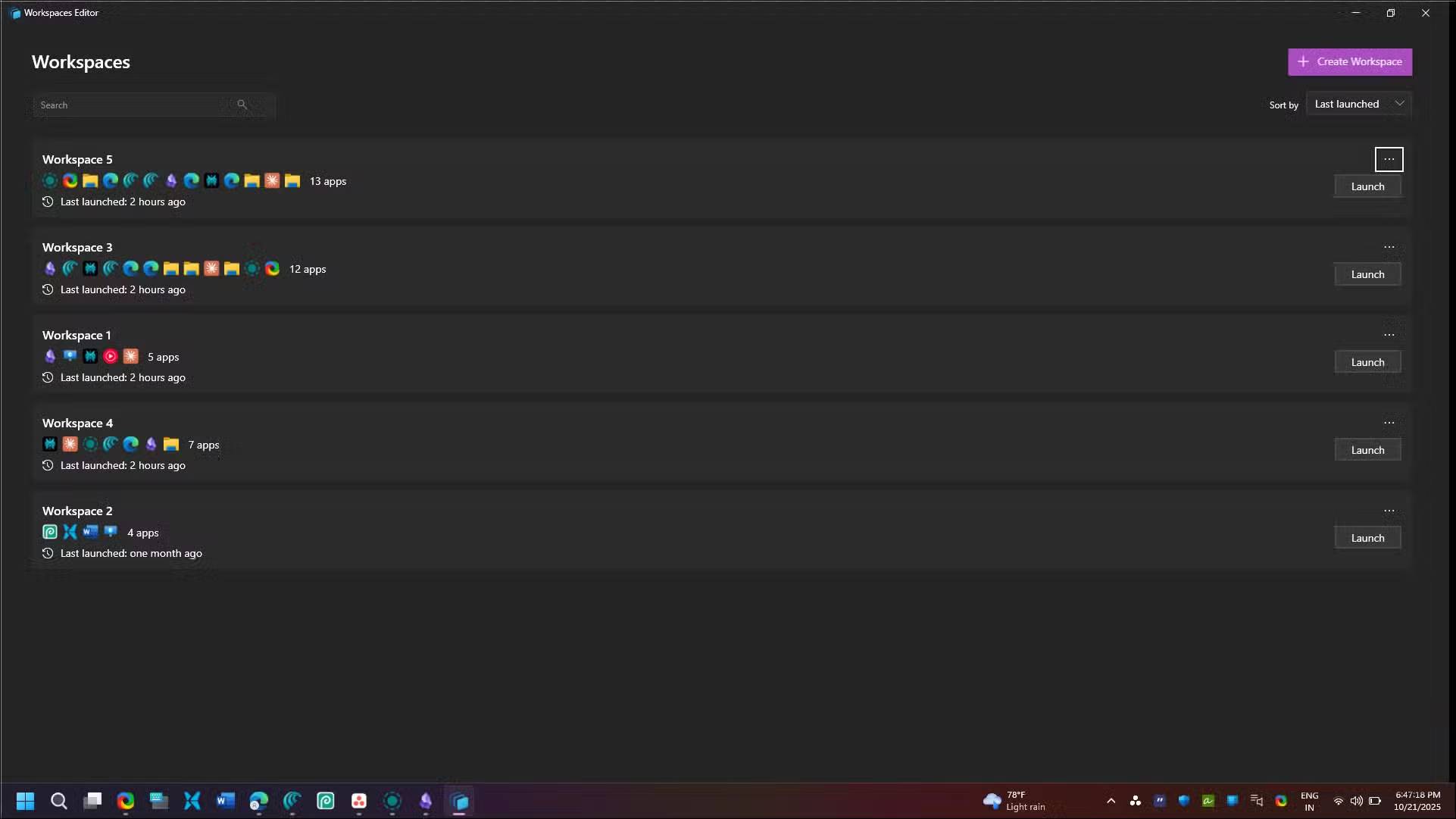
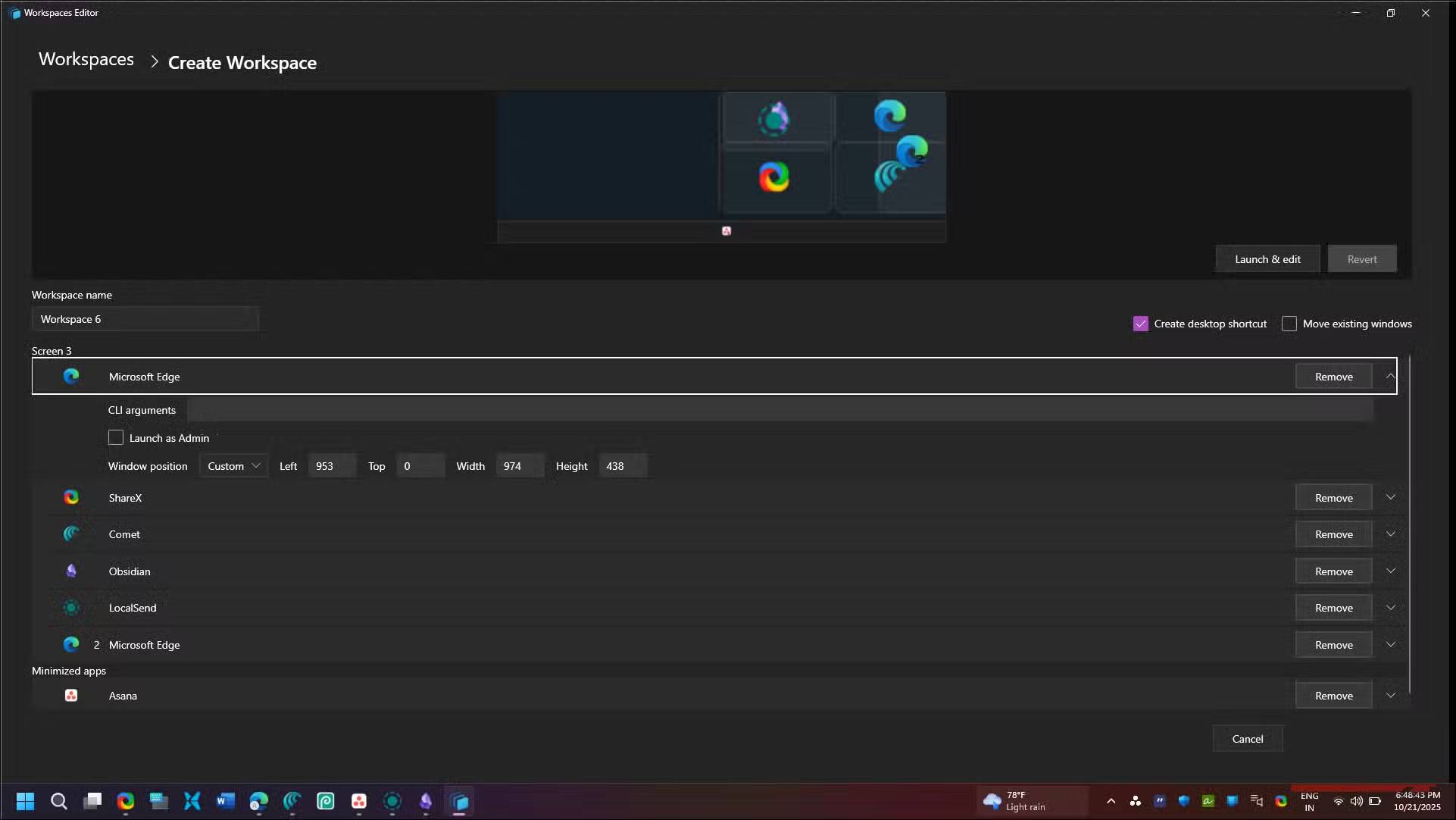
Click Create Workspace , name the workspace, then click Capture . Workspaces will capture every open application and its location. Once complete, you'll see a list of all the captured applications in the editor. To remove any application from the list, select it and click Remove . For each application, click the drop-down arrow to access advanced options.
Advanced settings allow you to add command line arguments, which is handy for applications that support specific launch parameters. For example, you can have VS Code open directly to a specific project folder by adding the path as an argument.
You can also set apps to launch with admin rights (useful for dev tools) or configure them to start minimized or maximized. The minimized option is handy for apps you want to run in the background, like Slack or Spotify.
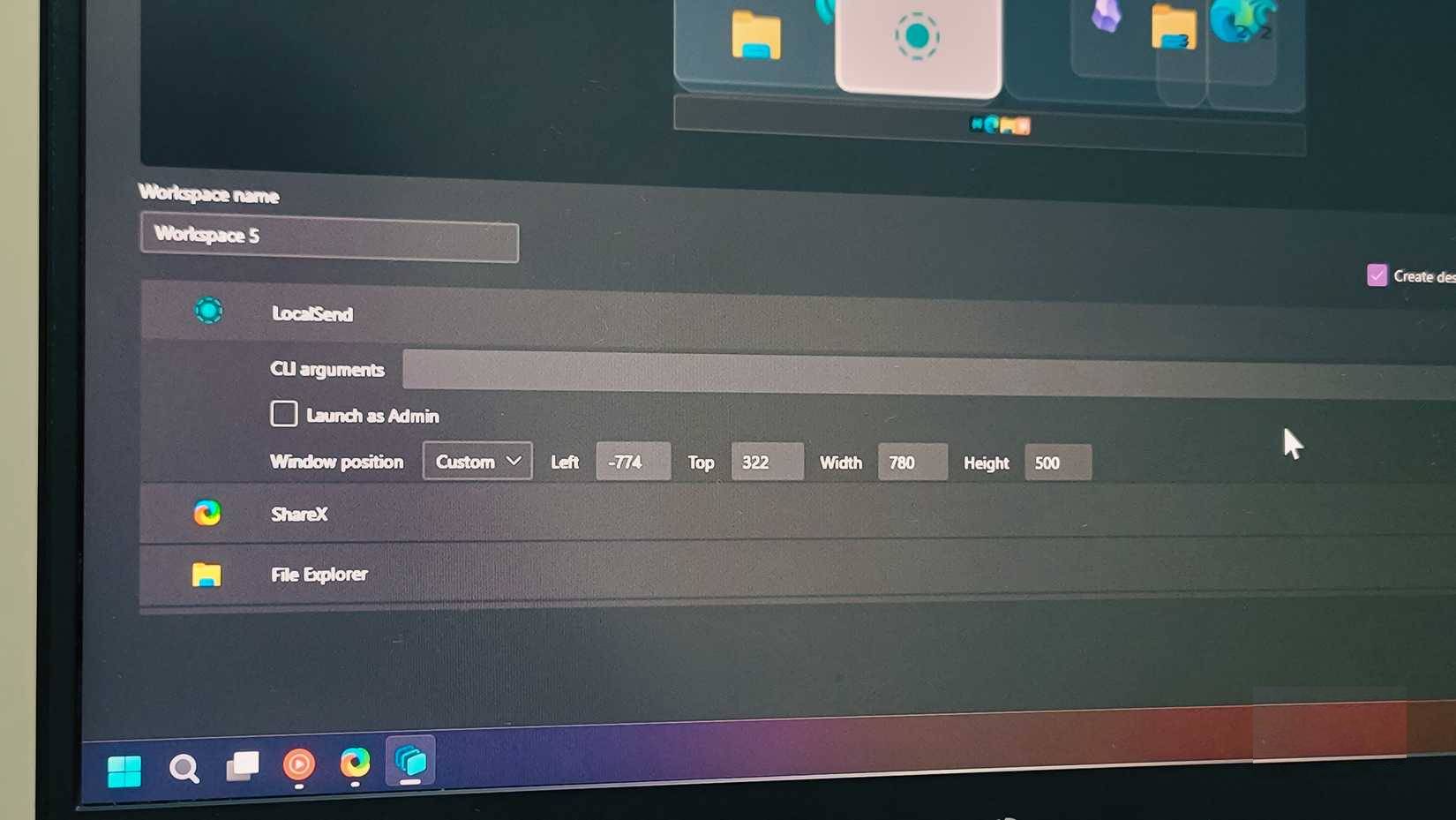
For more precise control, you can manually adjust the position values for each application if the captured position isn't quite right. Each workspace can also be saved as a desktop shortcut, which you can then launch from anywhere, including the desktop, Windows Search, PowerToys Run, or third-party launchers like Listary.
All workspaces are saved in The Workspaces Editor . To launch, press Win + Ctrl + Backtick , then click Launch To restore your application.
It handles open apps intelligently. Instead of launching duplicate windows, it repositions existing ones to fit your saved layout. And if you're using multiple monitors, Workspaces remembers which desktop each app is on.
There is still much room for improvement.
Things are not perfect yet.
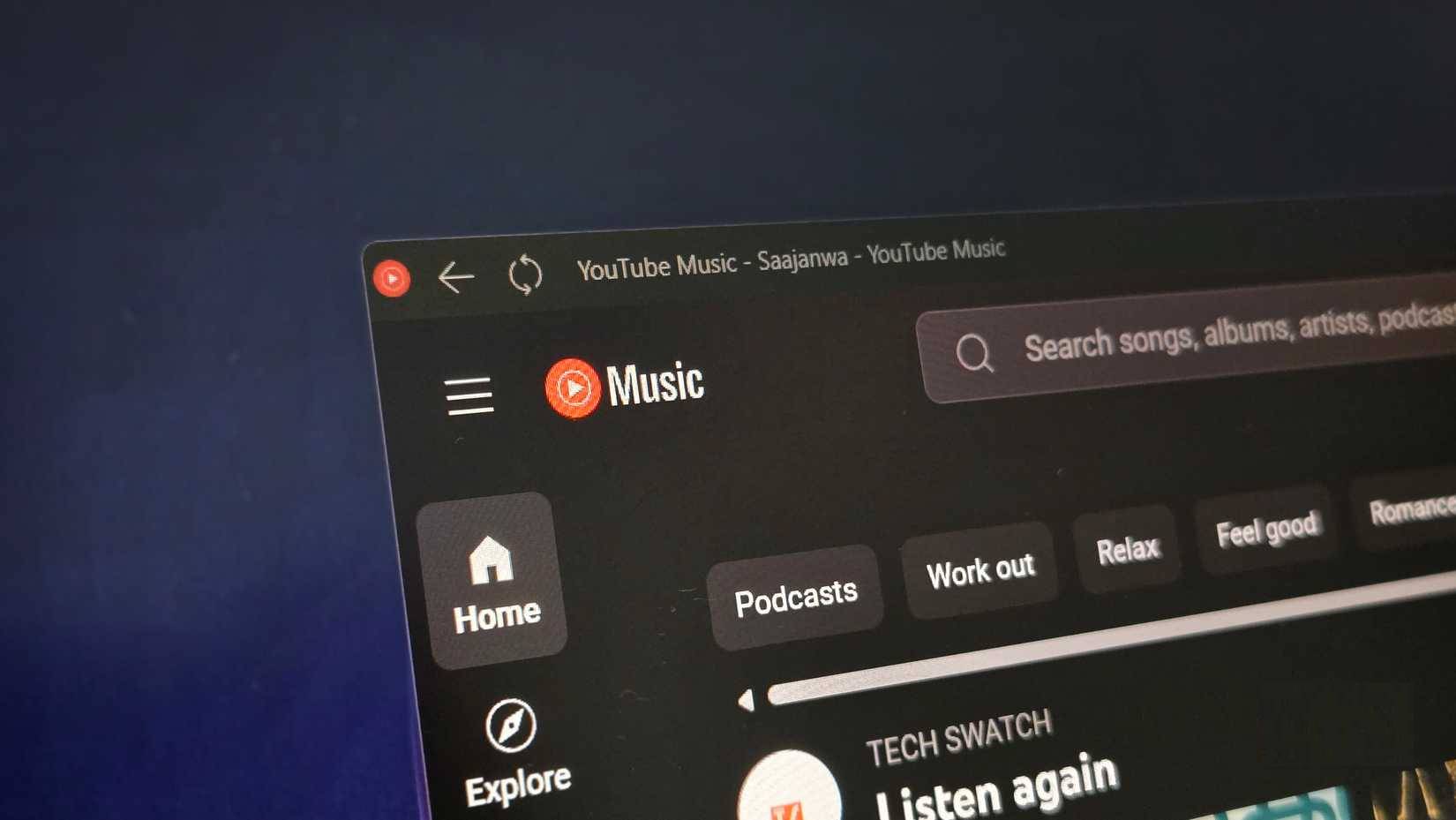
While it works well, Workspaces has a few limitations. First, it refuses to save any web apps, meaning you can't restore them. Many people use YouTube Music as a dedicated app in Edge, but Workspaces can't restore it properly; it opens a regular browser window instead. The same goes for Progressive Web Apps and Chrome app shortcuts.
Apps like AutoHotkey running through an interpreter or Java apps don't work well either. Workspaces sometimes confuse multiple instances of the same app, especially with File Explorer windows or Chrome tabs. You can set up three File Explorer windows in specific folders, but when you launch Workspaces, they're either in the wrong place or pointing to the wrong folder.
Finally, the tool sometimes has trouble with window positioning. An app that's supposed to be on the left monitor might end up on the right, or windows might overlap instead of snapping to their designated zones. While you can quickly snap windows into place with FancyZones, ideally Workspaces should handle this on its own.
Workspaces fix a long-standing Windows inconvenience
Despite these limitations, Workspaces automates the daily process of manually resetting your desktop. It restores all your apps to their original locations with a single click, and you can create as many spaces as you like. It's the kind of feature that makes you wonder how many years it will take for Microsoft to officially integrate it into Windows. Until then, Workspaces is ideal.
FAQ
Why Workspaces Is the Best Powertoys Feature You Haven't Used on Your Windows?
In practical terms, workspaces in PowerToys can launch and position any application exactly where you want it with just one click.
What factors are most important?
The article highlights that each workspace can also be saved as a desktop shortcut, which you can then launch from anywhere, including the desktop, Windows Search, PowerToys Run , or third-party launchers like Listary .
What is the main takeaway?
The main takeaway is that workspaces sometimes confuse multiple instances of the same app, especially with File Explorer windows or Chrome tabs.
Related Articles
 PowerToys: Complete Guide and Key Details4 minutes read
 Powetoys: How to Use Powertoys on Windows 105 minutes read
 Powertoys Toolkit Will Have a New Look and Feel Suitable for3 minutes read
 8 PowerToys Features Microsoft Should Include by Default in Windows 117 minutes read
 Microsoft Revived Powertoys, a Popular Customization Tool on3 minutes read
 Powertoys Is Now Available in Windows 11 Microsoft Store3 minutes read
Reader Comments 0
Sign in with email or Google to join the discussion.