Table of Contents
Microsoft Edge is a productivity disaster. 20 tabs, 3 social media accounts, and countless news feeds all competing for attention. There's finally a way to fix this - and it doesn't require any browser extensions to do it.
5. Use a separate profile for work
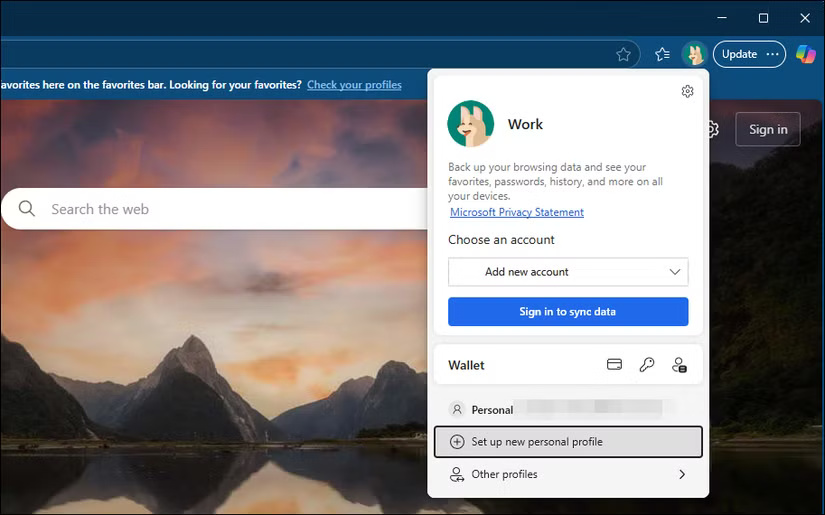
Creating your own profile in Edge is the most important productivity change you can make. A work profile contains only your work bookmarks, work accounts, and work extensions. It has the tools you need to get your work done, nothing else.
To create a new profile in Edge, click your profile icon in the upper-right corner and select Set up a new personal profile . Choose to sign in with a Microsoft account or continue without an account. Give it an easy-to-understand name, such as Work , and choose a theme color that visually distinguishes it from your personal browser. For example, you could use a blue theme for work and leave the default for personal use.
4. Remove distractions from the Start Page
Many people prefer Edge over Chrome for a variety of reasons, but unlike Google 's minimalist approach, Edge will by default bombard you with a stream of news. These articles are algorithmically selected to grab your attention. One minute you're opening a new tab to check a work document, and the next you're reading about sensational celebrity stories or political scandals.
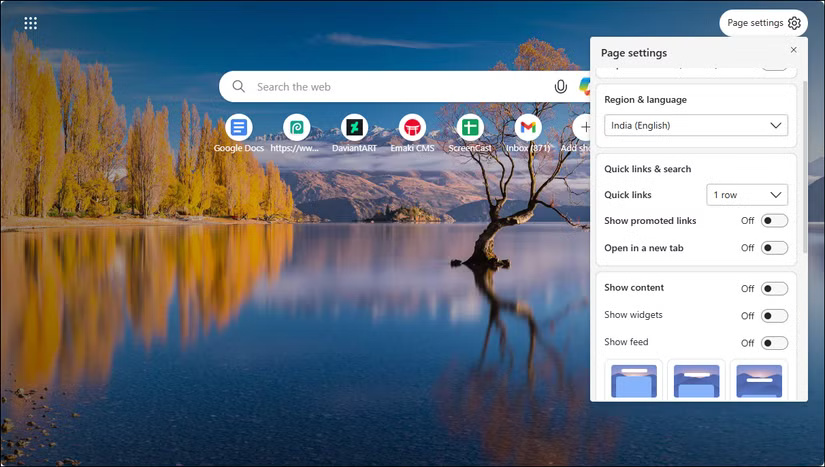
Luckily, Edge makes it a little easier to turn them off. To turn off the Edge feed:
- Click the gear icon in the upper-right corner of any new tab to open Page settings .
- Scroll down and turn off Show feed .
- While you're there, clean up the Quick Links section. If you see Twitter, Facebook, Instagram, or YouTube lurking there, remove them. Click the three-dot menu next to each distracting site and select Remove .
You're almost done increasing your productivity!
3. Manage notifications to avoid triggering
Just like apps on your phone, almost every website wants permission to notify you of updates. News sites want to notify you of breaking news, e-commerce sites want to notify you of promotions, and social media platforms would love to pull you back with interactive notifications.
To prevent these interruptions, you can turn off browser notifications completely.
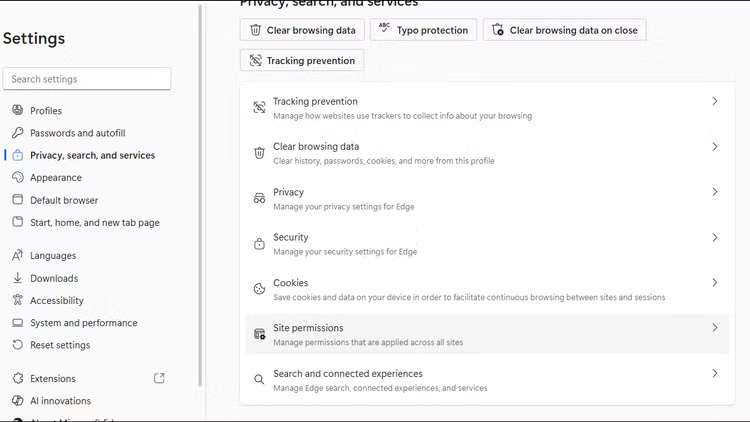
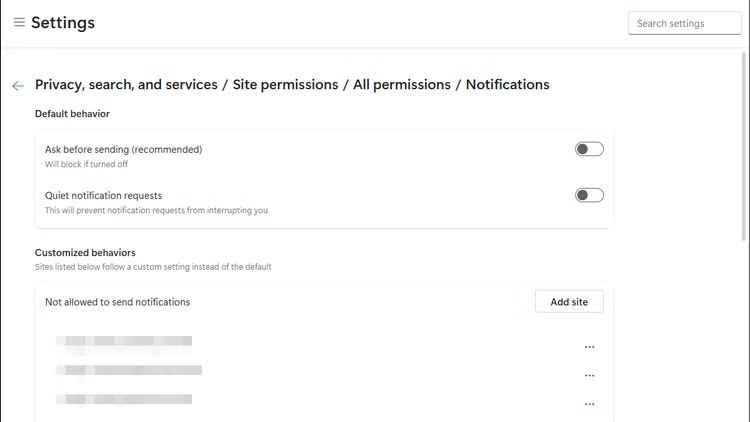
- Click the three-dot menu in Edge and select Settings .
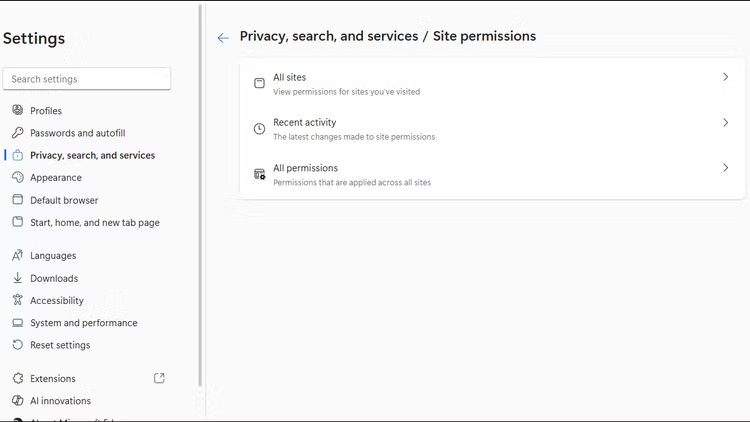
- Navigate to Privacy, search, and services > Site permissions .
- Then, select All permissions and select Notifications .
- Turn off Ask before sending to automatically block all notification requests.
2. Use Immersive Reader to Eliminate Distractions
Immersive Reader removes all of this, turning cluttered web pages into clean, e-book-style documents to improve your reading experience on Microsoft Edge. When Immersive Reader is available on a page, you'll see a book icon in the address bar. Click the icon once to turn on immersive mode, or press F9 to quickly activate it from your keyboard.
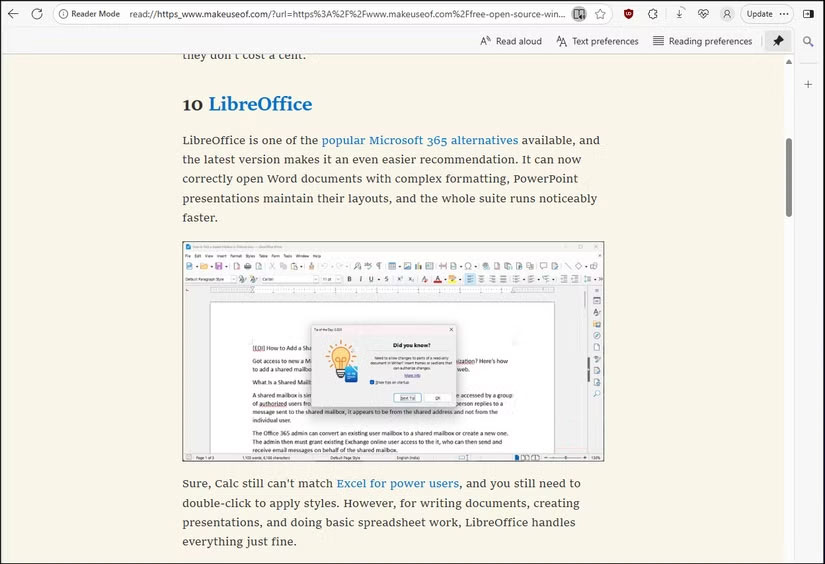
On the Immersive Reader toolbar, you can adjust text size, switch between light and dark themes, and even enable reading tools that highlight sentence types or break words into syllables.
1. Block time-wasting websites
No matter how hard you try, muscle memory still takes over. In boring tasks, you'll type twitter.com (or Reddit, YouTube, or Instagram) without thinking.
Browser extensions can block these sites, but they're too easy to turn off or offer snooze or pause options that let you use the sites for 5 to 10 minutes. You need something harder to ignore.
The solution is to edit your computer's hosts file to redirect time-consuming domains to a dead end. Here's how to do it:
- Click Start , type Notepad , right-click Notepad and select Run as administrator .
- Click File > Open and navigate to C: WindowsSystem32driversetc.
- Change the file type drop-down list from Text Documents to All Files .
- Select the hosts file and then click Open .
- Add the websites you want to block as follows:
127.0.0.1 twitter.com 127.0.0.1 www.twitter.com 127.0.0.1 reddit.com 127.0.0.1 www.reddit.com- Finally, click File > Save .
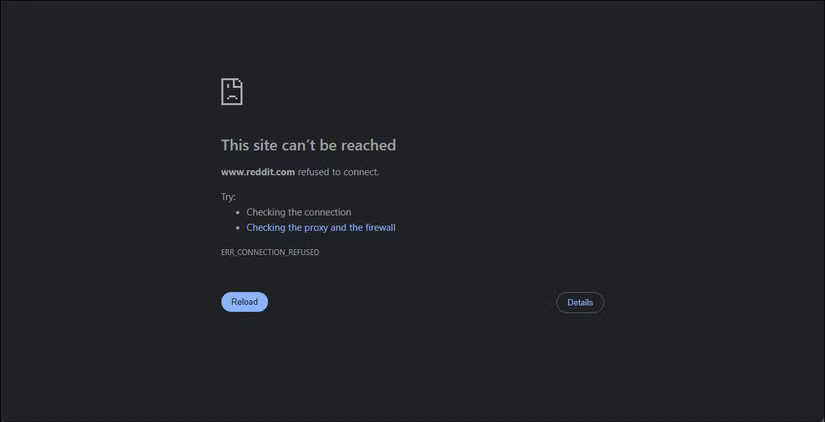
When you visit any of these sites, you'll see the This site can't be reached error. This method is inconvenient to undo, which prevents you from bothering with regular browsing, but can be easily restored when you actually need to visit any of these URLs.
Final Thoughts
Following the steps in order and checking version-specific settings should make it easier to Make Microsoft Edge Distract-Free, Without Any Add-ons. If an option looks different, verify the device, app, or operating-system version before changing additional settings.
FAQ
What is the best way to Make Microsoft Edge Distract-Free, Without Any Add-ons?
Start with the requirements described in the article and follow the steps in order. Microsoft Edge is a productivity disaster. 20 tabs, 3 social media accounts, and countless news feeds all competing for attention. There's finally a way to fix this - and it doesn't require any browser extensions to do it.
What should you know about 5. Use a separate profile for work?
Creating your own profile in Edge is the most important productivity change you can make. A work profile contains only your work bookmarks, work accounts, and work extensions. It has the tools you need to get your work done, nothing else.
What should you do if the instructions do not match your screen?
Check the device, software version, account permissions, and regional settings. Interfaces can change after updates, so use the closest matching option and consult the official support documentation when necessary.
Related Articles
 Why Shouldn't You Trust Microsoft Edge's VPN: Key Reasons Explained7 minutes read
 How to Take a Screenshot of the Website on Microsoft Edge5 minutes read
 Microsoft Encourages Users to Develop Extensions for Edge2 minutes read
 How to Manually Update the New Microsoft Edge3 minutes read
 6 Cool Microsoft Edge Features You Shouldn't Miss: Practical Guide6 minutes read
 Instructions for Restoring Microsoft Edge on Windows 104 minutes read
Reader Comments 0
Sign in with email or Google to join the discussion.