Table of Contents
Starting with Windows 11 build 27718.1000, you can enable Admin protection to use administrator approval mode instead of User Account Control (UAC) mode.
Starting with Windows 11 build 27718.1000, you can enable Admin protection to use admin approval mode instead of user account control (UAC). Admin protection will protect the administrator user's free administrative rights, allowing them to still perform all administrative functions with admin privileges in the meantime. Here's how to enable Admin protection for Windows approval mode.
Enable Admin protection for Windows approval mode via Settings
Step 1:
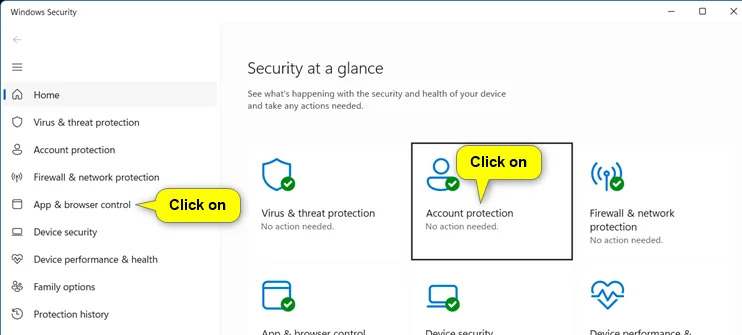
Open Settings On your computer and Select Windows Security , then Click Account protection .
Step 2:
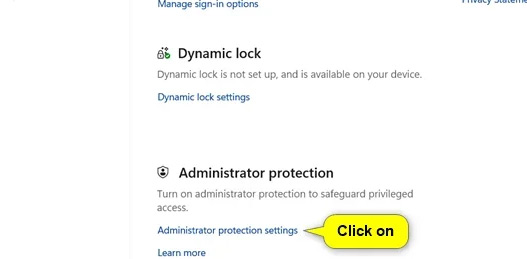
Switch to the new interface, we click on Administrator protection settings To proceed with setup.
Step 3:
At this time, the user Turns on Administrator protection To activate Admin protection approval mode on Windows.
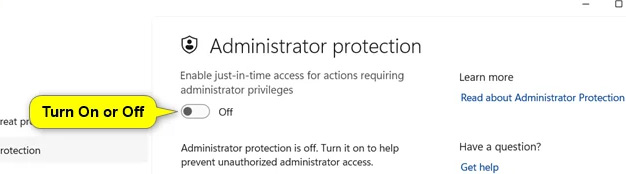
Finally you restart your computer for the changes to be applied.
How to enable Admin protection for Local Security Policy approval mode
Step 1:
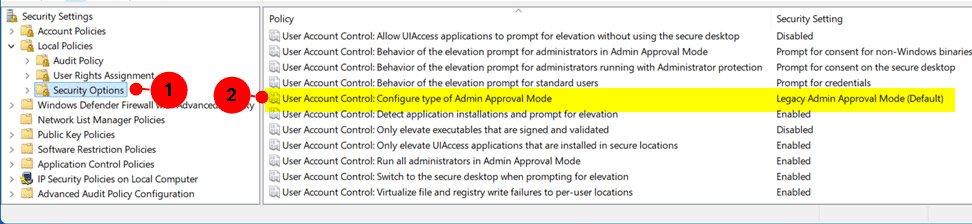
Type Local Security Policy in the search bar , then click on Local Policies On the left side, then Select Security Options .
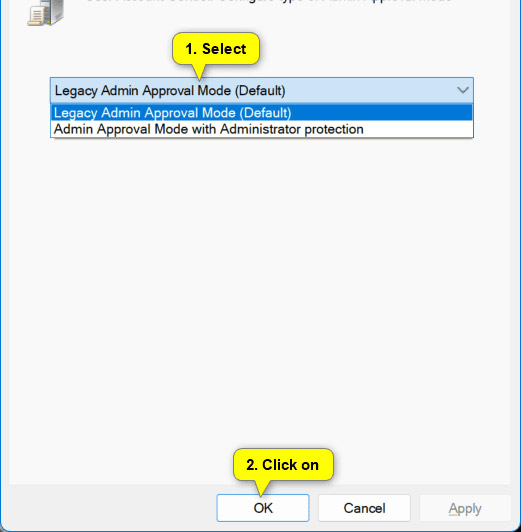
Look at the content next to it And click on User Account Control: Configure type of Admin Approval Mode .
Step 2:
In the new interface, users Click on the Local Security Setting tab And Select Admin Approval Mode with Administrator protection .
FAQ
How do you enable admin protection in Windows approval mode: step-by-step guide?
In practical terms, starting with Windows 11 build 27718.1000, you can enable Admin protection to use administrator approval mode instead of User Account Control (UAC) mode.
What should you check before getting started?
Review the requirements, compatible device or software version, and any warnings described in the guide before making changes.
What should you do if the steps do not work?
Repeat the steps in order, confirm that your app or system is up to date, and review the troubleshooting details provided above.
Related Articles
 Activate the 'Write Protection' Mode of USB on Windows 102 minutes read
 Instructions to Enable Admin Share on Windows 10/8/76 minutes read
 Firefox 57 Adds the Option for Tracking Protection3 minutes read
 What Is Admin? Admin Facebook, What Is the Website?4 minutes read
 How to Enable Game Mode on Windows 102 minutes read
 How to Enable Experimental Windows 11 Mode on Google Chrome4 minutes read
Reader Comments 0
Sign in with email or Google to join the discussion.