Table of Contents
When you encounter the message An administrator has restricted sign-in on Windows, restricting login rights from Admin, it is not necessarily an account error.
If you encounter the message An administrator has restricted sign-in, it is not necessarily an account error. It may be that you are only allowed to log in in safe mode. Here are some methods to handle Windows login restrictions.
Check if computer is locked remotely
Step 1:
On another device, open your browser and visit the link below.
- Microsoft Access Device Management
Continue signing in with the same Microsoft account associated with the locked computer.
Step 2:
In the interface, click on The Device item To adjust. Click on the locked device and click Find my device .
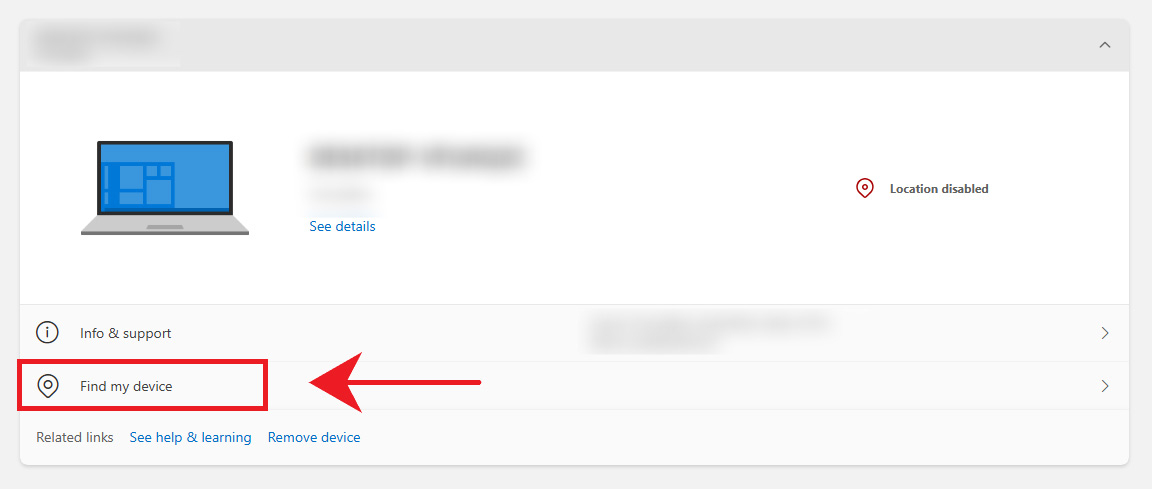
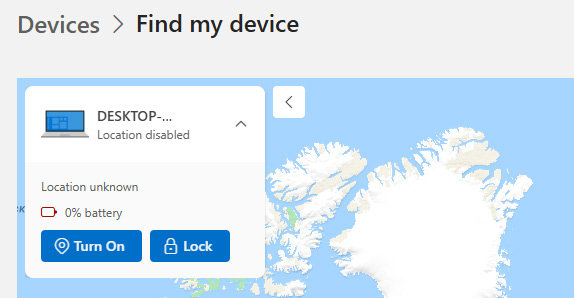
Check the status to confirm if it is locked. If you see a Locked message, unlock it with a PIN, password, or biometrics. If the lock is not removed and you are still blocked, click Windows Recovery Environment, select Troubleshoot, and then use Reset this PC.
Remove account restrictions via Group Policy
Step 1:
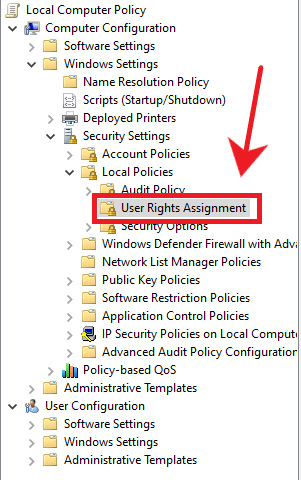
You Open the Run dialog box And Type gpedit.msc . Then open the new interface, you access Computer Configuration > Windows Settings > Security Settings > Local Policies > User Rights Assignment .
Step 2:
In the right interface, click Deny log on locally.
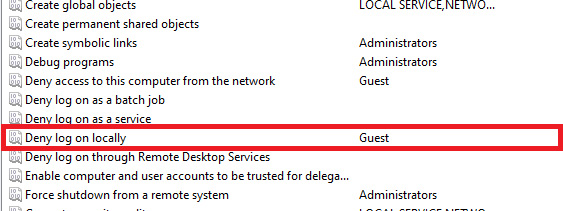
Select the blocked account and Click Remove .
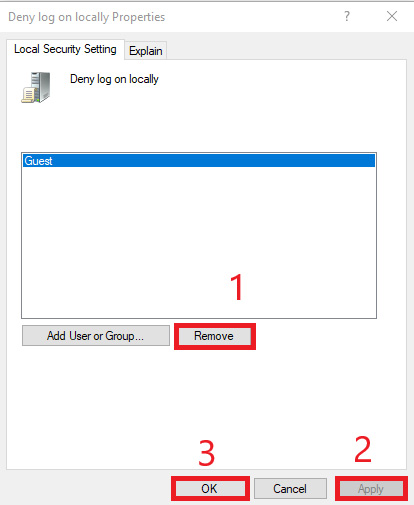
Step 3:
Repeat this for Deny log on through Remote Desktop Services And Deny access to this computer from the network .
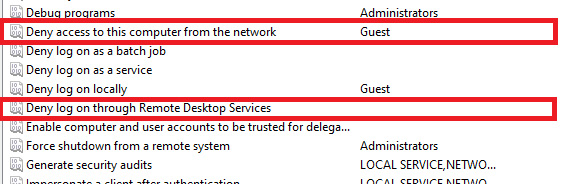
Step 4:
You also need to confirm that the account has the appropriate permissions Allow log on locally or Allow log on through Remote Desktop Services and that the account belongs to the correct Administrators or Remote Desktop Users group.
Type CMD in the search bar then Type gpupdate /force And press Enter.
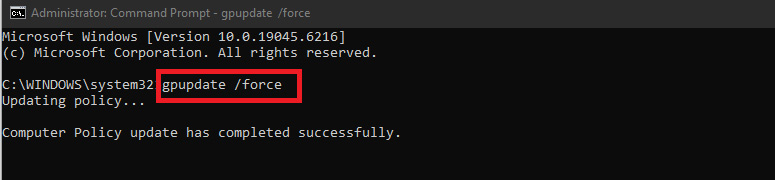
FAQ
How do you fix admin error restricting Windows login: step-by-step guide?
In practical terms, if you encounter the message An administrator has restricted sign-in on Windows, restricting login rights from Admin, it is not necessarily an account error.
What should you check before getting started?
Review the requirements, compatible device or software version, and any warnings described in the guide before making changes.
What should you do if the steps do not work?
Repeat the steps in order, confirm that your app or system is up to date, and review the troubleshooting details provided above.
Related Articles
 How to Fix Lost Admin Password Error When Logging into6 minutes read
 Forget Windows 7 Password Still Logged in Administrator Account1 minutes read
 How to Recover the Windows Admin Login Password14 minutes read
 How to Assign Administrator Permissions on a Windows 7 Computer?4 minutes read
 Losing Admin Permissions on Windows 10 // 8.1, This Is a Fix6 minutes read
 What Is Admin? Admin Facebook, What Is the Website?4 minutes read
Reader Comments 0
Sign in with email or Google to join the discussion.