Table of Contents
Just like in Excel, converting columns into rows, with data on Google Sheets, users can also convert columns into rows and vice versa with a very simple function formula.
Just like in Excel, converting columns to rows, with data on Google Sheets, You can also convert columns to rows and vice versa with a straightforward function formula. When performing the conversion function, data from vertical rows will be converted to vertical columns, without disturbing the user's data. This guide will guide you to convert columns to rows in Google Sheets and vice versa.
Instructions for converting rows to columns in 1 Sheets
Step 1:
First you create content in Google Sheets data table as usual.
Step 2:
Next, in the cell showing the successful row conversion content, Enter the formula =TRANSPOSE(A29:C30) . Then press Enter to execute this function.
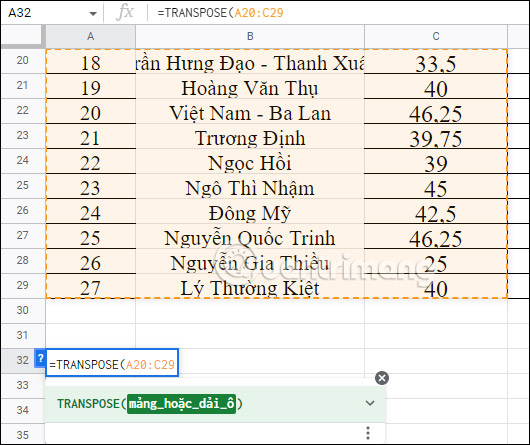
Step 3:
The horizontal content results have been converted to columns as shown below.
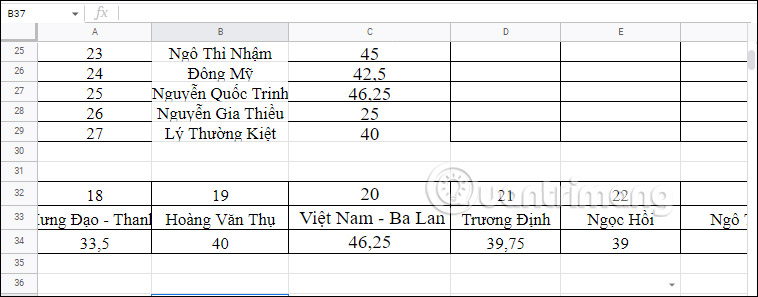
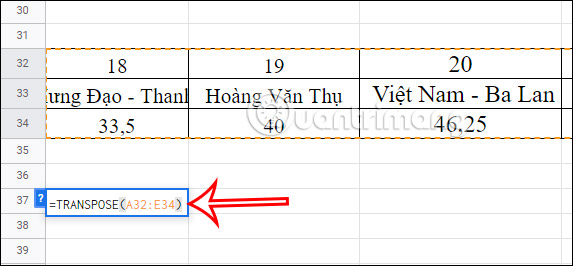
With data from columns to rows, users also enter the same formula. You just need to select the data area you want to convert.
How to convert rows to columns to new sheet
In case the converted content is too long and does not fit in the same Sheet, you can move it to a new Sheet.
Step 1:
First, users need To rename the sheet in Google Sheets , if the default name is according to Google Sheets.
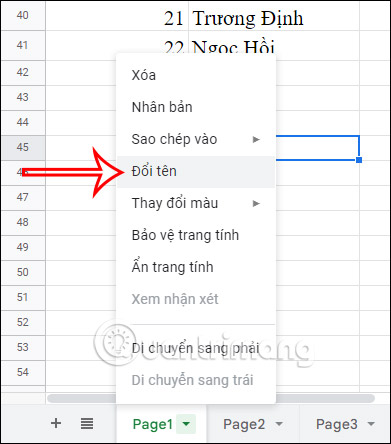
Step 2:
Then Switch to another sheet And Enter the formula =TRANSPOSE(Page1!A25:C29) And press Enter as shown below.
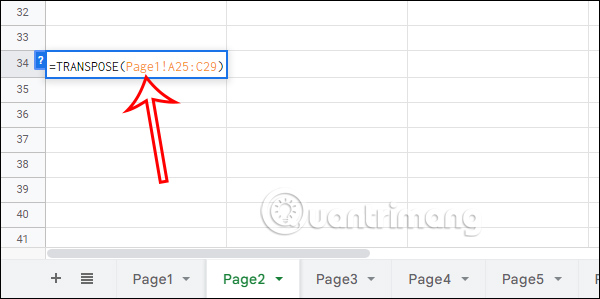
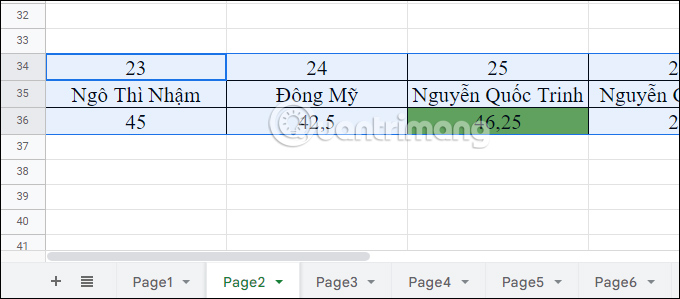
The content in sheet Page 1 has been transferred to Page2 with the row content converted to columns as shown below.
How to fix #REF error converting rows to columns in Google Sheets
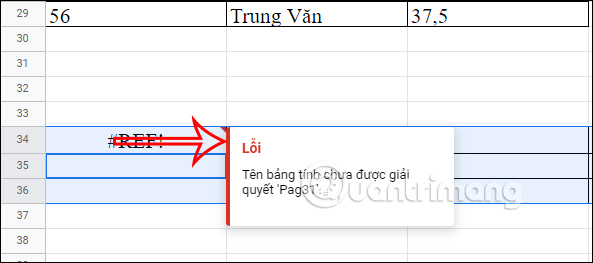
When you convert rows to columns in Google Sheets, you will get a #REF error and cannot execute the command as shown below.
The #REF error converting rows to columns in Google Sheets is caused by misspelled sheet name in the function formula, or the converted data area is overwritten with the area with data.
So you have to check the data area and sheet name again when entering the formula.
After converting columns to rows, if you want to manipulate or calculate on the new data table, copy the new table , Paste it to another area or paste it over the current table, and when pasting, select Paste values only . Then you can manipulate the table as usual.

Above is how to convert data from horizontal to vertical rows on Google Sheet, with just 1 straightforward TRANSPOSE function. If you have difficulty converting columns to rows on Google Sheet, please comment below the article for support.
Good luck!
FAQ
How do you convert columns to rows in Google Sheets and vice versa: how-to guide?
In practical terms, just like in Excel, converting columns into rows, with data on Google Sheets, users can also convert columns into rows and vice versa with a very simple function formula.
What should you check before getting started?
Review the requirements, compatible device or software version, and any warnings described in the guide before making changes.
What should you do if the steps do not work?
Repeat the steps in order, confirm that your app or system is up to date, and review the troubleshooting details provided above.
Related Articles
 How to Convert Rows Into Columns and Vice Versa in Excel2 minutes read
 This Is a Very Useful Function in Google Sheets But Not Many3 minutes read
 How to Convert Columns into Rows and Rows into Columns in Excel3 minutes read
 How to Freeze, Hide Rows and Columns in Google Sheets4 minutes read
 Excel - Convert Columns to Rows in Excel: Features, Uses, and3 minutes read
 How to Add or Delete Rows and Columns in Google Sheets5 minutes read
Reader Comments 0
Sign in with email or Google to join the discussion.