Table of Contents
This guide organizes the entries in "Change These 6 Settings to Stop New Android Apps from Tracking You" and explains what each option, idea, or example offers. It also highlights practical details that matter when comparing the choices.
6. Control application permissions
When you install a new app, it often asks for access to details like your camera, microphone, or location before you even open it. But most real-world apps don't need everything they ask for. Take a photo editor, for example: It works fine without knowing your location. Likewise, a note-taking app doesn't need access to your microphone.
To manage permissions for all your apps in one place, go to Settings > Security and privacy > More privacy settings > Permission Manager . You'll see permission categories like Camera , Location , and Microphone . Tap any of those categories to see which apps have access, then decide whether they really need that permission.
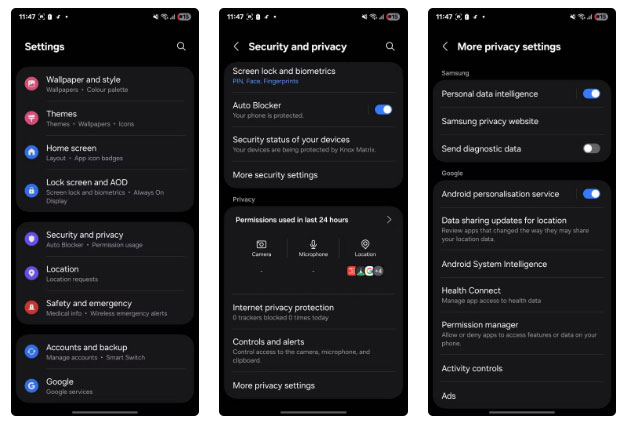
It only takes a few taps to set these boundaries early on. It can protect your data from misuse later. The sooner you act, the more control you have over what your apps can see and do.
5. Turn off precise location
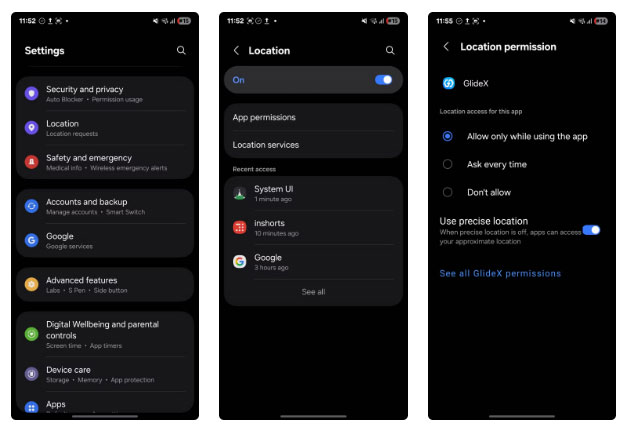
Most apps don't need your exact coordinates. Sure, services like maps or ride-hailing rely on location, but even those rarely require absolute accuracy. Android lets you choose between Precise and Approximate when accessing your location, and the approximate location option usually works fine.
Navigate to Settings > Location > App permissions , then select the app you want to review. From there, turn off Use precise location to prevent the app from tracking your precise movements. It will still work, but it will have access to less detailed information about your location.
4. Limit background battery usage
Closing an app doesn't mean it stops working. Many apps run in the background, pinging servers and collecting data.
To stop this, navigate to Settings > Apps , select the app, tap Battery , and set the app's background activity to Restricted . This way, the app won't run in the background unless you open it directly.
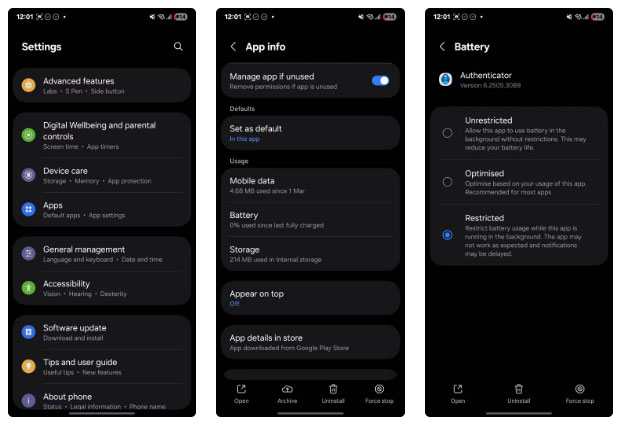
Warning : Be careful when enabling this option for apps that you need reliable notifications for, such as messaging apps. Using this option can significantly slow down the time when affected apps send you notifications.
3. Turn off Bluetooth and nearby device scanning
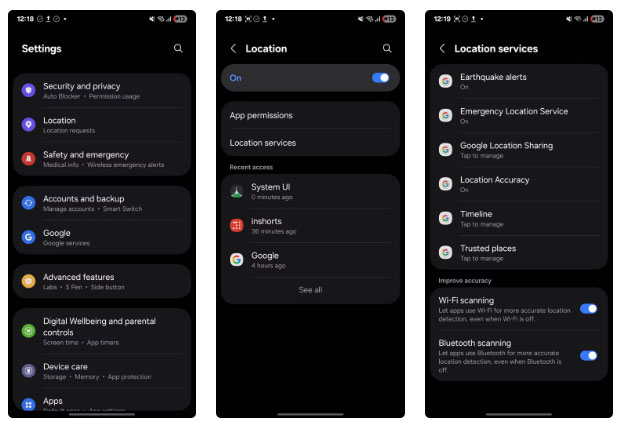
Even if you don't use Bluetooth much, some apps may still use Bluetooth scanning to detect nearby devices and track your movements. This is part of how some apps collect ambient data for analytics or location services.
To stop this silent tracking, go to Settings > Location > Location Services > Bluetooth Scanning and turn it off.
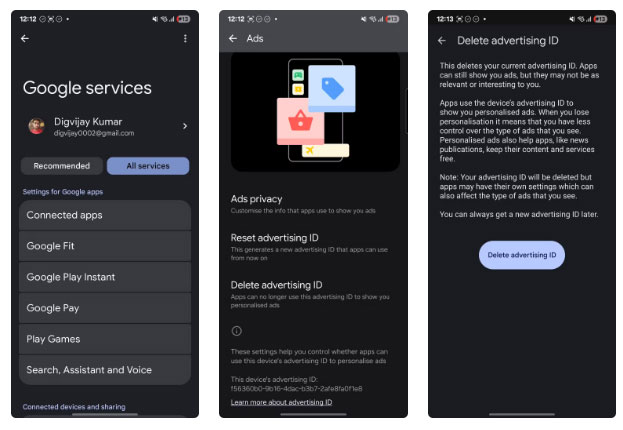
2. Turn off ad personalization
Ad tracking may not be as obvious an invasion of privacy as camera or location access, but it's one of the most common ways apps collect data about you. Many apps and services build profiles based on your behavior, including what you search for, which apps you use, and even how long you spend in them. All of this is used to deliver targeted ads.
If that sounds invasive, you can turn off personalized ads and delete your advertising ID. Go to Settings > Google > All services > Ads > Delete advertising ID , then tap Delete advertising ID again to confirm.
1. Put unused apps to Sleep
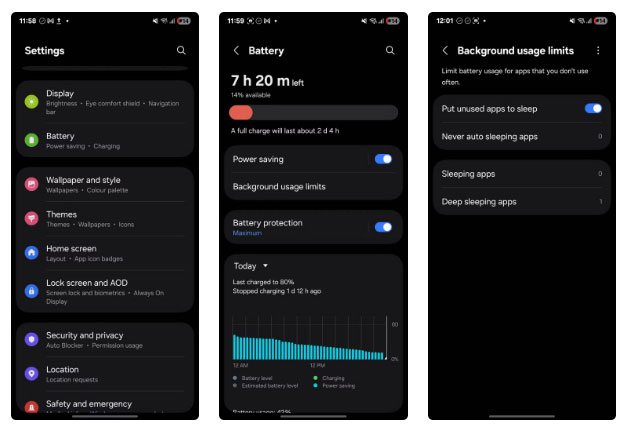
Over time, you may have downloaded several apps that you no longer use. But apps don't have to be idle, even if you forget about them. Many continue to run in the background, silently using permissions you granted long ago.
To stop these apps from running in the background, go to Settings > Battery > Background usage limits , then turn on Put unused apps to sleep . You'll also see three categories below:
- Sleeping apps still run in the background occasionally.
- Deep sleeping apps will be completely inactive unless you open them.
- Never auto sleeping apps are completely excluded from Sleep mode settings.
FAQ
What should you know about 6. Control application permissions?
When you install a new app, it often asks for access to details like your camera, microphone, or location before you even open it. But most real-world apps don't need everything they ask for. Take a photo editor, for example: It works fine without knowing your location. Likewise, a note-taking app doesn't need access to your.
What should you know about 5. Turn off precise location?
Most apps don't need your exact coordinates. Sure, services like maps or ride-hailing rely on location, but even those rarely require absolute accuracy. Android lets you choose between Precise and Approximate when accessing your location, and the approximate location option usually works fine.
What should you know about 4. Limit background battery usage?
Closing an app doesn't mean it stops working. Many apps run in the background, pinging servers and collecting data.
What should you know about 3. Turn off Bluetooth and nearby device scanning?
Even if you don't use Bluetooth much, some apps may still use Bluetooth scanning to detect nearby devices and track your movements. This is part of how some apps collect ambient data for analytics or location services.
Related Articles
 5 Simple Android Settings You Should Change ASAP: Practical Guide6 minutes read
 5 Tweaks to Stop Your Smart TV from Tracking You7 minutes read
 11 Amazing Android Apps That Will Change the Way You Use Your Phone11 minutes read
 Here's What Phone Thieves Do to Stop You from Tracking Your Device!8 minutes read
 Deleting Cookies Is Pointless: This Is the Real Way to Stop Tracking8 minutes read
 8 Free Wallpaper Changes Apps on Android and Download Links6 minutes read
Reader Comments 0
Sign in with email or Google to join the discussion.