Table of Contents
This updated guide compares ways to open local group policy editor on Windows 11 and highlights the details that matter most. Occasionally, you may need to access the Local Group Policy Editor (gpedit.msc) to configure advanced system settings that aren't available through the standard Settings app or Control Panel. Here are nine easy ways to open this tool on your Windows 11 PC.
1. Open Local Group Policy Editor Using Windows Search
The Windows 11 search tool makes it easy to find apps, documents, and system settings on your device. You can use it to access the Local Group Policy Editor in Windows 11. To do so, use these steps:
- choose the maximize icon on the taskbar or use the Win + S shortcut to open the search menu.
- Type edit group policy or gpedit into the search box and select the first result that appears.
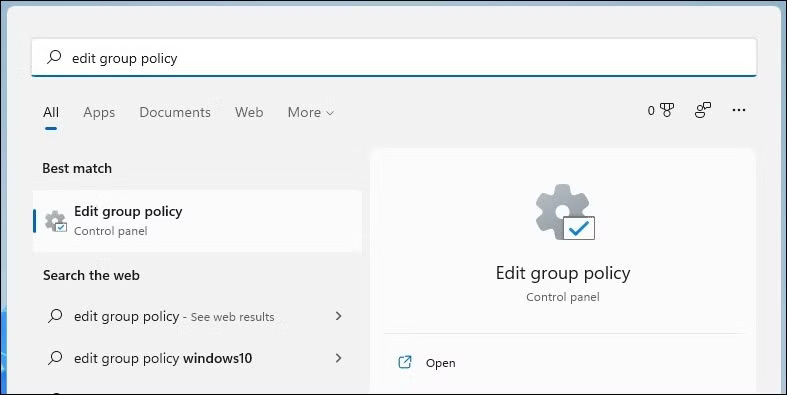
If you get the error "Windows cannot find gpedit.msc", you are probably using the Home edition of Windows 11. In that case, you will have to use a workaround or upgrade to Windows 11 Pro to access the Local Group Policy Editor.
- How to enable Local Group Policy Editor in Windows Home
2. Open Local Group Policy Editor via Run Command
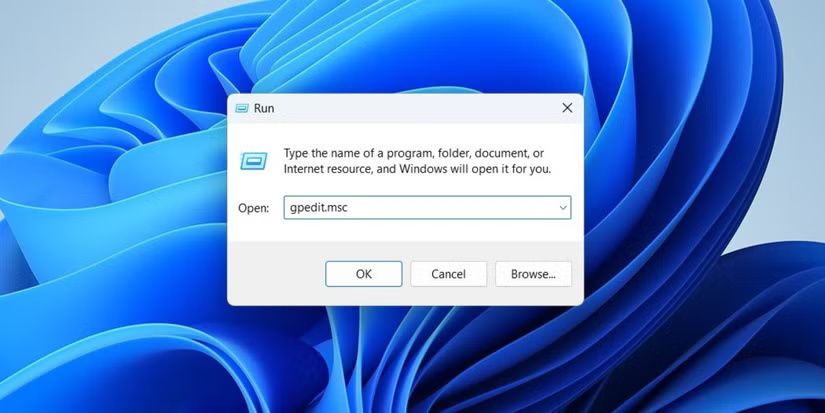
Another easy way to open apps and programs on your Windows device is through the Run dialog box. Here's how to open the Local Group Policy Editor using the Run tool.
- Press Win + R to open the Run dialog box.
- Type gpedit.msc into the text box and choose OK or press Enter to open Local Group Policy Editor.
3. Open Local Group Policy Editor via File Explorer
A lesser-known way to open apps and programs in Windows 11 is through File Explorer.
- Press Win + E to open File Explorer on Windows.
- Type gpedit.msc into File Explorer's address bar and press Enter to open Local Group Policy Editor.

4. Open Local Group Policy Editor from Control Panel or the Settings App
With Windows 11, Microsoft has moved many of the classic Control Panel applets to the Settings app. Still, the Control Panel is still accessible. You can use both the Control Panel and the Settings app to open the Local Group Policy Editor in Windows 11. Here's how:
- Open Control Panel or the Settings app using the search menu.
- Type edit group policy into the search box of the Control Panel or Settings application.
- Click Edit group policy to open the tool.

5. Open Local Group Policy Editor Using Windows Copilot
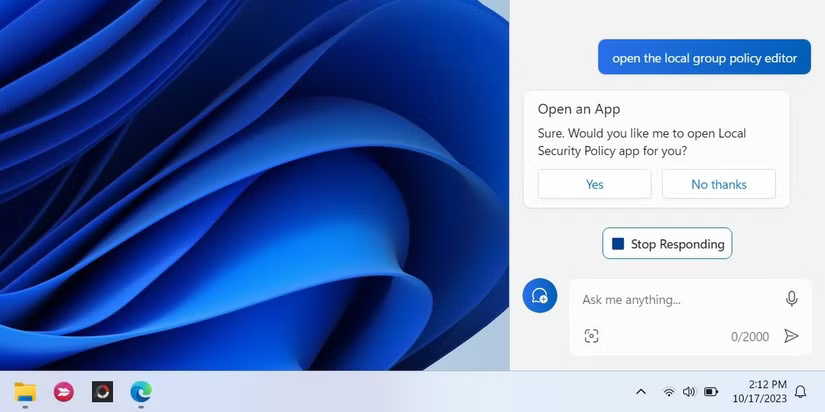
Windows Copilot, Microsoft's new AI assistant, can help you launch the Local Group Policy Editor quickly on Windows 11. Here's what you need to do.
- Press the Win + C shortcut or choose the Copilot icon on the taskbar.
- Type open the local group policy editor into the text field and press Enter .
- Click Yes to confirm.
6. Open Local Group Policy Editor from the System32 Folder
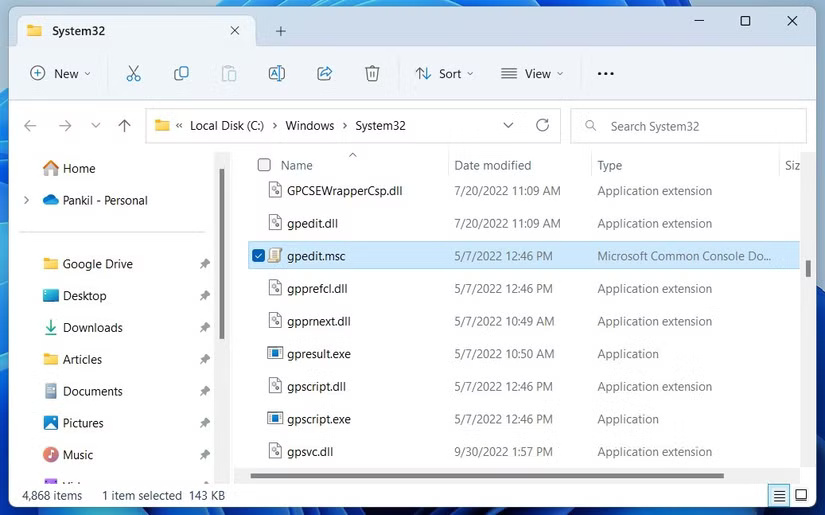
Another way to open Local Group Policy Editor is to use the executable (.exe) file in the Windows System32 folder. Here's how you can do it.
- Navigate to these folder: C: > Windows > System32 .
- Locate and double-choose the gpedit.msc file to launch the Local Group Policy Editor.
7. Open Local Group Policy Editor Using Task Manager
Task Manager is a handy utility that lets you disable startup applications in Windows, monitor system processes, and force quit unresponsive programs. You can use it to launch programs like the Local Group Policy Editor. Here are the steps you need to follow.
- Right-choose the Start icon to open the Power User menu.
- Select Task Manager from the list.
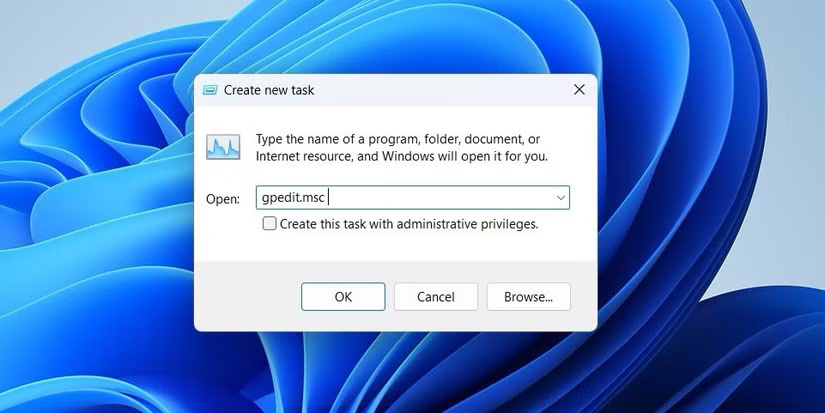
- choose the Run new task button at the top.
- Type gpedit.msc in the search box and choose OK to open Local Group Policy Editor.
8. Open Local Group Policy Editor Using Command Prompt or PowerShell
Windows' built-in command line tools - Command Prompt and PowerShell - can be useful when you want to troubleshoot system errors or automate certain tasks. You can use them to access programs like the Local Group Policy Editor.
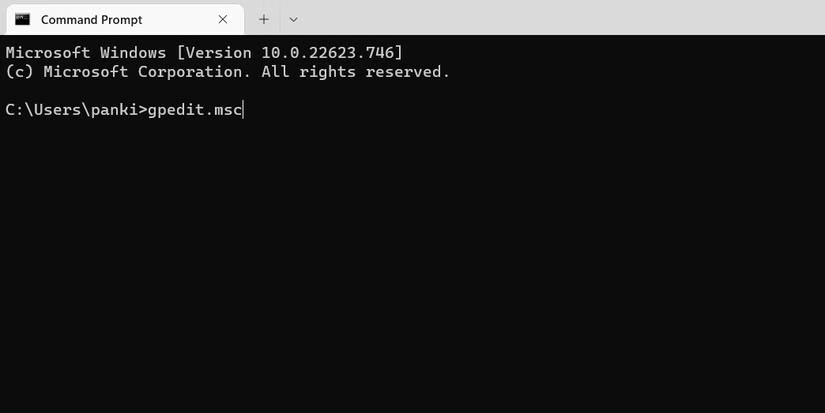
- Use one of several ways to open Command Prompt or PowerShell on your PC.
- Type gpedit.msc into the console and press Enter to open the Local Group Policy Editor.
Do you enjoy using Command Prompt? Here are some cool Command Prompt tricks you might like.
9. Create a Desktop Shortcut to Quickly Open Local Group Policy Editor
If you need to use the Local Group Policy Editor frequently, it might be a good idea to create a desktop shortcut for it. This way, you can access it in seconds.
- Press Win + D to go straight to the desktop.
- Right-select an empty space on the desktop, open New and select Shortcut from the submenu.
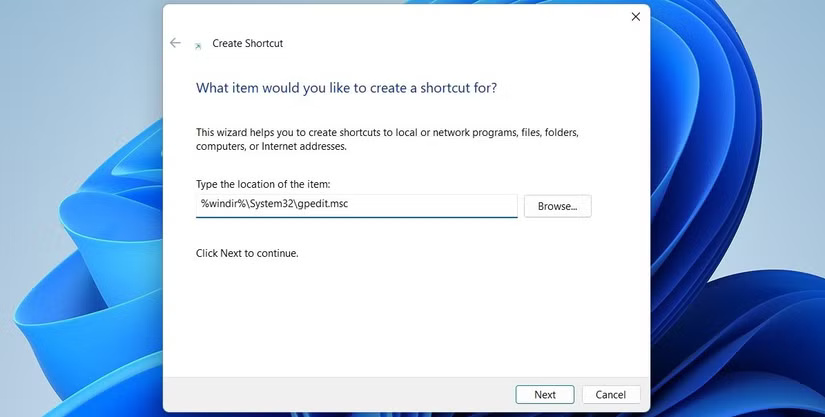
- In the Create Shortcut window, enter these gpedit.msc location and choose Next.
%windir%System32gpedit.msc- Type Local Group Policy Editor in the name box and choose Finish.
You can now double-choose the Group Policy Editor desktop shortcut to quickly open it. to access Local Group Policy Editor even faster, you can assign a keyboard shortcut to this important Windows tool. Alternatively, pin the newly created Local Group Policy Editor shortcut to your taskbar.
Whether you access the Local Group Policy Editor through the Windows Search menu, the Run command, or a desktop shortcut, you can get there quickly and easily. Once inside, you'll have full control over your system settings, giving you the ability to customize your Windows 11 experience and optimize your PC to fit your needs.
You can refer to some articles below:
- 5 Ways to Speed Up Windows 8
- Instructions for accessing BIOS on Windows 8
- Using Wireless Networking in Windows 8
FAQ
How were the ways to open local group policy editor on windows 11 options evaluated?
The comparison focuses on practical features, ease of use, limitations, compatibility, and the type of user each option is most likely to help.
Which option is best for beginners?
Beginners should prioritize a clear interface, useful documentation, reliable support, and the core features needed for their first project.
Should I choose a free or paid option?
Start with a free option when it covers your needs. A paid plan may be worthwhile when you need advanced tools, commercial rights, collaboration, or professional support.
Related Articles
 4 Tips to Open Local Group Policy Editor on Windows 8 // 8.14 minutes read
 11 Tips to Open Local Group Policy Editor on Windows10 minutes read
 Cannot Open Local Group Policy Editor, Quick Fix: Main Insights6 minutes read
 How to Reset Local Group Policy Settings on Windows 105 minutes read
 How to Use Local Group Policy Editor to Tweak Your Computer8 minutes read
 How to Install the Microsoft Edge Group Policy Template on6 minutes read
Reader Comments 0
Sign in with email or Google to join the discussion.