Table of Contents
Learn how to create a password sharing group on iPhone with clear steps, practical tips, and troubleshooting guidance for a reliable result.
How to create a password sharing group on iPhone
Step 1
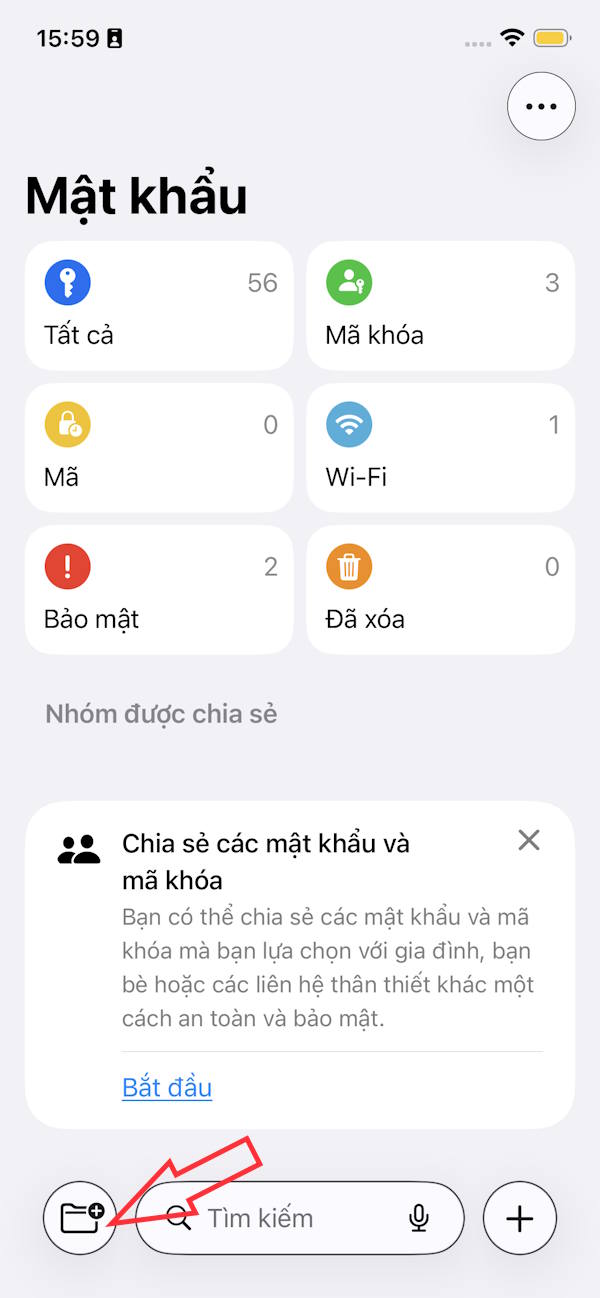
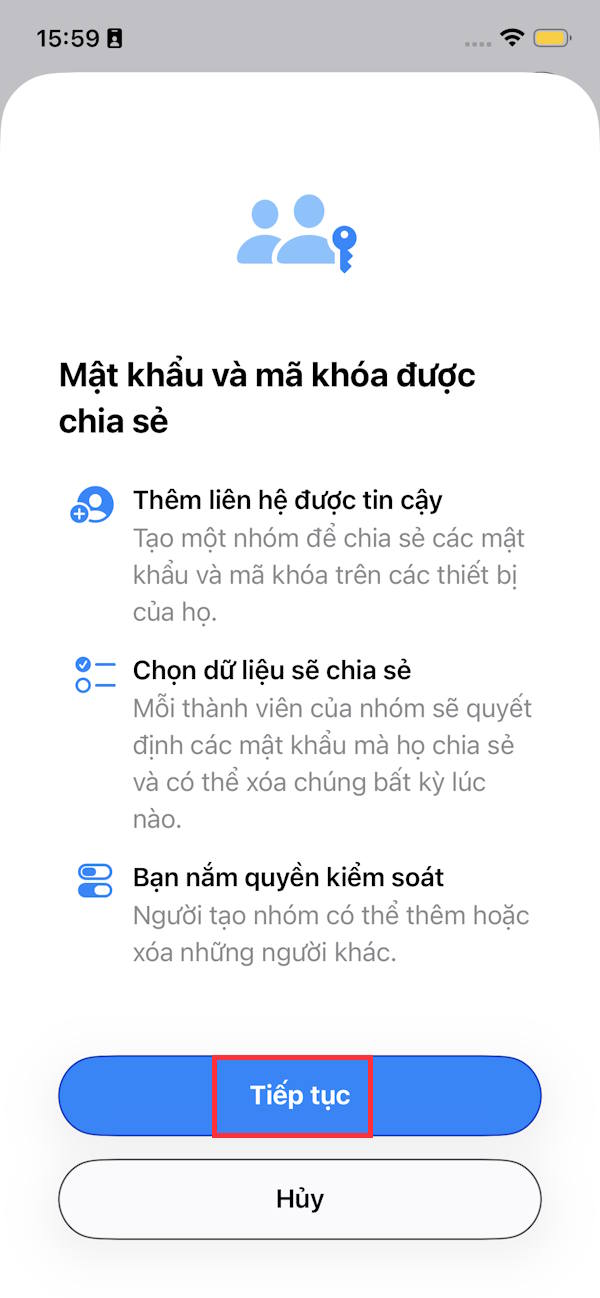
Go to the Passwords app on your iPhone and tap the folder icon in the bottom left corner. Tap Continue to proceed.
Step 2
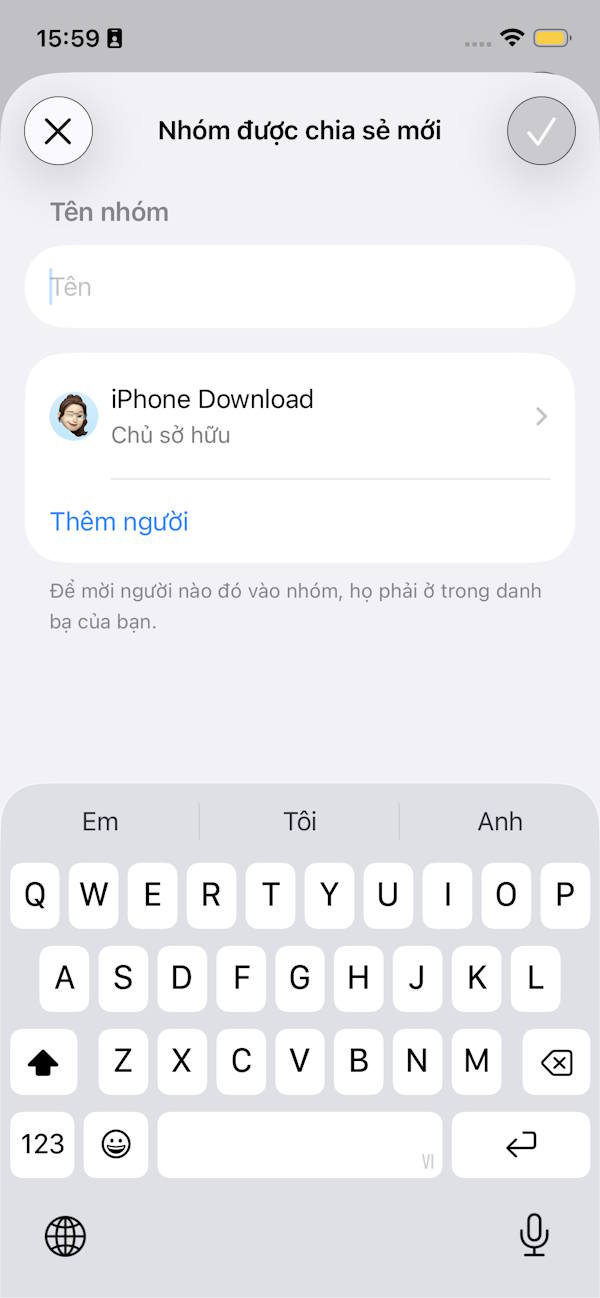
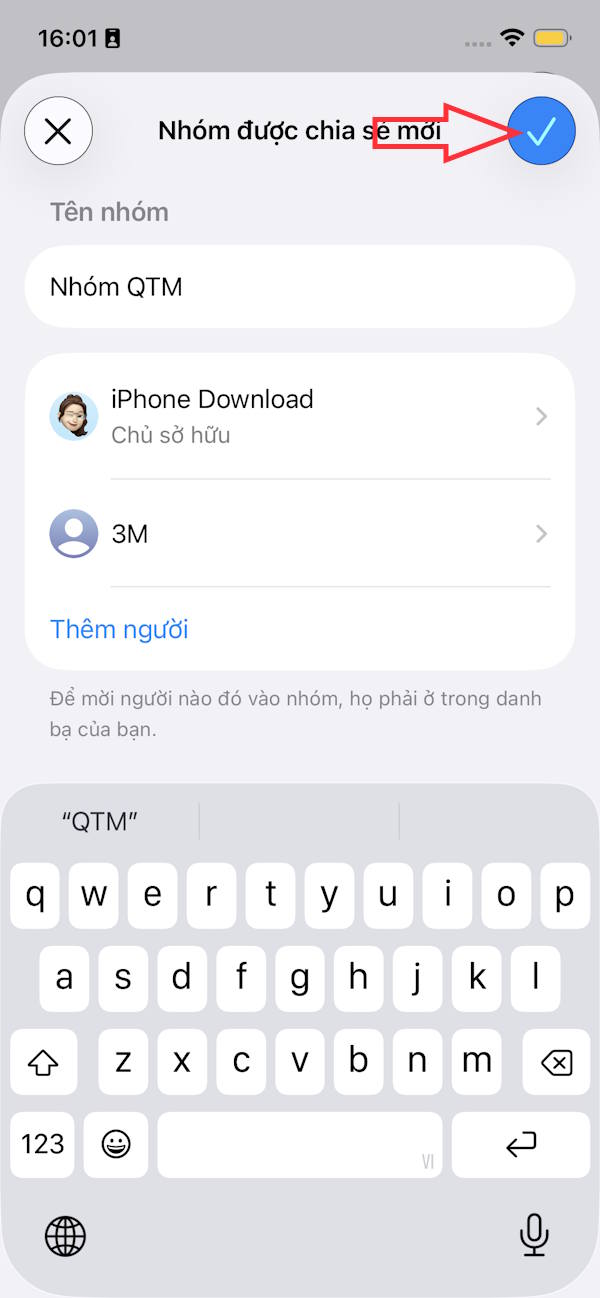
You enter the name of the group sharing the password , then click Add people below.
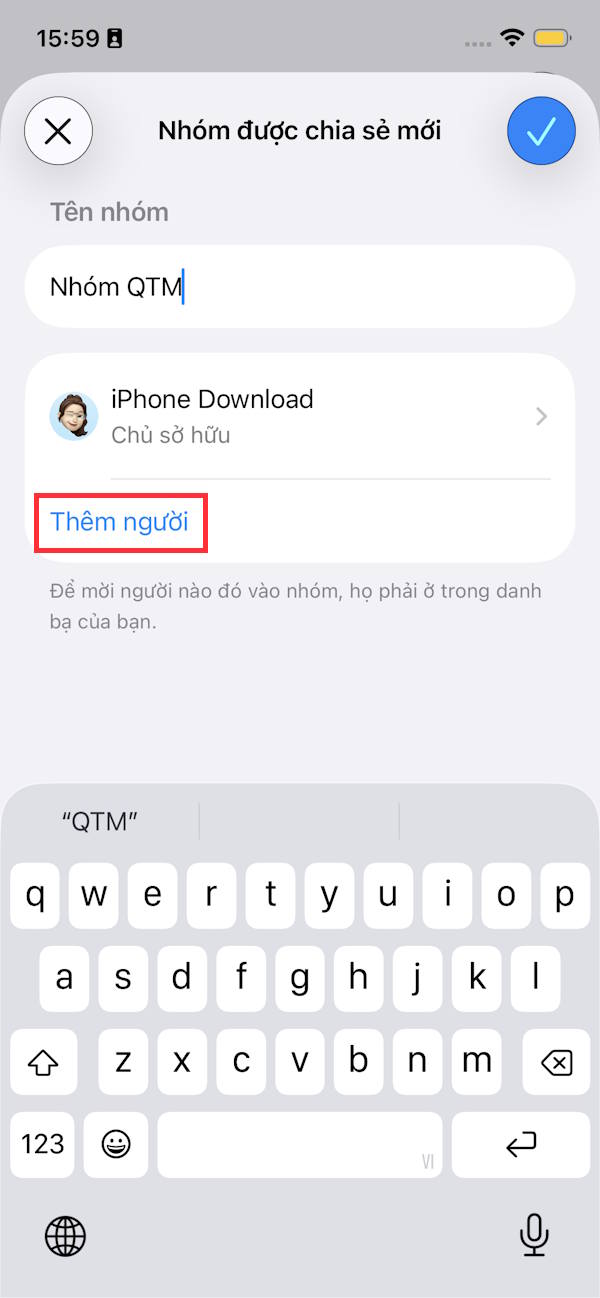
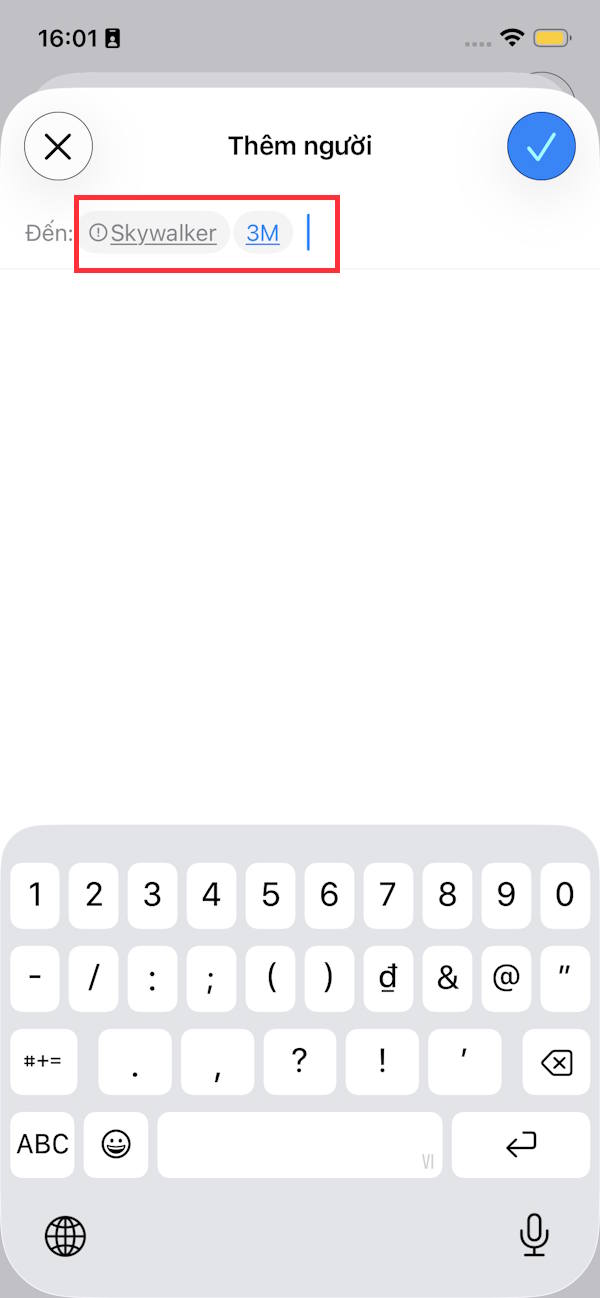
We enter the name of the person or phone number we want to add to the password sharing group on the iPhone. Note, the people added to the device must have iOS 18 or higher installed. Finally, press the v mark in the upper right corner to save.
Step 3
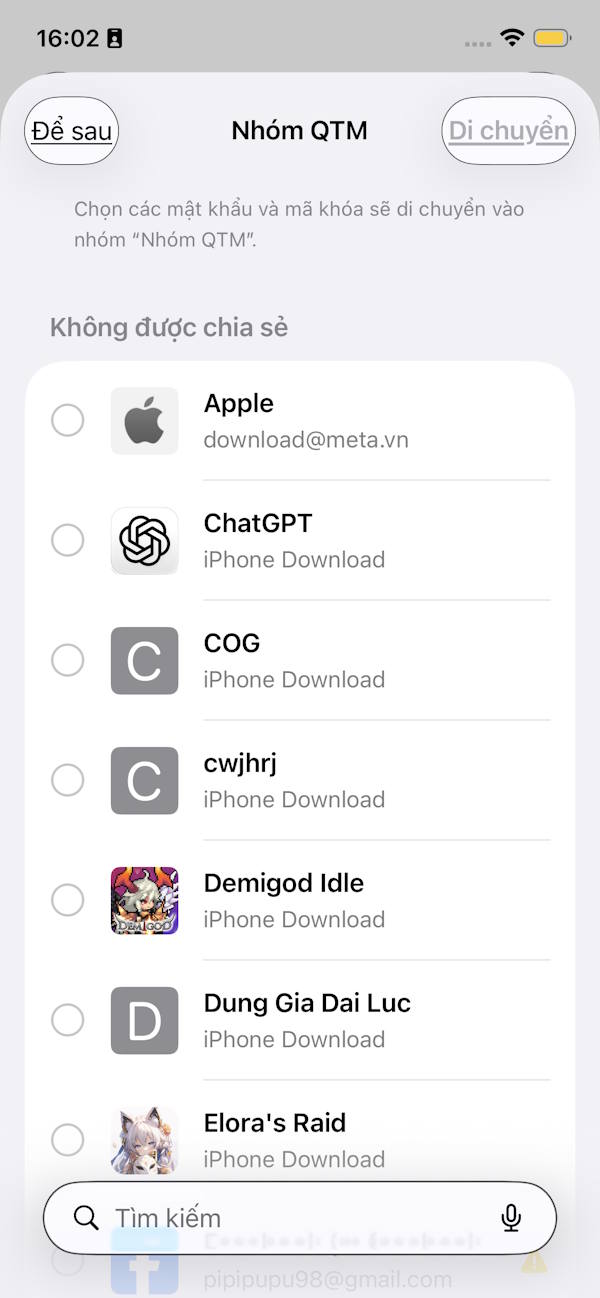
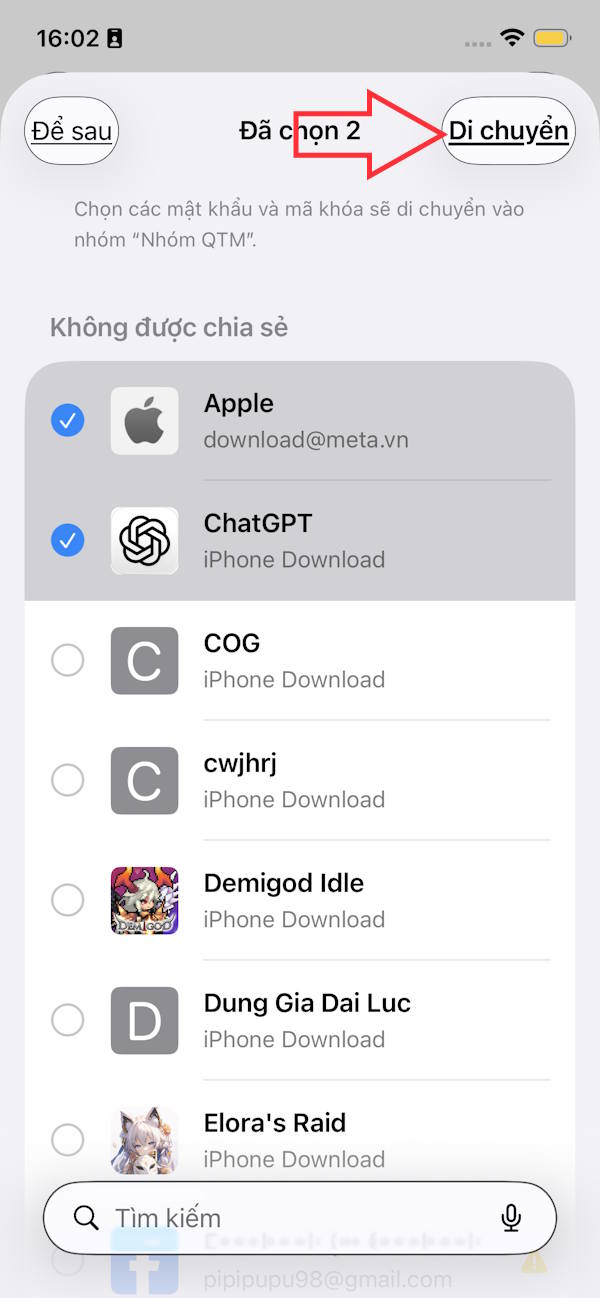
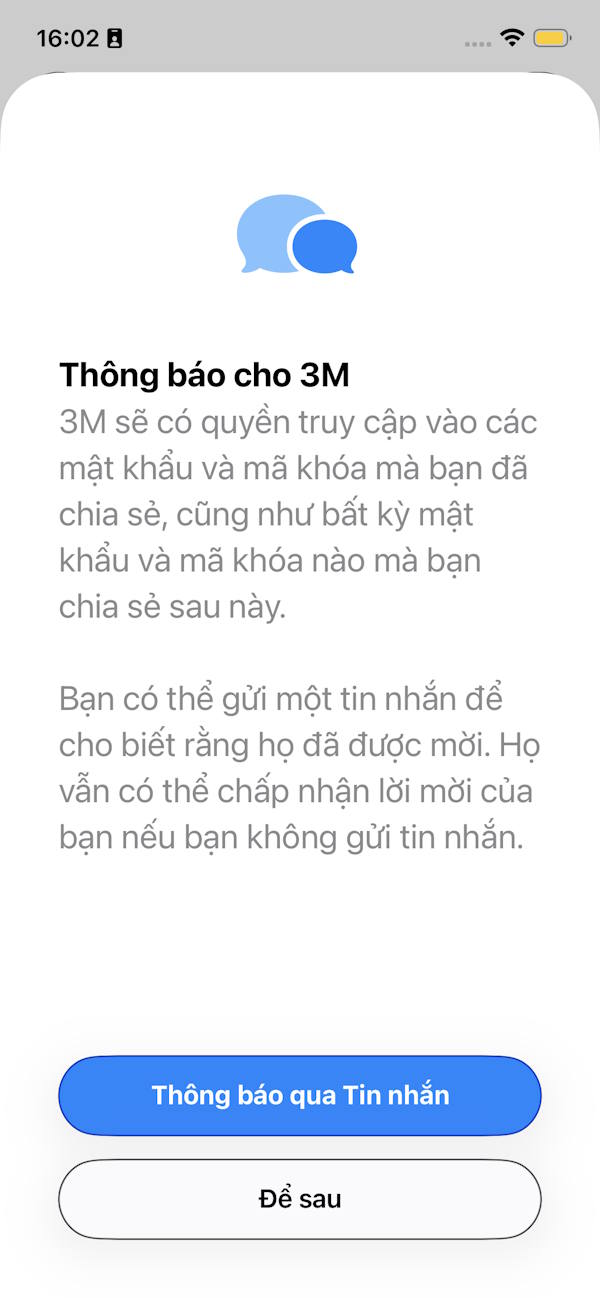
You select the account password and passcode to share in the group and then select Move in the top right corner. After creating a password sharing group on iPhone, you have the option to send a notification to the other party.
Instructions for managing iPhone password sharing groups
Step 1
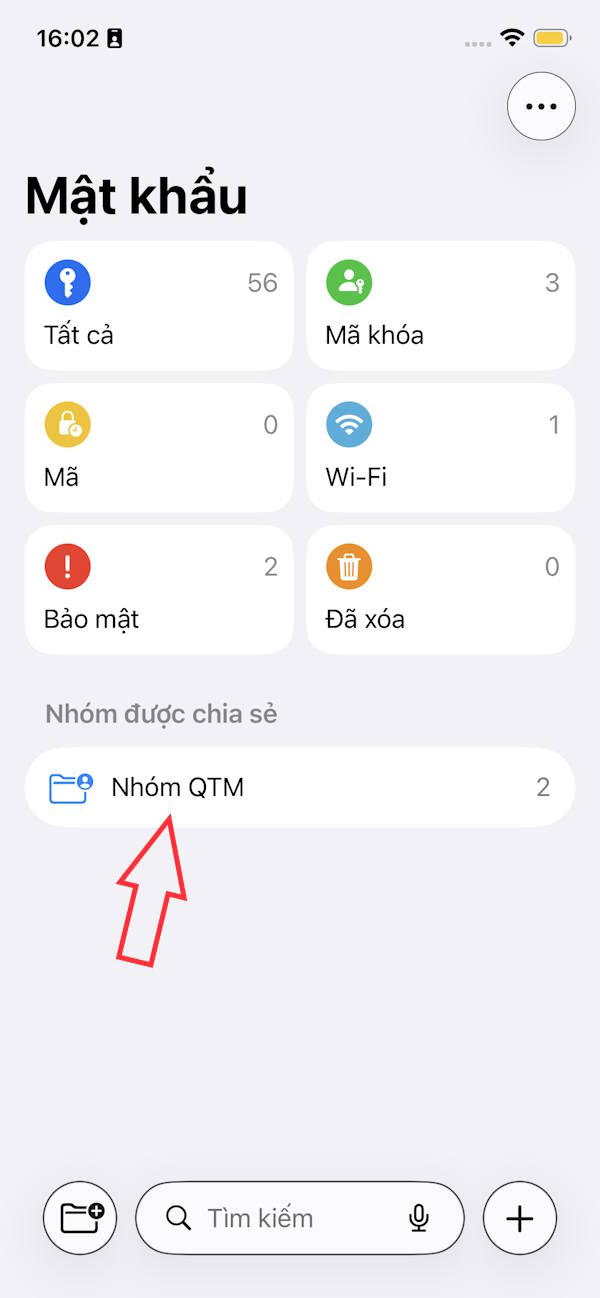
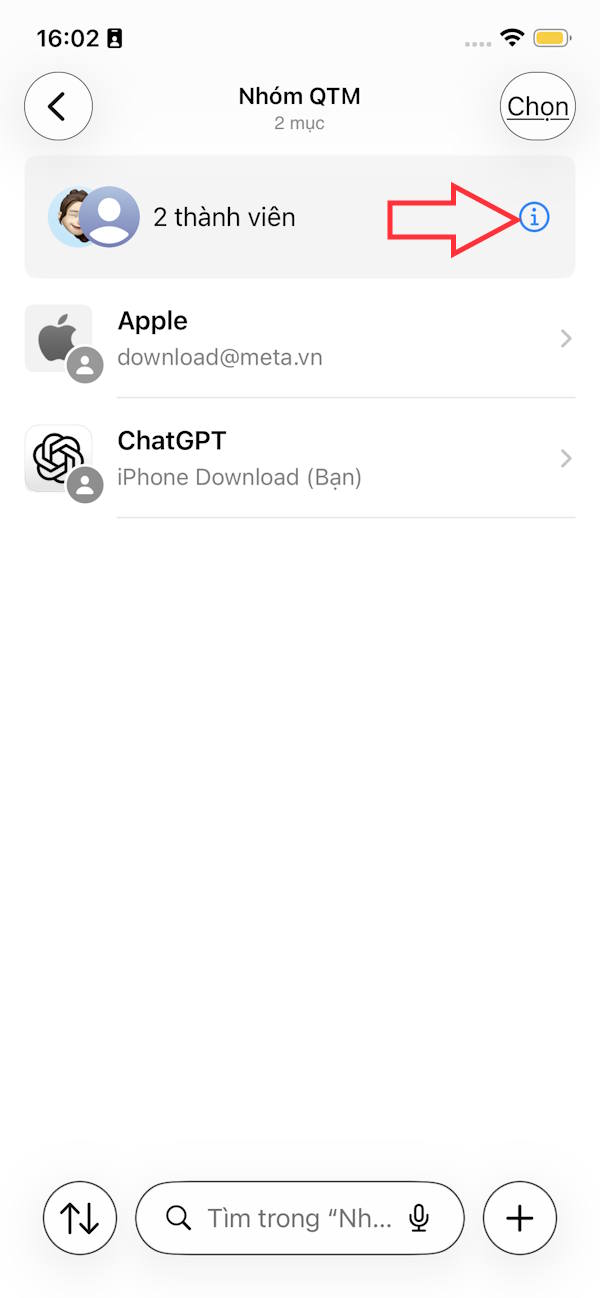
Then get the group sharing password on iPhone you click select. In the sharing group, you can delete the password, or click on the i icon to view group information.
Step 2
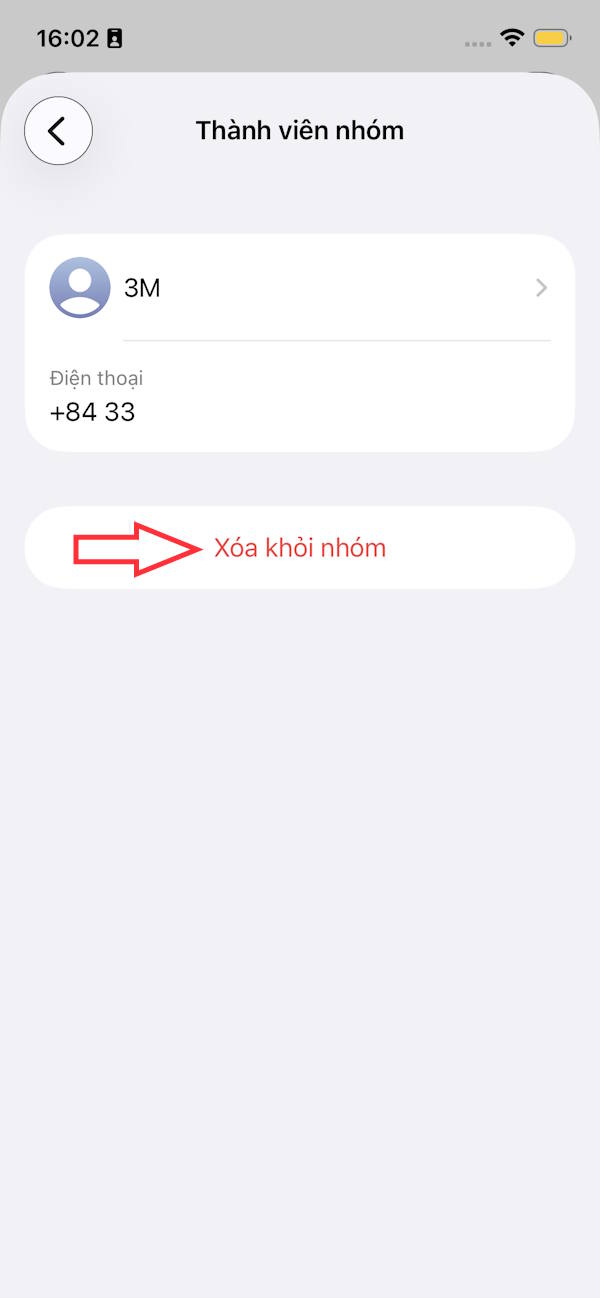
At this interface you can delete members in the iPhone password sharing group .
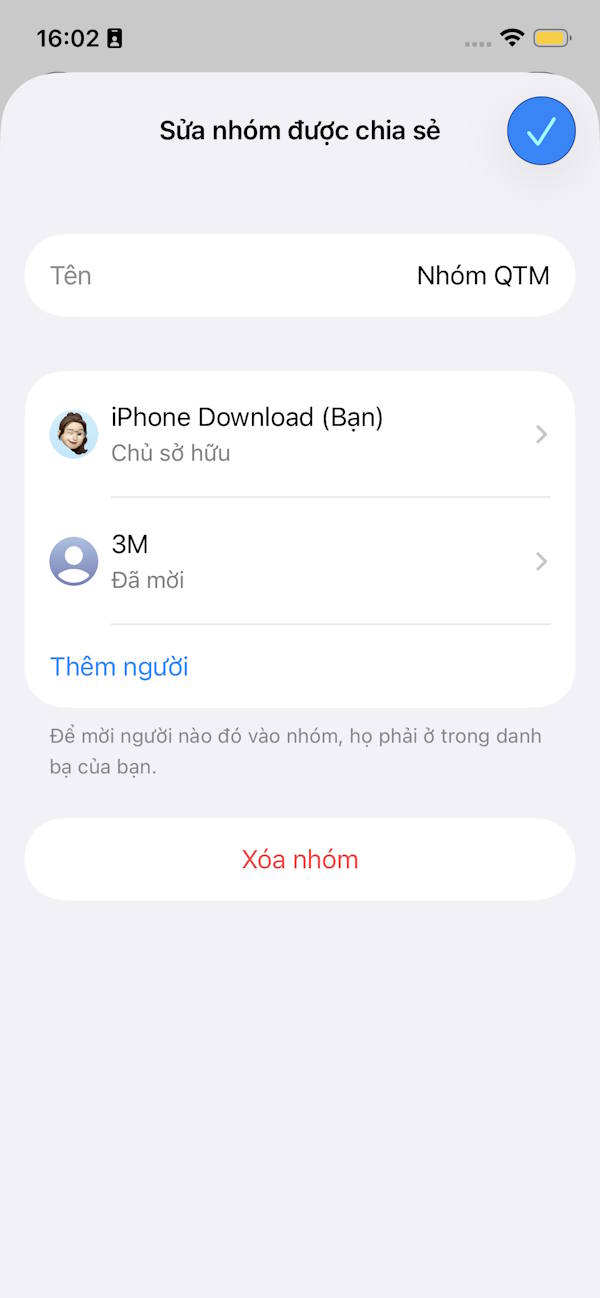
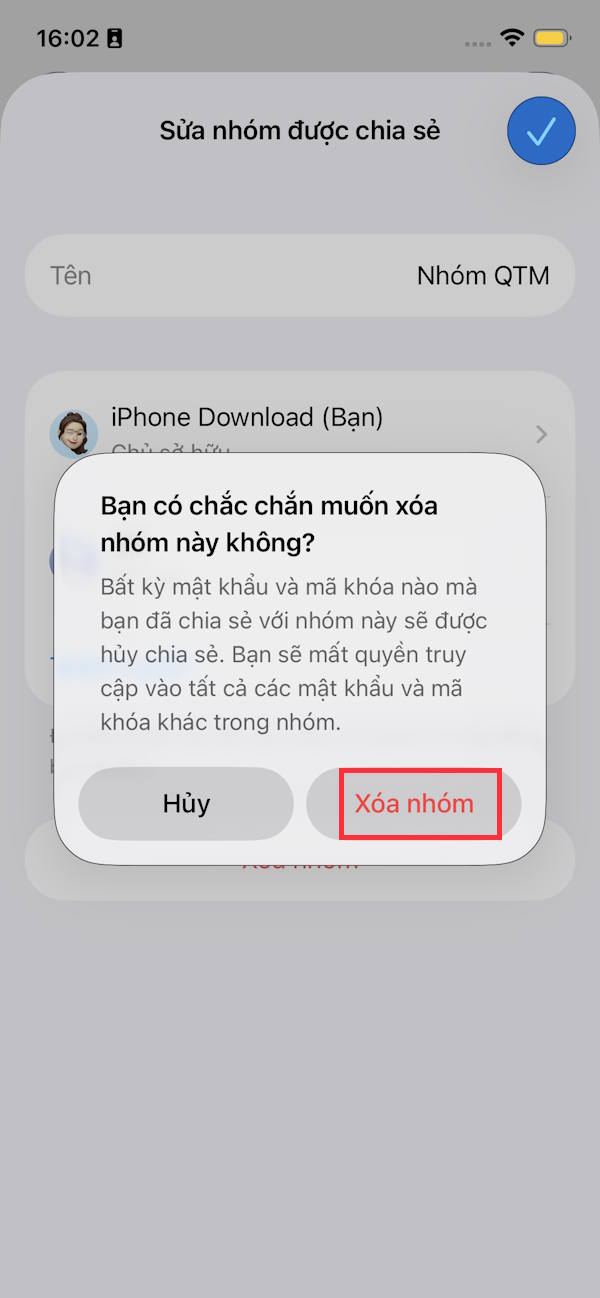
Or if you no longer need to use it, you can delete this iPhone password sharing group .
Final Thoughts
Use this guide as a practical checklist for how to create a password sharing group on iphone. Work through the steps in order, verify each result, and adjust the options to match your needs.
FAQ
What do you need before following this How to Create a Password Sharing Group on iPhone guide?
Review the required tools, accounts, settings, or materials mentioned in the article. Learn how to create a password sharing group on iPhone with clear steps, practical tips, and troubleshooting guidance for a reliable result.
What are the main steps for how to create a password sharing group on iphone?
Follow the sections in order, especially How to create a password sharing group on iPhone, Step 1, Step 2. Complete each step before continuing and verify the result as you go.
What should you do if the process does not work as expected?
Recheck the prerequisites, update the relevant app or service, review the settings, and repeat the step that caused the issue. Use any troubleshooting notes included in the guide.
Related Articles
 Instructions for Creating a Group on Messenger3 minutes read
 How to Share Wi-Fi Passwords from Your iPhone to Another iOS 11 Device7 minutes read
 How to Set a Super Strong iPhone Password to Hackers Is Also5 minutes read
 Instructions for Sharing Passwords in Google Family2 minutes read
 Tips for Sharing Wi-Fi Password on iPhone3 minutes read
 Instructions for Creating Groups on Facebook: Create Facebook Group6 minutes read
Reader Comments 0
Sign in with email or Google to join the discussion.