Table of Contents
Learn how to set nicknames in facebook groups with clear steps, practical tips, and troubleshooting guidance for a reliable result.
How to set nickname in Facebook group
Step 1
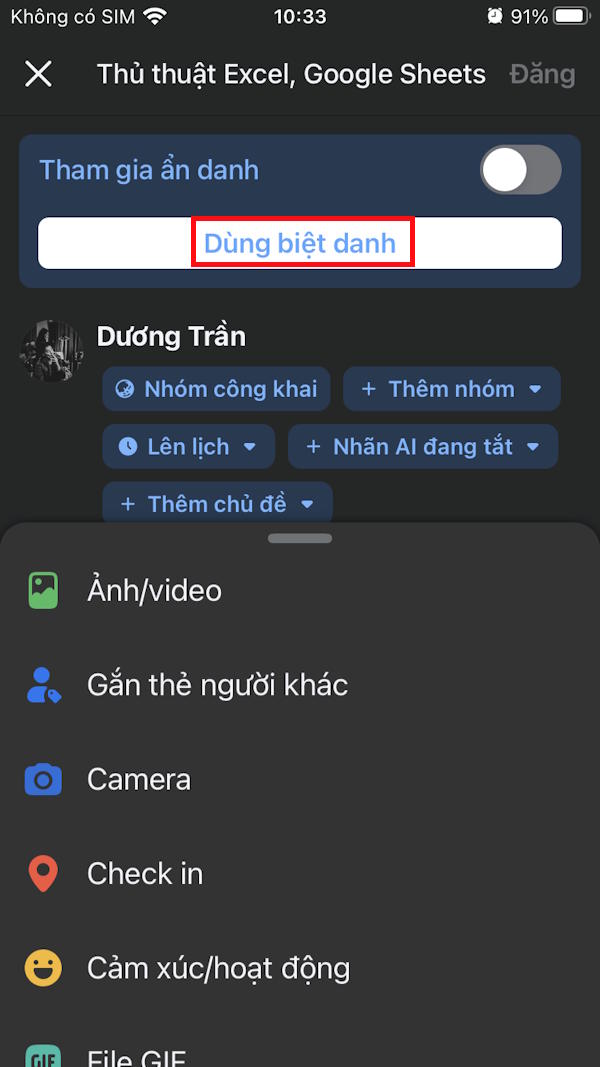
You access the Facebook group then click on the post box . In the new interface, click Use nickname to do it.

Step 2
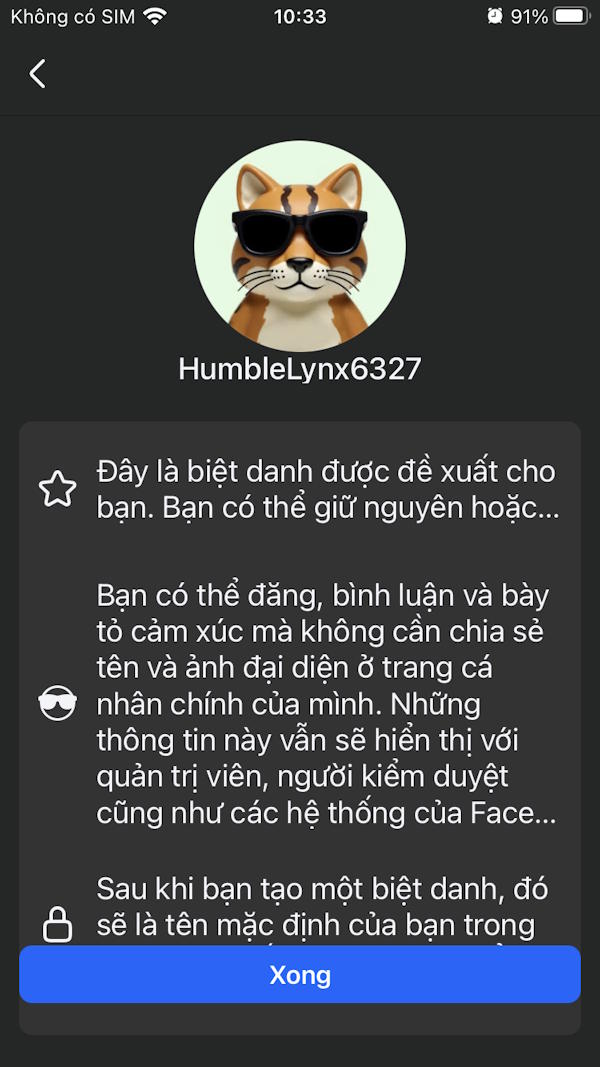
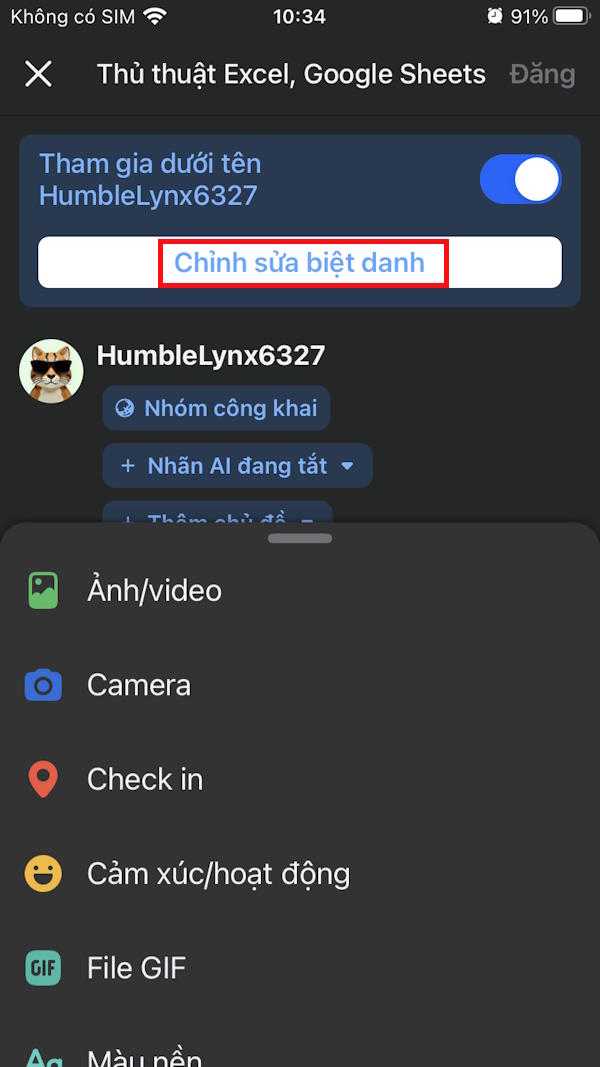
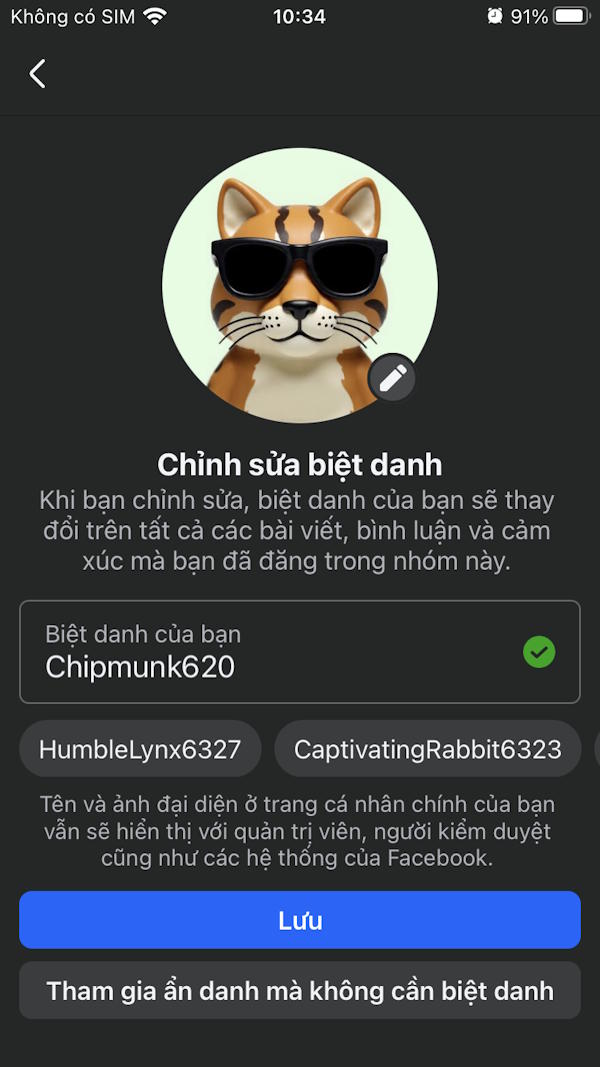
Facebook will create a nickname for you as shown in the picture, but we can completely change it if we want. Click on Edit nickname to change the nickname in the Facebook group as you like.
Step 3
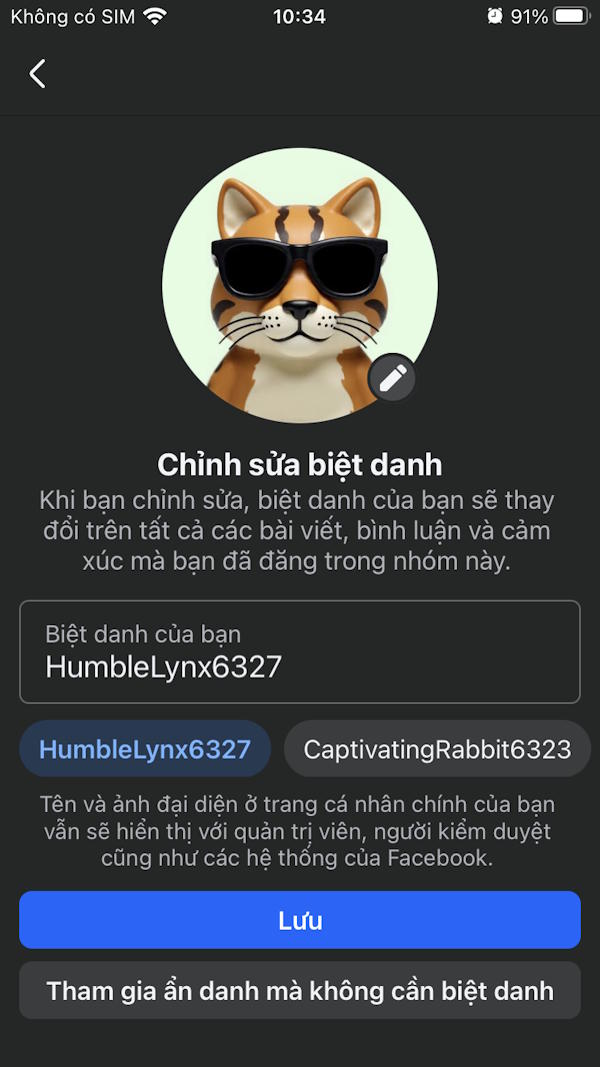
Facebook also suggests some other nicknames for the group. If you don't like them, you can enter your own nickname in the group . When you enter a new nickname, if a green check mark appears, it means the nickname is valid.
Step 4
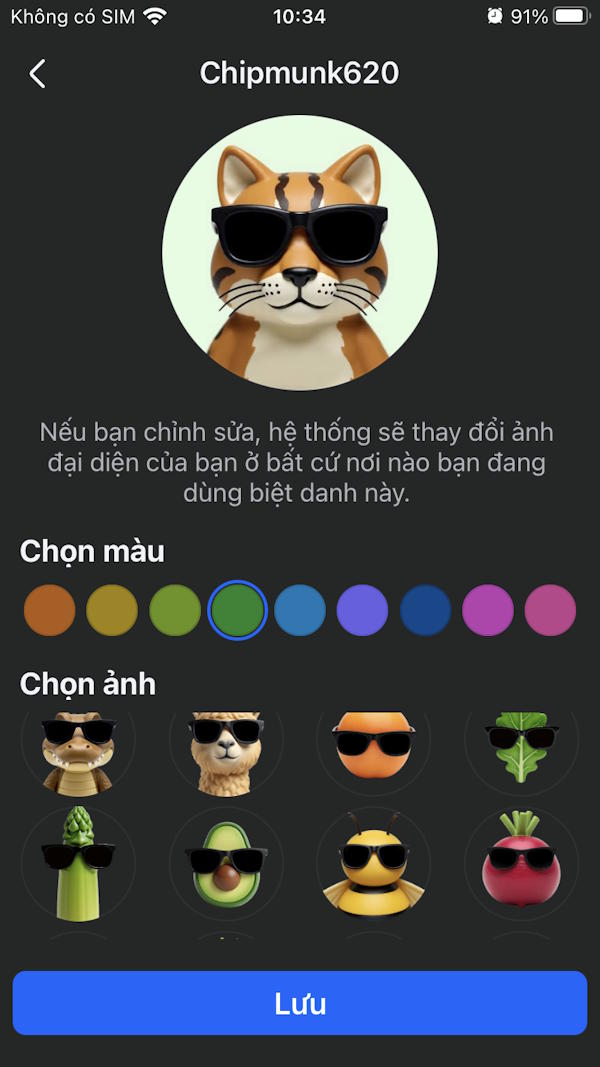
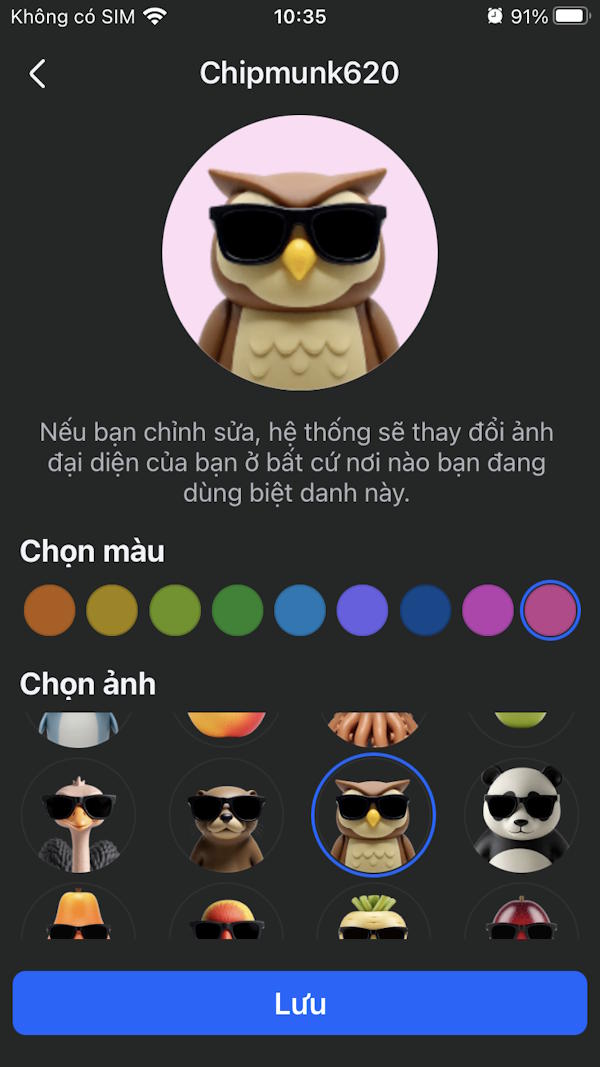
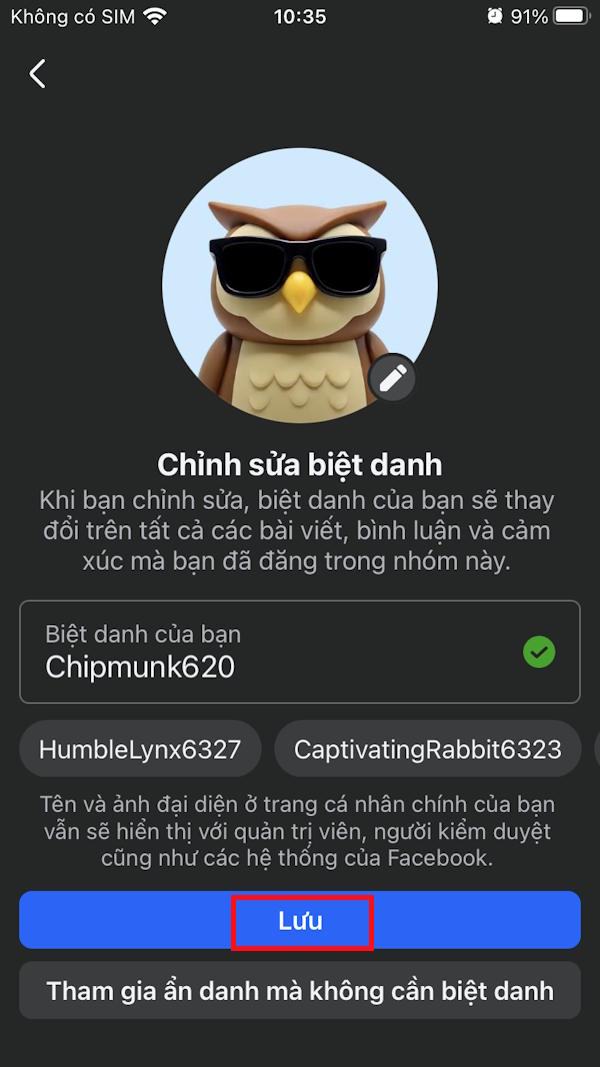
Continue to click on the pen icon to change the avatar for your nickname. Here you choose another avatar, background color for the avatar. Finally, click Save to save your new nickname in the Facebook group.
Step 5
Now you post in the Facebook group as usual under the nickname you created.
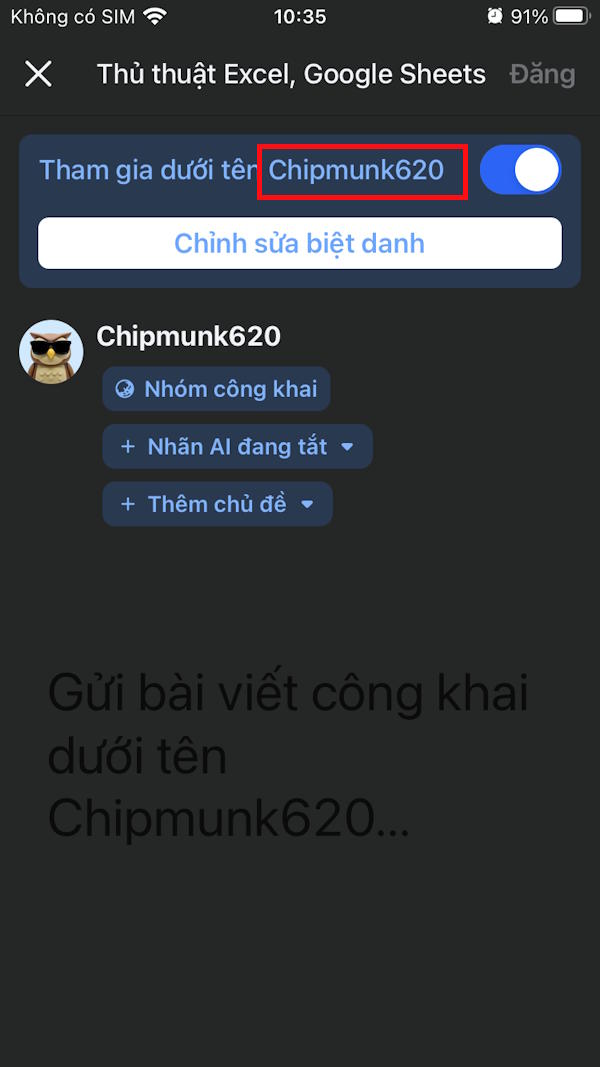

Currently, Facebook limits nickname changes to once every two days, and old posts will be updated to show the new name. You cannot clear your history by changing your name. Additionally, if you use a nickname in a group, some features when posting with a nickname, including videos, sharing content, and private messaging, are also limited.
Final Thoughts
Use this guide as a practical checklist for how to set nicknames in facebook groups. Work through the steps in order, verify each result, and adjust the options to match your needs.
FAQ
What do you need before following this How to Set Nicknames in Facebook Groups guide?
Review the required tools, accounts, settings, or materials mentioned in the article. Learn how to set nicknames in facebook groups with clear steps, practical tips, and troubleshooting guidance for a reliable result.
What are the main steps for how to set nicknames in facebook groups?
Follow the sections in order, especially How to set nickname in Facebook group, Step 1, Step 2. Complete each step before continuing and verify the result as you go.
What should you do if the process does not work as expected?
Recheck the prerequisites, update the relevant app or service, review the settings, and repeat the step that caused the issue. Use any troubleshooting notes included in the guide.
Related Articles
 How to Setting Nicknames for Friends' Accounts on TikTok3 minutes read
 Everything You Need to Know About Facebook Groups27 minutes read
 The Fastest Way to Leave the Facebook Group7 minutes read
 Set Nickname on Instagram: How to Give Nicknames to Friends3 minutes read
 Why Don't Some Groups Show up Under Your Facebook Profile?3 minutes read
 How to Leave Groups in Bulk on Facebook5 minutes read
Reader Comments 0
Sign in with email or Google to join the discussion.