Table of Contents
Some of the default iPhone behaviors can be more annoying than helpful. But you don't have to put up with them. A few quick tweaks in settings are all it takes to eliminate all those annoyances and make your iPhone a lot more enjoyable to use.
7. Too many Control Center pages
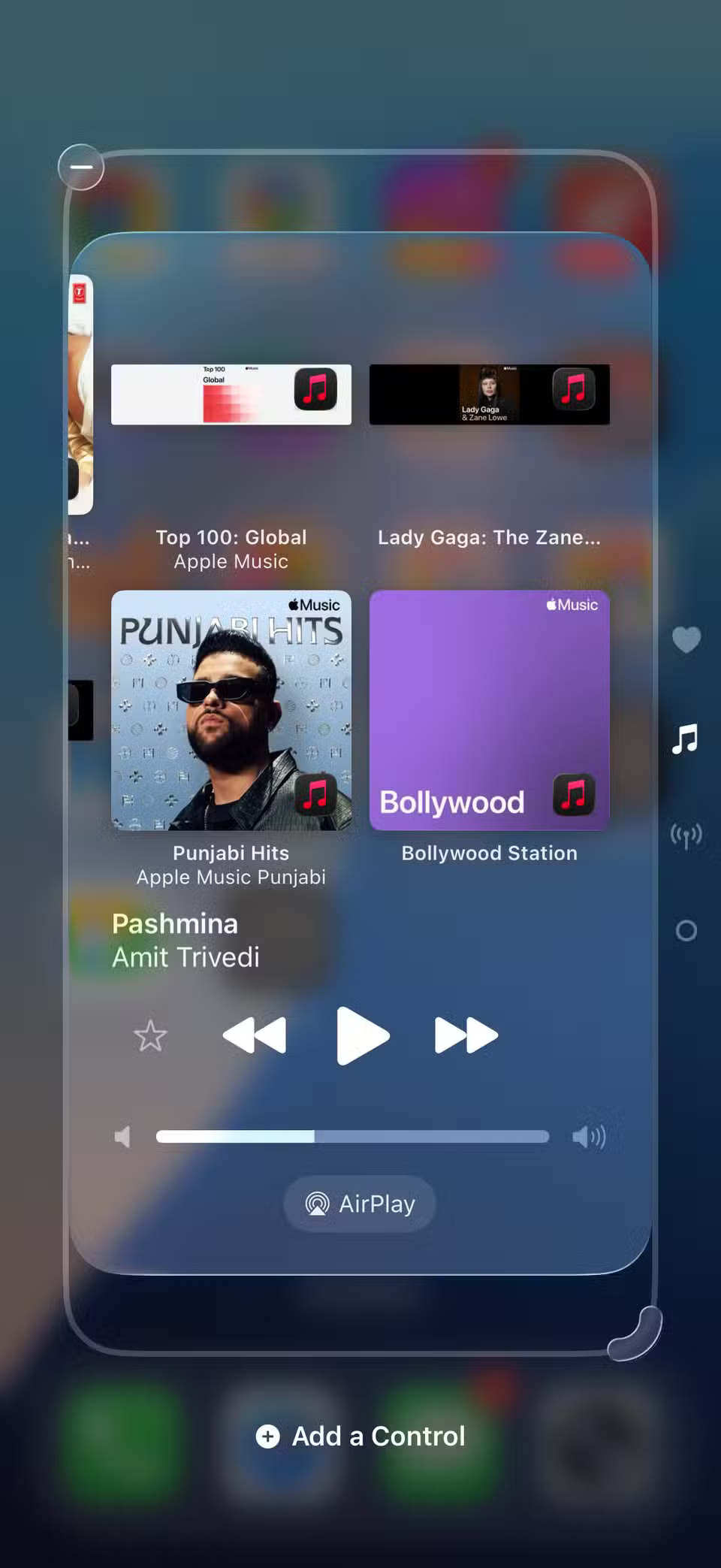
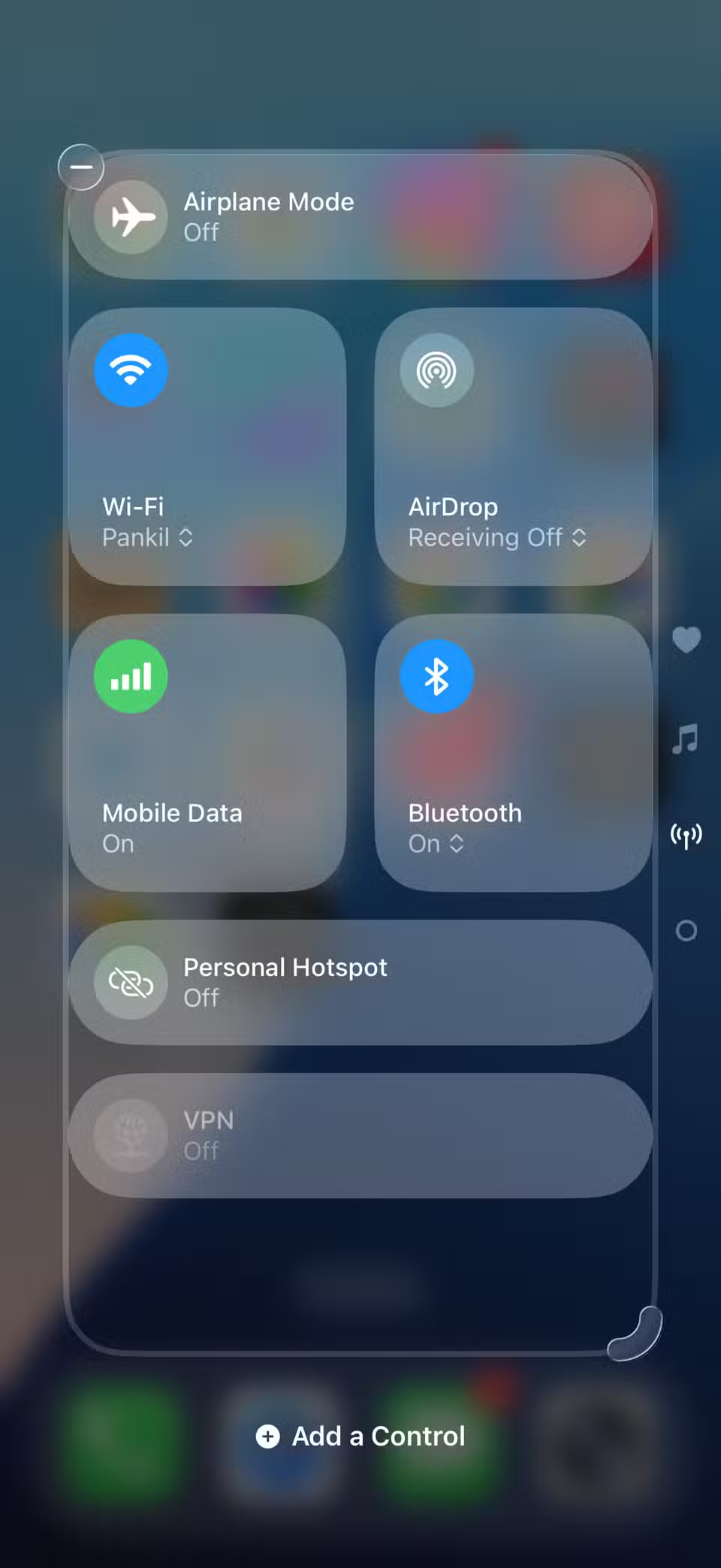
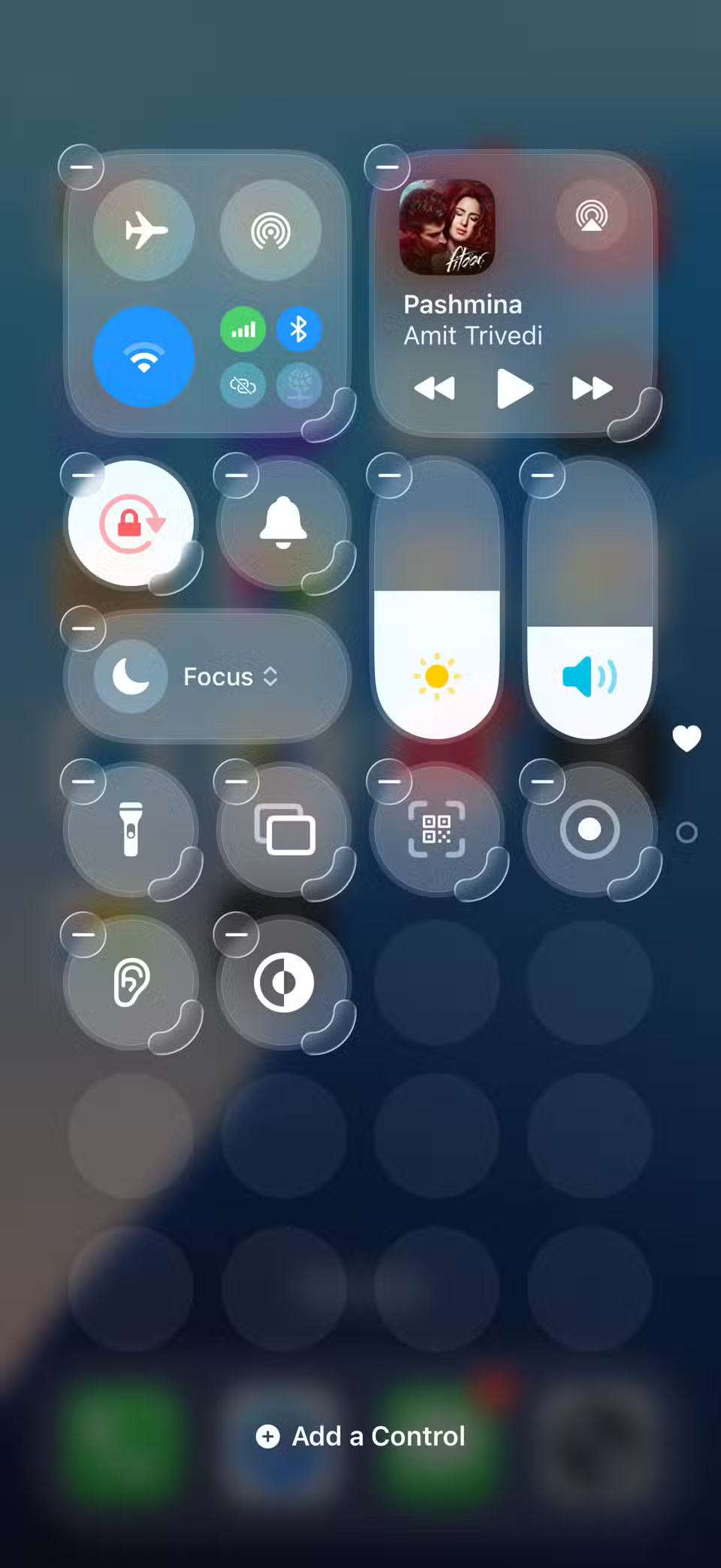
By default, the Control Center on the iPhone spans three pages. This might seem convenient, as it gives you more room to quickly launch and add shortcuts to features you might need. In reality, though, most of us only need one page, and that's enough to keep everything that's really important.
Plus, swiping through pages to get to the conversion you want can be annoying. To simplify things, cut your Control Center down to one page. That way, all your essential conversion tools are right there, ready to go.
6. Type to Siri keeps popping up
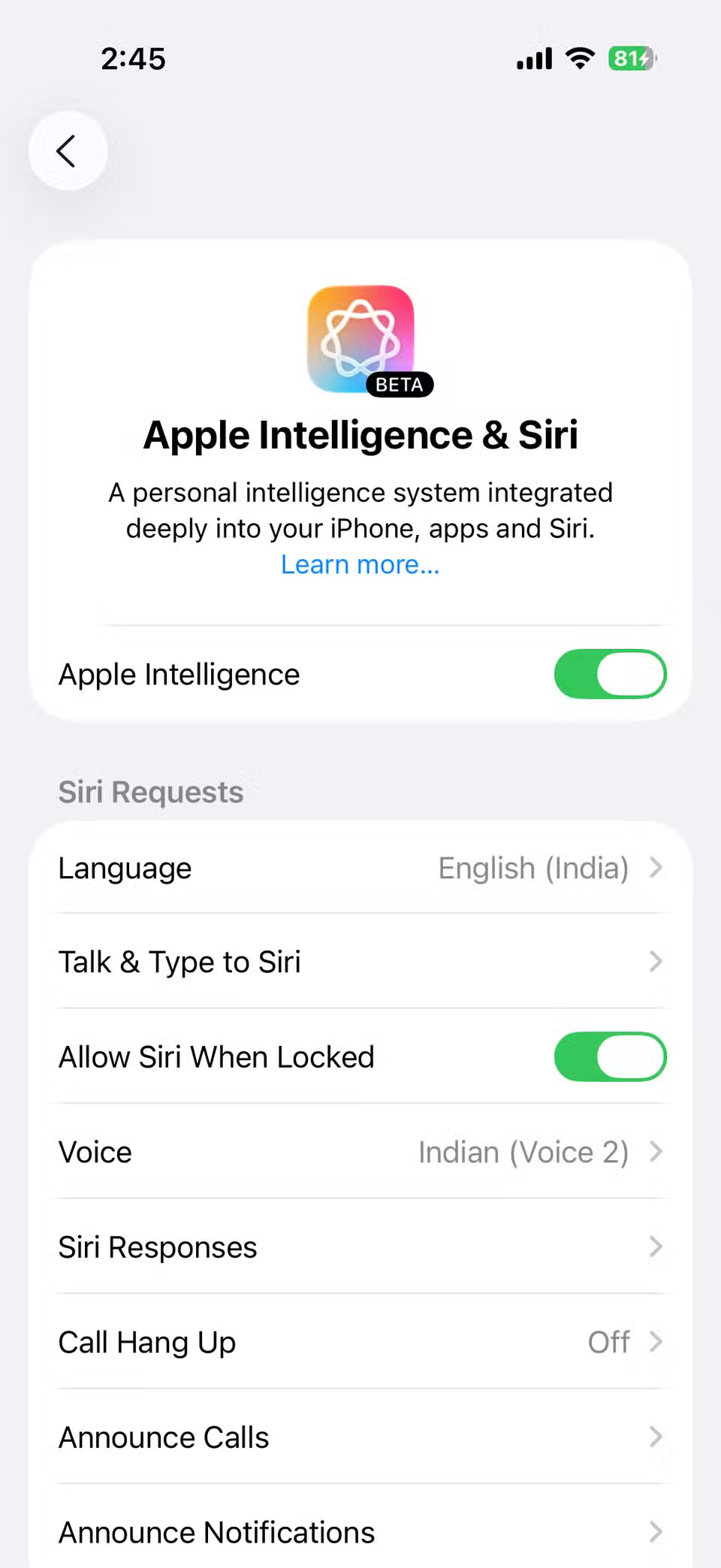
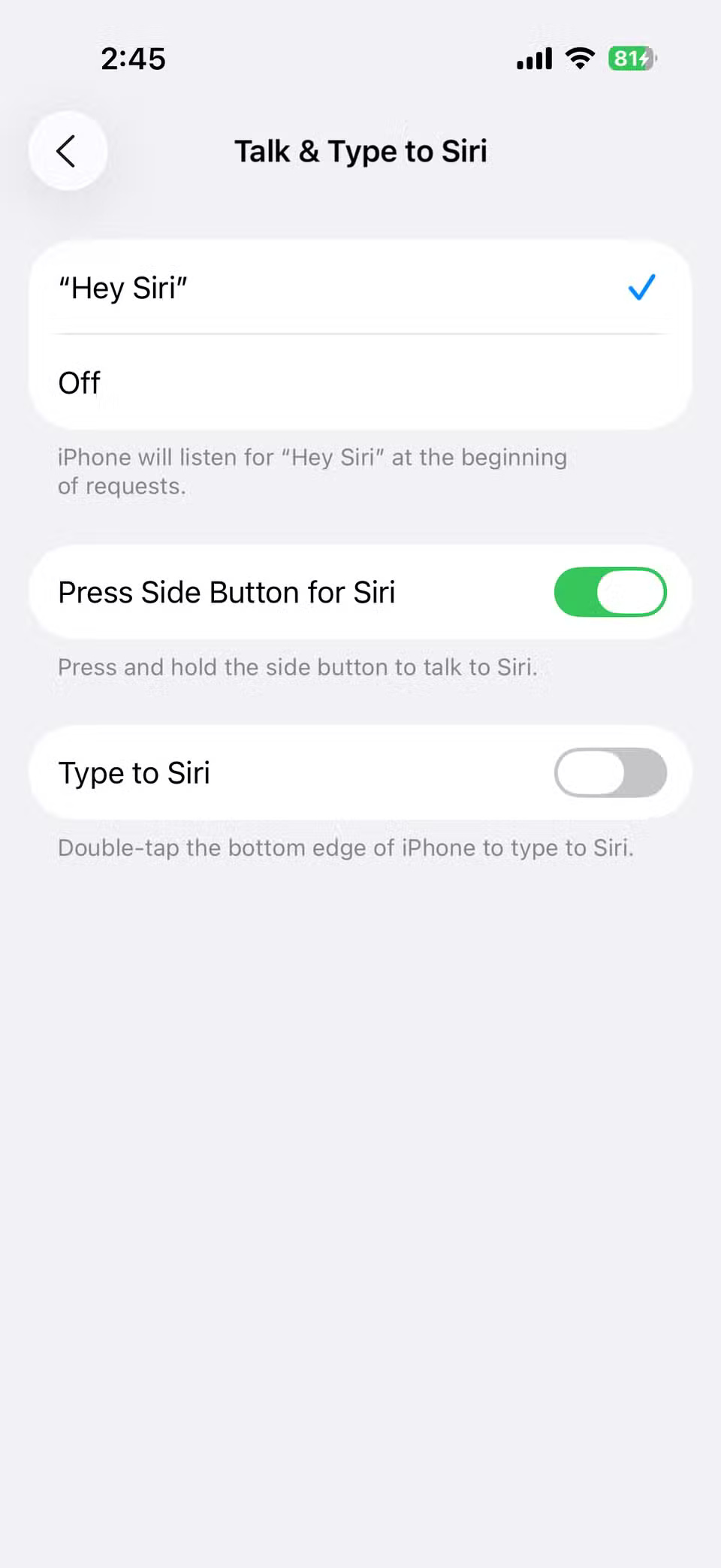
Siri is supposed to make life easier, but sometimes it feels like an overzealous assistant. Many people accidentally activate the Type to Siri feature when trying to swipe up from the bottom.
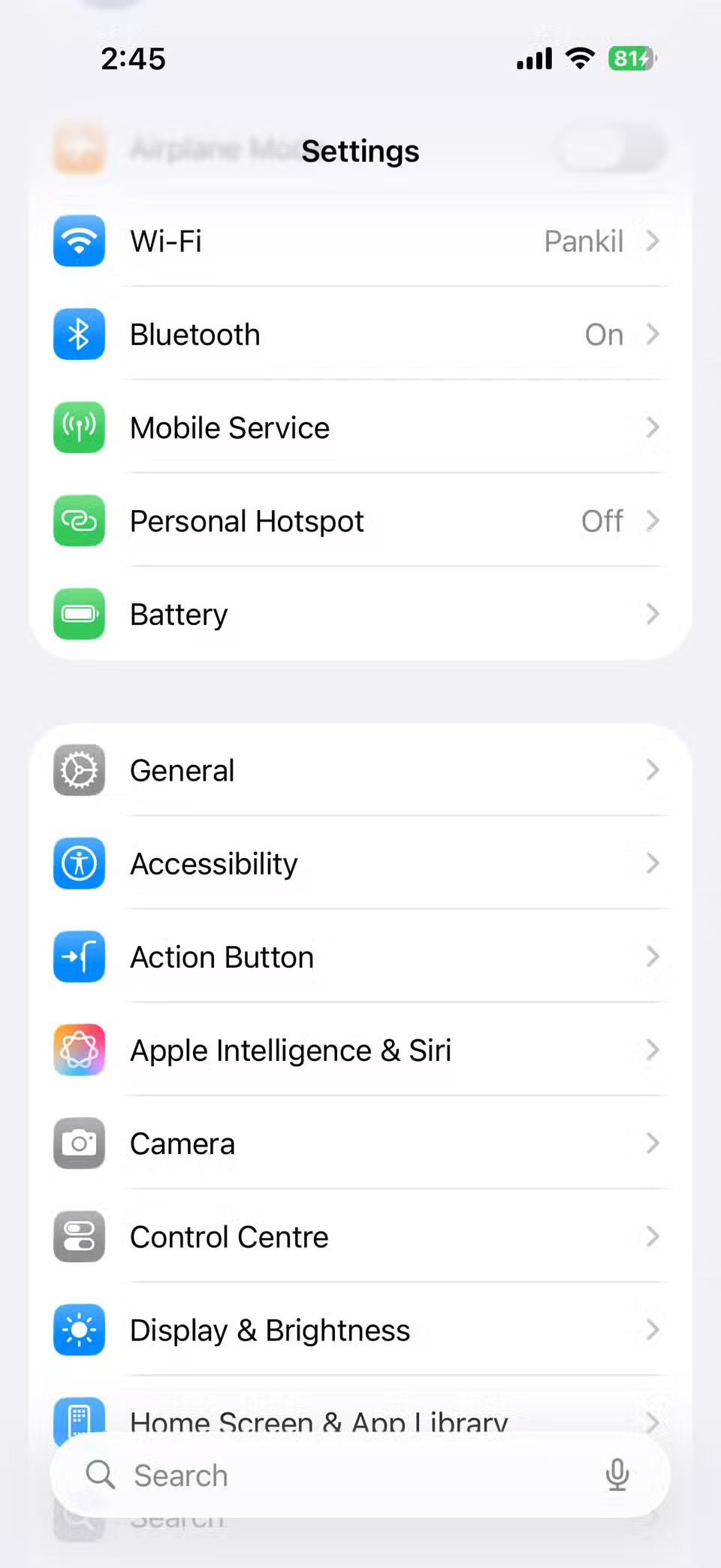
To turn it off, go to Settings > Apple Intelligence & Siri > Talk & Type to Siri , then turn off Type to Siri . Making this change will stop your swipes from triggering unwanted pop-ups.
5. The screen continues to slide down
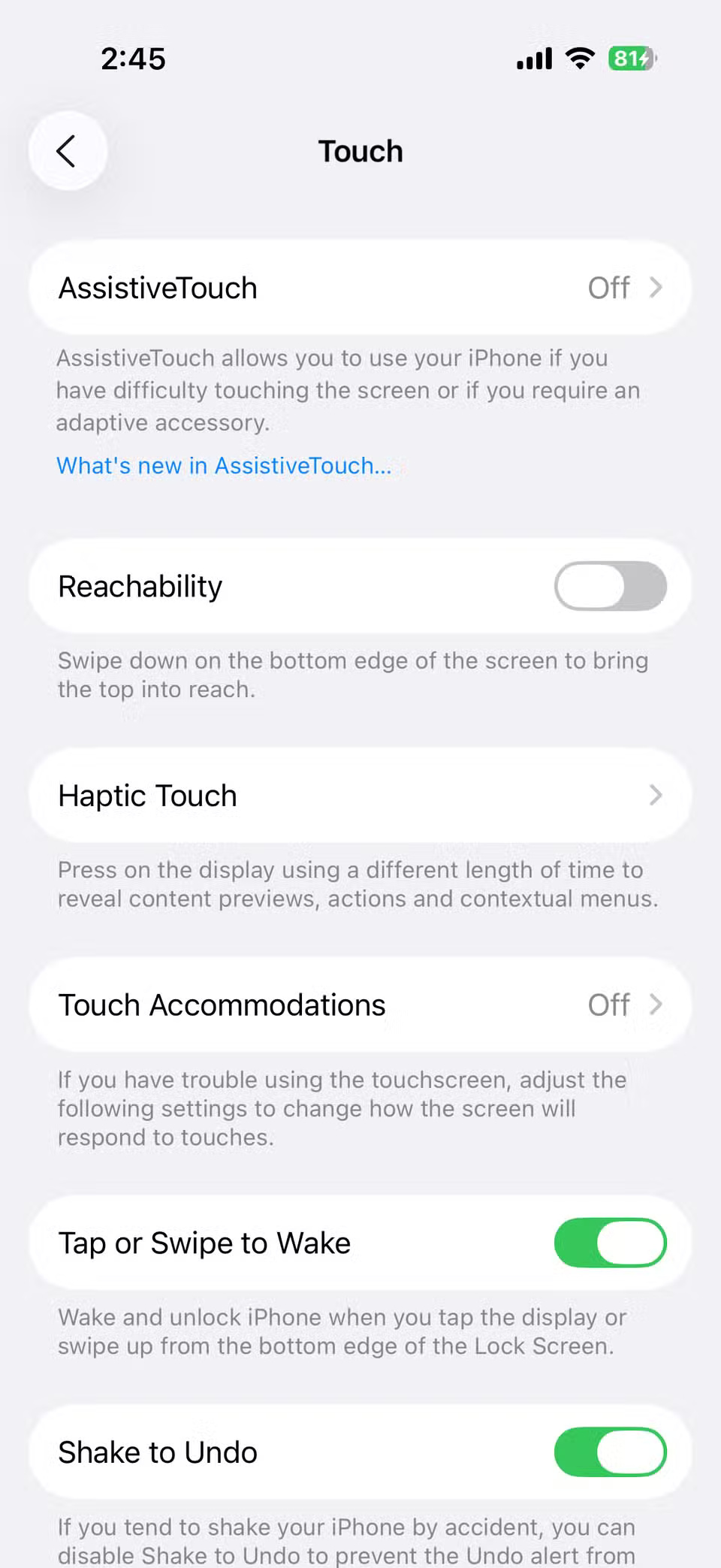
Another default behavior that drives a lot of people crazy is reachability. Swiping down on the bottom edge brings the top of the screen within reach. This is definitely useful for anyone with a Pro Max model who likes to use one-handed mode.
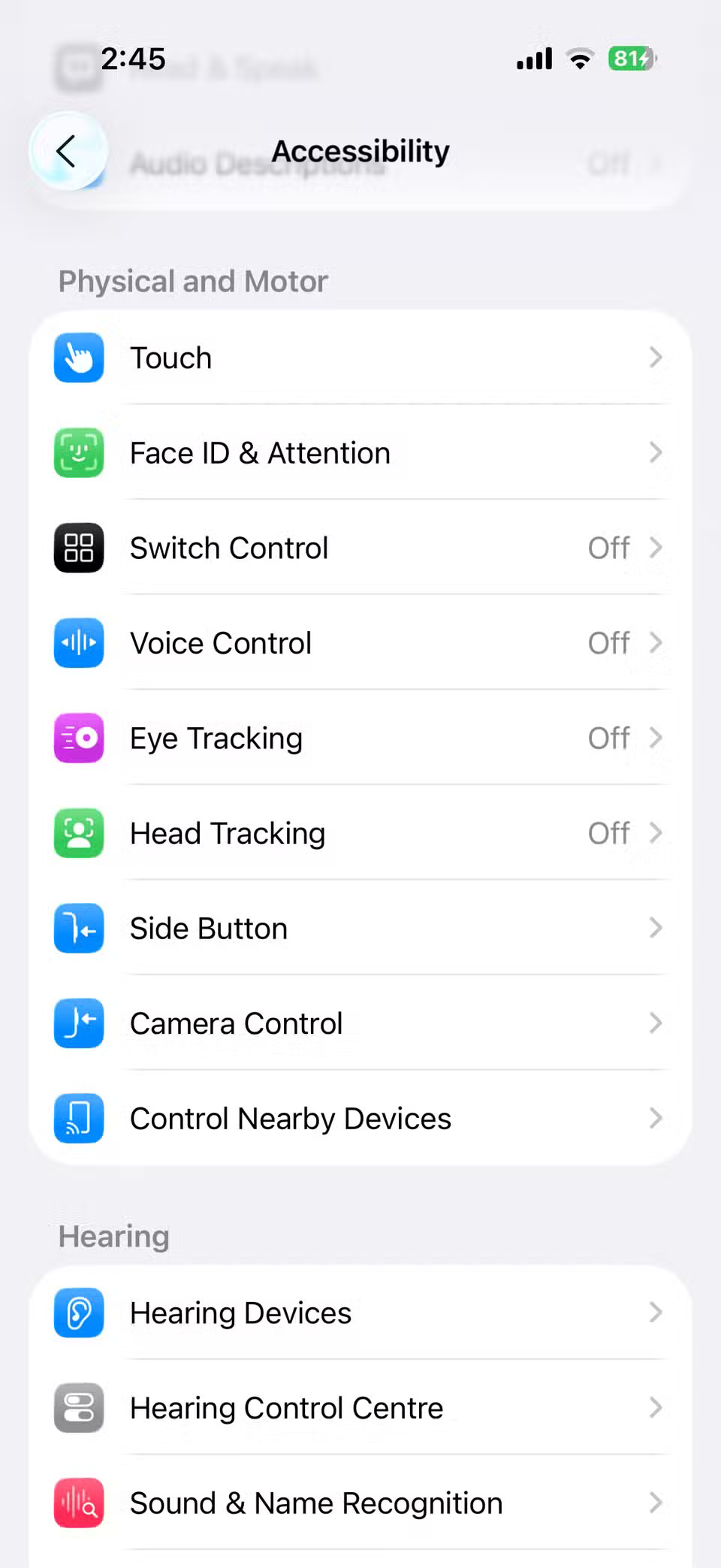
In practice, though, this is another feature that's easy to enable. To turn it off, go to Settings > Accessibility > Touch and turn off Reachability . Once you do, your screen should stop jumping around unexpectedly.
4. Notifications keep lighting up the screen
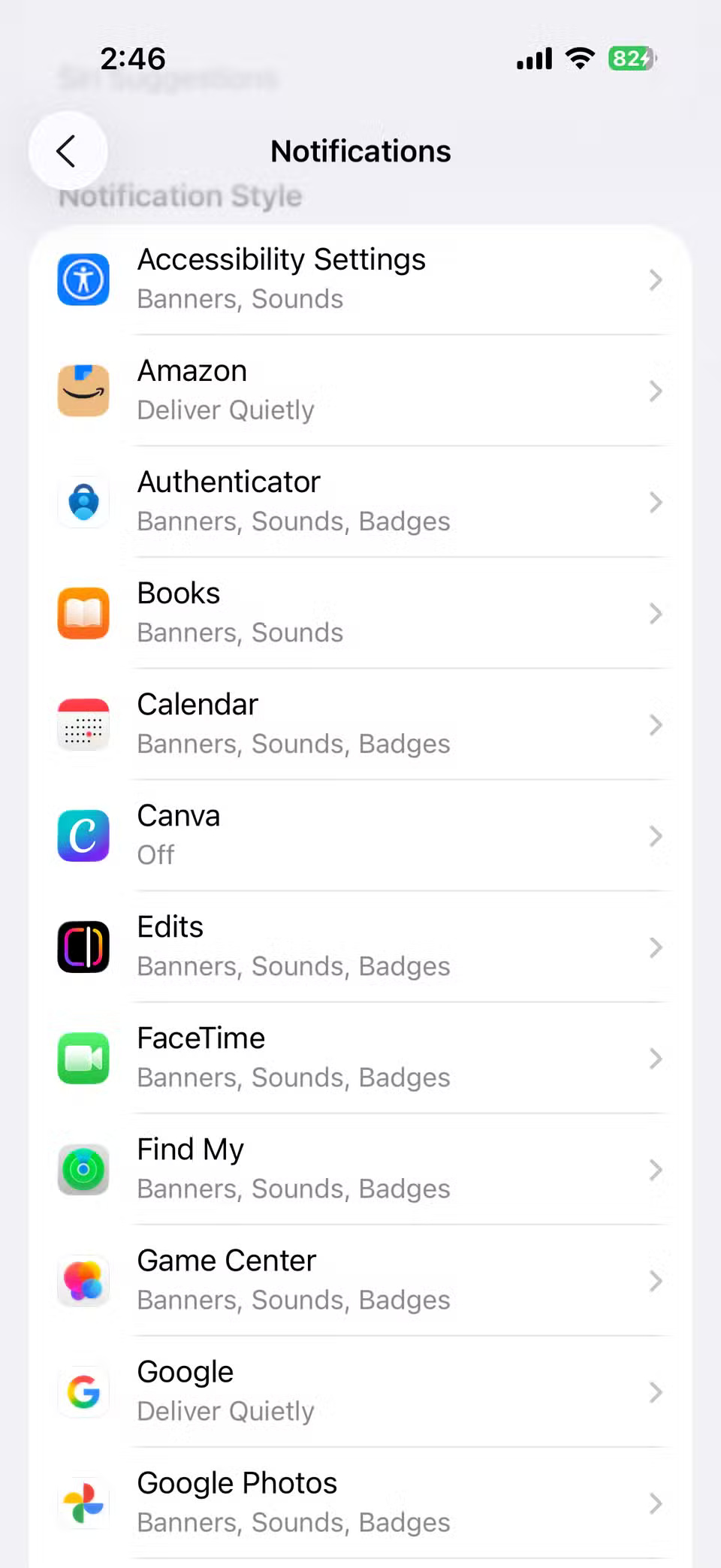
Lock screen notifications are useful because they alert you to important things even when you're not actively using your iPhone. The problem is that each of them lights up the screen. This means that a late-night email, random app alert, or even a calendar reminder can suddenly wake up your phone and demand your attention.
Unfortunately, iOS doesn't offer a direct setting to stop the screen from lighting up. But there are workarounds. One option is to enable Do Not Disturb mode, but that means missing all notifications. A better option is to disable lock screen notifications for apps that don't really need your immediate attention.
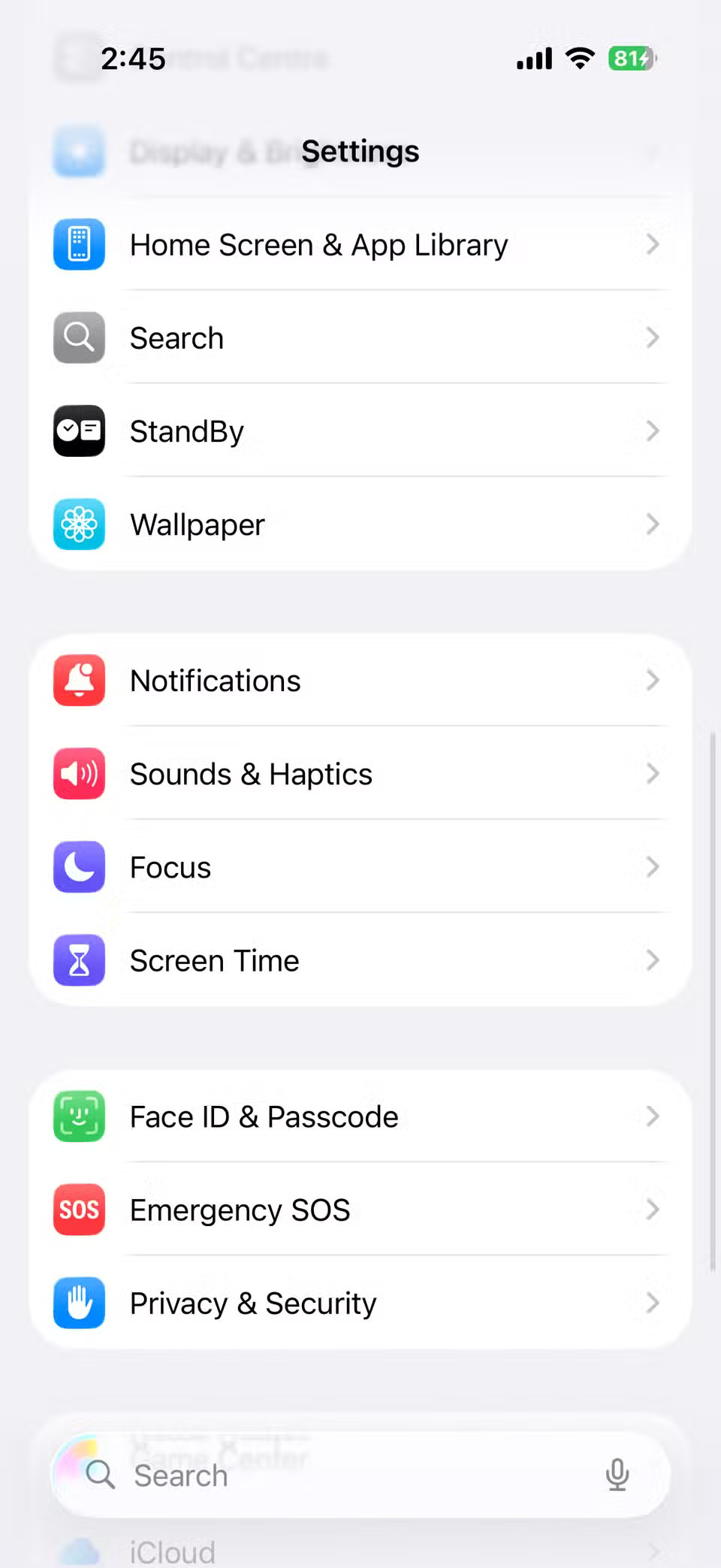
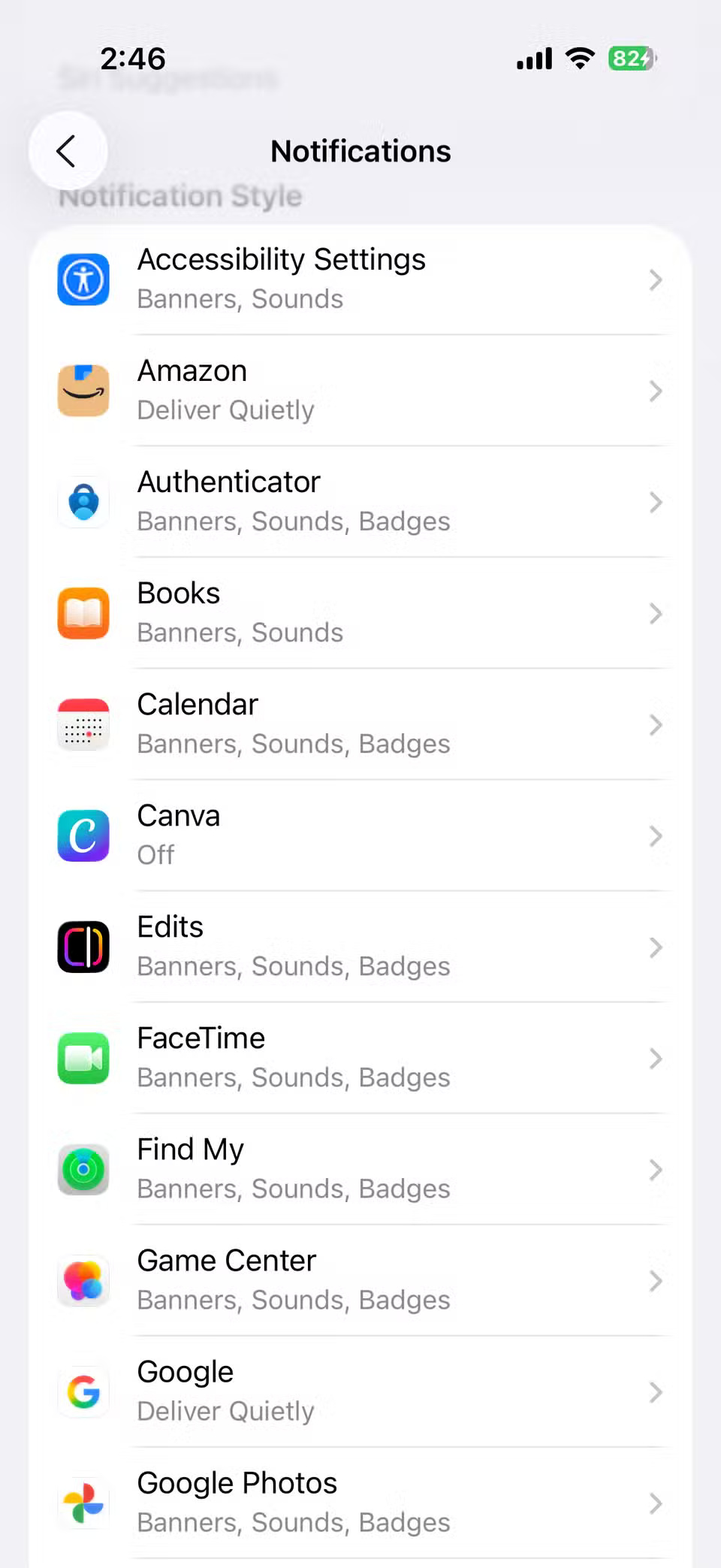
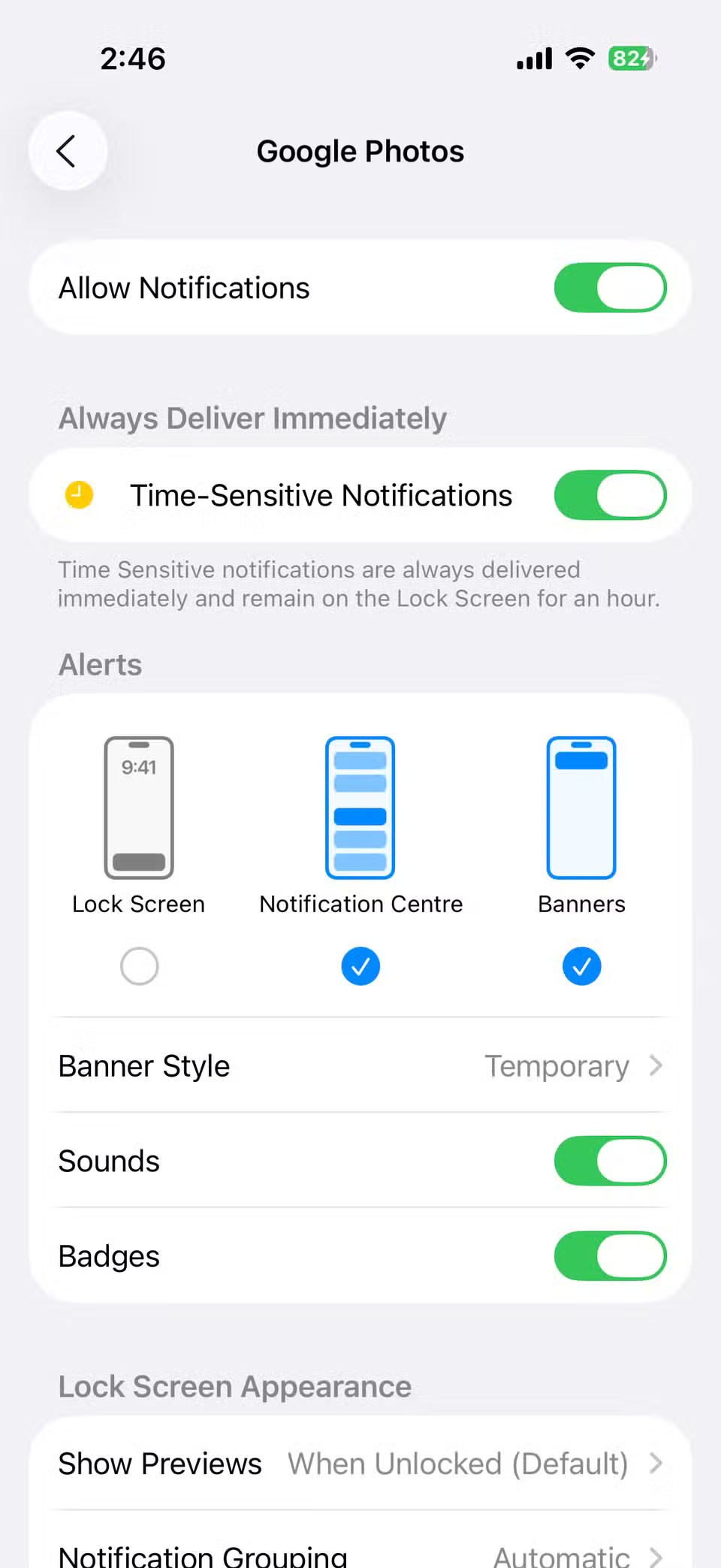
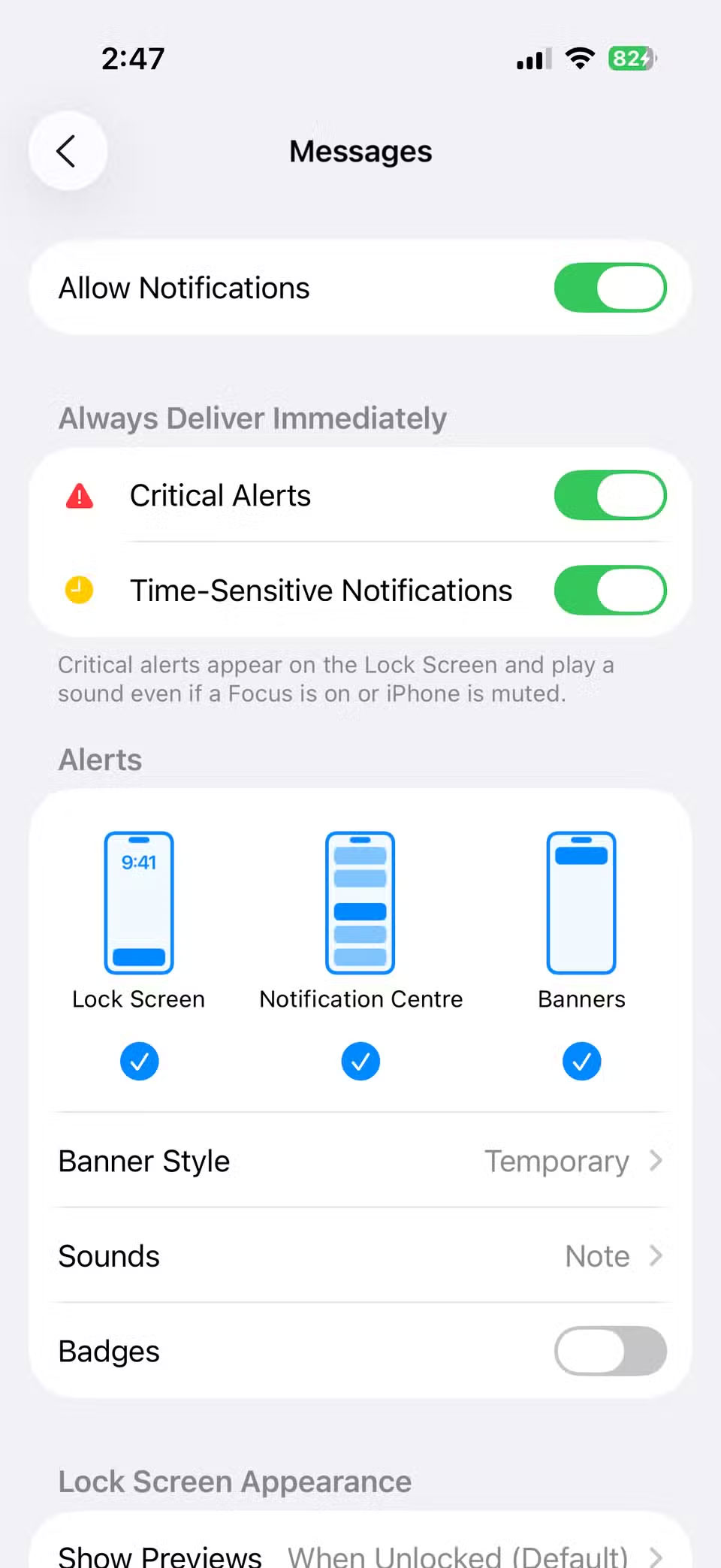
Go to Settings > Notifications , select the app, and uncheck Lock Screen . With this change, only really important notifications will wake up the phone, while everything else stays quietly in the background.
3. Buried app settings
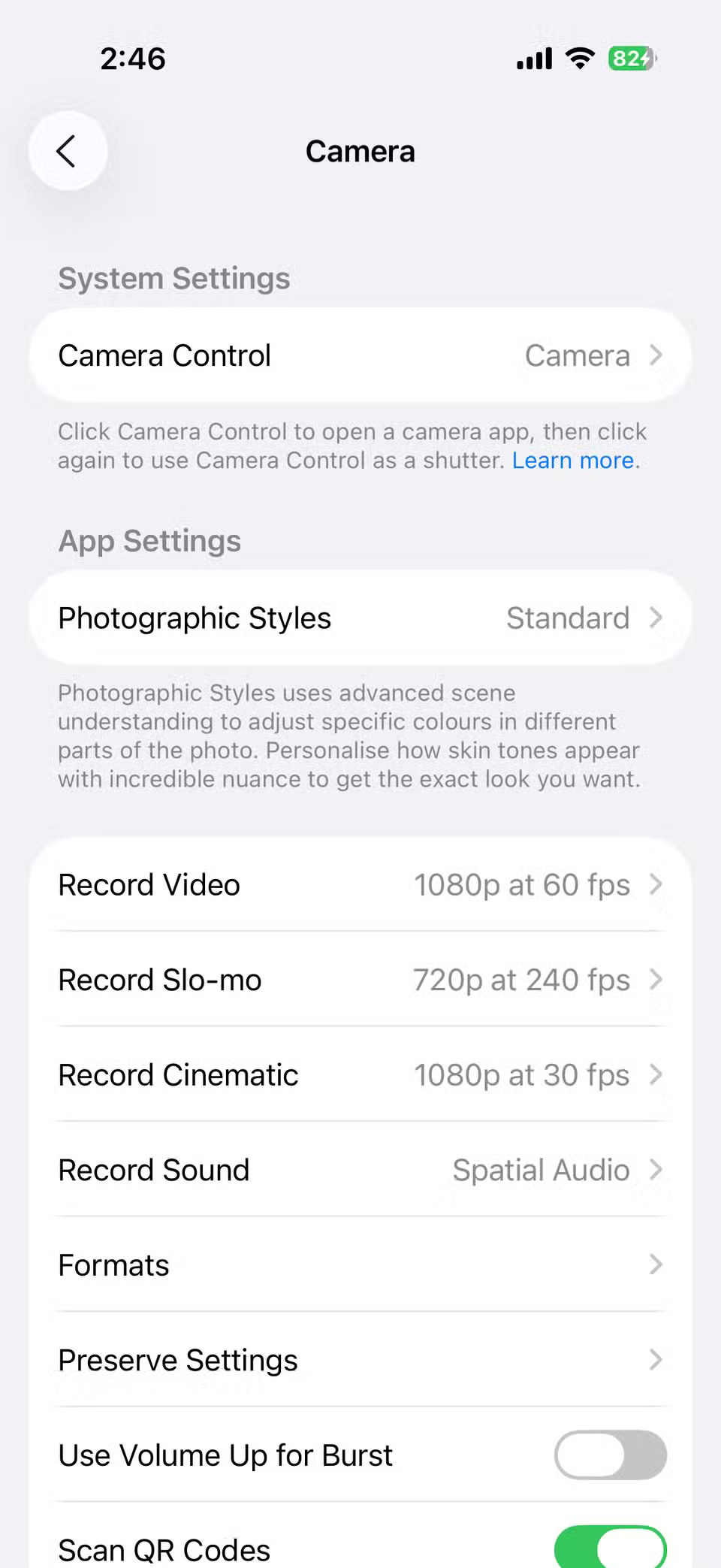
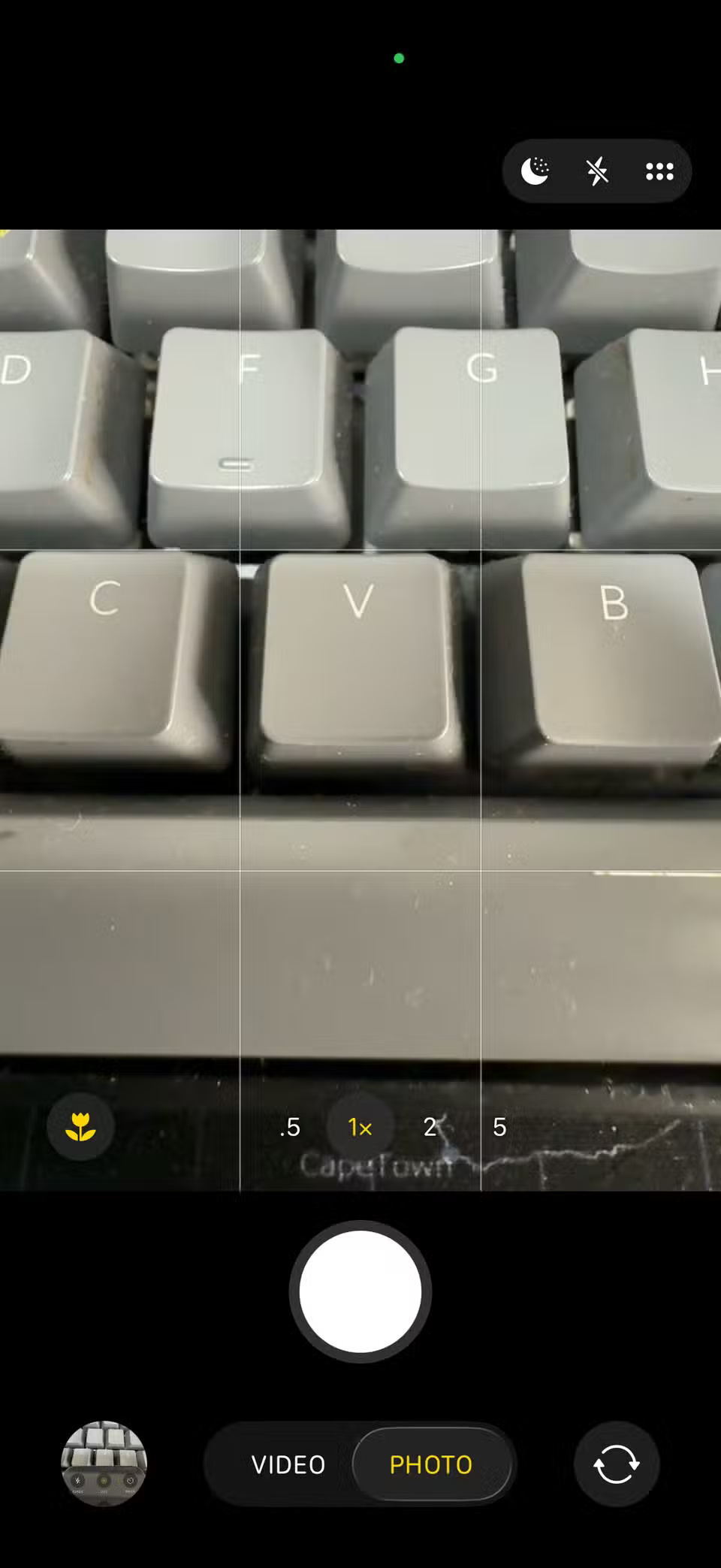
Accessing an app's settings is often something you'll want to do while actually using it. Take the camera app, for example. You might want to enable or disable the grid, switch shooting formats, or adjust other options.
On Android, you can usually adjust these settings right inside the app. On iPhone, however, you have to go to Settings > Apps , scroll down, and then find Camera .
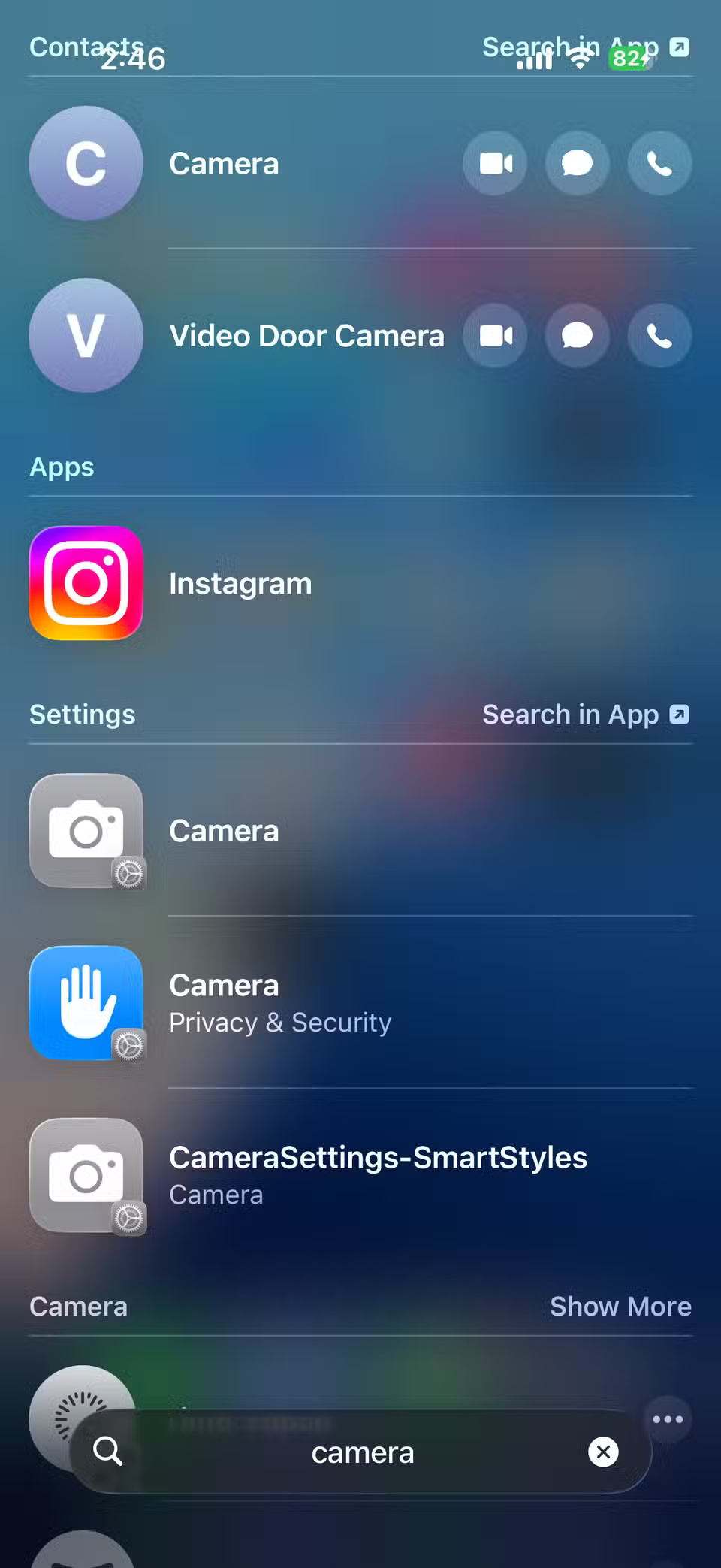
This behavior is the same across all apps, including the App Store, Maps, Phone, and more. It's not very intuitive. The good news is that there's a faster way to access app settings. Swipe down on the home screen, type in the app's name, scroll down to Settings , and tap the app's settings icon. This works for all apps, including third-party ones.
2. Distracting notification badges
Those little red badges on app icons can be helpful reminders. However, when every other app on your home screen displays a glowing red circle, it can become really annoying. Instead of reminding you to check something important, the badge often becomes a constant distraction.
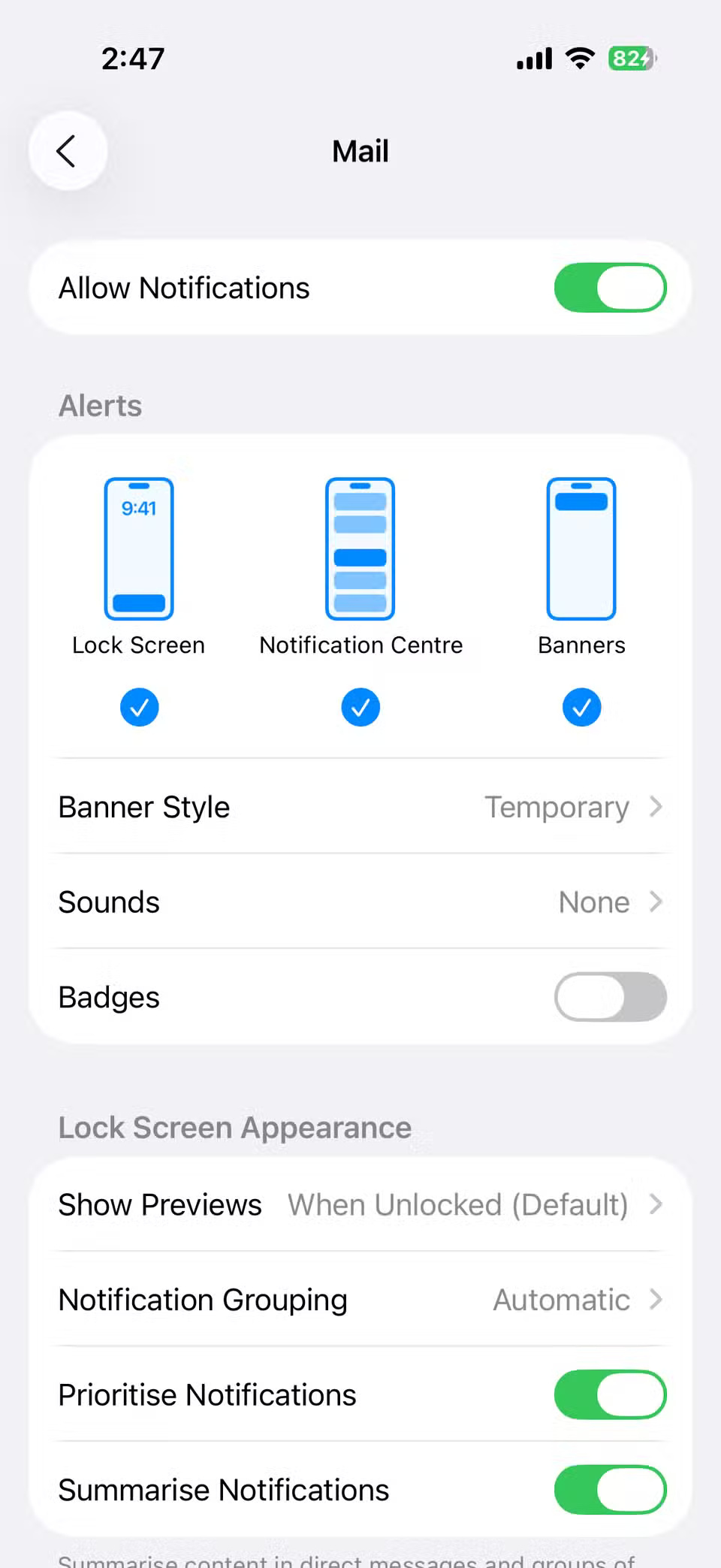
The issue is more common in apps like Messages, Mail, and YouTube. Go to Settings > Notifications , select an app, and turn off badges.
You'll still get notifications in Notification Center, but your home screen won't be flooded with red dots demanding your constant attention. Turning off badges for apps like mail and social media will make your home screen cleaner and less distracting.
1. Camera shutter sound
Every time you take a photo on your iPhone, it makes that classic clicking sound. This sound mimics the feel of a real camera, but can sometimes be distracting. Maybe you want to capture a quiet moment, like a photo of a sleeping baby, without drawing attention to it.
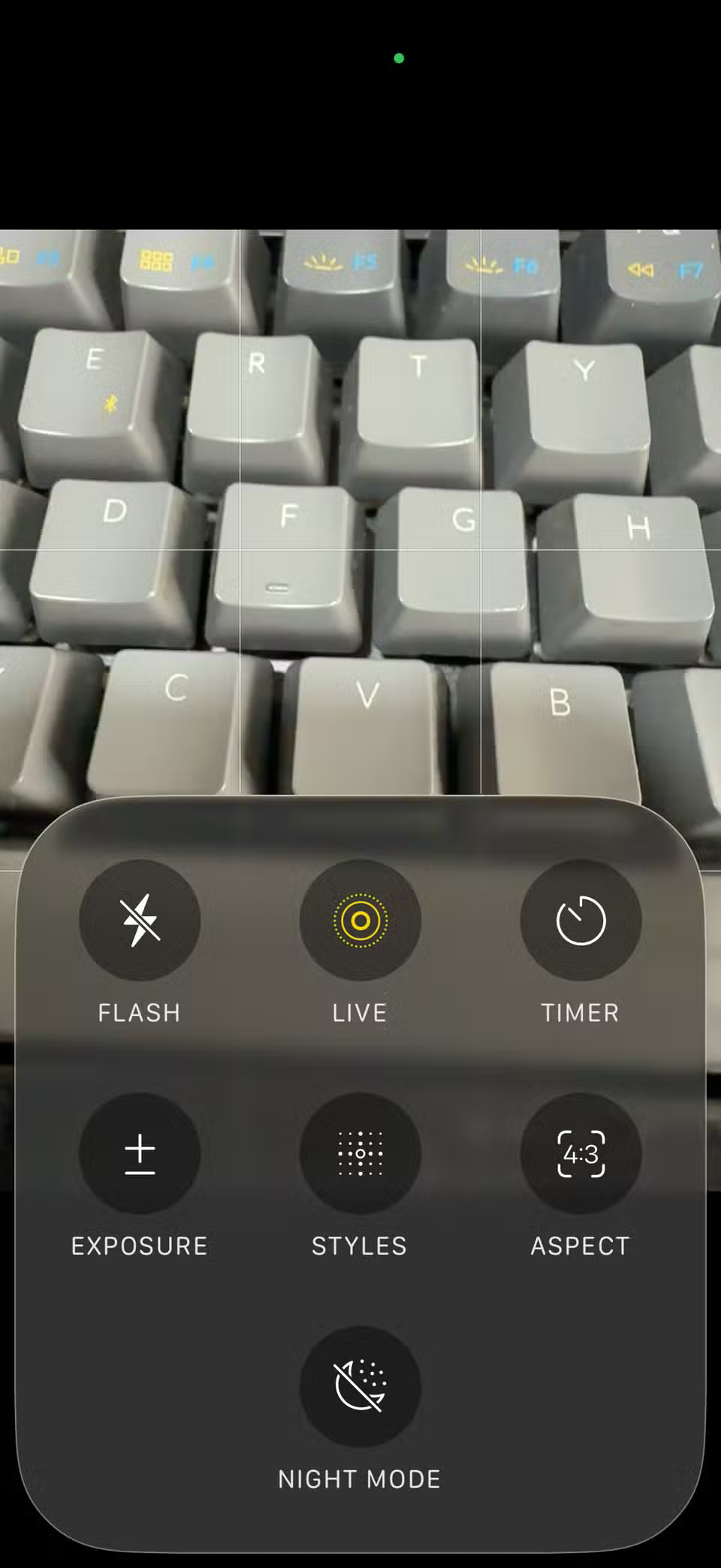
The easiest way to turn off the iPhone camera sound is to enable silent mode using the Ring/Silent switch or Action button on the side of your iPhone. But if you don't want your phone to be on silent all the time, there's another option: Turn on Live Photos. With Live Photos turned on, the shutter sound is automatically muted, so you can take photos in silence.
After making the above changes, many of the major annoyances people have with their iPhones will disappear, making using the iPhone much more enjoyable.
Final Thoughts
Overall, 7 Annoying iPhone Settings to Change is best understood by considering the main facts, practical context, and limitations together. Use the details above as a clear starting point and confirm time-sensitive information when necessary.
FAQ
What does this article explain about 7 Annoying iPhone Settings to Change?
Some of the default iPhone behaviors can be more annoying than helpful. But you don't have to put up with them. A few quick tweaks in settings are all it takes to eliminate all those annoyances and make your iPhone a lot more enjoyable to use.
What should you know about 7. Too many Control Center pages?
By default, the Control Center on the iPhone spans three pages. This might seem convenient, as it gives you more room to quickly launch and add shortcuts to features you might need.
Should time-sensitive details be verified?
Yes. Software features, game codes, product specifications, prices, and research findings can change. Confirm important details with an official or primary source when accuracy affects your decision.
Related Articles
 10 Changes the Best Settings That Siri Can Make on iPhone5 minutes read
 9 iPhone Settings to Change for Privacy and Convenience9 minutes read
 The First 6 One UI 8 Settings You Should Change on Every Samsung: Key Facts6 minutes read
 How to Change Fonts on iPhone: Step-by-Step Guide7 minutes read
 Make Google TV Less Annoying in Just 10 Minutes!7 minutes read
 How to Change DNS Settings on Apple TV4 minutes read
Reader Comments 0
Sign in with email or Google to join the discussion.