Table of Contents
Start by checking app permissions and lock-screen previews. Those changes give you direct control over what apps can access and what people nearby can see. Then review your Apple Account recovery and update settings before changing how iCloud protects your data.
1. Limit app permissions
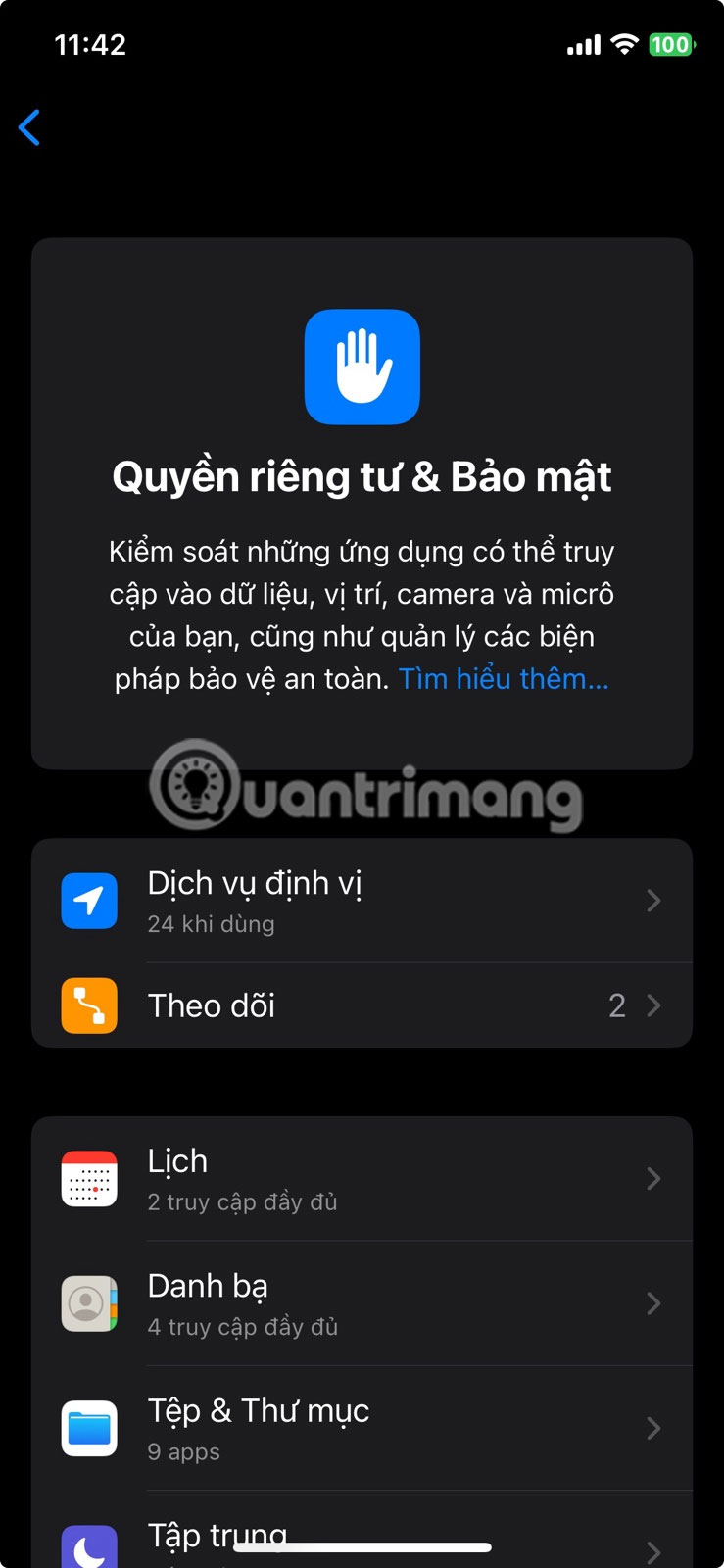
Go to Settings > Privacy & Security and review Location Services, Photos, Camera, Microphone, and Contacts. For a weather app, approximate location may be enough. For photo access, choose a limited selection where offered, then test the feature you use.

2. Hide sensitive notification previews
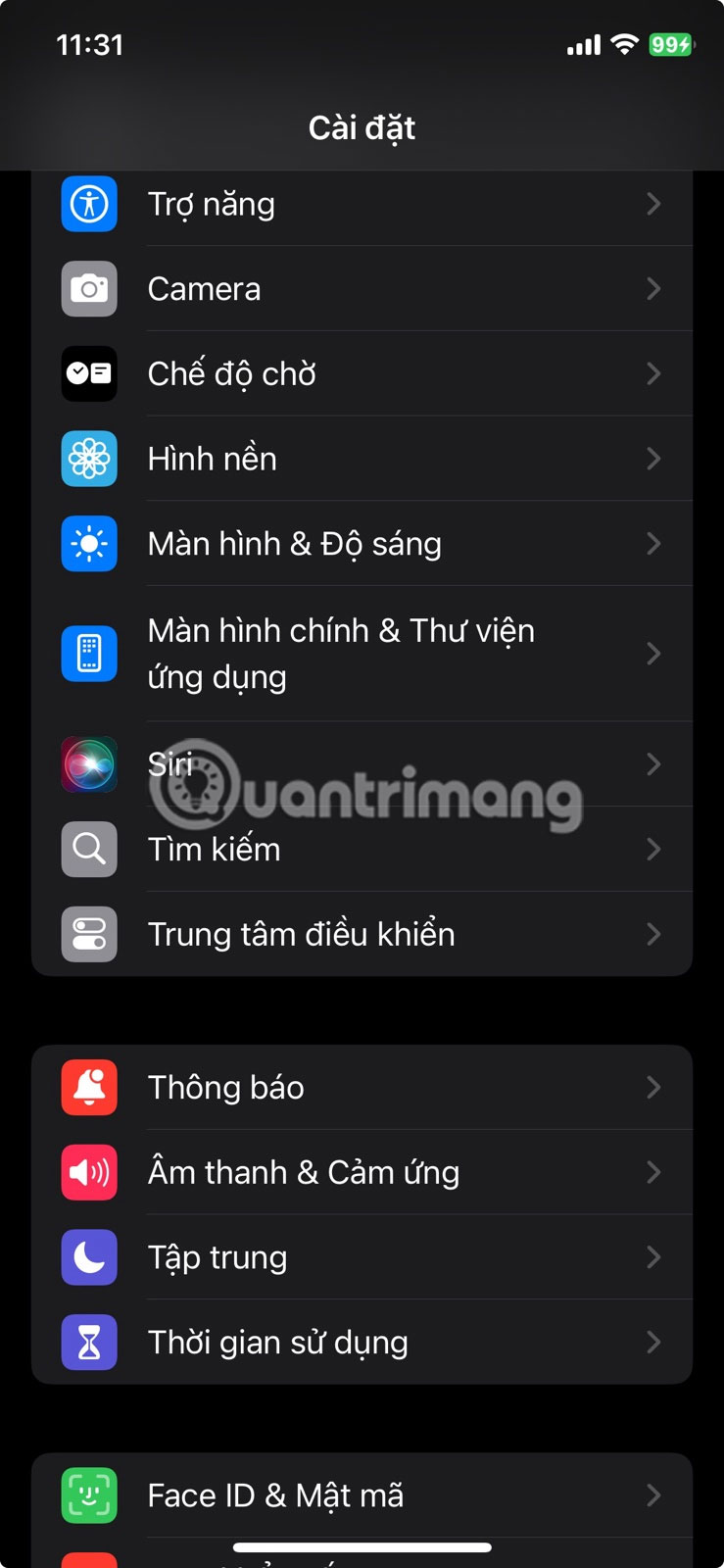
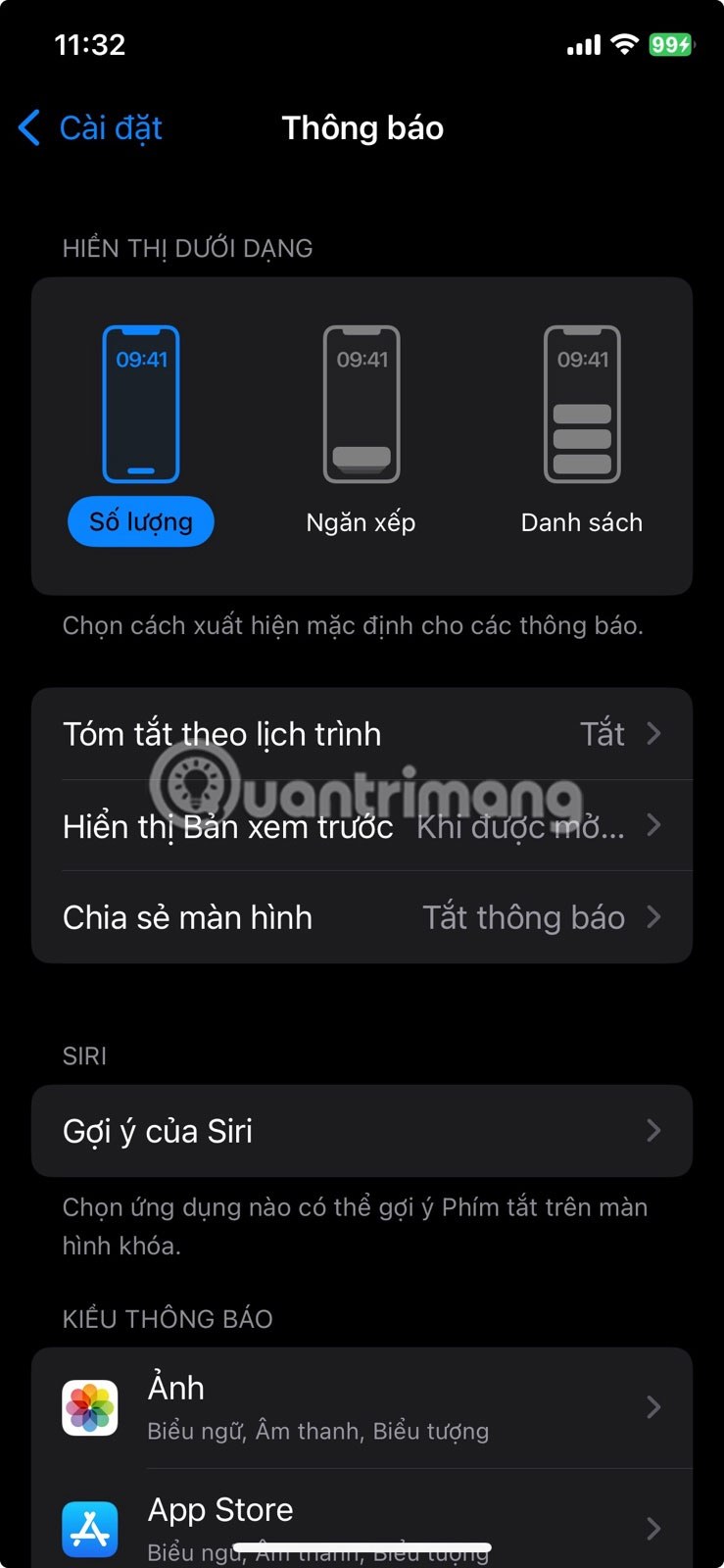
Under Settings > Notifications > Show Previews, choose When Unlocked or Never. You can also check individual apps if you want to hide message previews but keep other alerts visible.

3. Review cross-app tracking requests
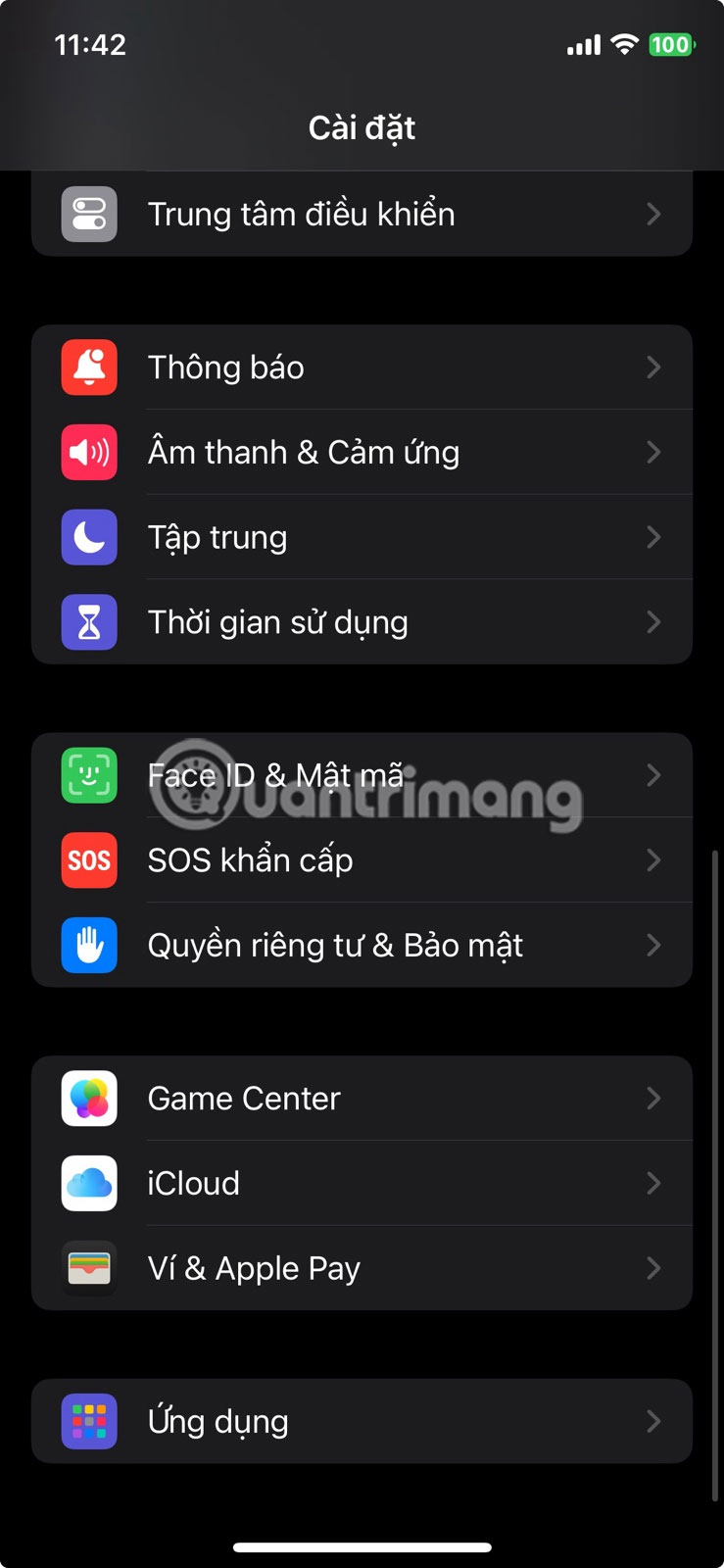
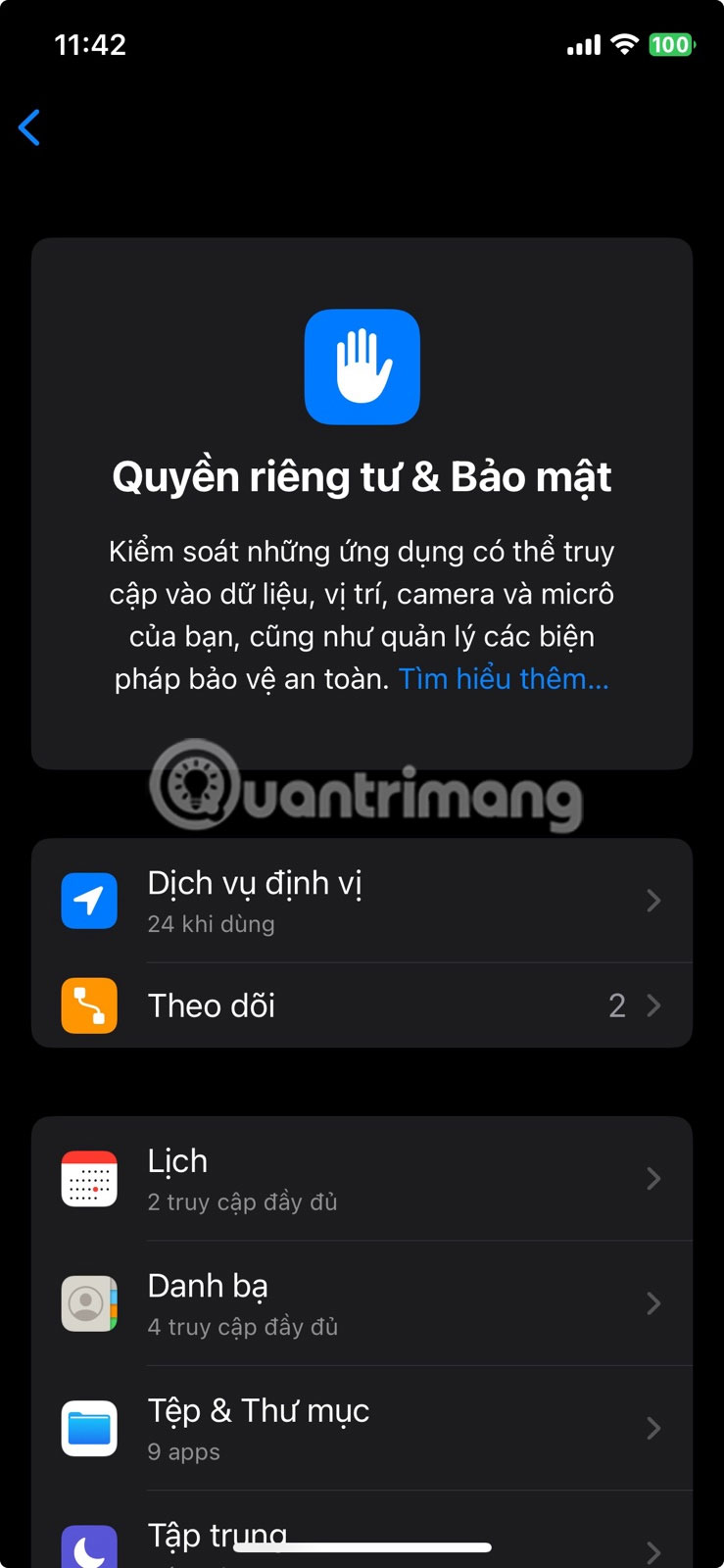
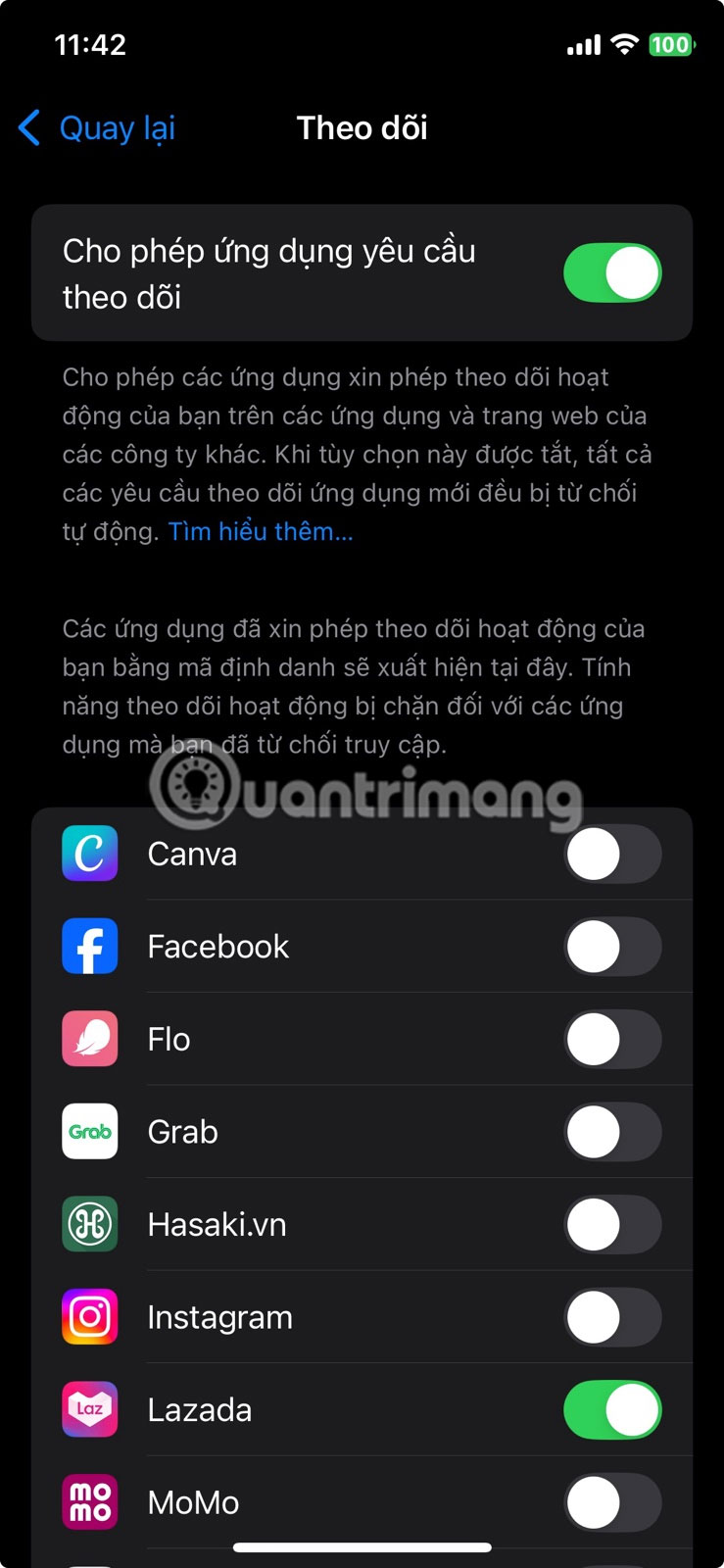
Under Privacy & Security > Tracking, turn off Allow Apps to Request to Track if you want to deny requests covered by Apple’s tracking controls. This does not stop ads or prevent a service from using what you do while signed in to its own app.
4. Turn on protection in Apple Mail
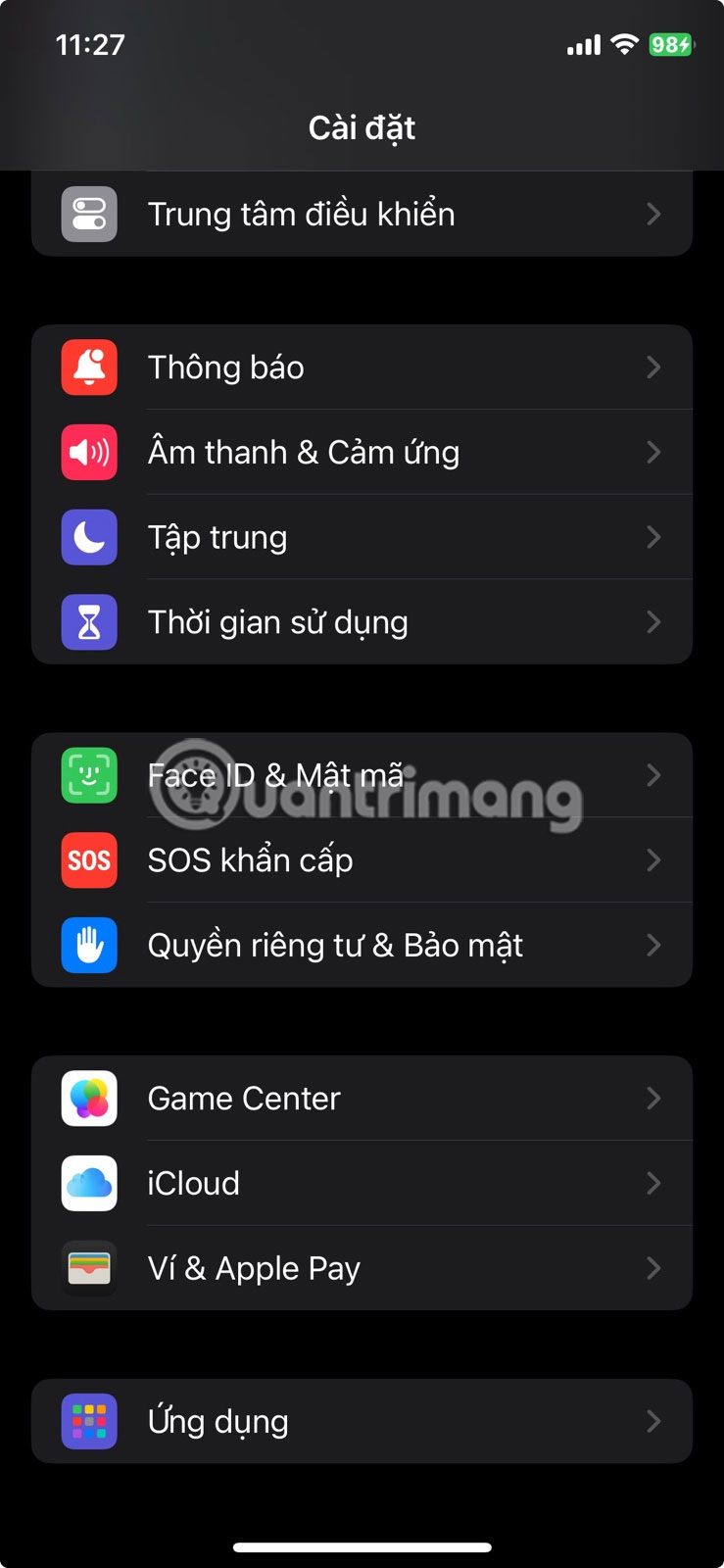
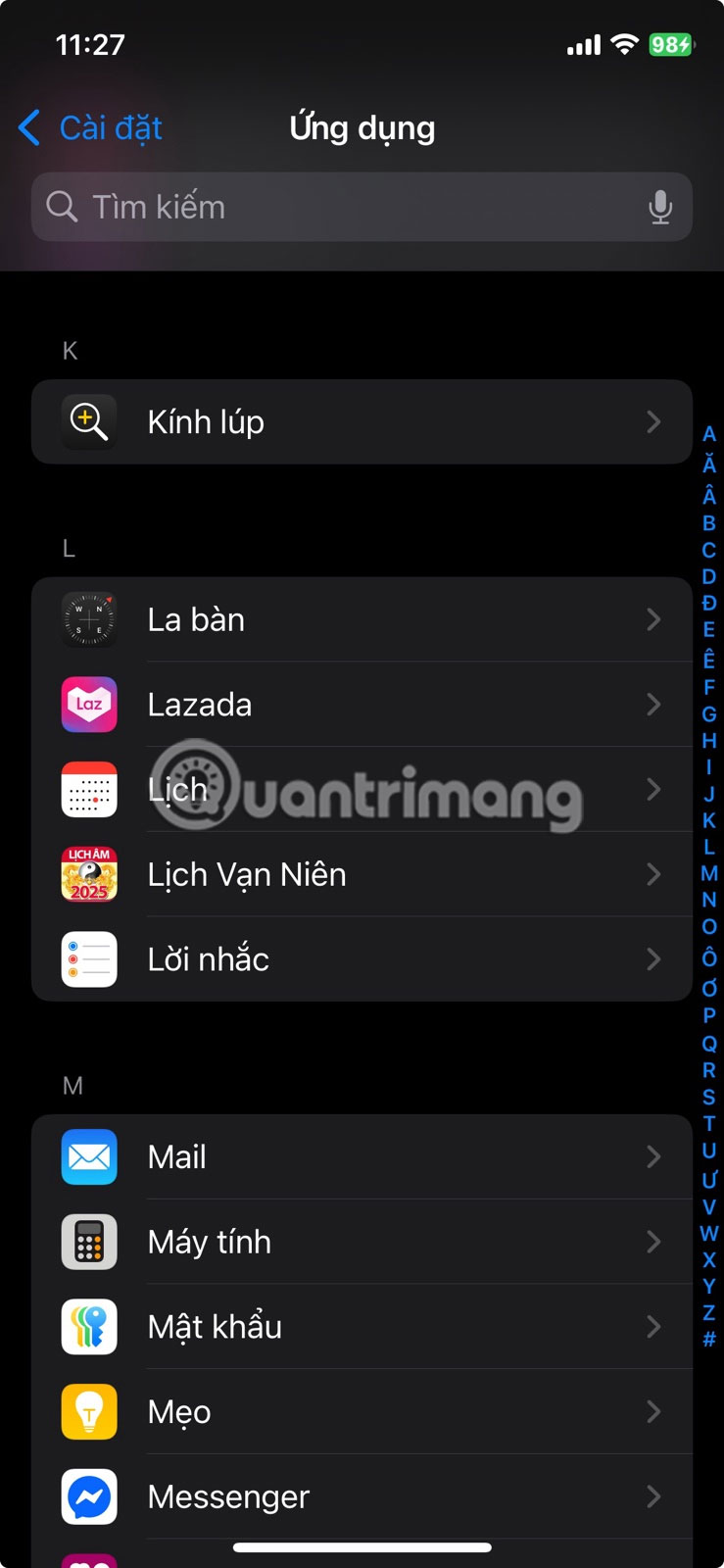
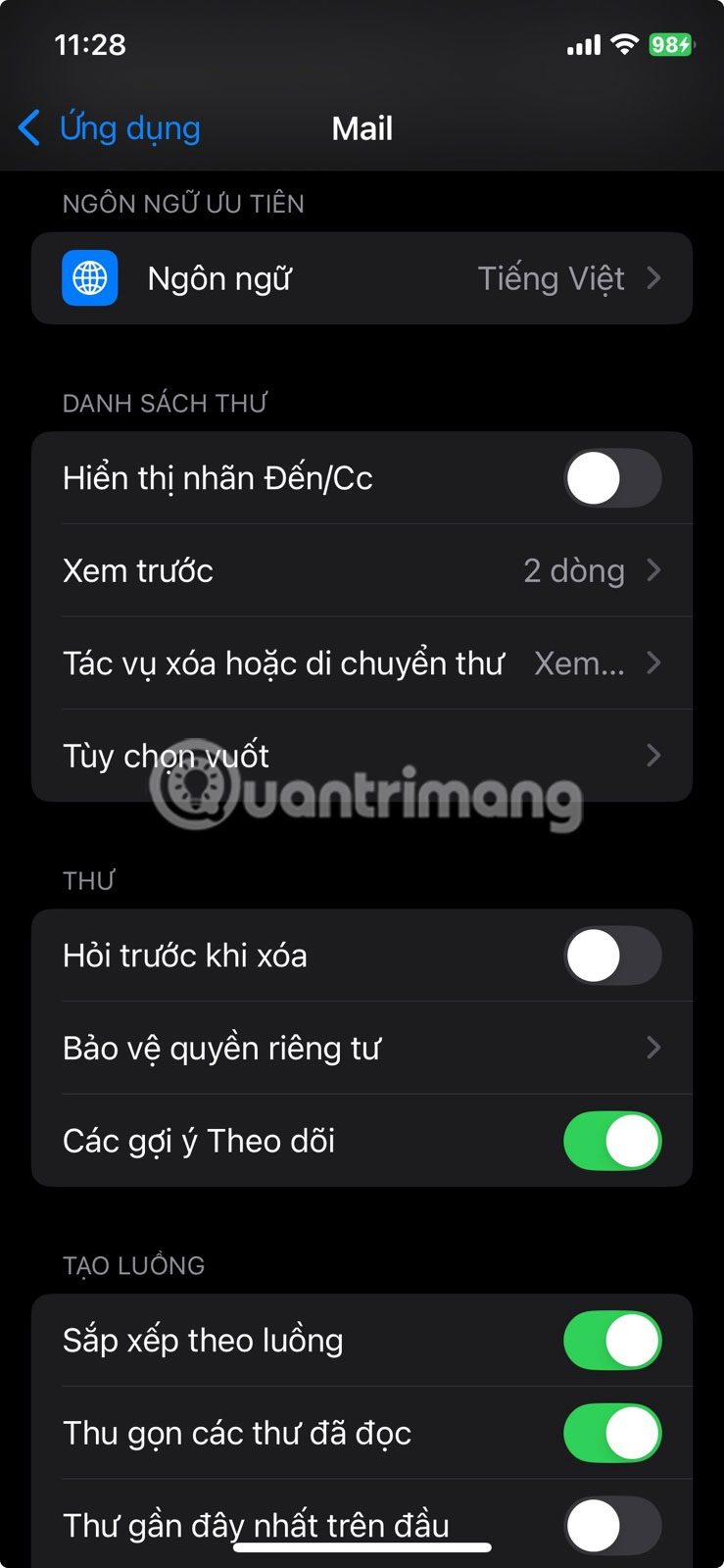
Go to Settings > Apps > Mail > Privacy Protection and turn on Protect Mail Activity. It makes it harder for senders to infer your IP address or whether you opened a message. A link inside the message can still track clicks. See the Mail Privacy Protection walkthrough.

5. Review analytics sharing
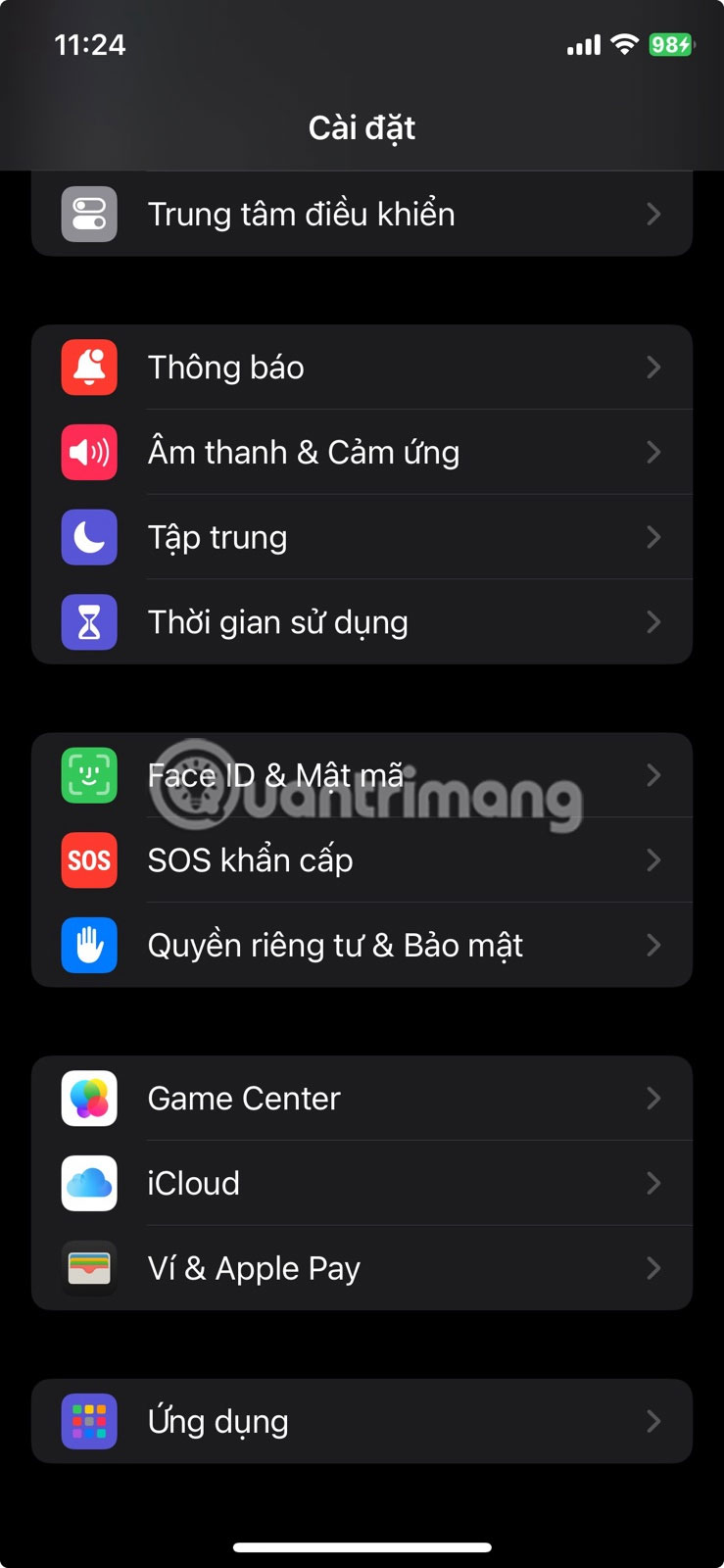
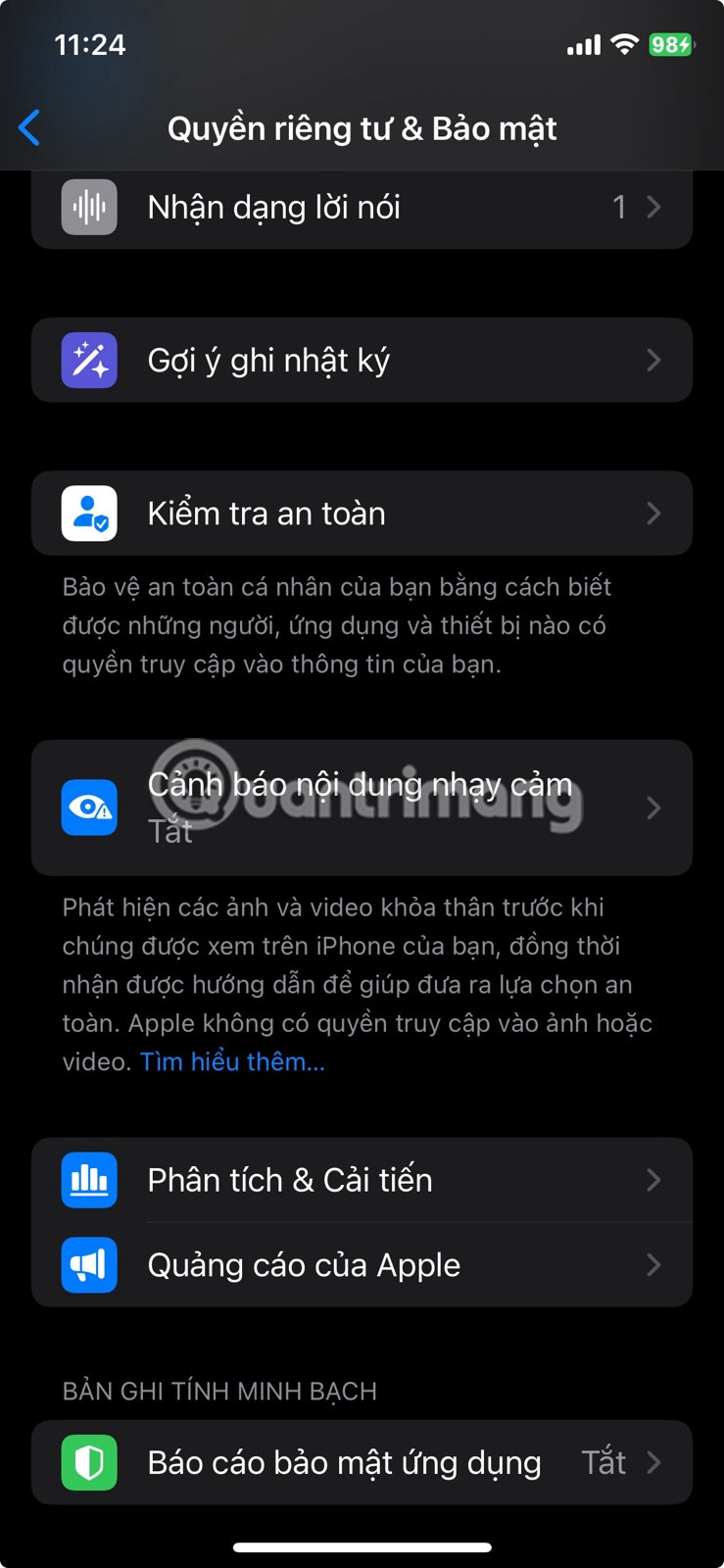
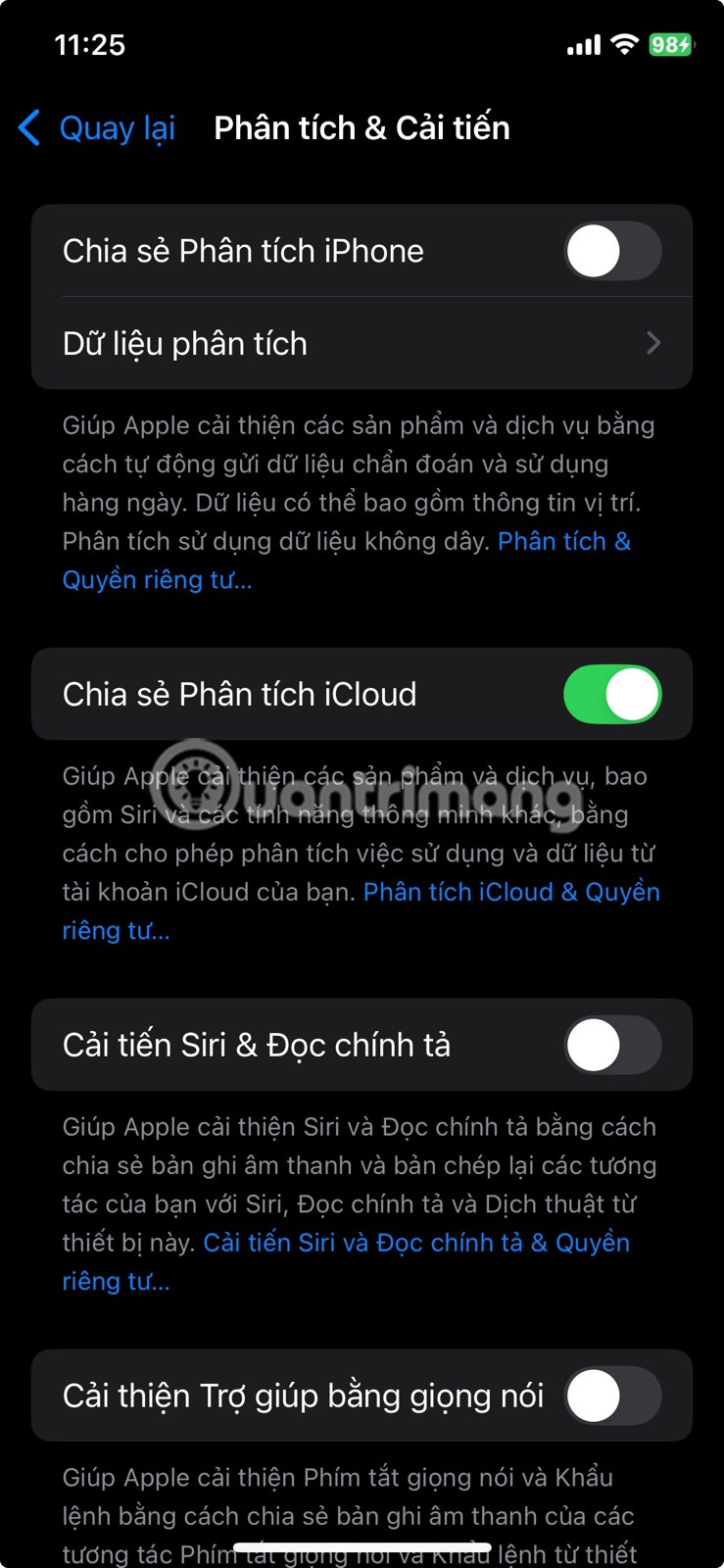
Go to Privacy & Security > Analytics & Improvements and review Share iPhone Analytics and any other listed sharing controls. Turning off one setting affects the category shown there. Check each separately.
6. Keep iOS and apps updated
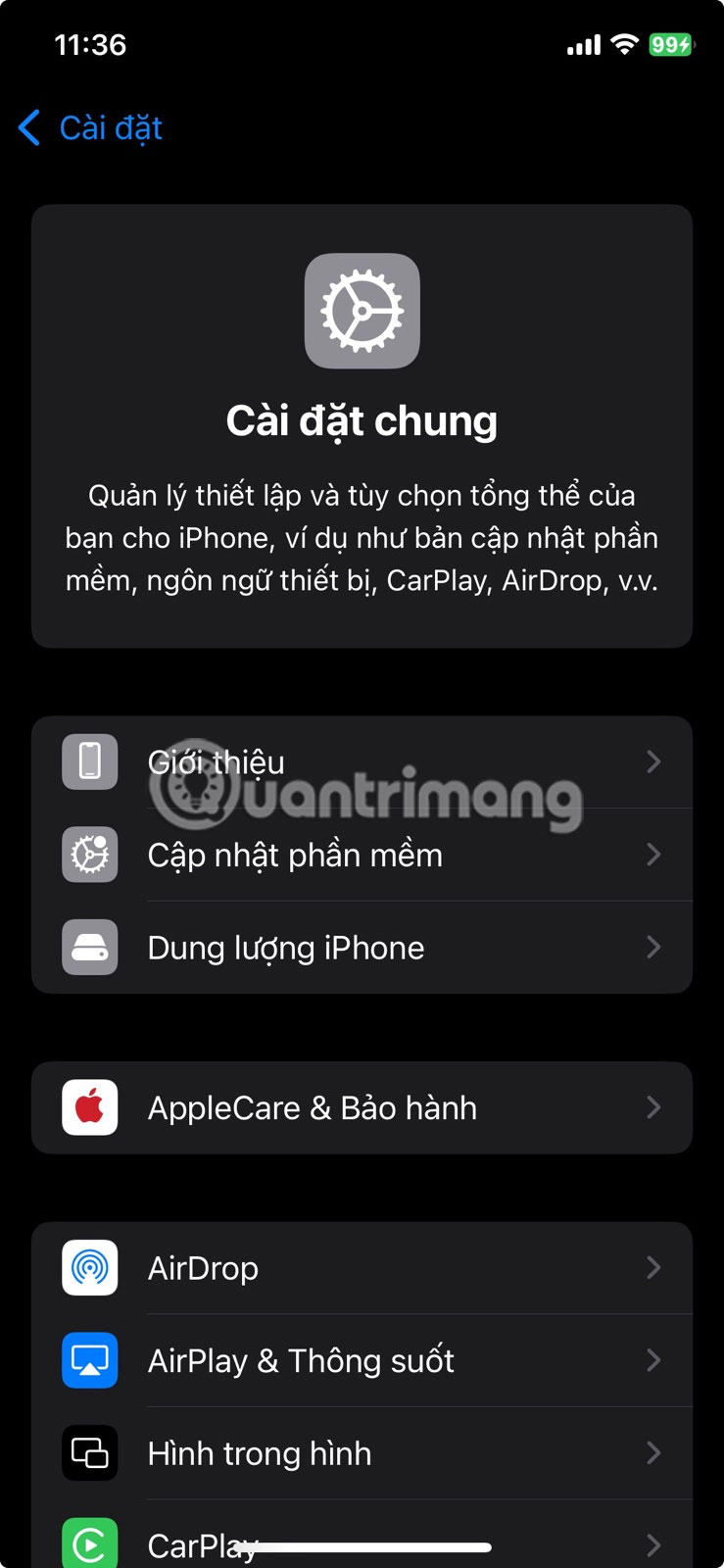
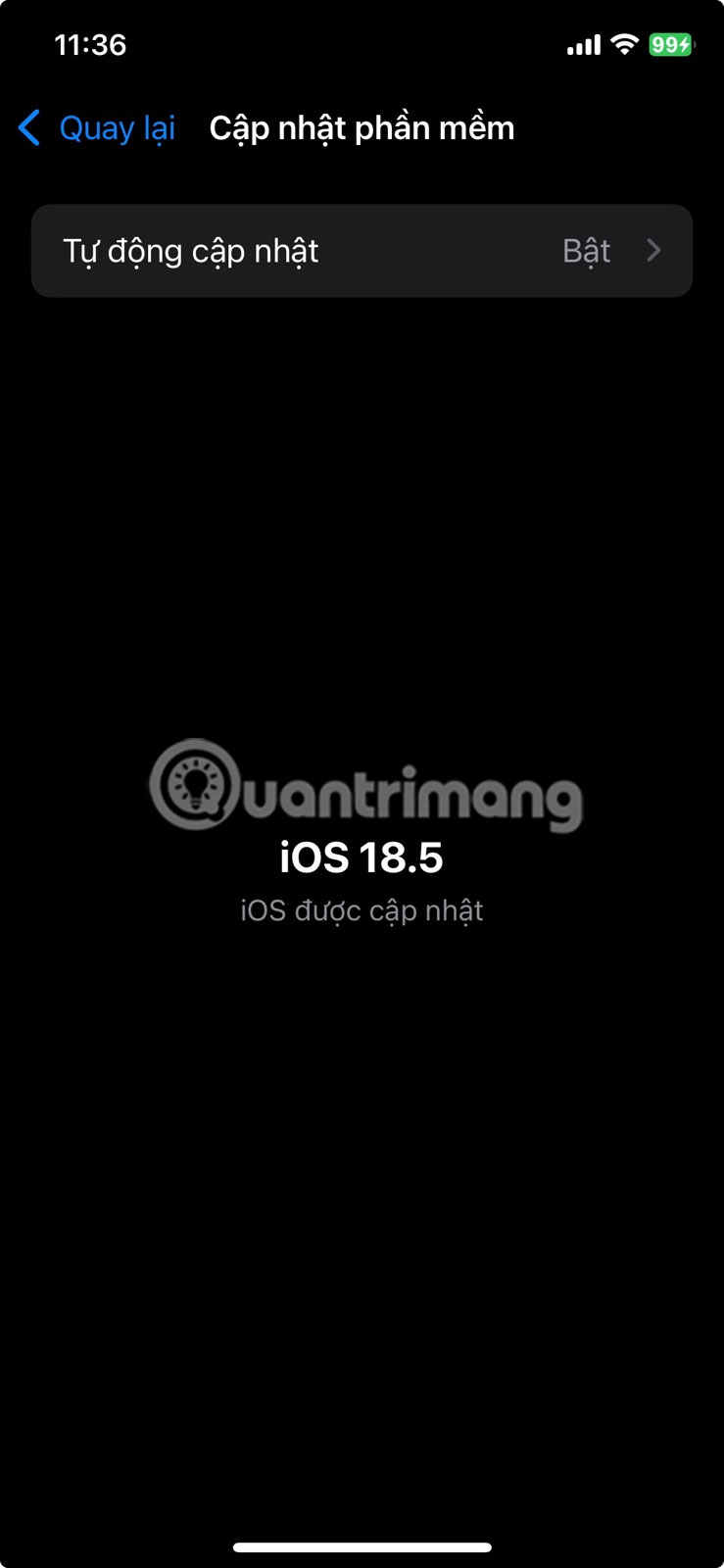
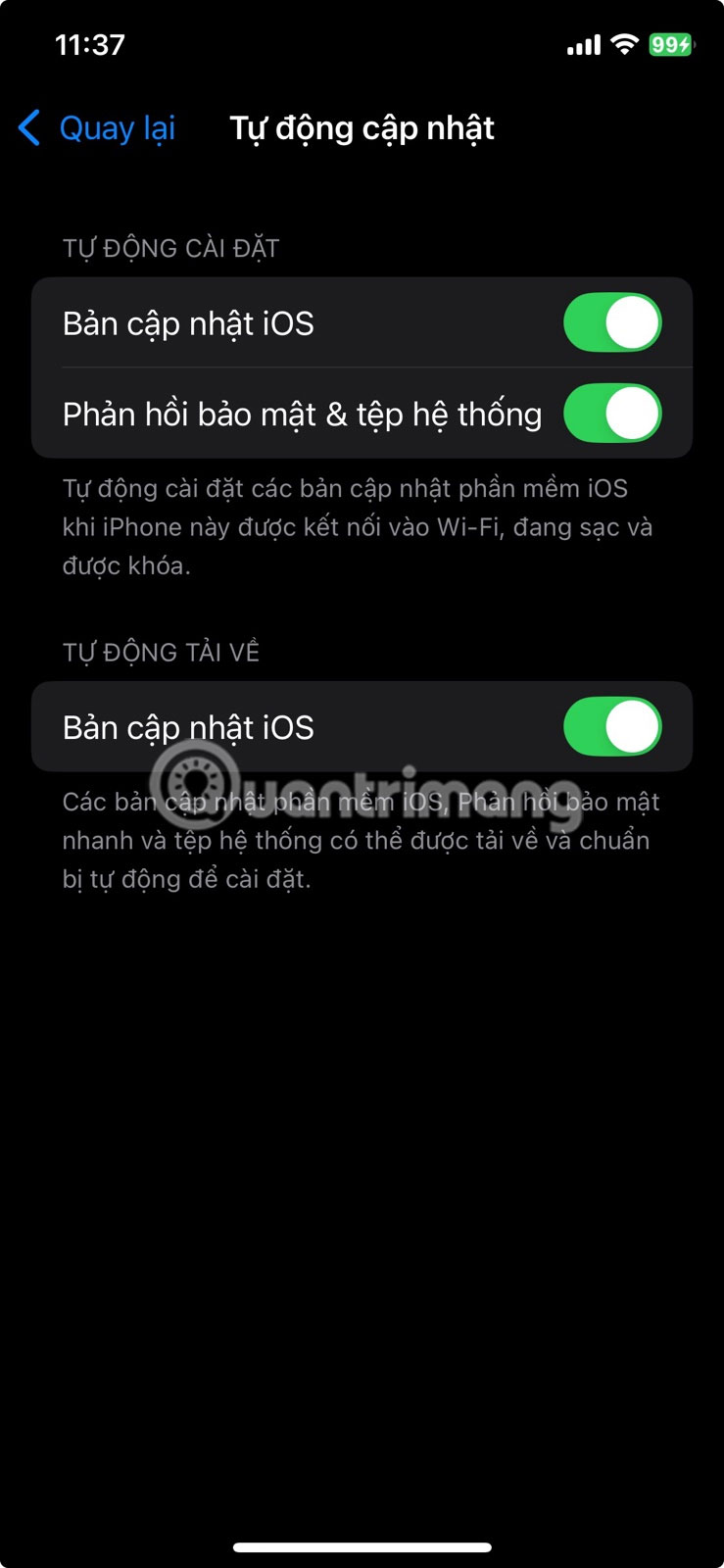
Review Settings > General > Software Update > Automatic Updates. For apps, look under Settings > Apps > App Store on newer iOS versions. Check Software Update manually if an update hasn’t installed automatically.
7. Check Apple Account two-factor authentication
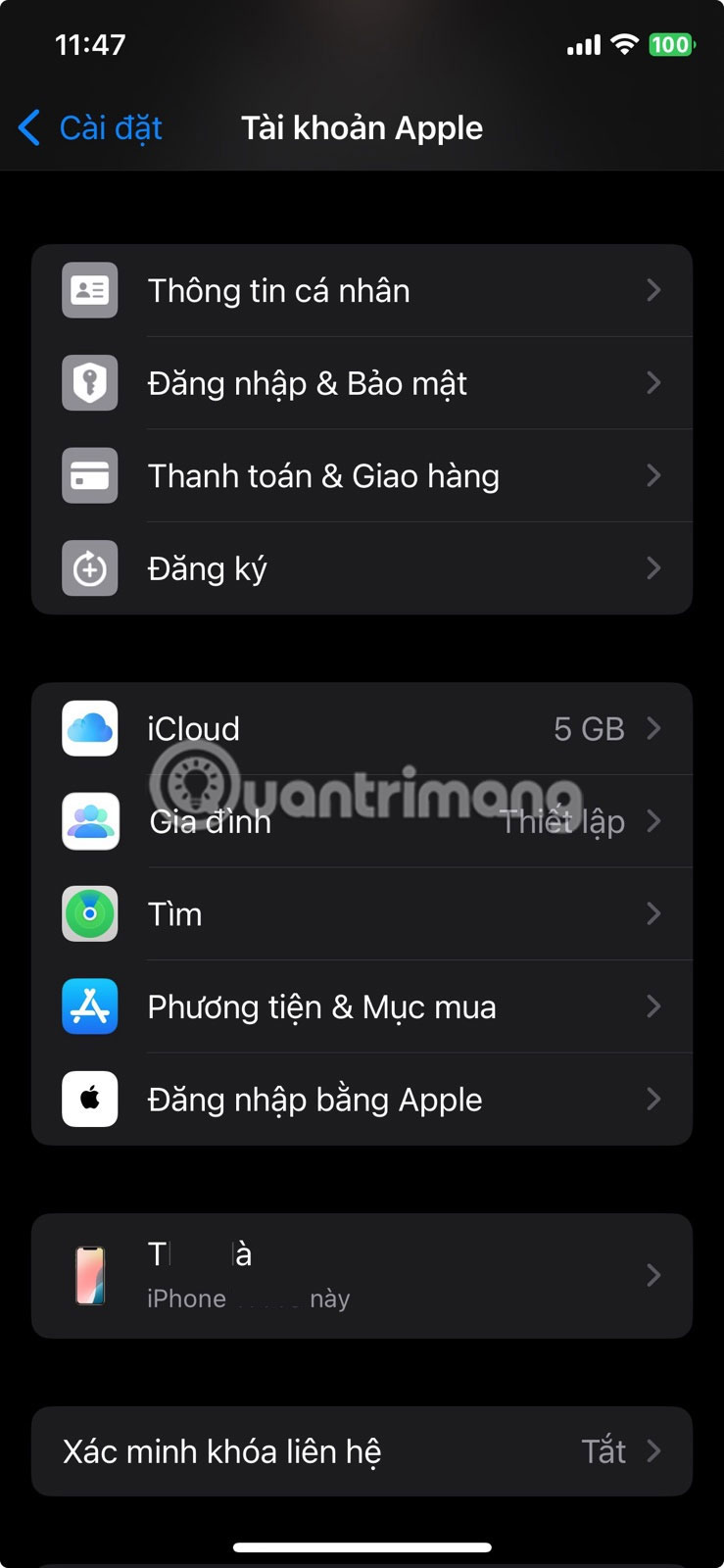
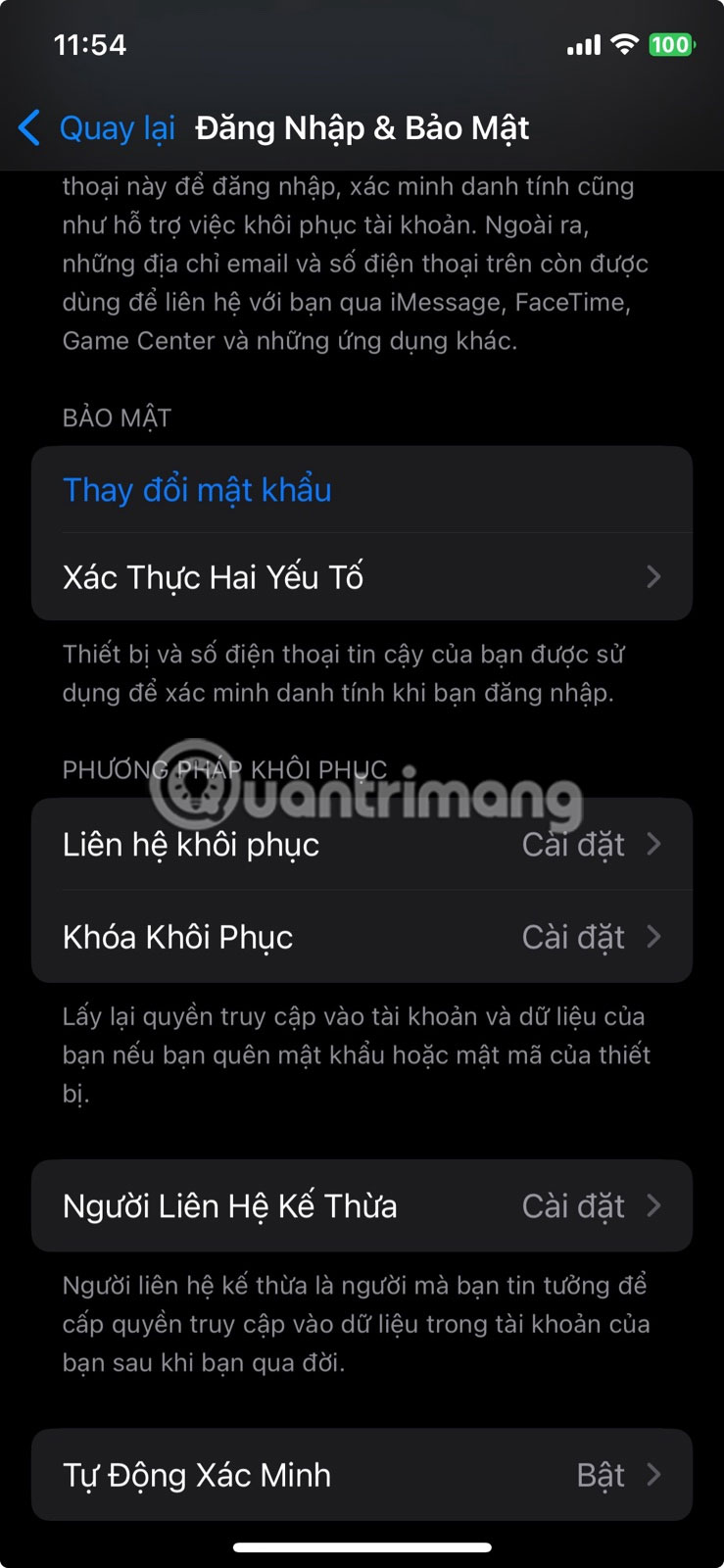
Open Settings > [your name] > Sign-In & Security and check Two-Factor Authentication. Make sure you can reach the trusted phone number and recognize the devices on the account. Keep a recovery option before changing phones. See the guide to setting up and testing multi-factor authentication.
8. Decide whether to use Advanced Data Protection
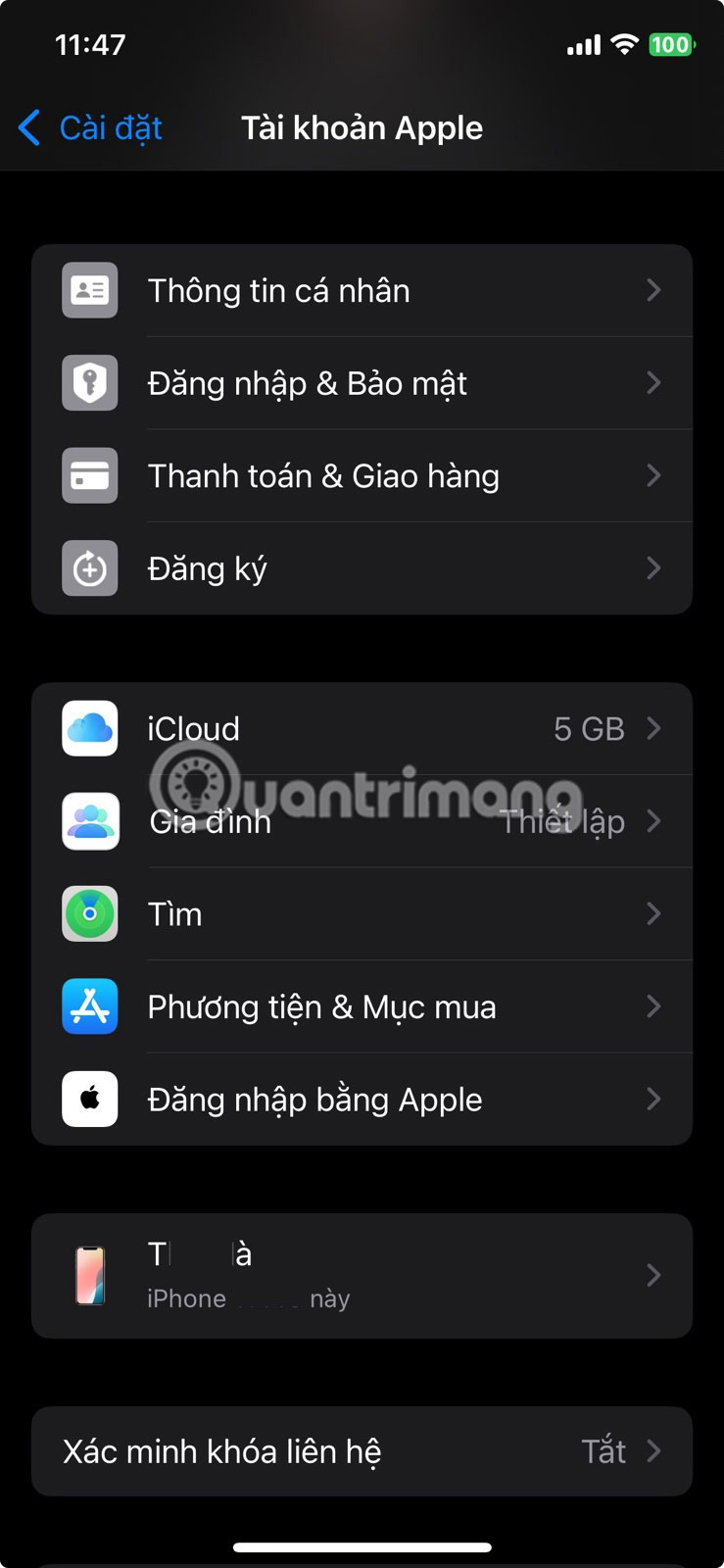
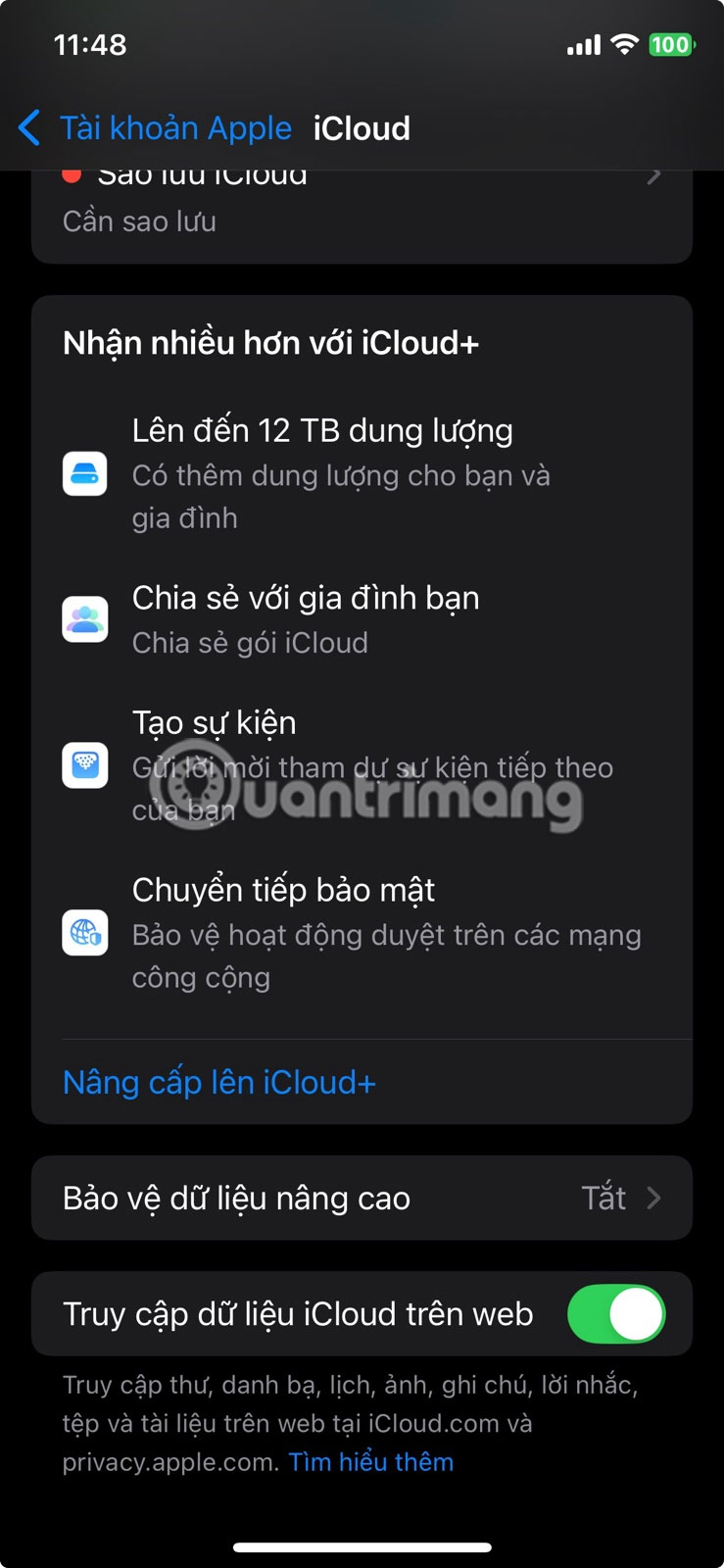
Where available, open Settings > [your name] > iCloud > Advanced Data Protection. It extends end-to-end encryption to more categories, including iCloud Backup and Photos. Mail, Contacts, and Calendar are exceptions. Review Apple’s iCloud data security overview and confirm your recovery contact or key before enabling it. Apple cannot recover the newly protected categories for you if your recovery methods are unavailable.
9. Adjust Safari’s privacy settings
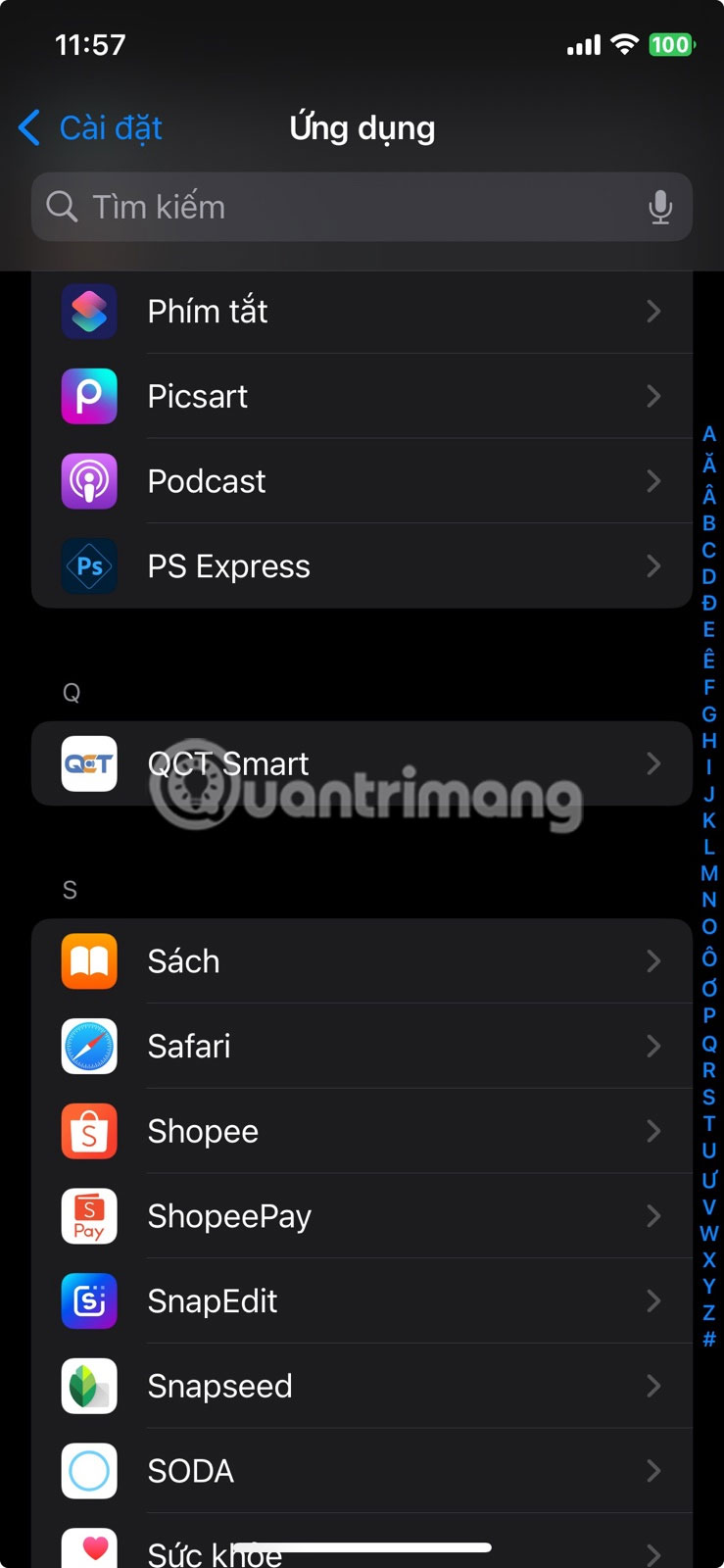
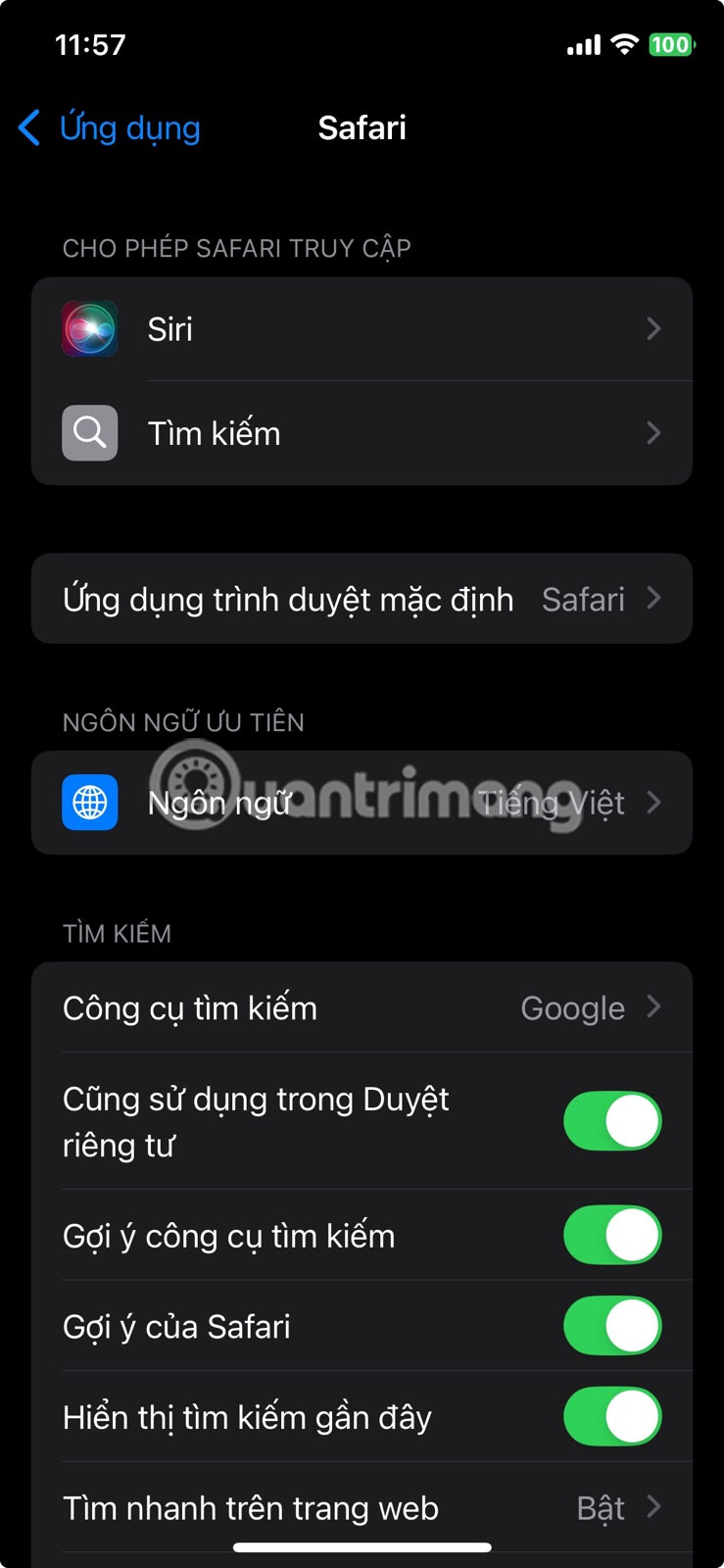
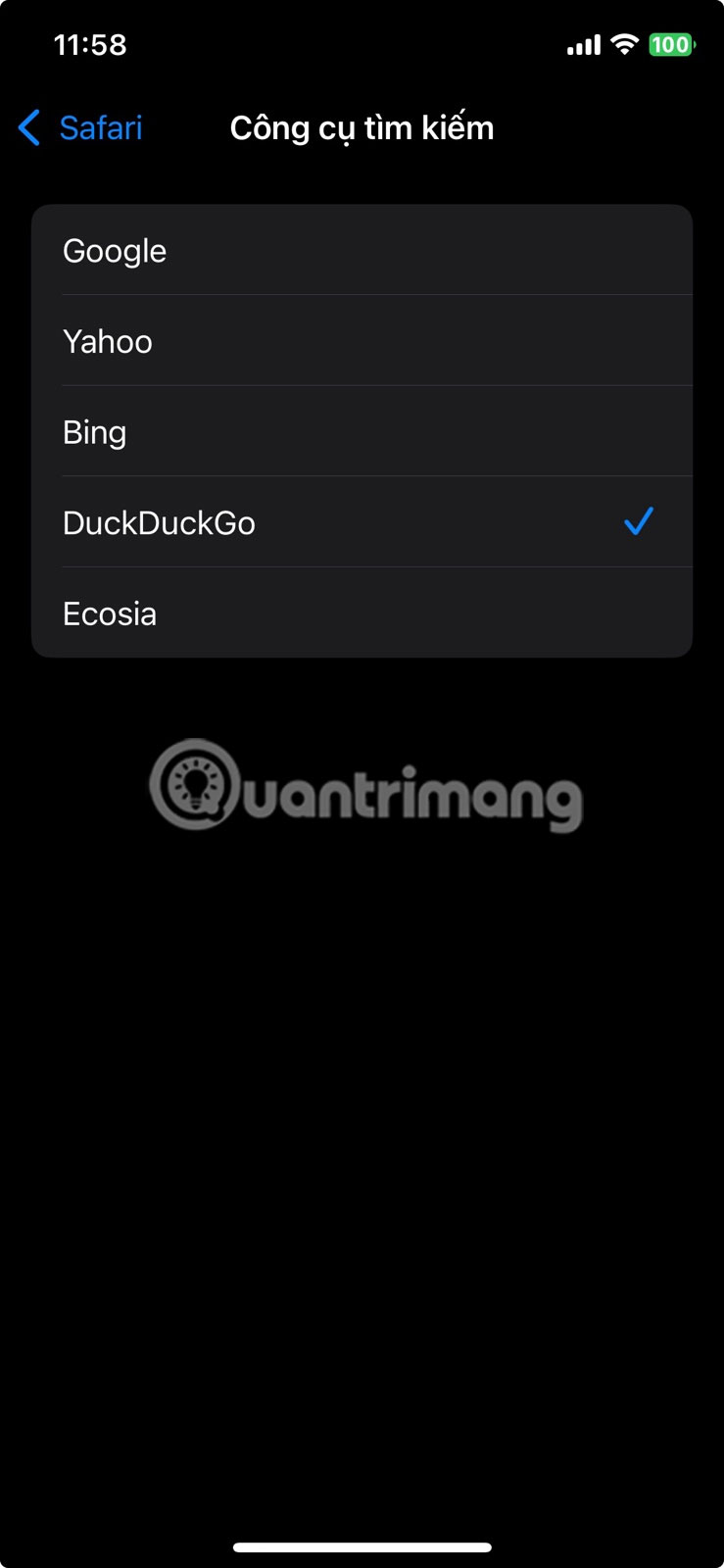
Under Settings > Apps > Safari, review Prevent Cross-Site Tracking and choose a search engine under Search Engine if you want to switch. These controls do different jobs. Changing the search engine affects searches, while Safari’s tracking prevention applies to browsing.
Related Articles
 6 iPhone Privacy Settings to Review and What They Control
 How to Change Microsoft Copilot Privacy Settings
 5 Google Privacy Settings to Review
 Claude Privacy Settings to Review: Location, Training, Incognito, and Memory
 Unveiling Hidden iOS Settings That Will Give Your iPhone a New Look
 Windows 11 Privacy Settings Worth Reviewing
Reader Comments 0
Sign in with email or Google to join the discussion.