Table of Contents
A screenshot gives ChatGPT both the words and the layout of a screen. You can attach one to a chat and ask a focused question about an error, form, chart, or unfamiliar interface. OpenAI's capabilities guide confirms that ChatGPT can analyze screenshots and charts, but its reading can be wrong, especially when text is small or the image is unclear.
Capture just the relevant area, crop out passwords and personal details, attach the image using the chat's upload control, and explain what you want to accomplish. If you need a capture shortcut, see TipsMake's Windows 11 screenshot guide.
1. Understand an error message
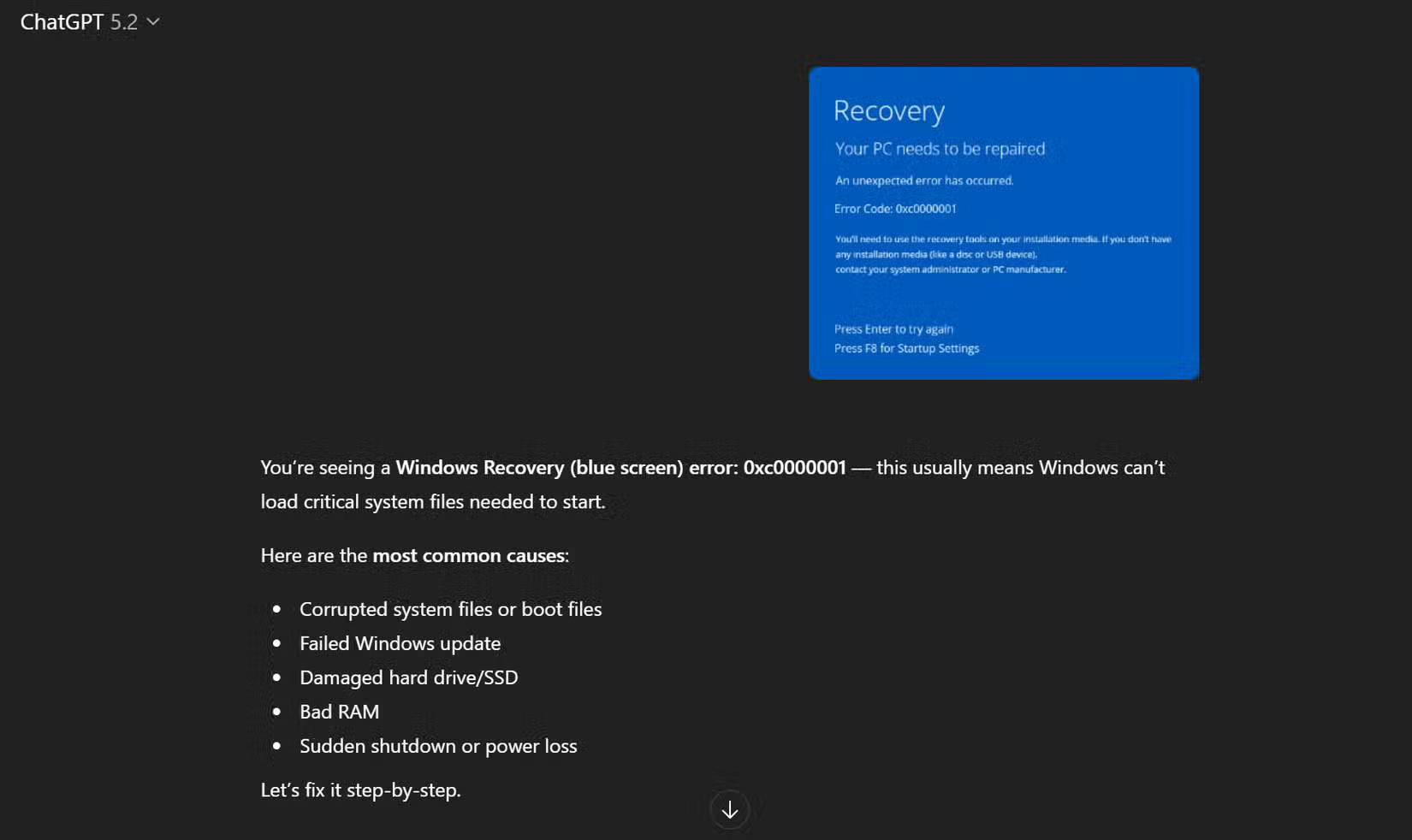
Include the application name, what you clicked, and what happened immediately before the error. Ask: “Read the exact error text in this screenshot. What are the likely causes, and what are three safe checks I can try first?” Verify any suggested settings or commands against the app's own help before changing a system. If ChatGPT misreads an error code, type the code into the chat yourself.
2. Decode a confusing form field
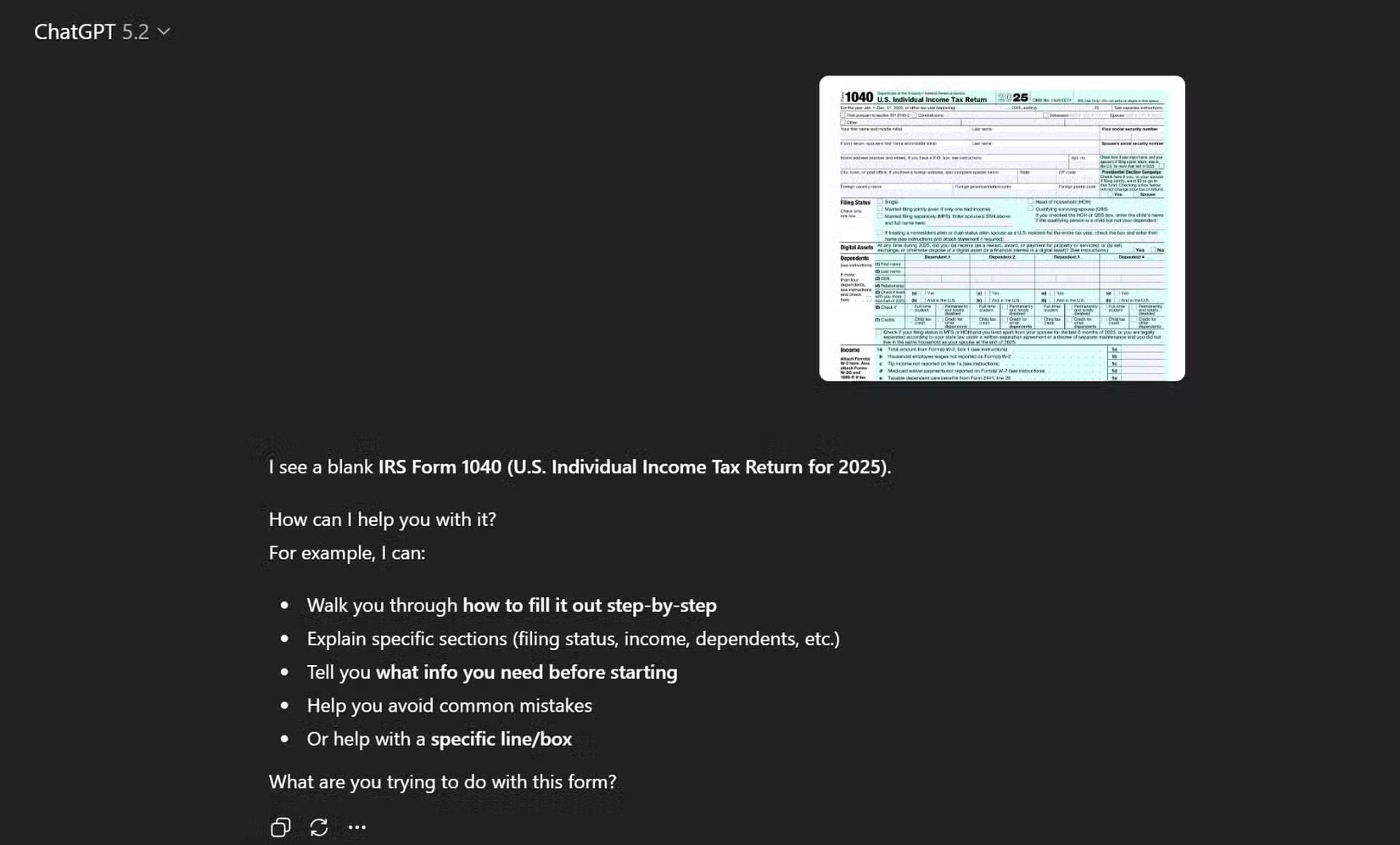
Crop a form around the label and its nearby instructions. Ask what the field requests and where that information is usually found, without uploading completed personal data. For a bank, school, or government form, use the official form instructions for the final answer; ChatGPT cannot tell whether a particular response is legally or financially correct for you.
3. Turn slides and charts into usable notes
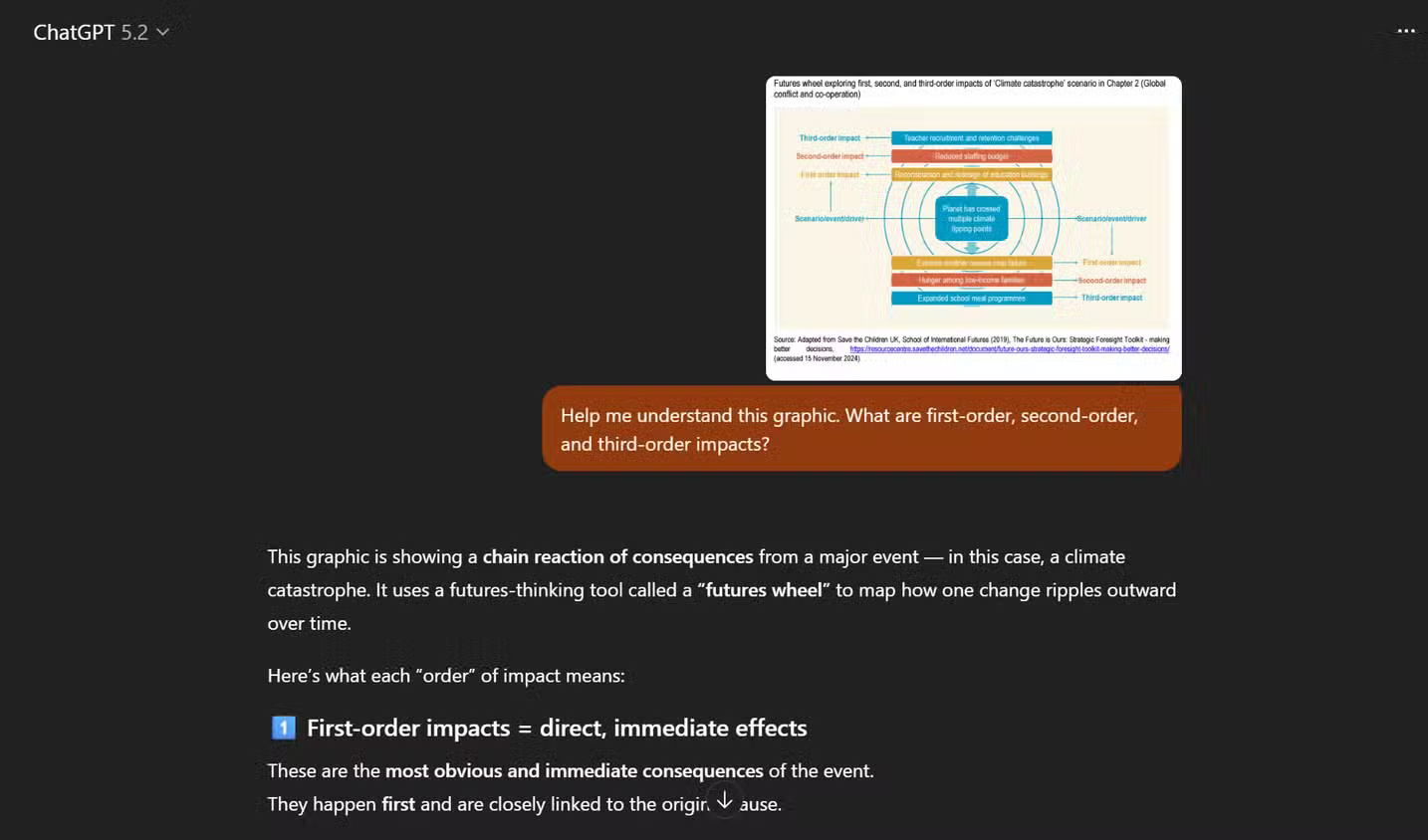
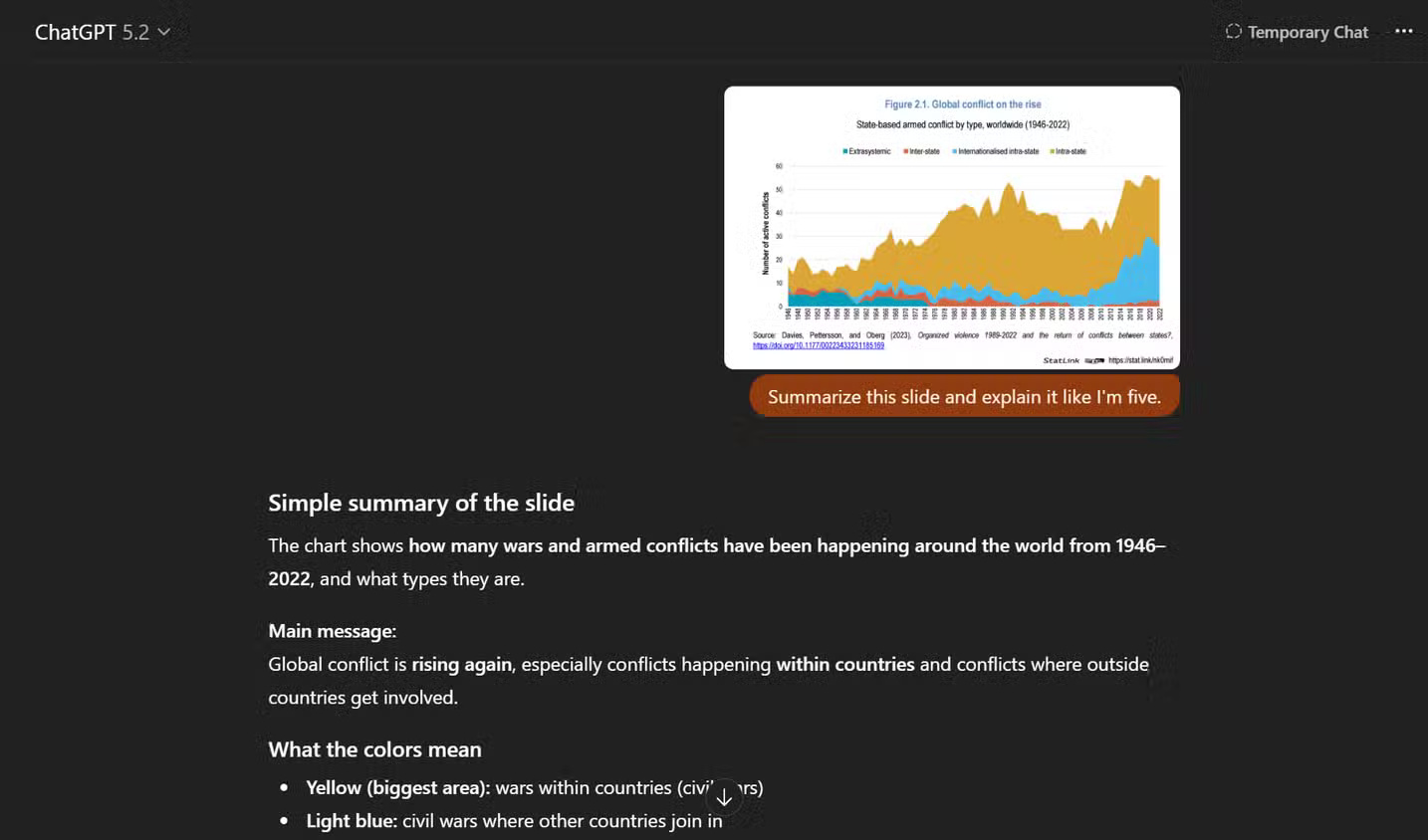
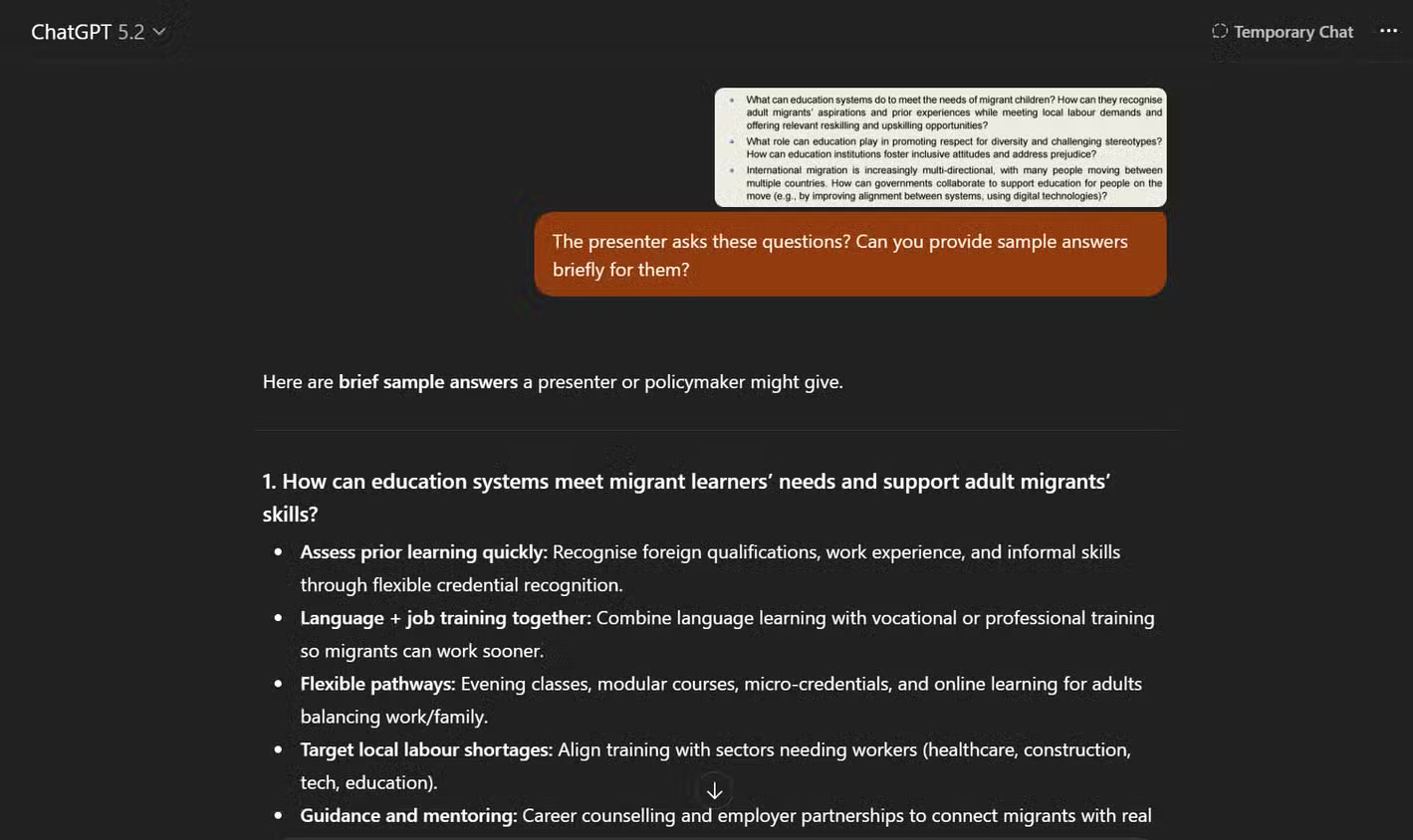
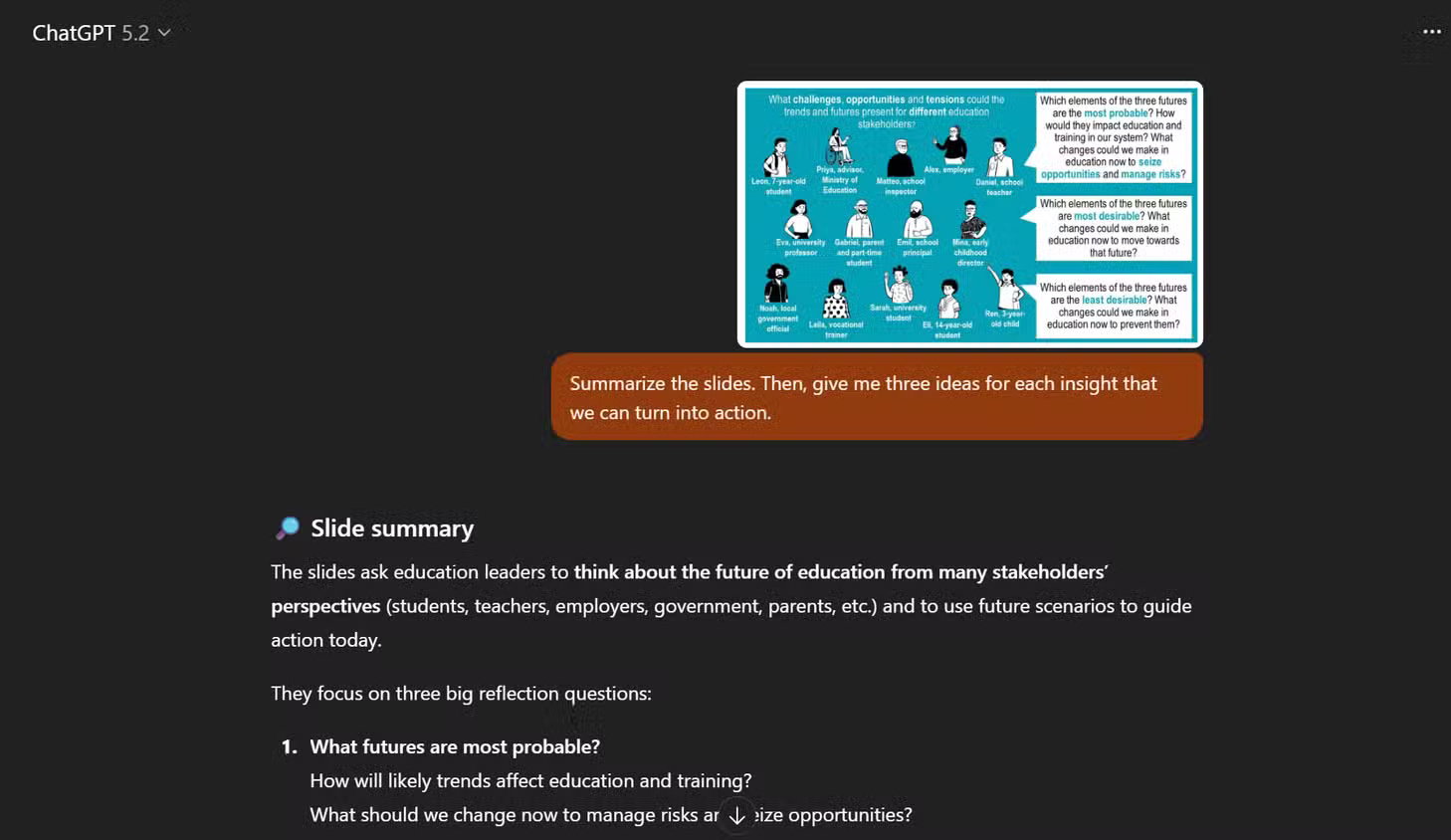
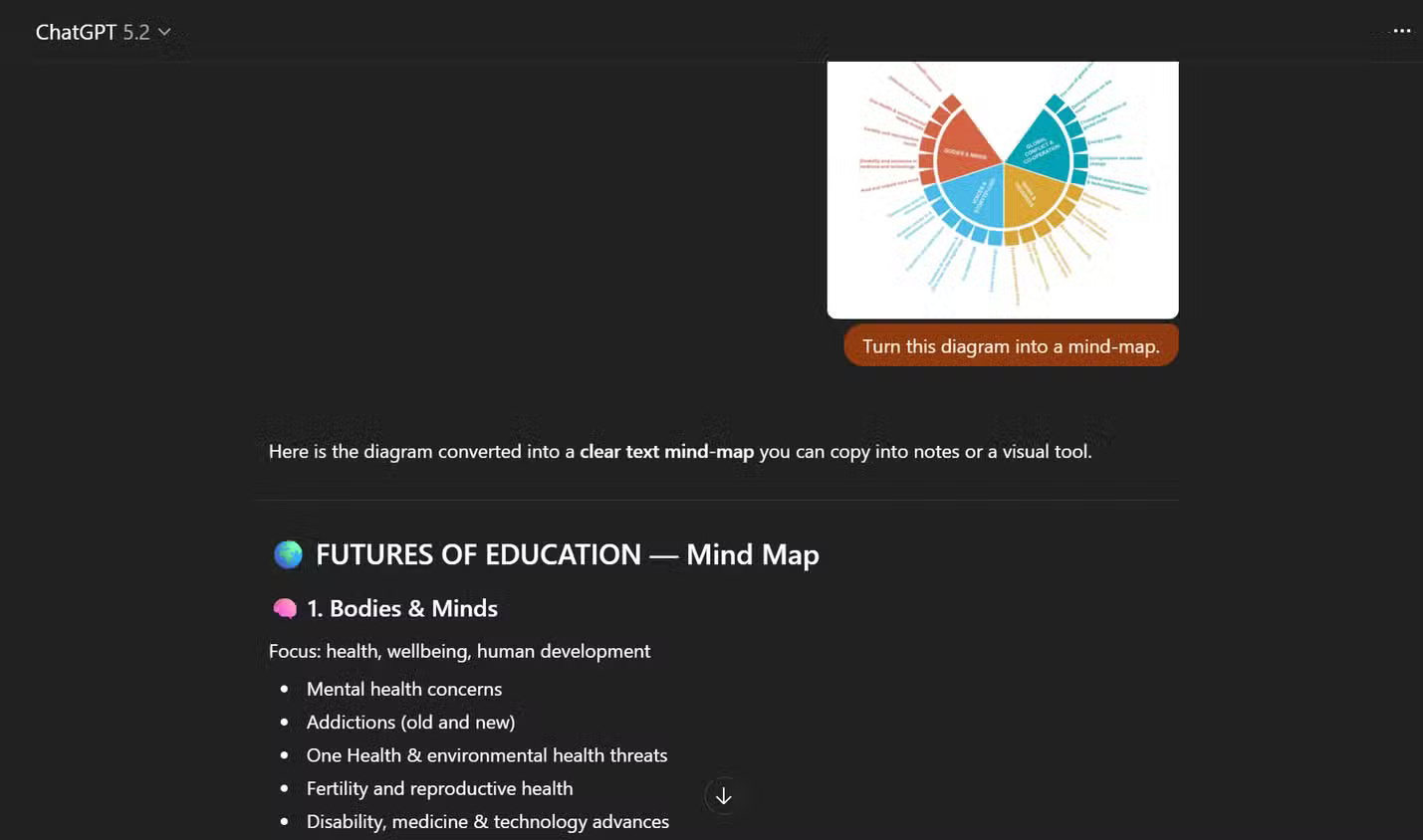
Ask for the main point, the labels and units on each chart, and a short outline of how the slide supports its conclusion. For example: “Summarize the visible slide in five bullets and separate facts shown in the chart from your interpretation.” Check numbers, axes, and missing context against the original slide. If you have multiple slides, number them and ask ChatGPT to compare them in order; a cropped screenshot can omit a crucial qualifier. For longer source-based study, the NotebookLM guide explains how to organize source documents.
4. Make new practice questions from an example
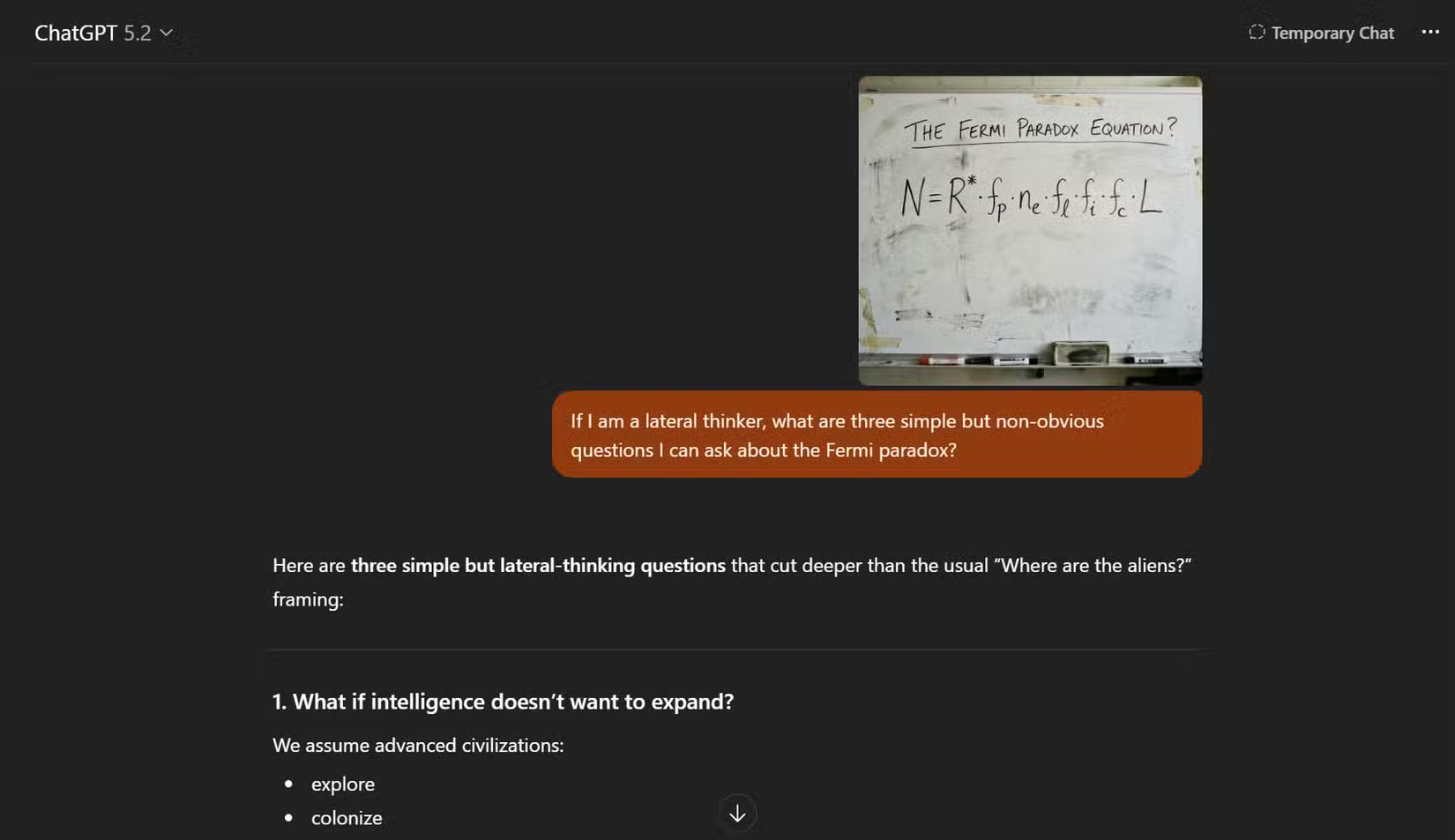
Upload a textbook example or exercise you are allowed to share. Ask: “Create three questions that test the same concept, change the values and context, and put the worked solutions after the questions.” Try each problem before looking at the answer. Check the generated solutions, particularly equations and units; a plausible explanation may still contain a calculation error.
5. Explain an unfamiliar interface
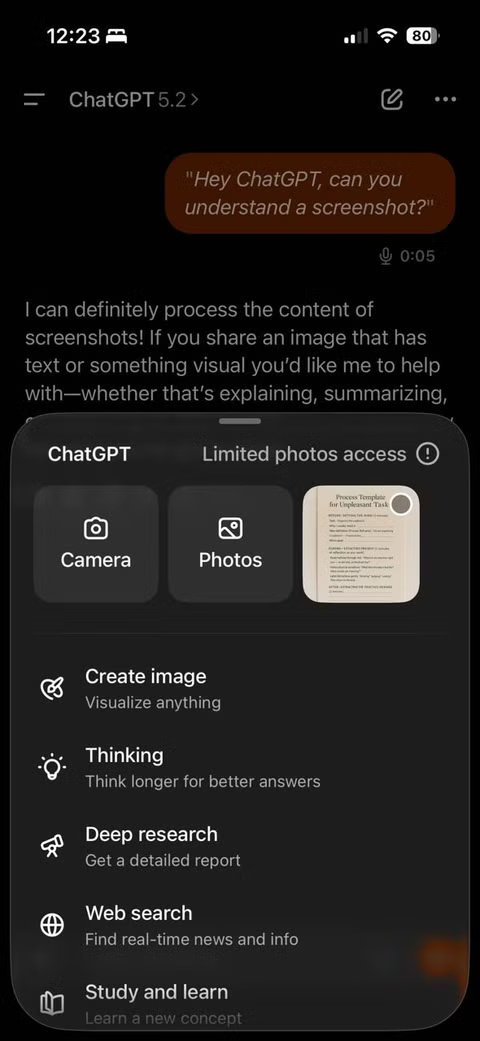
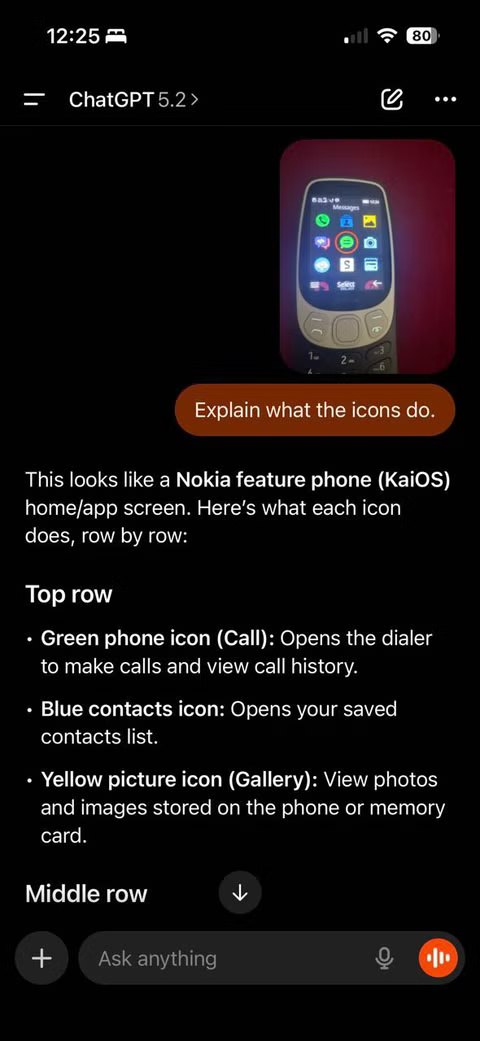
A screenshot can help a new user identify buttons, menus, and warning messages. Ask ChatGPT to describe where the relevant control is and what each visible choice appears to do. For an irreversible action such as deleting files, changing security settings, or sending money, pause and check the application's official instructions or get help from a trusted person before clicking. ChatGPT may infer a button's purpose from its label without knowing what the app will actually do.
Privacy check: Review every image before uploading. Hide account numbers, private messages, access codes, and other sensitive information. OpenAI's Data Controls FAQ explains the settings for conversations and model improvement.
Related Articles
 How to Creating Screenshot Shortcuts Using ChatGPT3 minutes read
 10 Essential Chrome Extensions to Use ChatGPT9 minutes read
 How to Use the ChatGPT API: a Complete Guide from a to Z12 minutes read
 Does ChatGPT Really Make Us 'Lazier' and 'Less Intelligent'?6 minutes read
 ChatGPT's New App Integrations Will Change the Way You Use It: What to Know7 minutes read
 How to Use ChatGPT on Android and iOS Phones8 minutes read
Reader Comments 0
Sign in with email or Google to join the discussion.