Table of Contents
Use these 6 simple tips to delete redundant files, optimize photos, clean up email, and reclaim space quickly without losing important data.
Google Drive offers 15GB of free storage, but that can disappear faster than you think. Don't rush to spend more money on additional storage — a few simple cleanups can free up many space for more important things.
1. Check which services are taking up the most space
Most users, when they see their Drive is full, immediately think of deleting large files. However, few people notice that this free 15GB is shared between three services:
- Google Drive
- Gmail
- Google Photos
That means the culprit for full memory is not necessarily Drive.
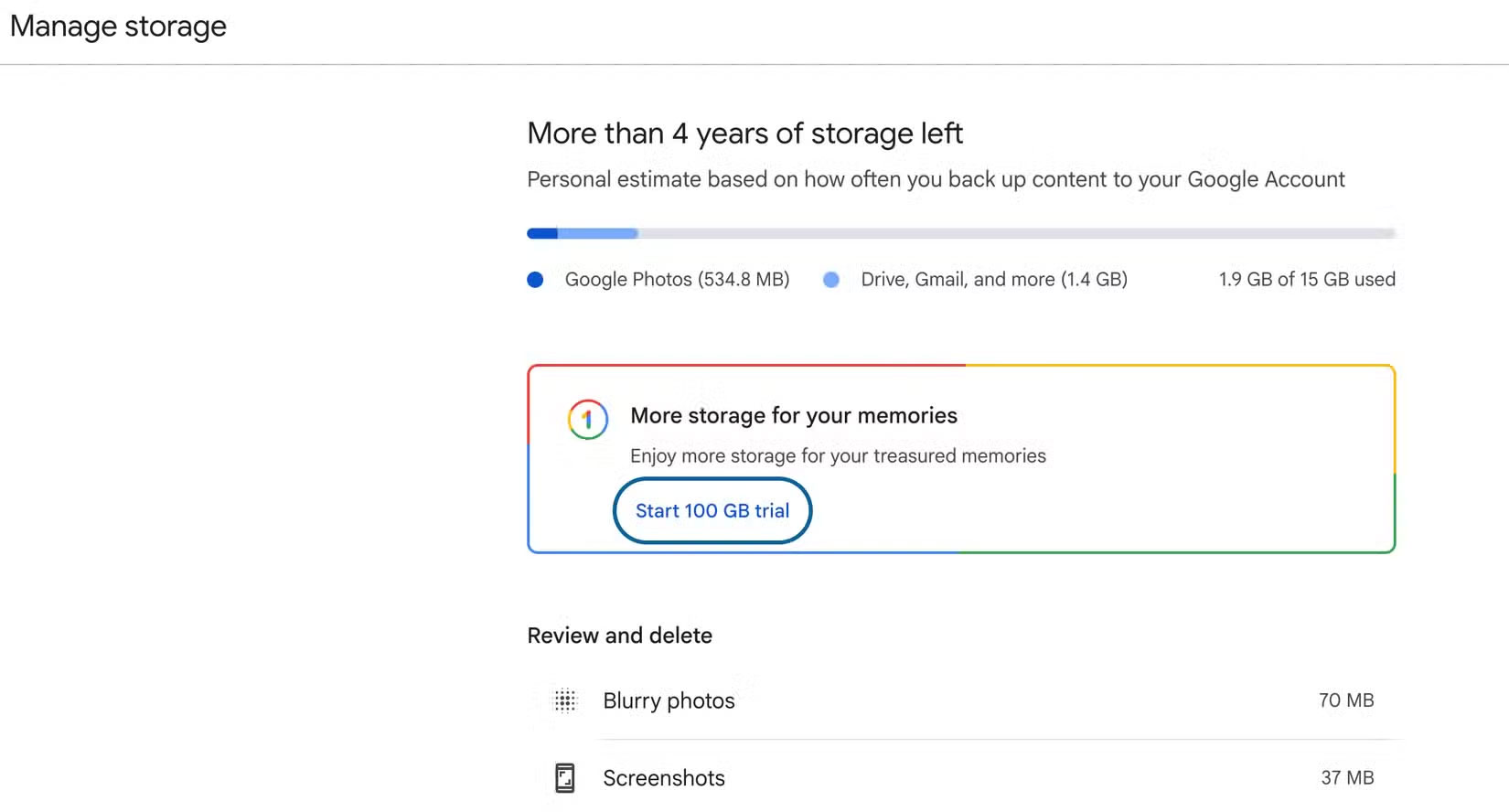
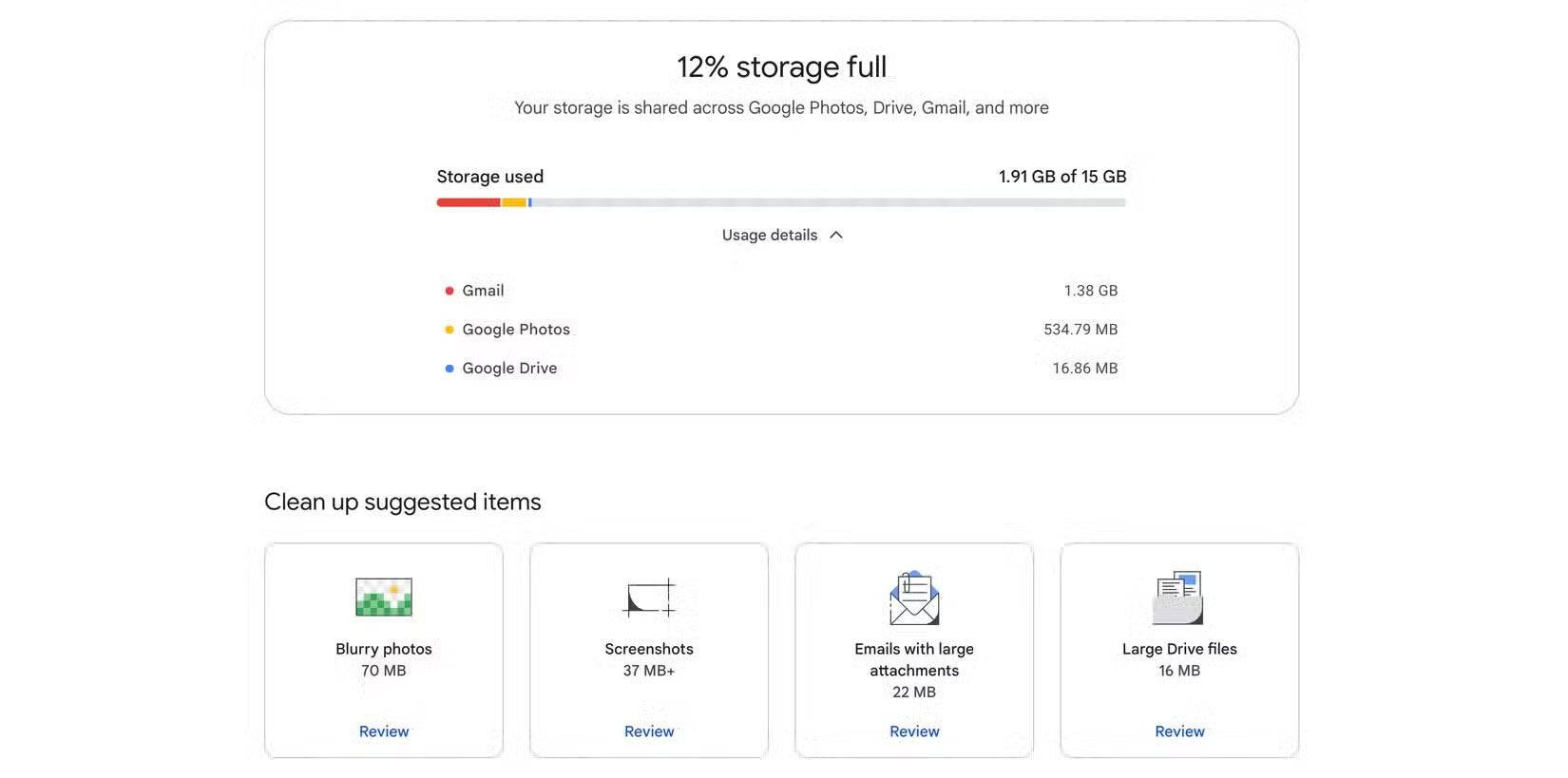
To see which services are eating up the most space, head over to the Google One Storage page. There, you'll see a graph of how much space is being used by each service. Once you've identified the culprits, you'll know where to focus your cleaning efforts instead of randomly deleting a few small files that don't help.
2. Find and delete large files in Google Drive
If Google Drive is the biggest space-hogging culprit, start Cleaning up heavy files That are no longer needed — like duplicate copies, old zip files, or outdated backups.
How to do:
- Open Google Drive , select Storage In the left sidebar.
- Click Storage Used To Sort files from largest to smallest .
- Look at the file types (videos, zip files, forms, etc.) and delete what you don't need.
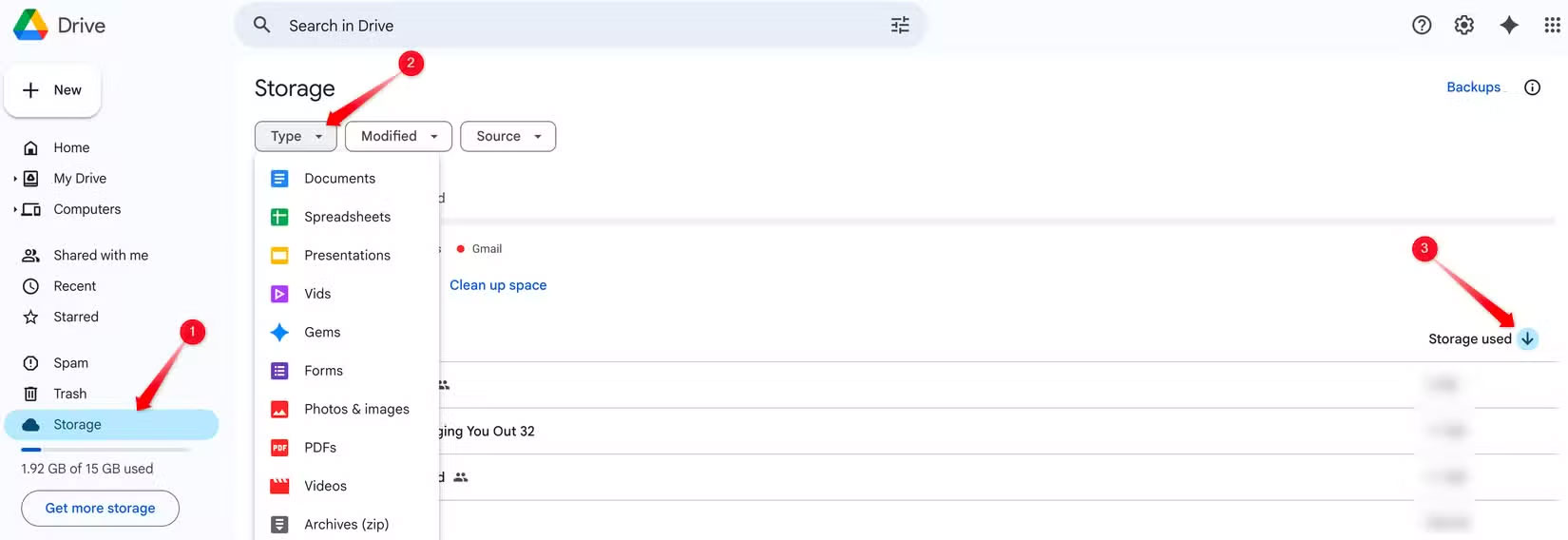
You should also check for 'orphaned files' — these are files you added to a shared folder but the owner deleted it. Even though they no longer appear in your main Drive list, they're still taking up space, so find and delete them to free up some space.
3. Optimize Google Photos to save space
If Google Photos is taking up the most space, there are a few things you can do:
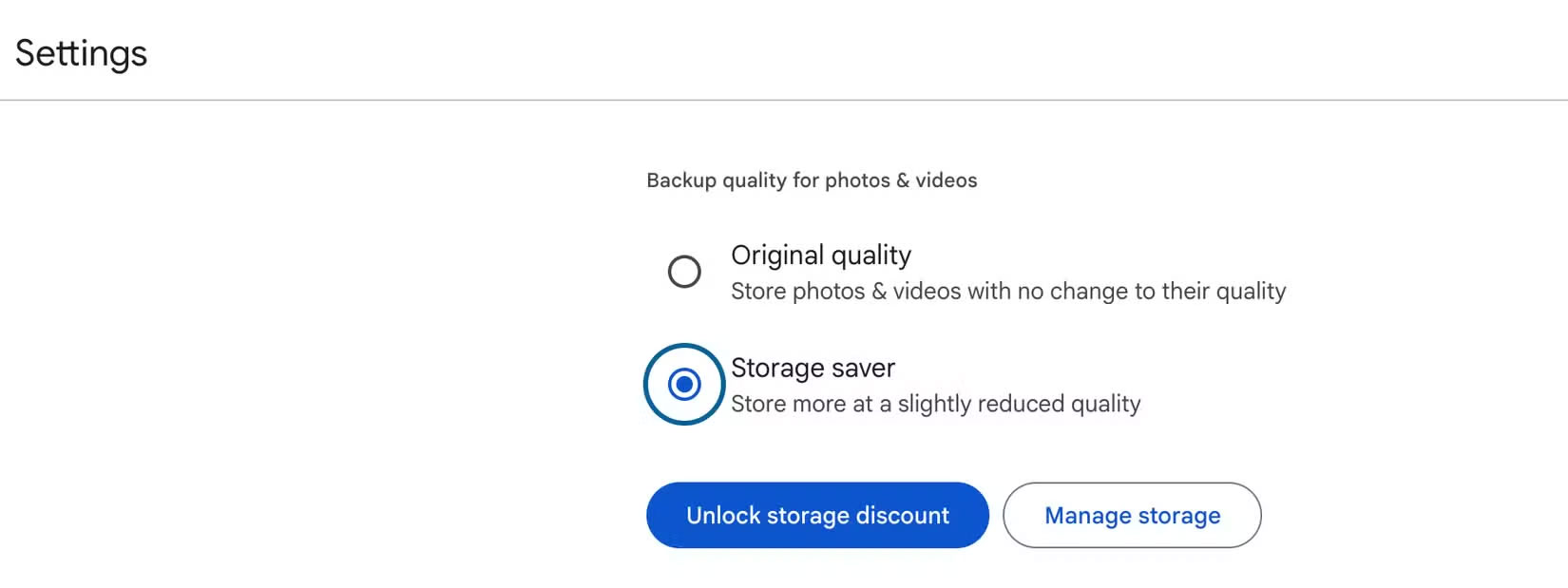
- Switch to 'Storage Saver' (formerly called 'High Quality') instead of 'Original Quality'. Photos and videos will be lightly compressed to reduce their size Without affecting their display quality .
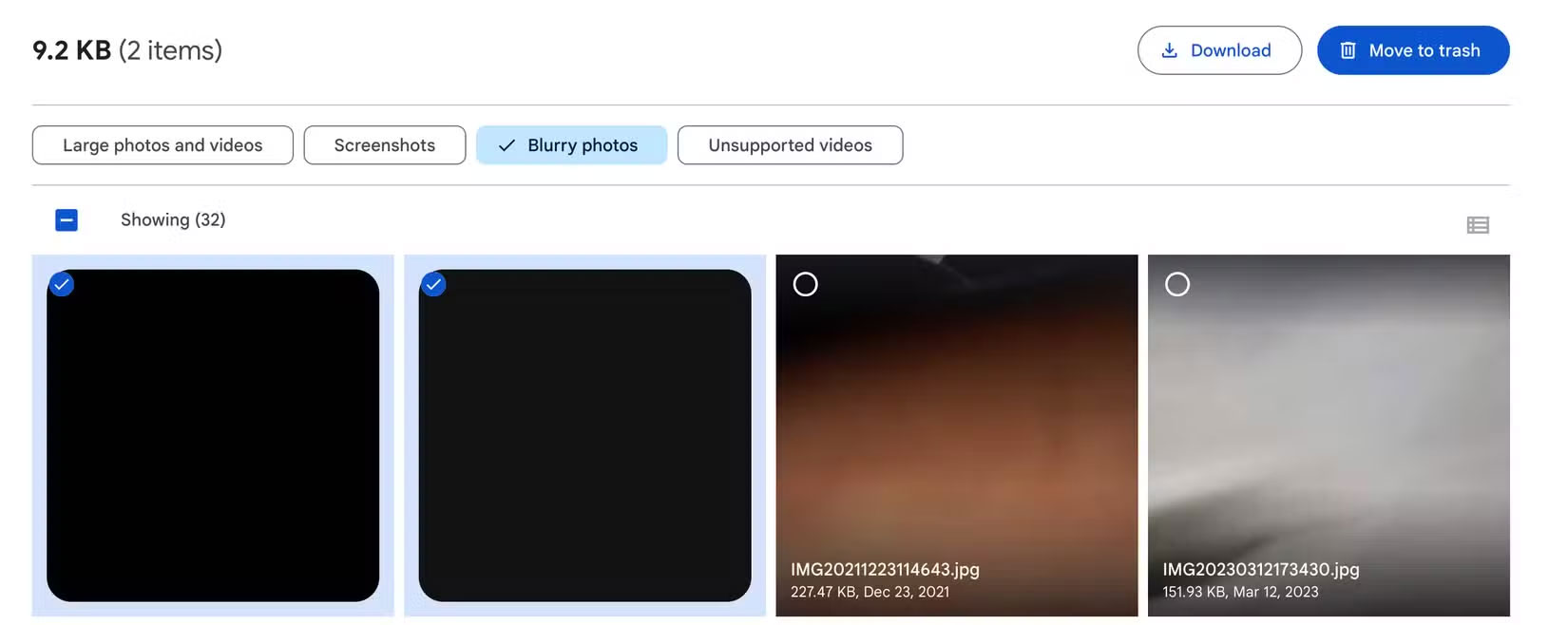
- In Settings > Manage Storage , delete Blurry photos, screenshots, old or large videos .
- For important high-resolution photos, you can Back them up to an external hard drive Instead of storing them in the cloud.
4. Delete emails with large attachments in Gmail
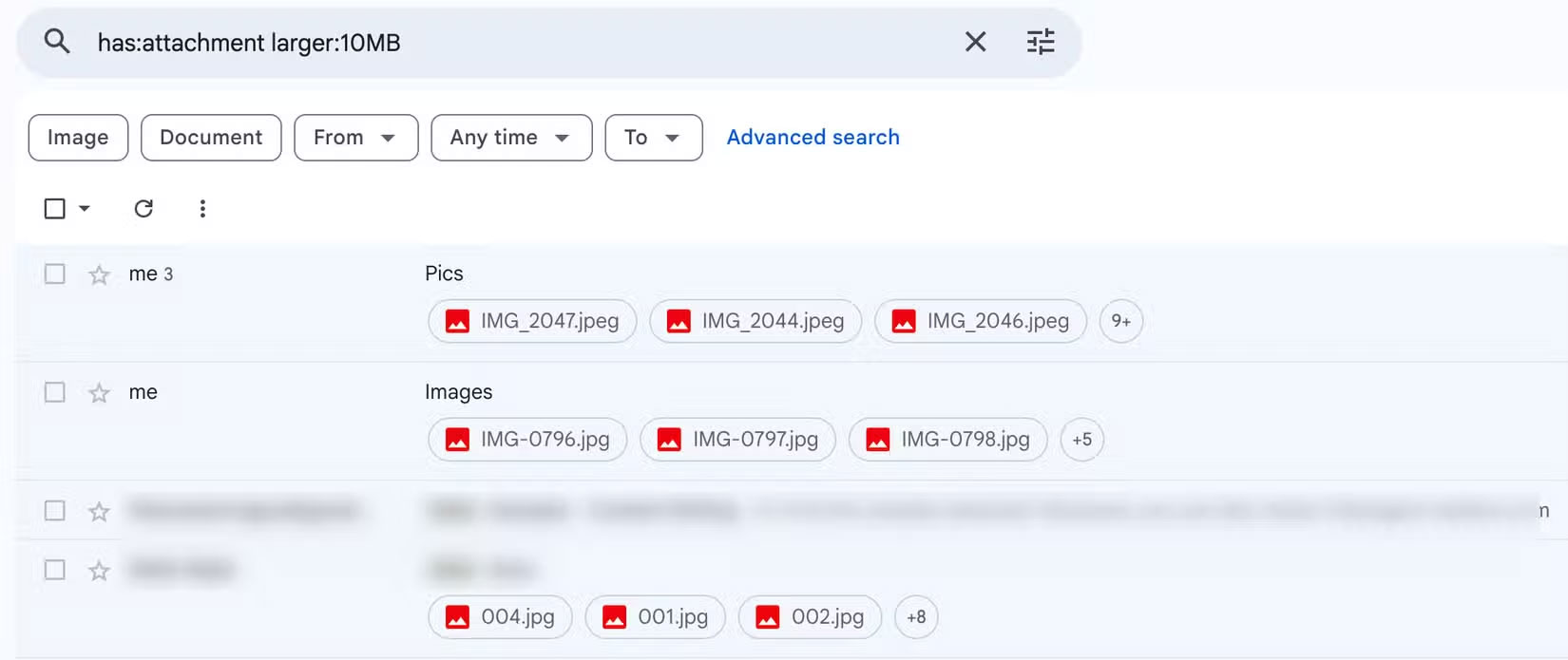
Gmail also shares space with Drive, and often has a bunch of old emails with large attachments. Deleting them can help you reclaim many space.
Quick search:
- Open Gmail.
Type in the search bar: Has:attachment larger:10MB
- Review the email list containing large files, Delete unnecessary emails .
- If there are important files, Download them to your computer before deleting them .
5. Use Google One Storage Manager
If you want a comprehensive, automated cleanup, use Google One Storage Manager. It will suggest categories to delete, such as:
- Blurred image, screenshot
- Email with large attachment
- High Capacity Drive Files
Just click 'Review' , select unnecessary items and delete them directly in the interface.
Additionally, each service has its own filter section to help you clean more thoroughly, for example:
- Delete spam, trash in Gmail
- Remove corrupted videos, large files in Photos or Drive
6. Don't forget to clean the Trash
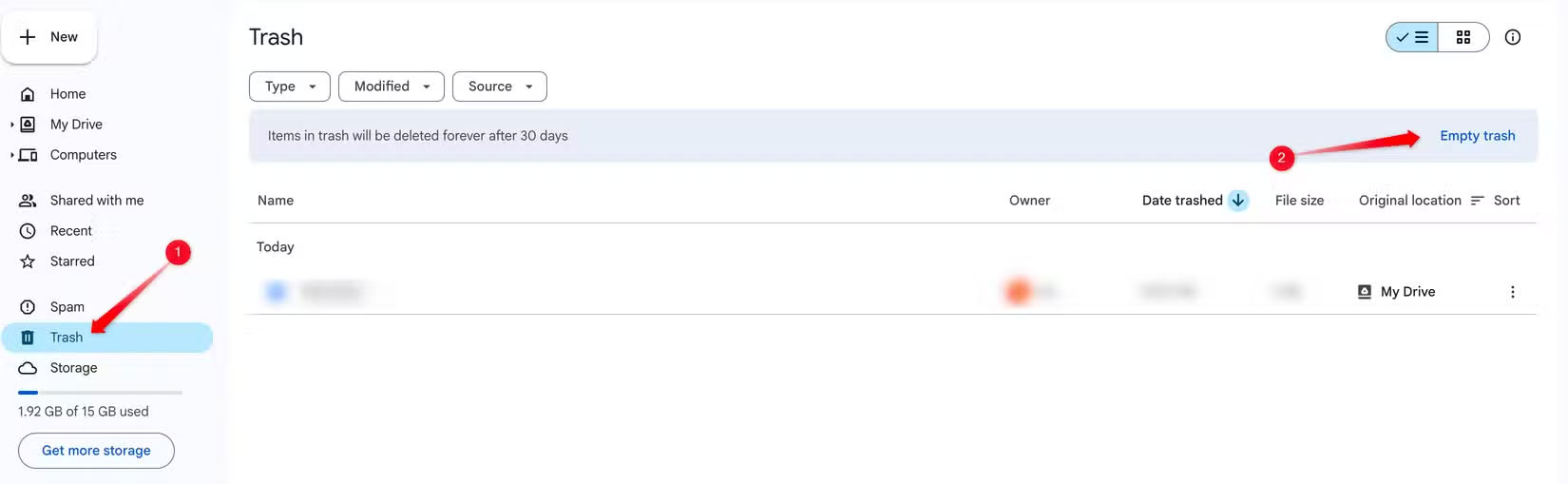
When you delete a file, email, or photo, it Stays in Trash for 30 days Before being permanently deleted — and still Takes up space In the meantime.
Clean manually by service:
- Drive: Open 'Trash' > select 'Empty Trash'.
- Gmail: Open 'Trash' > select 'Empty Trash now'.
- Photos: Open 'Library' > select 'Trash' > 'Empty Trash'.
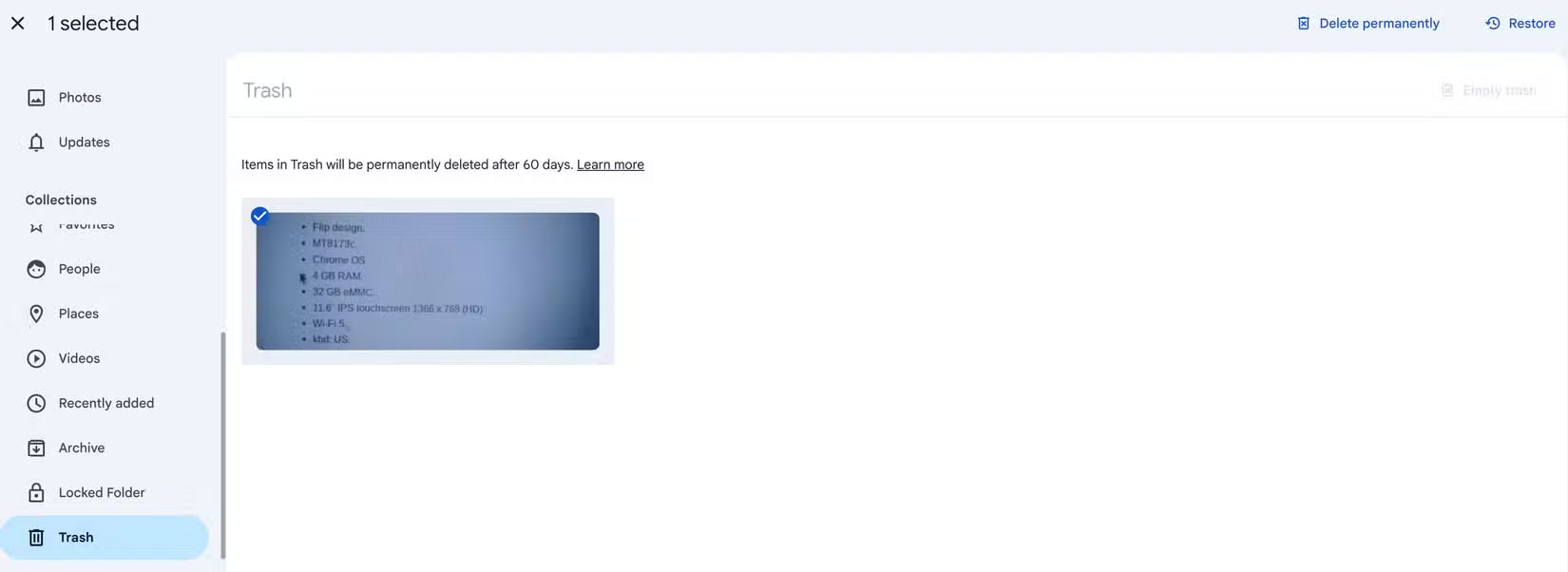
Once done, the freed up space will appear immediately in your Google One account.
Summary
Running out of Google Drive space Doesn't mean you have to delete important documents . By identifying the cause and applying the tips above, you can Clean up excess files , Optimize photo storage , and Manage email smarter — all without Spending extra money .
If after cleaning up you still find 15GB isn't enough, you might consider Upgrading to a Google One plan For more flexible storage.
FAQ
What should you know about the options in this guide?
In practical terms, use these 6 simple tips to delete redundant files, optimize photos, clean up email, and reclaim space quickly without losing important data.
Which option is the best choice?
The best choice depends on your priorities, compatibility, budget, and the specific features discussed in the comparison.
What should you compare before deciding?
Compare core features, limitations, ease of use, compatibility, and long-term value before making a decision.
Related Articles
 Steps to Free up Google Drive Space4 minutes read
 7 Tips to Free Up Space in Google Drive: Complete Guide9 minutes read
 How to Free up Space in Google Drive6 minutes read
 Google Drive 4,2021.46200, Google Drive Download and3 minutes read
 3 Ways to Free Up Google Drive Space, Increase Memory6 minutes read
 How to Free up Hard Drive Space with Compactgui7 minutes read
Reader Comments 0
Sign in with email or Google to join the discussion.