Table of Contents
Instead of wasting time doing all of these things manually, many people decide to set up a few automation programs to manage files, enter text, launch applications, and even set display settings.
Admittedly, we all have our share of repetitive tasks on our Windows PCs. These include adding promotional templates, common AI workflows when researching, launching the same set of apps every day, rearranging them in our preferred layouts, and, most annoyingly, managing our messy desktops and download folders.
Instead of wasting time doing all of this manually, many people decide to set up a few automation programs to manage files, enter text, launch applications, and even set display settings. This doesn't involve messing around with Power Automate or Task Scheduler, but rather a few simple tools you can use to automate your Windows PC.
Automate repetitive data entry
Text expander is a lifesaver
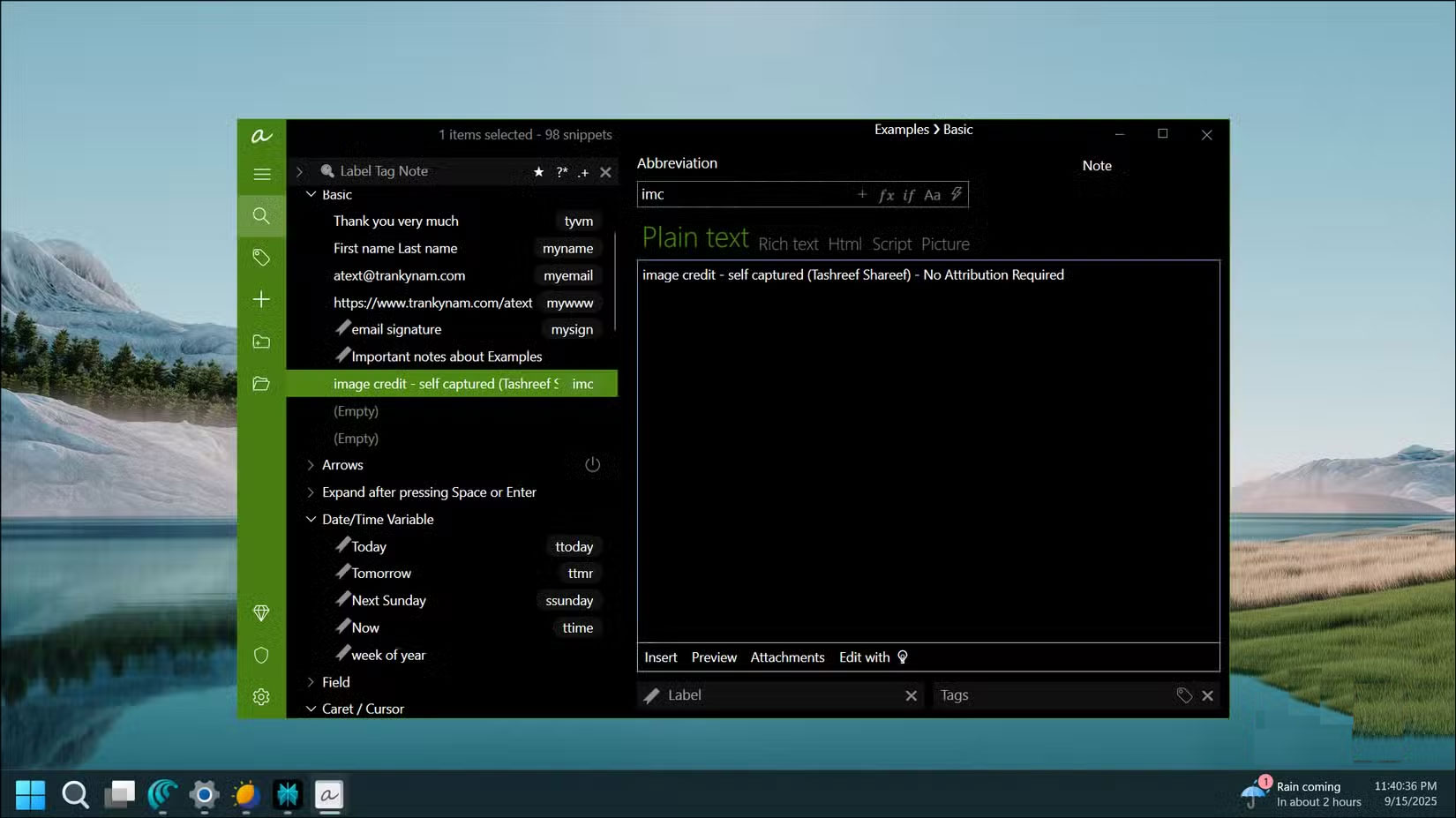
If your job involves tons of repetitive data entry, you have to reuse ad templates, add author information to images, fill in addresses and phone numbers on forms, and copy-paste processes for disclaimers and warnings.
One way to get around this is to use an advanced clipboard manager like Ditto, which can store unlimited items in your clipboard history. However, you still need to access, search, and insert items from the clipboard. Instead, use a text expander like aText.
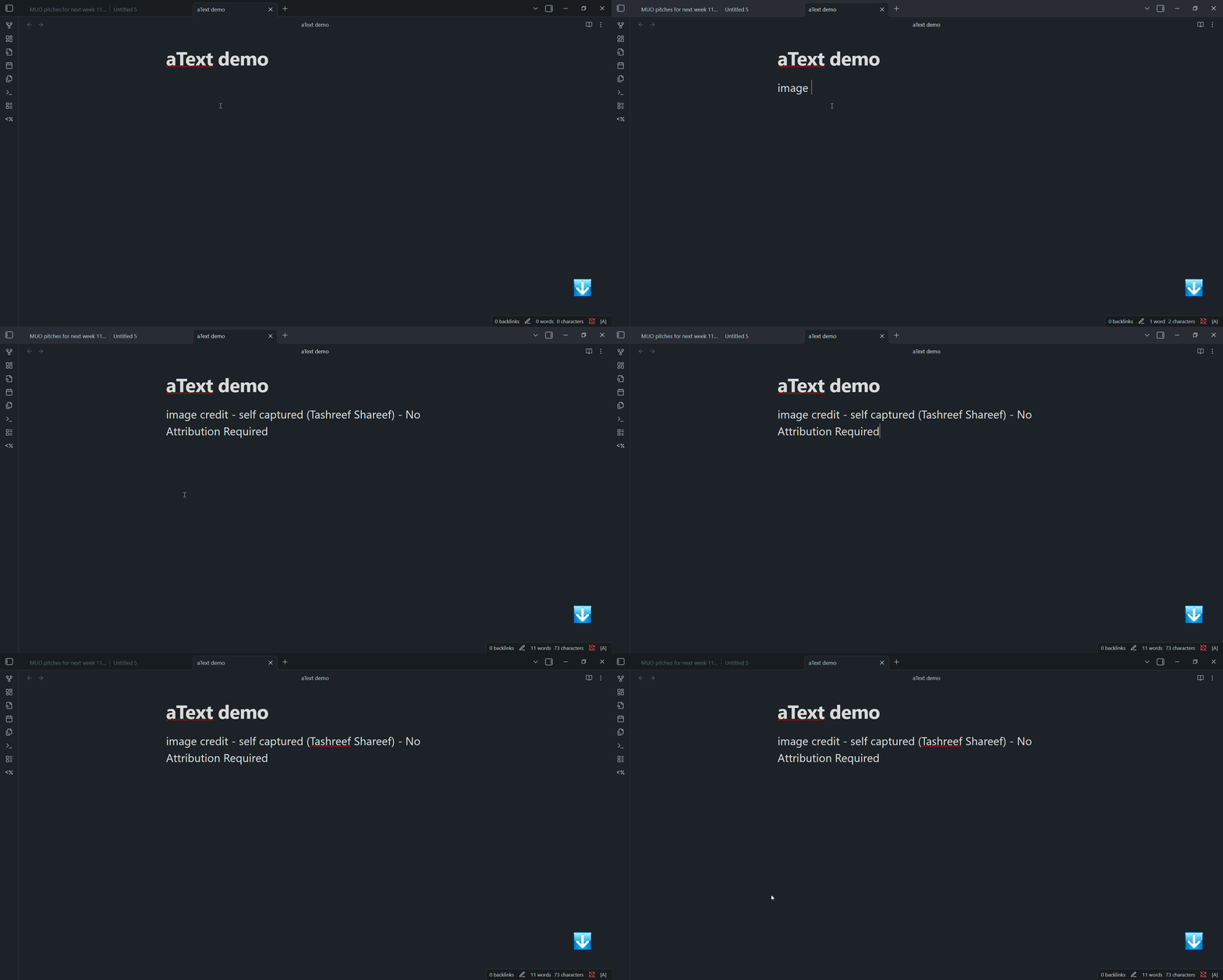
You set up aText with abbreviations and their expanded text. For example, to add an image caption to each photo uploaded to the CMS, type " Imc ", then expand it to " Image credit—self-captured—no attribution required ".
Automatically organize desktop
Keep your desktop clean
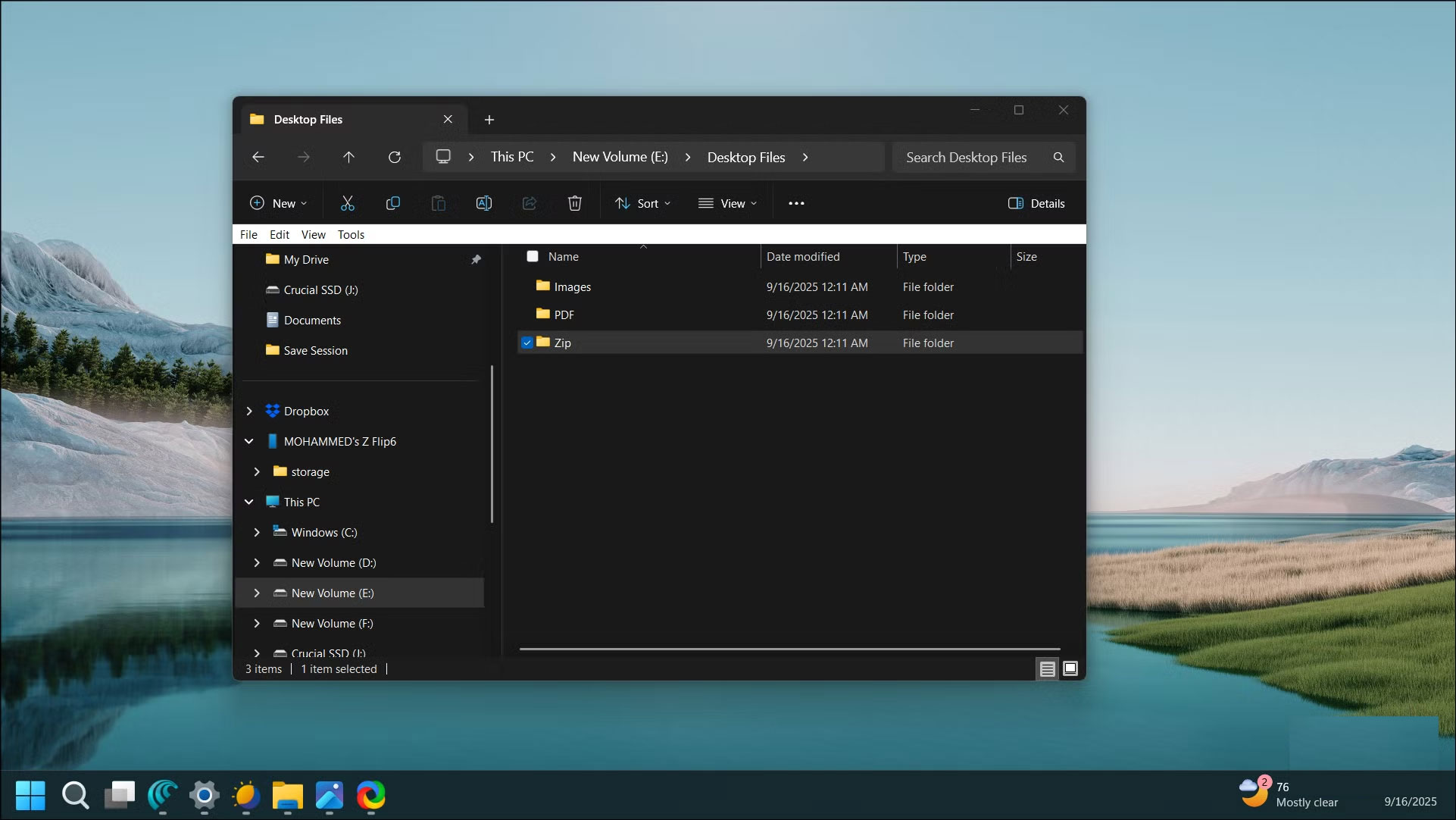
One downside to installing and testing multiple apps is that they tend to clutter up your desktop. People often use it as a workspace to store temporary files, zip files, PDFs, and anything else for quick access.
While there are many ways to organize your Windows desktop, why not opt for something automatic? So, set up DropIt to monitor your desktop, sort files by type, and move them to predefined folders like Documents, Zips, Shortcuts, and Images.
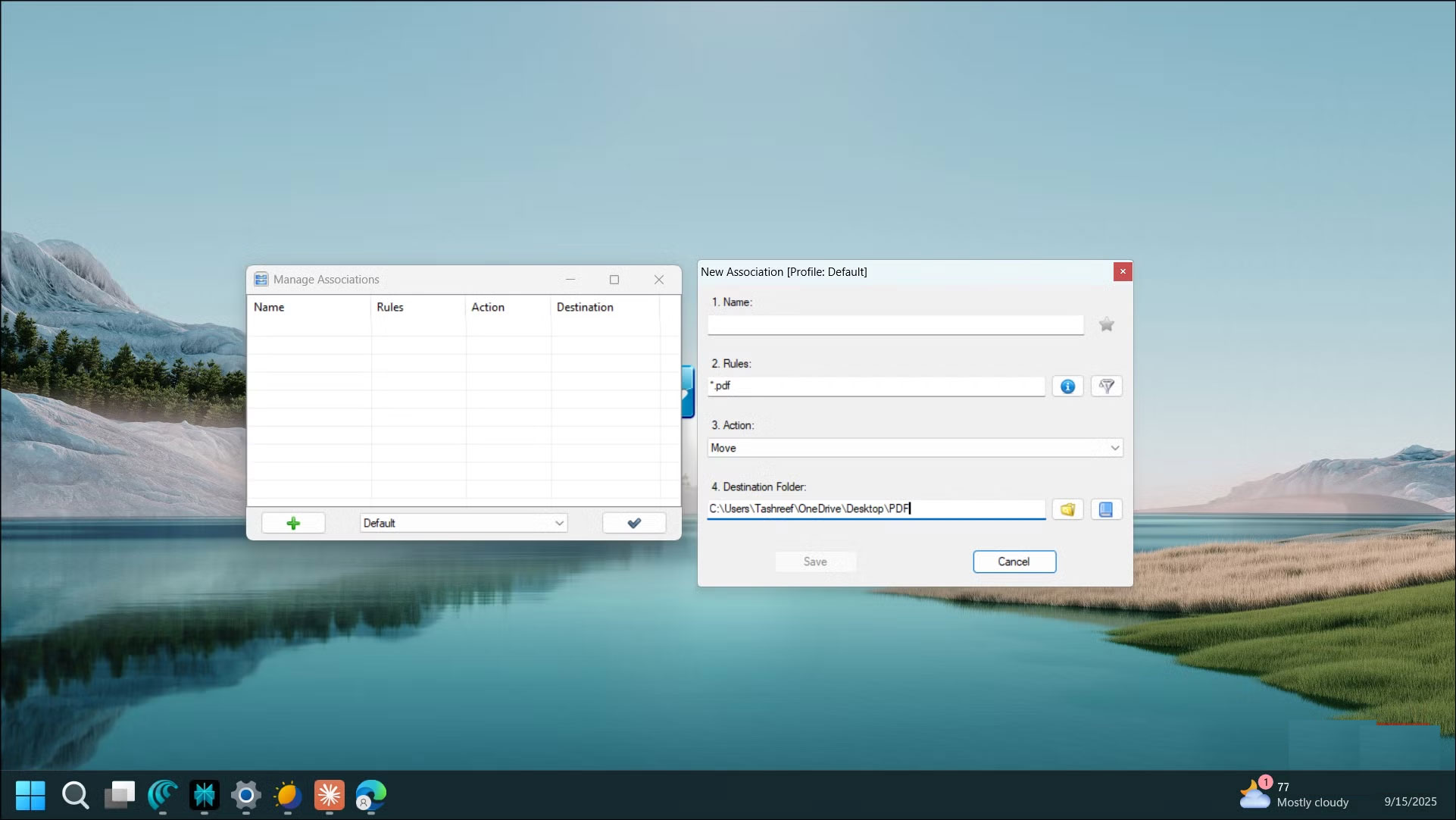
Creating a DropIt flow is easy. After installing the app, create the destination folders where you want to automatically move files. For example, move files to E:Desktop FilesImages, PDF, Zip, Etc.
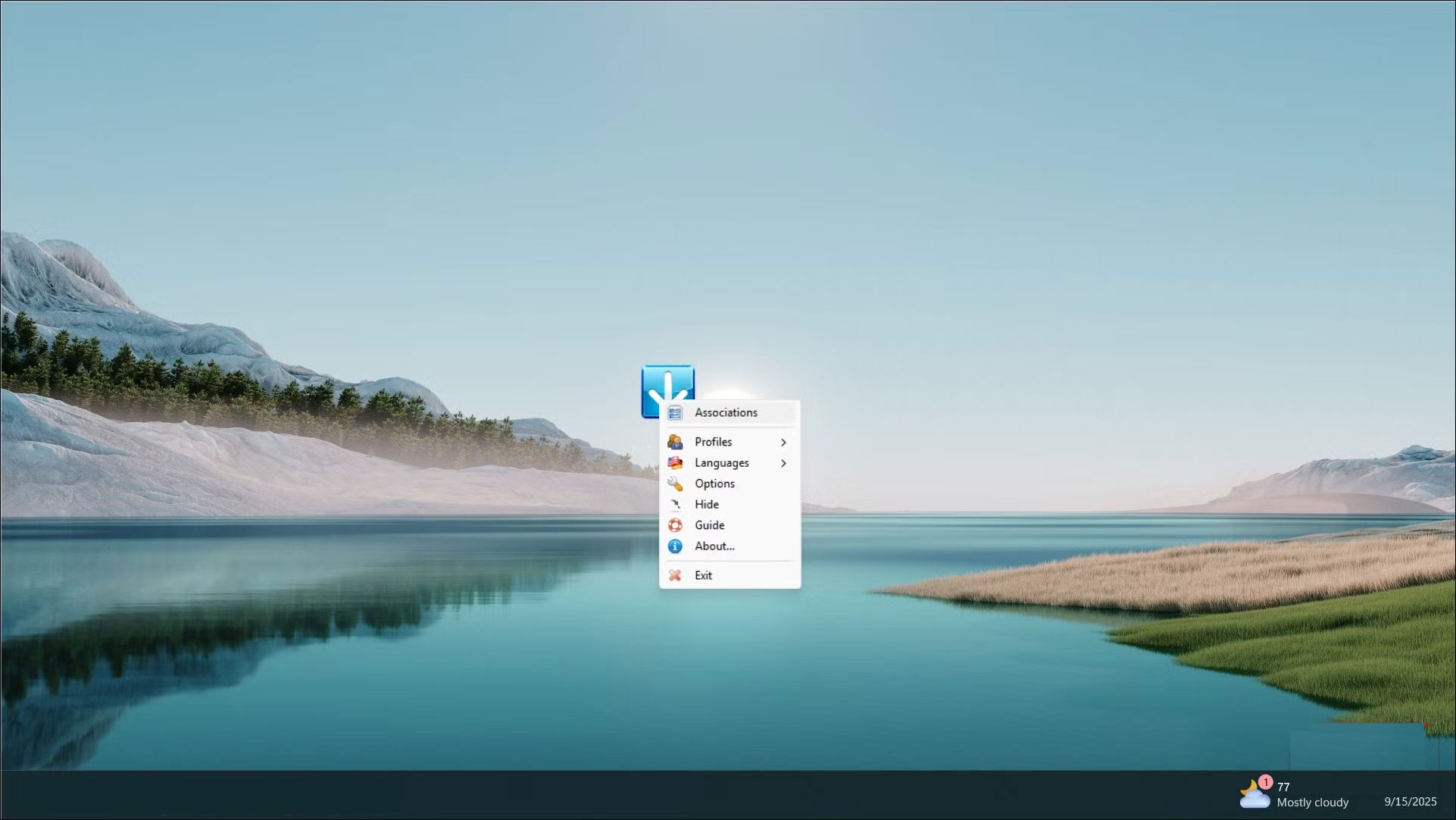
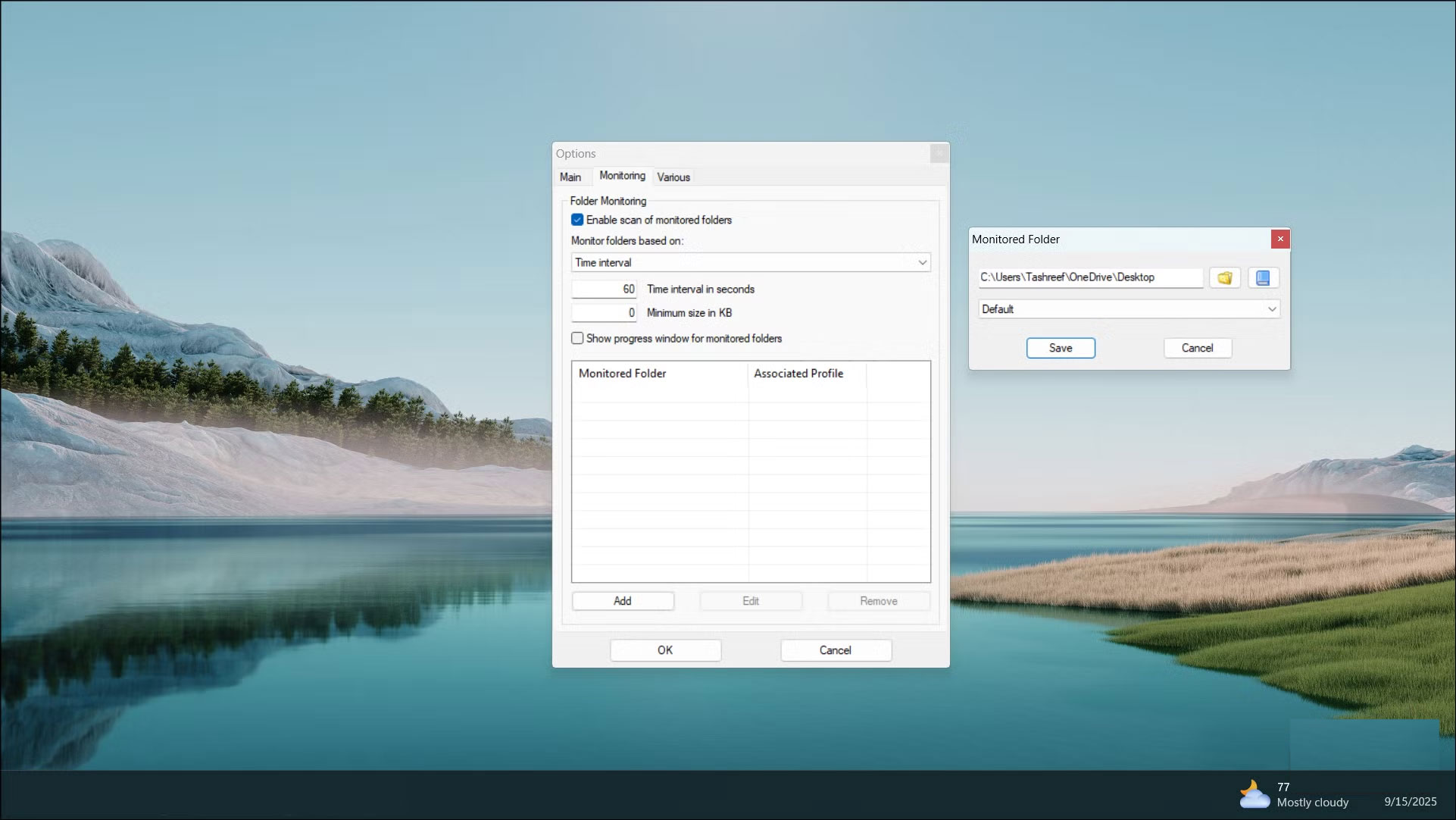
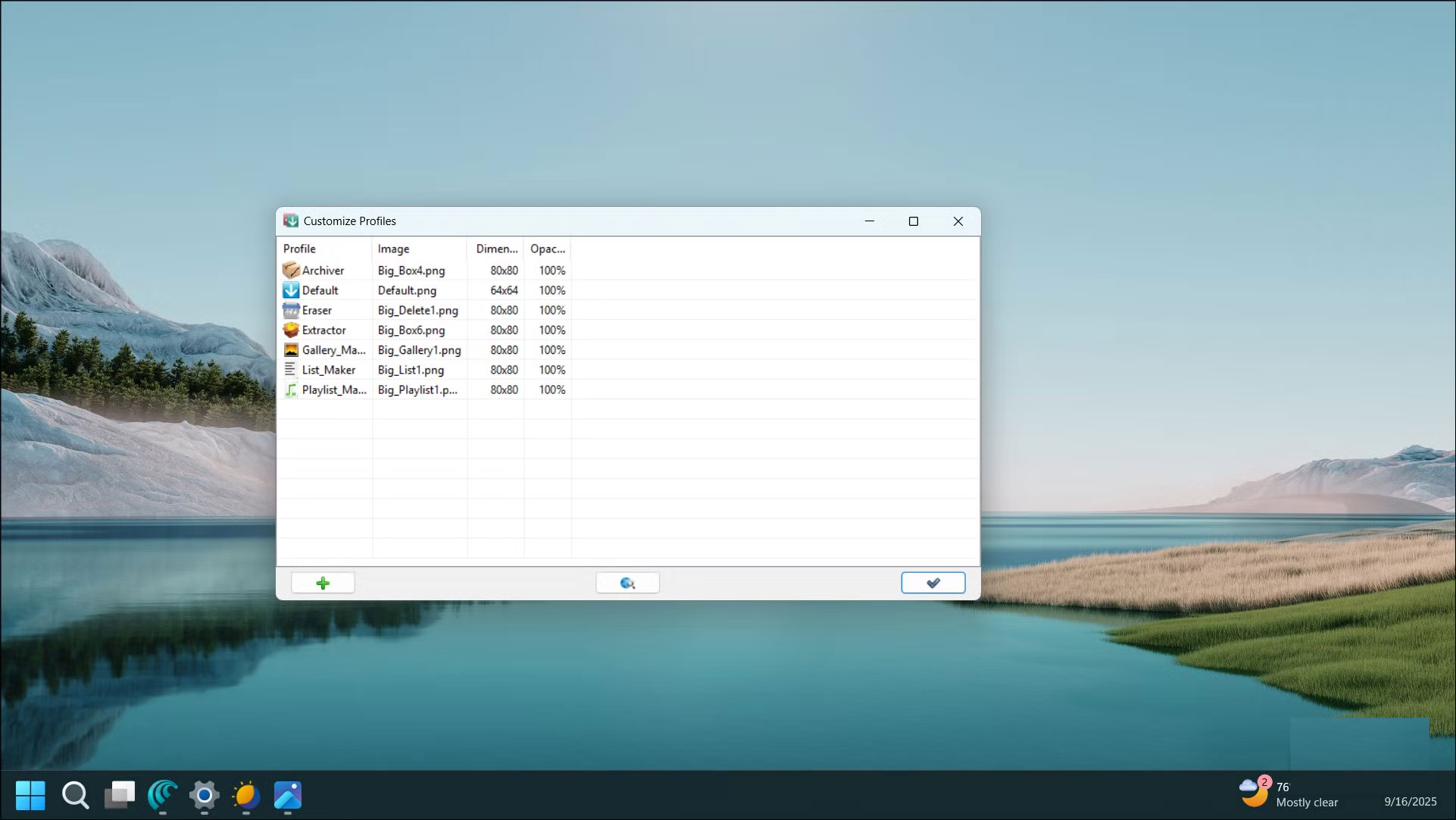
Once done, right-click the down arrow icon on the desktop or system tray and select Association . Then, click the Add (+) icon, enter a name for the file type you want to move, e.g., PDF, then enter a pattern, e.g., *.pdf , and select a destination folder. Click Save To save the file association. Repeat this for all other files, such as images, PDFs, zip files, etc. Now, we need to add the desktop as a monitoring folder. Right-click the DropIt Icon and select Options. In the Monitoring Tab, click Add , select the desktop location as the monitoring folder, and click Save .
Automatic disk cleanup
Turn on Storage Sense
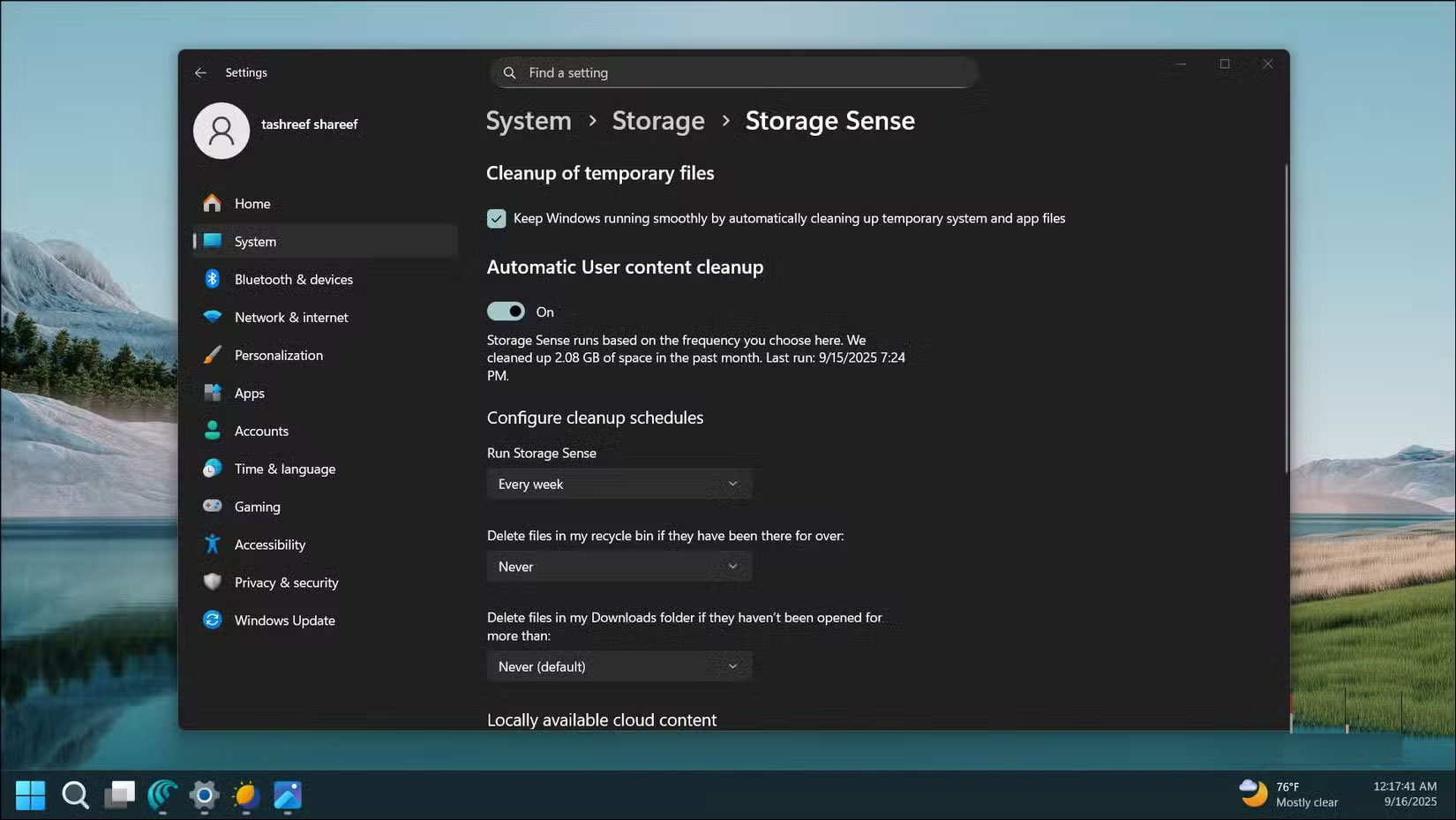
Your primary NVMe drive will never run out of space. While upgrading to a larger capacity drive is an option, periodically cleaning up junk files is a more sustainable way to manage storage space. Instead of doing it manually, you can set up Storage Sense to clean up files automatically.
To turn on and configure Storage Sense:
- Go to Settings -> System -> Storage .
- Turn on Storage Sense .
- Click Storage Sense , then select Cleanup of temporary files To delete temporary files.
- Configure the Downloads Folder to delete files older than a certain number of days.
- Set The Recycle Bin To Empty on a schedule . It can be scheduled to run weekly and delete files in Downloads older than 30 days.
Automatically launch all working applications using shortcut
PowerToys Workspace
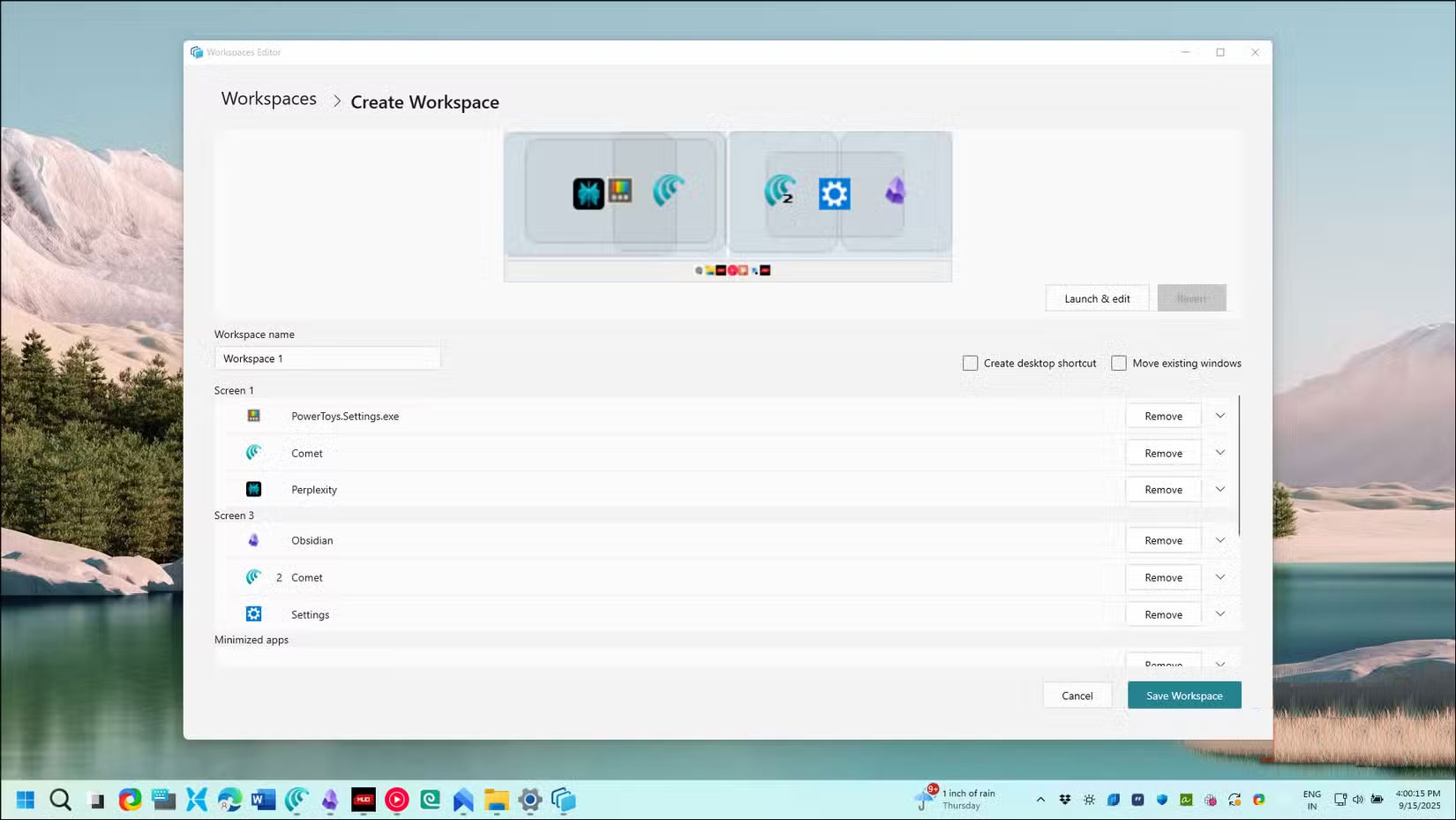
Everyone wants an app that can save their desktop session and restore all their apps exactly where they left off after a reboot. While PowerToys Workspace isn't perfect, it's pretty close.
Workspace will take a snapshot of your current desktop environment and save it as a workspace, allowing you to restore the entire setup with a single keyboard shortcut. When you press Win + Ctrl + Backtick (`) and click Launch , all your apps will be back in their rightful place.
To set up a workspace, first arrange your apps on your screen the way you want. Then, save this arrangement as a workspace, removing any apps you don't want included.
Automatically enter Dark Mode
Switch between light and dark theme
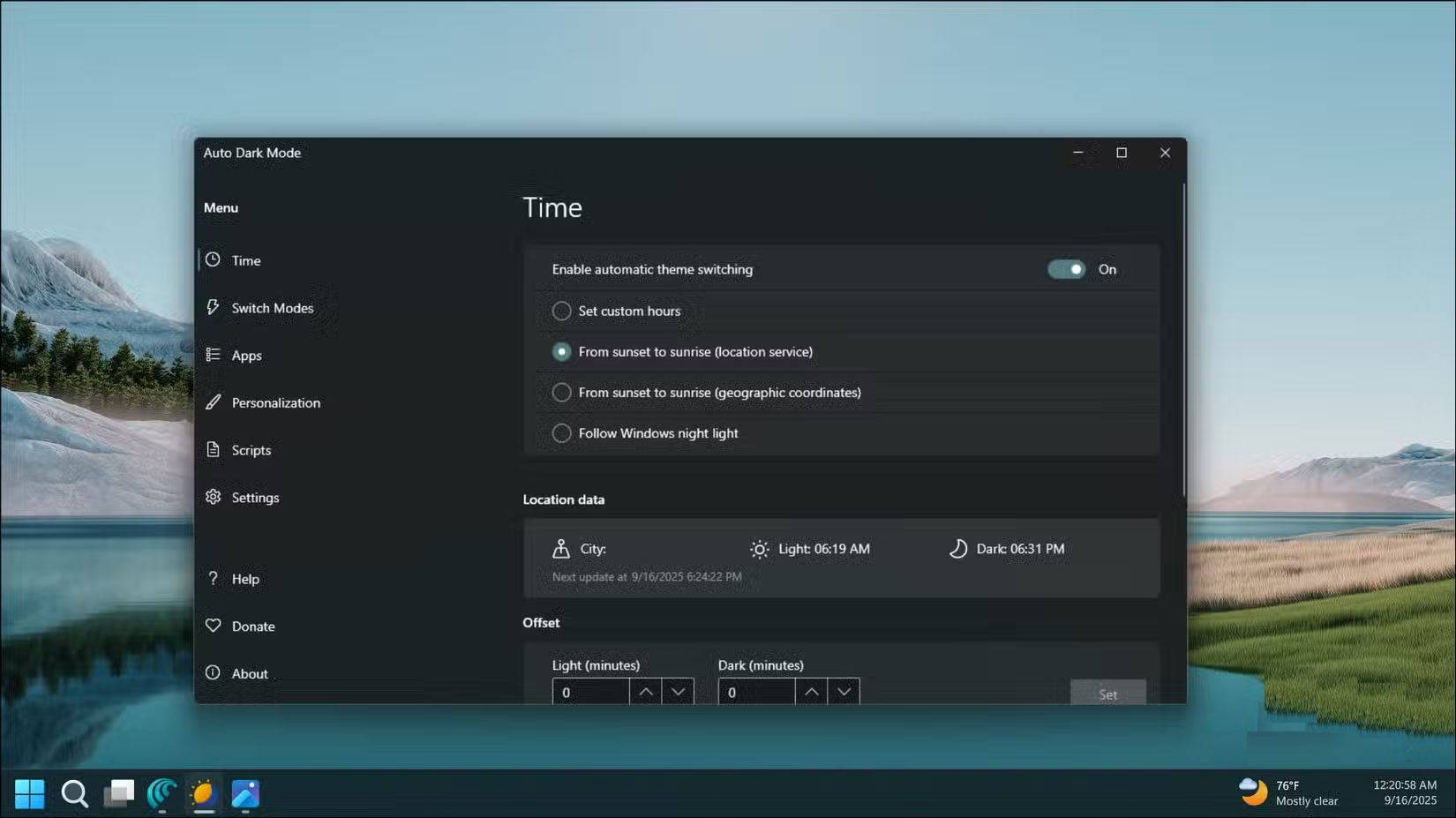
Many people's eyes are sensitive to bright light in dark environments. So sensitive that prolonged use of smartphones, TVs, or computer screens can leave them waking up with irritated eyes the next day. While switching to Dark Mode can help reduce eye strain, Windows 11 doesn't have an automatic dark mode option, so users have to manually turn it on and off.
Auto Dark Mode is a free app that automatically switches between dark and light modes based on sunset and sunrise times. The app also lets you set a custom wallpaper, choose a featured theme, and prevent auto-switching while playing games.
Configure the app to switch at sunset and sunrise. During the day it's the standard light interface with a light wallpaper. After sunset it's the dark interface with a darker wallpaper.
FAQ
What should you know about the options in this guide?
In practical terms, instead of wasting time doing all of these things manually, many people decide to set up a few automation programs to manage files, enter text, launch applications, and even set display settings.
Which option is the best choice?
The best choice depends on your priorities, compatibility, budget, and the specific features discussed in the comparison.
What should you compare before deciding?
Compare core features, limitations, ease of use, compatibility, and long-term value before making a decision.
Related Articles
 Google Claims the New Occlusion Feature Makes Chrome on3 minutes read
 4 Automation Features That Make Smart Lights Useful7 minutes read
 What Is Automation Testing?6 minutes read
 TOP best n8n alternatives in 202618 minutes read
 How to Change These 3 Settings to Make Your Windows Laptop Run Faster7 minutes read
 Transforming a USB Drive into RAM for Windows 10 Can Make Your PC Run Faster4 minutes read
Reader Comments 0
Sign in with email or Google to join the discussion.