Table of Contents
Hidden behind the familiar point-and-click experience is PowerShell, a powerful command-line tool that unlocks features completely absent from Windows' usual menus and settings.
Windows computers can do much more than Microsoft's graphical interface lets you do. Behind the familiar point-and-click experience is PowerShell, a powerful command-line tool that unlocks features that are completely absent from Windows' usual menus and settings. While Microsoft has spent decades perfecting Windows' visual interface, some of its most useful tools are still only accessible via the command line.
Many of these options are not obscure developer features or complex system administration tools. In fact, Windows does not provide a graphical way to perform these features/tasks, even though the basic functionality is built into the operating system. Microsoft made these intentional design choices to keep the interface clean and user-friendly. If every PowerShell feature had a graphical equivalent, Windows would become incredibly complex, with too many tools cluttering the experience.
Instead, these features are limited to the command line interface, leaving millions of people unaware of their existence.
Show Wi-Fi password from computer
Instantly display saved wireless networks
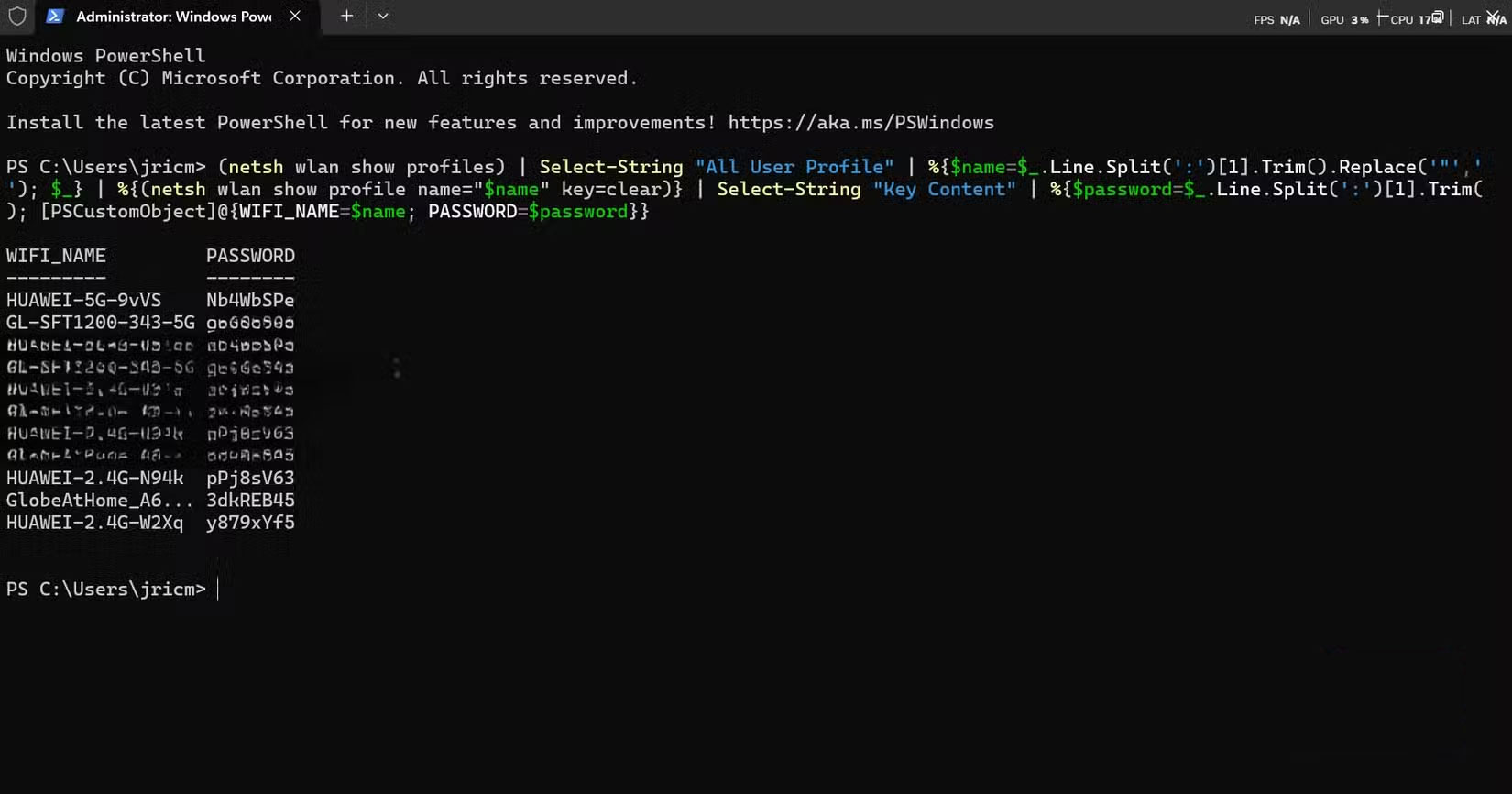
Have you ever needed to share your Wi-Fi password with a guest but forgot it? Windows computers actually store every Wi-Fi password you've ever used, but Microsoft doesn't provide an easy way to view them through the regular interface. Sure, you can search the Control Panel to find the password for the network you're currently connected to, but what about all the other networks you've connected to over the years?
Luckily, Windows provides us with the Netsh wlan show profiles Command, which will list all the saved wireless network profiles on the computer. With just a few more commands passed through the pipeline, you can easily view all the Wi-Fi passwords stored on the computer. This command may seem complicated at first, but once you understand the pipeline, cmdlets, and parameters, it becomes incredibly simple. Here is the command:
(netsh wlan show profiles) | Select-String "All User Profile" | %{$name=$_.Line.Split(':')[1].Trim().Replace('"',''); $_} | %{(netsh wlan show profile name="$name" key=clear)} | Select-String "Key Content" | %{$password=$_.Line.Split(':')[1].Trim(); [PSCustomObject]@{WIFI_NAME=$name; PASSWORD=$password}}This command lists all of your Wi-Fi profiles, then pulls the password for each profile. Within seconds, you'll see a neat list showing the network name along with its password. Many people have used this command countless times when setting up new devices or helping friends connect to networks they've forgotten.
Find duplicate files that are taking up storage space
Save space by deleting duplicate files
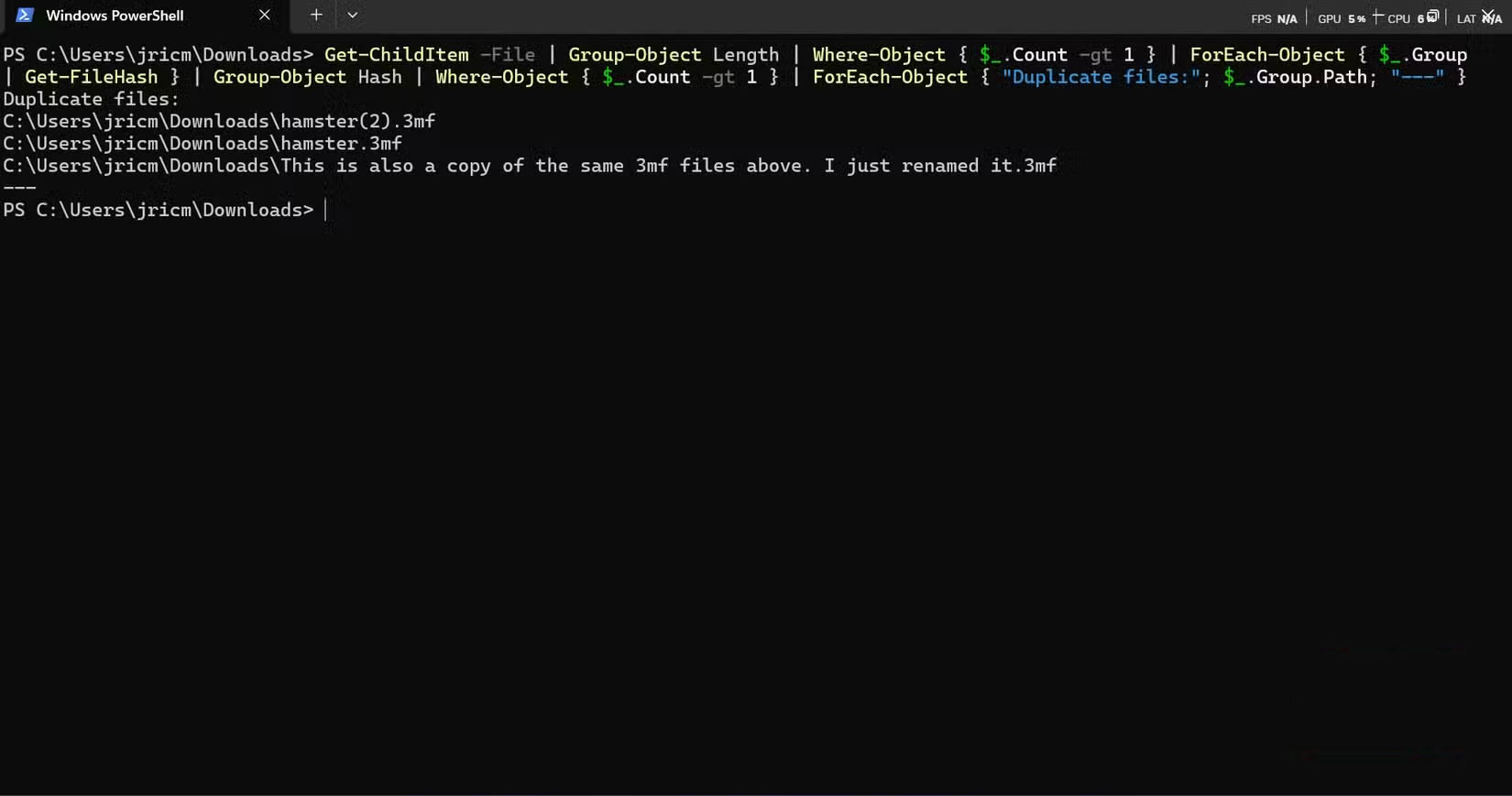
Many of us have a cluttered Downloads folder. Yours probably does too, until you discover this next PowerShell feature. Windows doesn't have a built-in way to find duplicate files through the regular interface, which means most people accumulate multiple copies of the same documents, images, and videos without realizing it.
PowerShell can solve this problem with a single pipeline command:
Get-ChildItem -File | Group-Object Length | Where-Object {$*.Count -gt 1} | ForEach-Object {$*.Group | Get-FileHash} | Group-Object Hash | Where-Object {$*.Count -gt 1} | ForEach-Object { Write-Host "Duplicate files:"; $*.Group.Path; Write-Host "---" }This command calculates a unique hash value for the contents of each file, which means it will catch true duplicates even if they have different names. Run this command regularly in your Downloads folder, and you'll be amazed at how much space you can reclaim by deleting duplicate files.
Test Internet connection to multiple websites at once
Pinpoints slow-down issues more accurately than a speed test
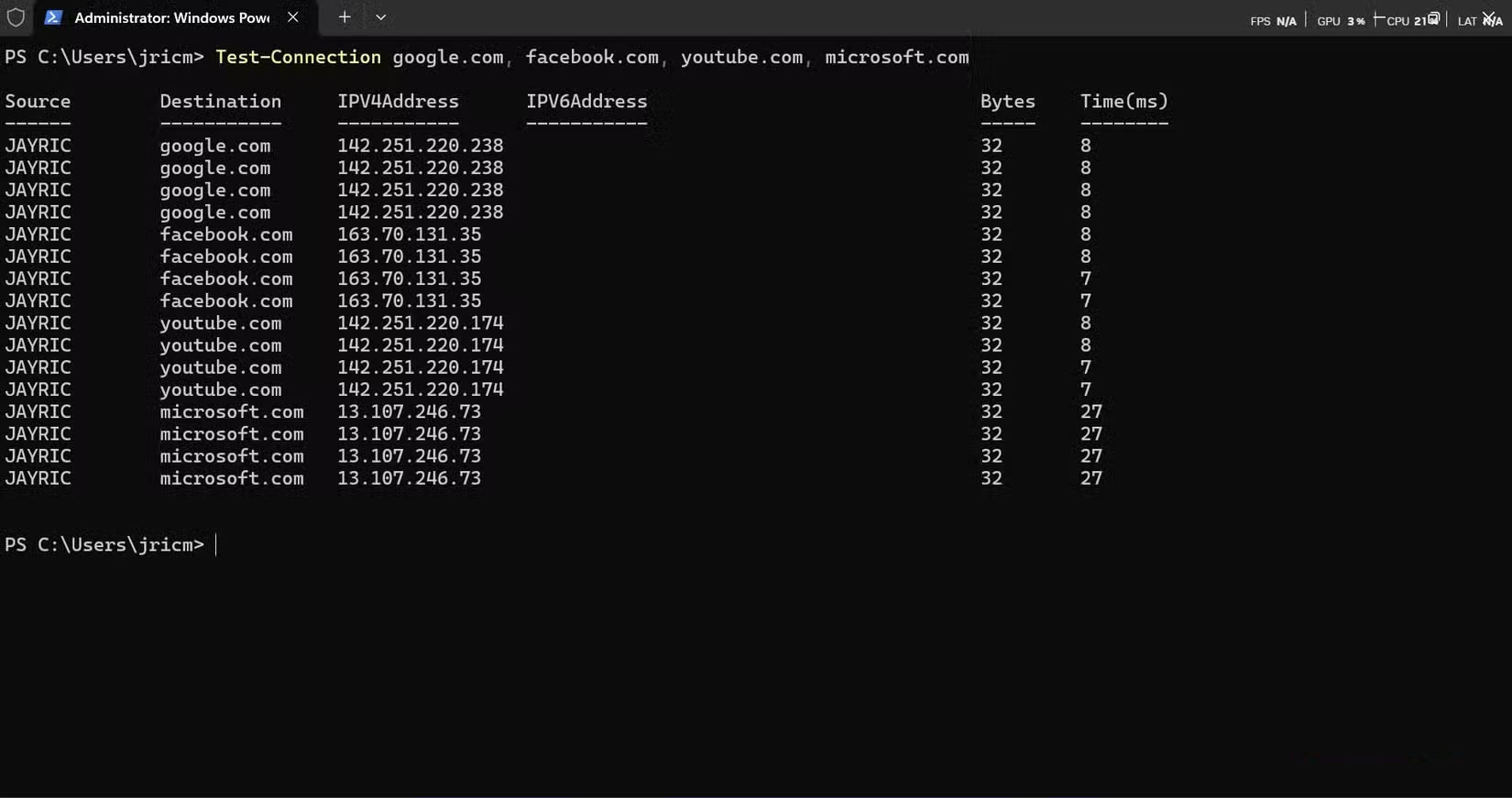
When your Internet connection is slow or unreliable, most people instinctively run a speed test. But those tests only tell you how well you're connected to one server. What if the problem lies with specific websites or services? Windows doesn't have a built-in GUI tool for testing connections to multiple websites at once, but PowerShell makes it incredibly easy.
The simple Test-Connection Command can test multiple destinations in a single operation:
Test-Connection google.com, facebook.com, YouTube.com, microsoft.comThis command will ping four websites at once and display the response time for each. You'll instantly know if a particular service is having problems or if your Internet connection is generally slow. Use this command whenever your Internet feels sluggish, as it will give you a better idea of what's really going on.
Check if downloaded files are valid and safe
Protect yourself by checking file hashes
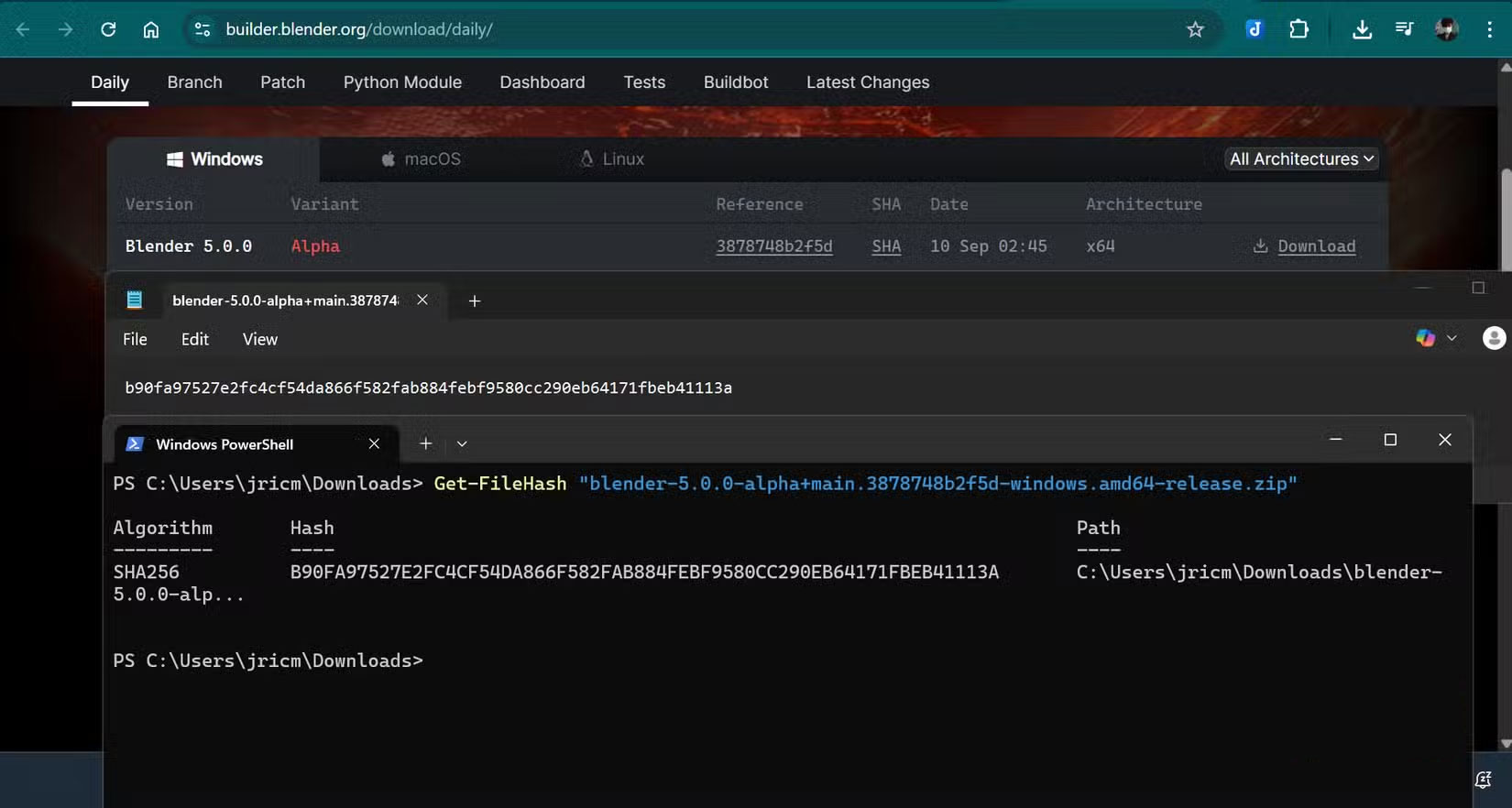
Many of us like to download executable files outside of the Microsoft Store. To ensure that our downloads are safe, we need a way to verify that the files came directly from the developer. Many legitimate software vendors publish hashes along with their downloads. These are unique fingerprints that can change even if just one bit of the file is different. Sadly, Windows doesn't provide any GUI tools to verify file hashes.
That said, Windows has a Get-FileHash Command, which allows us to see the file hash of the download (replace "filename.exe" with the actual file name):
Get-FileHash "filename.exe"This command returns a SHA256 hash that you can compare to the official hash provided by the software publisher. If they match, you know the file is exactly what the publisher intended. If they don't match, there may have been a problem with the download or the file has been tampered with.
FAQ
What should you know about the options in this guide?
In practical terms, hidden behind the familiar point-and-click experience is PowerShell, a powerful command-line tool that unlocks features completely absent from Windows' usual menus and settings.
Which option is the best choice?
The best choice depends on your priorities, compatibility, budget, and the specific features discussed in the comparison.
What should you compare before deciding?
Compare core features, limitations, ease of use, compatibility, and long-term value before making a decision.
Related Articles
 Windows PowerShell Explained: How It Works and Key Features6 minutes read
 Use Powershell to Download Any File on Windows 104 minutes read
 How to Install Powershell 7.0 in Windows 10/8/73 minutes read
 12 Most Useful PowerShell Commands for Windows8 minutes read
 About Powershell15 minutes read
 How to Use Powershell in Windows Server 20124 minutes read
Reader Comments 0
Sign in with email or Google to join the discussion.