Table of Contents
Most IT admins use PowerShell for scripting and automation, but it's not just for IT pros — anyone who deals with messy folders needs these commands. People use them to track down old code, organize client files, and clean up the chaos that builds up after months of working to deadlines.
12. Get-Help
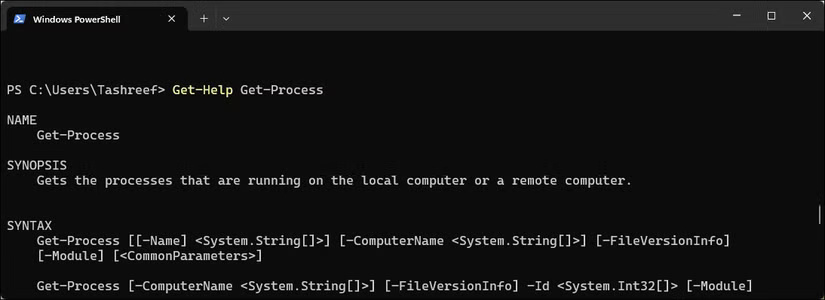
If you've been learning PowerShell from YouTube videos, one of the first commands that people will mention is Get-Help. As the name suggests, Get-Help helps you find information about PowerShell cmdlets along with their syntax and parameters; it even provides examples of how to use them.
To see how a command works, type Get-Help followed by the command name:
Get-Help Get-ProcessThis command displays the command summary, syntax, and parameters.
11. Get-Command
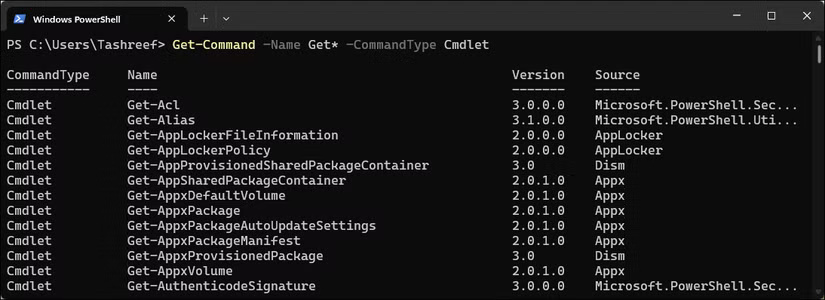
While Get-Help provides detailed information about a cmdlet, Get-Command helps you find and list all available commands. For example, if you know what you want to do but don't remember the exact command name, Get-Command helps you find commands based on individual names or patterns.
For instance, to try to find all commands containing the word "process", enter:
Get-Command *process*This command displays all commands named "process".
10. Test-NetConnection
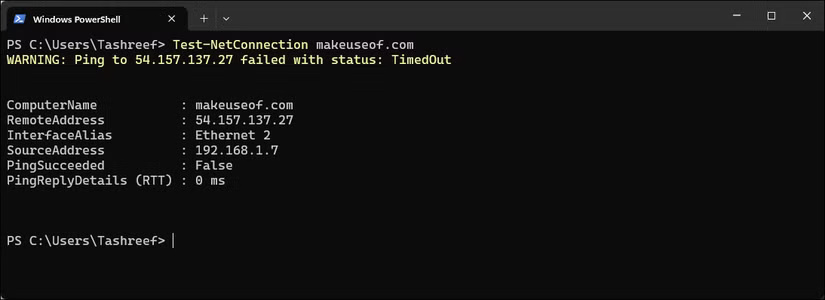
If you use separate tools for ping, telnet, and traceroute, the Test-NetConnection Cmdlet will do all three. This is a network troubleshooting tool, testing whether the problem is on the network, the server, or somewhere else.
To check if a website is accessible, run:
Test-NetConnection TipsMake.comThis command gives you ping results and basic connection information.
9. Get-ChildItem
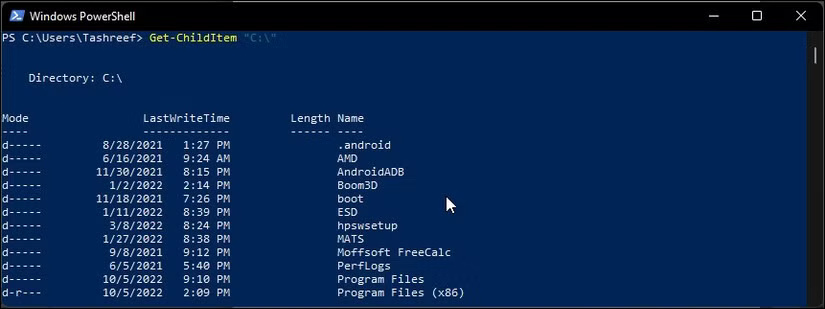
Get-ChildItem shows the files and folders in any directory. Want to see the contents in Documents? Just enter this command, replacing "username" with your name:
Get-ChildItem C:UsersUsernameDocumentsYou can combine Get-ChildItem with other commands to script and automate batch processing tasks, automating and checking files for matching specific criteria.
8. Where-Object
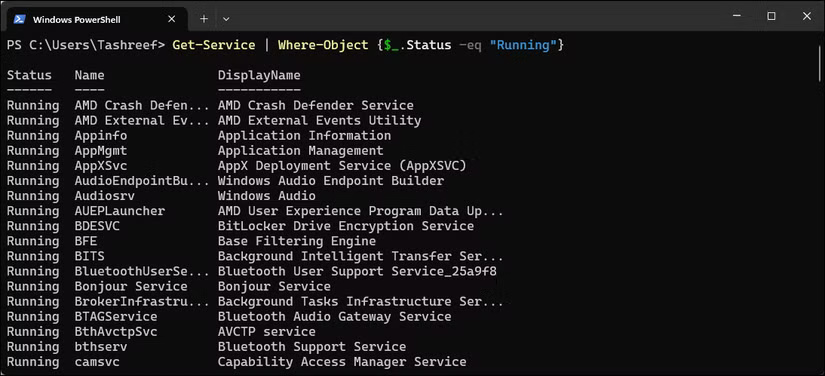
In the previous example, you may have noticed that the article used the Where-Object cmdlet to find large files and were curious about what this command does. Where-Object filters data by selecting objects with specific property values - similar to an if statement in programming. Inside the curly braces, $_ represents each item being evaluated against your filter criteria.
For instance, if you need to see all running services, enter this command:
Get-Service | Where-Object {$_.Status -eq "Running"}7. Select-Object
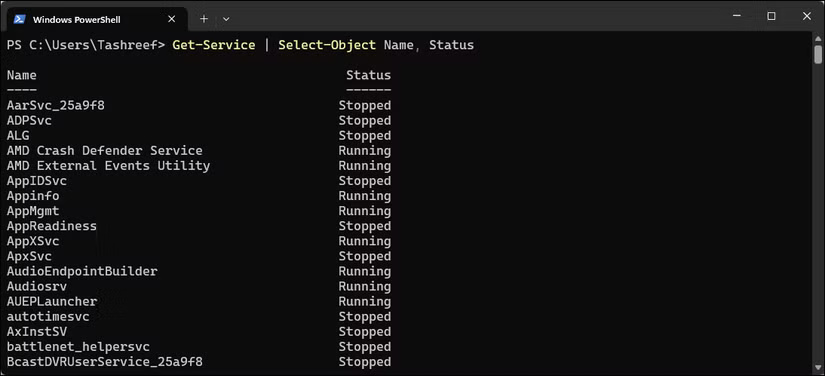
Often, the command output includes more information than you need. Select-Object lets you select just the data you want. You can then export the selected properties to a CSV file using the Export-Csv cmdlet. To see just the names and status of the services, use:
Get-Service | Select-Object Name, StatusIf you are looking for the top 5 CPU -using processes, here they are:
Get-Process | Sort-Object CPU -Descending | Select-Object -First 5 Name, CPU6. Get-Member
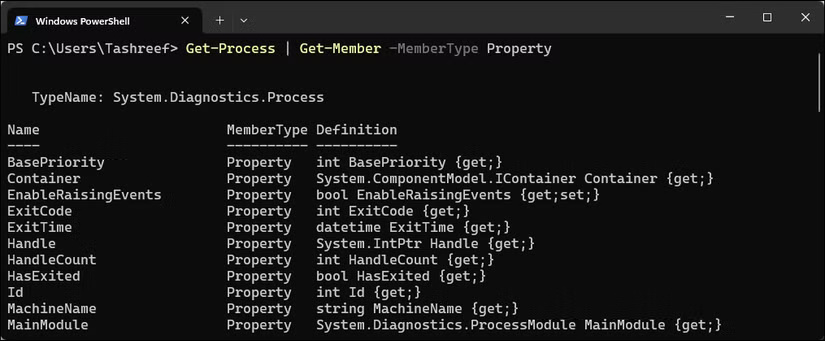
PowerShell works with objects, and Get-Member shows you their properties and methods. For example, if the command gives you a file, Get-Member can show you the file's size, creation date, and other details. Enter the following command to see the information a process object contains:
Get-Process | Get-MemberThis command displays properties like CPU, Id, and WorkingSet, along with methods like Kill() and Refresh().
5. Set-Clipboard and Get-Clipboard
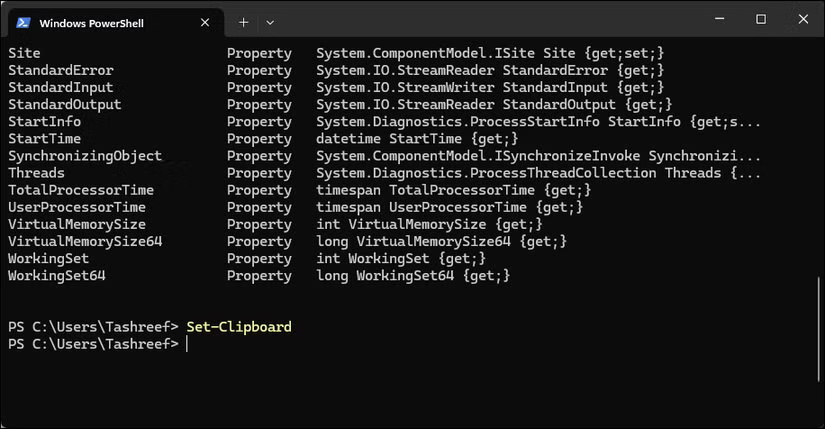
When you have a large amount of PowerShell output that you want to copy, you can either manually select it all or use Set-Clipboard. Manually selecting means scrolling up, starting to select, carefully dragging down, and hoping you don't make a mistake along the way. Set-Clipboard and Get-Clipboard make this whole process much simpler.
To copy the command results to the clipboard, enter the following command:
Get-Process | Select-Object Name, CPU | Set-ClipboardYou can now paste the results into Microsoft Excel or any text editor.
4. Out-GridView
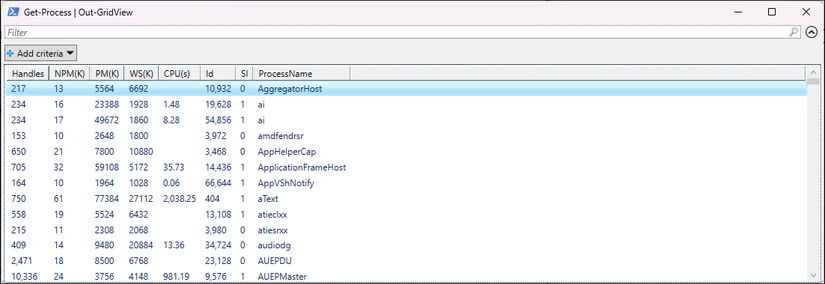
Sometimes you need to sort and filter results interactively. Out-GridView opens a separate window with a searchable and sortable table.
Get-Process | Out-GridViewThis command will open a new window showing a list of running processes in a GUI table format. select the column headers to sort or type in the filter box to search.
3. Get-Process
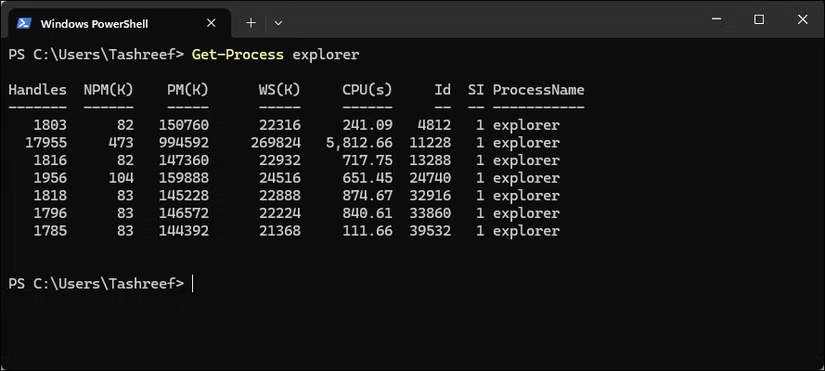
Get-Process displays every program running on your computer, including memory usage, CPU time, and process ID.
To see all running processes, just type:
Get-Process2. Get-FileHash
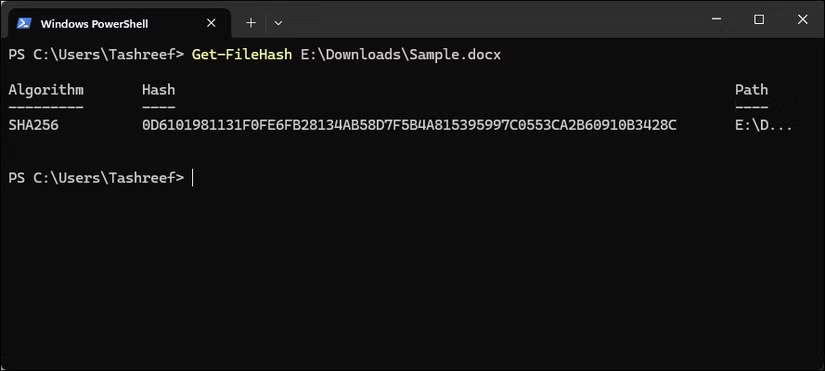
Get-FileHash calculates the hash value of the file contents using the specified hash algorithm. This command allows you to verify downloads or check if someone has tampered with your files.
To get the SHA256 hash of a file:
Get-FileHash C:DownloadsSample.docx1. The -WhatIf parameter
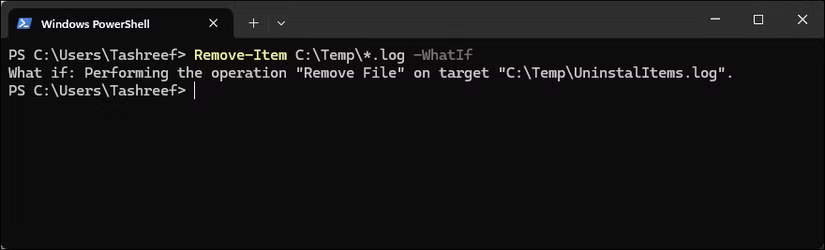
The -WhatIf parameter allows you to preview the command results without executing the command. This option is particularly useful when running Powershell commands to delete, move, or modify files, such as cleaning up old build logs or deploying web resources.
To preview which files will be deleted, add -WhatIf:
Remove-Item C:Temp*.log -WhatIfPowerShell will display each file it will delete but will not delete any files.
These 12 commands cover the things you need every day - finding files, checking what's slowing down your computer, and organizing project folders.
Start with Get-Help when you get stuck, use Where-Object to filter out unwanted details, and always add -WhatIf before doing anything that might delete or change a file. Once you have these basics down, you can automate these tasks with PowerShell instead of having to type them out manually each time.
See also:
- Summary of basic PowerShell commands
Final Thoughts
Overall, 12 Most Useful PowerShell Commands for Windows is best understood by considering the main facts, practical context, and limitations together. Use the details above as a clear starting point and confirm time-sensitive information when necessary.
FAQ
What does this article explain about 12 Most Useful PowerShell Commands for Windows?
Most IT admins use PowerShell for scripting and automation, but it's not just for IT pros — anyone who deals with messy folders needs these commands.
What should you know about 12. Get-Help?
If you've been learning PowerShell from YouTube videos, one of the first commands that people will mention is Get-Help.
Should time-sensitive details be verified?
Yes. Software features, game codes, product specifications, prices, and research findings can change. Confirm important details with an official or primary source when accuracy affects your decision.
Related Articles
 Powershell Command in Windows: Explained3 minutes read
 What Is PowerShell Basic Commands in PowerShell6 minutes read
 10 Powershell Commands Help You Manage the Remote Computer Most8 minutes read
 About Powershell15 minutes read
 Use Powershell to Download Any File on Windows 104 minutes read
 How to Use Powershell's Default Parameter to Change the Command5 minutes read
Reader Comments 0
Sign in with email or Google to join the discussion.