Table of Contents
Explore 4 Google chrome features that eliminate the need for extensions.
But did you know that Chrome has so many features that some extensions become unnecessary? So, if there are extensions that offer certain features, you might not need to install them in Chrome because it already has similar functionality built-in. The advantage of using built-in functionality over installing extensions is that it can help improve browser performance. That's why a simple trick like uninstalling old extensions can make Chrome faster!
1. Password Manager
Google Chrome has a built-in password manager
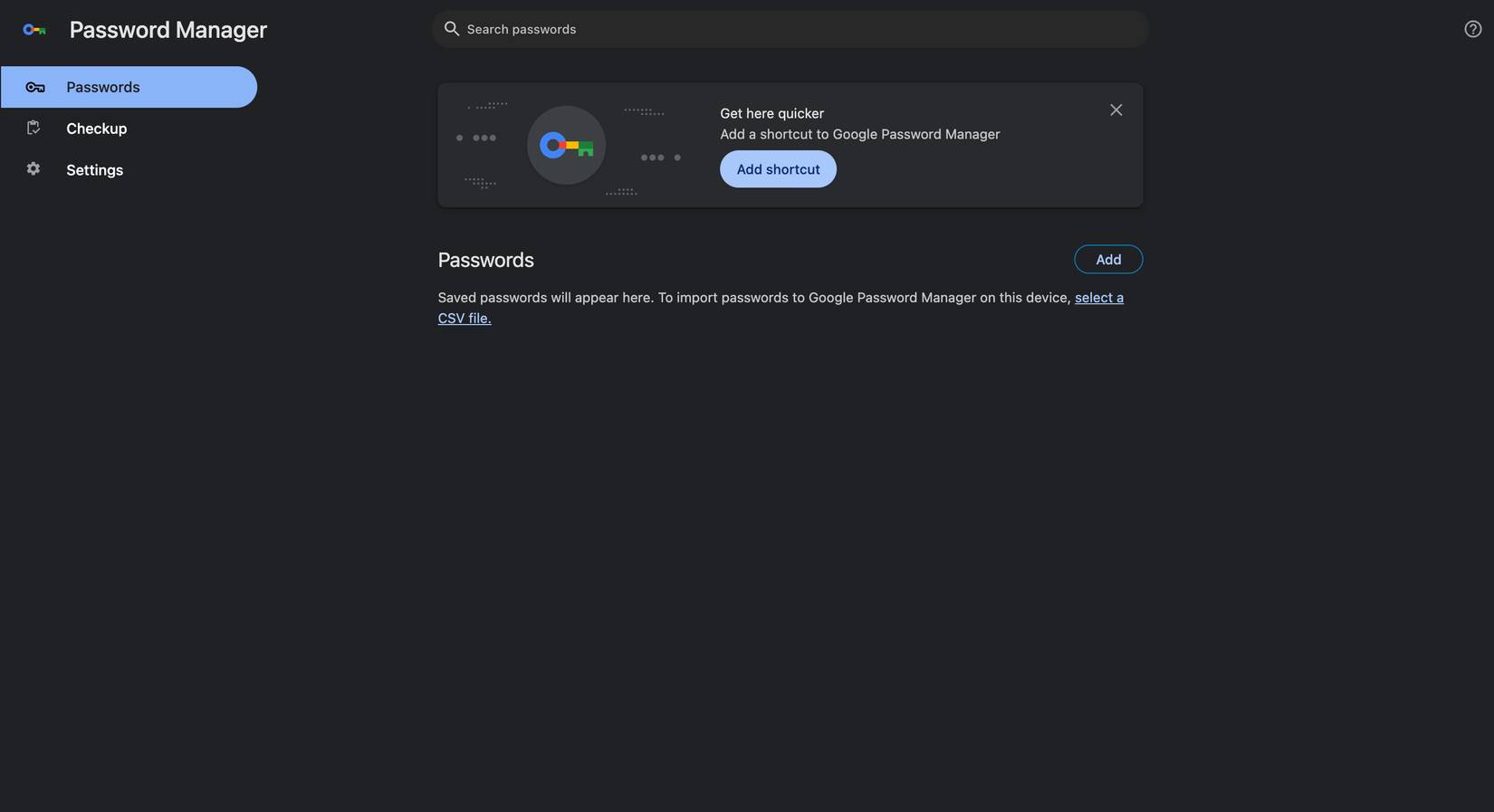
Password managers are an essential tool in today's digital landscape, where data breaches are rampant. For example, in June 2025, according to Guardz, over 16 billion records containing usernames and passwords were leaked from Facebook, Google, and Apple. That's why the importance of password managers is so widely emphasized, as they help you create strong, unique passwords that can protect your online accounts.
But you don't need to pay for a password manager or install other extensions in Chrome, as the browser offers a built-in solution. Like other password managers, it provides multi-device synchronization functionality, ensuring you can always log into your accounts even when switching devices—as long as you sync your passwords with your Google account. An autofill function is also available, allowing you to log into your accounts conveniently without copying and pasting usernames and passwords.
You also get an additional notes field on each saved login, which you can use to add a two-factor authentication recovery key, or even multiple logins.
2. Take a screenshot
Take a screenshot using Chrome
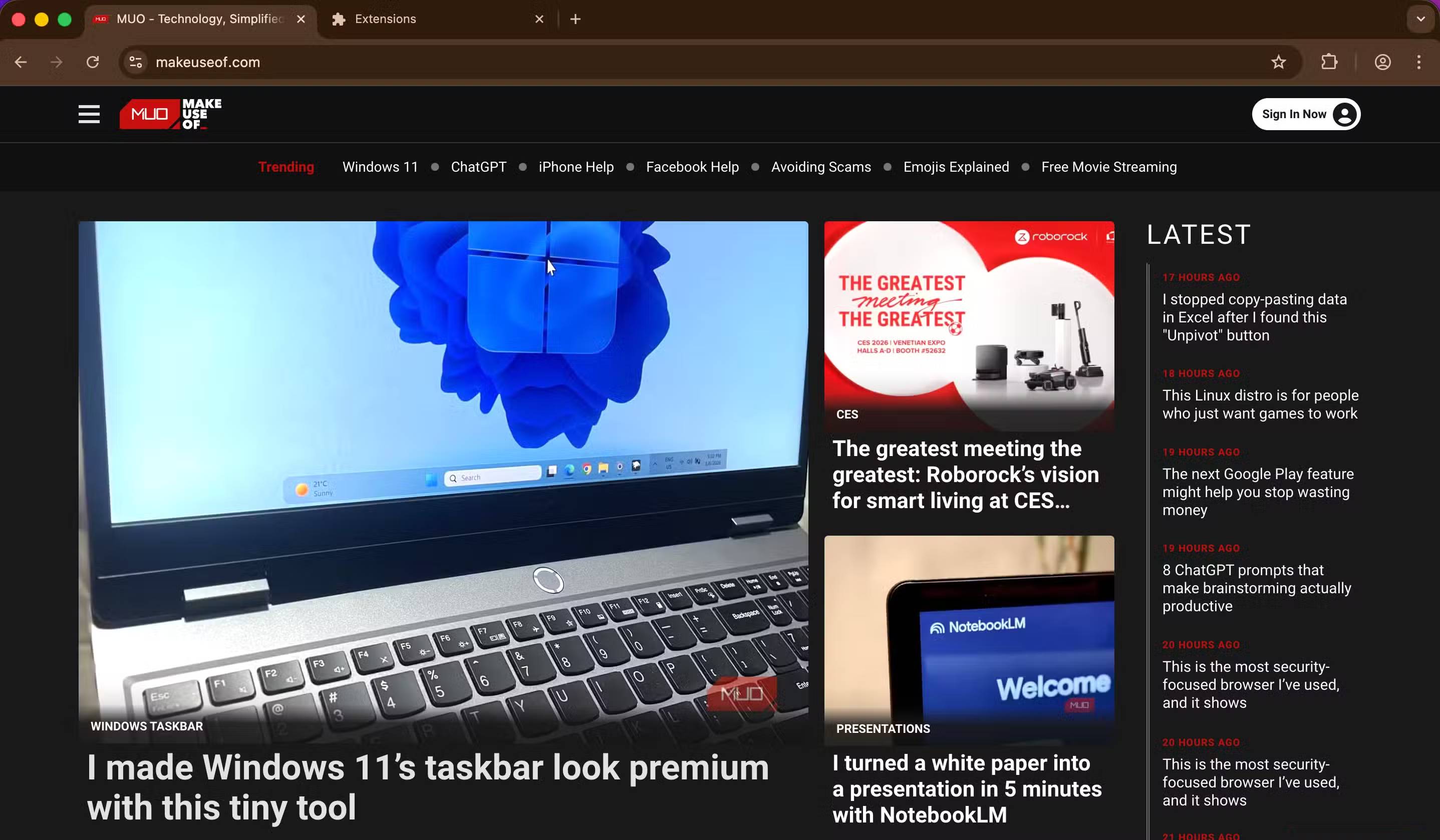
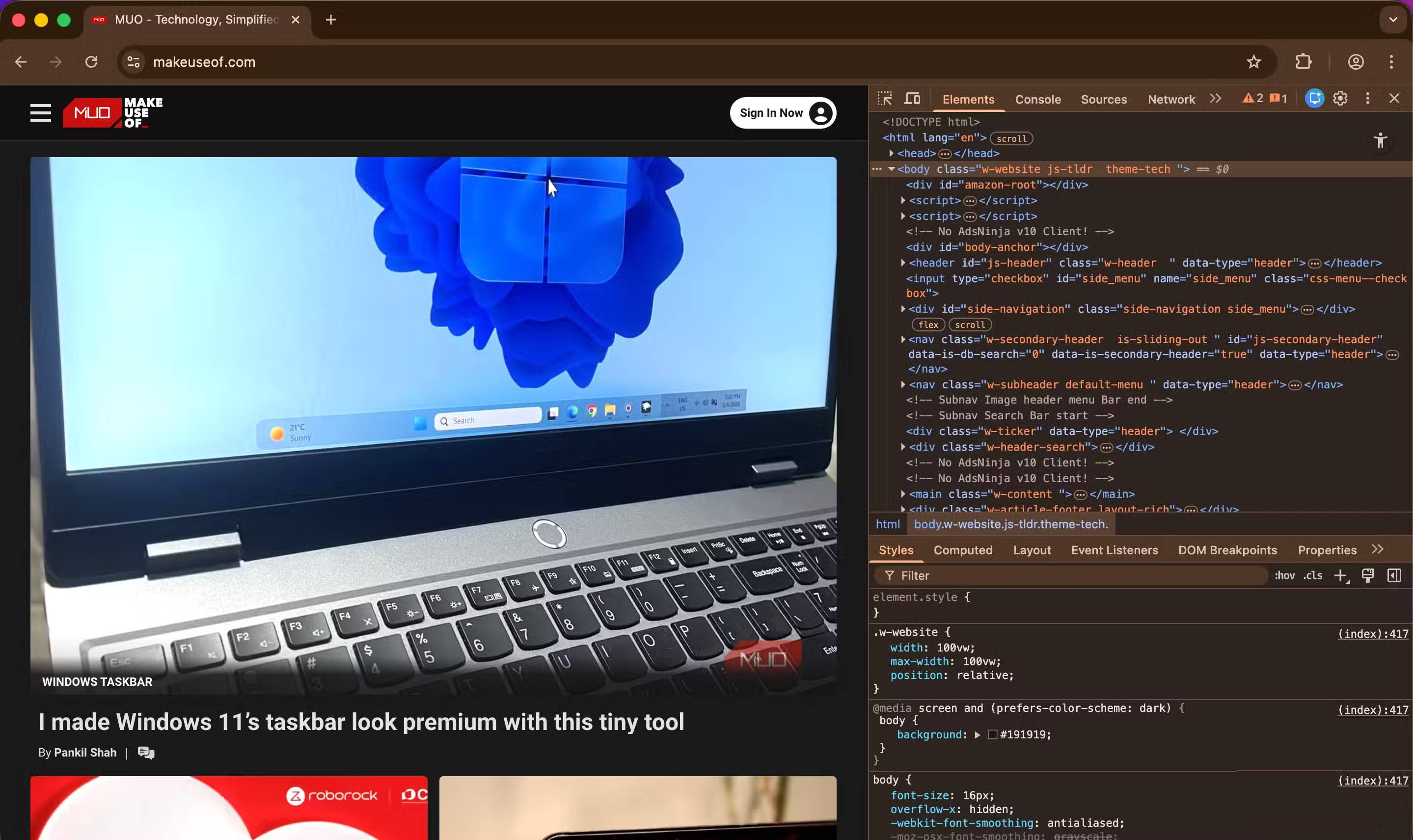
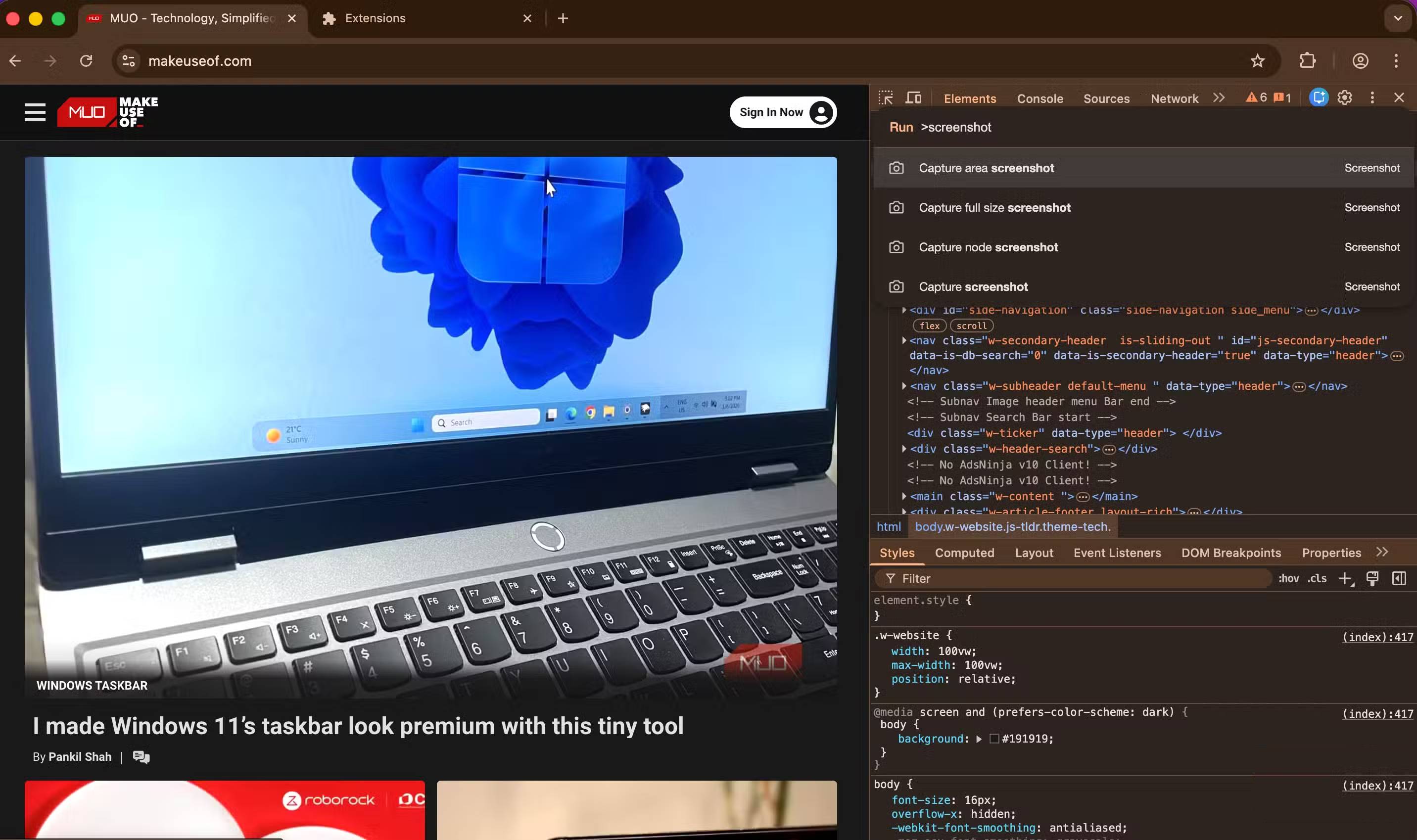
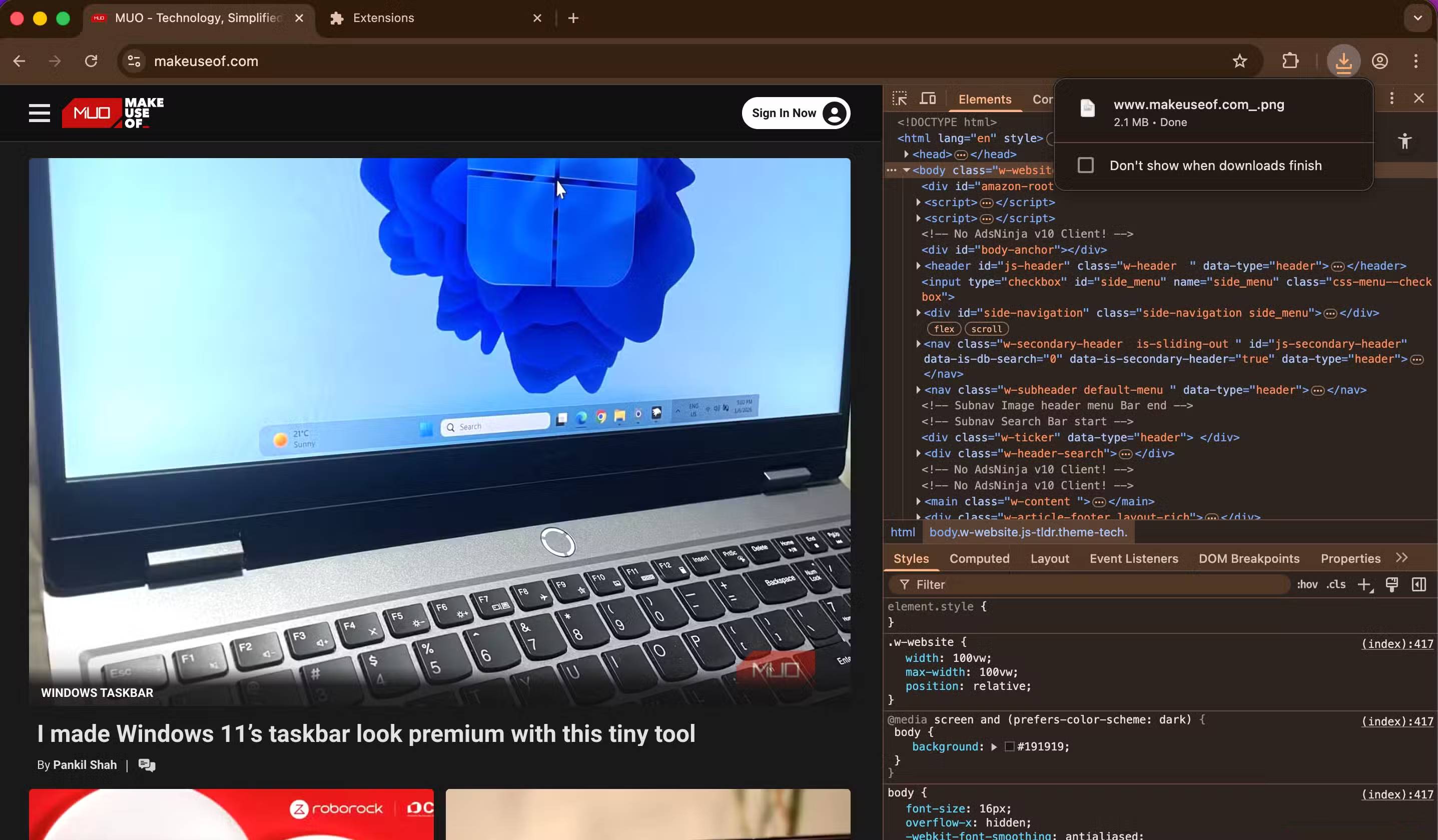
Chrome's screenshot feature is hidden within the application's Developer Tools , which explains why many people are unaware of its existence and rely on extensions. Chrome's tool is very versatile, similar to third-party extensions, and can capture screenshots of a specific area on a page or the entire scrolling page. You can also take a regular screenshot of the displayed area.
To take a screenshot using Chrome's built-in tool, follow these steps:
- Open Chrome's Developer Tools by using the keyboard shortcut Ctrl + Shift + I (Windows and Linux) or Cmd + Option + I (macOS). Alternatively, you can click the three-dot menu in the upper right corner of the browser, select More tools > Developer Tools .
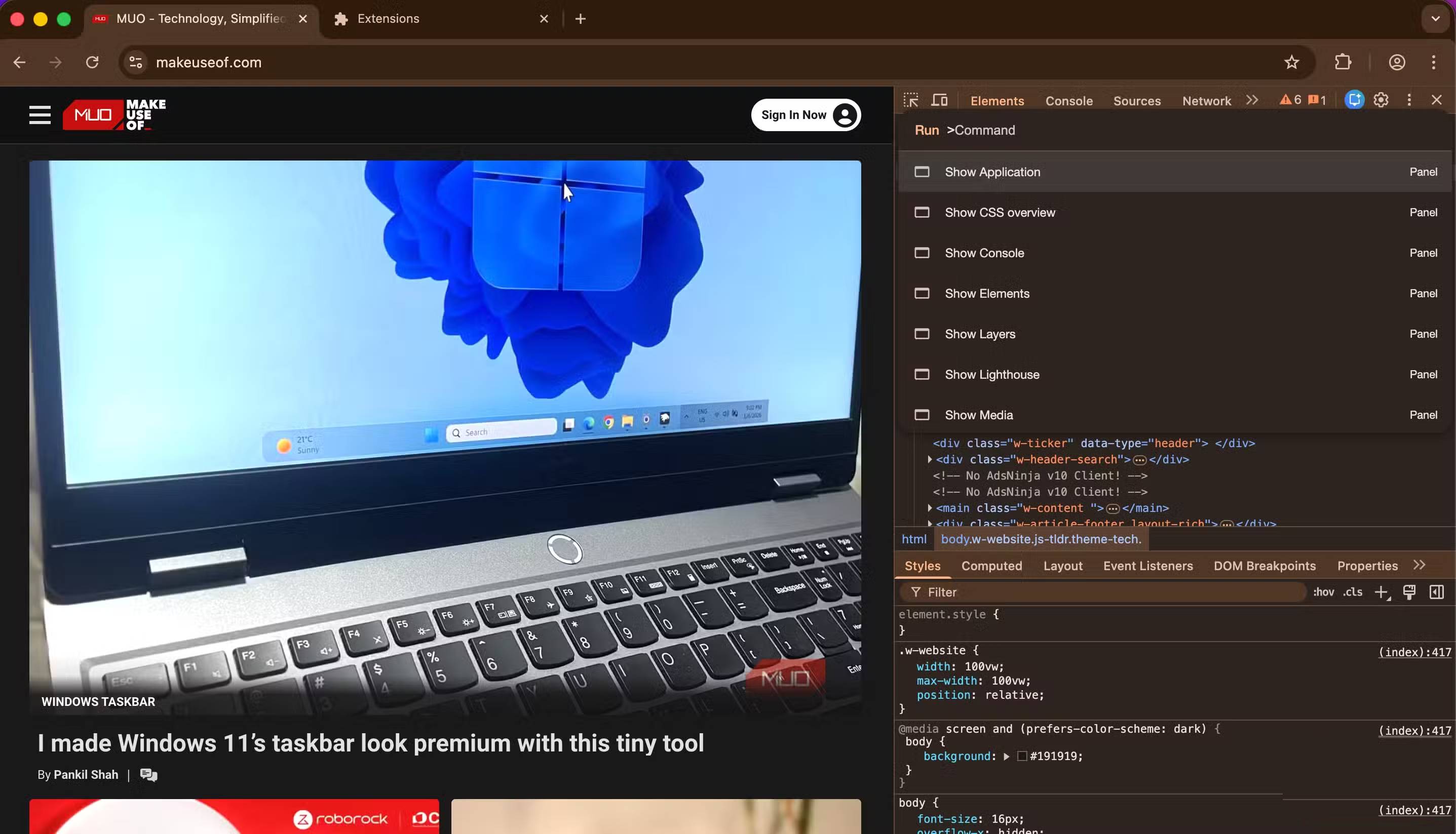
- After opening Developer Tools, use the keyboard shortcut Ctrl + Shift + P (Windows and Linux) or Cmd + Shift + P (macOS) to open the Command Menu for the running tasks.
- In the Command input field, type screenshot to see the available options.
- Finally, choose one of the screenshot options, such as Capture screenshot or Capture full page screenshot .
Chrome will take a screenshot of the page and save it to your Downloads folder or any other folder you've specified as the save location for your downloaded files. After taking the screenshot, you can close Developer Tools using the same keyboard shortcut Ctrl + Shift + I (Windows and Linux) or Cmd + Option + I , or by clicking the Close button ( X icon ) in the upper right corner of the tool.
3. Translate the page
No more copy and paste for translation
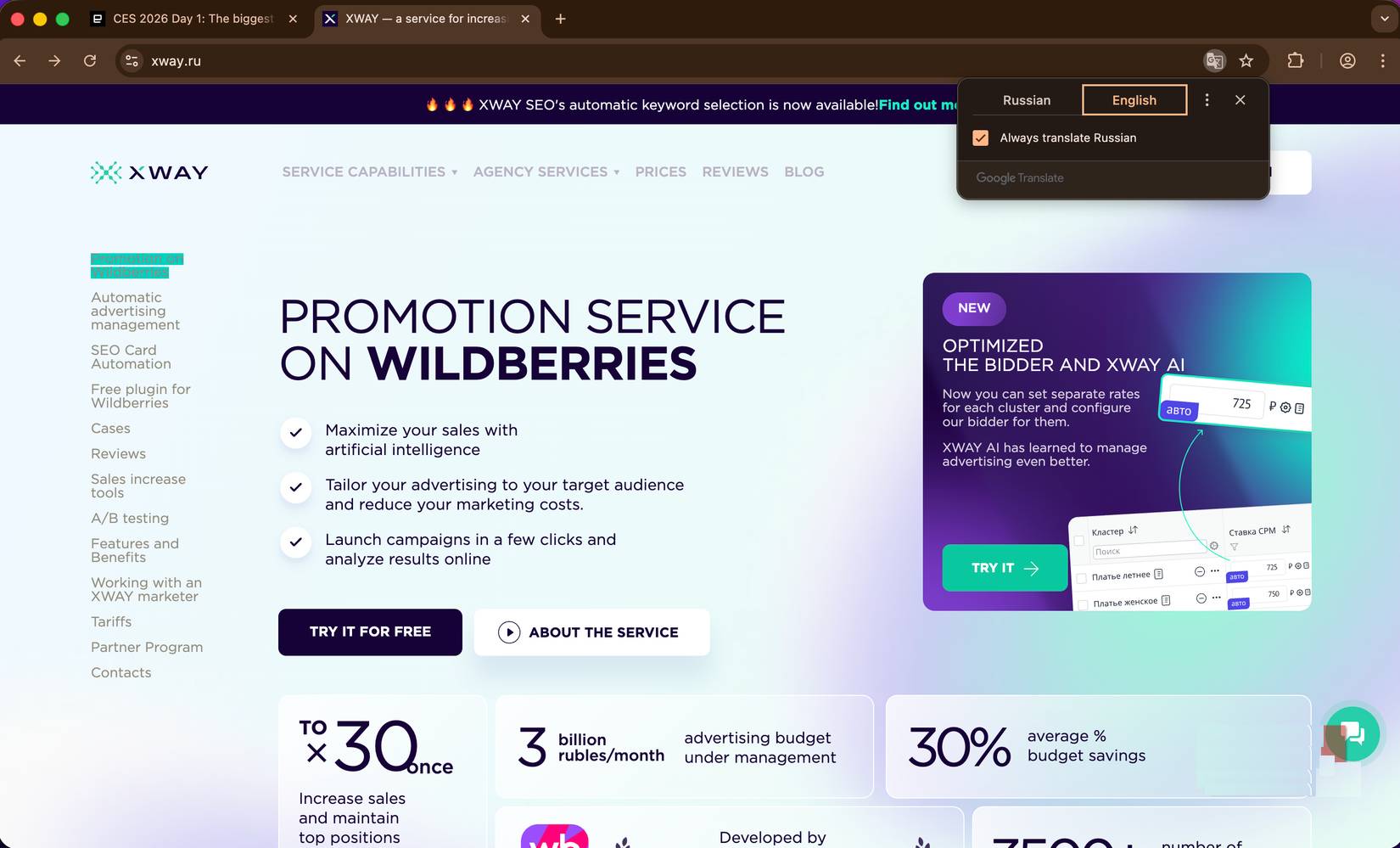
If the language on the page doesn't match the language you've set on your system, the tool will display a Page Translation option to the right of the address bar. You'll see the currently detected language and your browser's language. All you have to do is select your system language in the Page Translation tool, and the current webpage will be translated.
If you want to use a language other than the one Chrome suggests, you can click the three-dot menu ( Translate Options ), select Choose another language , and then choose your desired option. This will automatically translate the page to your preferred language. Therefore, if you want to translate a website into a foreign language, Chrome is very useful, and you don't need any extensions for that purpose.
4. Reading List
Remove "read later" extensions
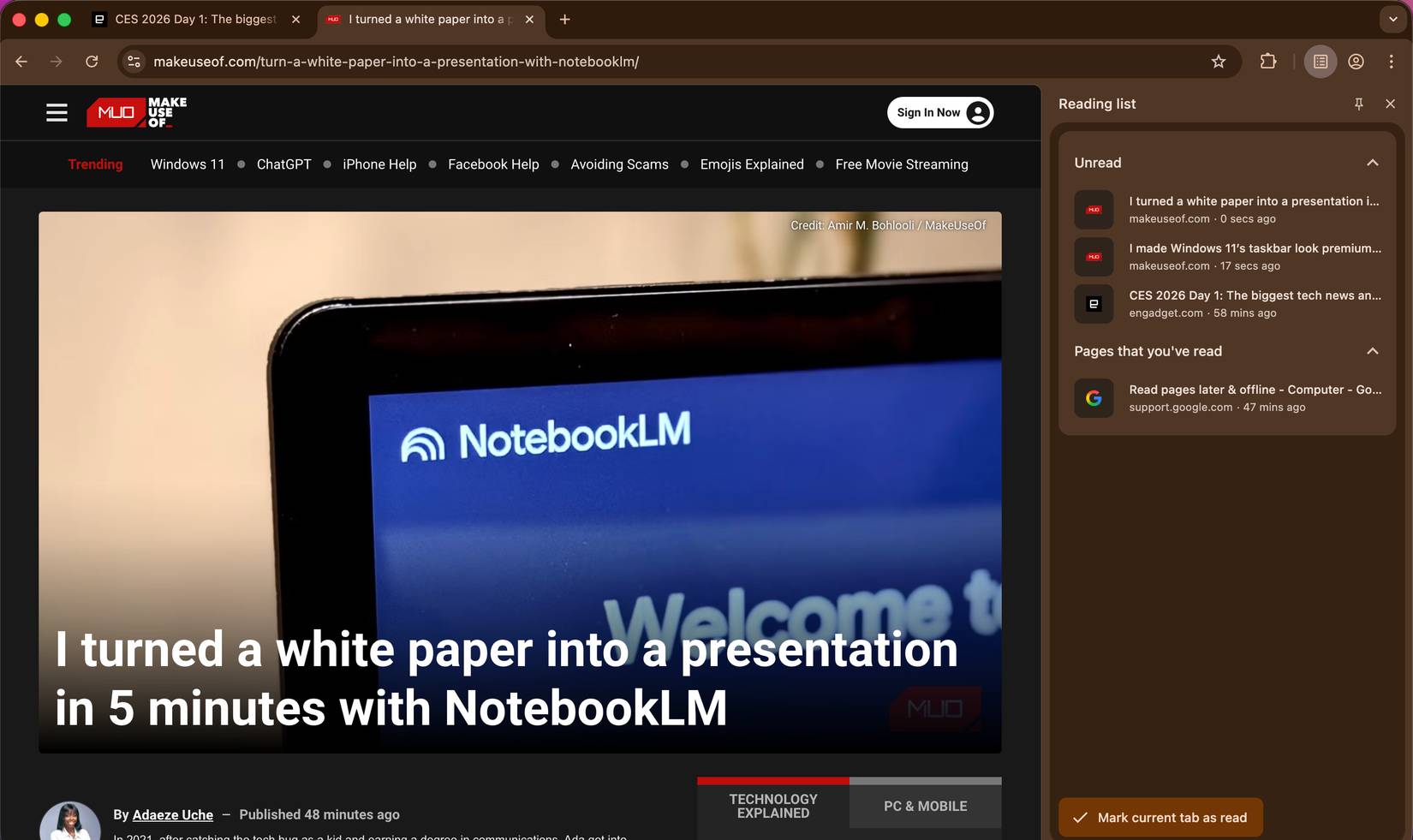
There are many "read later" extensions in the Chrome Web Store, although Pocket, one of the most popular, is scheduled to be discontinued in 2025. But if you use Chrome as your browser, you don't need another "read later" extension to do the same job. Chrome has a special feature that lets you save websites you want to view later when you have time. Saving a website to your reading list in Chrome is easy. Open the browser and follow these steps:
- Open a website you want to read later.
- Click the three-dot menu in the upper right corner, then navigate to Bookmarks and lists > Reading list .
- Select Add tab to reading list to add the tab you currently have open.
The page you're currently viewing will be added to your reading list immediately. When you need to review your list, follow the same instructions but select Show reading list instead of Add tab to reading list in the final step. Chrome will open a sidebar with all your saved entries, starting with the most recent ones. After you've finished reading a page, you can select Mark current tab as read in the sidebar, and Chrome will place that tab in a separate entry in the list called Pages that you've read .
Final Thoughts
Understanding 4 google chrome features that eliminate the need for extensions makes it easier to evaluate the information and apply the most relevant recommendations. Focus on the key points above and verify details that may change over time.
FAQ
What is 4 google chrome features that eliminate the need for extensions?
Explore 4 Google chrome features that eliminate the need for extensions.
What key points does this article cover?
The article focuses on 1. Password Manager, Google Chrome has a built-in password manager, 2. Take a screenshot, with practical explanations and examples.
How can you use this information in practice?
Use the explanations to compare options, verify important details, and make a more informed decision. Apply the recommendations that best match your goals and situation.
Related Articles
 Google Chrome Temporarily Prevents Sideload of Extensions3 minutes read
 Attractive Extensions on Google Chrome8 minutes read
 5 Best Chrome Extensions That Google Just Removed7 minutes read
 7 Useful Google Chrome Extensions for Web Users5 minutes read
 Top 7 Most Useful Chrome Extensions You Should Try8 minutes read
 9 Extensions That Help Optimize the Browsing Experience on Chrome8 minutes read
Reader Comments 0
Sign in with email or Google to join the discussion.