Table of Contents
After switching to Spark Mail, people have been using its various features to improve their email workflow. One notable feature is Smart Folders. This tool has really helped people manage their inboxes more efficiently than other email apps.
How to Use Spark Mail's Smart Folders
Smart Folders are automatic folders in Spark Mail that organize emails based on defined criteria like sender, subject keywords, and flags. This feature is different from Gmail 's label system or traditional inbox rules because Smart Folders automatically display relevant emails without moving them out of the main inbox.
It works by scanning your inbox for emails that meet certain parameters. While Spark filters emails using metadata and keywords, it doesn't perform in-depth content scanning or AI-based content recognition.
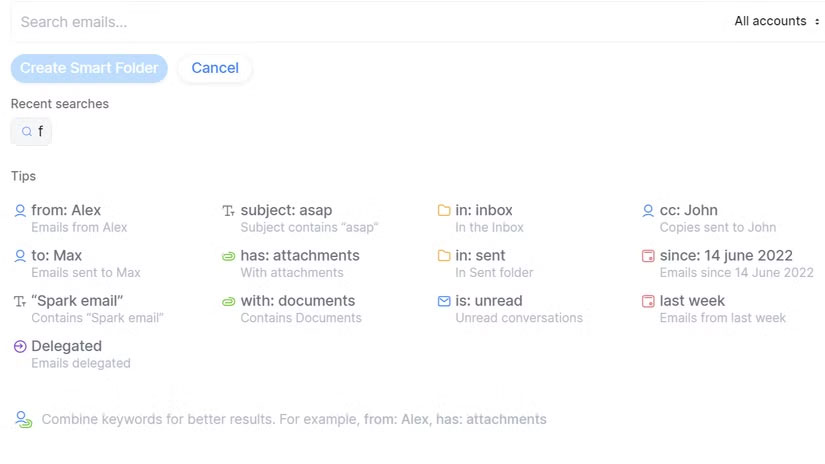
Note : Smart Folders is a premium feature that requires a subscription, costing $4.99/month when billed annually.
What's particularly useful is that emails can appear in multiple Smart Folders at once. For example, a message from a team lead about a project deadline could appear in both the "Team Lead" folder and the "Urgent" folder, depending on how you structure your filters.
After switching from Gmail to Spark Mail, this feature solved one of the biggest email problems. Instead of having to manually sort through hundreds of emails, Smart Folders took care of the hard work. It also helped keep the inbox empty efficiently. Instead of leaving emails in the main inbox or manually archiving them, Smart Folders created organized views that didn't require constant maintenance.
How to Set Up Smart Folders
Setting up Smart Folders takes some initial planning, but the process is simple. Start by identifying the types of email that take up the most of your time and attention!
The first Smart Folder targets project deadlines from team leaders. This folder automatically collects emails containing keywords like 'deadline,' 'due date,' or 'urgent,' specifically from the team leader's email address. This will help you avoid missing important project milestones buried in your daily email pile.
Here's how to create Smart Folders in Spark Mail:
- Open Spark Mail and tap the three lines on the sidebar.
- Scroll down and select More under Folders.
- Tap the + icon next to Smart Folders to create a new folder.
- Name the folder and set criteria using available filters (sender, subject, keywords, etc.).
- Click Save to activate the folder.
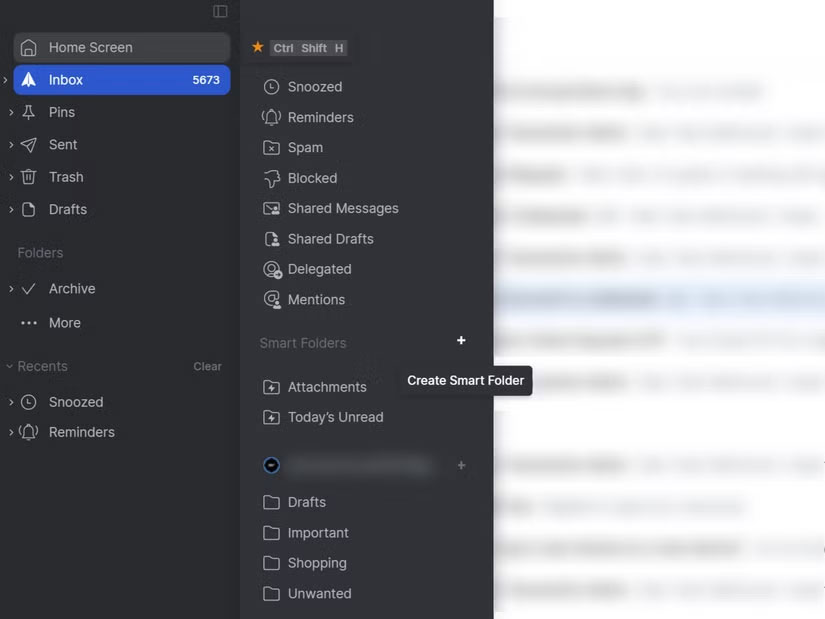
For the project deadlines folder, combine multiple search operators to capture the right messages. We used from: ali@company.com to target specific emails from our team leader, then added subject: urgent to capture urgent communications. This folder also includes has: attachments because project briefs often come with supporting documents.
The second folder focuses on customer communications. It filters emails from a specific domain using sender rules — most people don't use this email rule, but they should. This folder collects all emails from a customer's email address, regardless of the specific sender.
This folder is based on a domain filter. Set from: @clientdomain.com to collect all emails from that organization, regardless of the specific sender. You can also add cc: accounts@company.com since the finance team is copied in most customer correspondence, which helps track billing-related discussions.
The most complex folder was created using multiple criteria for high-priority emails. It included emails from senior executives, emails marked as urgent, and emails containing budget-related keywords. This folder used the 'any condition' setting, meaning emails only needed to match one criterion to appear.
This folder requires the broadest range of criteria. It includes from: ceo@company.com, subject: budget, is: unread , and since: last week to ensure you're looking at recent important communications. You can also add with: documents to collect emails containing contracts or proposals that typically need to be addressed immediately.
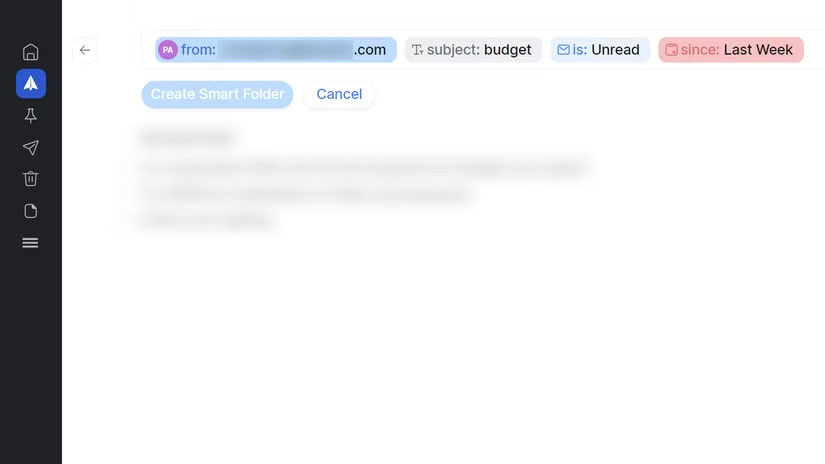
Each Smart Folder will appear in the sidebar with a badge that shows the number of unread messages. You can also set custom notifications for specific folders, ensuring you never miss the emails that are most important to your workflow.
Final Thoughts
Overall, Learn About Smart Folders is best understood by considering the main facts, practical context, and limitations together. Use the details above as a clear starting point and confirm time-sensitive information when necessary.
FAQ
What does this article explain about Learn About Smart Folders?
After switching to Spark Mail, people have been using its various features to improve their email workflow. One notable feature is Smart Folders. This tool has really helped people manage their inboxes more efficiently than other email apps.
What should you know about How to Use Spark Mail's Smart Folders?
Smart Folders are automatic folders in Spark Mail that organize emails based on defined criteria like sender, subject keywords, and flags.
Should time-sensitive details be verified?
Yes. Software features, game codes, product specifications, prices, and research findings can change. Confirm important details with an official or primary source when accuracy affects your decision.
Related Articles
 Top 6 Tips for Using Gmail That Are Very Useful?6 minutes read
 7 Things You Can Do with Email Inbox Without You Knowing7 minutes read
 Simple Ways to Speed up Old Smart Tvs: Make Your TV Run Fast and Smooth Like6 minutes read
 How to Use the WORKDAY Function in Microsoft Excel4 minutes read
 How to Use Smart Compose to Compose Speedy Messages in Gmail3 minutes read
 How to Recover Deleted Emails6 minutes read
Reader Comments 0
Sign in with email or Google to join the discussion.