Table of Contents
This updated guide compares weird but useful things you can do with your smart TV and highlights the details that matter most. Using a Smart TV to watch movies and TV shows is great, but many people also like to experiment, since it has built-in app support anyway. Get the most out of your TV money by using it in new ways!
6. Use Smart TV as a Second Screen
When you do not want to sit at your desk, using your Smart TV as a second screen is great. It does not get your work done any faster, but it is great for changing your workspace. You also do not have to run HDMI cables from room to room and risk tripping someone.
To do this, you need to connect both your computer and your Smart TV to the same Wi-Fi network, and It is best to use a browser that supports screen mirroring. Samsung Smart TVs have a PC on TV feature. AirPlay is a great alternative if you have an Apple device.
5. Make a Video Call

If you have an external webcam, why not use it for video calling? This is especially useful if you have a large family and have trouble getting everyone in the frame. Simply connect the external camera to your Smart TV (and download the accompanying app, if necessary), then make calls using a good video chat app.
Why stop at family calls? Connecting a webcam to a Smart TV can provide a wider viewing angle, which is useful if you're giving a business presentation.
4. Enjoy Entertainment Other Than Watching TV
If you do not have a dedicated stereo system but have a good soundbar for your TV, you can use your TV to listen to music, especially while you're cleaning. If the sound is loud enough, you can even be two rooms away and still hear the music. Typically, people will connect to the Plex app and stream their music collection, but sometimes they'll use Spotify too.
Smart TVs also offer the option to listen to podcasts and audiobooks. For podcasts or long videos that you do not need to watch, YouTube is perfect for the big screen.
3. Stream Video Games
Since Smart TVs can install new apps, you can use them as a way to stream video games, similar to how LG Smart TVs can stream Xbox games. This isn't a feature that every Smart TV can do.
open your Smart TV app store and search for apps that let you stream video games. Steam and the Xbox app are two popular options, although the former requires a host device to run the game. If so, install it.
Here's a tip: When you're streaming, it is best to use an Ethernet cable instead of Wi-Fi. And if you need a game controller, it should be able to pair via Bluetooth, which you can find in your Smart TV's network settings.
2. Control Other Smart Home Devices
Why not turn your Smart TV into a smart home hub? As long as your Smart TV can connect to whatever smart home software you use, like Alexa, Google Assistant, and Apple HomeKit, you can control your home from the comfort of your couch.
Your Smart TV will also need to be connected to the same network, which will not be a problem if you're already using it to stream Netflix and other content. You'll then need to install the app associated with your smart home devices on your TV and ensure all your smart home devices are also connected to the app.
1. Use Smart TV as a Browser
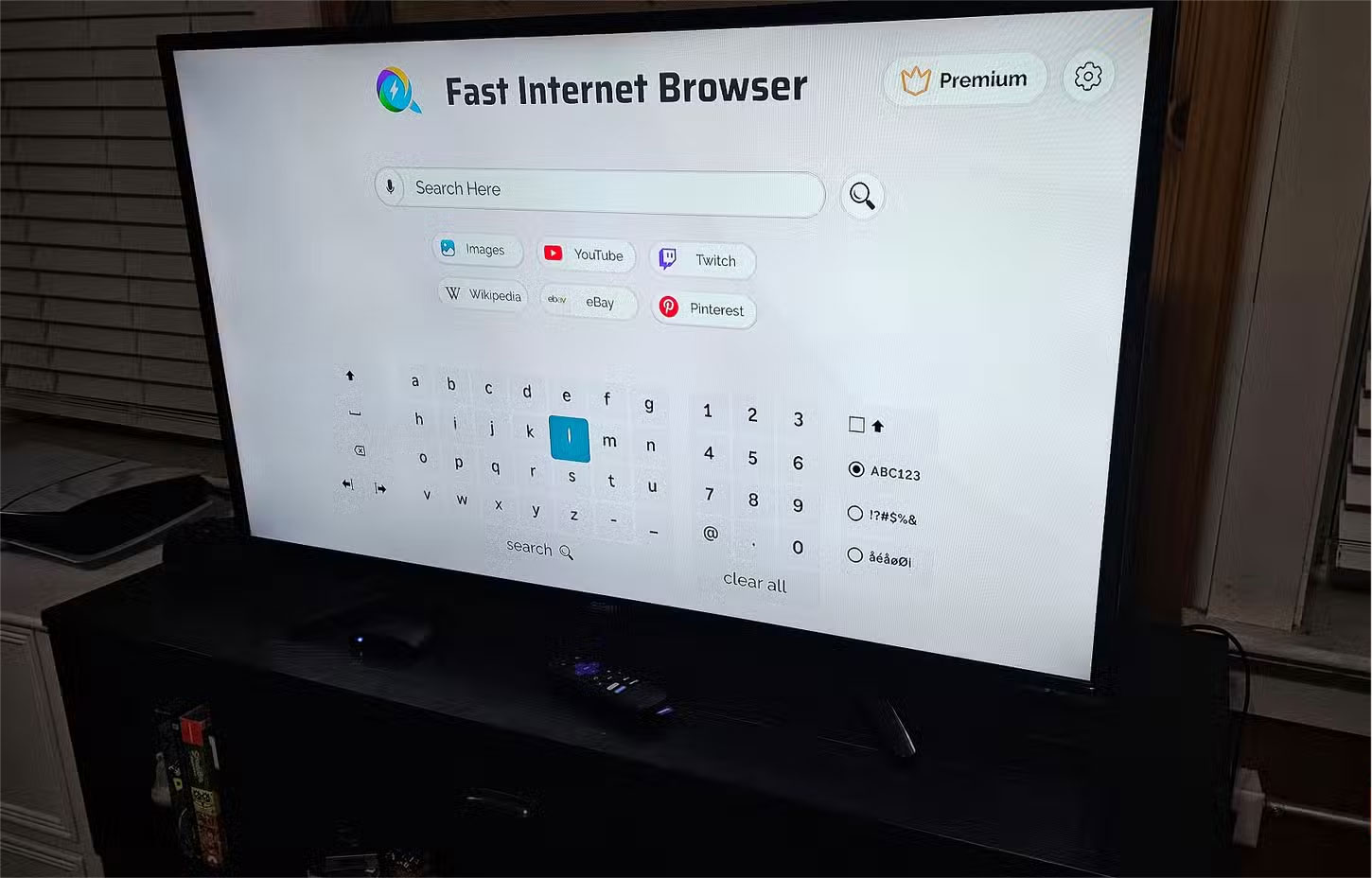
If you can find a way to bypass your computer when you're not at work, It is best to. That includes using your Smart TV as a browser. It also helps with the reluctance to add social media apps to your phone. Many browsers have their own apps, so you can just search for them using the app store on your Smart TV.
You'll need a way to navigate, though. Just like connecting a controller to a Smart TV to play games, you'll need to connect via Bluetooth or directly with a USB cable. You'll need at least two cables—one for the keyboard and one for the mouse.
With everything a Smart TV can do, ignoring its other features is like using your smartphone just to make calls. They have so many great uses, niche or otherwise, that using a Smart TV just for streaming content seems like a waste of potential. And if you're thinking about getting a Smart TV, but never plan on using those features, you're better off getting a regular TV and a streaming device instead.
FAQ
How were the weird but useful things you can do with your smart tv options evaluated?
The comparison focuses on practical features, ease of use, limitations, compatibility, and the type of user each option is most likely to help.
Which option is best for beginners?
Beginners should prioritize a clear interface, useful documentation, reliable support, and the core features needed for their first project.
Should I choose a free or paid option?
Start with a free option when it covers your needs. A paid plan may be worthwhile when you need advanced tools, commercial rights, collaboration, or professional support.
Related Articles
 12 'Must-have' Devices for Smart Home (Smart Home)12 minutes read
 How to Change DNS Settings on Smart TV6 minutes read
 Successful Development of Smart Sports T-shirts Can Monitor ECG6 minutes read
 More Than 85% of Smart TVs Can Be Remotely Attacked by Television4 minutes read
 7 Things That Accidentally Void Your Smart TV Warranty8 minutes read
 Things to Know About Samsung Smart View Application6 minutes read
Reader Comments 0
Sign in with email or Google to join the discussion.