Table of Contents
TV placement is important, but it's the settings on your TV that can make your movies look bad. There are a few things you need to understand about TV settings and movies in general to understand how to improve the picture.
Have you ever tried to watch a movie at home and everything just doesn't seem right? You can't figure out what's wrong, but the picture just isn't what you want it to be. There are a number of factors that affect how you see the picture on your TV. First, the lighting in the room plays a big role. Even with an anti-glare screen, you may still be facing sunlight and overhead lighting that can cast shadows on the screen.
Ultimately, the problem may not be your room. TV placement is important, but it's the settings on your TV that are causing your movies to look bad. There are a few things You should understand about TV settings and movies in general to understand how to improve the picture.
What is color correction?
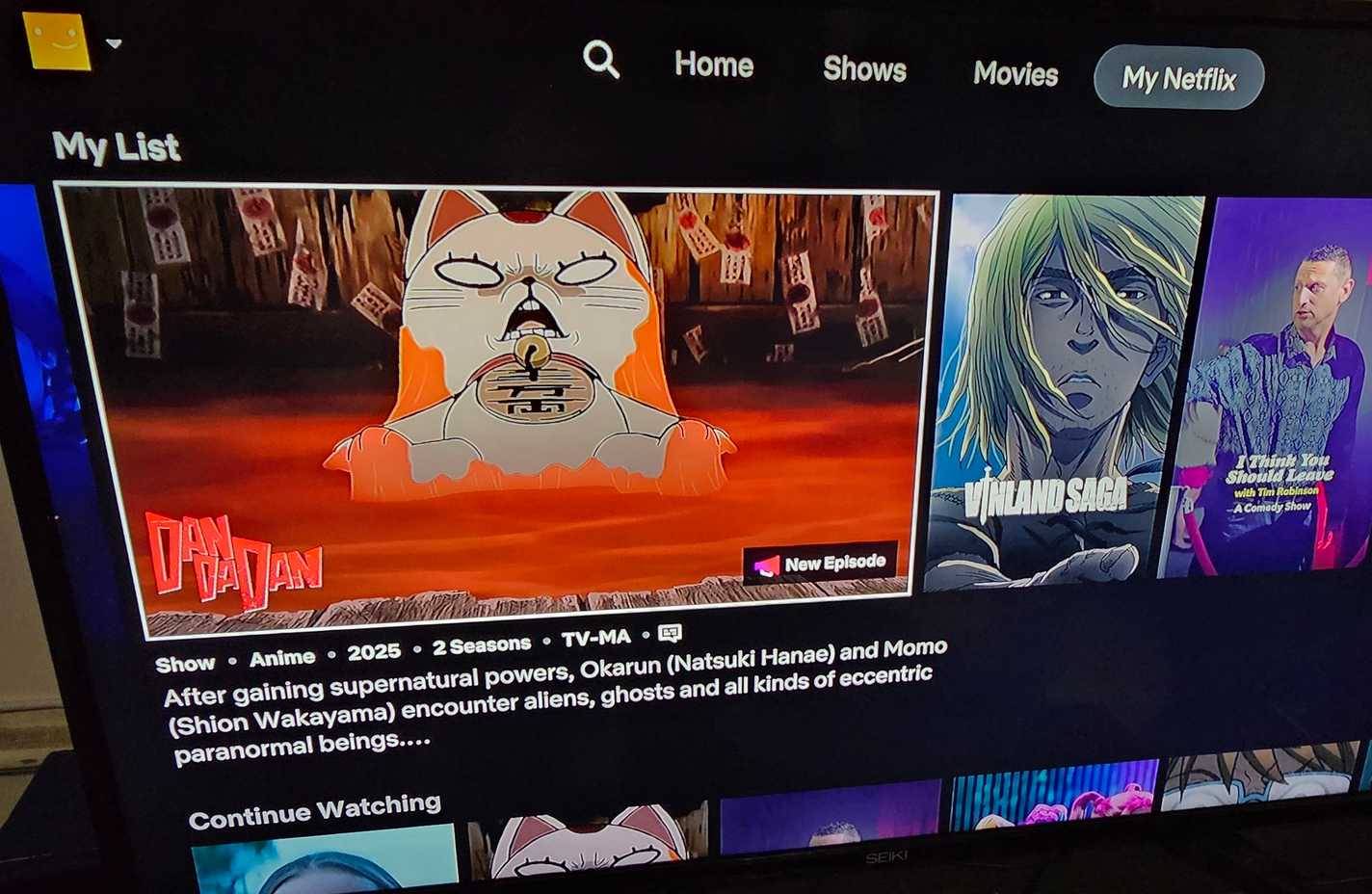
Shooting on film instead of digital is a big deal these days. That's because shooting digitally makes it easier to adjust aspects of the film to make it look better. This doesn't just include adding animation or green screen effects later. One of the ways to make a film look its best is through the color grading process. Color grading is done by a film colorist and is done in post-production.
This process allows the colorist to adjust the tone of the film. If the director wants a certain color to be most prominent throughout the film, it can be shot with that kind of lighting on set. But the colorist can adjust the color in the film later. Older films had to do color correction while shooting and then grade the highlights later.
So if you are watching a movie that was shot many years ago, it will definitely look different than a movie that was shot more recently. Not only is the technology more modern, but there are also different color variations depending on the equipment used by the filmmakers at the time of shooting. So the color of the movie you see on TV may be different from the original color shown in the movie. This is because color quality is graded differently for TV and movies.
TV modes can change the look of the movie
TV settings can now perform color adjustments
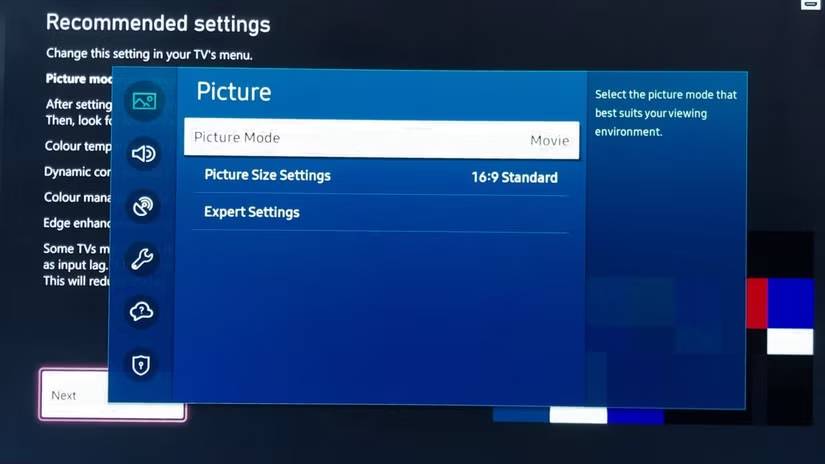
Tip : Depending on your TV manufacturer, the modes may be named differently. This article will be based on the settings on a Samsung TV.
Many TVs have different modes that adjust settings based on the type of content you're watching. Some TVs offer modes like Filmmaker, Movies, Sports, etc. These modes adjust the color based on the type of content. For example, sports mode often reduces motion blur to make the streaming experience smoother, even though it's a popular form of photography. If you're watching football or basketball, sporting events that involve constant movement, you don't want any lag. Along with reducing motion blur, it's often about brightening the colors and increasing the contrast.
Enabling these types of modes will have a significant impact on your movies. Many people prefer to watch movies in Filmmaker mode because they look more realistic. Try watching in Standard mode, which will give you a softer image with less vibrant colors. This mode is suitable for all types of content, rather than being specific to it.
Change color settings automatically
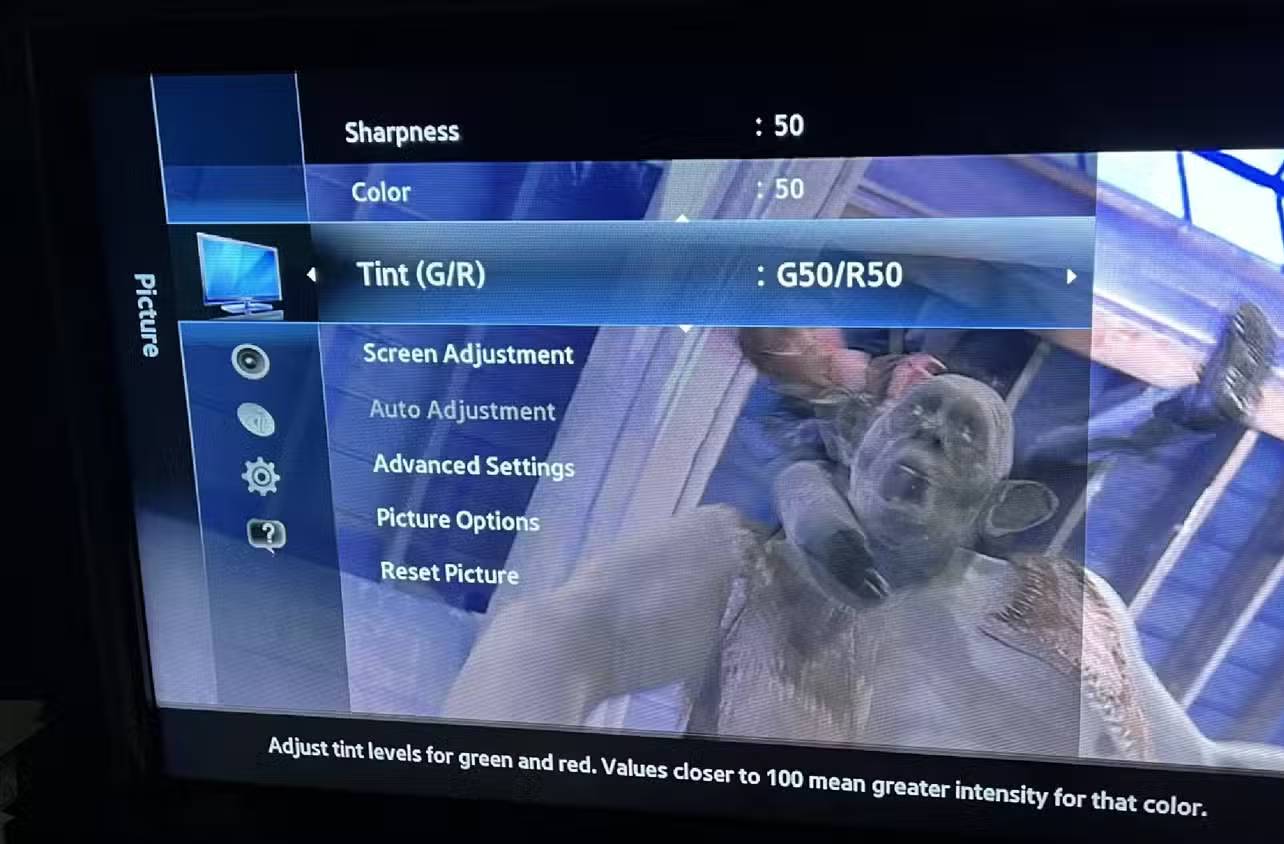
If you are not satisfied with the picture of a movie on your TV, you can change the settings of your TV. Adjusting the contrast, brightness, tint, sharpness, color, and backlight are just a few of the adjustments you can make to your TV. If you are in a room that is too bright, turning down the brightness can help. Contrast can be adjusted to help you see darker details in movies. For anyone who has ever watched a movie and had trouble making out details because the movie itself was dark, contrast has a lot to do with it.
Sharpness will produce a sharper image on your TV screen. But using too much sharpness can create a halo effect around the image. While contrast adjusts the darks and brights on your TV, tint changes the reds and greens in the image. It's important to preview something before adjusting tint, because as the film changes, you don't want to adjust the tint in every scene. Finding the right balance will make for a more pleasant viewing experience.
Display technology plays an important role
OLED, LED, QLED, and mini-LED all mean different things
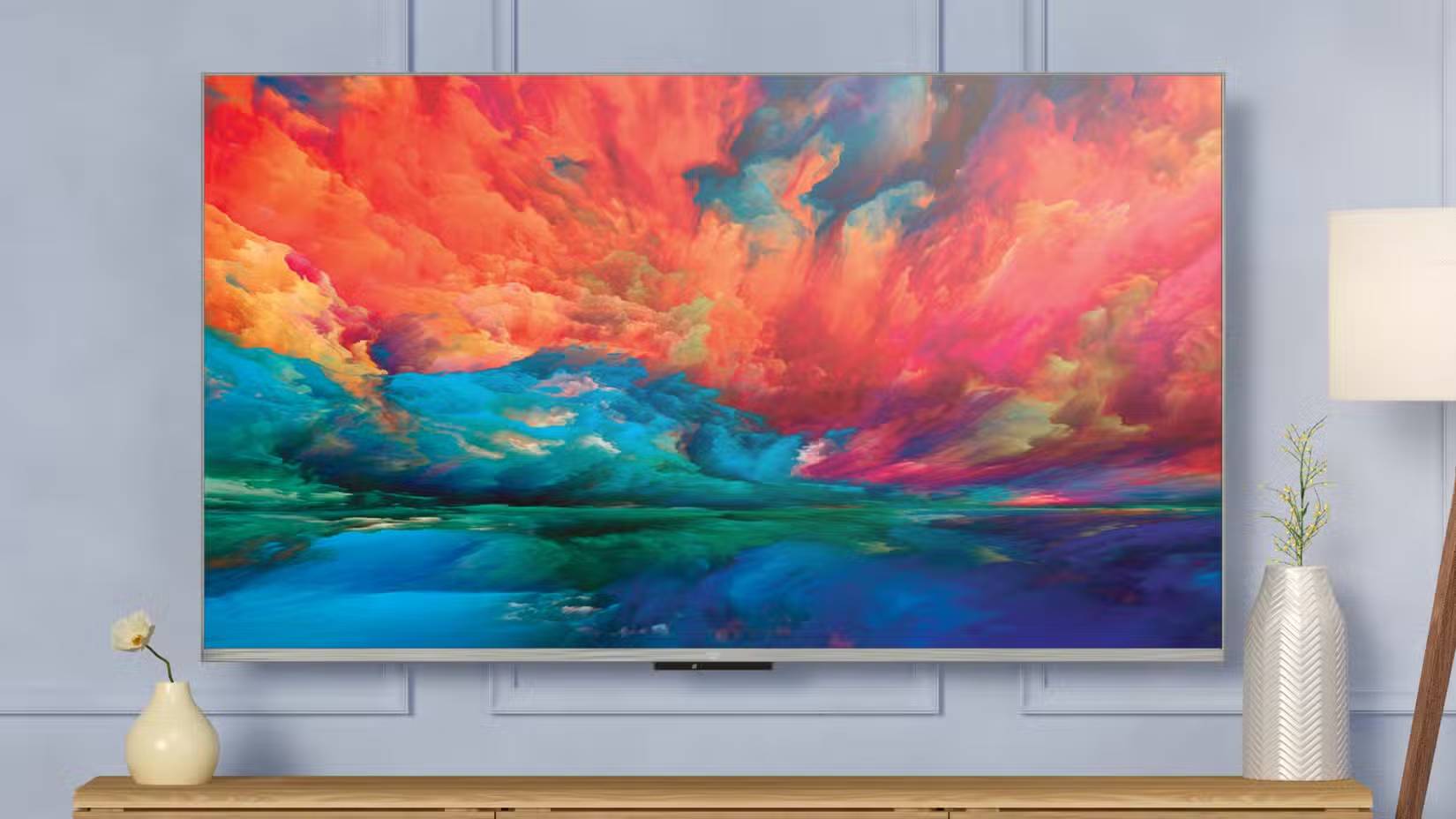
Your movies will look better depending on the type of TV you have. Display technologies like OLED, LED, QLED, and mini-LED all contribute to the way movies look on screen, as they all offer perfect color and crisp 4K or higher resolution. The decisions you make when buying a TV could be the reason why it doesn't look its best right now. If you have an OLED TV in a dark room, that's the best case scenario, as these TVs can deliver a perfect viewing experience thanks to the ability to turn individual pixels on and off, rather than the entire panel, resulting in a dark image.
Mini-LED TVs are also great for this option, while LED and QLED TVs are not. If you have one of these, this could be the reason why your movies look dull. QLED and LED TVs are great for brighter rooms and can help colors pop. While you can experiment with different settings to get the most out of LED and QLED TVs, the final decision is yours to make.
FAQ
What should you know about settings to adjust for better picture quality on TV?
In practical terms, TV placement is important, but it's the settings on your TV that can make your movies look bad. There are a few things you need to understand about TV settings and movies in general to understand how to improve the picture.
Why does settings to adjust for better picture quality on TV matter?
The article highlights that there are a few things you need to understand about TV settings and movies in general to understand how to improve the picture.
What is the main takeaway?
The main takeaway is that change color settings automatically If you are not satisfied with the picture of a movie on your TV, you can change the settings of your TV.
Related Articles
 How to Change HDR Settings on Smart TV for Better Picture Quality7 minutes read
 How to Adjust the Quality of Photos Sent on Whatsapp3 minutes read
 3 Default Settings That Make 4K TV Screens Look Blurry: Explained8 minutes read
 Stop Using Your TV's Default Picture Settings: Explained7 minutes read
 Adjust These 5 Settings to Double the Functionality of Your Second Screen7 minutes read
 How to Improve Video Quality: Step-by-Step Guide12 minutes read
Reader Comments 0
Sign in with email or Google to join the discussion.