Table of Contents
This updated guide explains how to improve smart TV picture quality by replacing HDMI cable with clear steps, practical tips, and useful context. Even if you spend many money on a gorgeous 4K HDR Smart TV, you're not guaranteed a great picture. But before you blame your TV or streaming service provider, check your cables!
How Do Cable Types and Versions Affect TV Performance?
Choosing your cable shouldn't be an afterthought. The type of cable you use and the version it supports can make or break your viewing experience.
HDMI for General Viewing Purposes

HDMI is the most common cable type for TVs, ARC-enabled soundbars, and streaming devices. But not all HDMI cables are created equal. The version supported by the cable and device determines how much data can be transmitted from the source to your display. Here's a quick guide:
|
HDMI version |
Year |
Maximum bandwidth |
Key Features |
Best for |
|---|---|---|---|---|
|
1.4 |
2009 |
10.2 Gbps |
4K at 30Hz, ARC basic, 3D support |
Old Blu-ray player, cable box |
|
2.0 |
2013 |
18 Gbps |
4K at 60Hz, HDR10, better colors |
Stream, modern consoles, most 4K TVs |
|
2.1 |
2017 |
48 Gbps |
4K at 120Hz, 8K, eARC, VRR, ALLM |
PS5, Xbox Series X, high-end soundbars |
HDMI cables also carry audio. ARC (Audio Return Channel) lets your TV send audio back to your soundbar or AV receiver using the same HDMI cable, which is handy for built-in streaming apps. ARC is limited to compressed audio, while eARC (Enhanced Audio Return Channel)—only available on HDMI 2.1 ports—lets you enjoy high-quality, uncompressed audio like Dolby Atmos and DTS:X. Both your TV and audio device need to support eARC, and you'll need an HDMI 2.1 cable.
ARC supports compressed surround sound formats like Dolby Digital Plus (including compressed Atmos), while eARC supports uncompressed audio formats like Dolby TrueHD and DTS:X
DisplayPort for Gaming
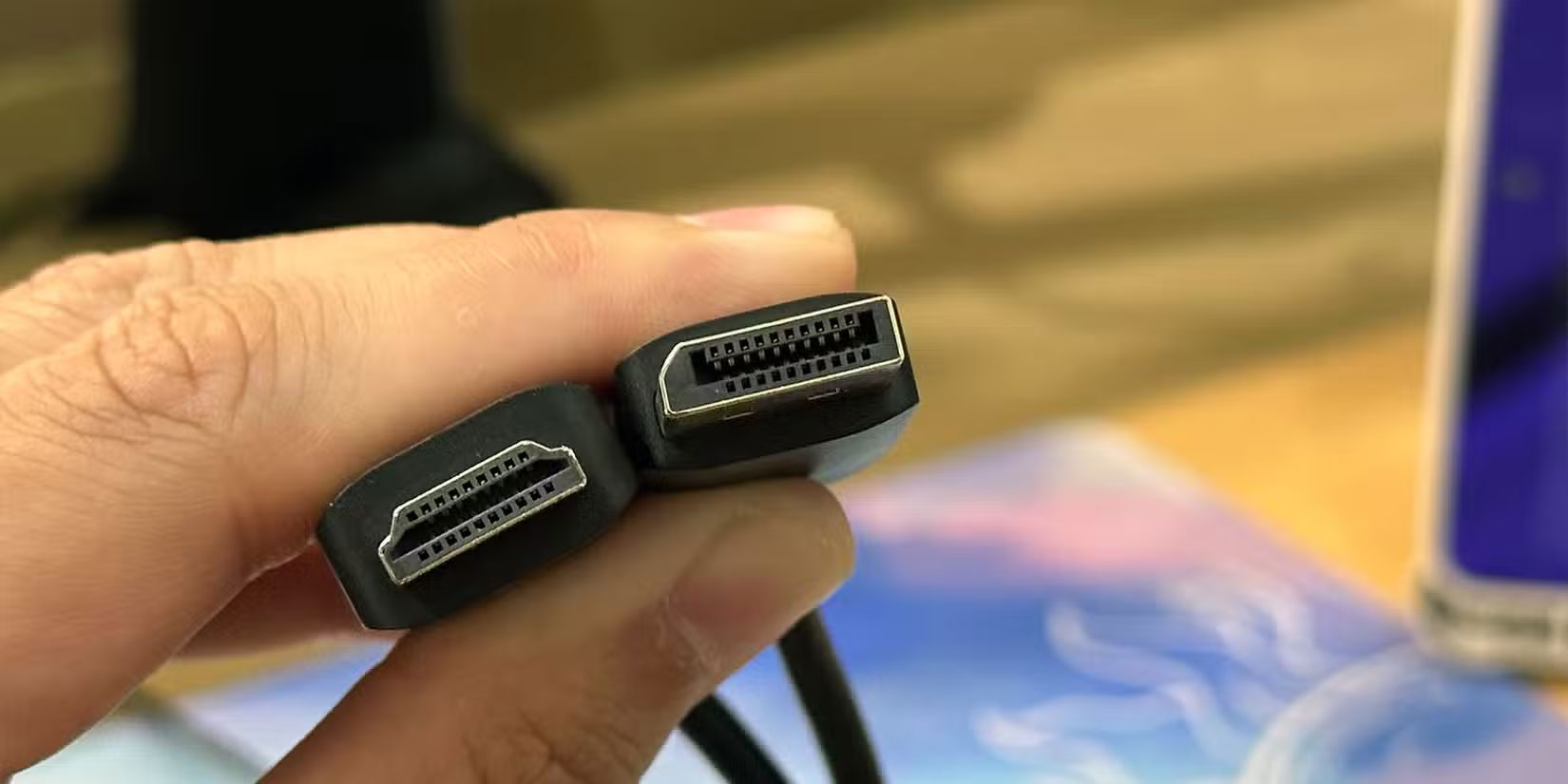
If you're gaming on a monitor, DisplayPort is generally better than HDMI because of its support for higher bandwidth and refresh rates. But for TVs, HDMI is your only real option. Still, DisplayPort handles higher refresh rates and resolutions, making it perfect for gaming and creative work.
|
DisplayPort Version |
Year |
Maximum bandwidth |
Key Features |
Best for |
|---|---|---|---|---|
|
1.2 |
2010 |
17.28 Gbps |
4K at 60Hz, seamless connection |
Basic office and gaming setup |
|
1.4 |
2016 |
25.92 Gbps |
4K at 120Hz, 8K at 60Hz (with compression), HDR10 |
High speed gaming, creative work |
|
2.1 |
2019 |
77.37 Gbps |
8K at 120Hz, 16K at 60Hz, Enhanced VR |
Advanced display, suitable for future use |
DisplayPort 1.4 is the ideal choice for most people, offering 4K at high refresh rates and HDR. Like HDMI, your cable needs to match the version your device supports. Using an older or uncertified cable can limit refresh rates, resolution, or even cause flickering and signal loss.
Thunderbolt for Portability
Thunderbolt isn't just for high-speed data transfers or laptop charging. Many new laptops and streaming devices that use Thunderbolt ports support DisplayPort video output, connecting you to monitors and even TVs for high-quality video. With the right Thunderbolt cable, you can get 4K at 60Hz or even higher, along with fast data transfers and serial connections for advanced setups.
|
Thunderbolt Version |
Year introduced |
Maximum bandwidth |
Key Features |
Best for |
|---|---|---|---|---|
|
Thunderbolt 3 |
2015 |
40 Gbps |
USB-C connector, dual 4K@60Hz displays or single 5K@60Hz display, PCIe Gen 3, up to 100W charging, USB 3.1 |
Modern laptop, eGPU, fast storage, 4K/5K display |
|
Thunderbolt 4 |
2020 |
40 Gbps |
USB-C, dual 4K@60Hz or single 8K@60Hz, stricter certification, PCIe Gen 3 (32Gbps), up to 100W charging |
Latest laptops, professional displays, reliable charging docks |
|
Thunderbolt 5 |
2024 |
80 Gbps (up to 120 Gbps with Bandwidth Boost) |
USB-C, three 4K@144Hz or two 8K@60Hz, PCIe Gen 4 (64Gbps), up to 240W charging, DisplayPort 2.1, USB4 v2 |
Next-gen workstations, 8K multi-displays, advanced content creation |
Remember that Thunderbolt and USB-C are not the same thing. Although Thunderbolt uses the USB-C interface, not all USB-C devices use the Thunderbolt specification.
Things to Check Before Buying a New Cable for Your TV
Before you buy a new cable, take a few minutes to ensure you're buying the right type of cable for your needs—whether it is HDMI, DisplayPort, or USB-C.
Know What Your Device Supports
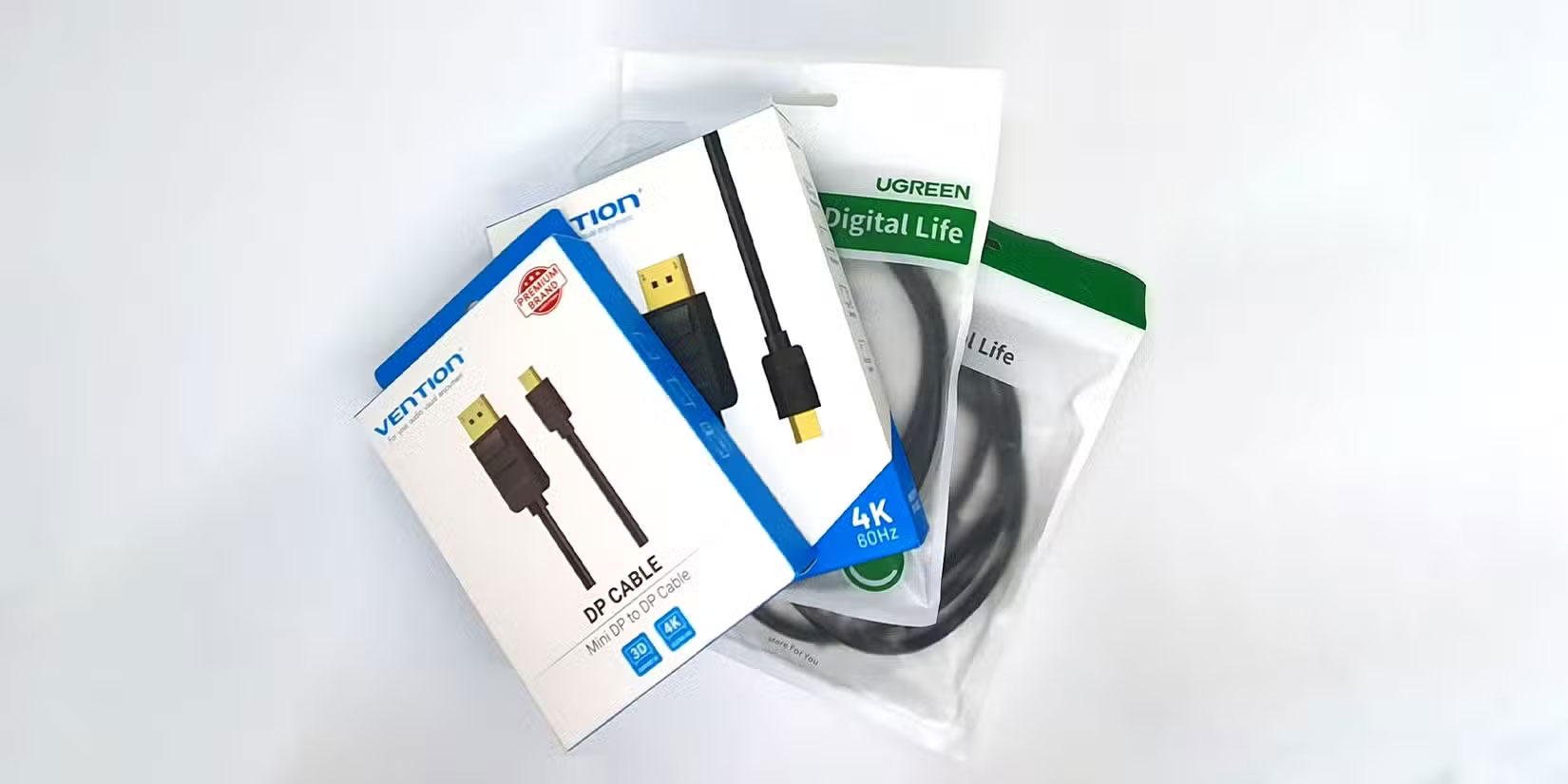
Check the specifications for your TV, monitor, soundbar, game console, or streaming box. The device with the lowest version number will be your limit. for instance, if your TV supports HDMI 2.1 but your streaming device only supports HDMI 2.0, you'll be limited to HDMI 2.0 features. The same rule applies to DisplayPort and Thunderbolt—your cable cannot unlock features that the device does not support.
Find the Right Certification
do not rely on vague claims on packaging like "4K compatible." For HDMI, look for "Premium Certified" for HDMI 2.0 or "Ultra High Speed" for HDMI 2.1 features like 4K at 120Hz or eARC audio. Certified HDMI cables will have a hologram or QR code for verification. This is especially important for ARC and eARC—only certified "Ultra High Speed" HDMI cables guarantee the full eARC experience.
For DisplayPort, choose a VESA-certified cable with a bandwidth rating like DP40 or DP80. These numbers indicate how much data the cable can handle, which is important for high refresh rates and resolutions.
If you're using Thunderbolt for 4K or higher, ensure your cable is rated Thunderbolt 3, 4, or 5 and supports DisplayPort video output. Look for the Thunderbolt logo and double-check the specs for high-speed data and video support.
Double Check Connector Type and Compatibility
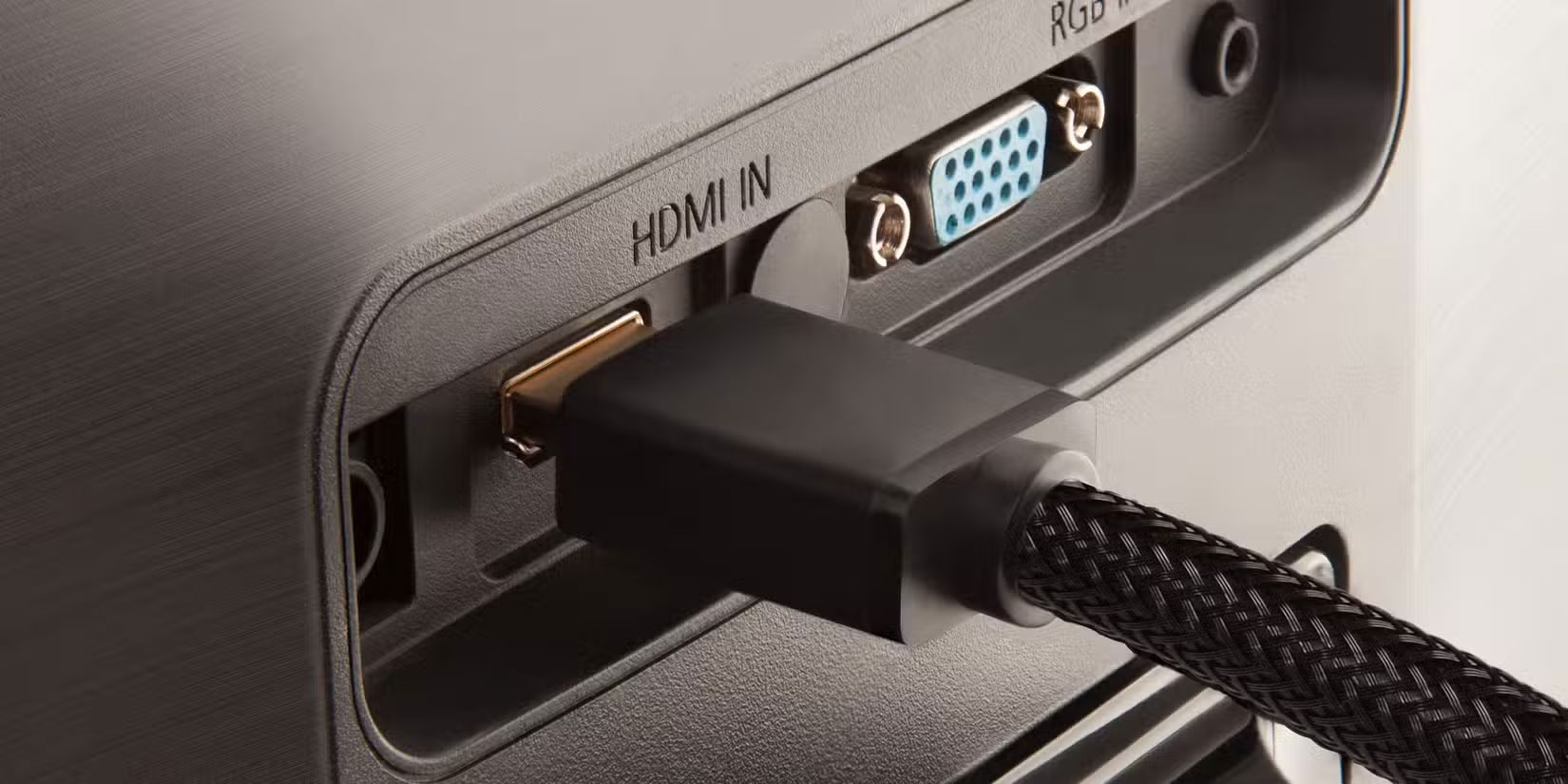
There is a full-size DisplayPort and a Mini DisplayPort. Thunderbolt uses the same connector as USB-C, but not all ports or cables support all features. Always check your device's port type before buying, and for Thunderbolt, confirm that your device supports video output.
Consider Cable Length and Quality
Short cables (under 3 meters) usually work well for high resolutions and refresh rates. For longer distances, consider using optical cables to keep the signal strong. For Thunderbolt, use short, certified cables for best results.
Beware of Misleading Marketing
Ignore vague claims like '4K support' without any specifics. Some cables say '4K' but only deliver 4K at 30Hz, which can cause stuttering in gaming, but most will be fine for TV and movies. Look for a clear version number, bandwidth rating, and certification label.
Matching the cable type and version to your device will give you the full 4K HDR experience you paid for. Whether you're gaming, streaming, or just watching your favorite show on your Smart TV, the right cable will make everything look and sound better. do not let old or cheap cables hold you back – upgrade and enjoy your TV or monitor the way it is meant to be enjoyed.
FAQ
What should I prepare before I improve smart tv picture quality by replacing hdmi cable?
Review the requirements and options in the guide first. Having the correct device, app version, account access, or materials ready helps prevent avoidable errors.
How long does it take to improve smart tv picture quality by replacing hdmi cable?
The time depends on the task and your setup. Most basic steps can be completed quickly, while downloads, updates, scans, or troubleshooting may take longer.
What should I do if the steps do not work?
Repeat the instructions in order, confirm that your software or device is supported, and check permissions, connectivity, and available updates before trying again.
Related Articles
 Don't Use Old HDMI Cables for Your New 4K TV If You Don't Want to Lose Picture Quality9 minutes read
 Best Hdmi Cable for Monitors, Lg Tvs, Samsung and Apple Tvs8 minutes read
 7 HDMI Tweaks That Instantly Improve Picture and Sound on Any Smart TV7 minutes read
 Which HDMI Cable Brand Is the Best and Highest Quality?8 minutes read
 How Many Types of HDMI Cables Are There? HDMI Cable Classification8 minutes read
 What Is HDMI? Features, Uses, and Key Details7 minutes read
Reader Comments 0
Sign in with email or Google to join the discussion.