Table of Contents
This guide provides a clear, practical overview of "QRNow: Create and Manage QR Codes for Business". It organizes the most useful details, explains important considerations, and highlights the steps or choices that matter most.
Introducing QRNow for Business
QRNow is a web tool built for business that works on any device, including computers, mobile phones, and tablets.
QRNow highlights many real-world examples of how businesses are leveraging QR codes to engage customers and increase engagement. This is especially helpful if you're still figuring out how to incorporate QR codes into your strategy.
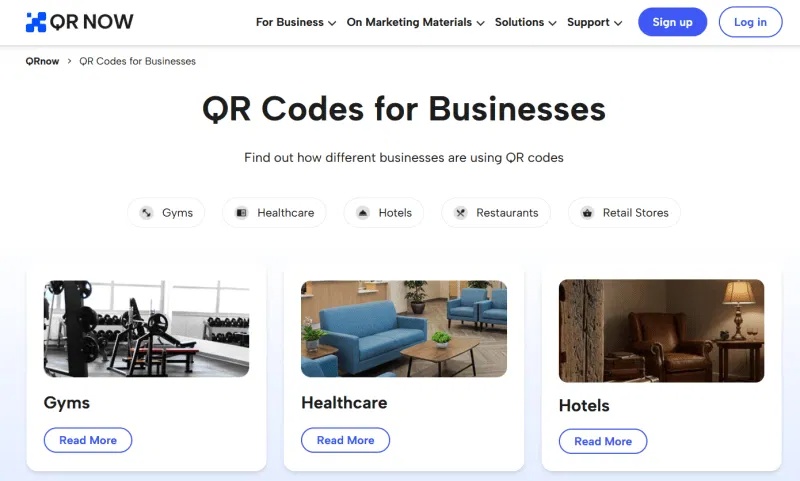
To start generating QR codes, you'll need to create a free account. You can sign up with your Google account to unlock a 7-day free trial, after which you'll need to upgrade to a paid subscription to continue using the service.
Static QR code and dynamic QR code
After logging in with your newly created account, you will be redirected to the QRNow Dashboard , where you can easily manage your QR codes. You can create a single QR code, but there is also an option to create QR codes in bulk.
To generate your first QR code, click the Generate QR code button.
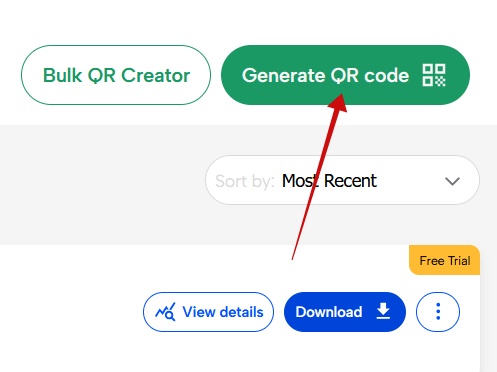
On the next page, choose whether you want to generate a static or dynamic QR code.
As the name suggests, the main difference between static and dynamic QR codes lies in flexibility. Static QR codes are fixed codes. Once created, you cannot change its content. On the other hand, dynamic QR codes allow you to update the content or even the associated URL after creation.

Static QR codes don't rely on an Internet connection, so they're perfect for simple, unchanging content, like business cards or flyers for a one-time event. The downside is that they're not trackable, so if you want to track engagement or scan performance, static codes won't give you those insights.
Dynamic QR codes are a more flexible option, allowing for advanced content editing and customization. They are especially useful for businesses running campaigns or managing content that evolves over time. For example, adding new products, updating prices, or changing landing pages without regenerating the code.
Generate QR code content
On the next page, you'll need to quickly fill in the QR code's content information. Start by giving the code a name, then choose a color scheme.
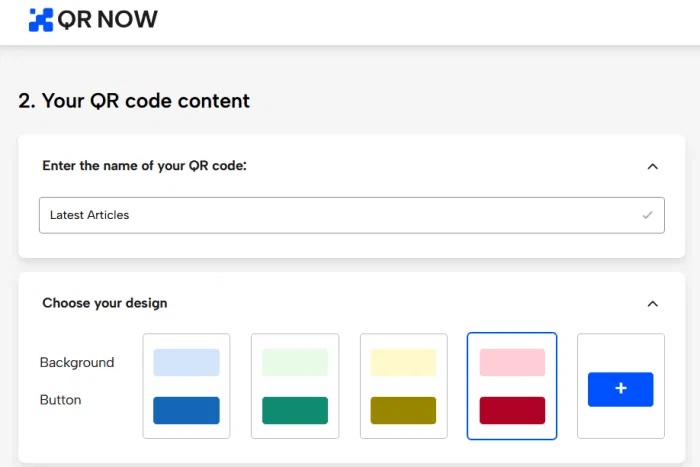
Upload your company logo and add a title and description for the links you are about to add.
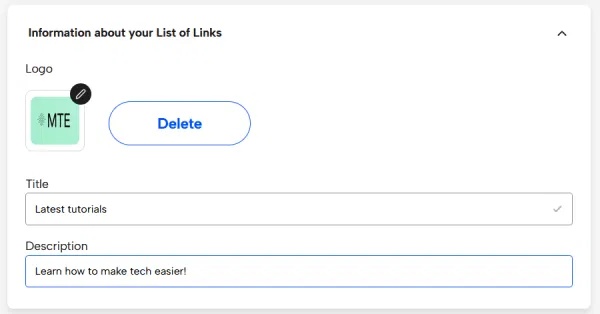
Note : You can check the live preview on the right side of the screen to see how your QR code is shaping up.
Next, add the links. Name each item and add a description. You can even add an image for each item, which will display on the button that leads to the post.
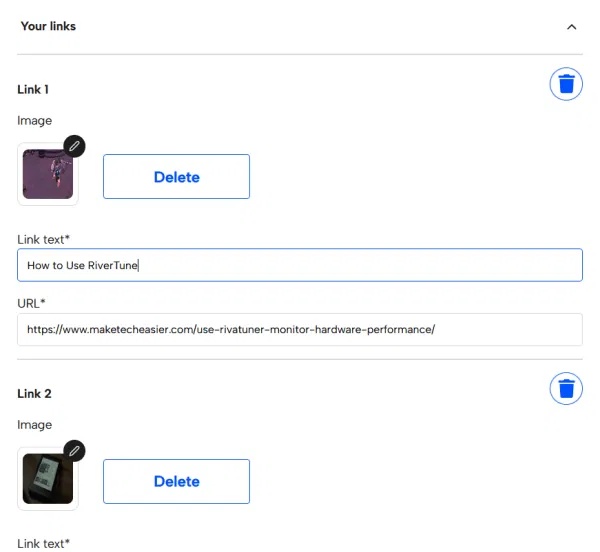
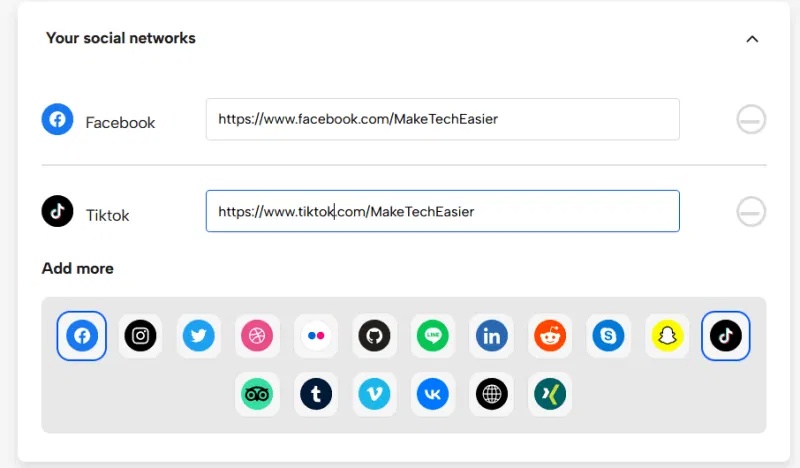
In the next section, you can add your social media accounts and any tracking information. For example, if you have a Facebook Pixel set up or a Google Analytics account, you can add them here.
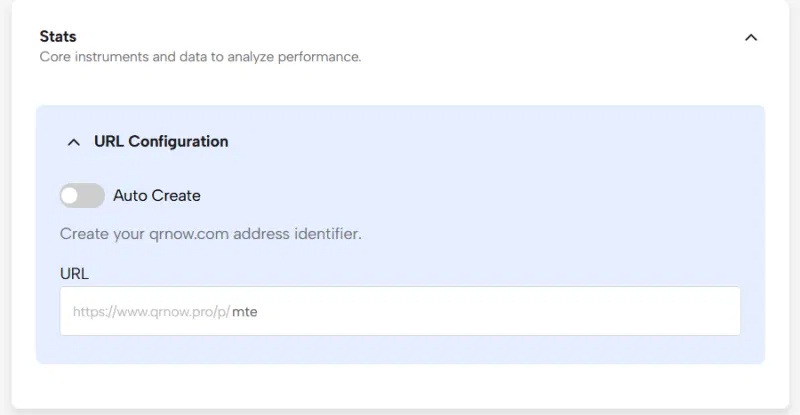
Finally, create a custom link if you want. This is the link that users will see when they scan your code. Of course, it will be www.qrnow.com. You can customize the rest of the link after the slash.
Design your code
The next stage involves the visual aspect of the code. You should try to create an attractive design to make it easier to attract the attention of your customers.
Start by adding a code frame. QRNow offers a few options available. Choose your favorite based on the purpose of the QR code.
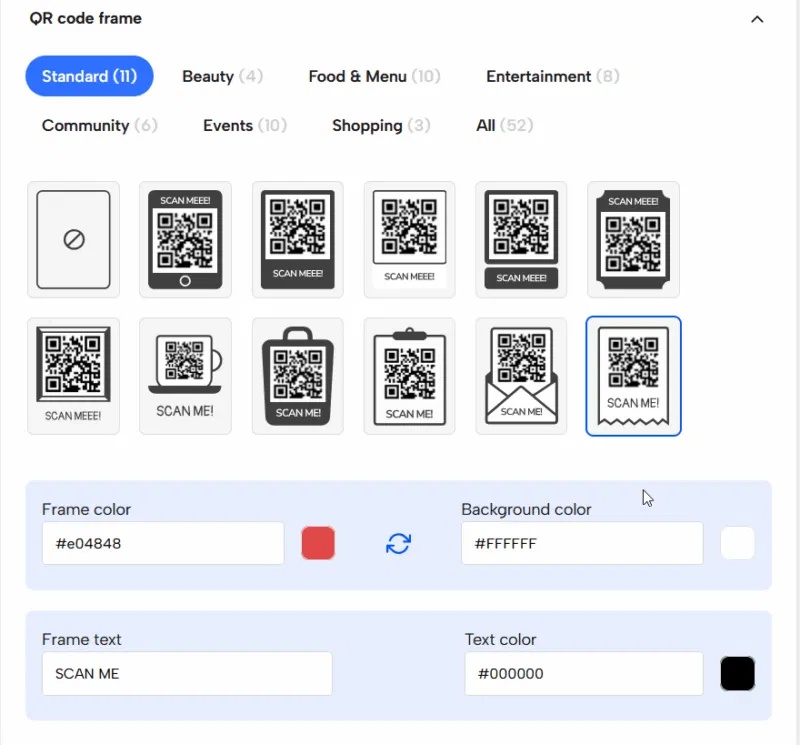
Customize the frame by changing the background color, text, etc. Use colors that match your brand for maximum appeal.
You can also change the colors of the actual QR code, including the dot/square color and the background color. Just make sure there is enough contrast; if the colors are too similar, the code may not scan. For example, the QR code shown below will not scan.
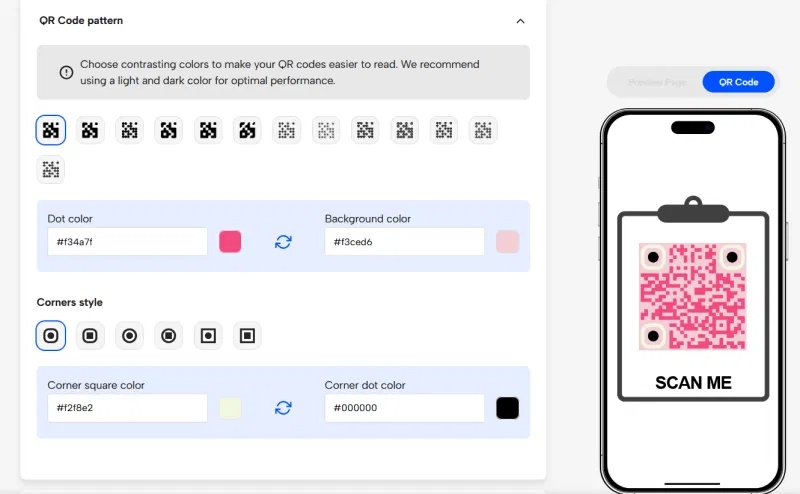
QRNow also allows you to choose from different corner styles and designs. You can experiment with these options until you find the combination that works for you.
Note that you can also insert your company logo into the QR code. This logo will be added in the middle of the code.
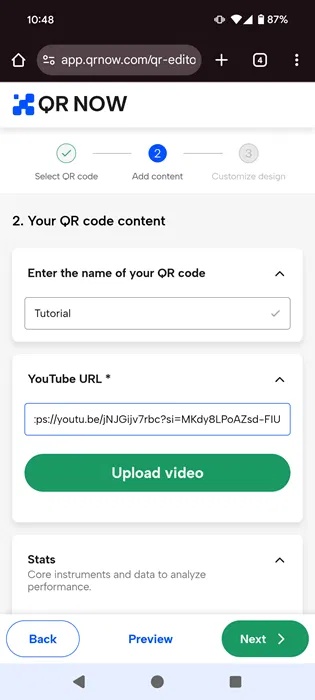
If you're on a mobile device, the steps are similar. The interface remains the same, but is scaled down to fit the smaller screen.
QR Code Management
Every time you create a QR code, it instantly appears on the QRNow dashboard, where you can easily view all your codes at a glance.
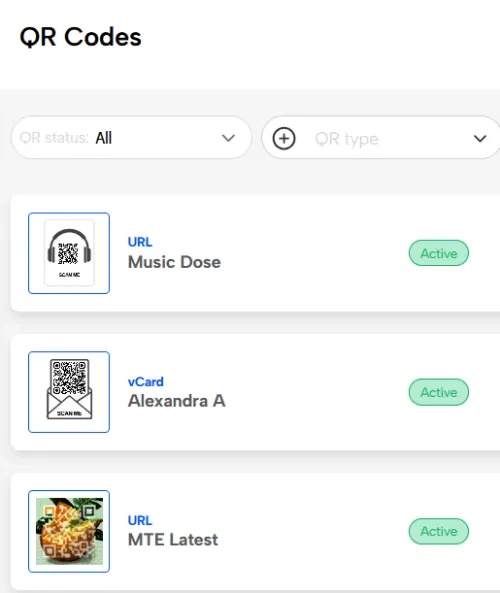
Click the QR code to view it. Or, you can download it directly to your device, then share it via text or social media. You can even save it as an SVG on your device.
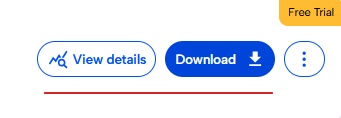
To easily manage your QR code, click the three dots next to it. From this menu, you can delete the code ( Delete ), or if it's a dynamic code, edit its contents ( Edit ). Or, pause the campaign so the metrics are no longer tracked ( Pause ).

An additional button allows account holders to view details , also known as analytics, for each code. This gives you access to details such as how many times your QR code has been scanned, the geographic location of those scans, and the device's operating system.
The option to create templates for different scenarios is also available through the Dashboard. In the left menu, click Templates , then click the Create template button to design your QR code template. This feature is useful if you want to keep a reusable design.
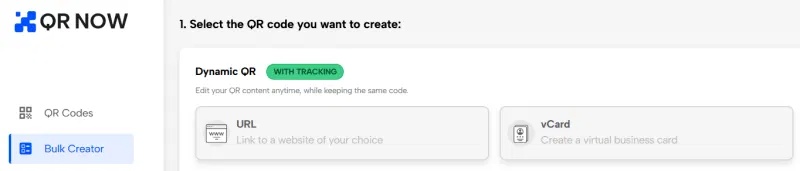
QRNow also has a Bulk QR Code Generator , specifically for dynamic codes. You can choose between URL and vCard formats, then simply upload a CSV file to proceed.
Availability
Once your 7-day free trial expires, you will no longer be able to edit or download your code. To continue using it, you will need to upgrade to a paid subscription:
- $39.95/month for 3 months
- $29.95/month for 6 months
- $19.95/month for 12 months
Advantage
- Try it for free
- Easy to understand interface
- Generate static and dynamic QR codes
- Many customization options
- AI-powered QR code generator
- Analysis
Disadvantages
- QR code is no longer available after trial period expires
- No dedicated mobile app
FAQ
What should you know about introducing QRNow for Business?
QRNow is a web tool built for business that works on any device, including computers, mobile phones, and tablets.
What should you know about static QR code and dynamic QR code?
After logging in with your newly created account, you will be redirected to the QRNow Dashboard, where you can easily manage your QR codes. You can create a single QR code, but there is also an option to create QR codes in bulk.
What should you know about generate QR code content?
On the next page, you'll need to quickly fill in the QR code's content information. Start by giving the code a name, then choose a color scheme.
What should you know about design your code?
The next stage involves the visual aspect of the code. You should try to create an attractive design to make it easier to attract the attention of your customers.
Related Articles
 How to Play Pokémon GO on a Computer6 minutes read
 How to Play Pokémon GO on a Smartphone6 minutes read
 26 Types of Poké Balls Explained: Part 25 minutes read
 How to Earn and Use Stardust in Pokémon GO5 minutes read
 Pokémon GO Eggs: Incubation and Hatching Guide4 minutes read
 26 Types of Poké Balls Explained: Part 18 minutes read
Reader Comments 0
Sign in with email or Google to join the discussion.