Table of Contents
When you first open an app on your iPhone, it often asks for various permissions—like access to your camera, contacts, microphone, photos, and most importantly, your location.
When you first open an app on your iPhone, it often asks for a variety of permissions—like access to your camera, contacts, microphone, photos, and most importantly, your location. What you might not realize is that granting location access often means giving the app your exact coordinates.
In practice, any app on your iPhone that has location access can track you. That's not something you want, which is why this setting deserves more attention. It's one of the most important privacy controls to review regularly on your iPhone.
- Instructions for turning on and off location on iPhone
How Precise Location Works on iPhone
Your application can determine location to within a few meters.
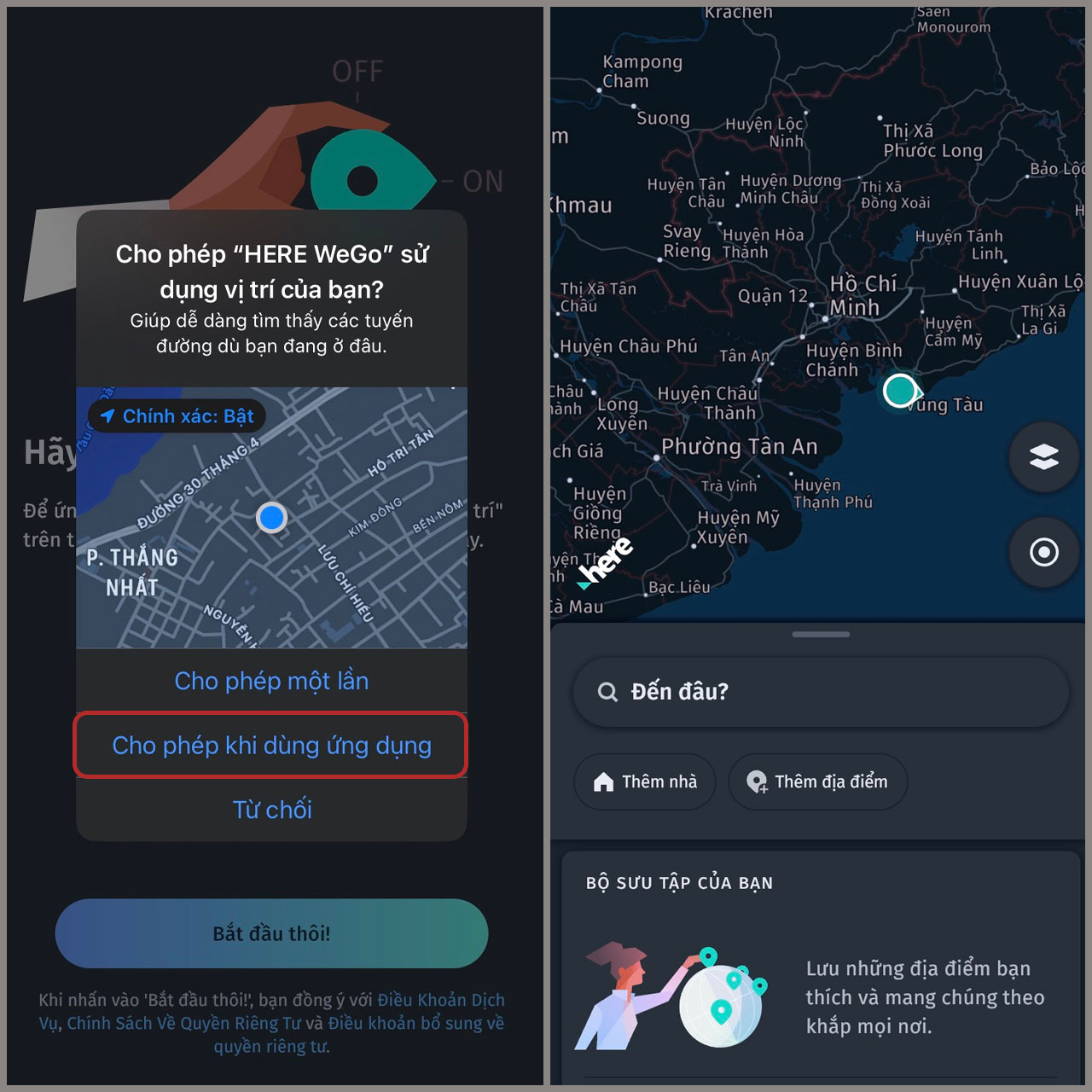
When an app requests location access, your iPhone will display a friendly pop-up with three options: Allow Once, Allow While Using App , and Deny .
It feels like a simple choice. You choose to allow when using the app and move on, confident that you've set a reasonable boundary. But there's a small print that's easy to miss— Exactly: On .
That little toggle is what changes everything. When it's on, you don't just give apps your approximate location, like your city or neighborhood. You give apps your exact coordinates—sometimes down to the house, the street corner, or even the room you're sitting in. When it's off, by contrast, apps only get an approximate location within a few dozen meters.
Problems granting Precise Location permission to apps
Dangerous for several reasons
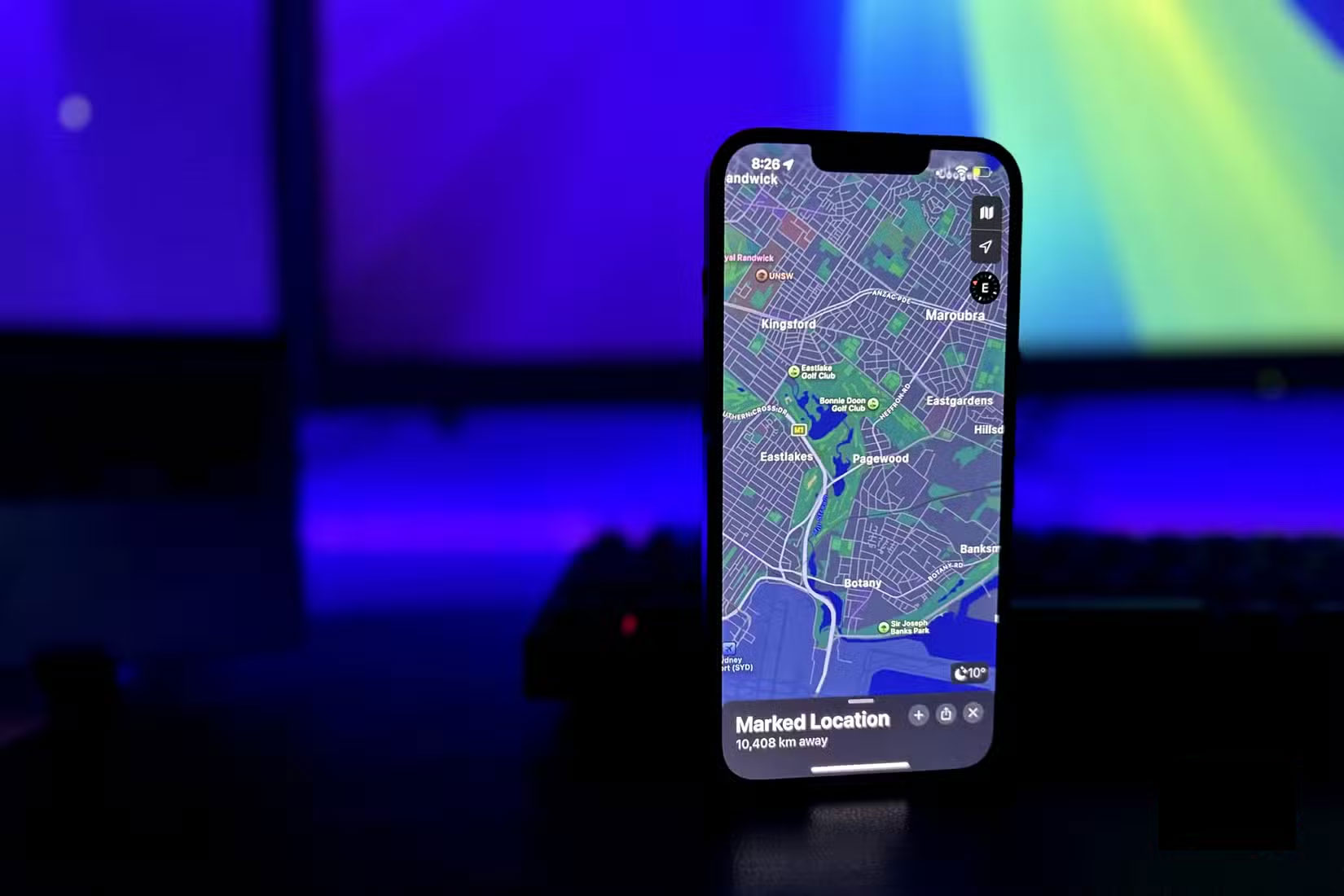
At first glance, this might not seem like a big deal. After all, most iPhone apps ask for location access to improve your experience. But that convenience comes at a price. And the implications don't stop with ad targeting.
While apps often promise to use your location responsibly, there's always the chance that location data can be misused. Hackers, data brokers, or apps with lax privacy standards can access this information. In the wrong hands, your location history is a gold mine for surveillance, fraud, or worse.
What's particularly troubling is that many apps don't actually need your precise location to function properly. A weather app only needs your city to provide an accurate forecast. A social media app might suggest friends nearby without knowing the exact coordinates of your apartment. Yet the default setting often pushes you to enable Precise Location even when it's not necessary.
And this doesn't just apply to third-party apps. Apple's Camera app also has access to Precise Location by default. In practice, every photo or video you take includes metadata (called EXIF data) with the exact location where it was taken.
This is great for finding your photos later, but it can be risky when you share them. However, if you upload photos without removing metadata, you could accidentally reveal the exact location of your home, work, or your child's school.
Precise location management for apps
The little switch that most people often overlook
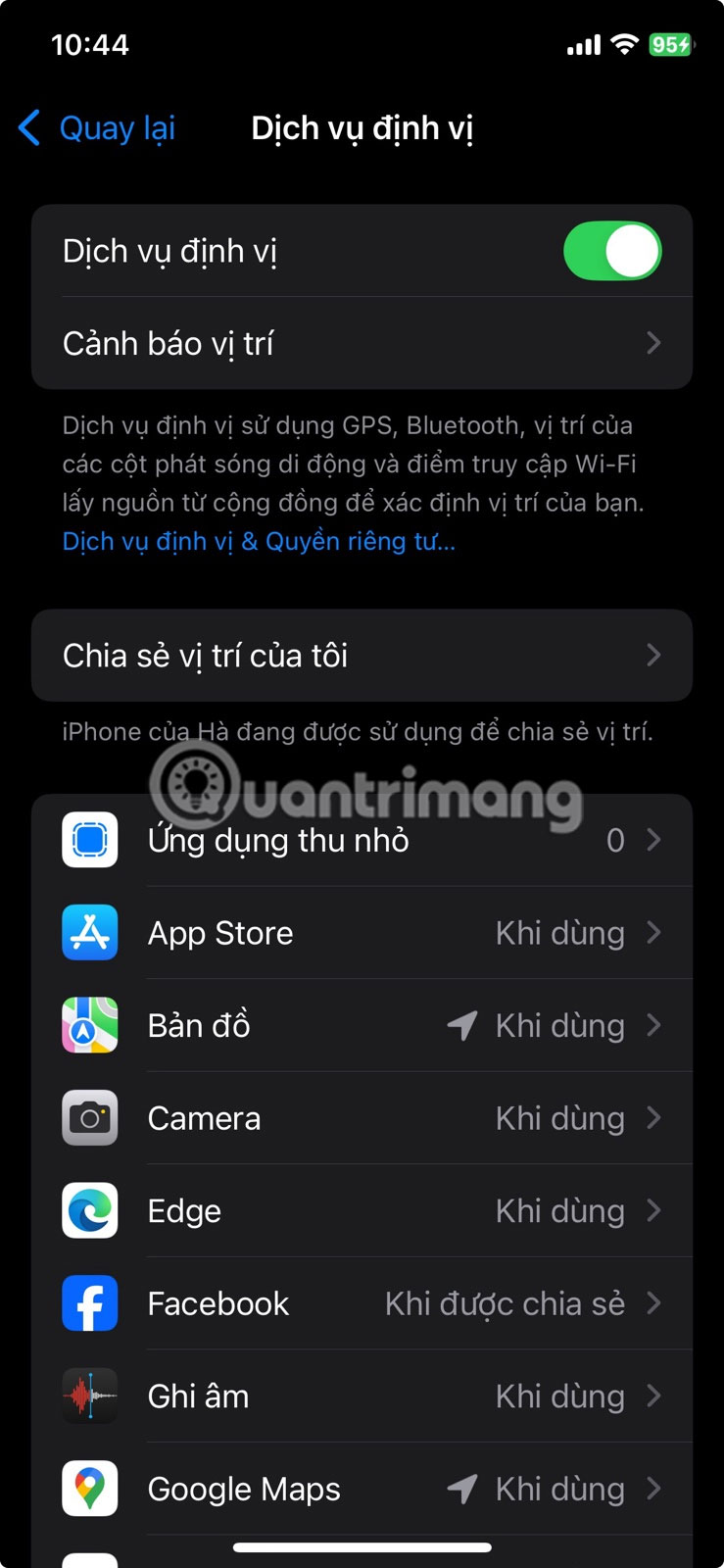
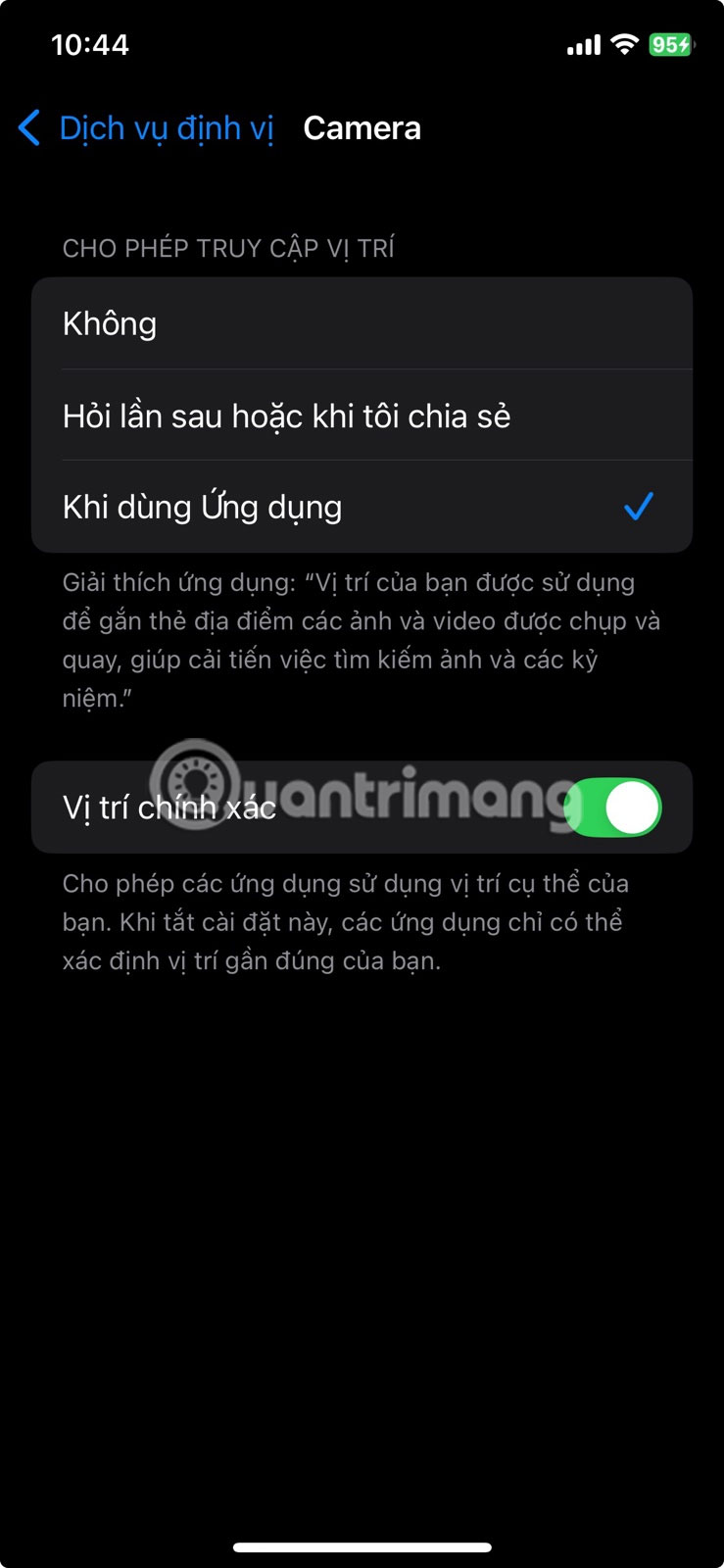
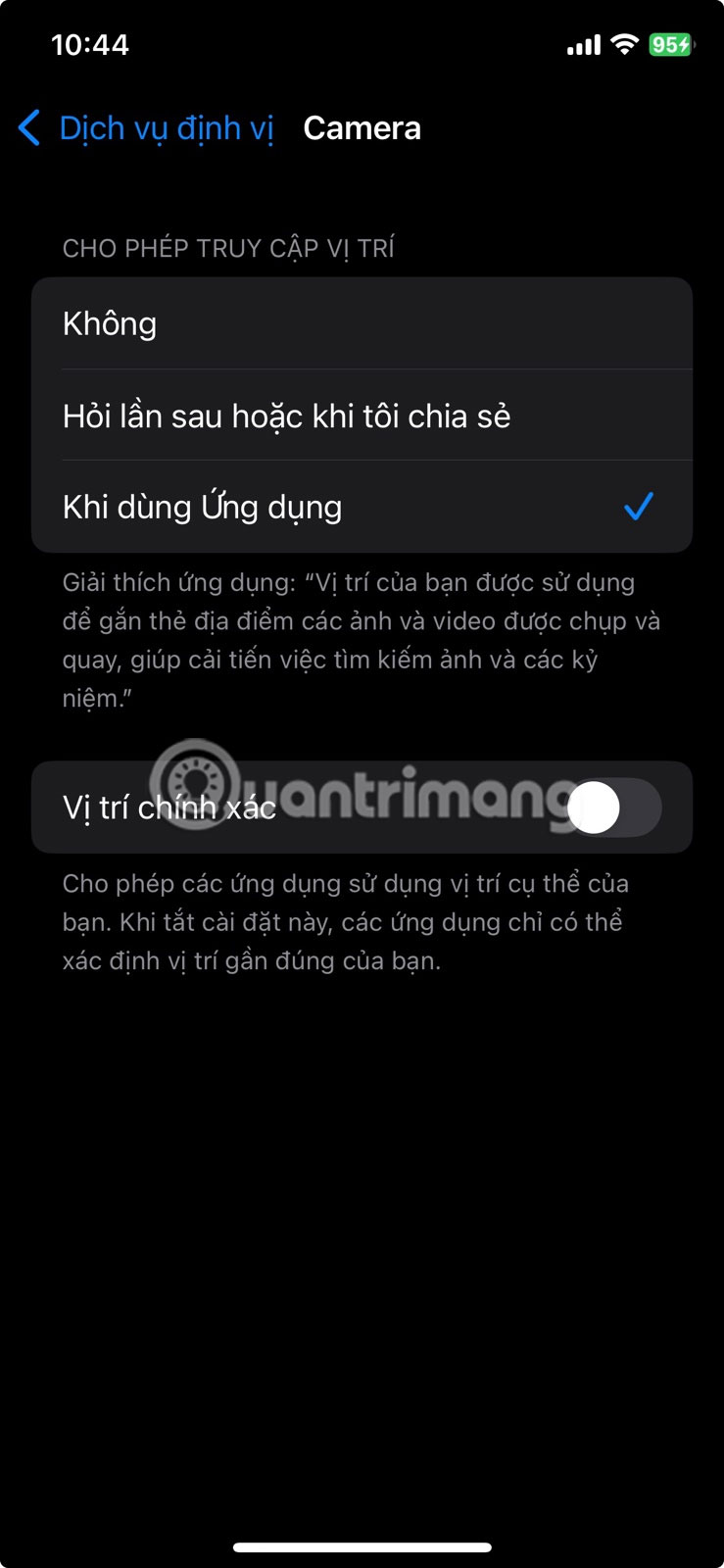
When an app knows your exact location, it can infer more than just coordinates. It can connect your habits, preferences, and movements. Over time, this data paints an incredibly detailed picture of your life. From your favorite lunch spots to your commute times, it all becomes part of a digital footprint that reveals more than most people realize.
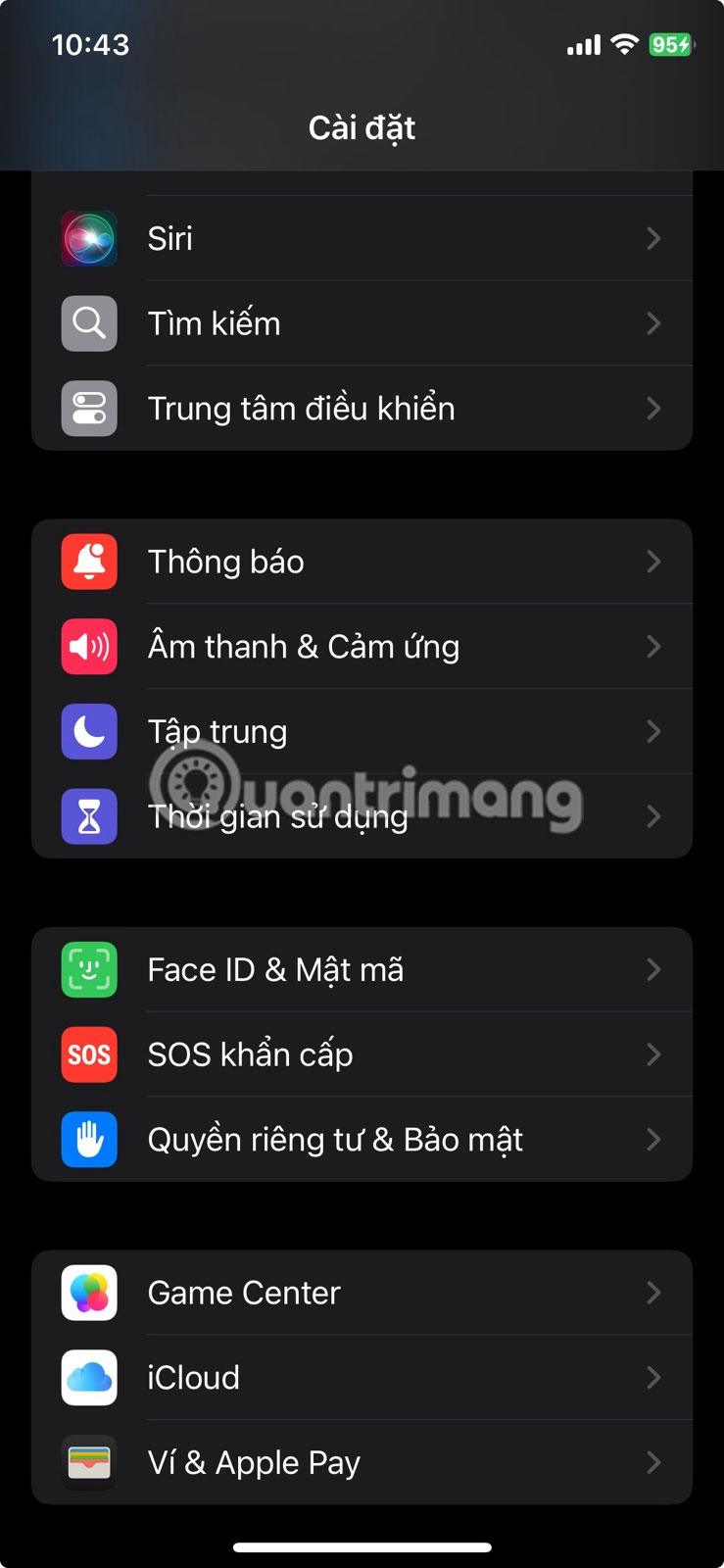
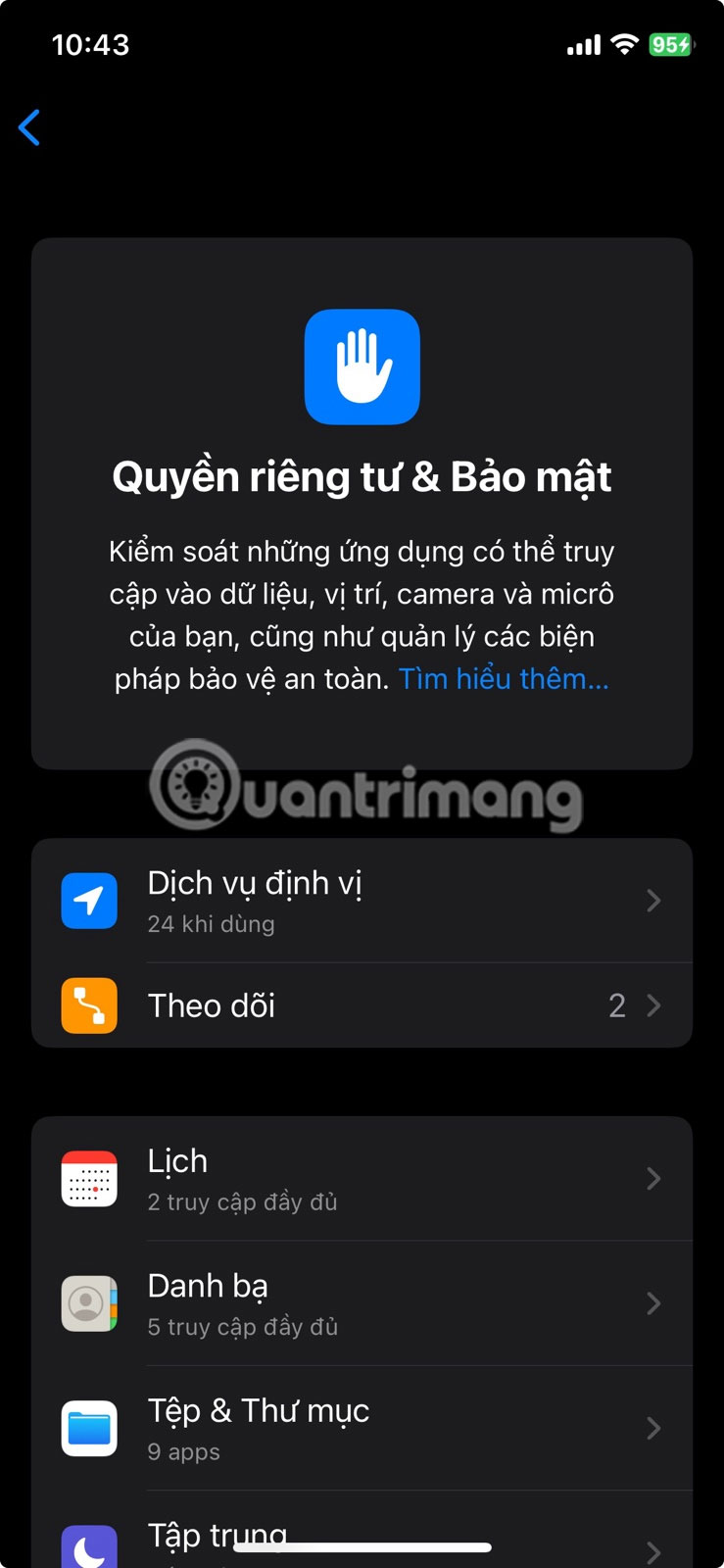
The good news is that Apple makes it relatively easy to review and adjust your iPhone's location settings. Go to Settings > Privacy & Security > Location Services and you'll see a list of apps that have location access. Tap any app to see its permissions. If you feel like an app doesn't really need your precise location, just turn off the Precise Location Toggle.
FAQ
What should you know about your iPhone's precise location feature is quietly recording everywhere you go?
In practical terms, when you first open an app on your iPhone, it often asks for various permissions—like access to your camera, contacts, microphone, photos, and most importantly, your location.
Why does your iPhone's precise location feature is quietly recording everywhere you go matter?
The article highlights that problems granting Precise Location permission to apps Dangerous for several reasons At first glance, this might not seem like a big deal.
What is the main takeaway?
The main takeaway is that what's particularly troubling is that many apps don't actually need your precise location to function properly.
Related Articles
 How to Turn on, Turn Off Location Sensing on Windows 7 and4 minutes read
 Windows 10 Location Tracking Feature: Turn Off Location Tracking3 minutes read
 How to Fix the Error Does Not Enable GPS on Windows 105 minutes read
 How to Enable Location Services When Taking Photos on iPhone3 minutes read
 How to Activate Application Notifications in Silence on iOS 125 minutes read
 How to Turn Off Location Positioning on iOS 114 minutes read
Reader Comments 0
Sign in with email or Google to join the discussion.