Table of Contents
This practical guide explains how to change the default location of the Windows 11 documents folder. Follow the steps in order, review the requirements first, and use the troubleshooting notes when a setting or option does not work as expected.
How to change the location of the Documents folder on a Windows PC
Step 1:
You move to the new location for the Documents folder, then create a new folder and name the new folder Documents.
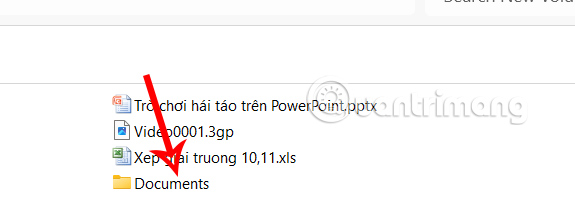
Step 2:
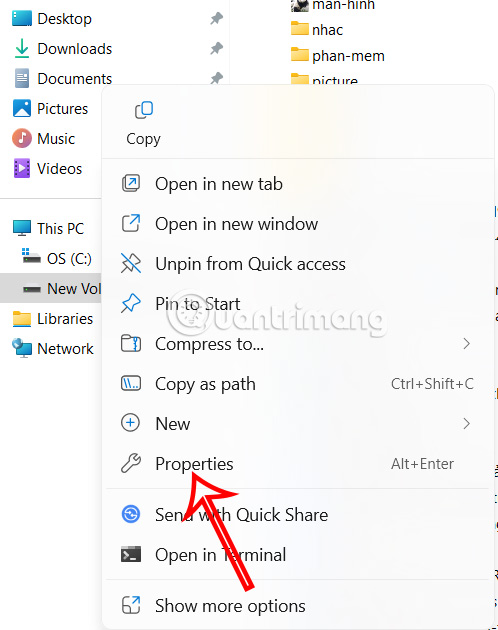
Right- click the Documents folder in the left sidebar of the File Explorer interface and click Properties .
Step 3:
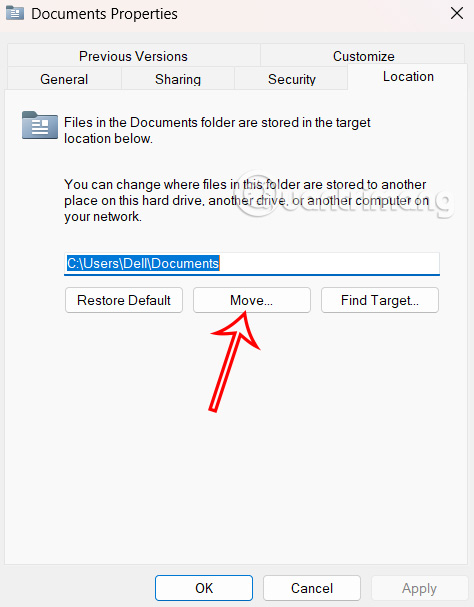
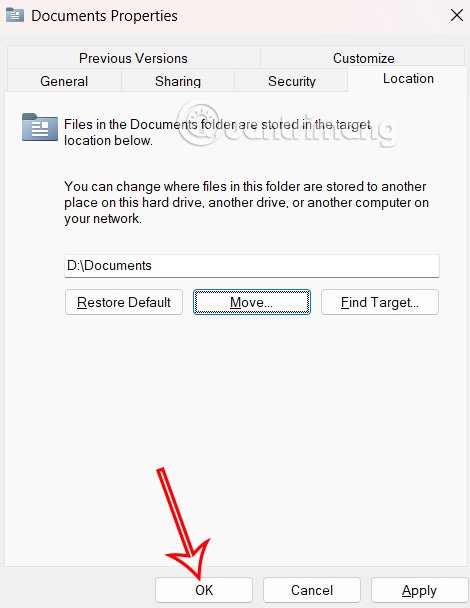
The new interface appears, select Location and then click the Move button below to move the folder location.
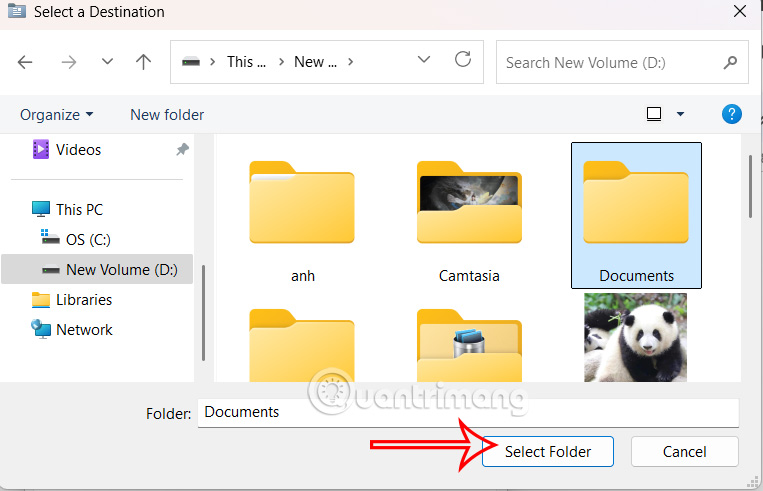
Navigate to and select the newly created Documents folder , then click Select Folder to choose the new location.
Step 4:
Now you will see the new Documents folder location on your computer , click OK to save.
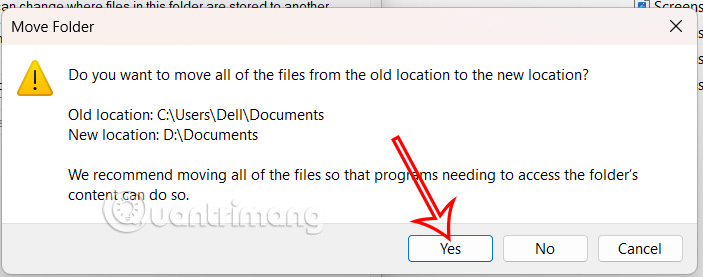
Finally click Yes to complete the operation .
In case you want to return to the default location of the Documents folder, follow the steps above and click Restore Default.
FAQ
How to change the location of the Documents folder on a Windows PC?
You move to the new location for the Documents folder, then create a new folder and name the new folder Documents.
What does this guide cover?
This guide explains change the default location of the Windows 11 documents folder, including the main steps, important details, and practical considerations.
Who is this guide for?
It is designed for readers who want a clear, practical overview and a reliable process they can follow without unnecessary complexity.
Related Articles
 How to Change the Dropbox Folder Default Location?3 minutes read
 How to Change the Download Folder Windows Update in Windows 105 minutes read
 How to Change the Default Download Path on Windows?4 minutes read
 How to Restore the Default Location of Individual Folders on Windows 103 minutes read
 How to Change the Default Name 'New Folder' of a Newly4 minutes read
 How to Set the Default Name of a Newly Created Folder5 minutes read
Reader Comments 0
Sign in with email or Google to join the discussion.