Table of Contents
This updated guide explores powerpoint 2016: rehearse and record your presentation with practical details, clear explanations, and useful takeaways. You will find many things to consider when preparing a presentation: How long will it be? What will you say? Fortunately, PowerPoint 2016 offers a number of tools that can help you rehearse your presentation.
Rehearse Presentation Time
The Rehearse Timings feature can be useful to set your presentation to play at a certain speed, so you do not have to choose through the slides yourself. Using this feature, you can record the timing for each slide and effect. PowerPoint will then play the presentation automatically using these timings.
Rehearsing is often one of the final steps in delivering a presentation. If you've never given a presentation before, review our lesson on how to present a slideshow in PowerPoint 2016 to familiarize yourself with the basics.
How to Rehearse Your Presentation
1. open the Slide Show tab, and then choose the Rehearse Timings command.
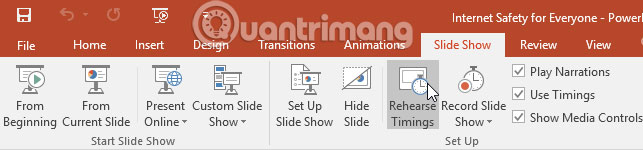
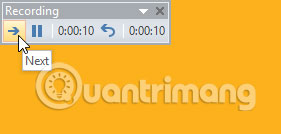
2. You will be taken to a full-screen view of your presentation. Practice your presentation along with the slideshow. When you are ready to move on to the next slide, choose the Next button on the Recording toolbar in the upper left corner. You can use the right arrow key on your keyboard.

3. When you reach the end of your presentation, a dialog box will appear stating the total presentation time. If you are happy with the timings for each slide, choose Yes.
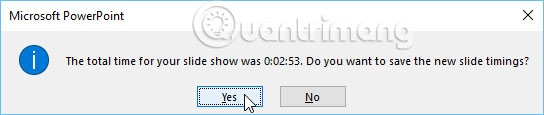
4. The timings are saved. The next time you present, PowerPoint will use these timings to automatically advance slides.
If you need to try again to adjust the timing to a better fit, the Recording toolbar can pause or restart a slide. To pause the timer, choose the Pause button. When the timer is paused, no actions will count against the saved time. To record the timing on the current slide again, choose the Repeat button.

Record Your Presentation
The Record Slide Show feature is similar to the Rehearse Timings feature, but a little more comprehensive. If you have a microphone on your computer, you can record a voiceover for your entire presentation. This is useful if you plan to use your slideshow as a presentation or a self-running video.
How to Record Slideshow
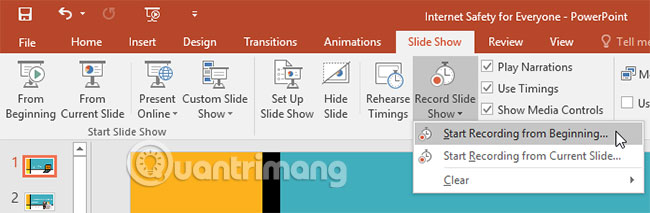
1. From the Slide Show tab, select the Record Slide Show drop-down arrow, and then select Start Recording from Beginning or Start Recording from Current Slide .
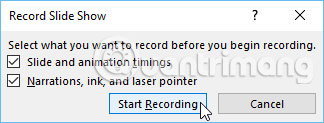
2. A dialog box will appear. Select the desired options, then choose Start Recording. Remember, you can only record a voiceover if you have a microphone attached to your computer.
3. The presentation will appear in full screen view. Go ahead and perform the slideshow. Be sure to speak clearly into your microphone if you are recording a narration.
4. When you're ready to move on to the next slide, choose the Next button on the Recording toolbar or use the right arrow key.
5. When you reach the end of the slideshow, PowerPoint closes full-screen view.
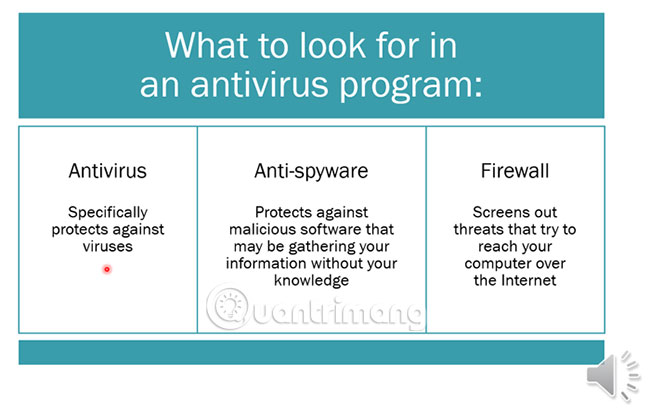
6. The timings set for the slides and narration are now part of the presentation. Slides with narration will be marked with a speaker icon in the lower right corner.

In the recorded slideshow, the mouse cursor will not appear in the finished product. So to point something out, You need to use the laser pointer feature. Just hold down the Ctrl key on your keyboard while clicking and holding your mouse. The cursor will appear as a small red dot.
How to Remove Timings Set for Slides and Voiceovers
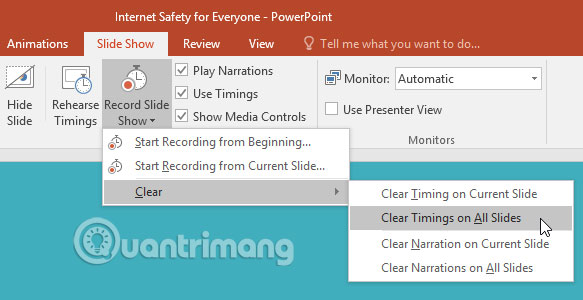
If you change your mind about including preset timings for each slide or narration, you can easily remove either or both of these settings. You can remove them from your entire presentation or just the current slide.
To do this, simply open the Slide Show tab, choose the Record Slide Show drop-down arrow, hover over Clear, and then select the desired option from the menu.
Good luck!
FAQ
What is the main takeaway about PowerPoint 2016: Rehearse and Record Your Presentation?
The key is to understand the core idea, compare the available options, and apply the practical guidance that matches your situation.
What should beginners know about PowerPoint 2016: Rehearse and Record Your Presentation?
Start with the essential steps and terminology. Avoid changing advanced settings until you understand how they affect performance, privacy, cost, or compatibility.
How can I use this information in practice?
Follow the relevant section in order, test one change at a time, and confirm the result before moving to the next step or recommendation.
Related Articles
 Rehearsal and Record Presentations in PowerPoint 20166 minutes read
 How to Record and Record a PowerPoint Presentation4 minutes read
 How to Record and Record PowerPoint Slides: Record Slide Show5 minutes read
 PowerPoint 2019 (Part 25): Evaluating Your Presentation: Explained5 minutes read
 PowerPoint 2019 (Part 3): Saving Your Presentation: Explained10 minutes read
 Microsoft PowerPoint Is About to Have a Feature to Record3 minutes read
Reader Comments 0
Sign in with email or Google to join the discussion.