Table of Contents
This practical guide explains how to set margins in powerpoint. Follow the steps in order, review the requirements first, and use the troubleshooting notes when a setting or option does not work as expected.
How to align margins using Guides in PowerPoint
Step 1:
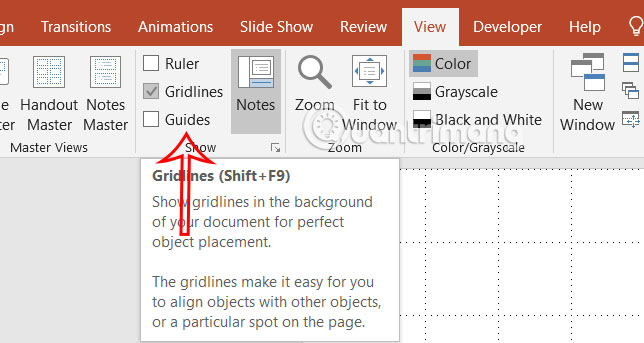
Click the View tab and then click Guides to display vertical and horizontal guides that appear on the slide.
Step 2:
Now you enter text boxes, images and other elements in the slide and use these horizontal and vertical lines to adjust.

How to Change Margins in PowerPoint Text Boxes
Step 1:
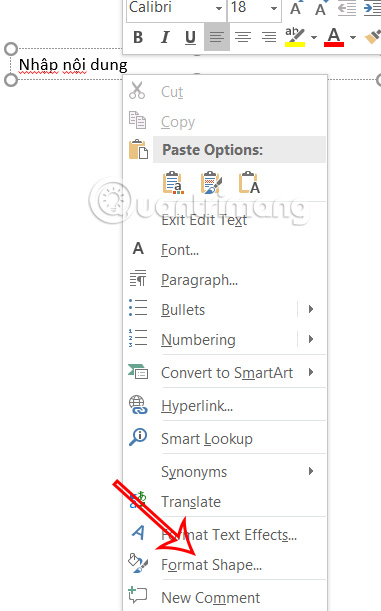
We create a text box in the slide, then right-select the text box and select Format Shape in the displayed list.
Step 2:
Immediately after that, on the right side of the screen, select Text Options and then select Textbox below.

Now we adjust the margins at Left, Right, Top and Bottom and add space inside the text box. You can set the value in inches, points or pixels depending on your preference.
How to change margins for all PowerPoint slides at once
Although PowerPoint doesn't have the ability to align margins for all slides at once, there are a few tools you can use to adjust margins for all slides.
Step 1:
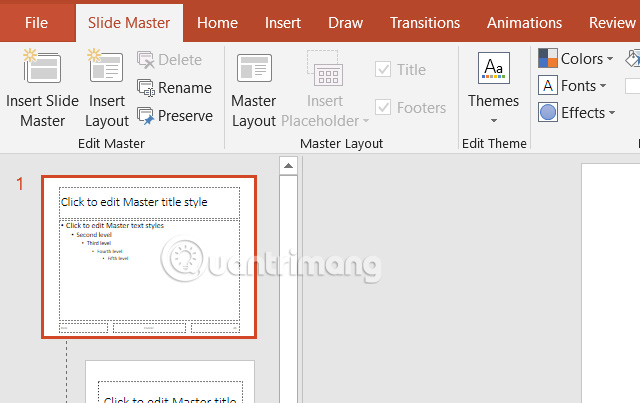
First you need to go to View and select Slide Master , then select the layout you use most often.
Step 2:
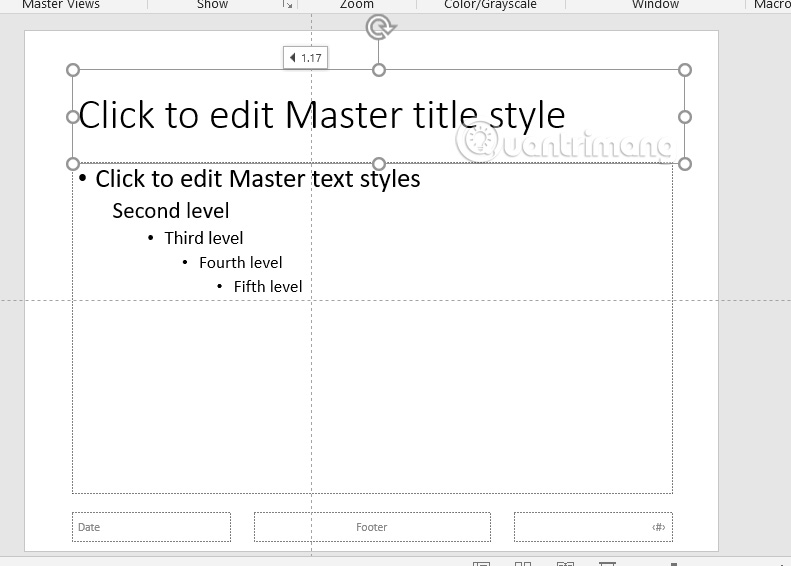
Check Guides to display the path in the slide. Now you adjust the margin inside the text box in the Slide Master interface.
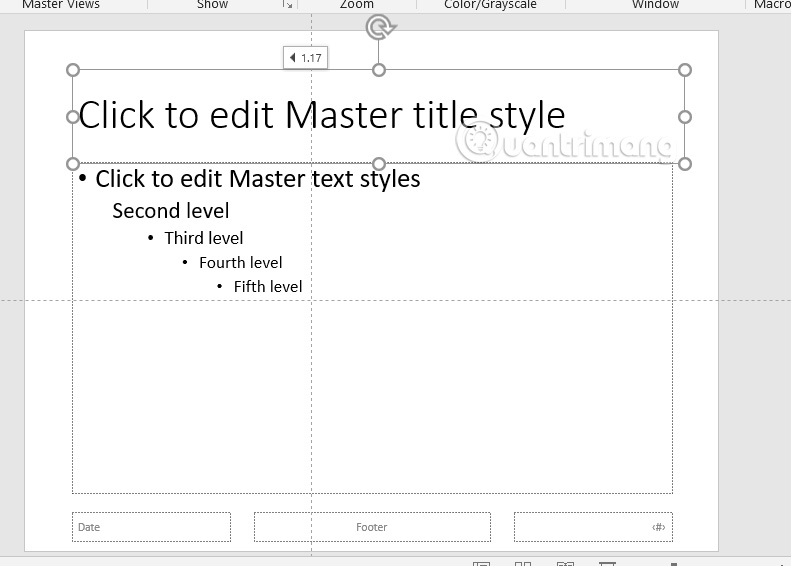
Finally, exit Master View to apply the changes to the entire slide.
FAQ
How to align margins using Guides in PowerPoint?
Click the View tab and then click Guides to display vertical and horizontal guides that appear on the slide.
How to Change Margins in PowerPoint Text Boxes?
We create a text box in the slide, then right-select the text box and select Format Shape in the displayed list.
How to change margins for all PowerPoint slides at once?
Although PowerPoint doesn't have the ability to align margins for all slides at once, there are a few tools you can use to adjust margins for all slides.
Related Articles
 Set Page Margins in Excel3 minutes read
 How to Align Margins in Word7 minutes read
 How to Align Margins in Word: Step-by-Step Guide3 minutes read
 How to Alignment in Excel - Adjust the Margins for Excel3 minutes read
 Instructions on How to Align Beautiful Margins for A4 Paper Size in Word4 minutes read
 PowerPoint 2019 (Part 4): Basic Slide Concepts: Explained11 minutes read
Reader Comments 0
Sign in with email or Google to join the discussion.