Table of Contents
With the right tools, multitasking isn't about managing haphazardly, but about creating a controlled flow, moving seamlessly between thinking and doing.
Many people always think of Linux multitasking as opening multiple terminals and applications at once, but that's only part of it. True multitasking isn't just about quantity, it's about the clarity of switching focus seamlessly without losing context, understanding how the system works underneath, and realizing that many it is muscle memory rather than mouse clicks.
With the right tools, multitasking isn't about managing things haphazardly, it's about creating a controlled flow, moving seamlessly between thought and execution. The best tools have transformed Linux multitasking. Learning this skill is one of the best tips, especially if you're switching from Windows to Linux.
I3
Turn window management into muscle memory
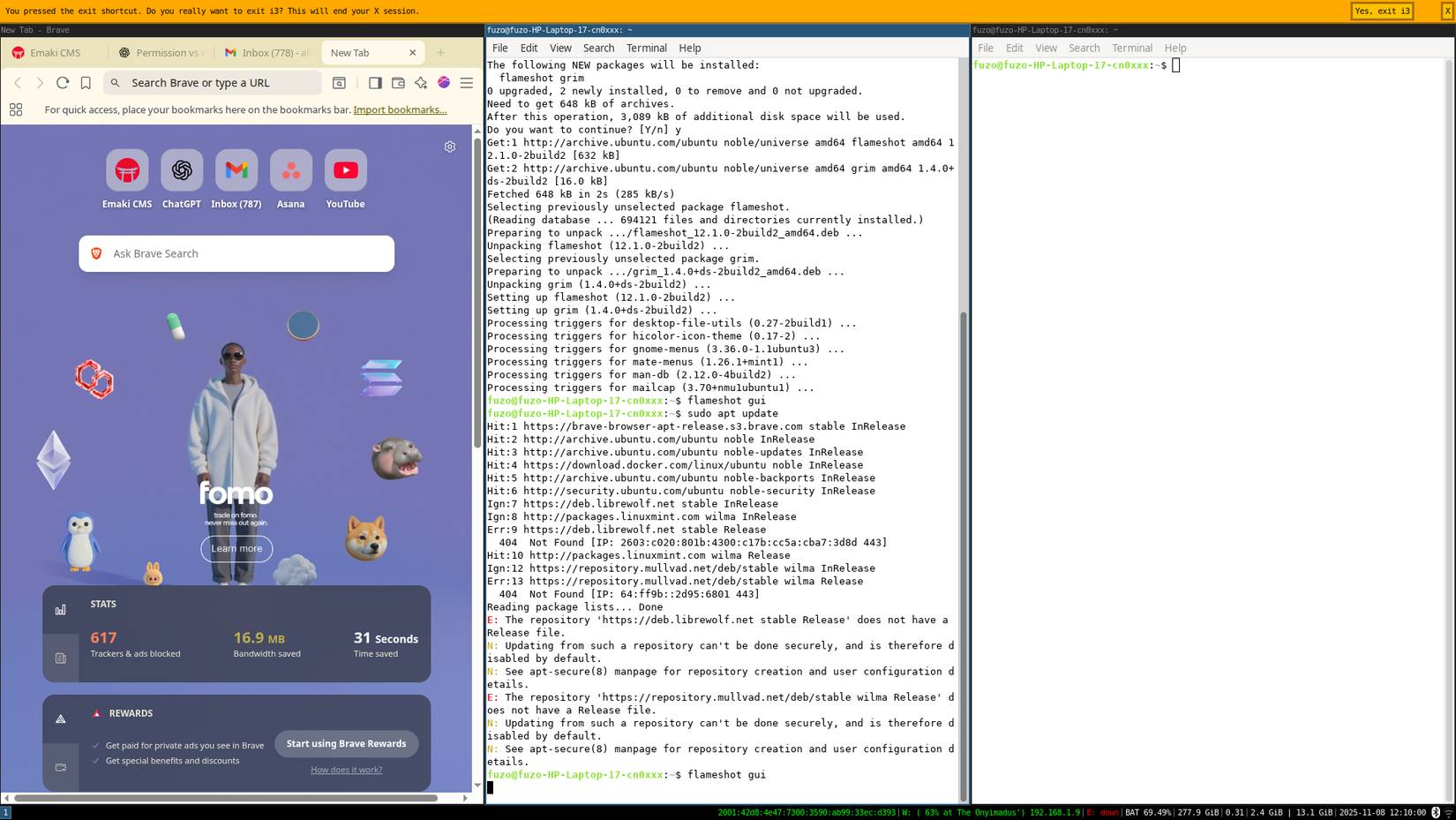
It's only after starting to use a tiled window manager that many people realize how much time they waste dragging and dropping windows. Linux i3 is a favorite tiled window manager, and it ensures that every window knows where it's supposed to go. You don't have to arrange anything. The layout adapts to your workflow. Not only does it save time, it also lets you maintain a consistent workflow.
Use the command below to install i3:
Sudo apt install i3Conky
View system rhythms in real time
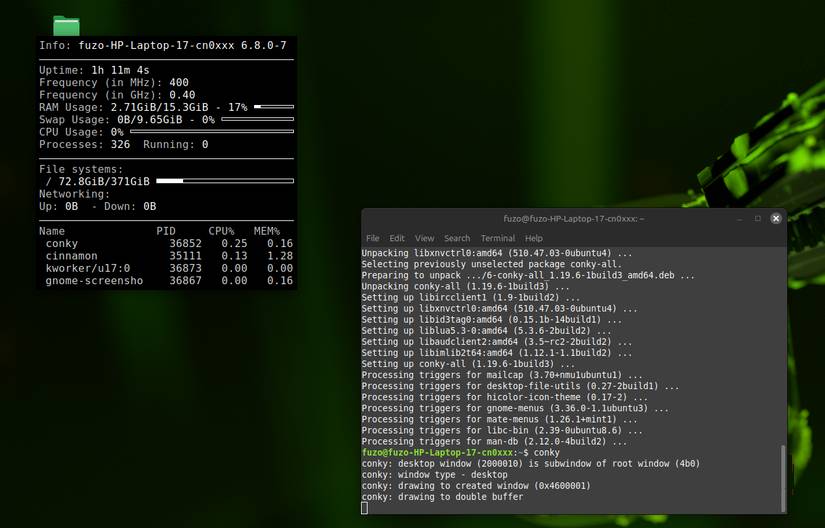
One of the most important parts of multitasking is understanding what's going on under the hood. Conky turns your entire desktop into a living dashboard, displaying CPU usage, temperatures, and memory stats. While this may be visually appealing, its purpose is primarily diagnostic.
You can tweak Conky to show network traffic, active processes, and even play music. You can also style Conky to match your desktop. It's a lot like Sysinternals' Process Explorer for Windows. When running, it's intuitive. When you're multitasking, Conky helps you understand how all the tools affect your system resources.
You can install Conky using the command below:
Sudo apt install conky-allTmux
Terminal never closes
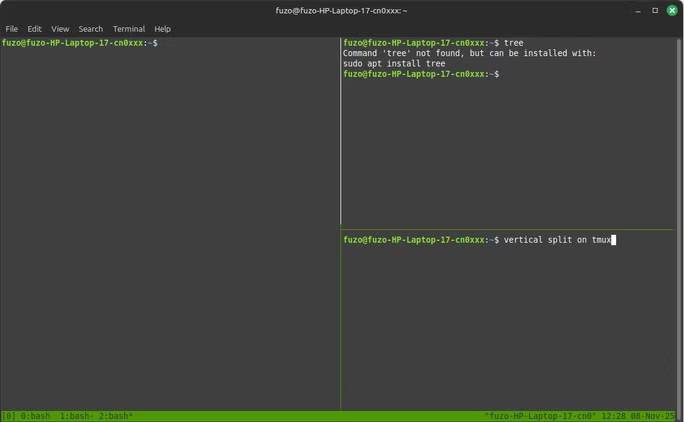
Linux multitasking goes beyond the desktop. Tools like tmux let you run multiple tasks in the Terminal at once. It lets you split the Terminal into compartments, where you can run multiple sessions. This is useful because your work won't be abruptly interrupted if the SSH connection drops.
You can maintain long builds, remote monitoring, and personal notes that run for days with tmux sessions. You can resume these sessions from any device. It completely changes the way you use the terminal; it's no longer just opening and closing sessions.
You can install tmux by running the command below:
Sudo apt install tmuxFzf
Make searching instant and limitless
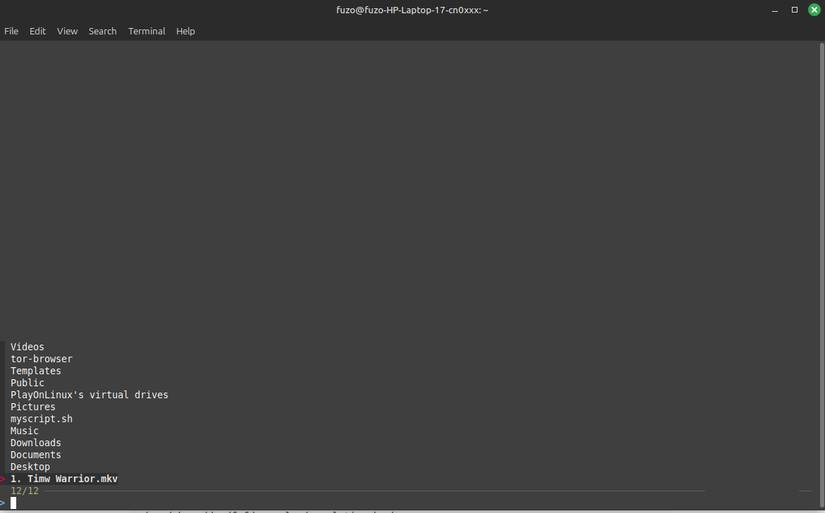
You need a boost to get the most out of complex multitasking, and that's where the fzf command line utility comes in. It's a tool that makes searching your system work like magic. Just type a few characters and it will instantly show you the files, folders, or even commands you're looking for.
That said, the fzf utility works best when used with other tools. For example, in Tmux, use it to switch between sessions; in Neovim, you can open files without losing focus. It provides a smarter way to multitask.
You can install fzf using the command below:
Sudo apt install fzfNeovim
The focus of the text-based approach
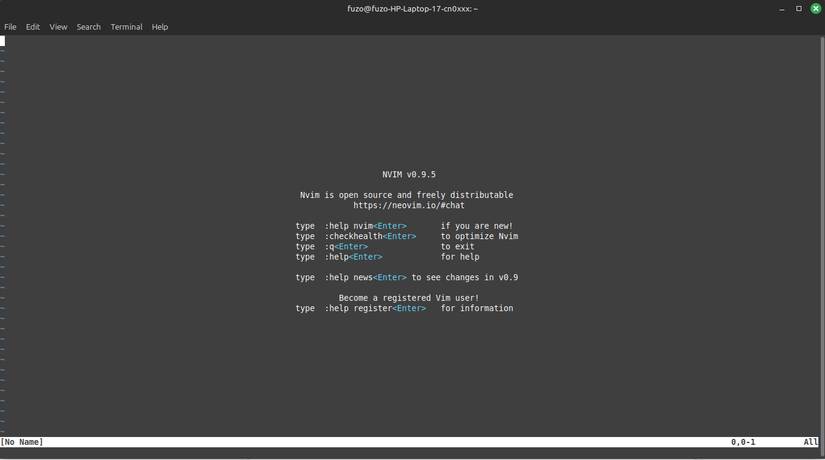
Neovim is the heart of Linux multitasking. It is a keyboard-centric text editor and development environment (IDE). It is highly customizable, with split windows, terminal integration, and gestures that are more efficient than mouse-based workflows.
Neovim complements the rest of the multitasking stack. It runs inside Tmux, and You can split and resume editing sessions across multiple computers. You can also use fzf in Neovim to navigate files, search the buffer, or jump to lines in large projects. You can also keep multiple Neovim windows visible using i3's tiled workspaces.
You can install Neovim with the following command:
Sudo apt install neovim -yFAQ
What should you know about tools that changed users' perspective on linux multitasking?
In practical terms, with the right tools, multitasking isn't about managing haphazardly, but about creating a controlled flow, moving seamlessly between thinking and doing.
Why does tools that changed users' perspective on linux multitasking matter?
The article highlights that with the right tools, multitasking isn't about managing things haphazardly, it's about creating a controlled flow, moving seamlessly between thought and execution.
What is the main takeaway?
The main takeaway is that the best tools have transformed Linux multitasking.
Related Articles
 How to Perform Multitasking on Linux Terminal with Screen11 minutes read
 How to Run Linux Software: 7 Ways to Run Linux Software on9 minutes read
 Perform Multitasking on Android with These Tips and Applications8 minutes read
 5 New Linux Apps Users Should Install Right from the Start: Explained8 minutes read
 How to Multitask Like iPhone X5 minutes read
 8 Easy Tools to Create Your Own Linux Distro6 minutes read
Reader Comments 0
Sign in with email or Google to join the discussion.