Table of Contents
This updated guide explains how to set up away message on WhatsApp with clear steps, practical tips, and useful context. Whether you're busy, out of the office, or just want to update your contact information, setting up an auto-reply feature on WhatsApp is a quick way to respond to customers or friends.
How to Set Up Away Messages on WhatsApp Business
Step 1:
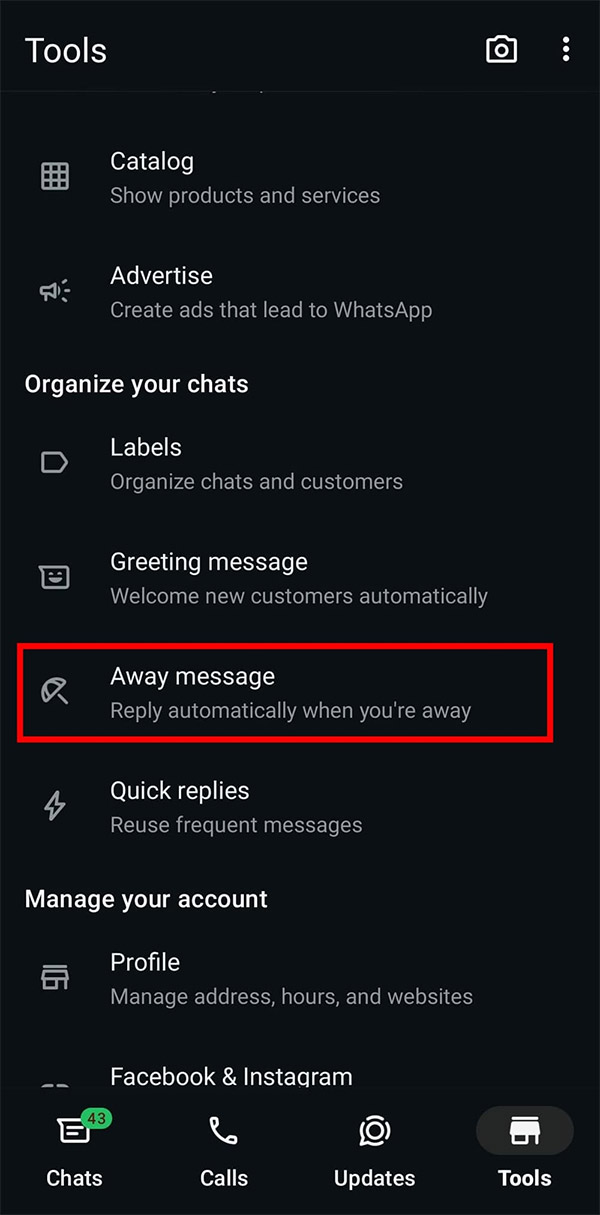
In the WhatsApp Business application interface, select Tools then select Away Message to adjust.
Step 2:
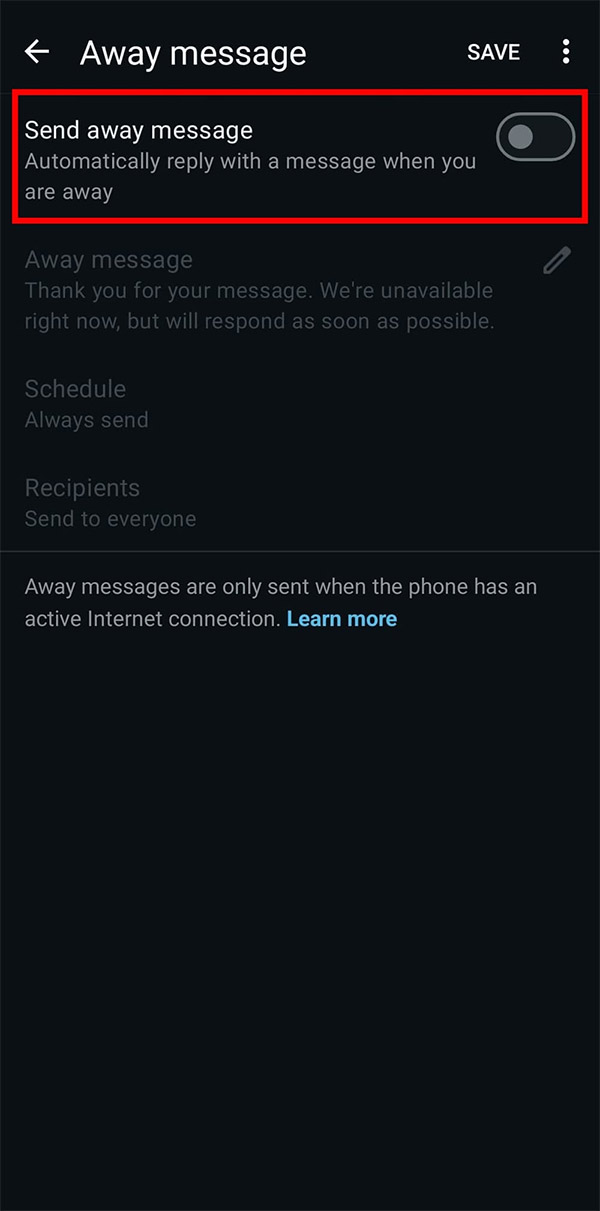
In the new interface as shown, users will see the settings for messages on WhatsApp Business. We will activate the Send away message option to send an absent message.
Step 3:
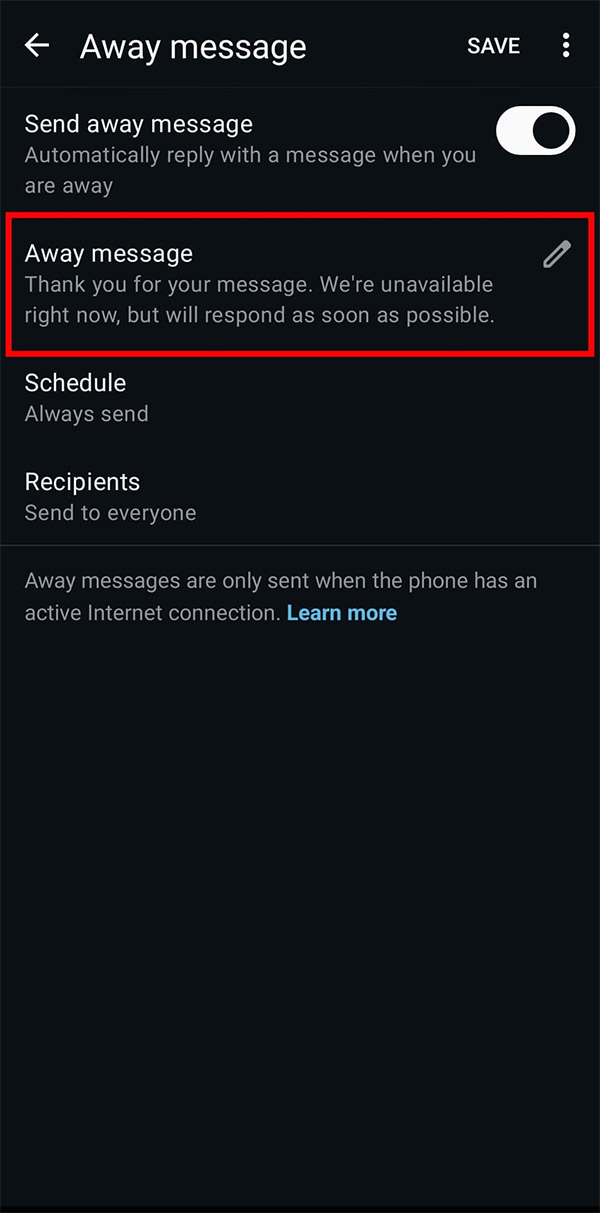
Continue in the Away message section , select the pen icon to enter the content of the away message that you want to use to quickly respond when someone sends a message but you do not reply in time, or cannot reply.
After entering the reply message content, press OK to save.
Step 4:
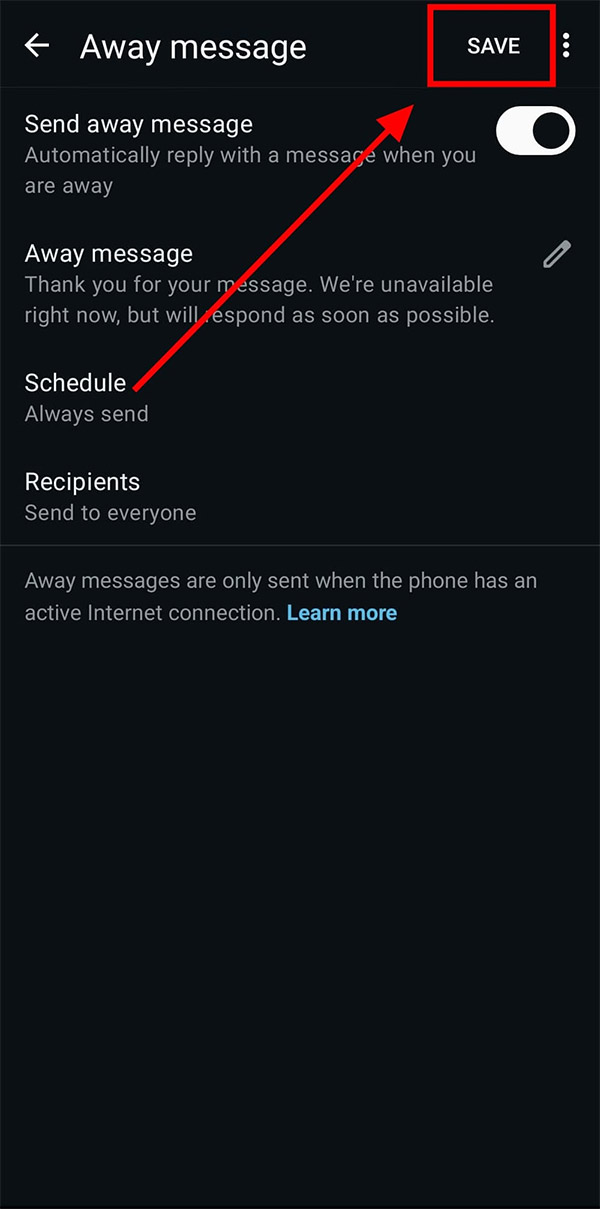
Finally, choose Save to save the away message settings on WhatsApp.
FAQ
What should I prepare before I set up away message on whatsapp?
Review the requirements and options in the guide first. Having the correct device, app version, account access, or materials ready helps prevent avoidable errors.
How long does it take to set up away message on whatsapp?
The time depends on the task and your setup. Most basic steps can be completed quickly, while downloads, updates, scans, or troubleshooting may take longer.
What should I do if the steps do not work?
Repeat the instructions in order, confirm that your software or device is supported, and check permissions, connectivity, and available updates before trying again.
Related Articles
 WhatsApp Updates New Message Notifications3 minutes read
 How to Send a Blank Message on Whatsapp: Send Whatsapp Blank Message4 minutes read
 These Features Make It Easier to Master Whatsapp16 minutes read
 How to Turn Off Whatsapp Message Notifications3 minutes read
 How to Turn Off WhatsApp Message Backup on Phone3 minutes read
 How to Drop Whatsapp Message Emoji3 minutes read
Reader Comments 0
Sign in with email or Google to join the discussion.