Table of Contents
This practical guide explains how to set up a digital calendar to help you stay organized. Follow the steps in order, review the requirements first, and use the troubleshooting notes when a setting or option does not work as expected.
6. Have separate personal and work calendars
Everyone likes to keep their systems clearly defined. As soon as you let boundaries overlap, you quickly become overwhelmed. Digital space is a big part of this, especially when it comes to calendars.
The easiest way to keep your digital calendar setup organized is to have separate personal and work calendars. If you keep your personal calendar on your smartphone; try using Apple Calendar. It's a popular app that syncs well with other apps.
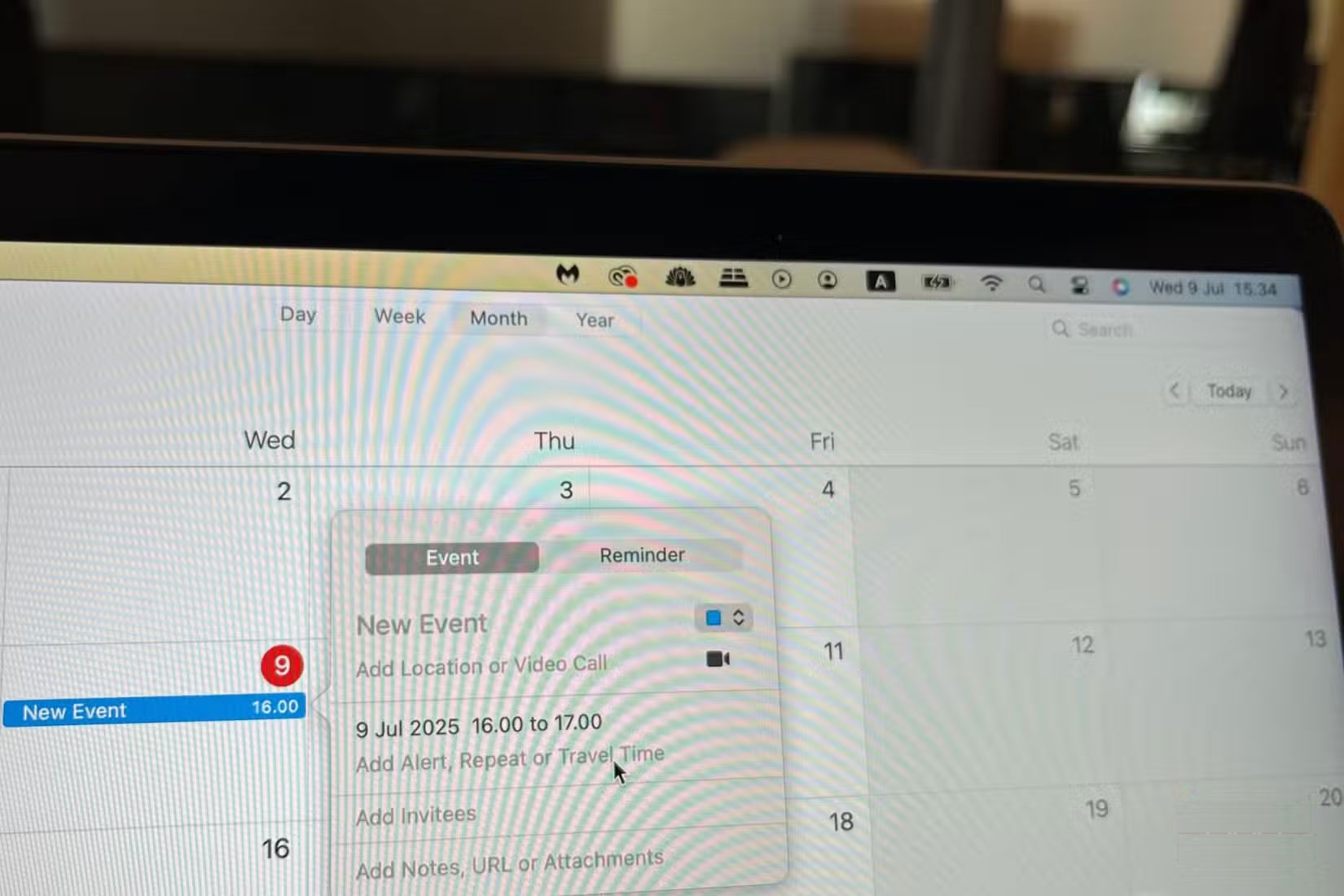
Meanwhile, on your computer, use Google Calendar. Some people use it primarily for freelance work and to keep track of meetings. To be even more productive, try some of these Google Calendar productivity tips.
5. Sync important events with your calendar
Administrative tasks are more distracting than anything else. Many people hate the feeling of constantly having to adjust their systems and add events manually, which is why they give up using digital calendars for a long time. However, it is now easier than ever to automate much of this process.
In addition to AI-powered calendar apps like Motion, Siri suggestions make it easier than ever to sync events in Apple Calendar. Siri syncs with most apps to find and automatically add important items to your calendar. You can also see potential events to add from your inbox.
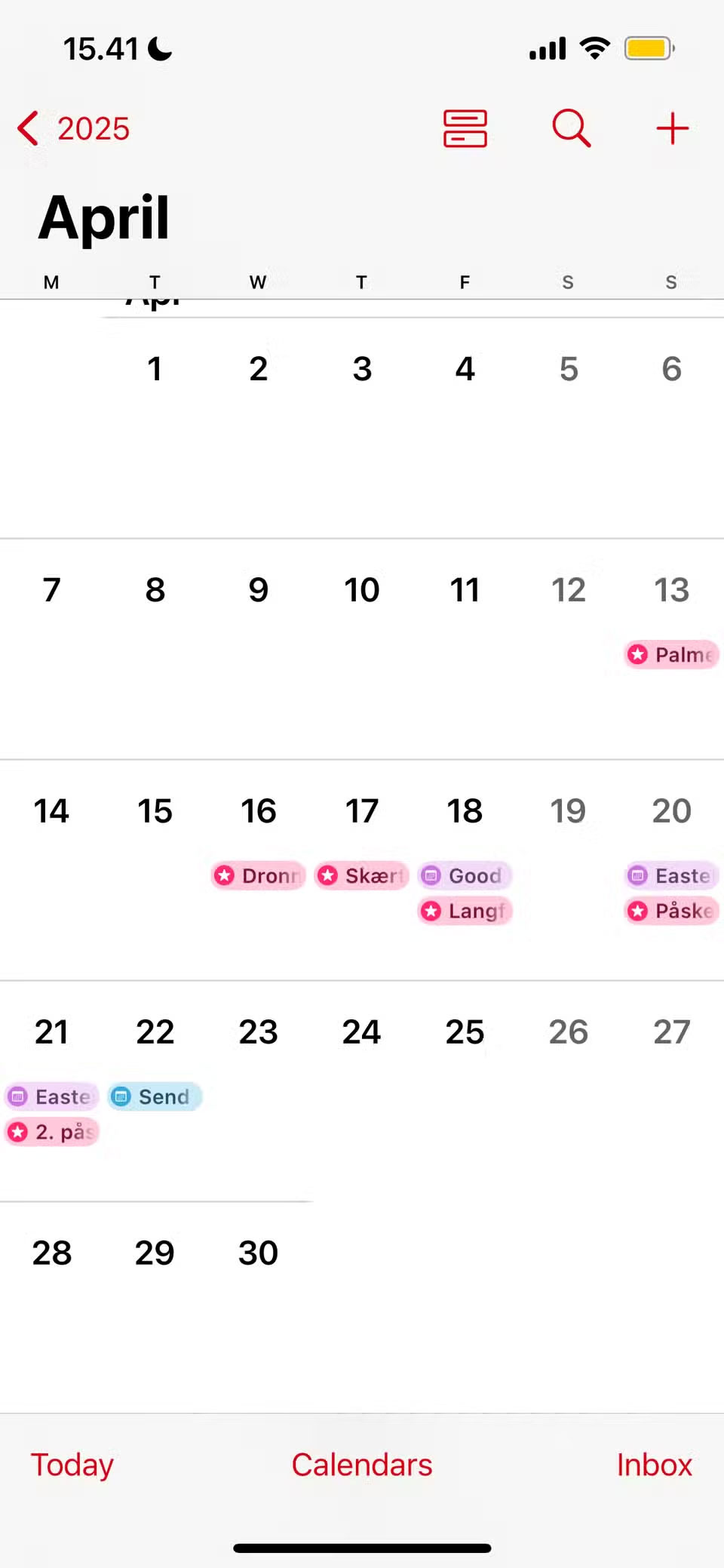
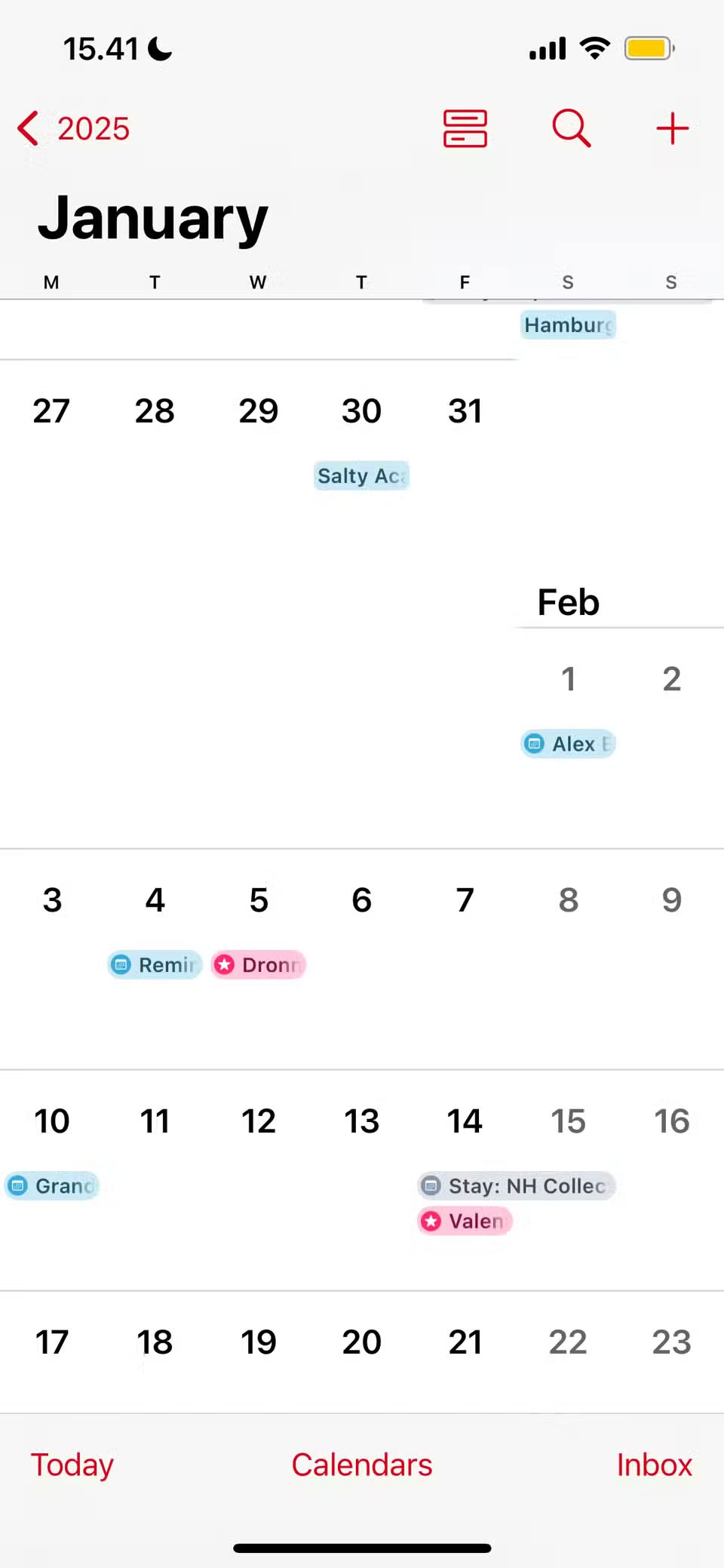
Google Calendar can also sync events from Gmail. Take advantage of this feature occasionally. You can also prevent Gmail from creating unwanted Google Calendar events if needed.
4. Change the calendar view to suit your preferences
While it's worth making a few big changes to your digital calendar setup to stay organized, some of the biggest changes come from small tweaks. For example, changing your calendar view to match your preferences is a simple way to better organize your day-to-day life.
Many people like to see their entire week in Google Calendar. If you use the app on a large screen, this view allows you to better understand your tasks without feeling overwhelmed. It also helps you plan your day more effectively.

Meanwhile, on your smartphone, use the daily view. Many people don't like to see the entire week on a small screen because it feels too cluttered. To make sure you always know what's coming up next, you'll also want to set up a widget so you can see your next event.
3. Only apply Time-Blocking techniques to the largest tasks
Time-Blocking is not effective for planning your entire day. However, it is wise to have some guidelines. Even if you always have a to-do list, applying time-blocking to your biggest tasks can be helpful.
This tactic is especially effective for repetitive tasks. For example, sitting down at the same time every day to do deep work. Scheduling tasks that you might otherwise forget, such as presentations, is also helpful.
People use this gentle form of Time-Blocking more for professional work than personal projects.
2. Minimize the number of calendars created
Even if you have multiple calendars, try to eliminate as much clutter as possible. Try to minimize the number of calendars you create. While it's fine to store birthdays, holidays, and themes you create, you don't want to see them all at once.
Instead of checking all of them, just check the boxes next to the calendars you're currently interested in. If you want to see a different calendar later, you can quickly check the box and then uncheck it once you've gathered all the information you need.
1. Customize the event you are viewing
In addition to customizing your calendar, you can also choose which events you want to see. As soon as an event is no longer relevant, delete it - both past and future - from your calendar so you don't get bothered.
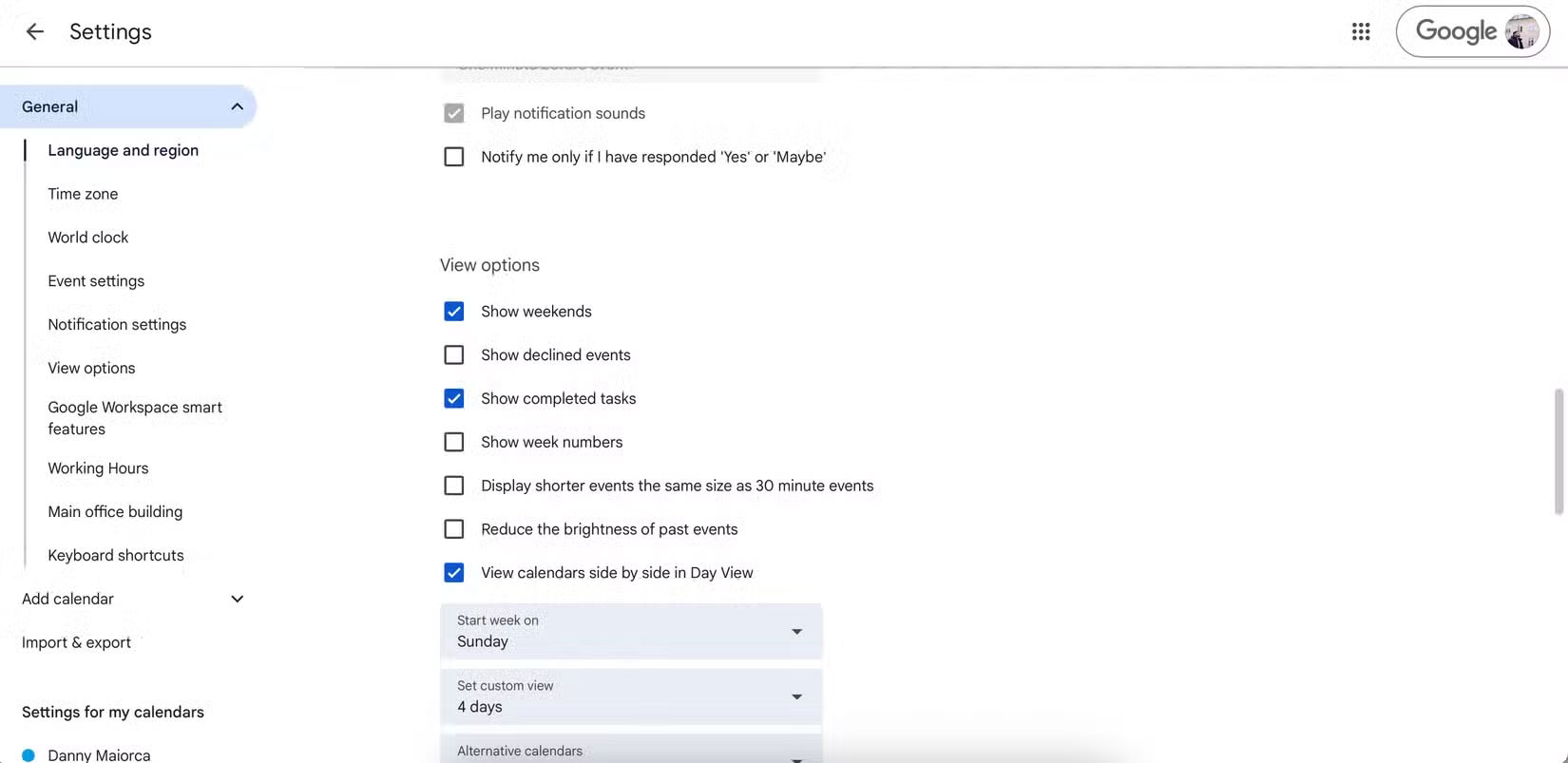
If you want to keep those events for reference, you can mark them darker in Google Calendar to clearly distinguish them from other events. Also, uncheck the Show Declined Events box so they don't clutter up your workspace.
Digital calendars are a great way to stay organized, but building a system requires careful consideration of how you use them. Be intentional about having separate accounts for your personal and work calendars, and using automated features like event syncing.
FAQ
What should you know about 6. Have separate personal and work calendars?
Everyone likes to keep their systems clearly defined. As soon as you let boundaries overlap, you quickly become overwhelmed. Digital space is a big part of this, especially when it comes to calendars.
What should you know about 5. Sync important events with your calendar?
Administrative tasks are more distracting than anything else. Many people hate the feeling of constantly having to adjust their systems and add events manually, which is why they give up using digital calendars for a long time. However, it is now easier than ever to automate much of this process.
What should you know about 4. Change the calendar view to suit your preferences?
While it's worth making a few big changes to your digital calendar setup to stay organized, some of the biggest changes come from small tweaks. For example, changing your calendar view to match your preferences is a simple way to better organize your day-to-day life.
What should you know about 3. Only apply Time-Blocking techniques to the largest tasks?
Time-Blocking is not effective for planning your entire day. However, it is wise to have some guidelines. Even if you always have a to-do list, applying time-blocking to your biggest tasks can be helpful.
Related Articles
 6 Best Digital Calendar Makers and Print Services5 minutes read
 Which Calendar App Helps You Stay on Schedule Best?8 minutes read
 How to Use the Like Italy Calendar -- Van Nien Calendar 20205 minutes read
 8 Best Calendar Apps for Iphone9 minutes read
 Top Vietnamese Calendar Application, See the Best Sound Schedule8 minutes read
 List of Shortcuts for Google Calendar3 minutes read
Reader Comments 0
Sign in with email or Google to join the discussion.