Table of Contents
If you're heading back to school, you'll want to make sure your laptop is secure. Here's how.
1. Set up proper authentication
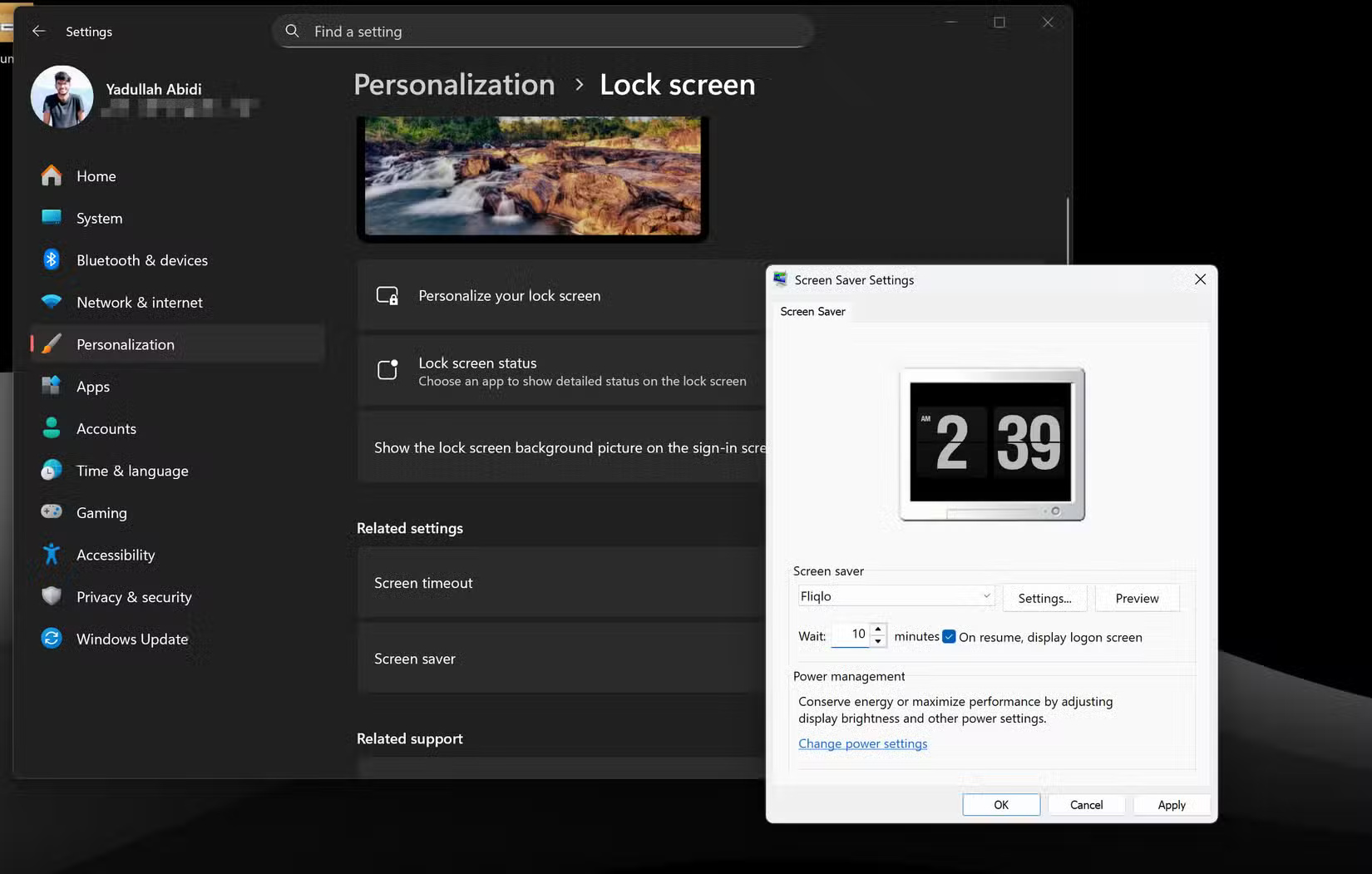
First, make sure you have the proper authentication settings set up on your laptop. Operating system credentials are often the first line of defense against unwanted access, especially in public places like libraries, where someone could gain access to your computer if it's unattended.
These aren't necessarily top-notch security measures. A strong password or PIN will do in most cases. Windows and macOS also offer Windows Hello and Touch ID (respectively) for biometric authentication, provided your laptop has the necessary hardware. These biometric authentication measures are significantly stronger than traditional passwords, so if you're buying a laptop for school use, look for these features.
2. Enable multi-factor authentication (MFA) on important accounts
Enabling multi-factor authentication (MFA) on important accounts is a security measure you should take. But if you haven't already, now is the time to start.
Setting up MFA is something hackers hope you'll never do with your email, or any other account. It works by sending a one-time password (OTP) code to another account or device you own. That way, even if a hacker gets access to your password, they won't be able to log into your account.
You can secure your Gmail, Outlook, and other accounts with MFA (chances are your email or other online account will automatically prompt you to set it up after you sign in).
3. Encrypt storage
If your laptop is stolen, even if the thief can't log into the operating system, they can still remove the storage drive and access your data on another system. Encrypting the storage drive will prevent this from happening.
If you have a Windows laptop, Microsoft's built-in drive encryption tool BitLocker can be very useful. However, this feature is only available on Windows 11 Pro, Enterprise, and Education editions, so you should check to see if your university offers the Education upgrade for students.
macOS offers FileVault, Apple's built-in encryption system, which can encrypt your entire Home folder. This feature can be configured through macOS's System Preferences. If BitLocker or FileVault don't work, you can use alternatives like VeraCrypt or DiskCryptor, which are available for Windows, Linux, and macOS.
4. Built-in malware protection
You don't need to go all out and buy the most advanced antivirus or antimalware software. Something as simple as Windows Security or Malwarebytes will do.
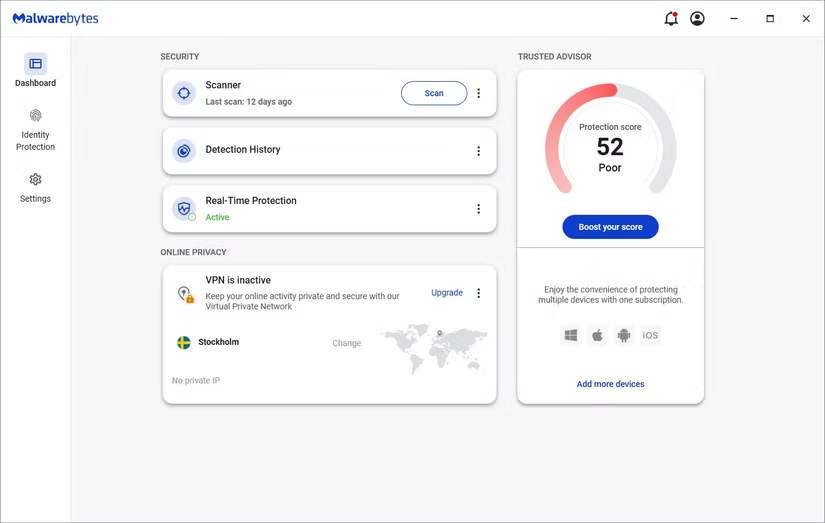
Avoiding malware isn't just about practicing good cybersecurity habits, like not downloading or opening files from untrusted sources. Still, it's possible that malware will get onto your laptop.
Depending on the severity of the infection, removing malware from your computer may be as simple as running a scan with specialized anti-malware software. More serious infections may require a bootable rescue USB or even a full system format.
5. Set up firewall and network settings properly
When connecting to school Wi-Fi or other public networks in places like libraries and coffee shops, a properly configured firewall acts as a barrier between your laptop and potential cyber threats. Fortunately, both Windows and macOS have built-in firewalls that allow you to block connections to and from your device.
Windows divides any network you connect to into two categories: Public and Private. You can configure the firewall to allow or block individual programs on public or private networks, depending on your needs. There are a few ways to open the Windows Firewall Control Panel, and then you can check the programs you want to allow through the firewall.

6. Set up device tracking, if available
Having a device tracking feature on your laptop can be useful if you leave your laptop somewhere on campus or if it gets stolen. Luckily, Windows and macOS have their own versions of device tracking programs that can help locate a lost device with some success.
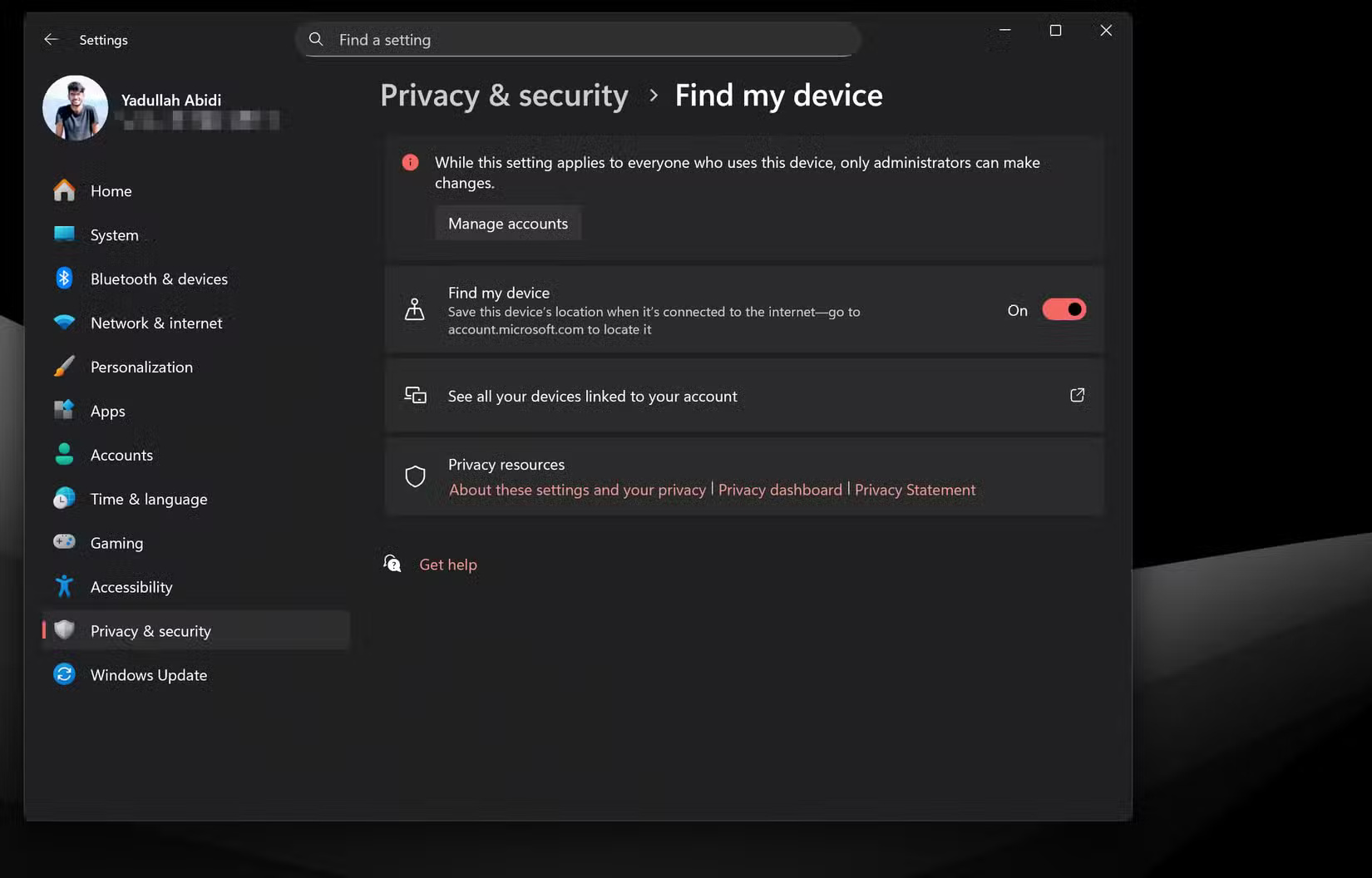
If you're using Windows, turn on Find my device under Privacy & security in the Windows 11 Settings app. This feature will update your laptop's location as long as it's connected to the Internet. You can go to account.microsoft.com to locate it whenever you need to.
If you have a MacBook, you can benefit from Apple's Find My network. Just turn on Find My Mac in iCloud settings.
7. Check your operating system and browser privacy settings
Both Windows and macOS collect all sorts of data about users. There are a few Windows privacy settings you should change right away to take control of your device.
You'll have to enable some privacy-invasive settings, like location services, for features like device tracking. There are many benefits to allowing Windows to invade your privacy, but you'll have to decide for yourself whether those benefits are worth the cost.
Mac users benefit from a better focus on privacy with stronger privacy defaults, but you should still review your security and privacy settings to customize sharing options and anything else you don't want Apple to know.
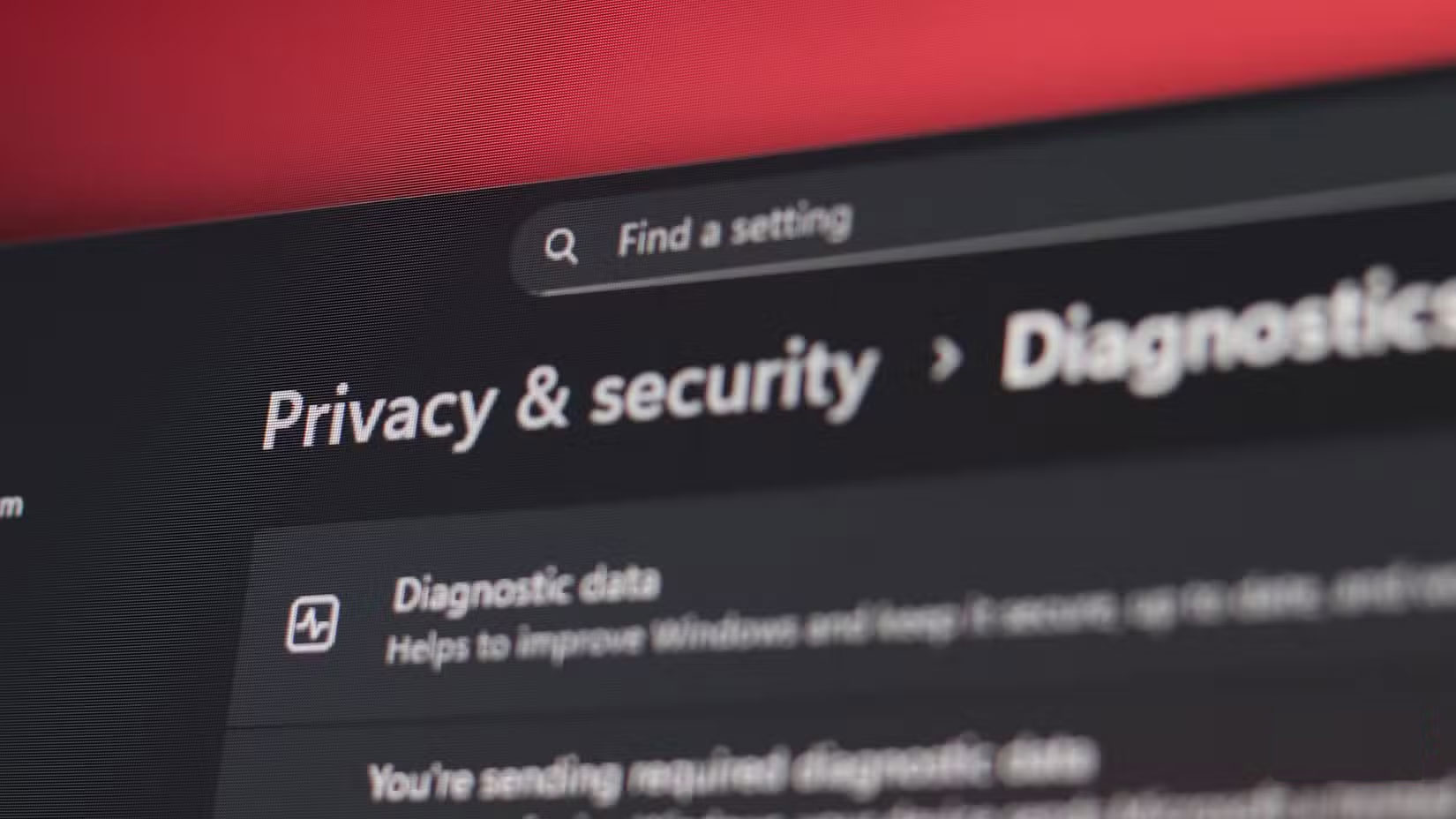
The browser you use is a personal decision, and the privacy settings you need to change will vary depending on it. However, you should avoid using Chrome if you want to protect your privacy on the Internet.
Final Thoughts
Following the steps in order and checking version-specific settings should make it easier to Protect Your Laptop Before Going Back to School. If an option looks different, verify the device, app, or operating-system version before changing additional settings.
FAQ
What is the best way to Protect Your Laptop Before Going Back to School?
Start with the requirements described in the article and follow the steps in order. If you're heading back to school, you'll want to make sure your laptop is secure. Here's how.
What should you know about 1. Set up proper authentication?
First, make sure you have the proper authentication settings set up on your laptop.
What should you do if the instructions do not match your screen?
Check the device, software version, account permissions, and regional settings. Interfaces can change after updates, so use the closest matching option and consult the official support documentation when necessary.
Related Articles
 How to Become a Law Professor: Step-by-Step Guide22 minutes read
 Choose Core i3 Laptop Priced from 7 Million VND for the New School Year5 minutes read
 How to Balance School and Work as an Adult26 minutes read
 Choose a Laptop for the New School Year - You Know How?5 minutes read
 Protect Your Laptop5 minutes read
 Enter the Back-to-school Season Like the Boss with the Android Apps Below4 minutes read
Reader Comments 0
Sign in with email or Google to join the discussion.