Table of Contents
This guide reviews 5 'moves' to protect laptops and highlights the differences that matter in everyday use. Compare the options below before making a choice.
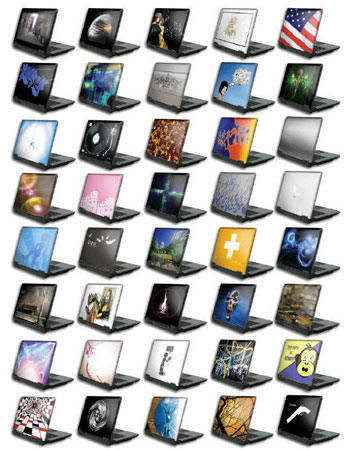 Individuality with each patch
- Laptop stickers : Many types of stickers for laptops appear on the market. Using this type of adhesive paper has just created a personality for a laptop that protects the device from scratches. - Screen protector plate : Whether the tap screen or the folding screen is normal, a good screen sticker will also help its 'face' not be scratched. There are many stickers to help users read the content on the screen which is flaring when working light.
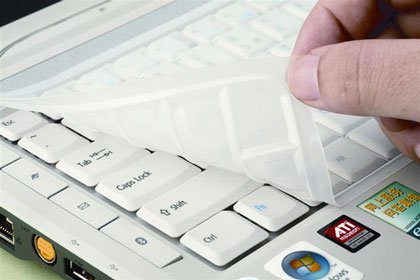 Paste the keyboard to prevent water spills
- Keyboard stickers with silicon : Not all laptops have a water overflow keyboard. The silicon patch is a cheap accessory that keeps the computer from being soaked in water when it is accidentally poured. In addition, this sticker also prevents the keyboard from being worn because of frequent use. - Switch to solid-state drive SSD : Although expensive, SSD hard drive provides faster access speed than conventional hard drive and it also has anti-shock and anti-shock function. - Rubber button : Although not common, this type of button will prevent water from spilling into USB ports and other connection ports. Moreover, it will protect rusty metal gates. 2. Anti-theft
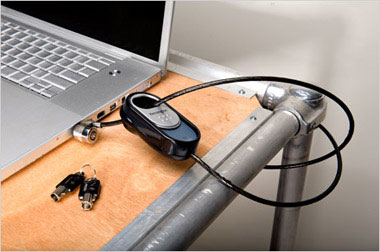 Anti-theft lock
Just a moment of absent-mindedness, crooks may end up with your laptop at any time. Users should buy an anti-theft lock, such as Kensington's lock, to make it difficult for a laptop to be fixed to a certain location. There are many types of locks for laptops, including some with key combination and alarms. 3. Prevent illegal access Sometimes information in a laptop is more important than a laptop. Here are some ways to help users prevent prying eyes to enter their private lives. - Encrypt My Documents folder : When creating a new login account, Windows will advise users to encrypt personal folders. As a result, users will not allow others to "unlock" the login password by attacking the hard drive to steal data. - Using 'hard' Passwords: The best passwords are the most difficult to remember passwords. The intruder will have difficulty accessing your computer if you use a hard password. However, if you use a hard password but write to a paper and put it next to the laptop is useless. So, use a password that is unique to you so you can remember it easily. - Fingerprint reader : If the laptop does not have a fingerprint recognition sensor, you should buy another part to both quickly access the laptop and not need to remember the password anymore. 4. Data encryption
Encrypt the My Documents folder to protect data, but you can let your laptop log in anywhere and anyone can use it, the crook will easily copy the information in the computer. To protect data again, users should use third-party encryption software to increase the security of the information Truecrypt Is a highly rated software because it is both free and has many tools to help encrypt hard drive. Data encrypted by Truecrypt, automatically decrypted when read or written without any user interaction 5. Anti-virus and spyware Viruses can attack computers even when they first access the Internet. Many security software is available from McAfee and Norton software, Avast! And AVG . Meanwhile, spyware spread malicious code to attack computers. While viruses only turn off or damage computers, spyware steals information, such as the habit of surfing the web or even credit cards, passwords. To send to the hacker server. Many programs protect computers against Internet dangers, but most are fee-based software. Meanwhile, Spybot is free to use but appreciated.
FAQ
How should I compare the options in this list?
Compare compatibility, essential features, ease of use, support, and total cost rather than choosing by popularity alone.
Are free options enough for most users?
Free options may cover basic needs, but advanced features, fewer limitations, and better support can make a paid option worthwhile.
What feature matters most when choosing?
Prioritize the feature that solves your main need reliably on the device or platform you use.
Related Articles
 Samsung Stopped Selling Laptops in Europe3 minutes read
 Is the Laptop Charger Plugged in When the Battery Is Full?6 minutes read
 10 Ways to Avoid Losing Laptops and Data When Traveling6 minutes read
 10 Tips to Protect Laptops8 minutes read
 10 Tips to Protect Laptops in Winter6 minutes read
 5 'Moves' to Protect the Computer1 minutes read
Reader Comments 0
Sign in with email or Google to join the discussion.