Table of Contents
This practical guide explains how to know if someone has remote access to your Windows PC. Follow the steps in order, review the requirements first, and use the troubleshooting notes when a setting or option does not work as expected.
Warning signs when someone accesses your PC
While most remote access attempts are silent, they do come with a few warning signs. While these signs may be indicative of Windows' popularity, taken together they can be strong evidence of remote access activity.
- Unusual mouse/keyboard behavior : If the cursor moves erratically or text is entered without your intervention, it could be the work of a remote tool. Even if they are not actively controlling it, these tools can still cause problems like cursor jumping/teleporting. This sign can also act as confirmation if the mouse and keyboard start performing tasks like accessing the browser's address bar and entering website addresses.
- Programs opening and closing by themselves : Hackers can also send commands to open specific applications (like antivirus software or Command Prompt) to gain more control over the system or disable security features. If you see programs opening and closing by themselves, that's a warning sign.
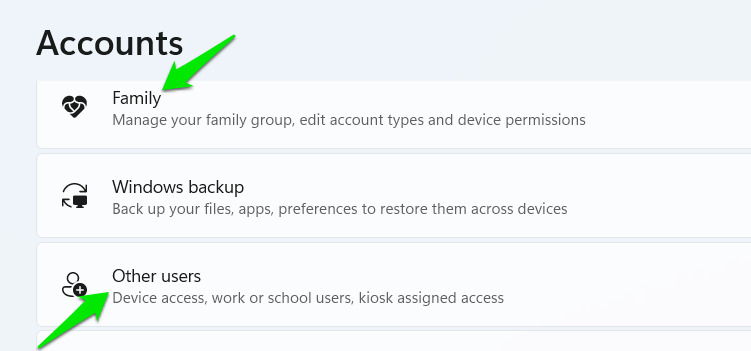
- Create new unknown user accounts : Some bad actors may try to create secondary accounts to have persistent access even after detection. They may disable the user switching feature to hide the account from the lock screen. Go to Windows Settings -> Accounts and look for secondary accounts under Family and Other users.
- Sudden performance slowdowns : Remote control operations are also resource intensive, so you may notice sudden performance drops. This is especially concerning if performance drops occur occasionally due to remote control operations.
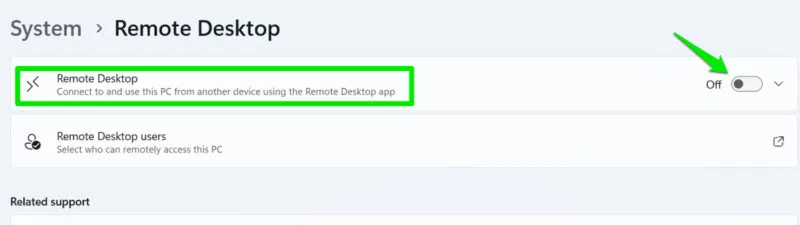
- Windows Remote Desktop is enabled automatically : Windows Remote Desktop is quite vulnerable, so hackers often use this feature to create remote connections. This feature is disabled by default, so if it is enabled without your intervention, it is likely done by hackers. In Windows Settings, go to System -> Remote Desktop and see if this feature is enabled.
How to confirm your PC is being accessed remotely
If you notice the above signs, take the necessary steps to confirm your suspicion. You can monitor the activity of the components/applications involved in the remote access process to confirm that someone is accessing your Windows PC. Here are some of the most reliable methods:
Check Windows Event Viewer logs
Windows Event Viewer is a great built-in tool to monitor user activity and help detect remote access attempts by monitoring RDP activity and login logs.
Search for "event viewer" in Windows Search and open Event Viewer.
Go to Windows Logs -> Security and select the Event ID tab to sort the events by ID. Look for all events with ID 4624 and check their details to make sure none of them have Logon Type 10 . Event ID 4624 is for logon attempts and Logon Type 10 corresponds to remote logons using remote access services that hackers might use.
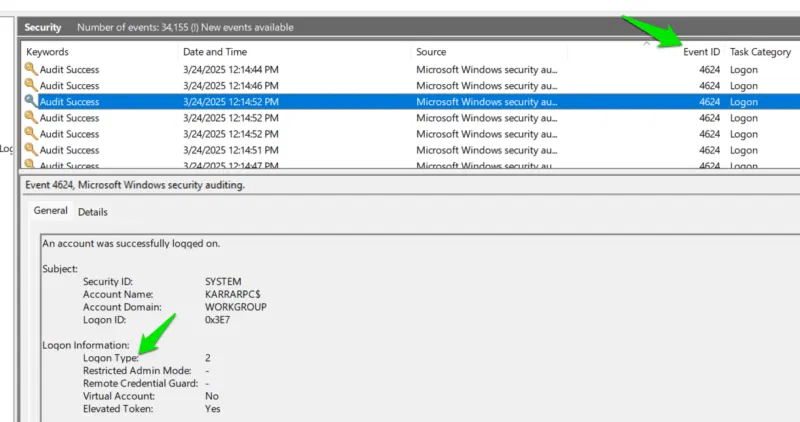
You can also look for Event ID 4778 as it represents a remote session reconnection. The details page for each event will tell you important identifying information, such as the account name or network IP address.
Monitor network traffic
Remote access relies on network connectivity, so monitoring network traffic is a reliable way to detect it. We recommend using the free version of GlassWire for this purpose, as it both monitors and automatically protects against malicious connections.
In the GlassWire app, you'll see all of your app connections under GlassWire Protect . The app will automatically evaluate the connections and flag untrusted ones. In most cases, the app will be able to detect malicious remote connections and warn you.
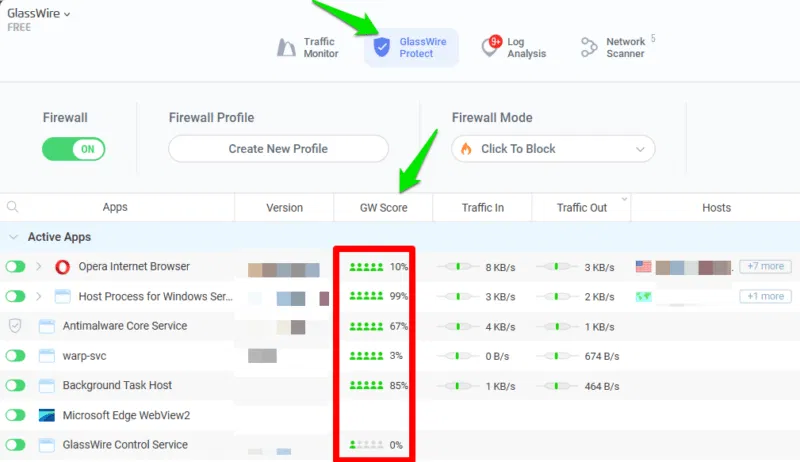
In addition to the app's algorithms, you can also look for clues like high data usage from an unknown app. Remote connections use data constantly, so they're easy to spot.
View scheduled tasks
Many remote access attempts are managed using the Task Scheduler tool in Windows. This allows them to survive PC reboots and perform tasks without having to run continuously. If your PC is infected, you will see tasks from unknown applications in the Task Scheduler.
Search for 'task scheduler' in Windows Search and open the Task Scheduler application. In the left pane, open Task Scheduler (Local) -> Task Scheduler Library . Look for any strange or suspicious folders other than Microsoft. If you find any folders, right-click the task and select Properties.
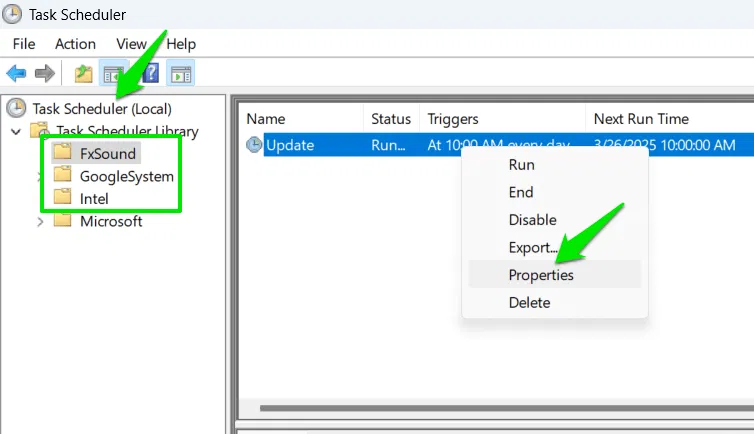
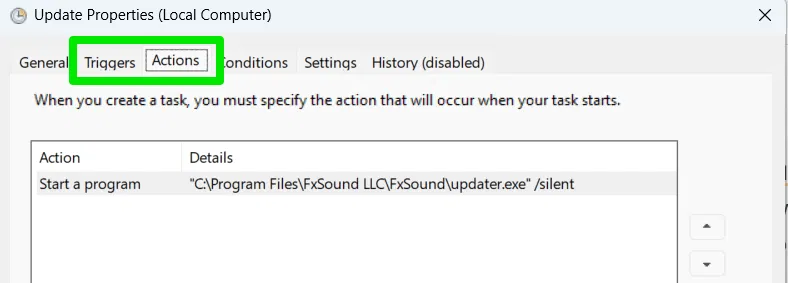
In Properties, look through the Triggers and Actions tabs to find out what the task does and when it executes, which should be enough to understand whether it's malicious. For example, if the task runs an unknown application or script at login or when the system is idle, then the task is probably malicious.
If you can't find any suspicious tasks, you may want to look in the Microsoft folder. It's possible that sophisticated malware is hiding in system folders. Look for tasks that look suspicious, such as generic names like "systemMonitor" or misspelled names. Fortunately, you won't have to research each task, as most will be written by Microsoft Corporation and can be safely ignored.
How to Prevent Remote Access and Protect Your Computer
Once you've confirmed that someone has remote access to your Windows PC, the first thing you should do is disconnect it from the Internet so they can't do any more damage. Your priority should be damage control rather than eliminating the threat. So, use another device to reset passwords to important accounts, like email, financial accounts, social media accounts, etc. Also, make sure you back up important data.
Follow the methods below to remove remote access malware:
Run a Microsoft Defender offline scan
If your security system can't detect or protect against this remote access attack, it could be advanced malware, like a rootkit or bootkit. Microsoft Defender Offline Scan can help. It scans your computer during boot in a safe, minimal environment to look for malware while it's idle.
To run a scan, search for "windows security" in Windows Search and open the Windows Security app.
Go to Virus & threat protection -> Scan options , select Microsoft Defender Antivirus (offline scan) and click Scan now .
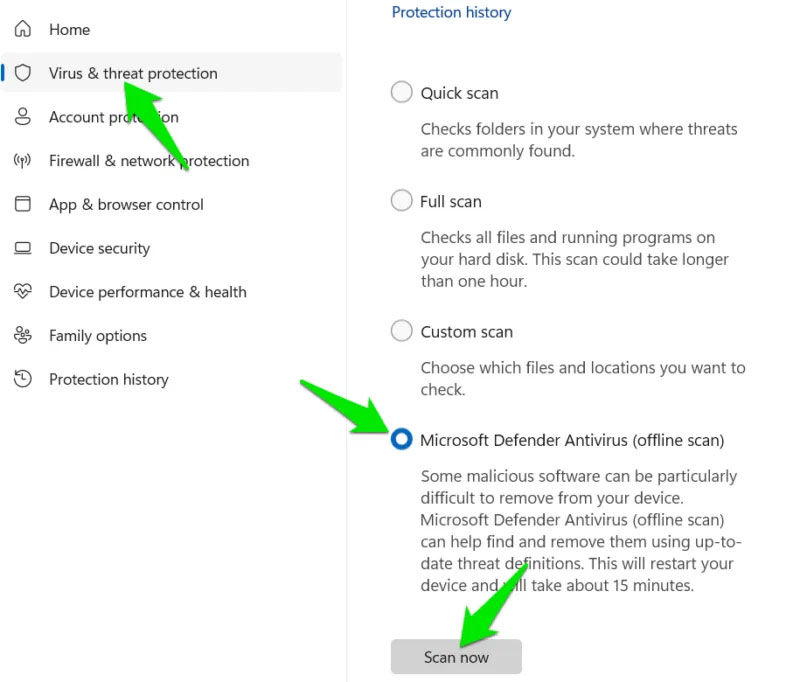
This will restart your PC and run a full system scan. If any threats are found, they will be listed in the Protection history section of the Windows Security app.
Remove suspicious programs
Whether or not the scan finds anything, you should manually check your programs to make sure there are no unknown programs acting as open ports. In Windows Settings, go to Apps -> Installed apps and look for any apps that aren't part of Windows or that you don't remember installing. Also, remove any remote access apps that might be compromised, such as TeamViewer, AnyDesk, VNC, Chrome Remote Desktop, etc.
It is possible that a malicious browser extension is the cause. Make sure you check all your extensions and uninstall any suspicious ones.
Block incoming remote access ports in firewall
If you don't have remote access to your PC or don't have anyone to help you, you can block common ports for remote connections in your firewall. This will block incoming remote connections but allow you to control other devices if needed.
Search for "windows defender firewall" in Windows Search and open the Windows Defender Firewall with Advanced Security application.
Select Inbound Rules -> New Rule , then Port -> Next . Select TCP and provide one of the port numbers listed below.
- 3389 (Windows Remote Desktop)
- 5900 (Virtual Network Computing)
- 5938 (TeamViewer)
- 6568 (AnyDesk)
- 8200 (GoToMyPC)
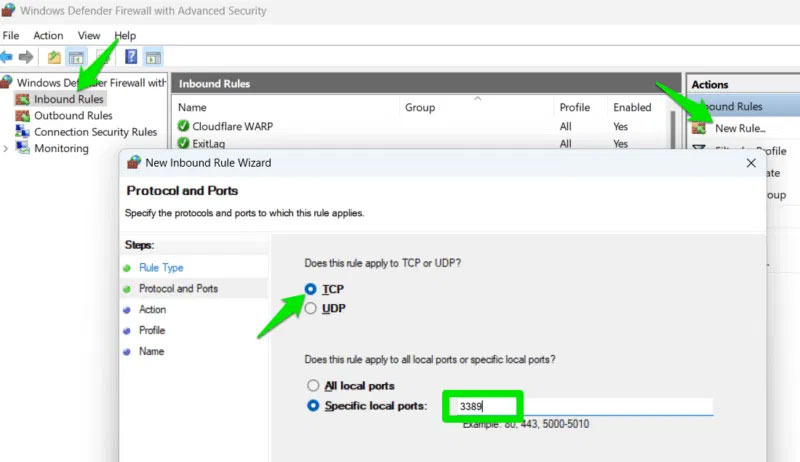
Select Block the connection and complete the setup to create the rule. Make sure you name the rule clearly so you can identify it later. Repeat this process for each port to block that rule.
Clean install Windows if needed
If none of these work or you don't want to take the risk, a clean install of Windows is another option. It's rare for malware to survive both an offline virus scan and a clean install. However, you'll need to back up important data, as a clean install will erase everything on your PC.
Check out our guide on how to clean install Windows to learn all the steps to safely install Windows.
Never take any chances if you have any doubts about your PC access, whether it's remote or local access. Such control always leads to bigger security issues. Of course, it's best to prevent it from happening in the first place, so make sure you take advantage of Windows security settings and these advanced Windows Defender options.
FAQ
What should you know about warning signs when someone accesses your PC?
While most remote access attempts are silent, they do come with a few warning signs. While these signs may be indicative of Windows' popularity, taken together they can be strong evidence of remote access activity.
How to confirm your PC is being accessed remotely?
If you notice the above signs, take the necessary steps to confirm your suspicion. You can monitor the activity of the components/applications involved in the remote access process to confirm that someone is accessing your Windows PC. Here are some of the most reliable methods:
What should you know about check Windows Event Viewer logs?
Windows Event Viewer is a great built-in tool to monitor user activity and help detect remote access attempts by monitoring RDP activity and login logs.
What should you know about monitor network traffic?
Remote access relies on network connectivity, so monitoring network traffic is a reliable way to detect it. We recommend using the free version of GlassWire for this purpose, as it both monitors and automatically protects against malicious connections.
Related Articles
 Access Windows Remote Desktop via Internet5 minutes read
 Use Remote Desktop to Access Remote Computers via the Internet16 minutes read
 How to Hear Audio from the Remote PC When Using Remote6 minutes read
 Access Computers Everywhere with Winvnc10 minutes read
 Remote Access Tools: Top 15 Free Remote Computer Control Tools23 minutes read
 Top Best Free Remote Computer Control Software9 minutes read
Reader Comments 0
Sign in with email or Google to join the discussion.