Table of Contents
Learn how to control a soundbar using the roku tv remote with clear steps, practical tips, and troubleshooting guidance for a reliable result.
Check if your TV and soundbar support ARC or CEC
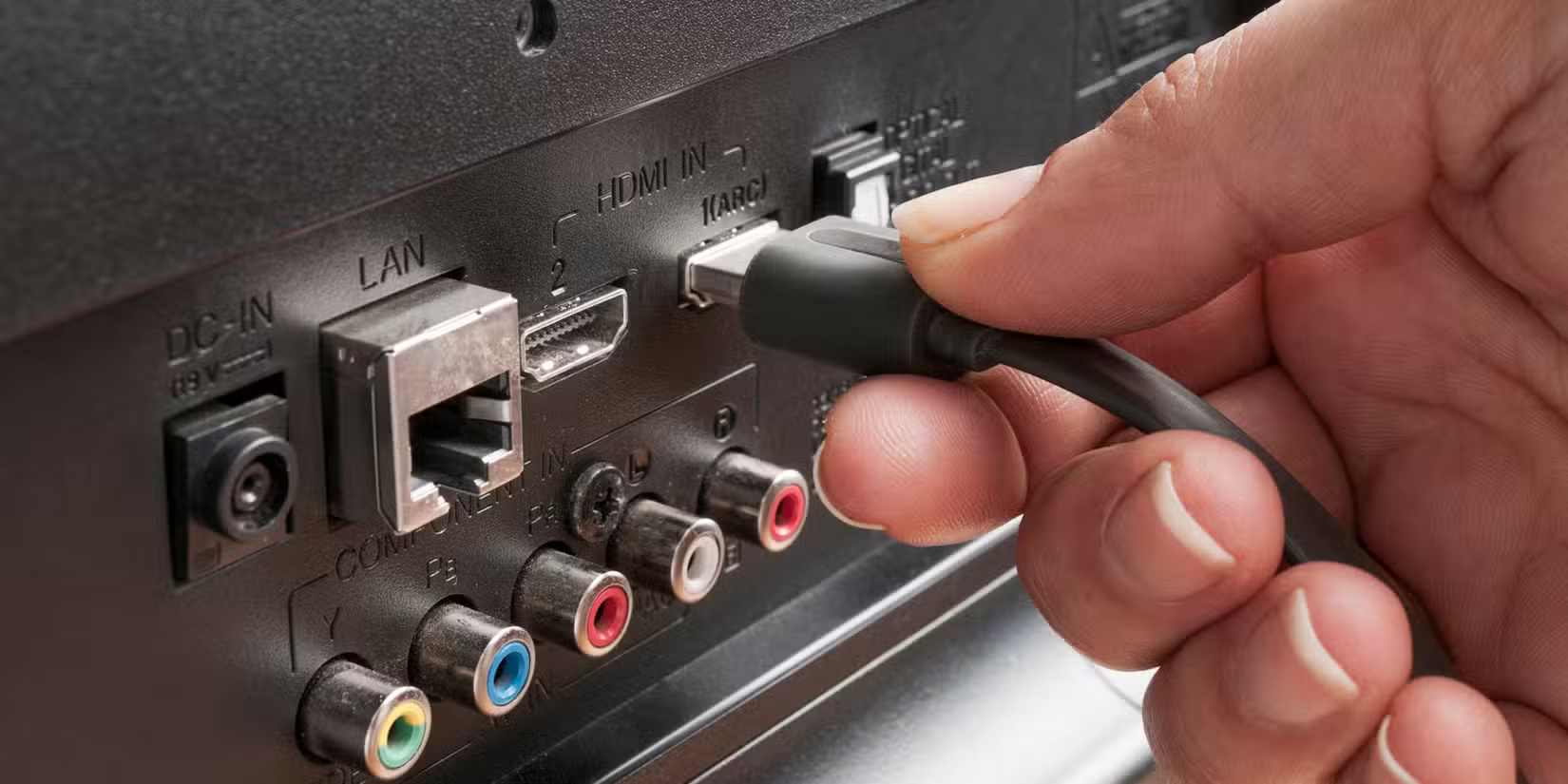
Audio Return Channel (ARC) and Consumer Electronics Control (CEC) are both lesser-known features of HDMI technology. Together, they enable bidirectional communication between a TV and an external device over an HDMI cable.
When you connect the soundbar to your TV using the HDMI ARC port on your Roku TV, it will automatically detect the soundbar. You will then be able to use the Roku remote to adjust the soundbar's volume immediately. Both your TV and soundbar must have an HDMI-ARC or HDMI-CEC connection.
You can check if your TV supports ARC or CEC by reading the labels on the HDMI ports on the back of the TV. At least one port should be labeled HDMI-ARC or HDMI-CEC. If you don't see any ports, you can also check your TV's user manual for more information.
Tip : If your TV doesn't have ARC, you can still control the soundbar with your Roku TV remote if the speaker supports HDMI. Go to Settings > System > Control other devices and enable System Audio Control to check.
Connecting the soundbar to Roku TV
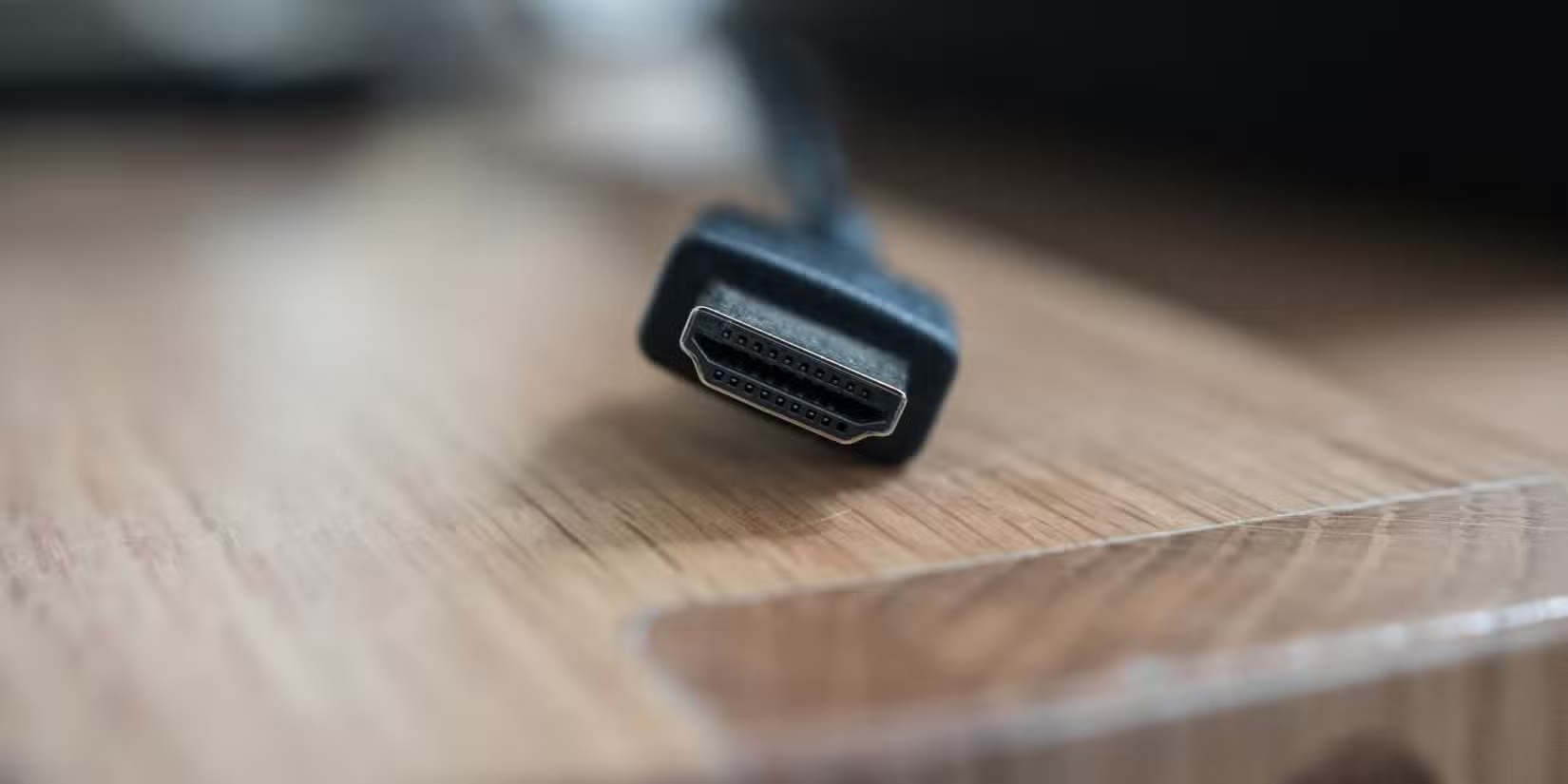
After verifying that your TV supports ARC or CEC, you can connect the soundbar to your Roku. The process will vary depending on whether you are using a Smart TV with the Roku operating system (also known as Roku TV) or a Roku Streaming Stick/Box.
In any case, you need to connect the soundbar to the TV using a standard HDMI cable. As mentioned before, make sure you plug the soundbar into the HDMI-ARC or HDMI-CEC port. If you have a Roku Stick or Box, you should also ensure that they are connected correctly.
Activate soundbar controls in Settings
Next, you need to enable soundbar control using the Roku remote via the Roku settings. You can do this on your Roku TV by following these steps:
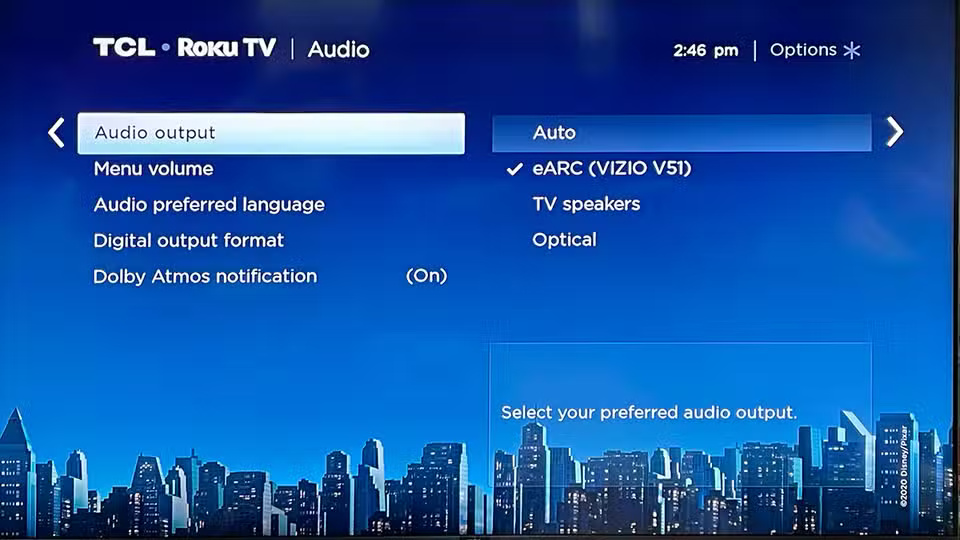
Turn on the TV, open the Roku interface, and go to Home > Settings .
- Scroll down and select Audio .
- Go to Audio Output .
- Select Auto or choose ARC/eARC by the soundbar's name from the list.
- Check if your Roku TV supports soundbar control by going to Settings > System > CEC .
- Click on Search for CEC devices .
- Check if the soundbar is included in the list of CEC-found devices. Also, check if it displays eARC: ARC Active and System audio control: Active .
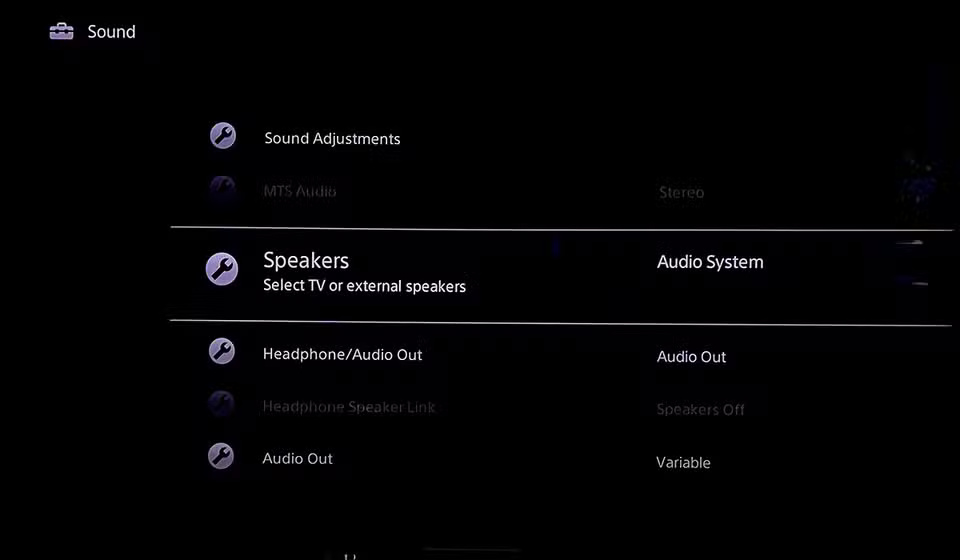
The process will be slightly different if you're using a Roku Streaming Stick or Roku Box. In this case, you need to enable this feature in your TV's settings menu following these steps:
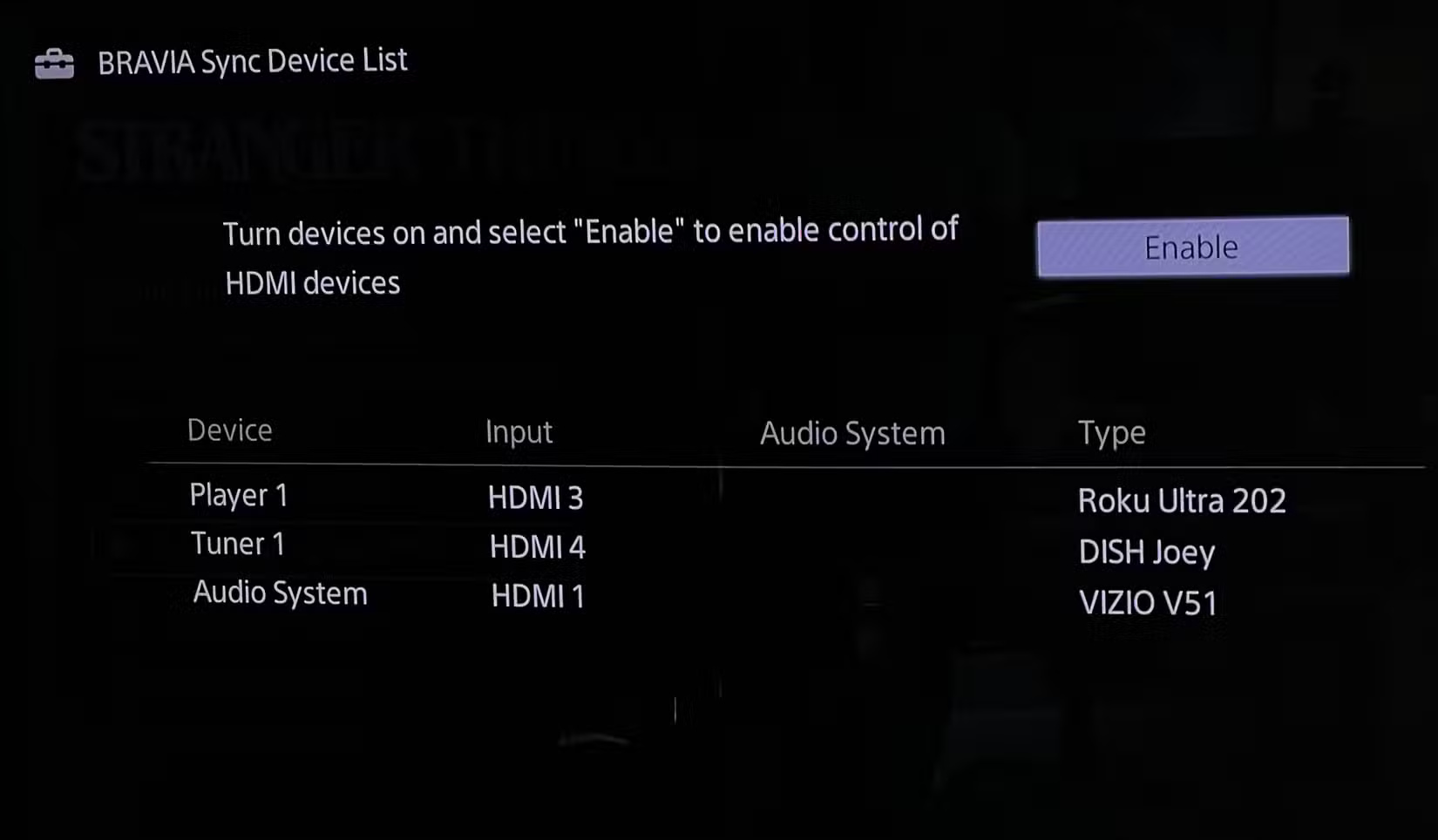
- Open your TV's sound settings. There will be a list of options allowing you to control the settings for your TV speakers or external sound system. Select the following option if available.
- The process for ensuring HDMI CEC is enabled varies considerably between manufacturers, as the feature has different names. For example, Sony TVs might call it "Bravia Sync". Check your soundbar's connected devices list in the settings to see if it's integrated.
Because every TV is different, the menu structure and settings may vary from this guide. However, the process will be almost the same. Refer to your TV manufacturer's help documentation for more information.
Configure and control the audio using the Roku remote control
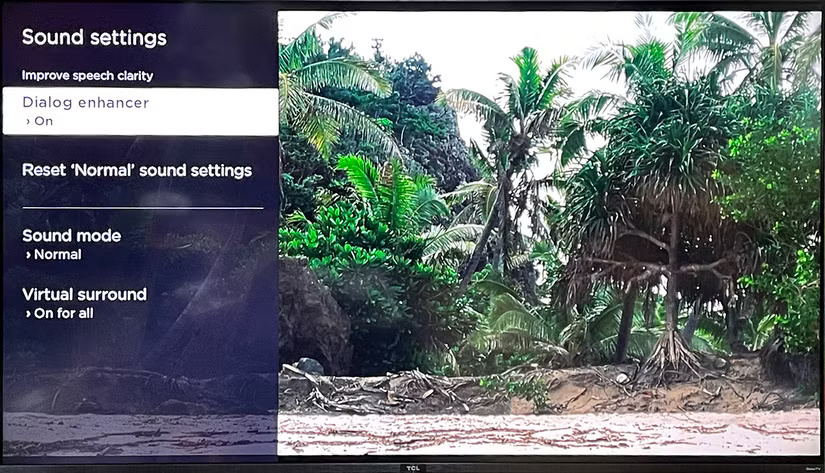
Once your Roku TV is set up with the soundbar, you can adjust the features for a better audio experience. By pressing the star button (*) and going to Sound Settings , you can enable Virtual Surround for Dolby Atmos or turn On For All for all audio formats.
This will create a surround sound experience without the need for rear speakers. Additionally, to improve voice quality, you can enable the Dialog Enhancer feature. This will improve the clarity of conversations regardless of the type of soundbar you're using.
Final Thoughts
Use this guide as a practical checklist for how to control a soundbar using the roku tv remote. Work through the steps in order, verify each result, and adjust the options to match your needs.
FAQ
What do you need before following this How to Control a Soundbar Using the Roku TV Remote guide?
Review the required tools, accounts, settings, or materials mentioned in the article. Learn how to control a soundbar using the roku tv remote with clear steps, practical tips, and troubleshooting guidance for a reliable result.
What are the main steps for how to control a soundbar using the roku tv remote?
Follow the sections in order, especially Check if your TV and soundbar support ARC or CEC, Connecting the soundbar to Roku TV, Activate soundbar controls in Settings. Complete each step before continuing and verify the result as you go.
What should you do if the process does not work as expected?
Recheck the prerequisites, update the relevant app or service, review the settings, and repeat the step that caused the issue. Use any troubleshooting notes included in the guide.
Related Articles
 Top 5 Top Soundbars of 2023: Best Options Compared6 minutes read
 8 Best Ways to Control Kodia Remotely11 minutes read
 Where to Buy TV Control, How to Buy It Well?8 minutes read
 Roku Remote Upgrade: Add Voice, TV Control and More for Just8 minutes read
 How to Set up a Kodi Remote Control10 minutes read
 Change This Setting to Get the Best Sound from Your Soundbar!7 minutes read
Reader Comments 0
Sign in with email or Google to join the discussion.