Table of Contents
With SharePlay's remote control feature, you can now remotely control someone else's iPhone screen during a FaceTime call.
With SharePlay's remote control feature, you can now remotely control another person's iPhone screen during a FaceTime call. This lets you teach family members how to use an app or troubleshoot a problem even when you're far away. Here's how to control another person's iPhone using FaceTime.
Instructions for controlling iPhone remotely using FaceTime
Step 1:
You Make a FaceTime call , then click on The Share icon . Now you Choose Ask to Share To ask the other person to share the screen.
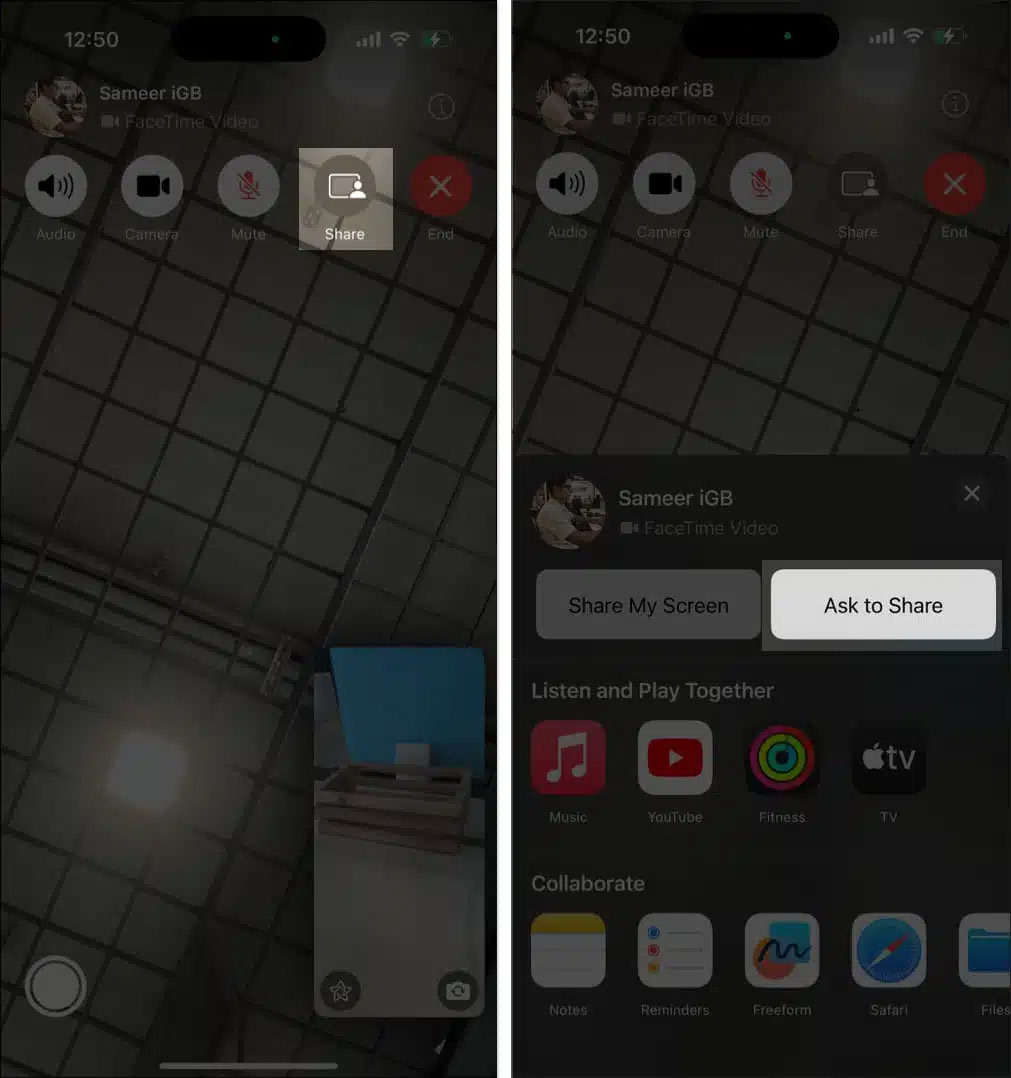
Step 2:
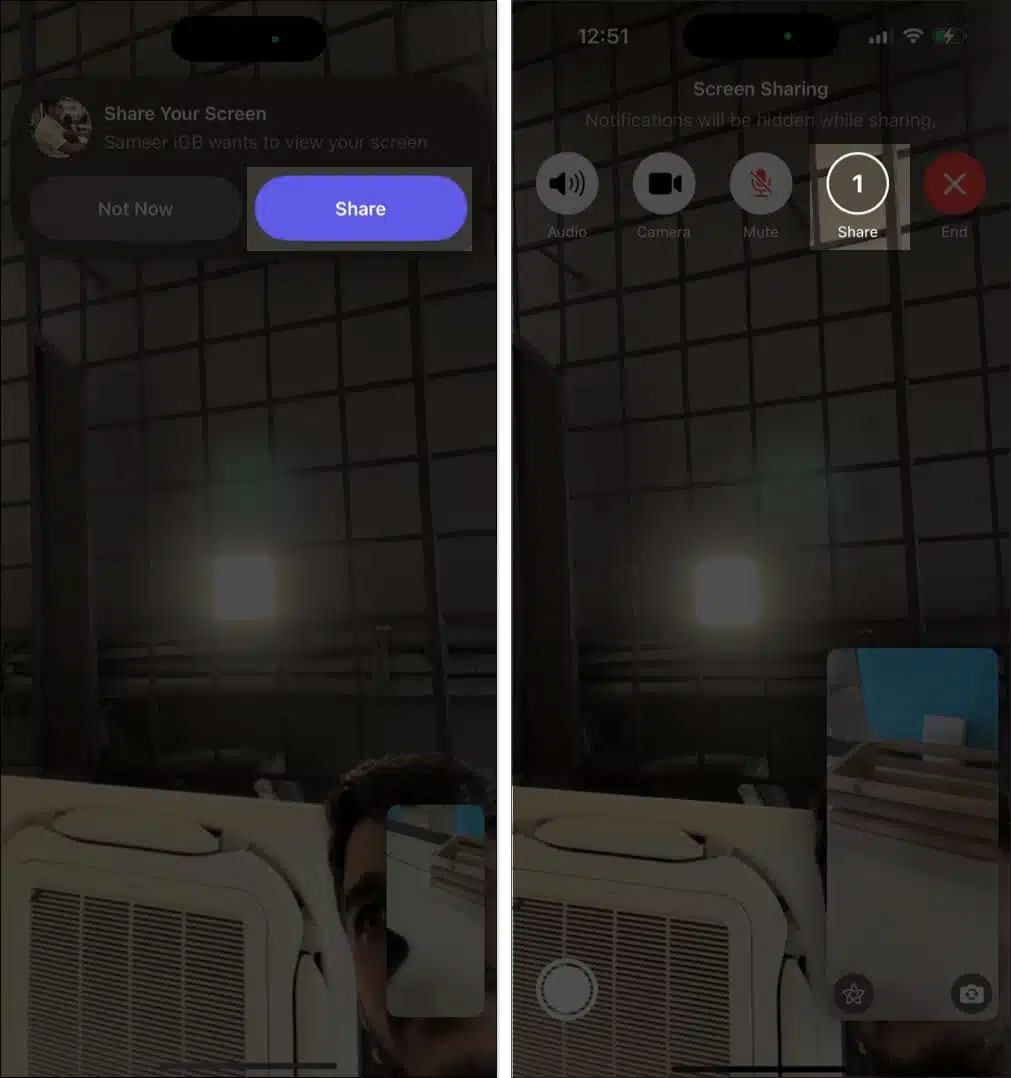
The other person will receive a notification and They will click the Share button To share. At this point this guide will see the other person's screen.
Tap The remote control icon In the lower right corner. The recipient will get a prompt saying you want to take control of their iPhone and they need to give permission.
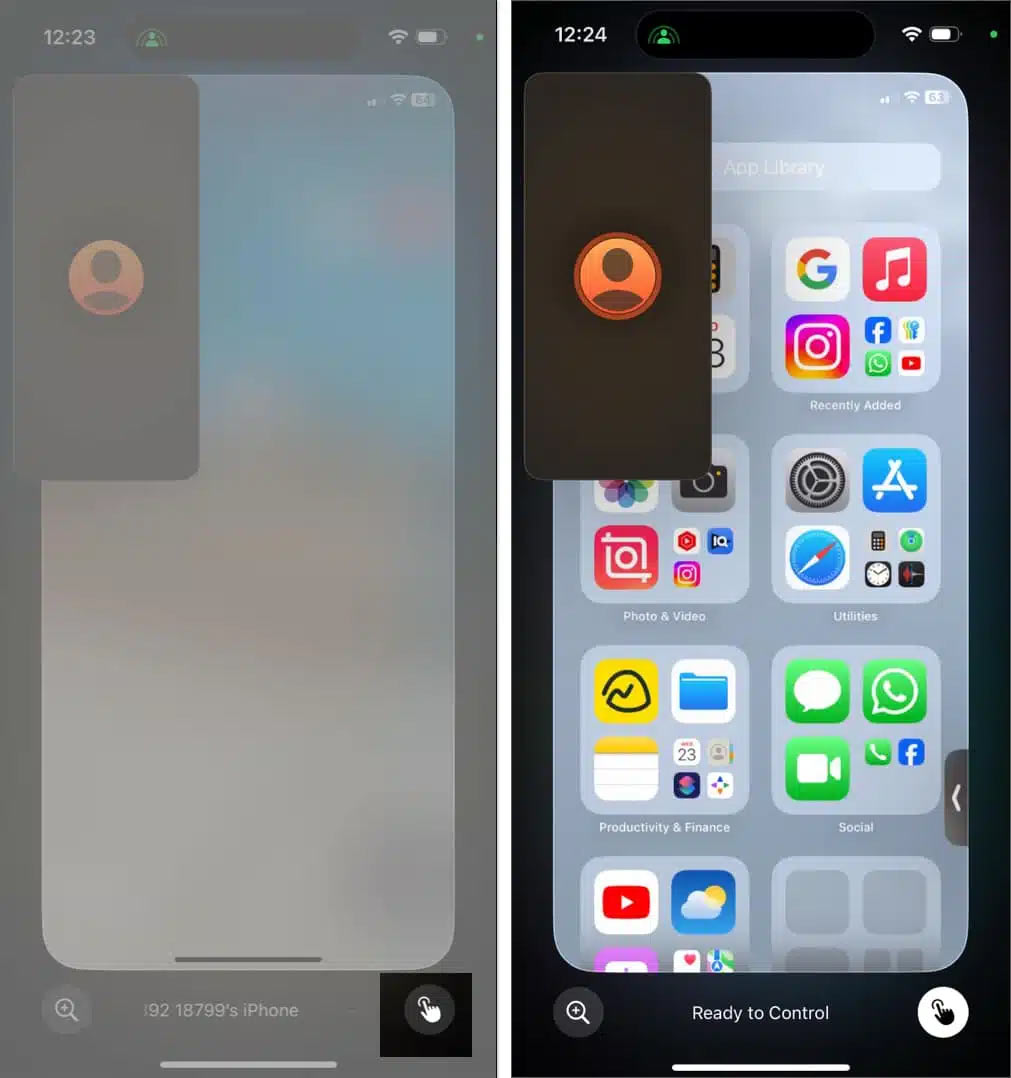
You can use any app, navigate through menus, but you can't change your Apple account or Face ID settings, make payments, or erase your device using remote control access.
Step 3:
To stop while controlling someone else's screen, tap the remote control icon to immediately end access.
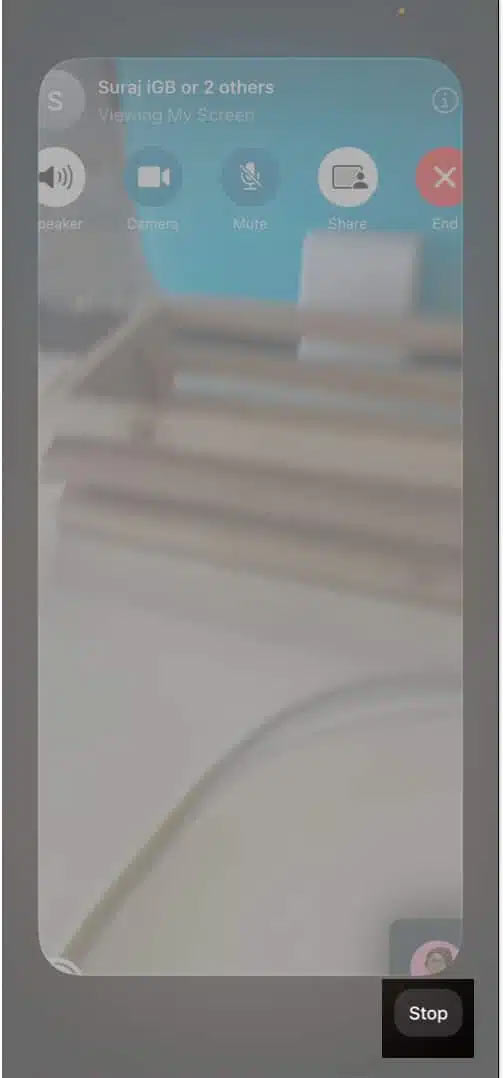
If you're sharing your screen, tap Stop at the bottom of the screen to end the remote control session.
To stop screen sharing completely, return to the FaceTime screen and tap Share > Stop Sharing.
FAQ
How do you control iPhone remotely using FaceTime: step-by-step guide?
In practical terms, with SharePlay's remote control feature, you can now remotely control someone else's iPhone screen during a FaceTime call.
What should you check before getting started?
Review the requirements, compatible device or software version, and any warnings described in the guide before making changes.
What should you do if the steps do not work?
Repeat the steps in order, confirm that your app or system is up to date, and review the troubleshooting details provided above.
Related Articles
 How to Control iPhone, iPad Remotely with a Computer or MacBook4 minutes read
 Facetime on iPhone 7 and iPhone 7 Plus Does Not Work, This Is How4 minutes read
 How to Record Facetime Calls on Mac, iPhone and iPad6 minutes read
 Instructions for Using Facetime on iPhone / iPad5 minutes read
 How to Install FaceTime on a Mac5 minutes read
 What Is Facetime? How to Use Facetime on iPhone/iPad: Key Facts and Practical Tips7 minutes read
Reader Comments 0
Sign in with email or Google to join the discussion.