Table of Contents
With the Tv Overlay Remote app, you can do the same thing on your TV, and it's a total breakthrough. With this app, you can project call notifications, emails, WhatsApp messages, etc. directly onto your TV.
Many people hate watching TV with their phones nearby. They check their phones every few minutes, missing what they're watching and being distracted for longer than they intended. Sure, they could put their phones away, but then they're constantly guessing what every buzz or ping could be. The anxiety of 'what did I miss?' never really goes away.
That's not a problem when you're working, because you can connect your phone notifications to your PC using Phone Link. Luckily, with the Tv Overlay Remote app, you can do the same thing on your TV, and it's a total breakthrough. With this app, you can project call notifications, emails, WhatsApp messages, etc. directly to your TV.
Monitor phone notifications while watching movies
Stay updated without picking up your phone
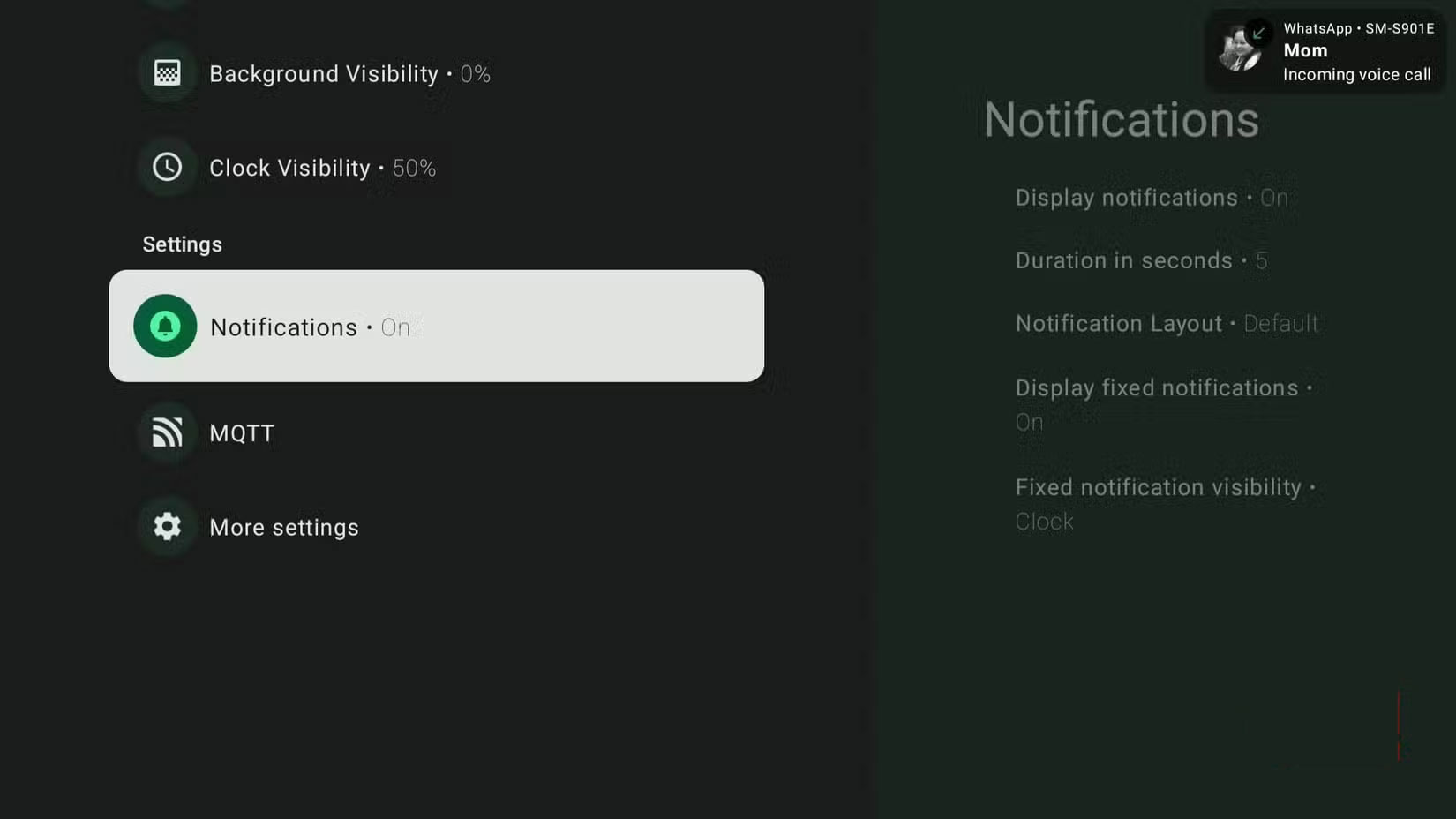
Nothing interrupts a movie night like constantly checking your phone. You pause the show, unlock your device to check your notifications, and suddenly you're no longer in the loop. Same goes for gaming. Having to stop every few minutes to check your messages can be incredibly annoying.
Putting phone notifications on your TV can save you from having to constantly reach for your device. You'll see a small pop-up in the upper right corner, allowing you to glance at it and decide if it's urgent to respond or if you can continue watching or playing a game. It's that simple!
Tv Overlay Remote is an app that lets you display notifications from your Android phone on your TV. This includes everything from phone calls and messages to app alerts and even system notifications. If you don't want to be bothered by every notification that comes in, you can customize what appears. With this setup, you can watch an entire season of a show, play a long game, or enjoy a new movie without worrying about missing an important alert.
Set up Tv Overlay Remote
Launch in minutes
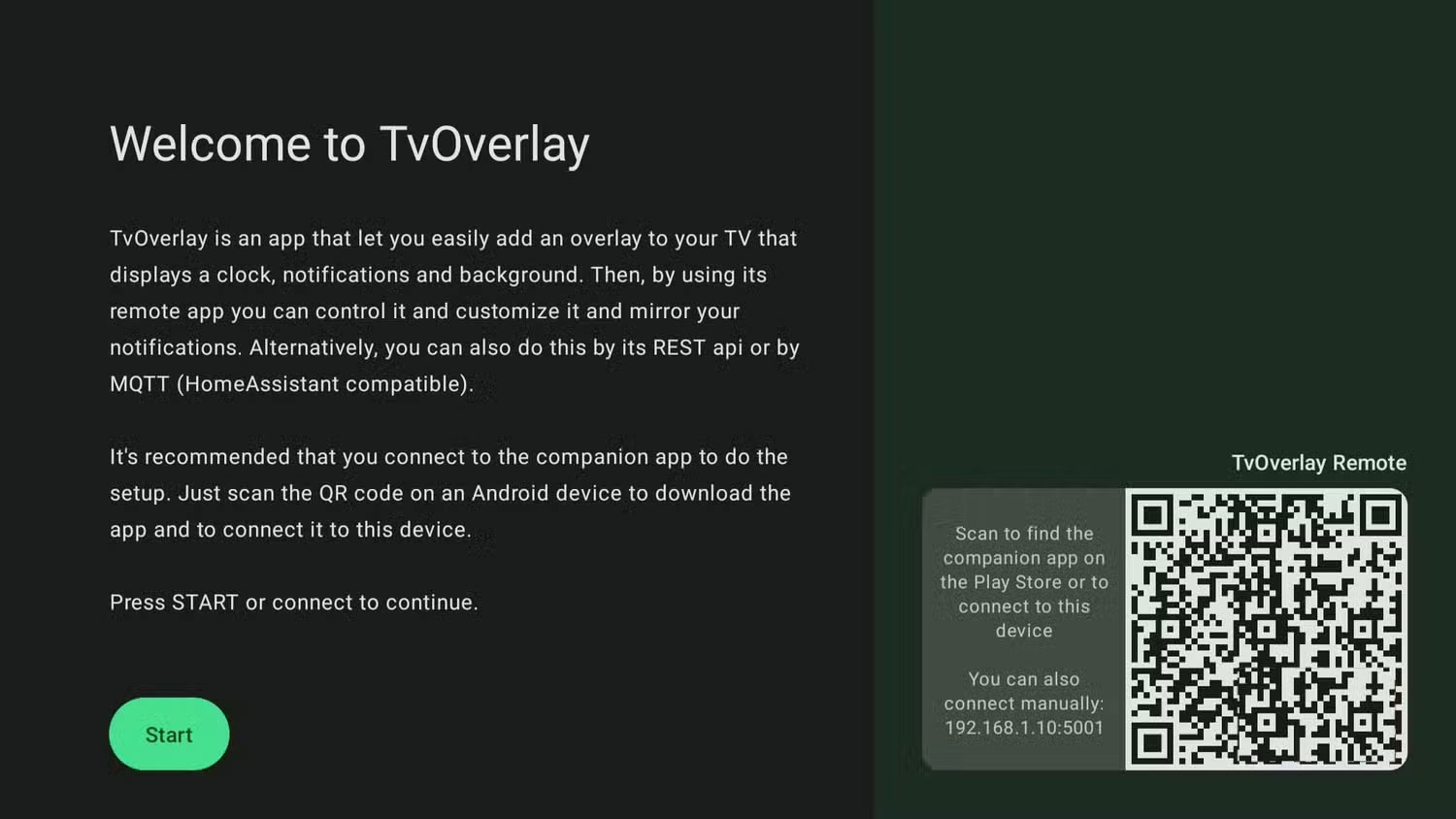
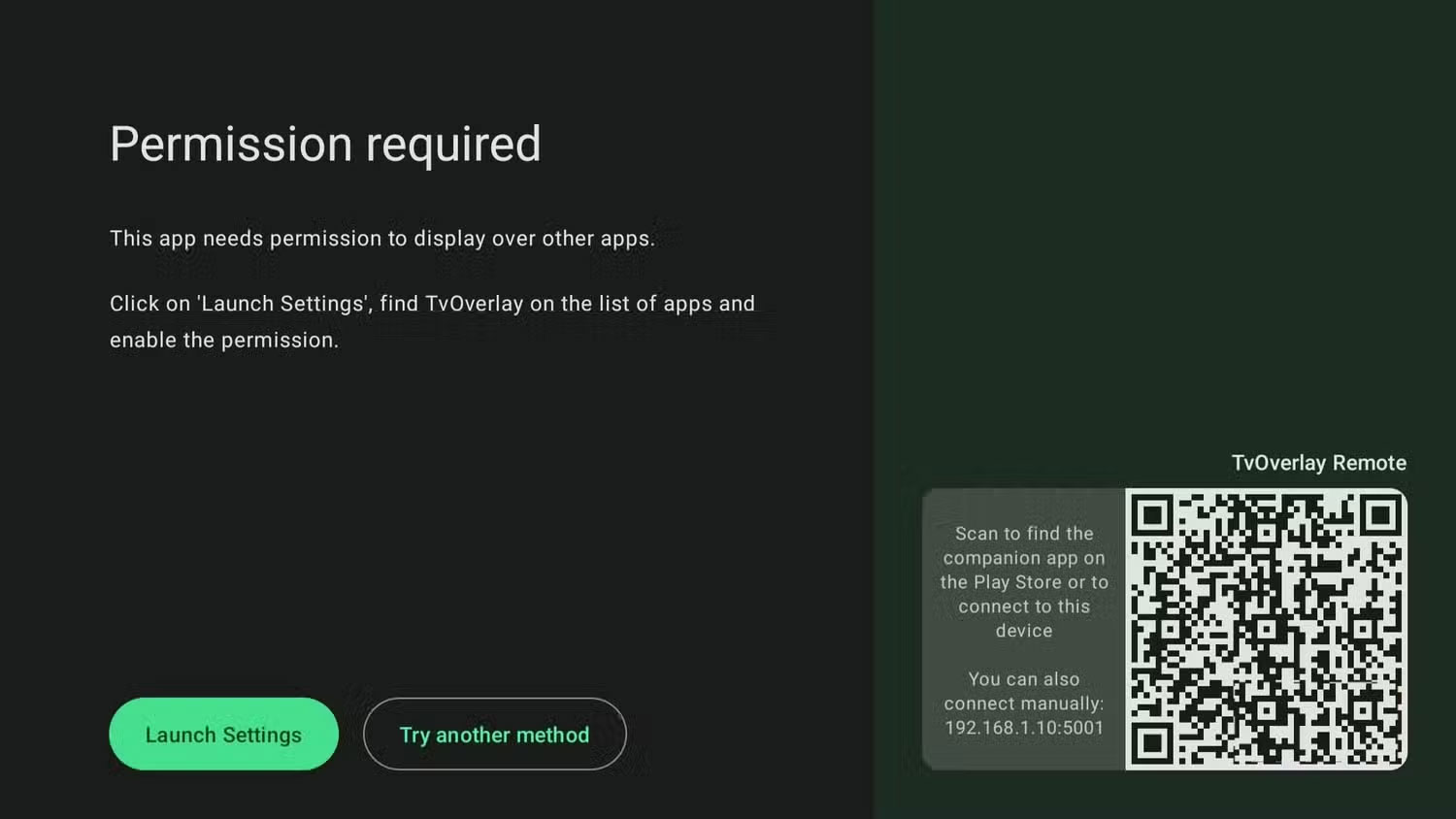
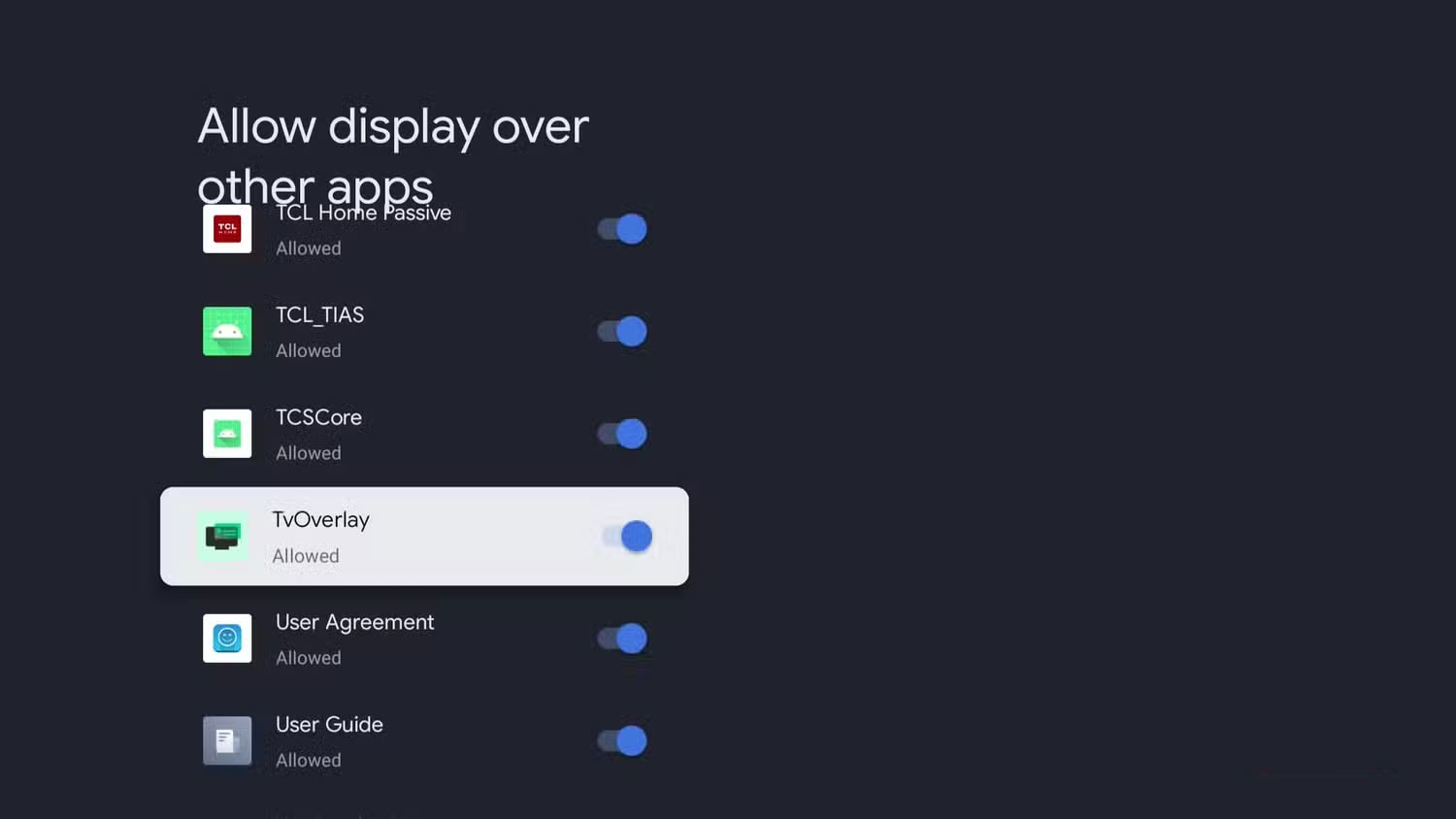
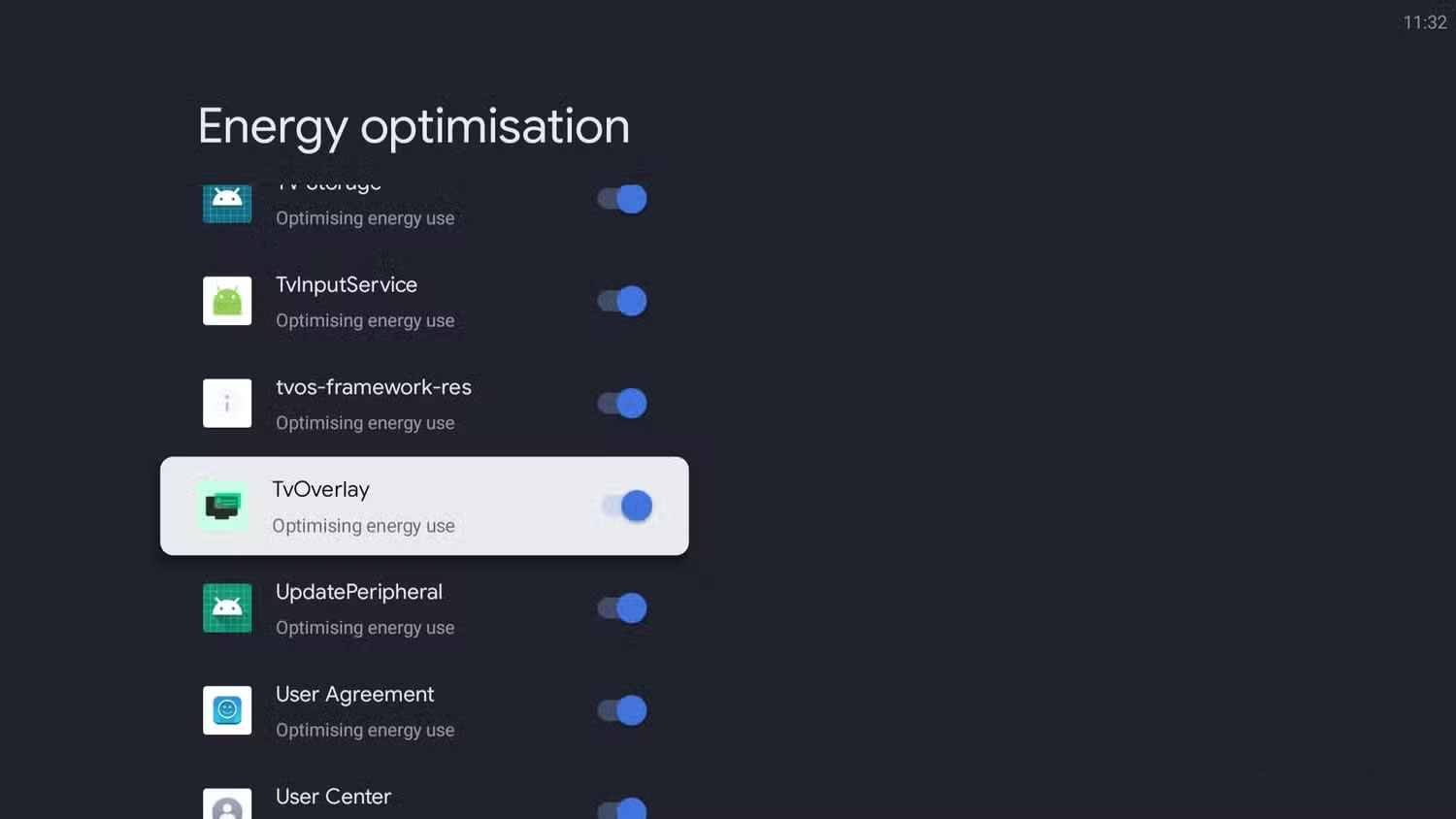
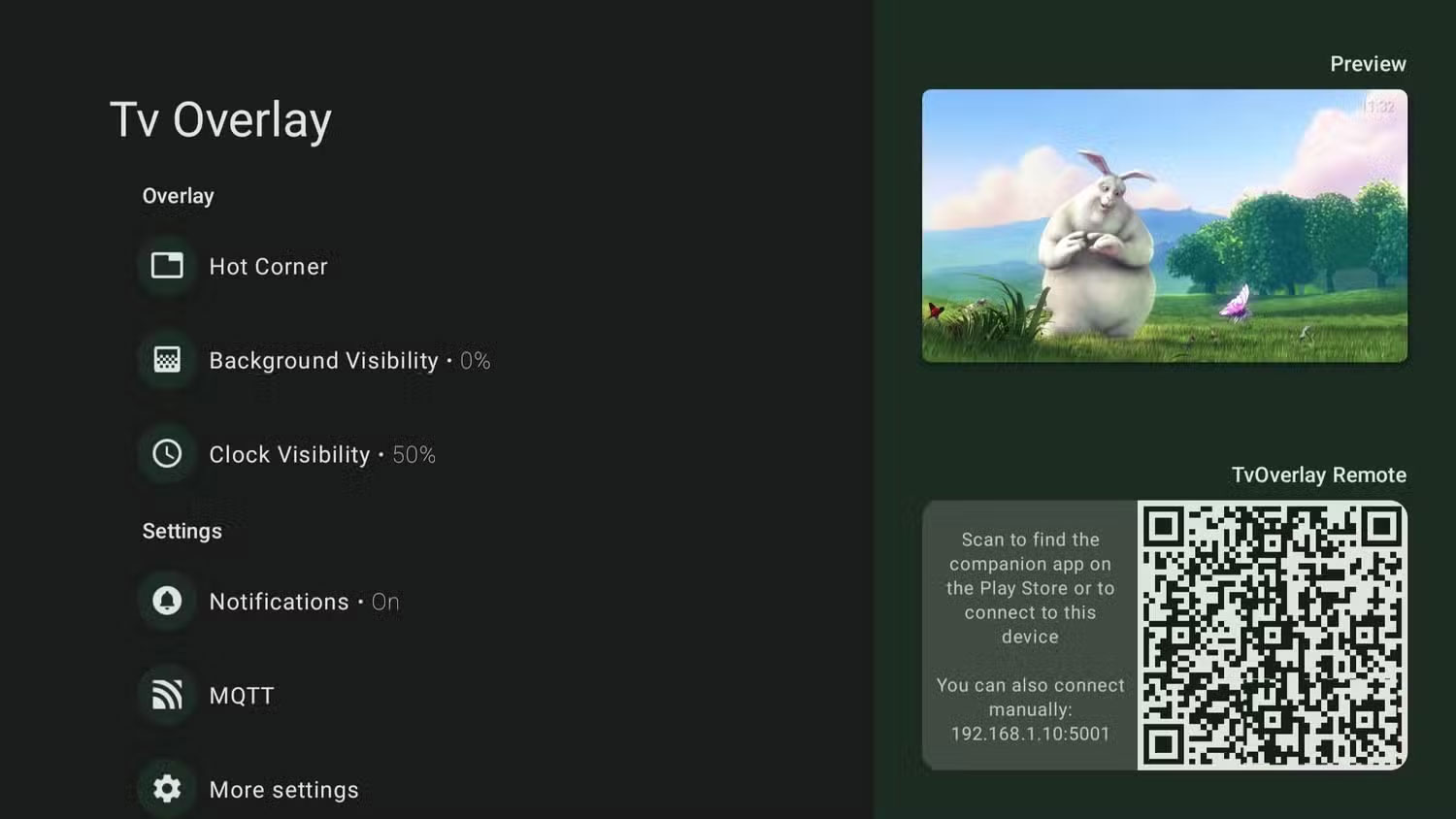
Getting started with Tv Overlay Remote is pretty easy. First, you'll need to download the app to your TV and follow the prompts to grant some necessary permissions - like overlaying other apps, adjusting battery optimization, and a few small settings to ensure notifications are displayed smoothly. After the initial setup, a QR code will appear on your TV screen.
Next, download the Tv Overlay Remote app to your phone. Open the app and use your phone's camera to scan the QR code on your TV. Make sure both your phone and TV are connected to the same Wi-Fi network - this is important for syncing notifications.
Once everything is paired, any notifications you receive on your phone will immediately appear on your TV. By default, they appear in the upper right corner, but you can move them anywhere—upper left, lower left, or lower right.
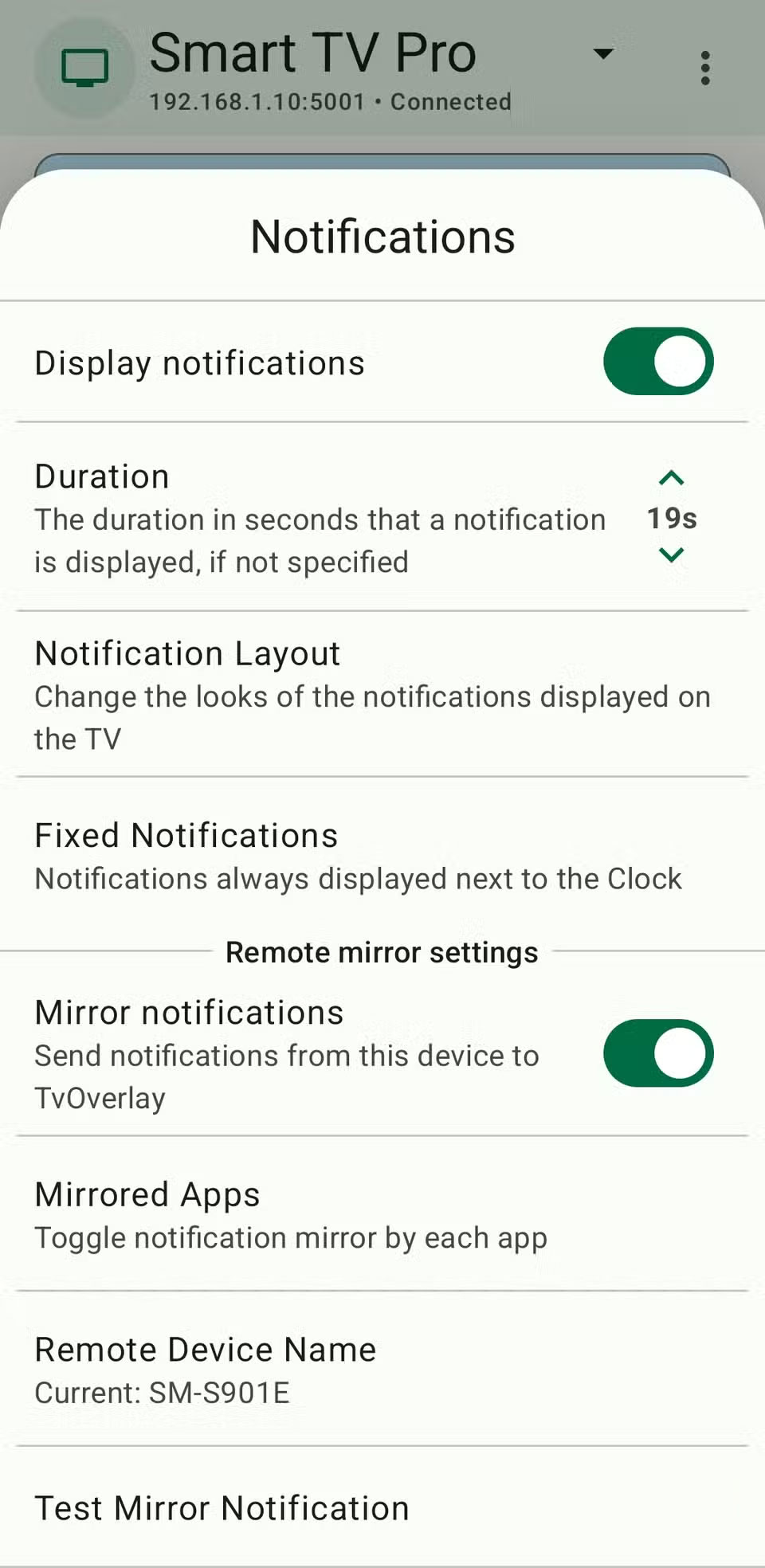
The app also lets you choose the notification layout. The Default Layout shows all the information from the alert, the Minimalist Layout strips away the necessary information, and the Only Icon Layout shows only the app icon for privacy.
Each notification will appear for 5 seconds by default, but you can easily adjust the duration to suit your preferences. Tv Overlay Remote is more than just a notification. When there are no notifications, you will see a small clock in the upper right corner of the screen. And if you don't want it, you can hide it with a toggle.
See only important notifications
Never be distracted by useless notifications again
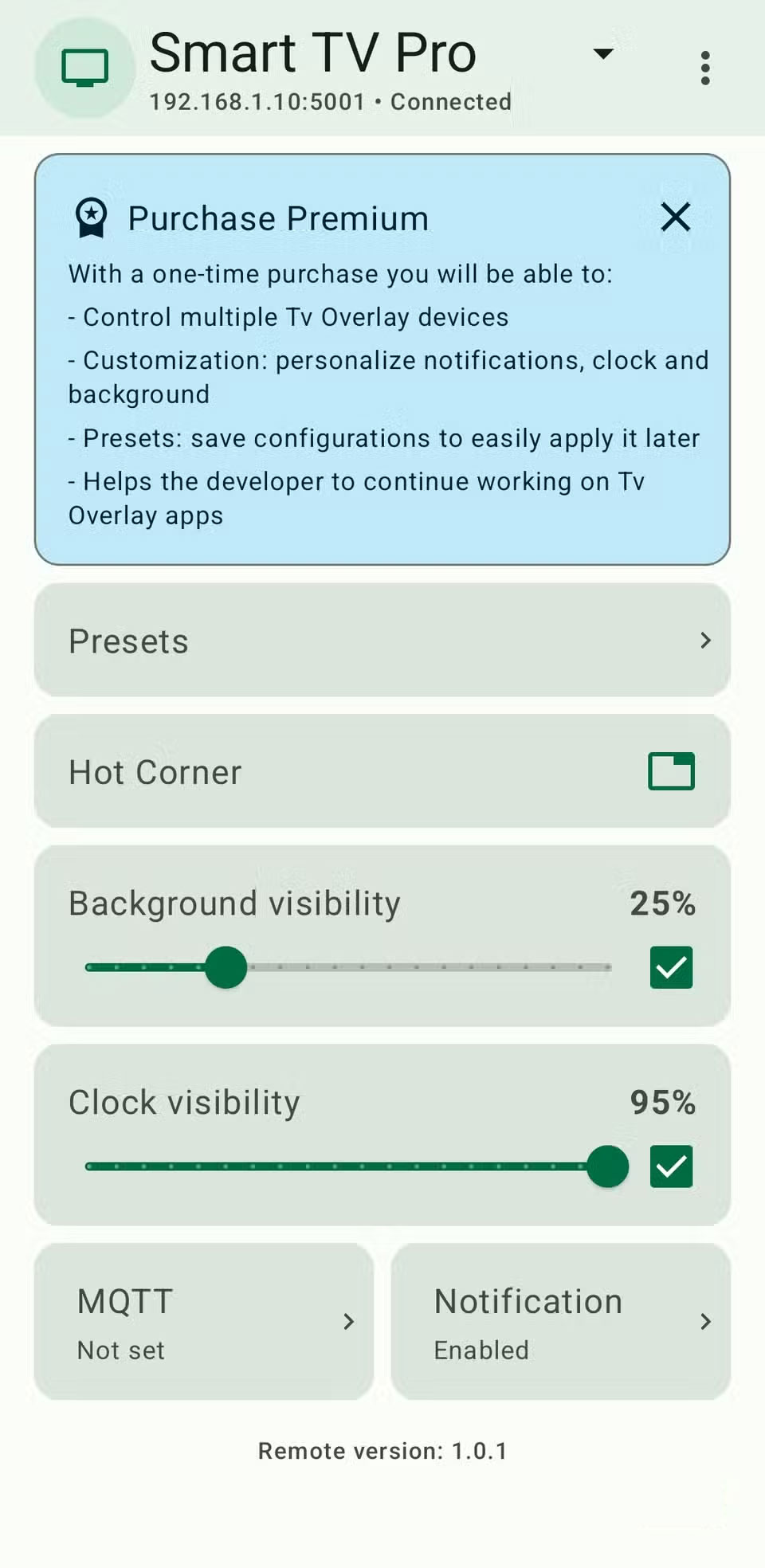
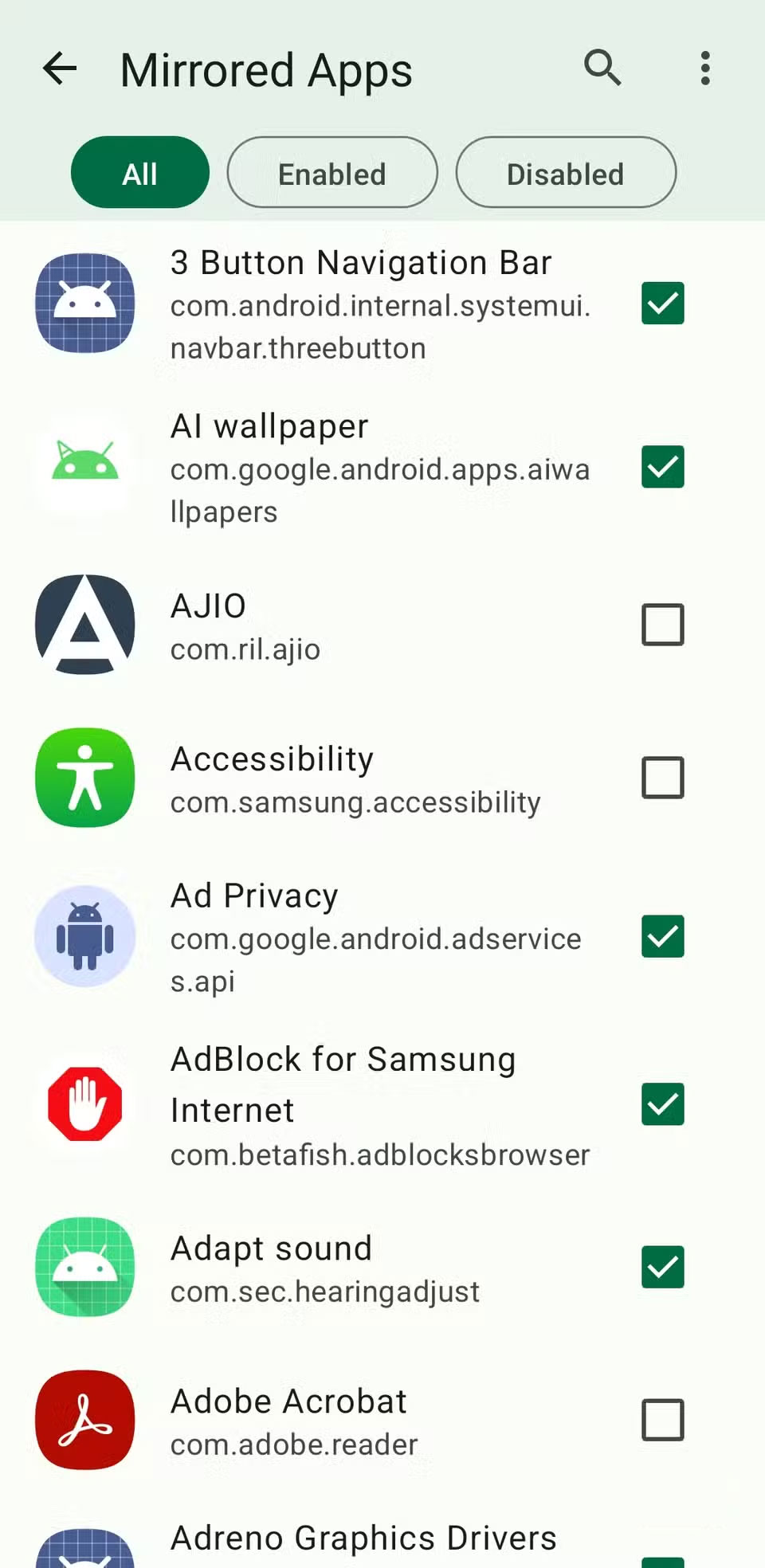
Being able to project your phone notifications onto your TV is great, but let's be honest, most phone notifications aren't urgent. Social media likes, app updates, or random news stories can certainly wait while you enjoy your free time.
That's where the Tv Overlay Remote comes in. You have complete control over what's displayed on your screen. You can choose to allow notifications from specific apps and ignore the rest. For example, you can set the app to only show notifications for calls, WhatsApp messages, Gmail, and Slack. This way, you never miss anything important while avoiding the constant distraction of irrelevant notifications.
The free version of the app already offers all the essential features, so there's no need to upgrade. But if you want a few extras, the premium version is also affordable, at around $5 (one-time payment).
With this version, you can beam notifications to multiple TVs, customize clocks and notification backgrounds, and even create presets to save your preferred settings. If you have multiple TVs or want more control over how notifications appear, the premium version is worth considering. You can see all the customization options available on the app's GitHub page.
Having your phone notifications on your TV might seem like overkill at first, but once you try it, you'll have a hard time going back. Now you can watch TV or play games while your phone is on silent, charging in another room, or lying in your pocket. You don't have to constantly reach for it or worry about missing important calls or alerts.
FAQ
What should you know about TV overlay remote?
In practical terms, with the Tv Overlay Remote app, you can do the same thing on your TV, and it's a total breakthrough. With this app, you can project call notifications, emails, WhatsApp messages, etc. directly onto your TV.
Why does TV overlay remote matter?
The article highlights that Tv Overlay Remote is an app that lets you display notifications from your Android phone on your TV.
What is the main takeaway?
The main takeaway is that set up Tv Overlay Remote Launch in minutes Getting started with Tv Overlay Remote is pretty easy.
Related Articles
 How to Disable Geforce Overlay on Windows6 minutes read
 How to Fix 'Screen Overlay Detected' Error on Android Device7 minutes read
 How to Turn Off Screen Overlay on Android 6.0 Marshmallow5 minutes read
 Manual Samsung TV Remote Most Detailed11 minutes read
 Download GOM Remote: Control App for GOM Player and GOM4 minutes read
 Where to Buy TV Control, How to Buy It Well?8 minutes read
Reader Comments 0
Sign in with email or Google to join the discussion.