Table of Contents
This practical guide explains how to insert a link image in outlook signature. Follow the steps in order, review the requirements first, and use the troubleshooting notes when a setting or option does not work as expected.
How to inserting a link image in an Outlook signature
Step 1:
First you need to upload the image you want to insert in your Outlook signature to Google Docs.
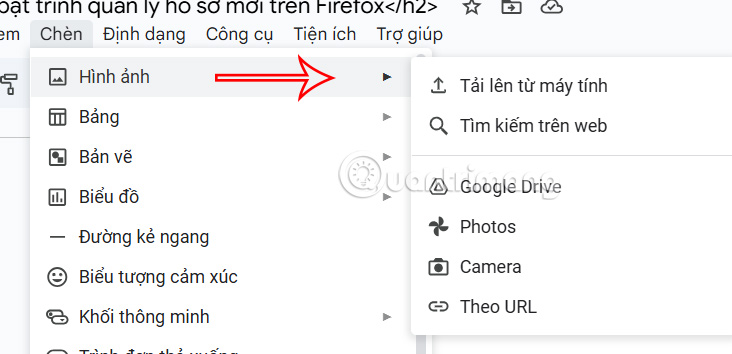
Step 2:
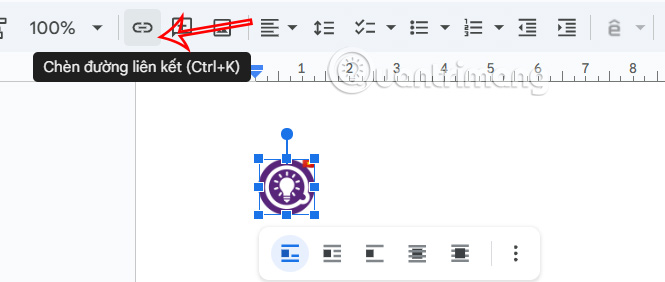
After inserting the image into Google Docs, we adjust the size to make the image smaller , suitable for the signature on Outlook. Next, select the image and then select the link icon above.
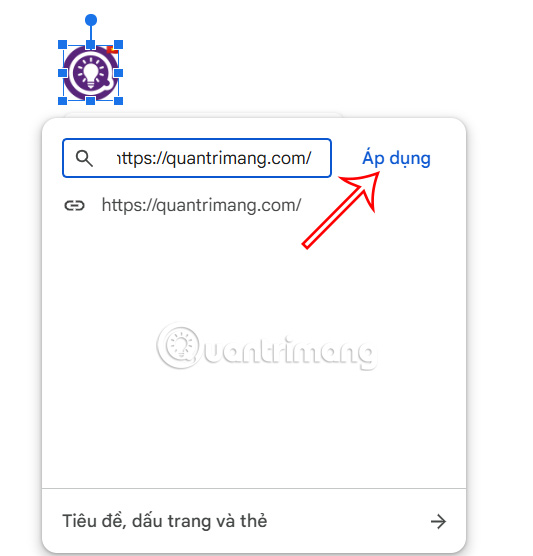
Enter the link you want to insert into the image and click Apply to save.
Step 3:
Copy image to insert access link in Google Docs.
Step 4:
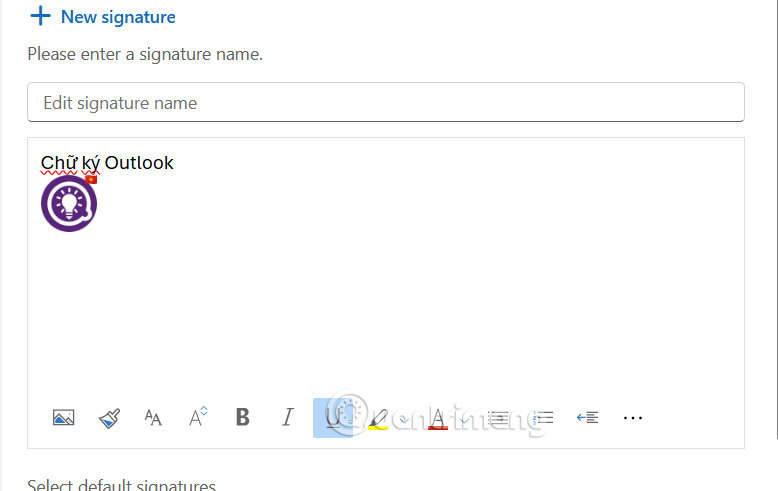
In the Outlook interface , click the gear icon , select Account , then click Signatures to create a signature in email.
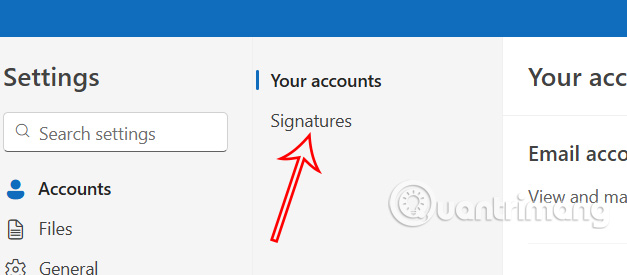
Next, the user pastes the copied image from Google Docs into the signature editing section for Outlook. Name this signature and then click Save to save the signature for Outlook.
Step 5:
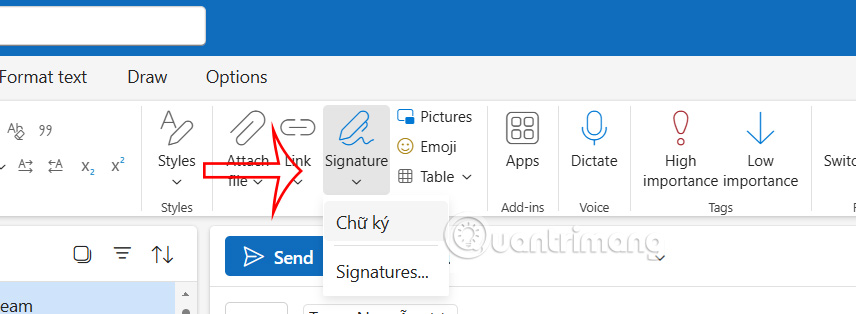
We compose an email as usual , then select Signatures and select the signature you created to insert into the email.
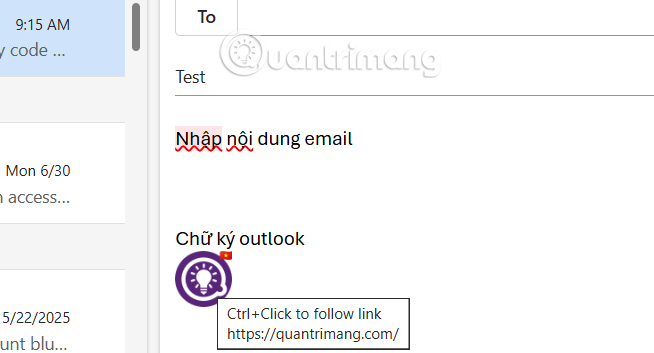
As a result, the user will see the image of the link inserted in the Outlook signature as shown below.
FAQ
How to inserting a link image in an Outlook signature?
First you need to upload the image you want to insert in your Outlook signature to Google Docs.
What does this guide cover?
This guide explains insert a link image in outlook signature, including the main steps, important details, and practical considerations.
Who is this guide for?
It is designed for readers who want a clear, practical overview and a reliable process they can follow without unnecessary complexity.
Related Articles
 How to Insert an Icon into a Link in an Outlook Signature2 minutes read
 How to Insert an Image into an Outlook Signature3 minutes read
 How to Create a Signature for Gmail and Insert Photos7 minutes read
 How to Add Links to Email Signatures on iPhone and iPad5 minutes read
 How to Add a Signature in Microsoft Outlook: Step-by-Step Guide3 minutes read
 How to Change a Signature in Outlook: Step-by-Step Guide3 minutes read
Reader Comments 0
Sign in with email or Google to join the discussion.