Table of Contents
Google Chrome has some powerful built-in protection features that warn you before you visit a shady site—and most people don't even realize they're turned on.
It's not breaking news, but there's no denying it: Scams are everywhere. Even the most tech-savvy can fall for a sophisticated phishing site, fake store, or perfectly timed email.
But here's the thing: You don't really need dozens of browser extensions to stay safe. Google Chrome already has some powerful built-in protections that warn you before you visit a shady site—and most people don't even realize they're turned on.
Google Safe Browsing
Chrome's core defenses
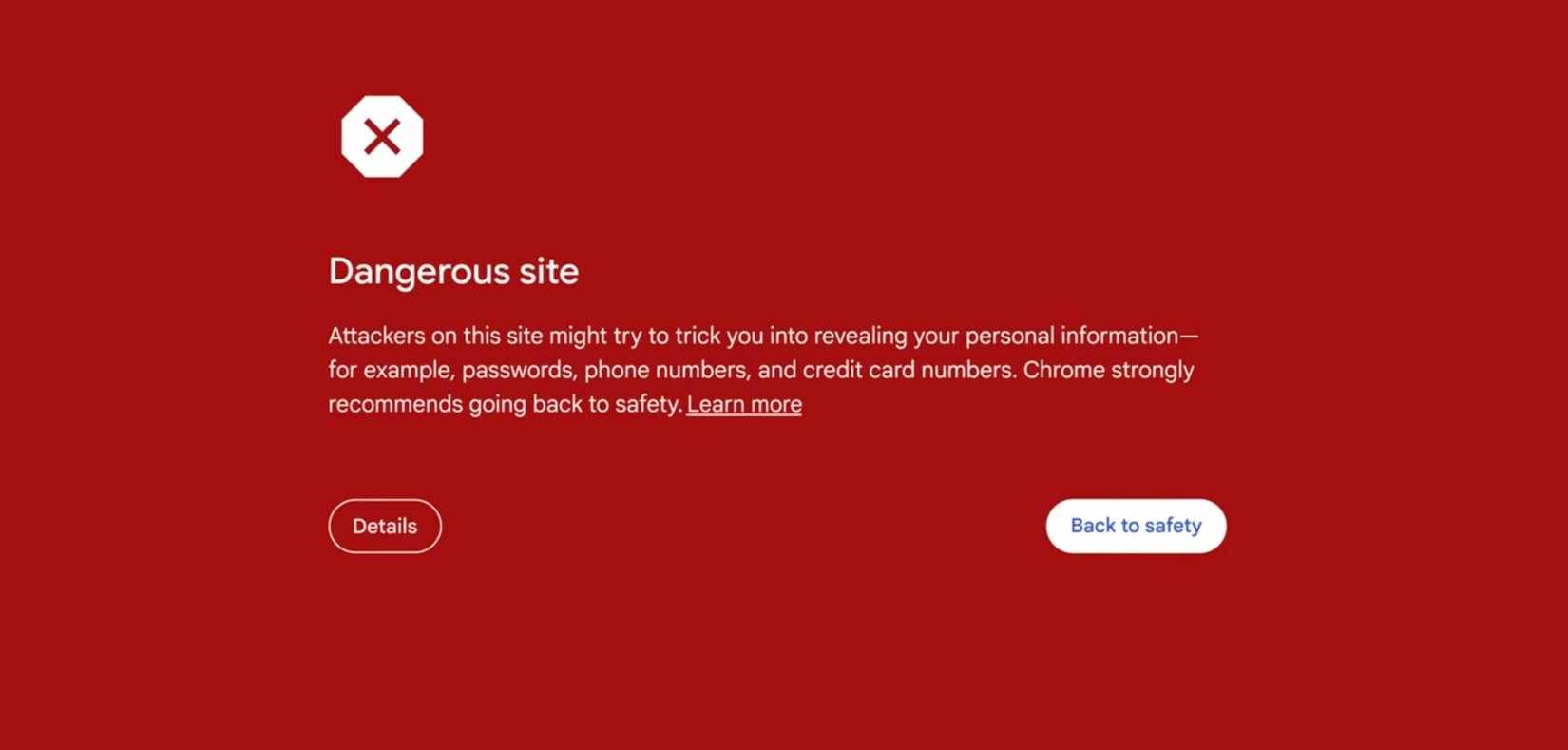
At the heart of Chrome's phishing detection system is Google Safe Browsing, a constantly updated database of dangerous websites. Every time you click a link or type a URL, Chrome silently checks it against this list in the background.
If a site is known to host malware, phishing pages, or malicious downloads, you'll see a full-screen red warning page: 'Deceptive site ahead' Or 'The site ahead contains malware' . This is a clear sign to exit immediately.
The Safe Browsing feature protects users against all the most common web scams – fake login pages, fake banking sites, fraudulent download buttons, and even legitimate websites that have been hijacked.
You can confirm that Safe Browsing is working by going to: Settings > Privacy and security > Security > Safe Browsing .
This feature is enabled by default, but if you've ever tweaked Chrome's privacy settings, you should check it out.
Additionally, as part of Safe Browsing, Chrome also uses AI-powered phishing detection technology. First announced on Google's The Keyword blog in May 2025, Chrome uses AI-powered phishing detection tools across the browser and smartphone app, providing specific warnings when any issues are detected.
Enhanced Safe Browsing
Real-time fraud detection to keep users safe
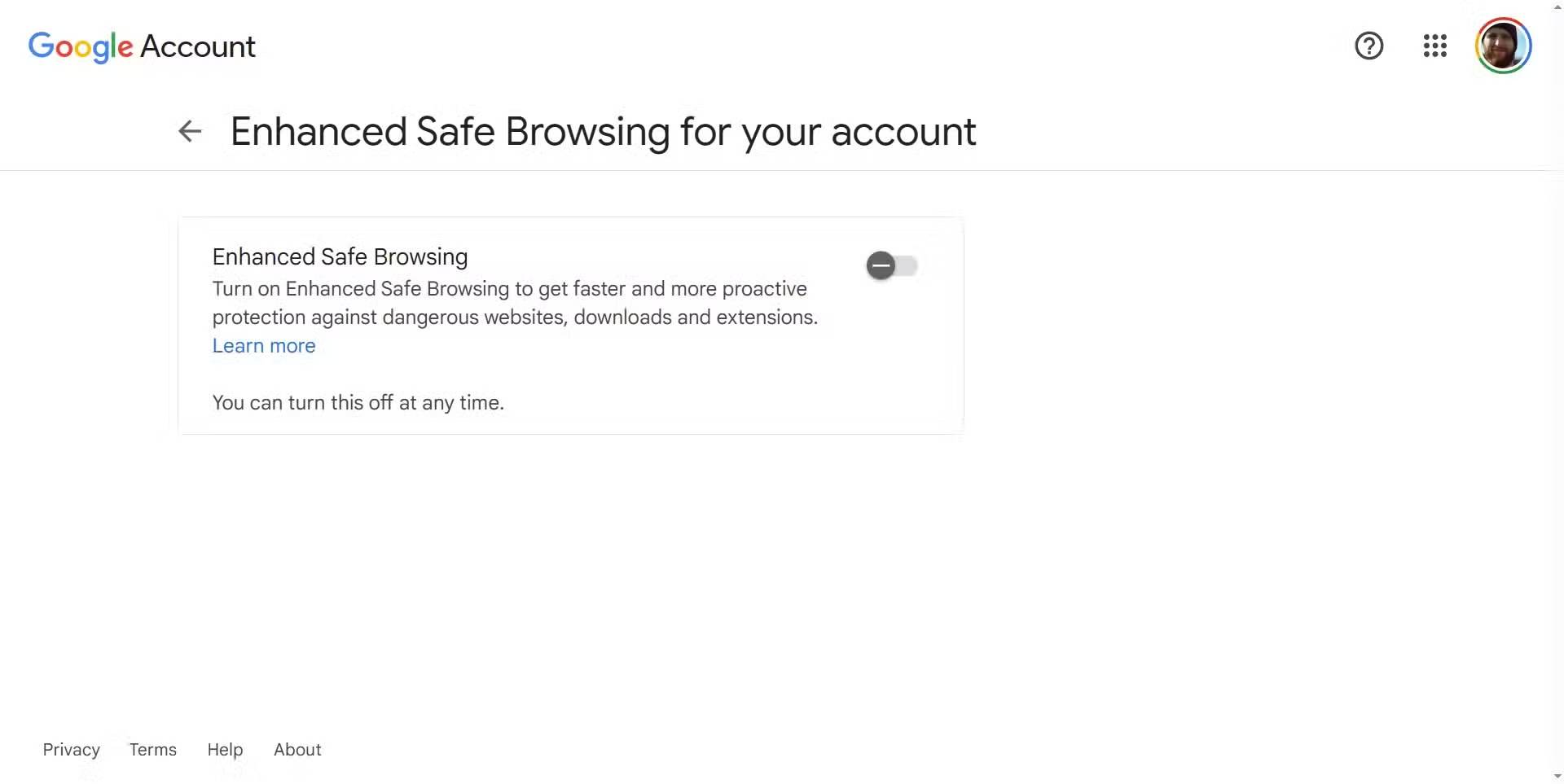
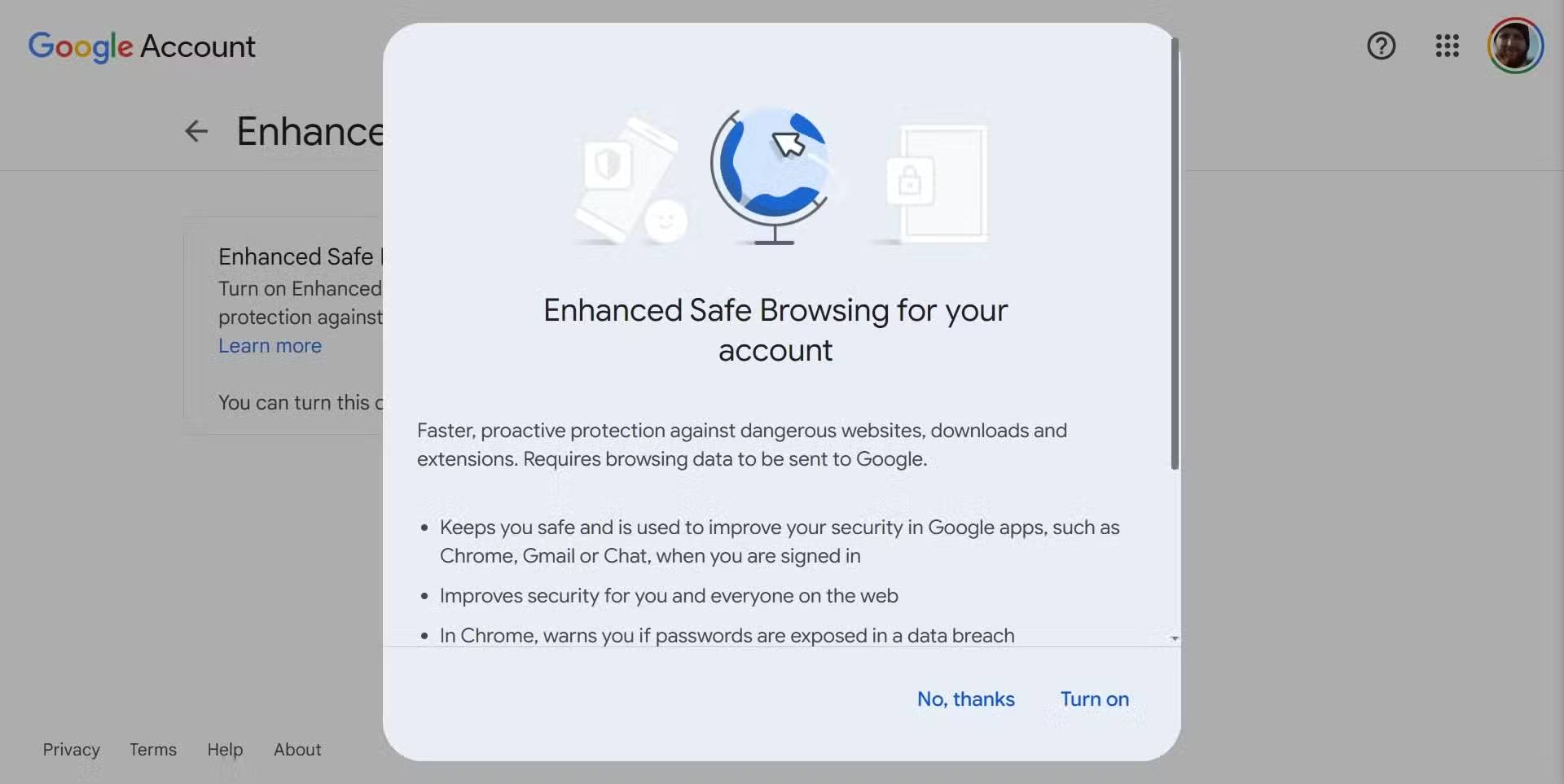
If Safe Browsing isn't enough, Google has another level of security: Enhanced Safe Browsing.
This feature is like an upgrade to the regular Safe Browsing mode that is enabled in every Chrome settings and requires you to turn it on. It basically allows real-time analysis of websites, links, downloads, extensions, etc. It can also notify you if your Google data has been compromised or if a password has been detected.
You can find no downsides to enabling Enhanced Safe Browsing. You'll send a little more data to Google, but in return, Chrome will help keep you safer.
To turn on Enhanced Safe Browsing:
- In Chrome, go to Myaccount.google.com.
- Click Security At the top of the page.
- Turn on the toggle under Enhanced Safe Browsing For your account.
- Click the toggle button on the next page next to Enhanced Safe Browsing , then select Turn on .
Your Google account is now using Enhanced Safe Browsing.
HTTPS Everywhere and DNS Encryption
Requires every website and request to protect your data
For a long time, the green icon next to the URL in the Chrome address bar signaled that you were using an HTTPS site. But these days, HTTPS is almost everywhere, so Google has actually switched to the opposite tactic – warning you when you're about to use a non-HTTPS site.
This makes sense and ties in with the two previous Chrome security features mentioned above.
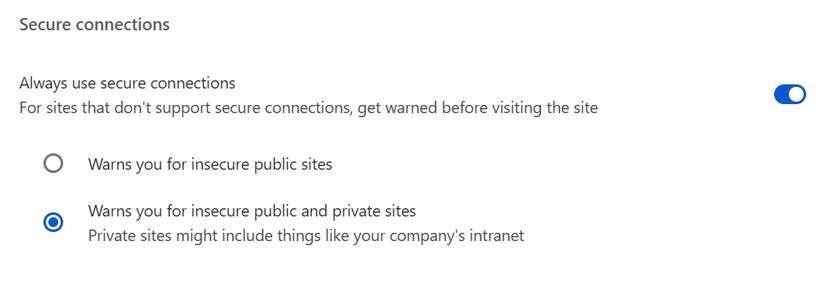
To take things a step further, there's a little-known Chrome security setting that actually forces the browser to use secure HTTPS connections everywhere, upgrading any connection to provide more privacy and security. Always use secure connections Is a simple toggle and makes browsing much safer.
- Go to Settings > Privacy and security > Security .
- Browse down to Security And look for the Always use secure connections Entry.
- Turn on settings and select Warn about insecure public & private sites .
Now, while you're in Chrome's Settings, you should also enable Secure DNS . This setting protects your DNS requests from prying eyes and provides another small built-in security improvement.
The Domain Name System (DNS) is the backbone of the Internet. When you type a website name like TipsMake.com into your browser, your computer doesn't actually understand the text. It asks a DNS server to translate the domain into a numeric IP address to help route the request to the correct server that stores the information.
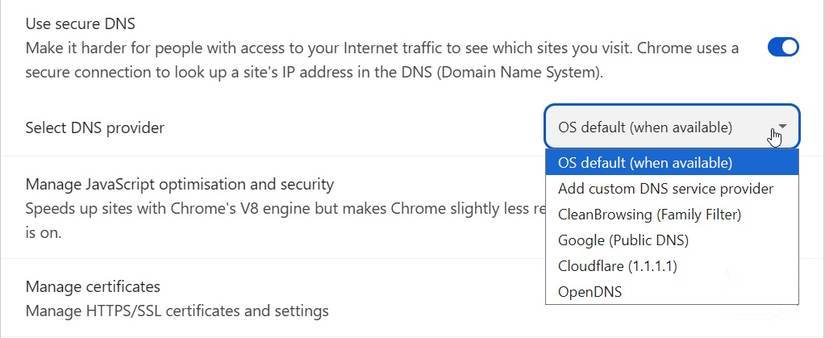
That said, those requests are sent in plain text, meaning your ISP, government, or anyone else with access to your connection can see what you're looking at. DNS over HTTPS, as the name suggests, encrypts every request from your browser, boosting your privacy with the flick of a switch.
- Go to Settings > Privacy and security > Security .
- Browse down to Security , find Secure DNS And toggle the switch.
From here, you have a few options. You can use the OS default Option because if you have custom DNS settings on your computer, Chrome will use that. If you don't have custom DNS settings but want to be safe, you can choose from the Chrome drop-down menu; we recommend using Cloudflare (1.1.1.1) because it's secure and private.
FAQ
How do you enable 'enhanced safe browsing' on Google Chrome: step-by-step guide?
In practical terms, Google Chrome has some powerful built-in protection features that warn you before you visit a shady site—and most people don't even realize they're turned on.
What should you check before getting started?
Review the requirements, compatible device or software version, and any warnings described in the guide before making changes.
What should you do if the steps do not work?
Repeat the steps in order, confirm that your app or system is up to date, and review the troubleshooting details provided above.
Related Articles
 Chrome Will Scan for Risky Files on Demand, Telling You5 minutes read
 5 Reasons to Enable Enhanced Protection in Chrome6 minutes read
 Enable Guest Browsing on Google Chrome and Chromebook5 minutes read
 How to Enable Enhanced Notifications to Manage Android Notifications7 minutes read
 How to Block Ads on Google Chrome4 minutes read
 How to Enable and Use Guest Mode on Chrome4 minutes read
Reader Comments 0
Sign in with email or Google to join the discussion.