Table of Contents
Explore regcool -- a safe Windows registry editor, including the key concepts, practical examples, important considerations, and useful guidance.
That anxiety vanished when people discovered RegCool, a free alternative registry editor that transforms the risky game of editing the registry into something far more manageable. If you've ever hesitated before pressing Enter in Registry Editor, this might be the confidence you've been waiting for.
What is RegCool?
RegCool is a powerful, free, and flexible alternative editor for the Windows Registry, offering more features than the built-in Regedit, such as easy navigation, search/replace, backup/restore, snapshots, and offline editing, helping users improve the management of system settings, configuration files, and software configurations more securely and efficiently.
RegCool provides you with a "safety net" that the built-in Windows editor lacks
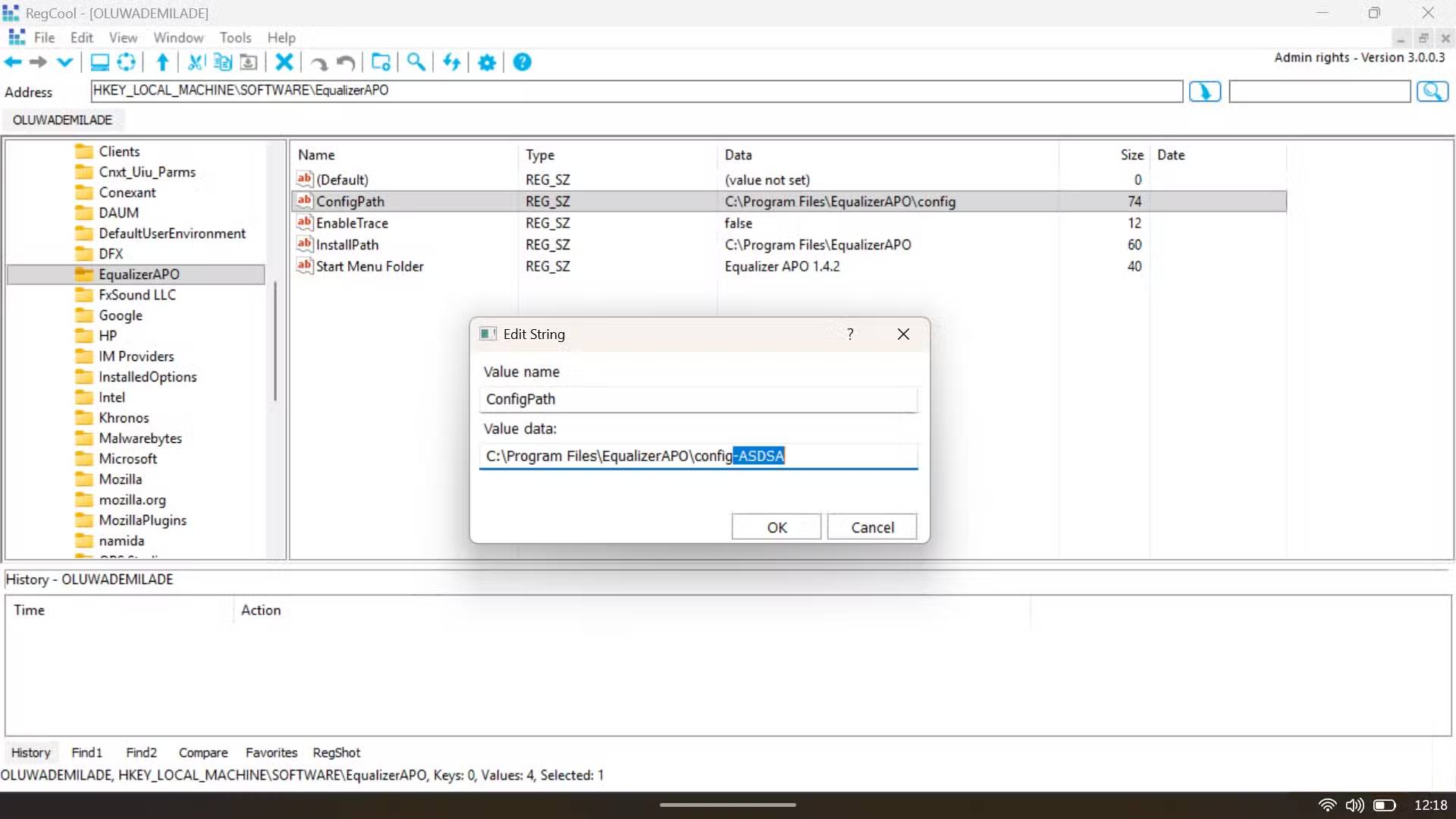
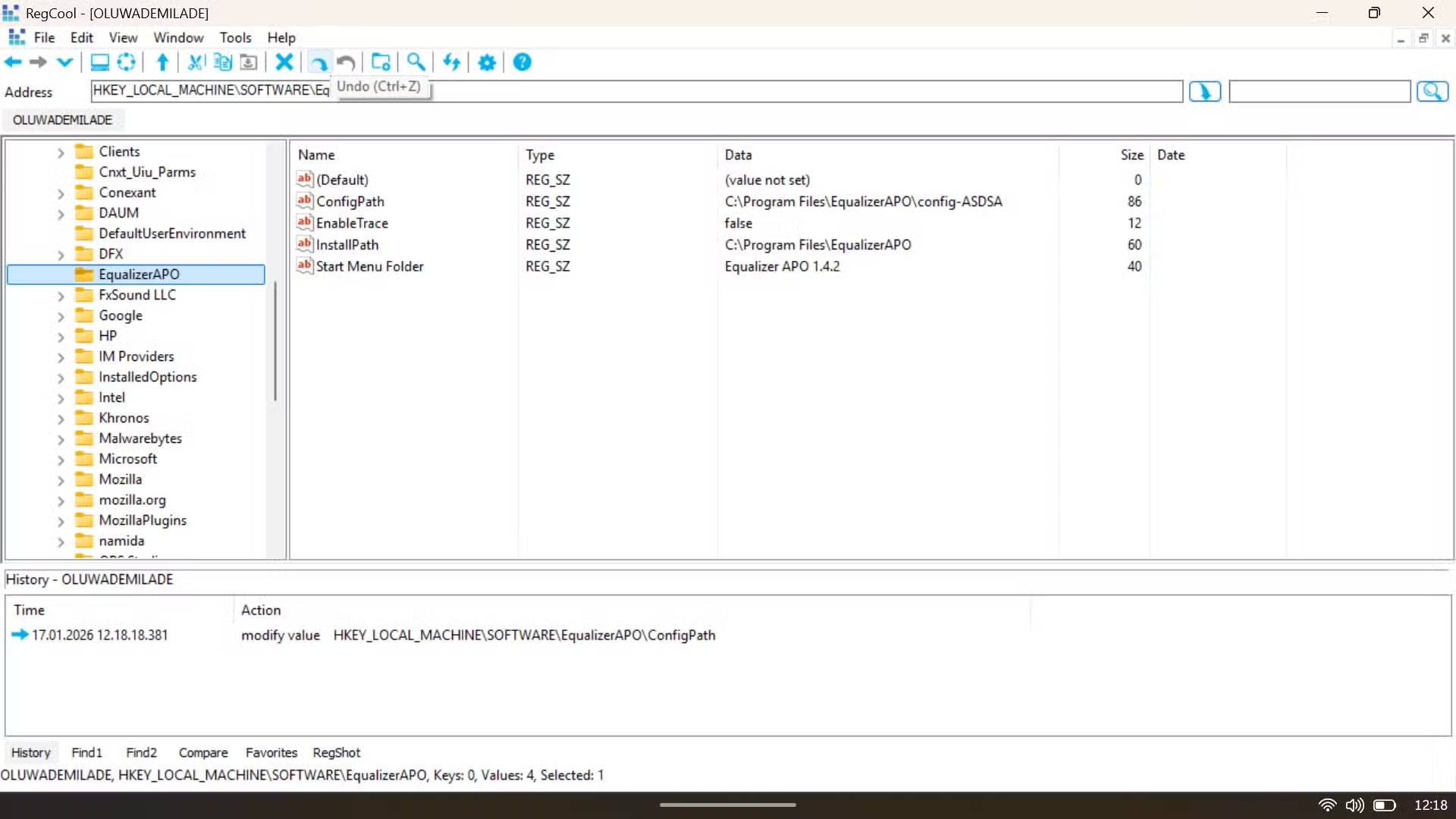
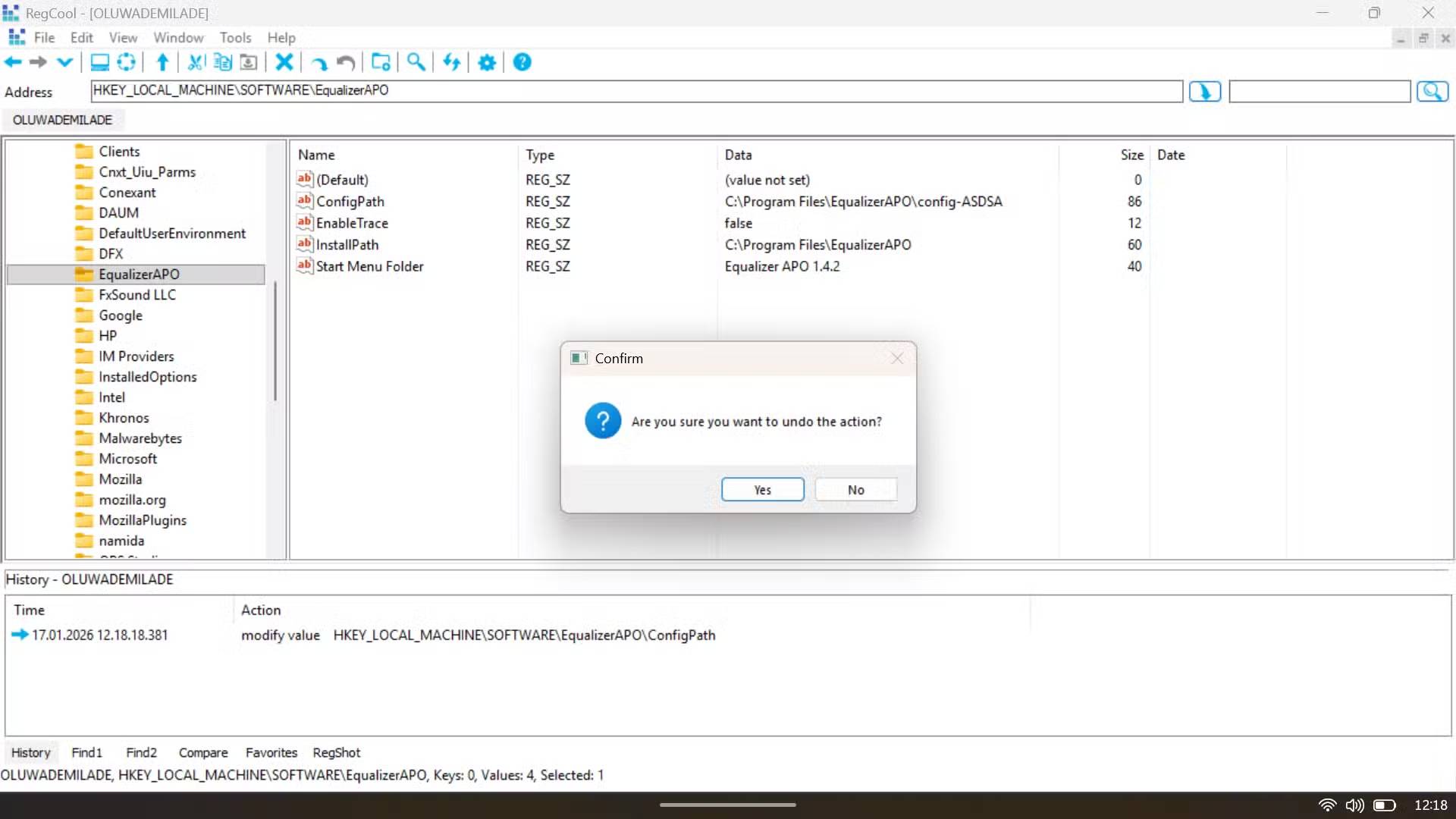
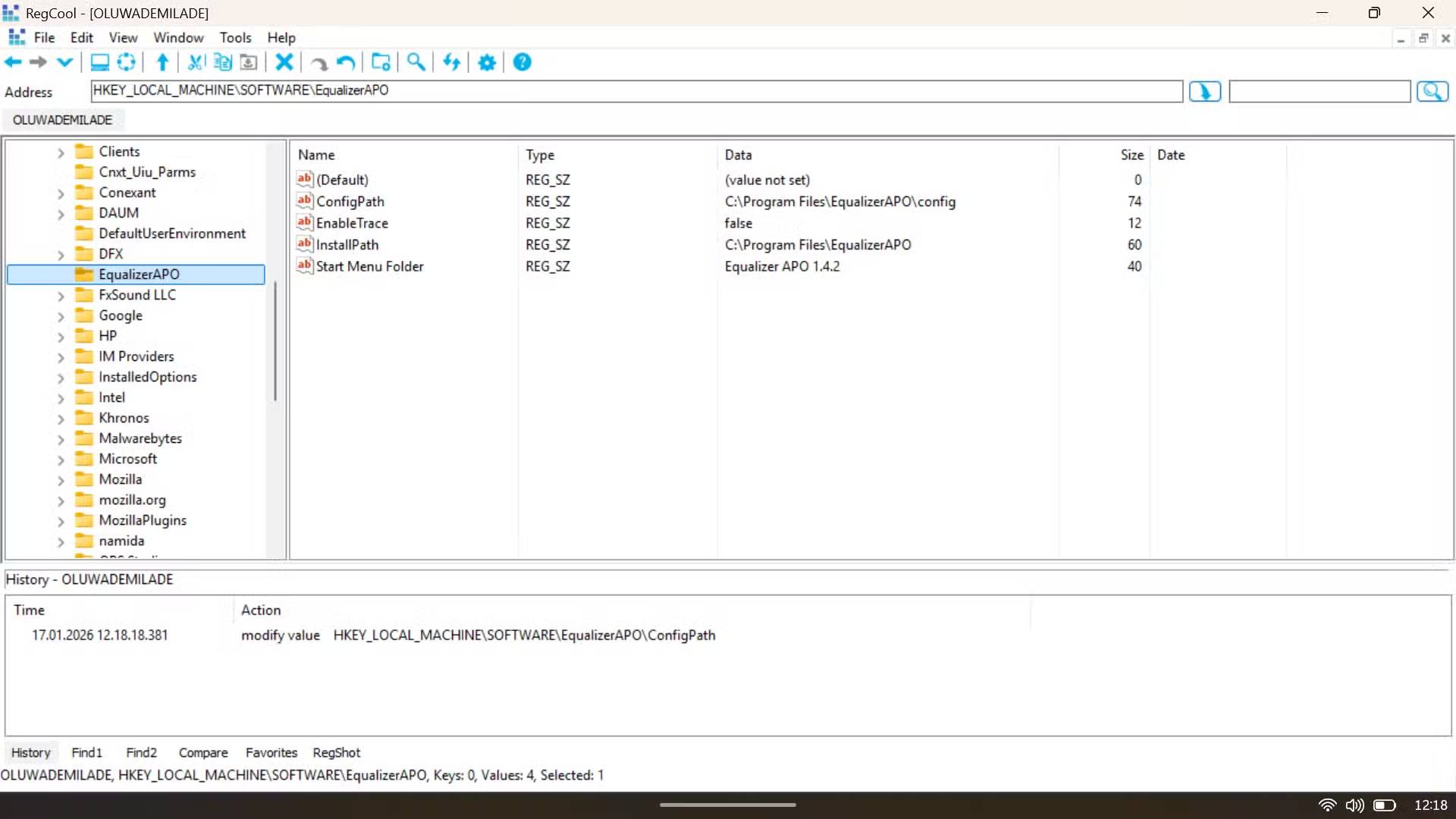
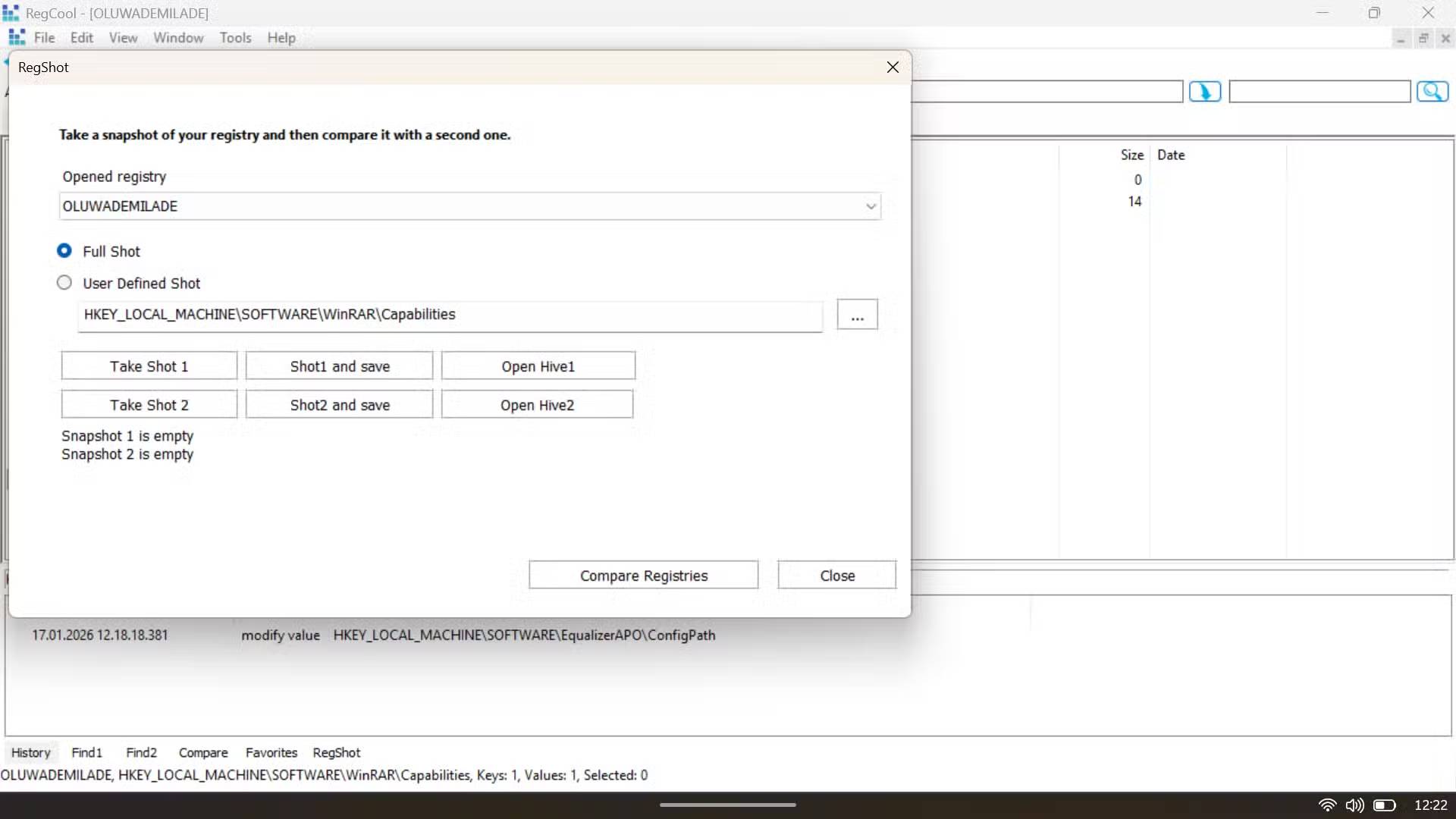
The most appealing feature in RegCool is also the simplest: Multi-level Undo and Redo functionality that can be saved to disk and reloaded at startup. Think about that for a moment. In regedit, every change is permanent immediately upon making it, which is why backing up and restoring the registry is often a crucial manual step. There's no Ctrl + Z and no grace period. You either get it right or you don't.
However, in RegCool, if you make a change and realize it was a mistake, you can undo it. A small confirmation dialog will appear asking if you're sure, and after you confirm, the History panel at the bottom will update immediately, recording every change with a timestamp down to the millisecond. Even if you close the program and come back a few days later, your undo history will still be there.
RegCool's interface makes searching and editing registry entries easy
Bookmarks, navigation links, and the address bar – fantastic!
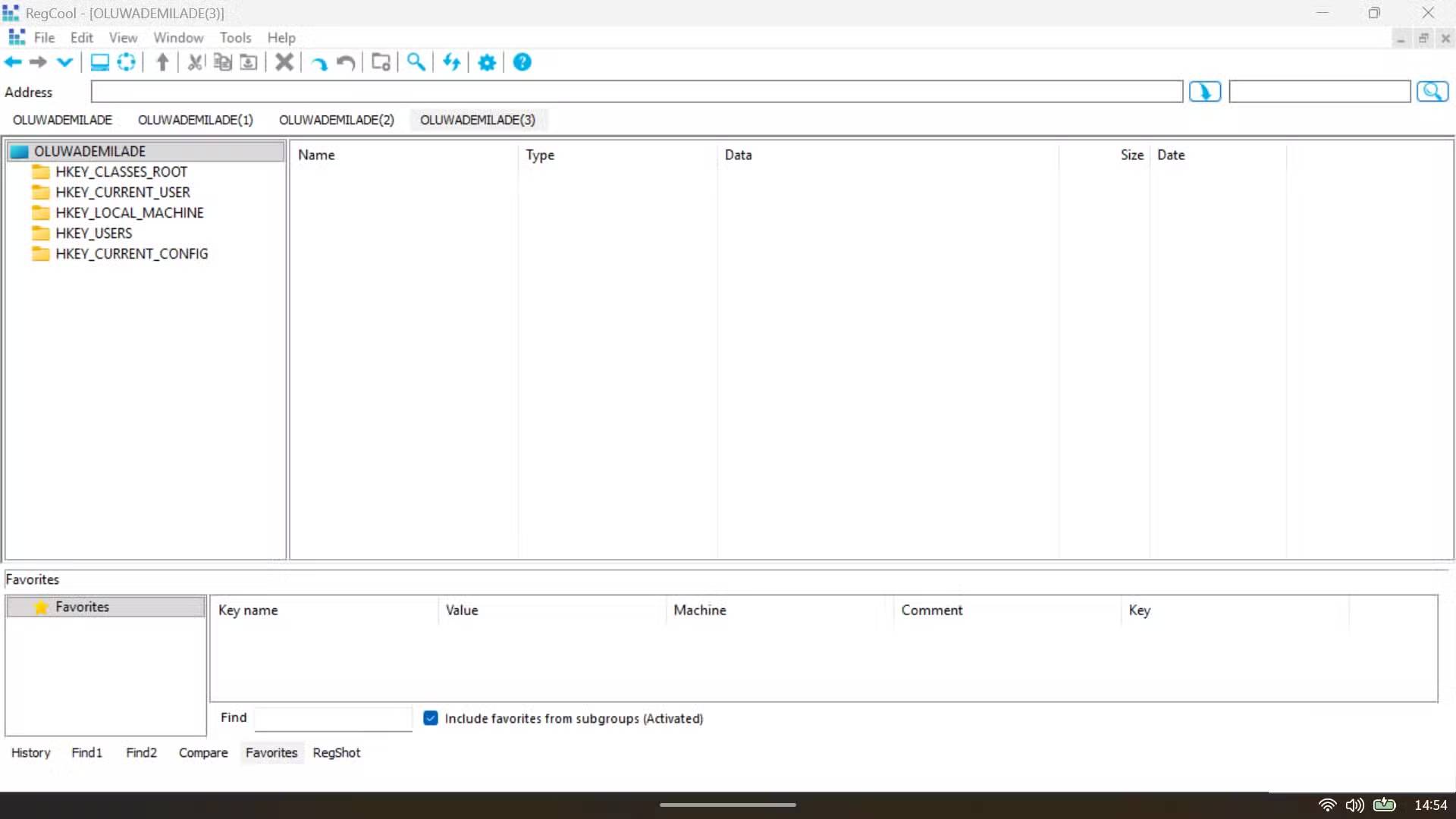
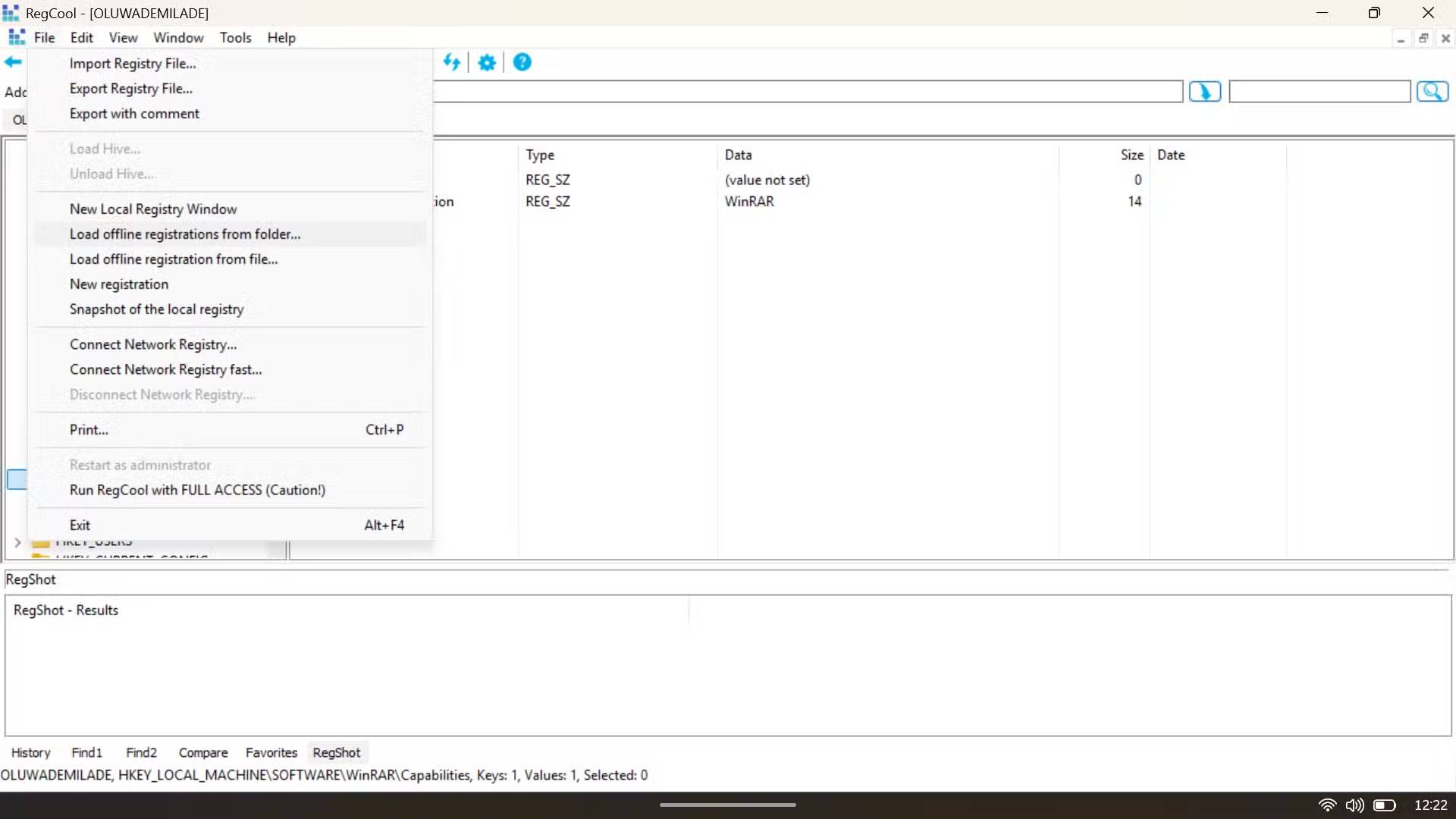
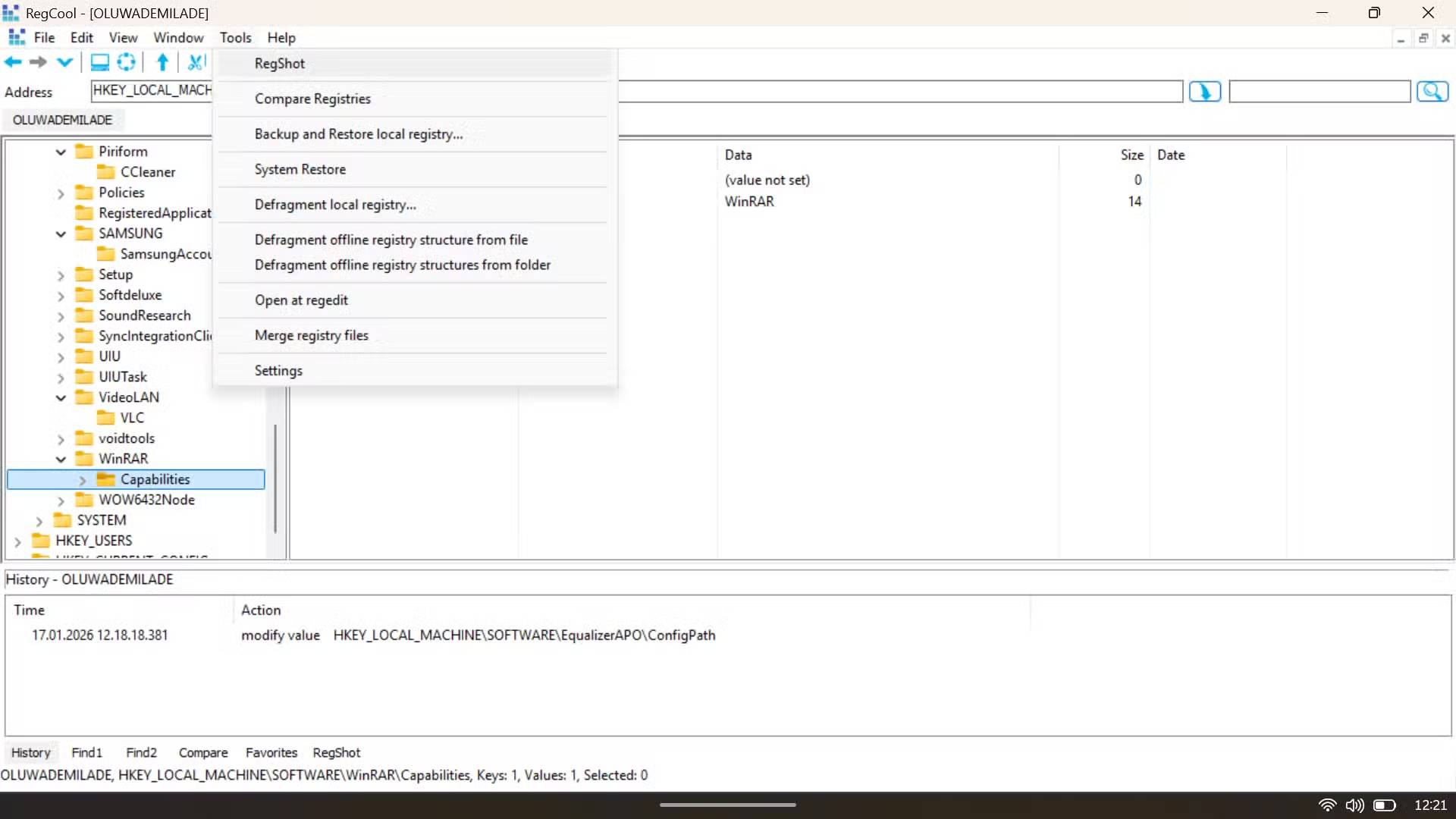
All the security features give you the confidence to explore the registry, but it's RegCool's interface that makes working within it quite pleasant. The first time you open it, a quick start prompt will guide you through 3 permission modes: No admin privileges, admin privileges, or system privileges with full access. This transparency about the type of privileges you hold avoids a lot of guesswork later on.
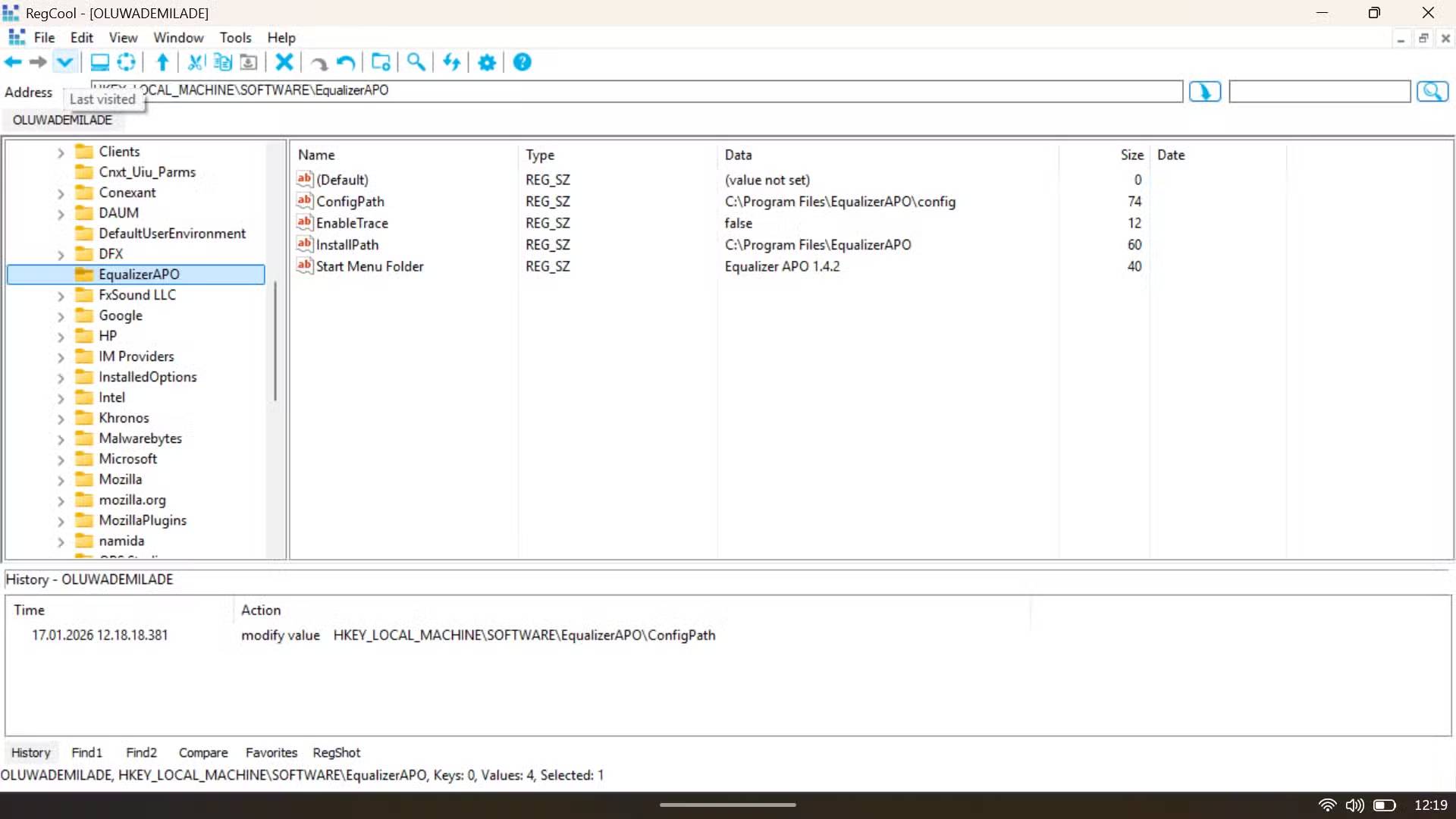
The layout retains Regedit's familiar tree and table structure, so nothing feels alien, but it refines almost every part of the experience. The left pane lists the standard registry branches—HKEY_CLASSES_ROOT, HKEY_CURRENT_USER, HKEY_LOCAL_MACHINE, HKEY_USERS, and HKEY_CURRENT_CONFIG—with clearer icons and more responsive expand and collapse controls, making navigating the deep key structure much easier.
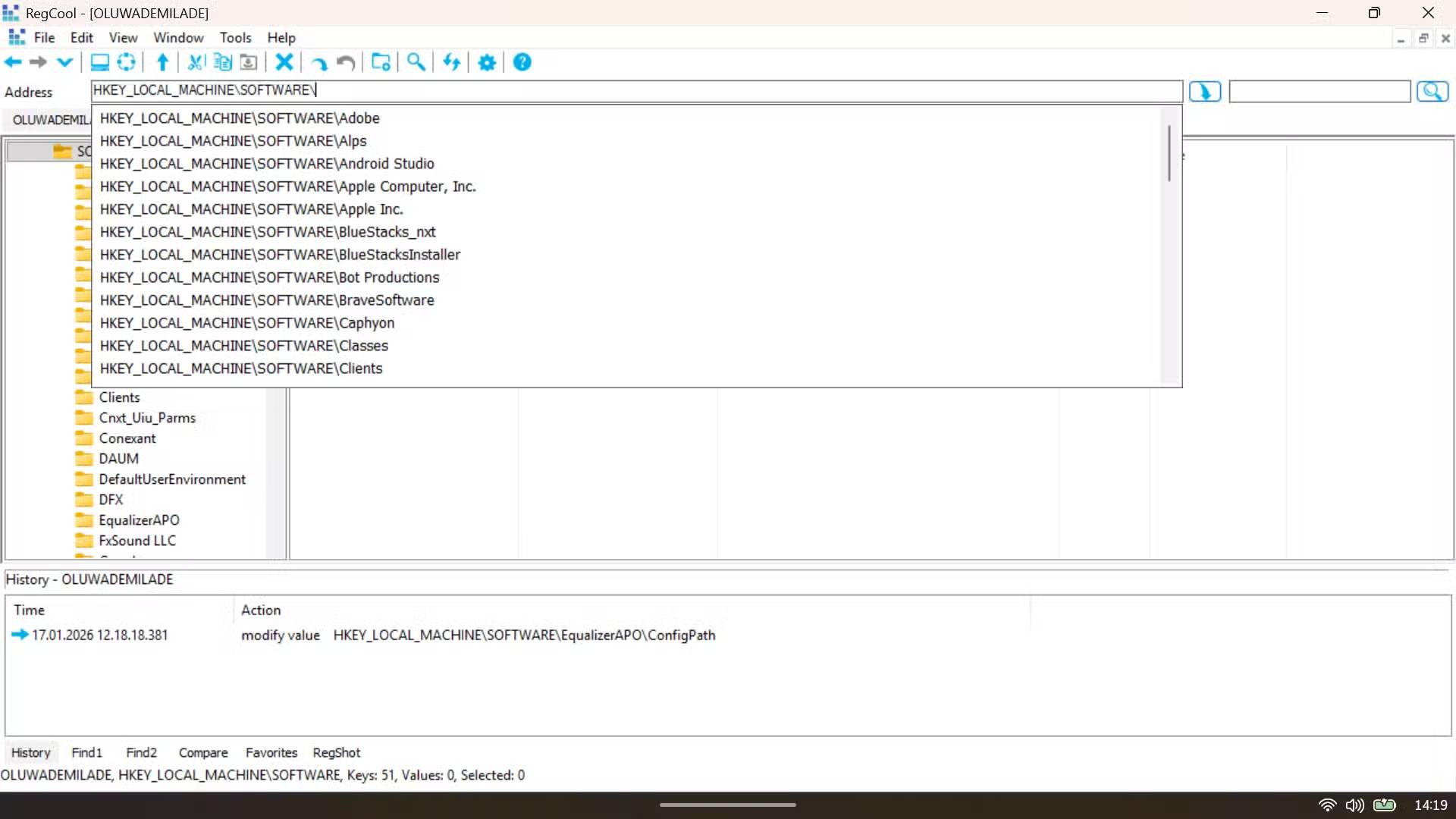
The address bar at the top is also worth mentioning. Instead of having to click through multiple layers of folders, you simply type in the desired registry path. When you do, RegCool provides auto-completion suggestions in a handy drop-down menu, so you can jump straight to the exact location. If you already know where you're going, this feature alone can save you several minutes. The History panel below immediately records each modification with the exact timestamp and action performed, along with the full registry path.
A quick overview of the Settings menu
Customization is for those who like to be in control
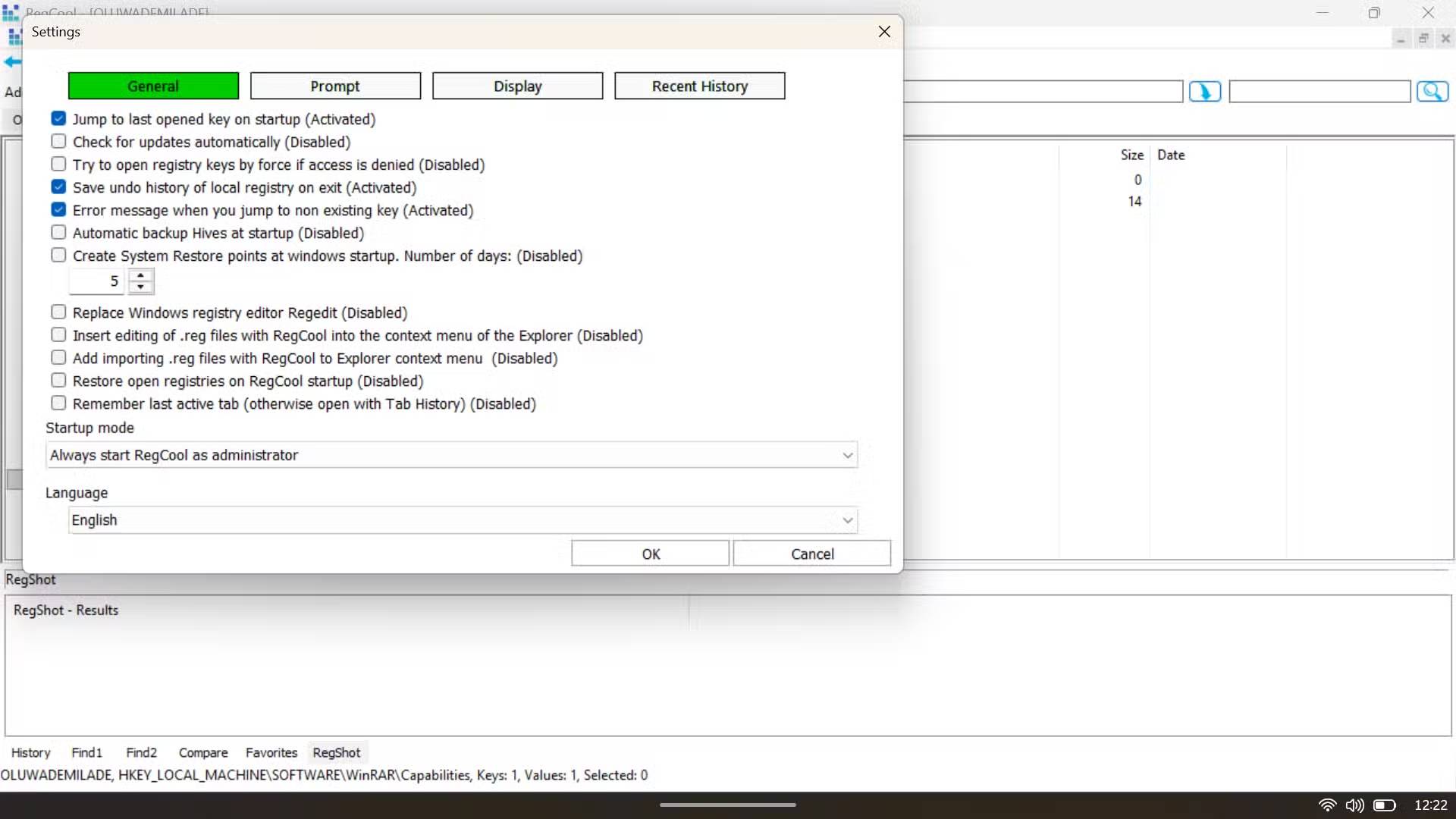
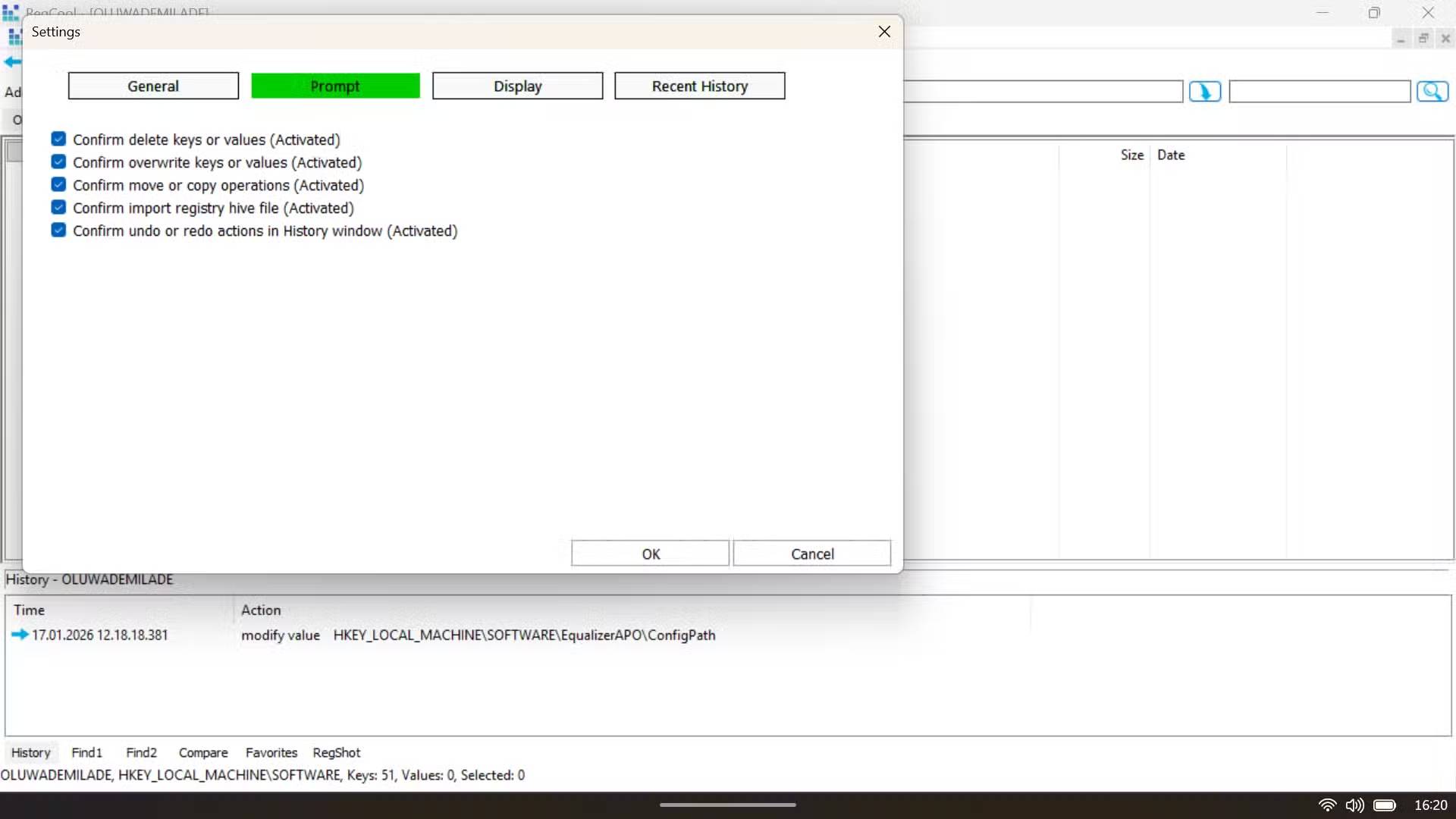
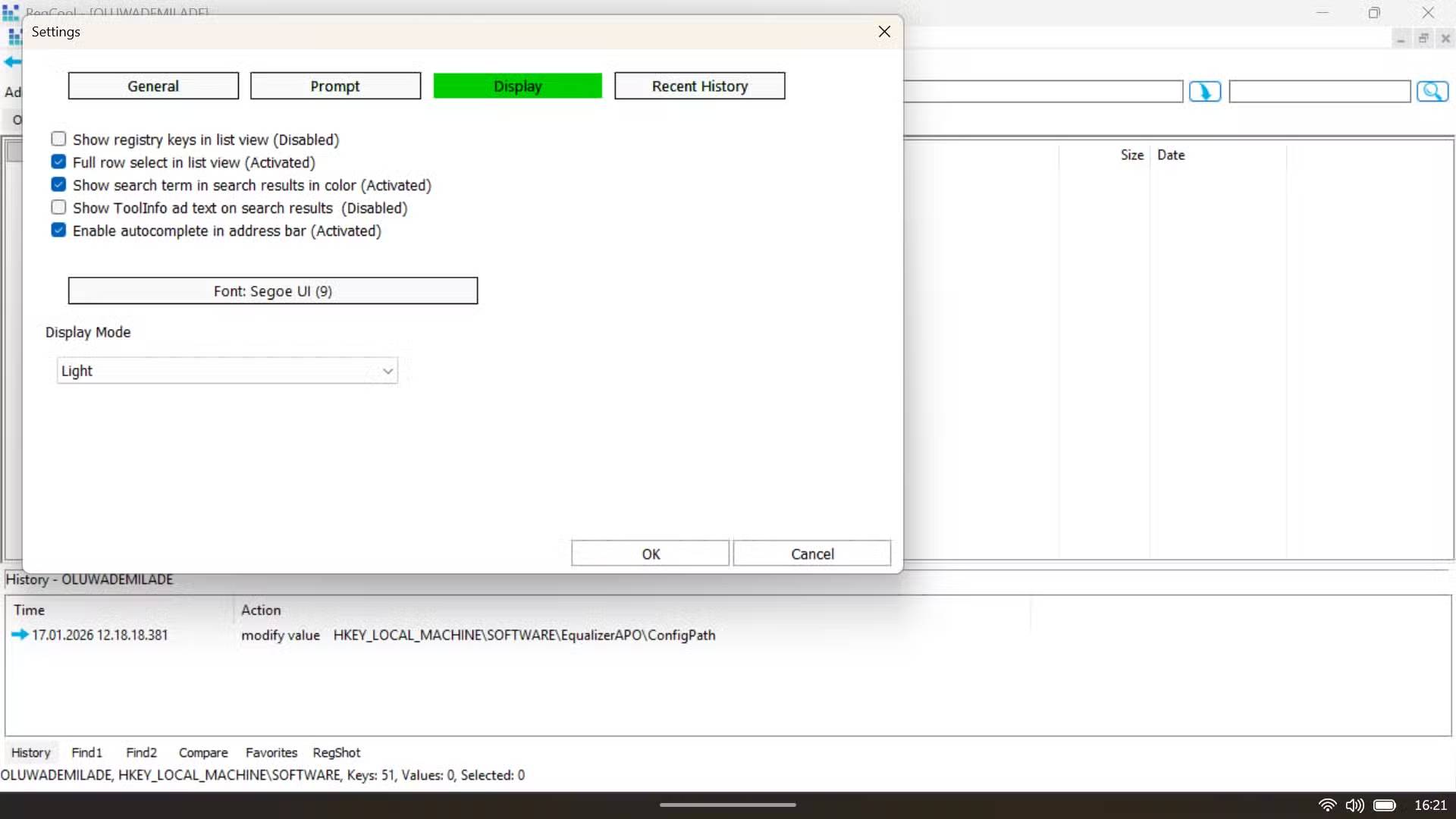
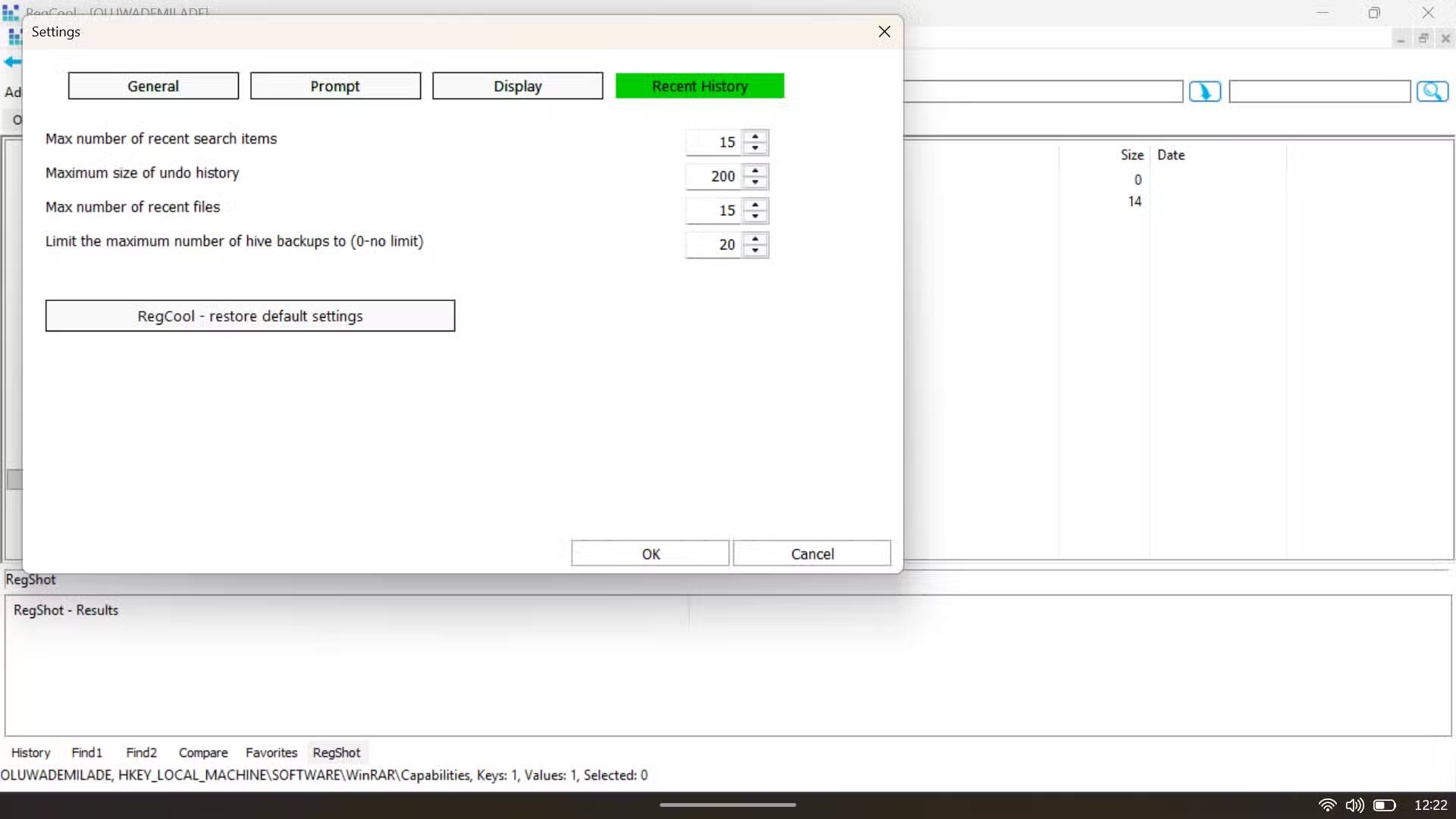
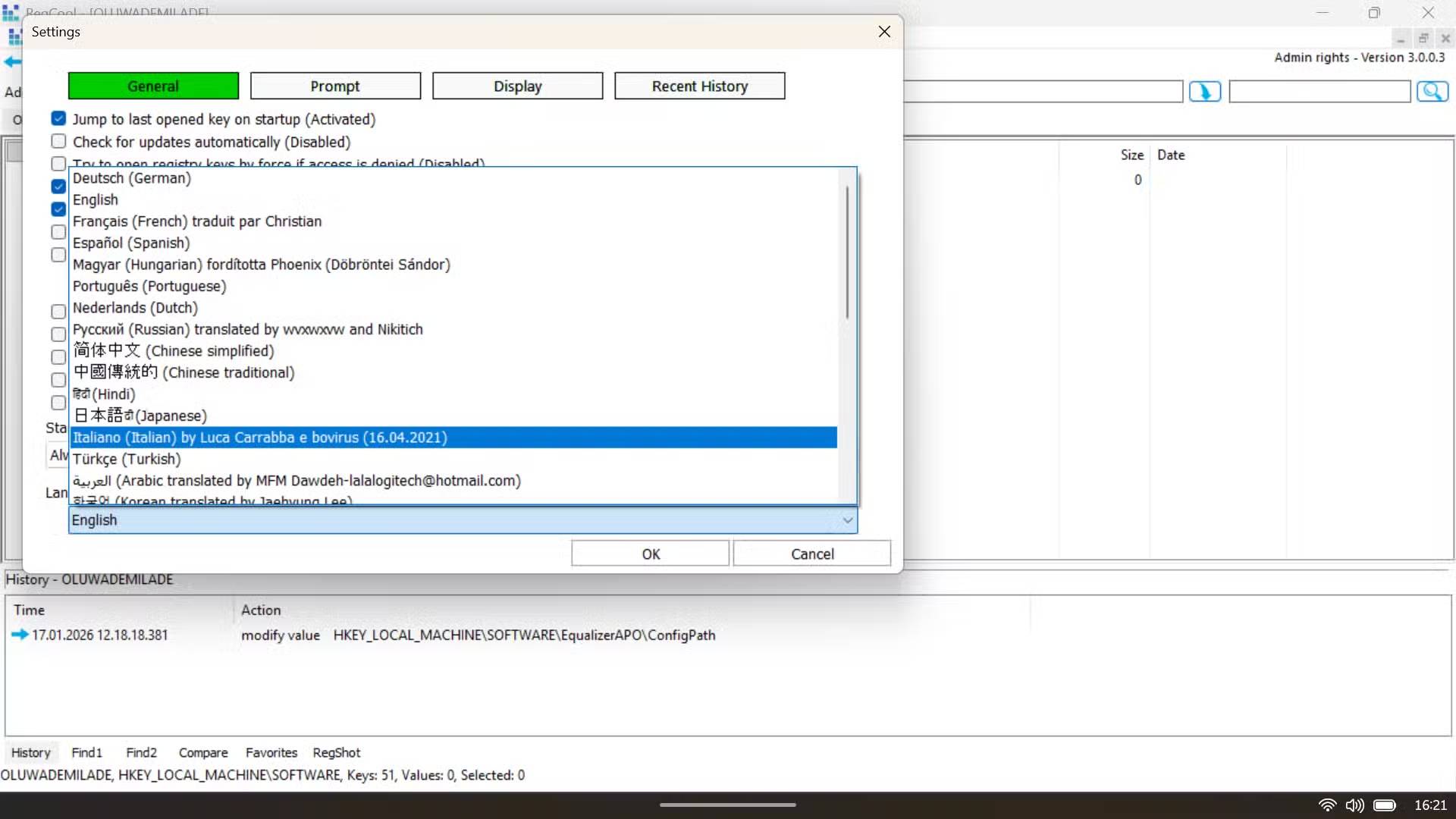
The Settings panel is where you really start to see just how flexible RegCool is. In the Recent History section, you can fine-tune things like the number of undo steps saved, the number of previous searches and recent files remembered, and the number of hive backups stored. If 200 undo levels seem a bit low, you can increase them. And once you're familiar with it, the Prompt settings let you decide exactly when the application should stop and ask for confirmation.
One of the most notable options is located in the General settings: 'Replace Windows Registry Editor (Regedit)'. It's disabled by default, but enabling it makes RegCool the system's default tool for all registry tasks. Having this option is an implicit affirmation from the developers that RegCool is not just an alternative to Regedit, but a complete replacement.
Final Thoughts
Understanding regcool -- a safe windows registry editor makes it easier to evaluate the information and apply the most relevant recommendations. Focus on the key points above and verify details that may change over time.
FAQ
What is regcool -- a safe windows registry editor?
Explore regcool -- a safe Windows registry editor, including the key concepts, practical examples, important considerations, and useful guidance.
What key points does this article cover?
The article focuses on What is RegCool?, RegCool provides you with a "safety net" that the built-in Windows editor lacks, RegCool's interface makes searching and editing registry entries easy, with practical explanations and examples.
How can you use this information in practice?
Use the explanations to compare options, verify important details, and make a more informed decision. Apply the recommendations that best match your goals and situation.
Related Articles
 Block Access to Registry Editor on Windows 10/8/79 minutes read
 How to Use Regedit: Complete Guide9 minutes read
 How to Open the Registry Editor on Windows4 minutes read
 Microsoft Adds the Address Bar to the Registry Editor3 minutes read
 50 Registry Tricks to Help You Become a True Windows 7 // Vista4 minutes read
 How to Enable Regedit9 minutes read
Reader Comments 0
Sign in with email or Google to join the discussion.