Table of Contents
This updated guide explains how to enable low battery warning on Windows 11 with clear steps, practical tips, and useful context. To avoid the situation of the computer running out of battery, users can enable low battery warning on Windows 11 with the battery capacity level that you set yourself.
Enable Windows Low Battery Warning via Power Options
One way to get low battery notifications is to use Windows 11's built-in alerts feature, which appears via the system tray.
Step 1:
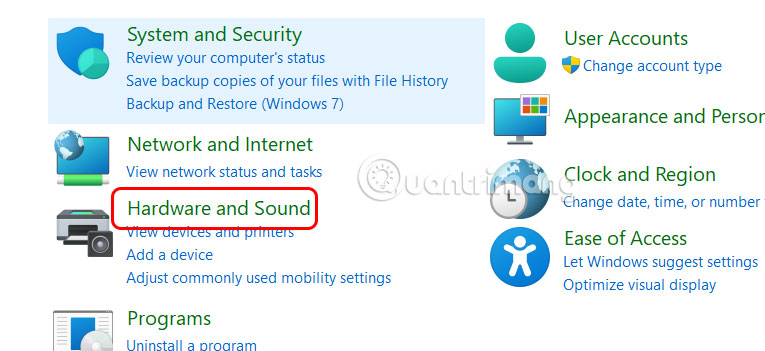
Open Control Panel and select Hardware and Sound as shown below.
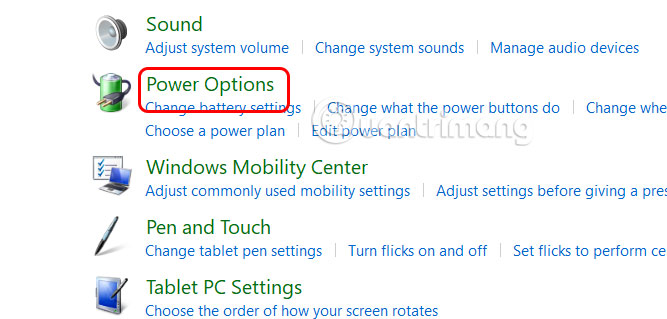
Next, we select Power Options to adjust the battery on the computer.
Step 2:
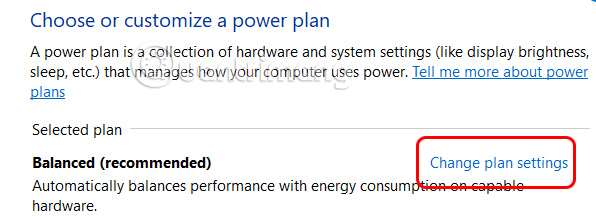
open the new option, we select Change Plan Settings .
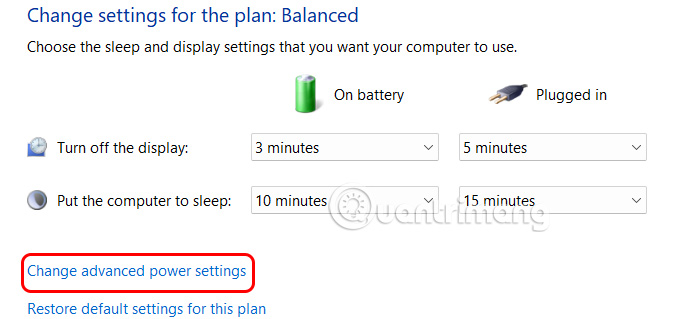
Continue to select Change Advanced Power Settings to access advanced battery settings on your computer.
Step 3:
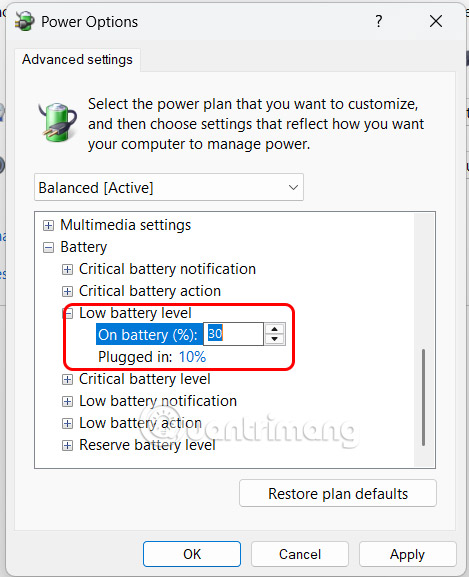
In the new dialog box, select Battery at the bottom to expand the settings. Continue to select Low Battery Level and then adjust the low battery capacity % level to send notifications . Then choose Apply to save the settings.
Create Low Battery Alert Using Windows 11 Task Scheduler
Step 1:
In the Notepad interface, the user enters the command content below and replaces the battery capacity you need to report low battery at if ($Level -lt 30) .
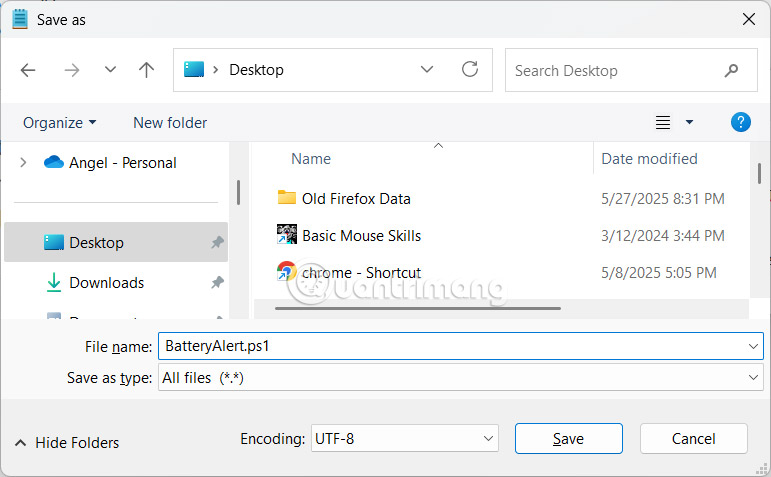
$Battery = Get-WmiObject -Class Win32_Battery $Level = $Battery.EstimatedChargeRemaining if ($Level -lt 30) { [Windows.UI.Notifications.ToastNotificationManager, Windows.UI.Notifications, ContentType = WindowsRuntime] $template = [Windows.UI.Notifications.ToastNotificationManager]::GetTemplateContent([Windows.UI.Notifications.ToastTemplateType]::ToastText01) $toast = $template.GetElementsByTagName("text")[0] $toast.AppendChild($template.CreateTextNode("Pin còn dưới 30%! Vui lòng cắm bộ sạc.")) $notifier = [Windows.UI.Notifications.ToastNotificationManager]::CreateToastNotifier("Cảnh báo pin") $notifier.Show([Windows.UI.Notifications.ToastNotification]::new($template)) }Then save the file with the file name BatteryAlert.ps1 with the format All Files and save it on the Desktop.
Step 2:
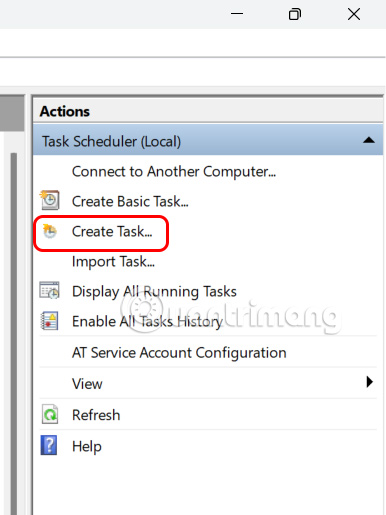
Next, we open Task Scheduler and then choose Create Task .
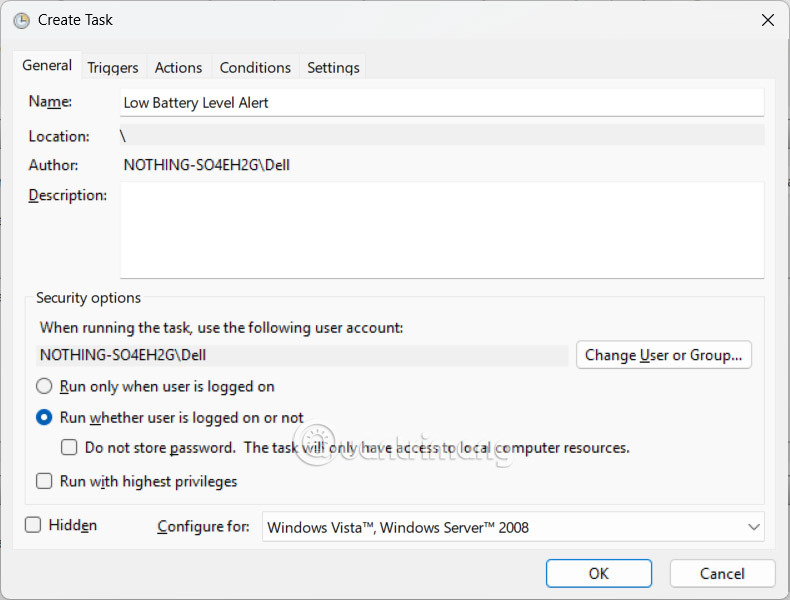
Display the new interface, enter the name at Name and then select Run Whether User Is Logged On or Not .
Step 3:
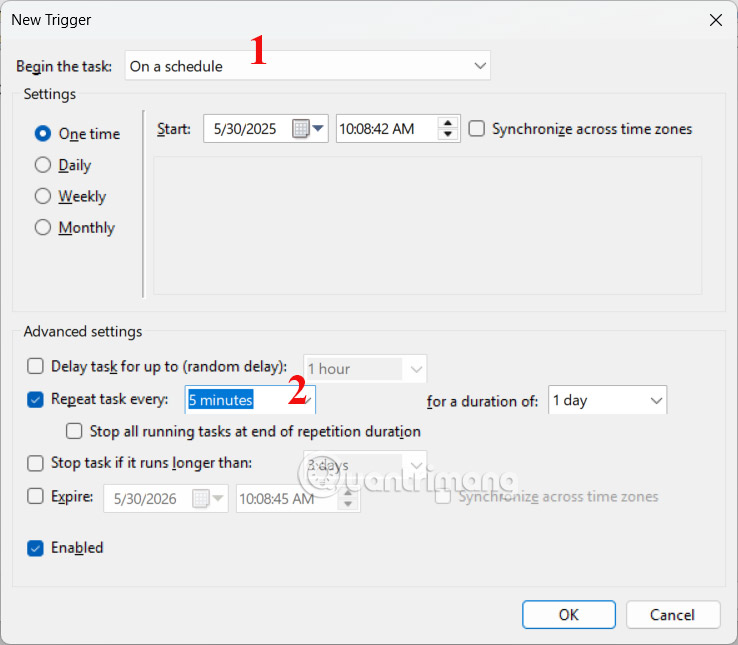
select the Triggers tab and select New to create a new task. At Begin the Task, we select On a Schedule to create a scheduled task. Next, at Advanced Settings, the user selects Repeat Task Every and selects the number of minutes for the task to repeat .
Step 4:
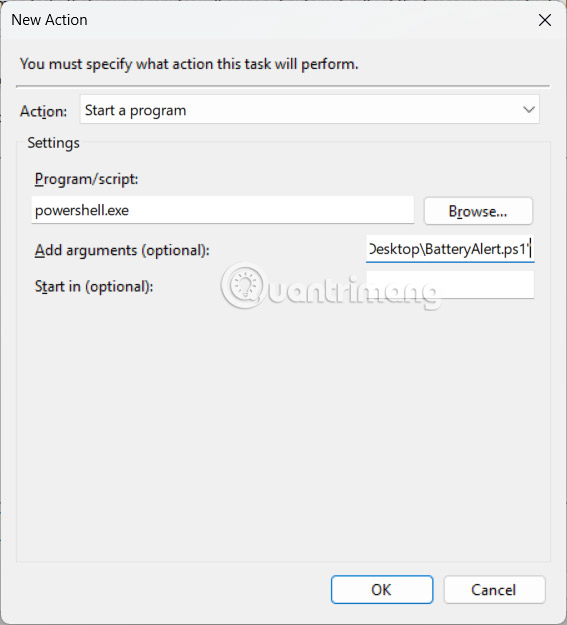
select the Actions tab and choose New to create a new task. Then in Program/Script , enter powershell.exe . In Add Arguments (Optional) , paste the path below and replace it with the path to the Notepad file you saved .
-ExecutionPolicy Bypass -File "C:UsersUsernameDesktopBatteryAlert.ps1"Finally choose OK to save the settings.
Task Scheduler will run a PowerShell script every five minutes or custom time to check your laptop's battery level. If the battery level drops below the specified percentage, you will receive a notification.
FAQ
What should I prepare before I enable low battery warning on windows 11?
Review the requirements and options in the guide first. Having the correct device, app version, account access, or materials ready helps prevent avoidable errors.
How long does it take to enable low battery warning on windows 11?
The time depends on the task and your setup. Most basic steps can be completed quickly, while downloads, updates, scans, or troubleshooting may take longer.
What should I do if the steps do not work?
Repeat the instructions in order, confirm that your software or device is supported, and check permissions, connectivity, and available updates before trying again.
Related Articles
 How to Fix Service Battery Warning on Mac: Check Charging8 minutes read
 How to Turn Sensitive Content Alerts on and Off on iPhone7 minutes read
 How to Enable the Battery Saver Function on Your Laptop6 minutes read
 Instructions to Enable // Disable Windows 10 Battery Saver5 minutes read
 How to Enable/disable Battery Saving Mode on Windows 11 Laptop4 minutes read
 Steps to Enable Battery Saving Mode (Battery Saver) on3 minutes read
Reader Comments 0
Sign in with email or Google to join the discussion.