Table of Contents
Overview
This guide explains how to enable/disable battery saving mode on Windows 11 laptop in clear, practical terms. It covers the key concepts, recommended steps, common limitations, and useful checks so you can make a better-informed decision.
Windows 11 Battery saver is a feature designed to extend the battery life of your laptop. When enabled, the Battery saver feature reduces power consumption by reducing the device's performance and limiting background activities. Users can manually configure various parameters of the battery saver mode in Windows settings. Here are instructions on how to enable and disable Windows 11 battery saver mode.
How to manually turn on/off battery saving on Windows 11 laptop
Use the taskbar to turn on Windows 11 battery saver
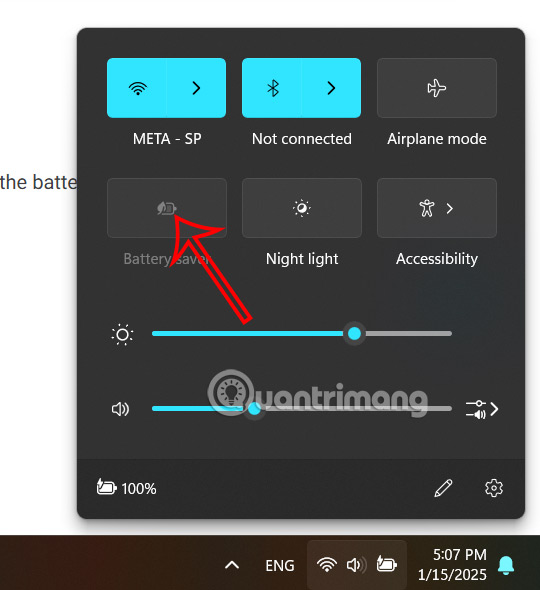
First, in the system tray, click on the Wi-Fi icon to display the interface with customization tools. Now you just need to click on the Battery saver icon to turn on battery saving mode on Windows 11 laptop.
Turn on/off battery saving on Windows 11 laptop via Settings
Step 1:
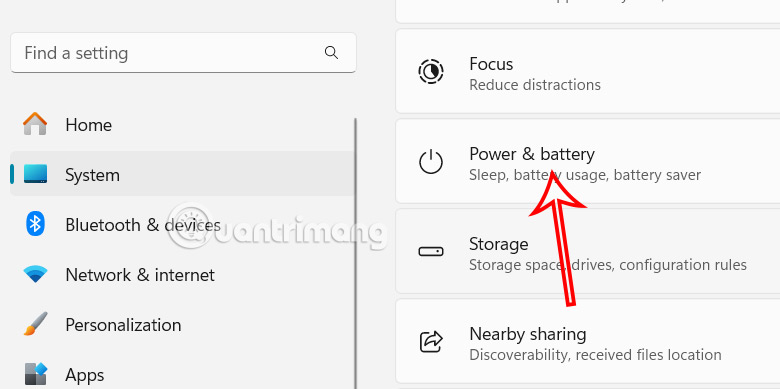
First, press the Windows + I key combination to access Settings, then click on System in the left pane and select Power & battery in the right column.
Step 2:
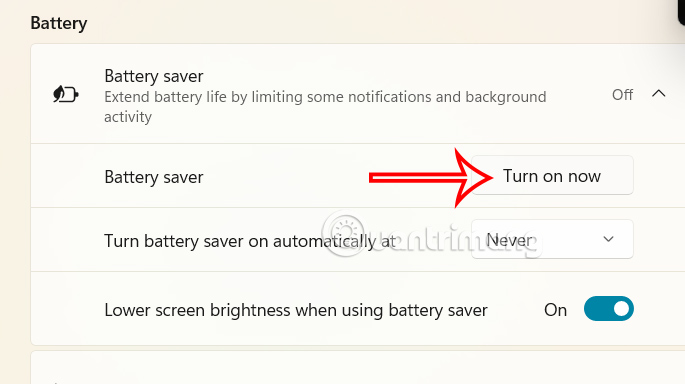
In this custom interface, we continue to click on Battery saver in Battery.

Then the user needs to switch to Turn on now mode to enable battery saving mode on Windows 11.
How to turn on battery saving on Windows 11 automatically
In Windows, you can set battery saver mode to automatically turn on or off, eliminating the hassle of having to set it manually every time.
Turn on automatic battery saving via Settings
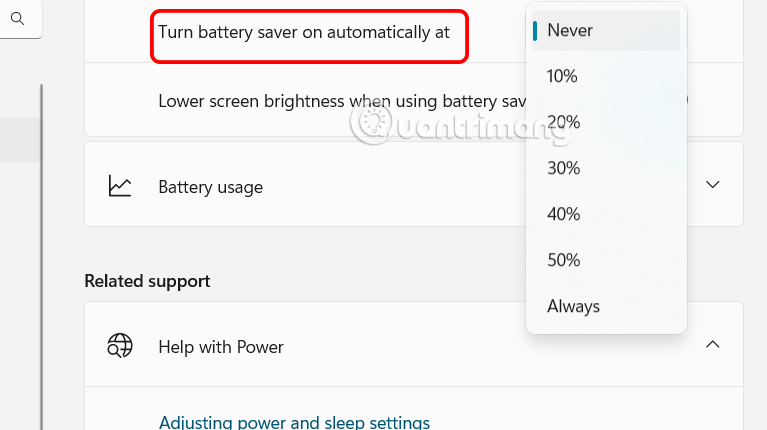
In the Battery saver Windows battery saving mode customization interface, at the Turn battery saver on automatically at line, we select the computer battery capacity % to automatically put the laptop into battery saving mode.
Using Windows PowerShell
Step 1:
First, you enter the keyword PowerShell in the search box on your computer and then insert it into the results.
Step 2:
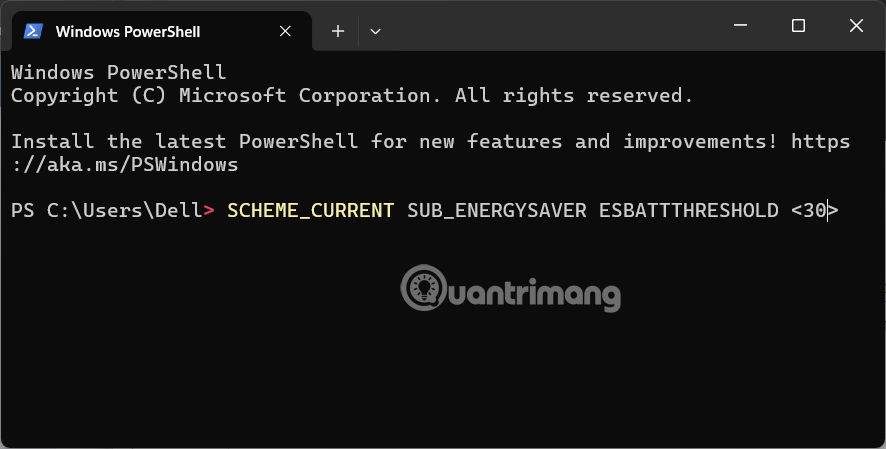
In the new interface, the user pastes the following command and presses Enter to run.
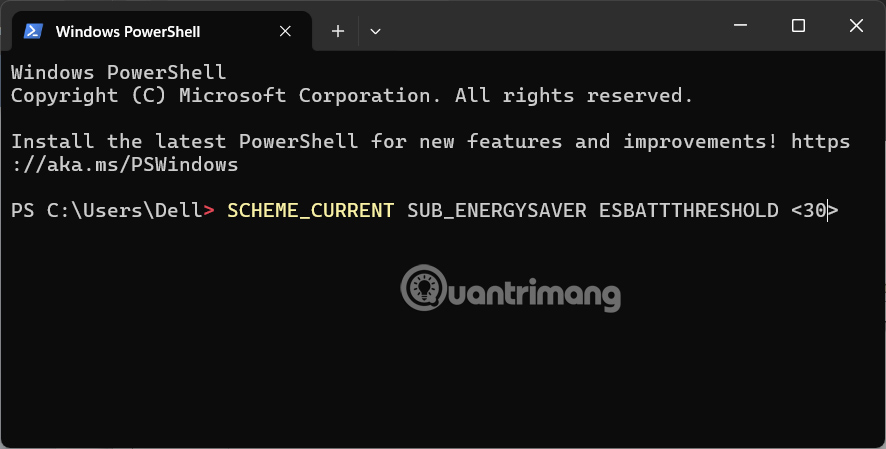
powercfg /setdcvalueindex SCHEME_CURRENT SUB_ENERGYSAVER ESBATTTHRESHOLD Note at is a number from 0 to 100. When you set it to 0, it means battery saver is off, when you set it to 100, it means battery saver is always on, and when you set it to 20, it means battery saver will automatically turn on when there is still 20% battery left.
Key Takeaways
Use the guidance above as a practical reference for how to turn off Windows 11 battery saver. Check compatibility, follow the steps carefully, and verify important details with official documentation when software, security, accounts, health, or purchases are involved.
FAQ
How do I enable/disable battery saving mode on Windows 11 laptop?
Follow the steps in this guide in order, confirm each setting before continuing, and save, restart, or reconnect the device when the instructions require it.
What should I check before I begin?
Confirm the correct device, account access, software version, compatibility, and a current backup whenever the process could affect files, settings, or security.
What should I do if the process does not work?
Repeat the steps carefully, check for model or version differences, install available updates, and consult the manufacturer's official support documentation.
Related Articles
 How to Enable Battery Saving Mode on Opera3 minutes read
 Steps to Enable Battery Saving Mode (Battery Saver) on3 minutes read
 Use Low Power Mode to Save Battery on iOS8 minutes read
 Instructions to Enable // Disable Windows 10 Battery Saver5 minutes read
 8 Tips to Extend Laptop Battery Life: Top Picks and Buying Guide10 minutes read
 How to Set Up the Correct Battery Charging Mode for Windows 10 Laptops7 minutes read
Reader Comments 0
Sign in with email or Google to join the discussion.