Table of Contents
Discover why does my phone's battery drain so quickly in standby mode and explore the main causes, risks, practical effects, and recommended actions.
That's not one of the basic settings. You're probably already familiar with adaptive charging, battery saver mode, automatic brightness, and turning off cellular data to save battery. However, you may not know that some Android phones actually keep cellular data connected – even when you've manually turned it off. This can drain your phone's battery faster than expected in Standby mode. It's easy to turn it off if you know where to find it.
This annoying setting can drain your battery
It's enabled by default and you need to find it in Developer Options
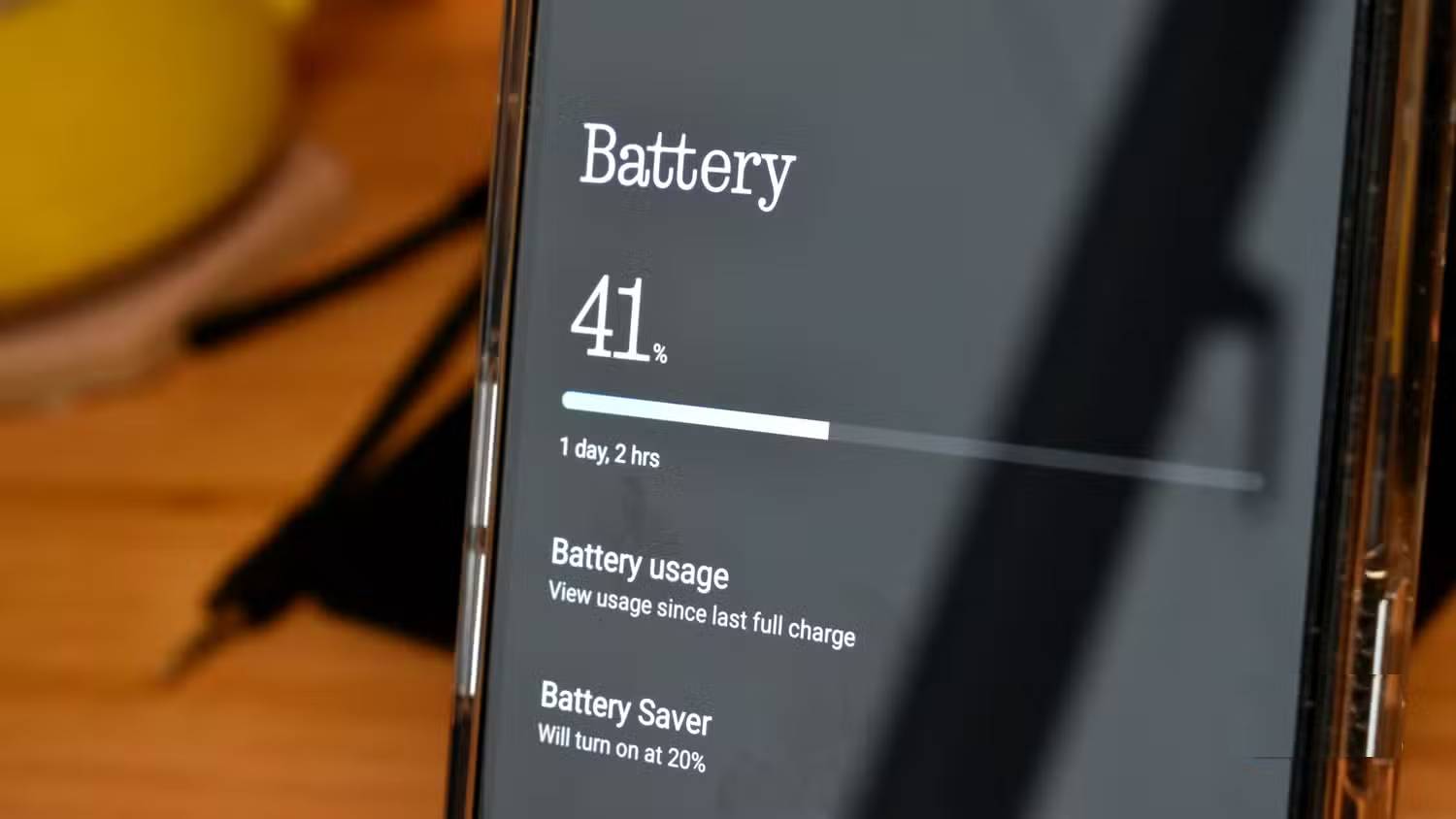
Android, like many other operating systems, has default behaviors that run in the background. Most users never know about them—until problems start to appear. Many of these lesser-known default settings and behaviors are hidden behind Android's Developer Options menu. This is a collection of advanced tools for developers, but professional users and enthusiasts may also find the additional toggles and customizations beneficial.
You can enable developer settings on any Android phone in just a few quick steps. First, open the Settings app and find the About phone page. Look for the build number or version number listed, which may be behind the tab called Version . Once you've found the build number, tap it seven times. You'll need to enter your password to confirm the change.
Warning : Developer Options are in beta testing. If you disable Developer Options after enabling them, the changes will automatically reset to default. Please be careful whenever you change settings in the Developer Options menu.
When you enable developer settings, all unlocked options will be accessible via Settings → System → Developer options. Opening this page will reveal all the Networking switches, including one labeled Mobile data always active . This switch may be on or off by default, depending on your device. OnePlus phones typically have this option disabled, while Samsung and Google phones usually have it enabled from the start.
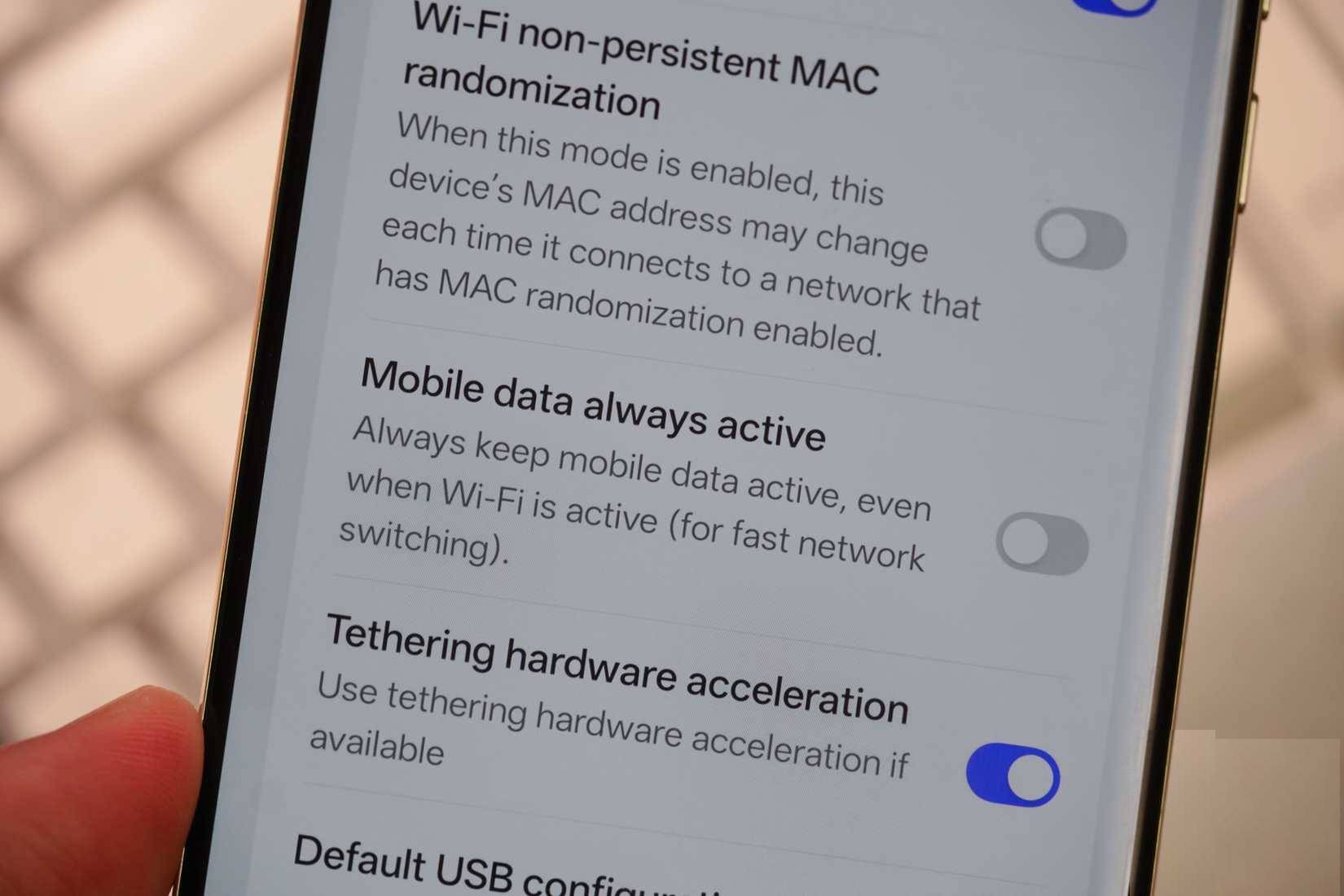
The Settings app describes this as a switch that can "keep cellular data active even when Wi-Fi is active (for quick network switching)". That pretty accurately summarizes its functionality and how it works. By default, some phones remain connected to the cellular network even when Wi-Fi is available. The idea is that when you leave Wi-Fi coverage or need to use cellular data, it will be available immediately without delay.
On the other hand, when Mobile data is always active , your device will make unnecessary mobile connections. Considering that 4G LTE and especially 5G connections consume a significant amount of energy, this is crucial. If your phone's battery drains unusually quickly in Standby mode, it may be connecting to the cellular network and using mobile data without your knowledge.
Why should you keep your mobile data always on?
Slower switching times and issues with Wi-Fi calls may persist
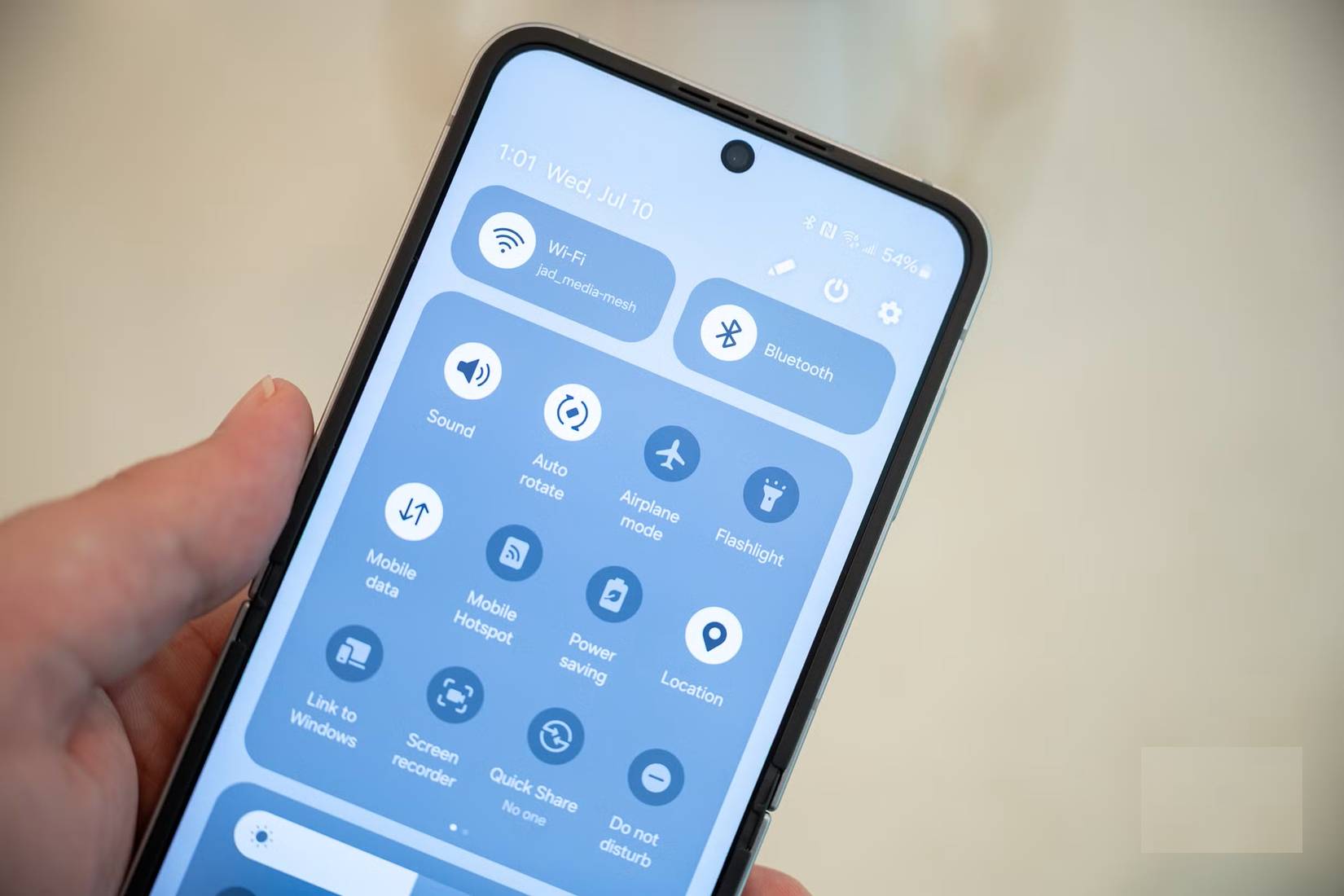
Fortunately, this setting is fairly easy to change after enabling Developer Options in the Settings app on your Android phone. The question is – should you turn it off? There are reasons for both options. When the Mobile data always active option is turned off, your phone will take longer to establish a cellular connection after you turn off Wi-Fi or go out of range. This can lead to longer loading times or interrupted calls in rare cases. Overall, you'll likely see a few extra seconds of delay when switching between Wi-Fi and cellular data after turning this option off.
It might sound like a minor inconvenience that could benefit battery life, but there's a caveat. Some use cases rely on both Wi-Fi and cellular data, such as making calls over Wi-Fi or sending MMS messages. When this feature is turned off, the phone might experience more dropped calls if you're using Wi -Fi calling. MMS messages might also fail to send. If you don't use Wi-Fi calling or are lucky enough to rely solely on RCS, this shouldn't be a major issue.
Is this hidden battery setting worth changing?
Yes, if you want to maximize your phone's battery life
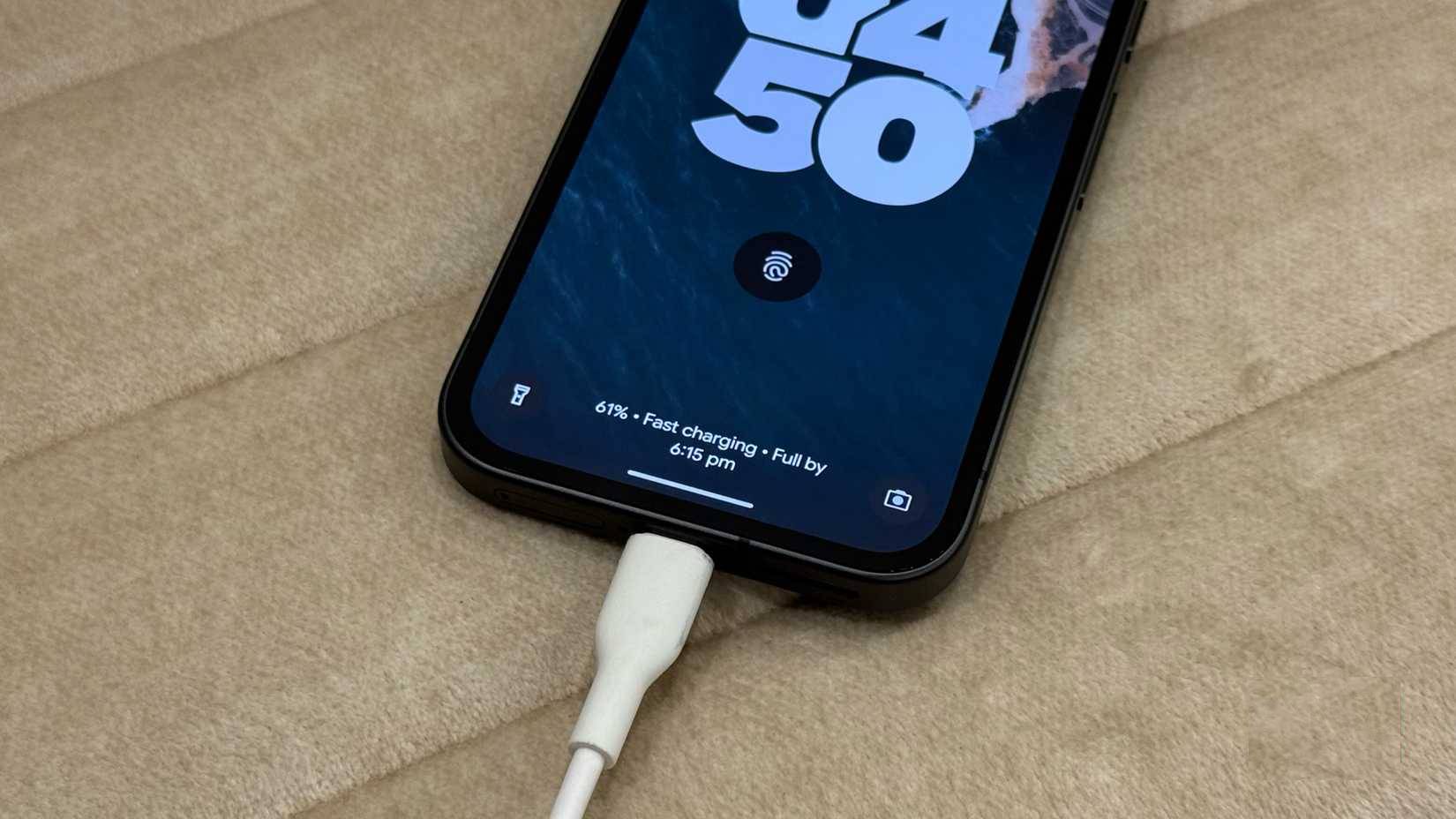
Most Android users will likely never need to navigate their phone's Developer Options menu to change this setting. The default setting will work fine for most people, whether it's on or off. The difference is minimal, but that doesn't mean it doesn't exist. If your battery life is already good, there's no need to turn off Mobile data always active . However, those experiencing issues, especially in Standby mode when connected to Wi-Fi, may find improved battery life by making this small adjustment.
This is something to keep in mind as your smartphone gets older. Battery life might be good now, but after the battery degrades, that can change. You can keep this Android trick handy for that situation and potentially extend battery life a little later on.
Final Thoughts
Understanding why does my phone's battery drain so quickly in standby mode makes it easier to evaluate the information and apply the most relevant recommendations. Focus on the key points above and verify details that may change over time.
FAQ
What is why does my phone's battery drain so quickly in standby mode?
Discover why does my phone's battery drain so quickly in standby mode and explore the main causes, risks, practical effects, and recommended actions.
What key points does this article cover?
The article focuses on This annoying setting can drain your battery, It's enabled by default and you need to find it in Developer Options, Why should you keep your mobile data always on?, with practical explanations and examples.
How can you use this information in practice?
Use the explanations to compare options, verify important details, and make a more informed decision. Apply the recommendations that best match your goals and situation.
Related Articles
 Windows 10's New Standby Can 'Kill' Laptop Batteries3 minutes read
 Turn Off These 8 Samsung Settings to Stop Your Phone from Draining8 minutes read
 How to Use Standby on iOS 17 to Turn iPhone into a Smart Watch4 minutes read
 How to Fix iOS 17 Battery Drain Error: Step-by-Step Guide6 minutes read
 iOS 26 Tips to Solve the Problem of iPhone Battery Draining: Key Takeaways6 minutes read
 How to Enable Battery Drain Notification on Xiaomi, Redmi and POCO2 minutes read
Reader Comments 0
Sign in with email or Google to join the discussion.