Table of Contents
This practical guide explains how to create a loop effect on powerpoint. Follow the steps in order, review the requirements first, and use the troubleshooting notes when a setting or option does not work as expected.
How to creating loop effects on PowerPoint
Step 1:
Select the object you want to animate, then click Animations > Add Animation and choose an effect that matches the content you have selected.
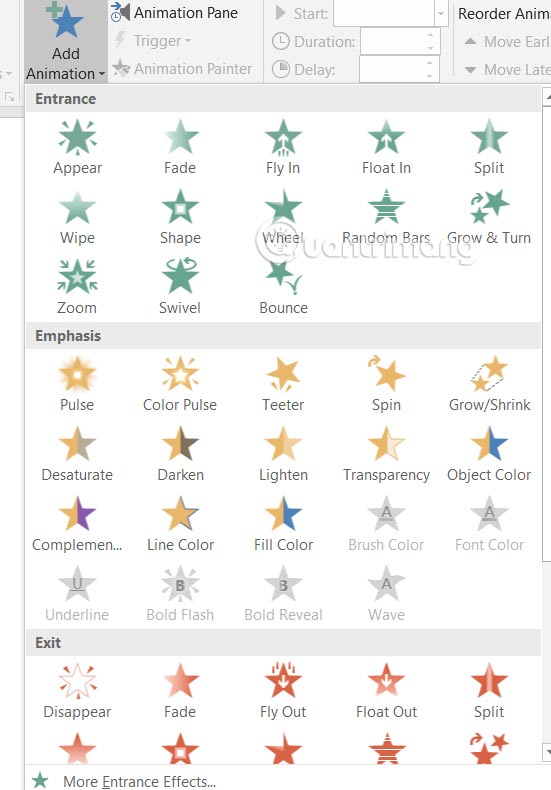
Step 2:
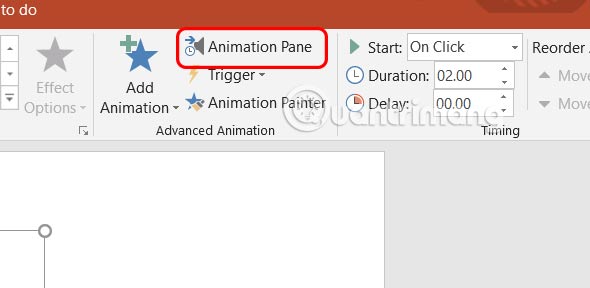
Next, select Animation Pane to make adjustments.
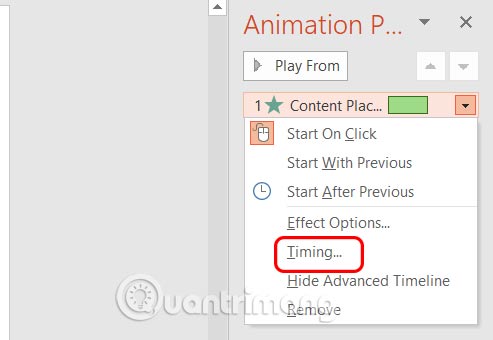
Displayed on the right side of the screen, right-select the effect and select Timing to adjust the time.
Step 3:
Displays a table with items for you to set up with the items included.
- Start options: Choose when the effect starts On Click, With Previous, After Previous animation.
- Duration: The time it takes for the effect to complete.
- Delay: The amount of time before the weather begins.
- Repeat: Set the number of times the effect repeats or repeats until the end of the slide.
- Triggers: Control when and how the effect starts (optional).
Here you will set up as follows:
- Start: Select With Previous or After Previous.
- Repeat: Select a number or select Until End of Slide to configure the repeat effect in your PowerPoint.
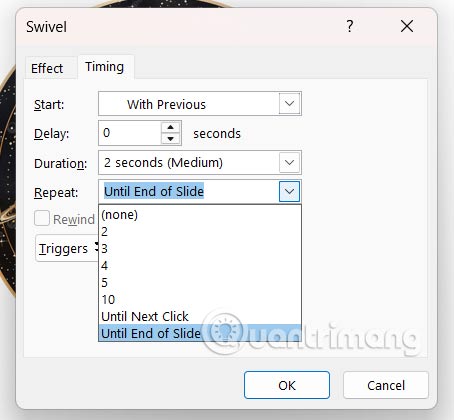
Finally click OK to save, the effect will repeat until the end of the slide.
FAQ
How to creating loop effects on PowerPoint?
Select the object you want to animate, then click Animations > Add Animation and choose an effect that matches the content you have selected.
What does this guide cover?
This guide explains create a loop effect on powerpoint, including the main steps, important details, and practical considerations.
Who is this guide for?
It is designed for readers who want a clear, practical overview and a reliable process they can follow without unnecessary complexity.
Related Articles
 How to Create Spotlight Effect in PowerPoint3 minutes read
 How to Loop in Powerpoint on PC or Mac7 minutes read
 How to Create an Effect for an Excel Chart in PowerPoint9 minutes read
 How to Use Disappearing Effects in PowerPoint5 minutes read
 How to Create PowerPoint Photo Album with Effects5 minutes read
 How to Create Powepoint Color Schemes4 minutes read
Reader Comments 0
Sign in with email or Google to join the discussion.